View
The View menu controls what you see in the task view, without changing any annotations. Use it to adjust the camera images and the point cloud, the 3D camera and projections, turn on display helpers such as grids, trajectories and node display, and show or hide task guides.
Depending on the task and view, this menu tab will vary in items.
In the 2D grid view, the View menu only has Projections and Drawing instructions.
Image processing
Pixelation
By default, image and frame pixels blend. When Pixelation is activated, you can see each pixel separately when you zoom in, which can be helpful in tasks where edges are essential.
Inversion
When the inversion setting is activated, each pixel's color is changed to its opposite hue in the color spectrum.
Histogram equalization
This feature will provide better detail in over- or under-exposed pictures and pictures with poor contrast.
Camera
The camera items are only shown when you are viewing the point cloud.
3D camera → Behavior
The 3D camera can behave in three different ways (in the main view):
- Follow ego vehicle (default): This setting will follow the ego vehicle as it moves through the sequence.
- Follow selected object: This setting follows the selected object as it moves through the sequence. When you enable it, we lock the point of view, meaning the camera distance and position remain the same when you follow the object.
- Static camera: This setting will keep the camera still while the scene (point cloud) moves.
In aggregated scenes the camera is still by default and Follow ego vehicle is the only mode listed. Turn it on to keep the camera at the same offset to the ego vehicle as you step between frames, so the ego stays in view when you jump to a frame from a scene property.
3D camera → Fly/orbit control
You can toggle between the two camera controls in the 3D view. Read more on the Lidar camera controls page.
3D camera → Camera projection
You can choose between two different modes for the main 3D camera. The default and recommended option is Perspective.
- Perspective - This projection mode is designed to mimic the way the human eye sees. It is the most common projection mode used for rendering a 3D scene.
- Orthographic - In this projection mode, an object's size in the rendered image stays constant regardless of its distance from the camera
Top-view side camera
Turn it on to show the top-view side camera while in birdseye view, or off to hide it. Read more on the Object cameras page.
Object camera ruler
Toggles Object cameras.
Display
Grid
The default setting is no grid.
The app supports two grids: Cartesian and Polar. Read a detailed explanation of each grid on the Grids page.
Projections
A projection is a shape created in one source and visualized in another. This section is available in tasks containing 3D objects.
The options are grouped by direction:
- 2D to 3D: Cone highlight and Search light.
- 3D to 2D: All objects, Selected object and Selected trajectory.
Curious how to use them? Read more on the Projections page.
Object trajectory
A trajectory will show how the selected object changes position along the sequence. Each point along the line represents a frame and the object's position in that frame. Click on a trajectory point to go to that point in time. Read more about this feature in Trajectories.
Lane direction
Show arrows for the direction of 3D lines and lanes, for all of them, the selected one, or the selected one's class. Read more on the Direction indicator page.
Node display → 3D node mode
Choose how many nodes from unselected lines and lanes are visible in the lidar view, so you can spot node placement without selecting each line. Available on 3D line and 3D lane tasks in lidar.
- Selected - only the selected line's nodes are shown (default).
- End nodes - the first and last node of every other line are shown, in addition to the selected line.
- All nodes - every node of every line in the scene is shown.
Node display → Point cloud point filter
Hide object points filters point cloud data to hide points belonging to pre-labeled 3D boxes, making it easier to identify areas that require annotation work.
Node display → Node ground alignment
Color the visible 3D nodes on line and lane shapes by their vertical distance to the ground, so misaligned nodes stand out at a glance. Available on 3D line and lane tasks in lidar.
- Green on the ground (within 10 cm).
- Orange - slightly off (within 25 cm).
- Red - more than 25 cm off the ground.
- White - ground couldn't be determined at that location.
Node display → Show node indices
Number the visible nodes on 3D line and lane shapes, starting at 1 in the same order as the shape's nodes. Available on 3D line and lane tasks in lidar, off by default. Numbered nodes depend on 3D node mode; switch to All nodes to number every line. While a line is selected, other lines' numbers are dimmed. Selecting a 3D line shows node numbers in the projection in picture-in-picture.
Object links
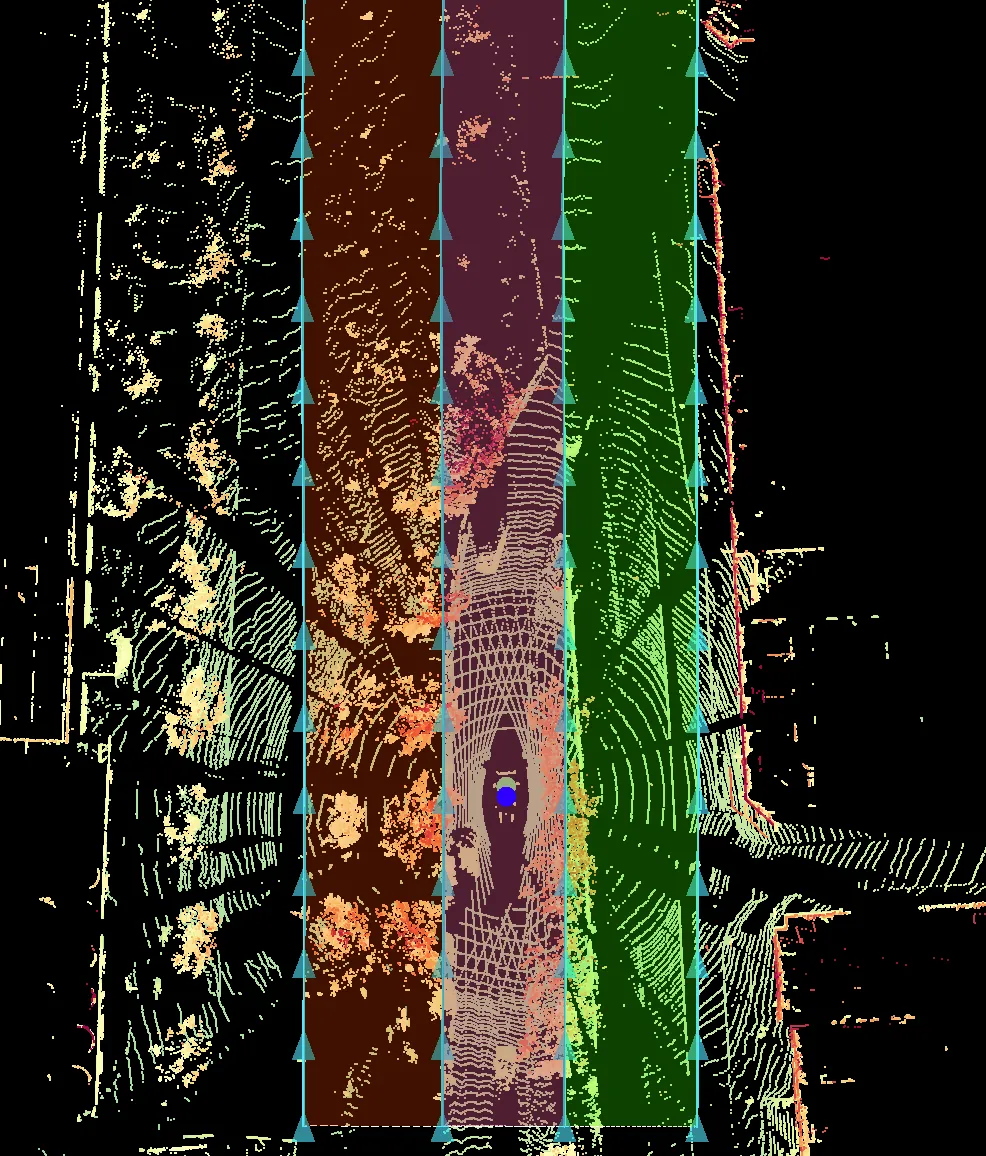
Shade the area between two linked 3D lines or lanes to show which stretch each link covers. Found in 3D line and lane tasks in lidar, off by default. Select a linked line or lane to shade the area between centers over the link arrow, or turn on Edit tab to shade all links. Shapes with multiple links get one color per area, and hovering a link shows only that area.
To make the area more or less see-through, use Fill opacity under Helpers 3D in Window.
Predictions
Toggle visibility of predictions and prelabels.
Read about its settings on the Window page.
Ego trajectory
A trajectory will show how the ego vehicle changes position along the sequence. Each point along the line represents a frame and the object's position in that frame. Click on a trajectory point to go to that point in time. Read about its settings on the Trajectories page.
Unique instance colors
Turn it on to give each instance its own color so you can tell neighbouring instances apart. Turn it off to color each point by its class. This option appears on 3D point classification tasks when viewing the point cloud.
Point cloud display
Highlights
The project guideline can state which point cloud highlight you should turn on.
- Field of view: This option will highlight the 2D camera's field of view in the point cloud.
- Full view: This option will highlight all the points regardless of which 2D camera is selected.
Color
There are several color settings available for you to select while viewing the point cloud. Find the options and read more about the various settings on the Point cloud color modes page.
Box points highlight
Choose how the points inside a 3D box are emphasized when the box is selected. Red points colors the enclosed points red, while Larger points makes them larger instead. This option appears on 3D box tasks when viewing the point cloud, and is disabled while the point cloud color mode is set to Sensors.
2D overlay
The 2D overlay feature enables the visualization of the 3D point cloud projection into the 2D image. Depending on the selected option, the color of the points can be according to distance, intensity or classification.
The feature's primary purpose is to enable a user to validate whether the sensor calibrations are correct. Therefore, this is not useful if you annotate, correct, or review a task.
Read about its settings on the Window page.
Aggregation
This setting combines point clouds from multiple frames and adds them to your current frame's point cloud. The aggregated points are visible from multiple angles, so use them to increase clarity while annotating stationary objects in the scene.
Read about its settings on the Point cloud aggregation page.
Background points
Toggles the background points around the scene. When enabled, points outside the current frame's main point cloud are shown for extra context. This option only appears when the task provides background points and you are viewing the point cloud, and is disabled until those points have loaded.
Assistance
Show all objects in grid view
Toggele whether you want to see other objects in grid view in the The 3D view. Other objects can sometimes interefere visually with the current object, so there is an optional shortcut that can be assigned for this setting. The default is shortcut is unbound.
Line assist
The line assist will provide you with assisting lines in the side cameras while working with 3D boxes. These can be used to more easily align the cuboid's rotation with various landmarks, such as the ground plane.
Task guides → Drawing instructions
Drawing instructions will guide you through the drawing or editing process. You can turn them on or off whenever you want, either from the top bar or from the instruction dialogue.
Task guides → Feedback pins and comments
Feedback is visible (enabled) when you enter a task. You can disable and hide it by clicking this menu item. This item only appears in review tasks.
Task guides → Action assist
Opens the Action assist panel, which gathers the assistance actions available for the current task and lets you apply them quickly. Read more on the Action assist page.