Context menus
Right-clicking on objects in 3D will open a context menu with actions you can take on the object. Depending on the type of 3D object you select, different options will be available.
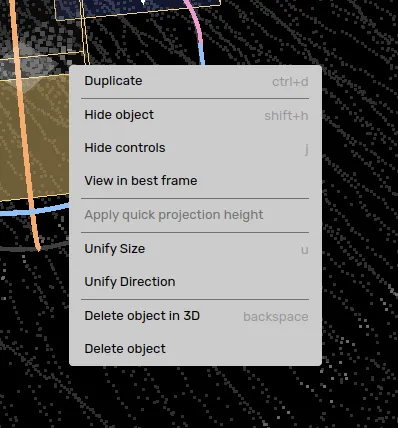
Duplicate will create an identical copy of the object placed to the right of the objects heading.
Hide object will hide the object from the view. You can show the object with the default shortcut shift+h again.
Hide controls will hide the transformation control.
Auto adjust will use Auto-adjust object (3D).
Relative keyframe will let you use the Relative keyframe in 3D feature.
View in best frame will take you to the frame that contains the maximum number of points across all frames.
Apply quick projection height will infer the height from the 2D image if you have a 'Quick projection' available. Further reading 2D miniature image.
Unify size will apply the scale in the current frame to all other frames. Further reading Unify and alignment in 3D.
Align heading to trajectory will align the heading of the object to that of the positions of the trajectory. Further reading Unify and alignment in 3D.
Unify direction will apply the rotation of the object in the current frame to all other frames. Further reading Unify and alignment in 3D.
Delete object in 3D will delete the object in 3D only. If you have a connected 2D object, it will not be removed.
Remove other keyframes is available for 3D cuboids. This will remove all keyframes except the current frame.
Delete object will delete the object in all views.
Right-clicking on objects in 2D will open a context menu with actions you can take on the object. Depending on the type of 2D object you select, different options will be available.
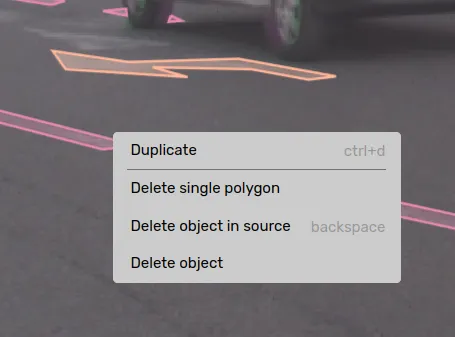
Duplicate will create an identical copy of the object placed to 20 pixels to the right and further down from the current object.
Delete single polygon is available for multi 2D polygon (Multi-polygons in detail). This option is available if there are two or more polygons present in the multi polygon and allows you to delete the clicked polygon.
Split to new object is available for multi 2D polygon (Multi-polygons in detail). This option is available if there are two or more polygons present in the multi-polygon and allows you to remove a polygon from the current object and create a new object with it instead.
Delete object in source will delete the object in 2D only. If you have a connected 3D object, it will not be removed.
Delete object will delete the object in all views.
Similarity search this is available for 2D bounding boxes if the project has been added to the Dataset Exploration . This feature will open a window and show similar examples to the selected bounding box from the entire dataset.
Right-clicking an object in the object list (the Edit tab of the right-side menu) will open a context menu with actions you can take on the object.
Duplicate will create an identical copy of the object.
Copy name and ID will copy the object's name and ID to your clipboard.
Copy full object ID will copy the object's full ID to your clipboard.
Edit in Guided Workflow is available for locked stationary objects in tasks that use a forced stationary Guided Workflow. It will open the object in the Guided Workflow so you can edit it. Further reading: Stationary object locking.
Delete object in source will delete the object in the current source only. If the object exists in other sources, it will not be removed there.
Delete object will delete the object in all views.