Node and shape edit modes
To toggle between node edit and shape edit, either use the shortcut or the buttons in the left menu.
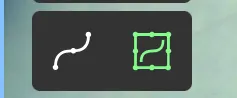
You have two options to edit
- The node edit mode is the default mode that enables individual nodes to be moved one by one.
- The shape edit mode enables moving, rotating, and scaling all nodes simultaneously for 3D Lines. For 3D Lanes, you can move and rotate all nodes at once; scaling is disabled.
Node Edit
Node edit allows you to transform one node at a time (default mode).

Shape edit
Shape edit allows you to transform the entire geometry at once.

2D curves and polygons
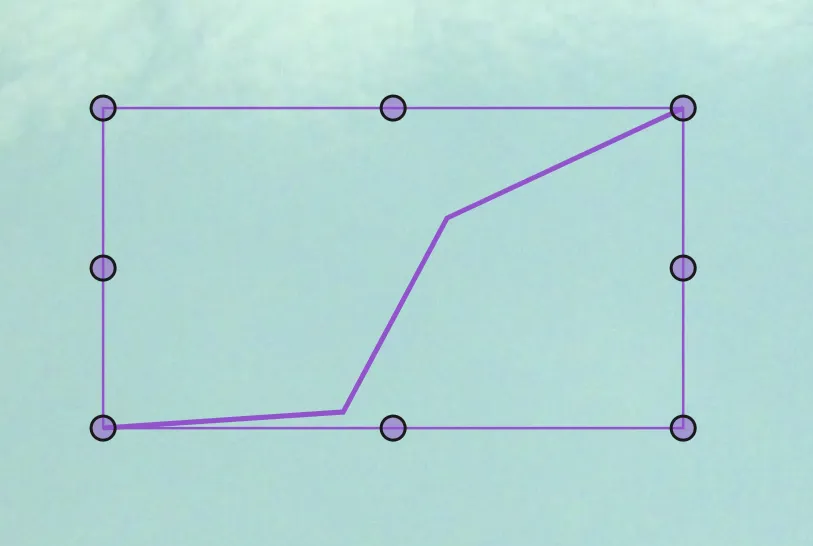
- The node edit mode is the default mode that enables moving individual nodes one-by-one.
- The shape edit mode enables moving, rotating and scaling curves and polygons by dragging the various controls available.
In order to rotate the selected shape, hover just outside one of the visible control points and then click and drag (your cursor will change to a rotation cursor.)
To toggle between node edit and shape edit, either use the shortcut or the buttons in the left menu.
Geometry collections
You are able to use the shape edit mode to move and rescale all geometries inside a geometry collection in 2D. Selecting the geometry collection will allow you to toggle the shape edit mode.

To use shape edit on several objects at once, multi-select them and click Edit geometries in the batch action bar. This works in 2D and 3D, and locked or inactive objects in the selection are left as they are. See Multi-selection.