Property overlay
When you turn on the property overlay, you can filter the scene by class and property values. This lets you quickly see which objects have which properties. You can either show only the objects that have a certain value or hide the objects that do not have it.
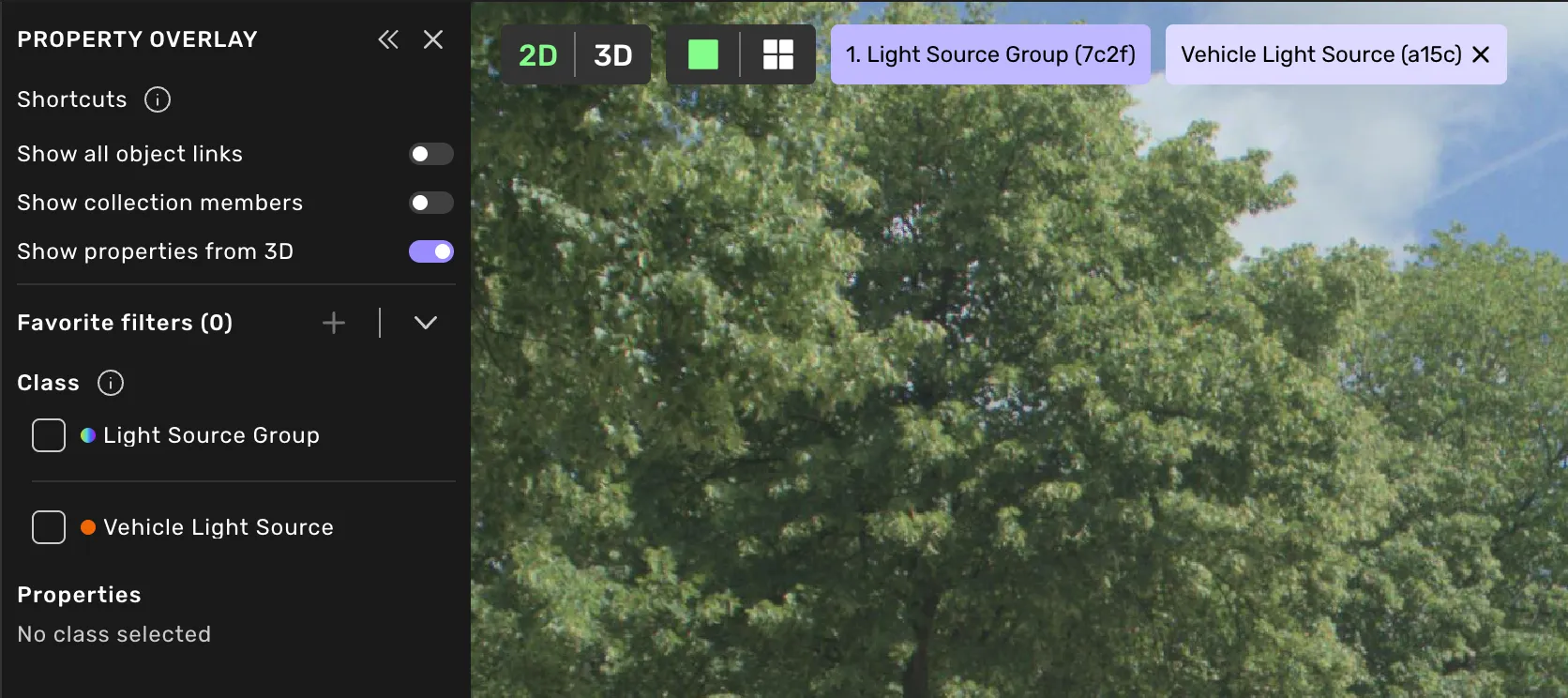
When you turn on the object links, you will see white lines between all connected shapes in the scene. It can help you determine whether links are missing or incorrectly placed.
Turn this on to see which shapes belong together. Dashed lines connect the members of every collection in the view, and when you hover one of the shapes, the whole collection is highlighted while the rest of the scene fades. Move away, and the scene returns to normal.
The toggle is only shown in tasks that use geometry collections.
In tasks with both 2D and 3D annotations, properties are set per source, so an object can have different values in the image and in the point cloud. Turn this on to see the other source's values in the hover popup as well, under the "Properties from 3D" heading.
The toggle is named after the other source: it reads Show properties from 3D while you work in an image, and Show properties from 2D while you work in the point cloud. If the object does not exist in the other source, the pop-up says "Not visible in 3D" instead. Properties that are not source-specific are listed only once, under the source you are in.
You are able to save the selected filters as a favorite. A favorite let's you quickly enable a frequently used filter combination with one click. The current selected classes, the expanded property section, and the property values you have selected or hidden will be saved.
The favorites will be saved locally on your computer and be loaded depending on the project you are currently viewing.
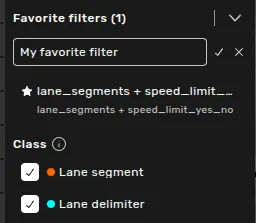
Select to display the classes you want to see. Classes not selected by the filter are hidden in the scene and the object list in the right side menu.
Classes with no objects in the scene are not included in the list.
All properties from the selected classes become available in drop-down menus. Only one drop-down can be open at a time. Use tab or select properties manually one by one to highlight them in the scene.
All objects without the selected property set will be hidden. The right-side menu is further refined based on class and property value filtering.
Hide a property value
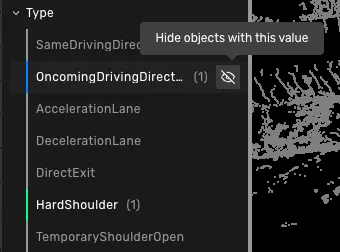
Hover a value and click the hide icon to hide every object with that value. Everything else in your selected classes stays visible, including objects that have no value set for that property. Click the icon again to bring them back, or hide several values at once.
Showing and hiding cannot be combined within the same property. An object with several values is hidden if one of them is hidden, and its group stays visible.
Property highlighting
Properties that have been set at least once in the entire task are highlighted with unique colors for each property value. Shapes with the property value set will be colored the same way in the scene.
Use ArrowUp or ArrowDown to step between property values.
- 2D lines
- 2D polygons
- 2D boxes
- 2D points that are not child shapes (will only color the point with one color at the moment)
- 2D ellipses
- All 3D shapes
3D instance segmentation with properties does not display the properties when hovering