Multi-selection
Select multiple objects at once to perform bulk actions.
How to select
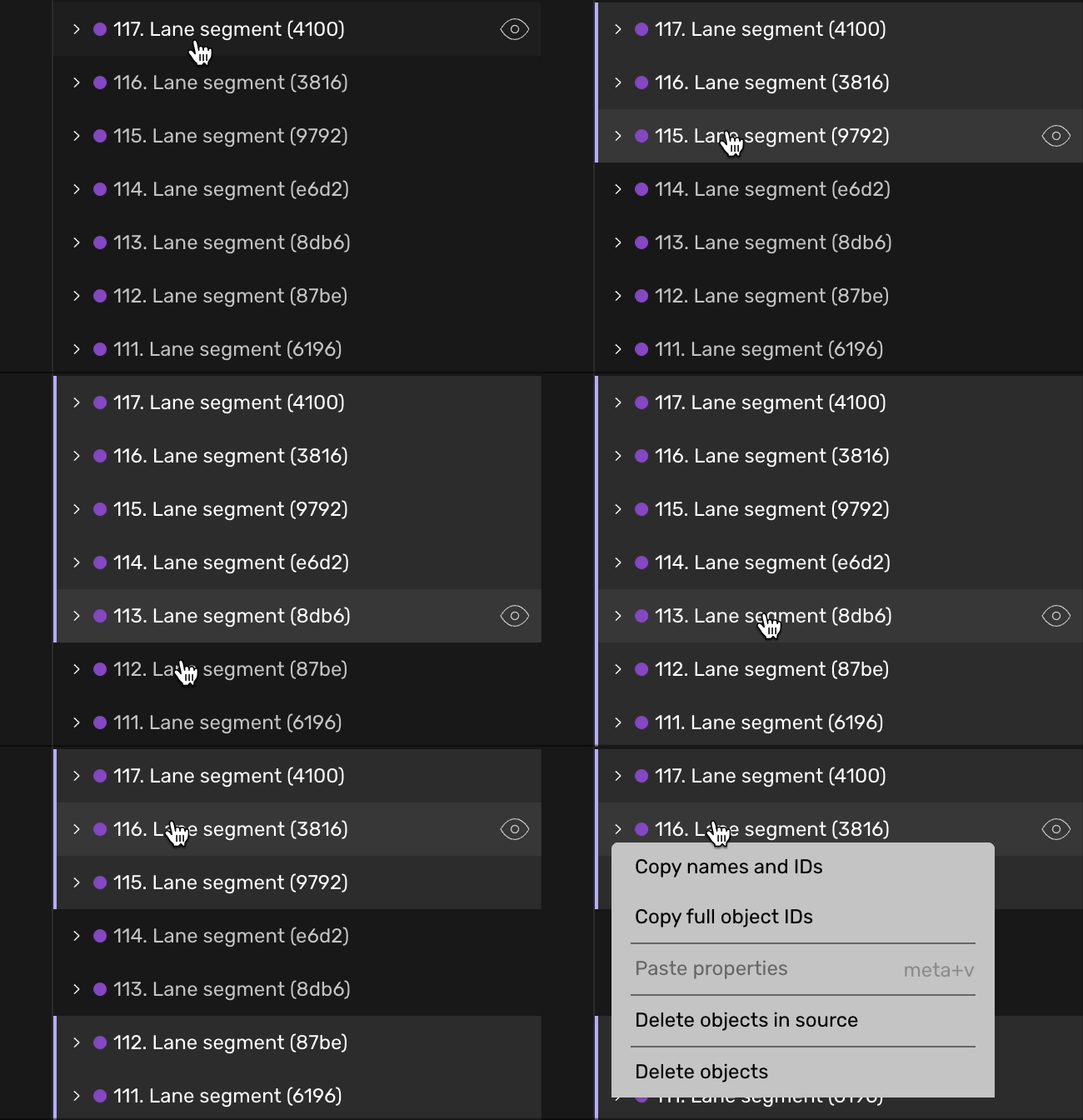
- Windows/Linux: ctrl + click on objects
- Mac: cmd + click on objects
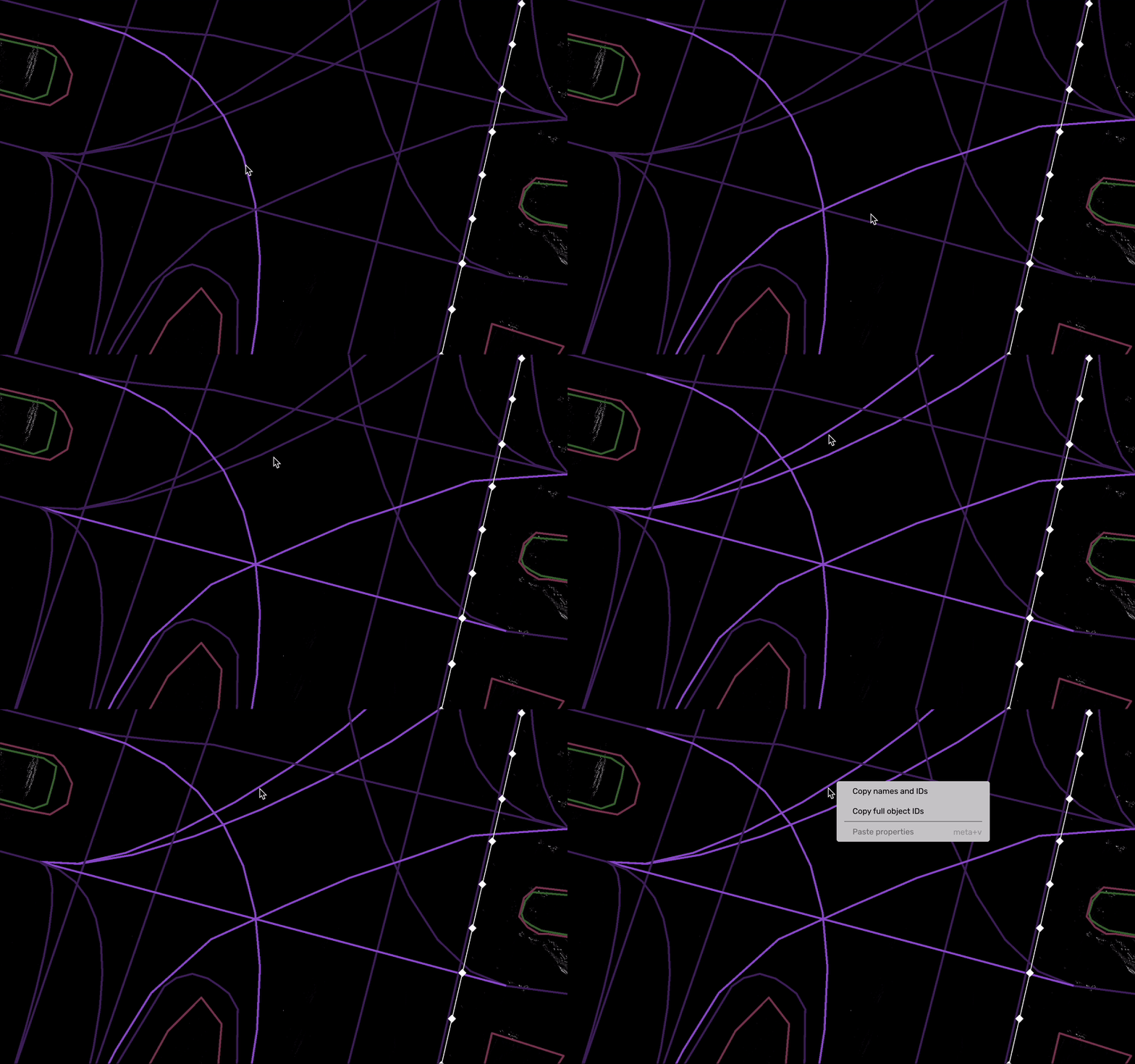
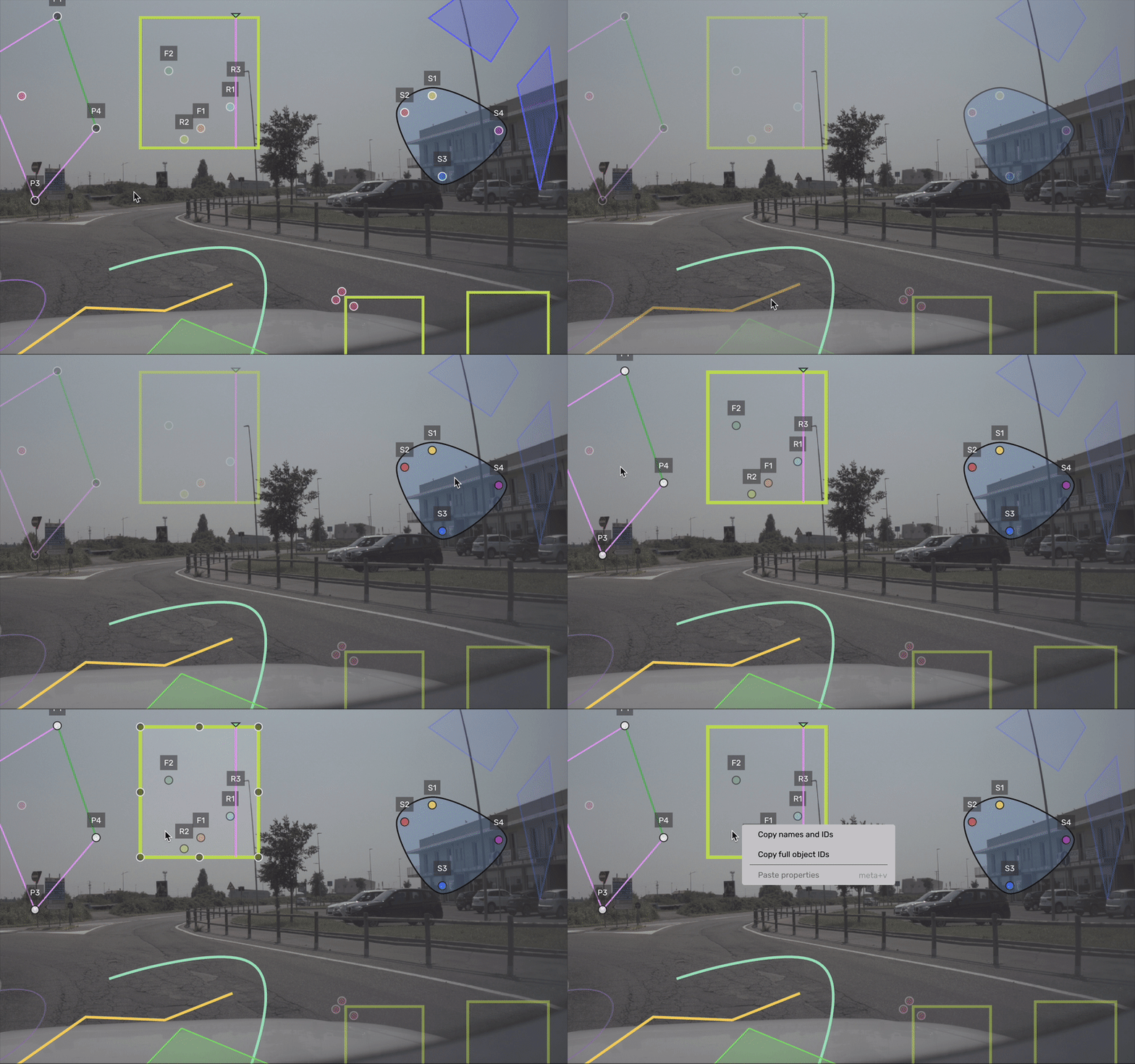
This works in the 2D and 3D views, as well as in the object list in the sidebar.
Selection rules
- Click a selected object again to deselect it.
- You can select multiple ungrouped objects or multiple objects within the same group - but not both at once.
- Selecting an object from a different group clears your previous selection.
Clearing the selection
Here's how you deselect objects
- Press Esc to deselect all.
- Clicking a single object without the modifier key (clears the multi-selection).
- Activating a drawing tool.
The batch action bar
When you select two or more objects, a batch action bar appears at the bottom of the view. From it you can:
- Set properties — opens Quick Properties for the whole selection.
- Paste properties — applies previously copied properties to all selected objects (disabled if any target can't accept them).
- Add feedback — opens Quick-FeedbackQuick Feedback pre-filled with the selection (review tasks only).
- Edit geometries — move and rotate all selected objects together (see Editing geometries below).
- Align all nodes to ground — snaps every node of the selected 3D lines and lanes to the ground (only shown when the selection contains 3D lines or lanes).
Close the bar to clear the multi-selection.

Editing geometries
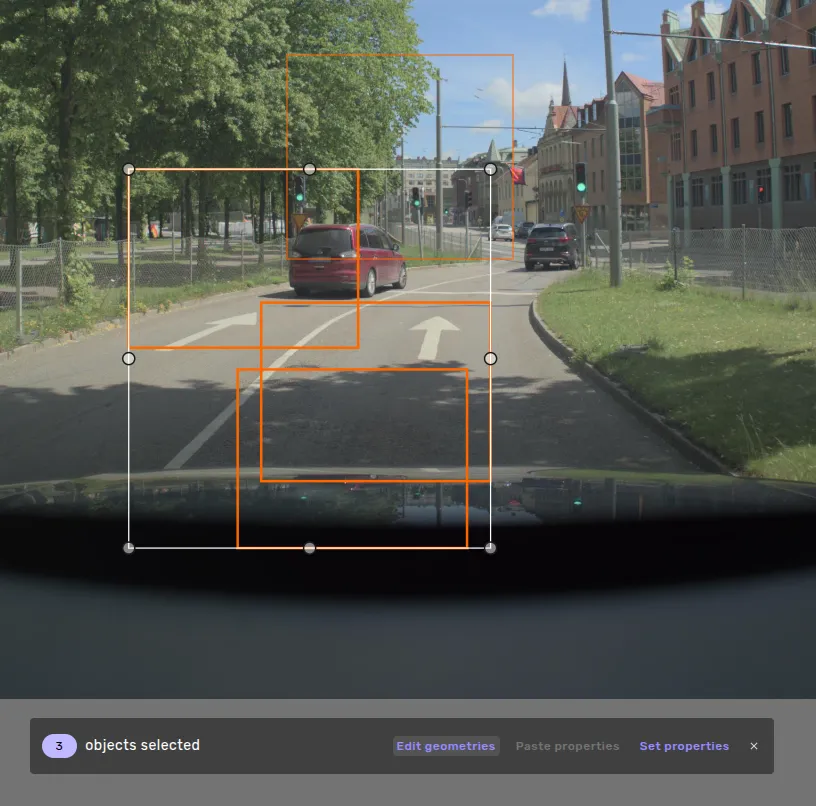
Click Edit geometries in the batch action bar to move and rotate all selected objects at once, in both 2D and 3D. Click it again to turn it off.
- Selected groups are edited as a whole, including all their members.
- Locked and inactive objects in the selection are left as they are.
- In 3D, only the rotations every selected object allows are available; a lane in the selection limits rotation to yaw and disables scaling.
- Edit geometries is not shown in read-only tasks.
Aligning lines and lanes to the ground
When your selection contains 3D lines or lanes, click Align all nodes to ground in the batch action bar to snap all their nodes to the ground in one step. Other objects in the selection are not changed, and you can undo the change in the confirmation message.
Settings properties
You are able to set properties using Quick-properties when you have selected multiple objects.