Eraser
1 min

With this tool, you can remove parts of 2D polygon or 2D curve.
You can activate the eraser manually in the left toolbar, or use the default shortcut key n to activate it.
Erase process
Activate the eraser tool,
Place points surrounding the area you want to delete,
Close the polygon,
The area should now be unlabeled.
The eraser tool will not erase a locked polygon (class or object).

Eraser tool
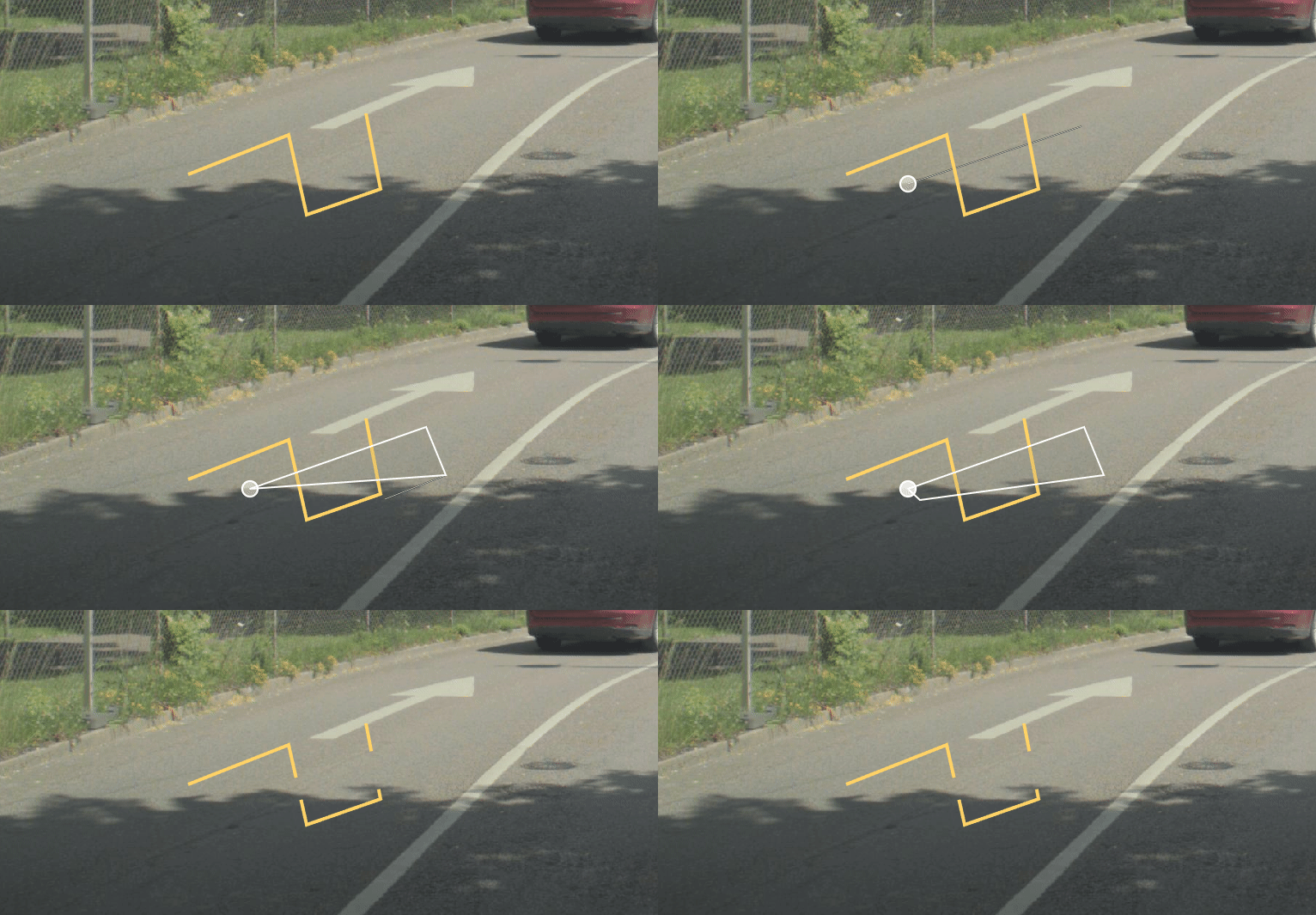
Using the eraser on a 2d line
When erasing 2D lines and 2D curves a new object will be created for each line segment that lies outside of the erase polygon. If the line or curve is a part of a Geometry collectionGeometry collection the new objects will be added to the same geometry collection.