Detach nodes
1 min
This tool can be found in both the 2D and 3D views.
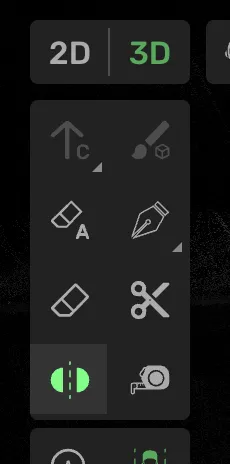
Tool location
This tool will detach nodes that are overlapping and moving together. When you select a 3D line or 3D lane, the attached nodes will look different from the other nodes.
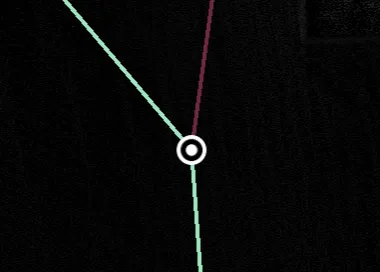
An attached node
Detaching process
Select an object (inside a group).
Activate the detach overlapping nodes tool from the toolbar button or press the shortcut (default shortcut shift+n).
Click on the attached nodes to detach them.
Deactivate the tool by clicking on the toolbar button, pressing the shortcut, or pressing the Escape key.
You can now move the previously attached nodes.

This tool will separate an attached node so you can move it independently.
Detaching process
Select an object (inside a group)
Activate the detach overlapping nodes tool
Select the node you want to convert

Detaching 2D nodes