Attach nodes
The following processes are available for 3D points, lines, and lanes.
Attach process (edit)
Select a node
Hold Alt, and a preview of all available nodes that you can attach to will be highlighted
Move the mouse over to the desired other node
Click to confirm the attachment.
Letting go will revert to the initial location
Attach process (drawing)
While drawing a new shape, hold Alt
Move the mouse to be closest to the desired node
Click to confirm
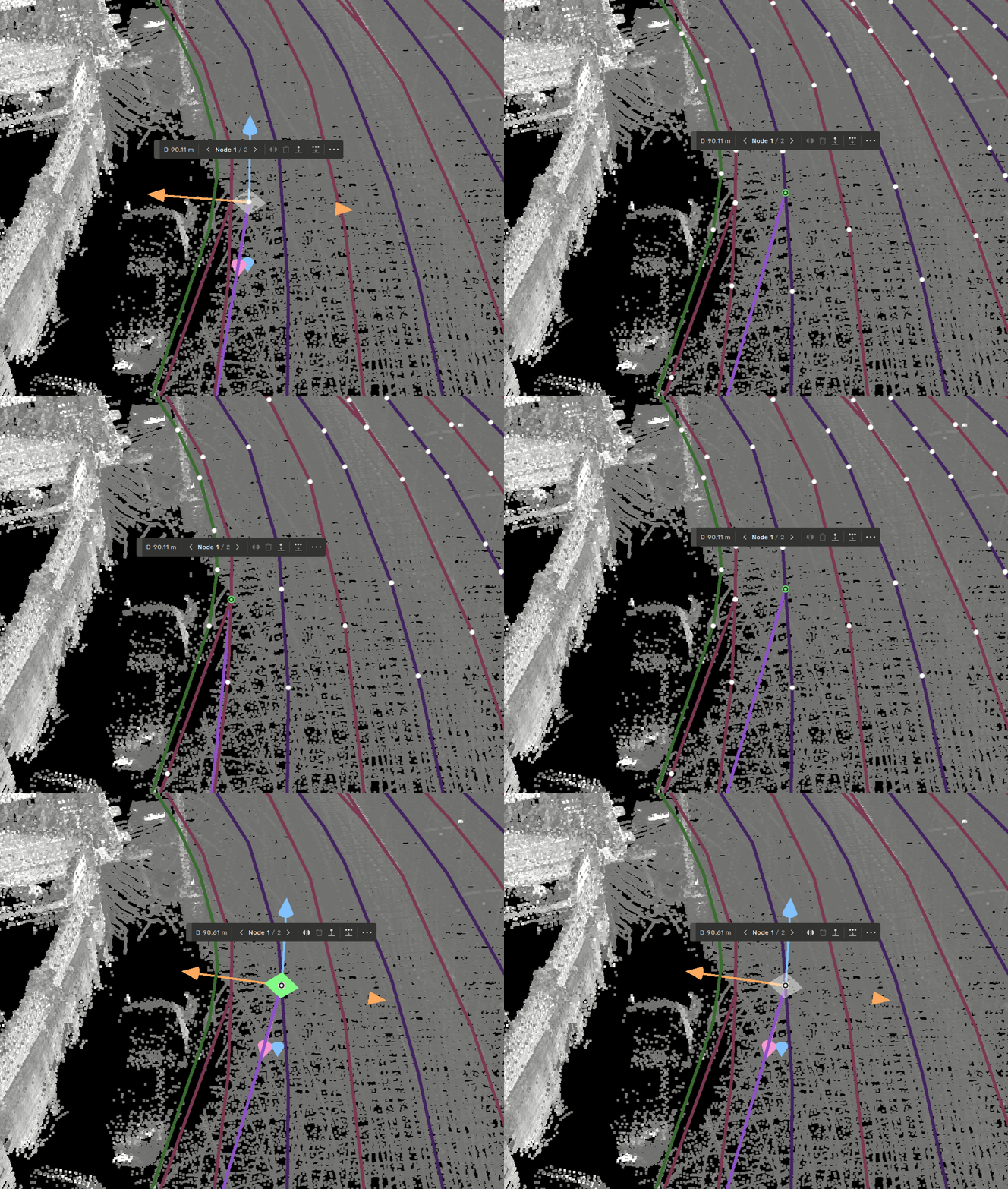
By default you will be using Alt to enable snapping - for some this may conflict with the system defaults. If you experience this - you are able to bind a custom shortcut for the attach nodes feature. Search for 'attach nodes' in the The keybindings window.
The following processes are available for 2D points, lines, and polygons.
Attach process (edit)
Click and hold on a node
Hold Alt
Move the mouse to the desired other node
Let go of the mouse; the node will now be attached
Attach process (drawing)
While drawing a new shape, hold Alt
Move the mouse to the desired node
Click to confirm
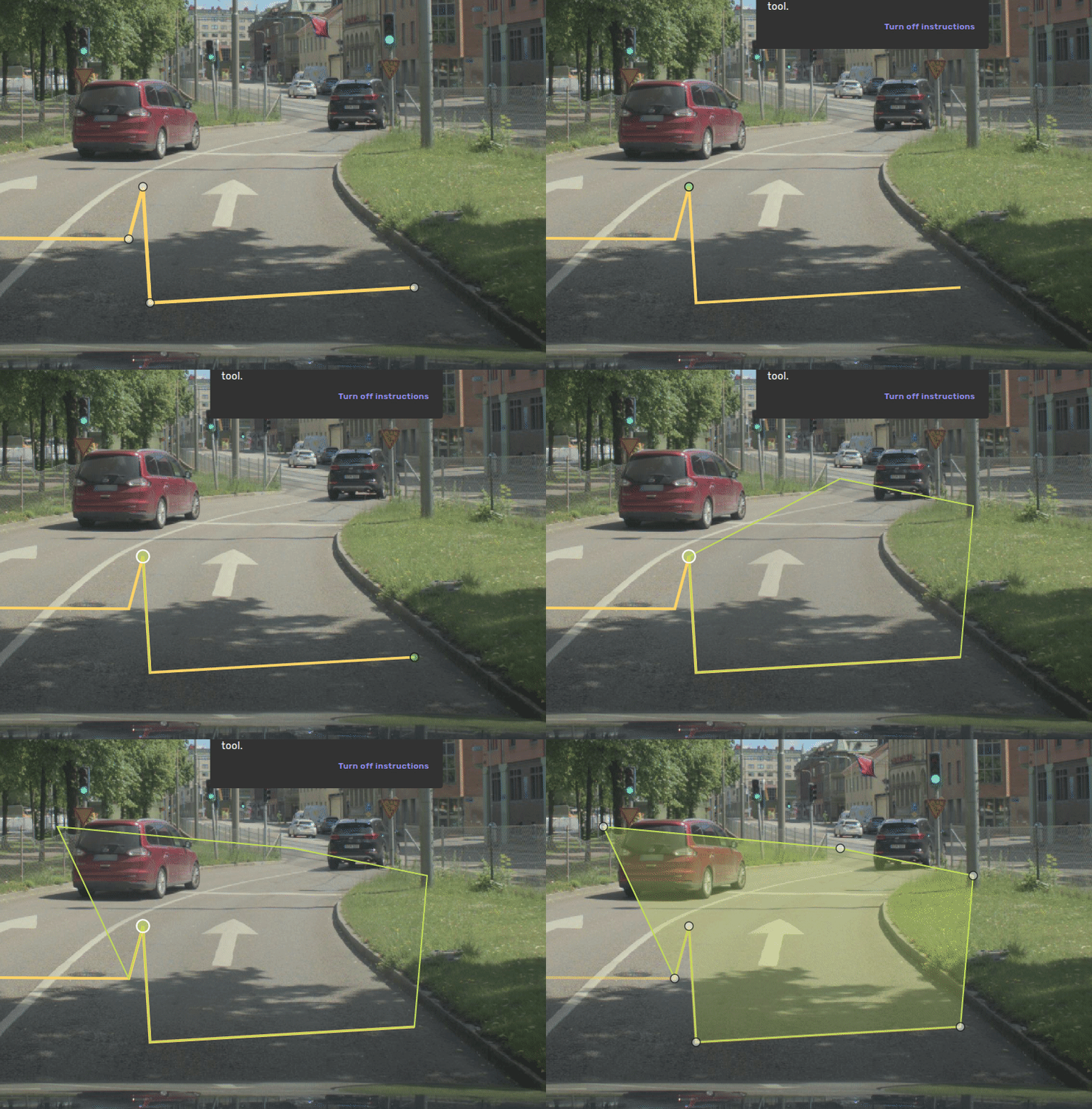
Only 2D points and 2D lines will remain attached during the editing process. Furthermore, 2D lines in Geometry collection (drawing) have restrictions for which nodes can be attached.