The keybindings window
2 min
To view and edit keybindings, navigate to the top bar -> Edit -> Keybindings.
The keybinding window lists all keybindings for a task, grouped by category for easy reference.
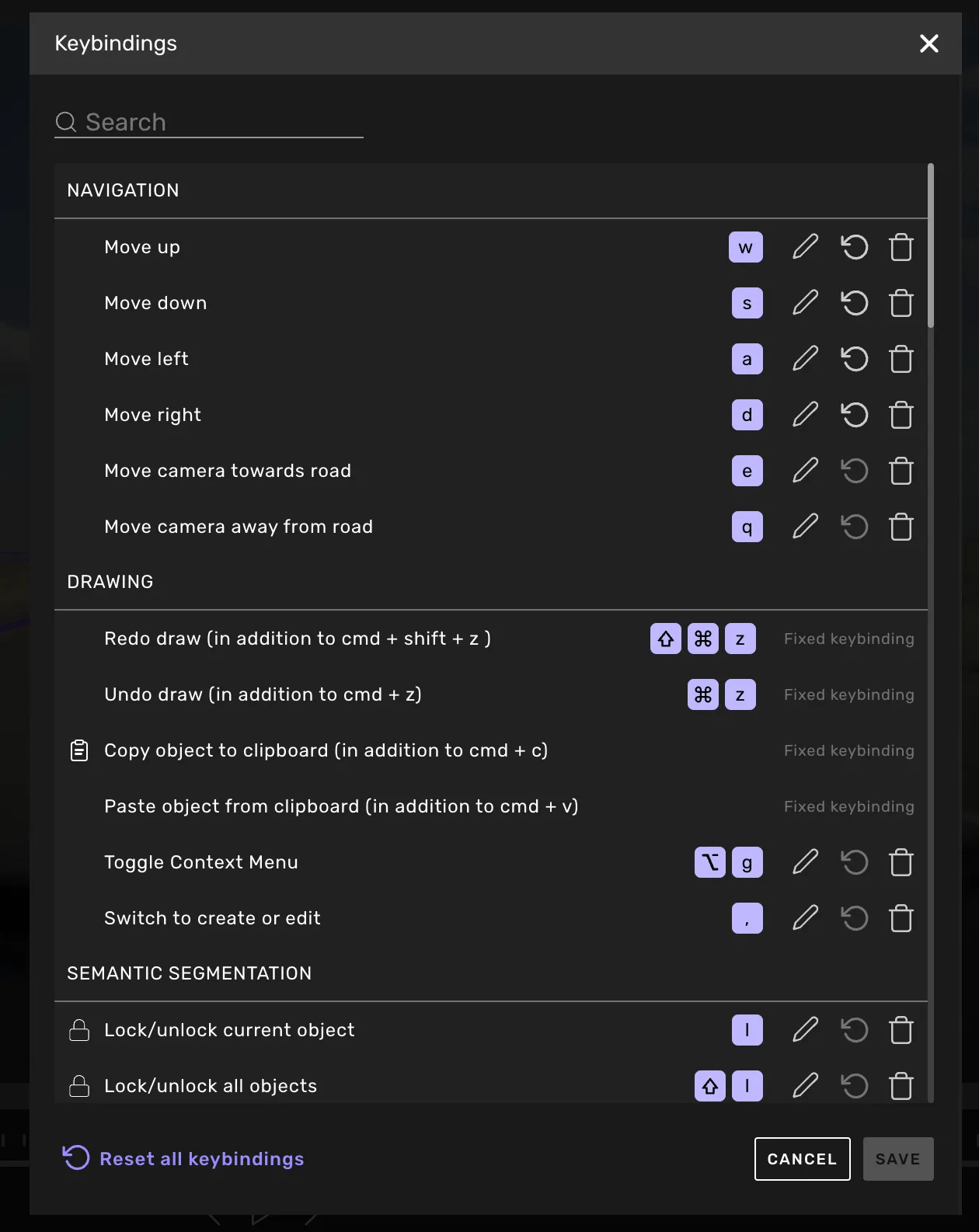
Keybinding window
To view and edit keybindings, navigate to the top bar -> Edit -> Keybindings.
The keybinding window lists all keybindings for a task, grouped by category for easy reference.
To find a shortcut quicker, you can search at the top of the keybindings window.
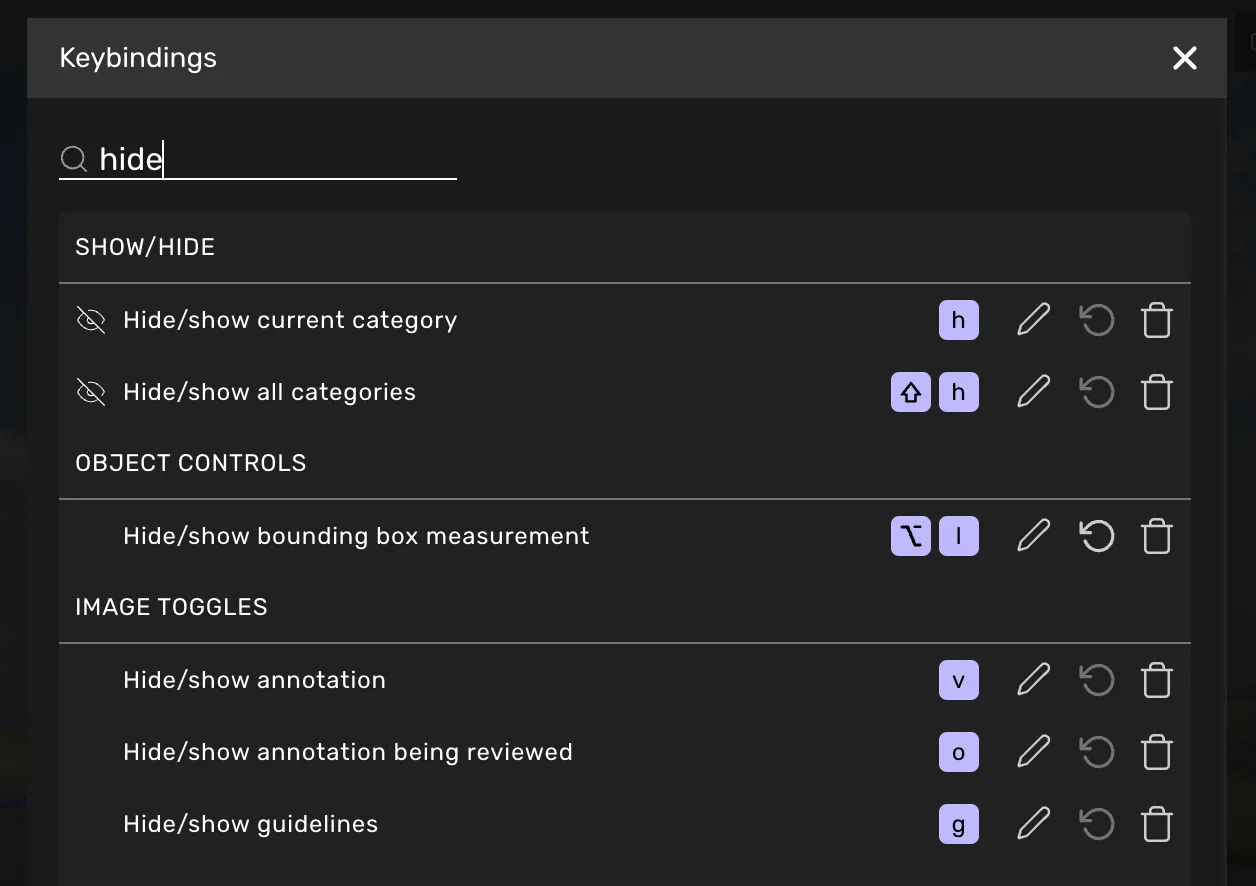
You can edit the keybindings in multiple ways.
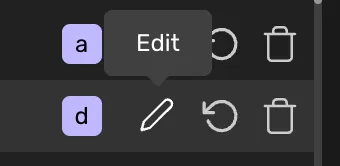
Press the pen icon and then the key you wish to assign.
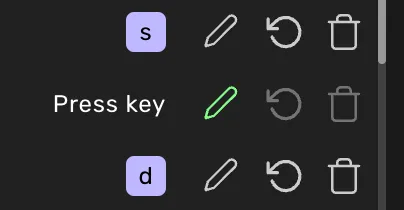
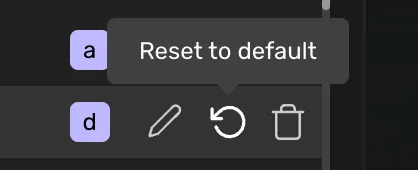
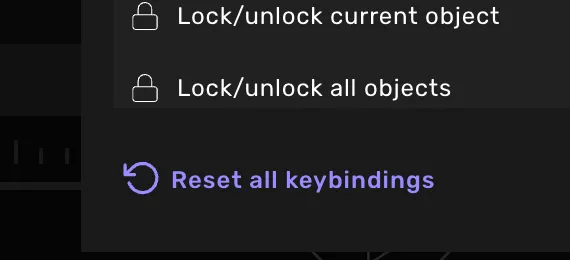
Restore the keybinding to its original configuration. You can reset individual or all keybindings at once.
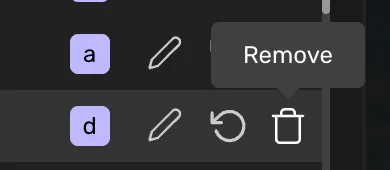
Press the trashcan icon to delete the keybinding. This might not be available for all keybindings.
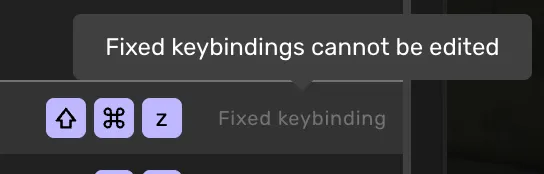
Some keybindings are fixed keys, meaning they cannot be edited, reset, or removed.
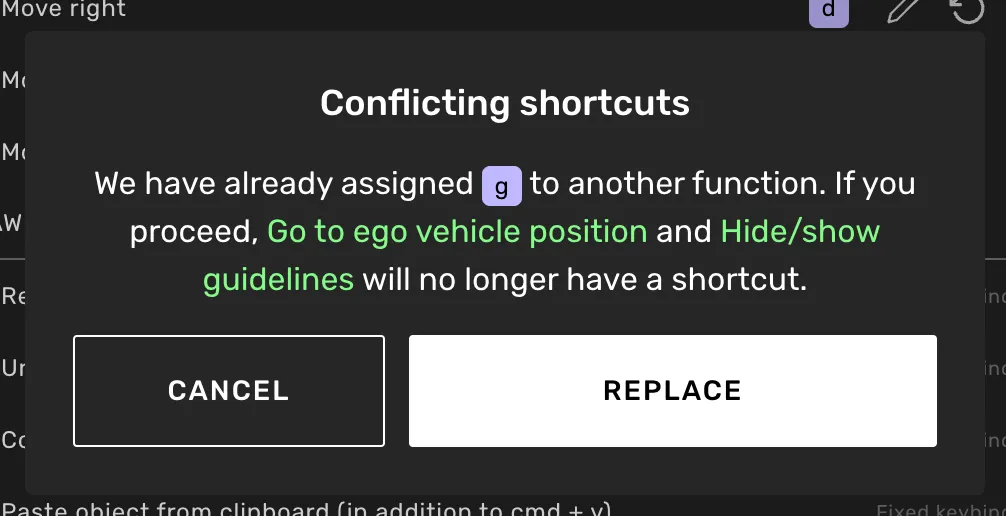
When attempting to assign a key to a function that is already assigned to another function, a conflict will arise.
To resolve this conflict, you can reassign the key to the keybinding you are currently editing. Consequently, the previous keybinding will lose its associated key, ensuring a unique assignment for each function.
If Kognic releases a new tool or feature with an assigned key that you have selected for another action - your action will no longer have a key. If this happens, you will be notified the next time you enter the task view.