Annotation guide
The annotation guide shows your project's guideline inside the task view, next to the work you are doing, so you don't need to switch to a separate document. It is organised the same way as the task: general rules first, then a page for each class, property and property value.
The annotation guide is only available in tasks whose guideline has been set up for it. If your task has no guide, none of the guide buttons or the top bar icon appear. The full guideline is still available from Help → Task guideline.
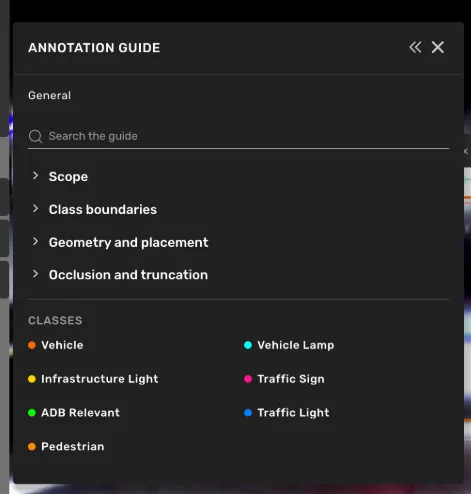
Open the guide
When a task has a guide, the guide window starts on screen minimised. You can open it in several ways:
- Click the Annotation guide icon in the top menu bar, to the left of the notification inbox.
- Press i to open or close the guide. You can change this shortcut in the keybindings window (Edit → Keybindings...), where it is listed as Toggle annotation guide.
- Hover over a row in the right-side menu and click its guide button. This opens the guide on the page for that row:
- Class rows in the Create tab, and the class row in the Edit tab
- Object rows in the Edit tab
- Property rows
- Property value rows
A guide button appears only on rows the guide has content for. If a row has no button, the guide doesn't cover that item.
Pages in the guide
General — the rules that apply to the whole task, followed by an index of the task's classes. Each general section starts collapsed. Click a heading to expand it.
Class pages — what the class covers, followed by guidance for each of its properties.
Property pages — how to set the property, followed by guidance for each value. If the selected object already has a value for this property, the guide scrolls to that value and highlights it.
Guide pages can contain:
- Do and Don't lists
- Examples, marked Correct or Incorrect. Click an example image to enlarge it.
Classes, properties and values are listed in the same order and with the same names as in the right-side menu.
The breadcrumb at the top of the window (for example, General / Car / Occlusion) shows where you are in the guide. Click any part of it to go back to that page.
Search the guide
Use the search field at the top of the General page to search the whole guide: names, descriptions, Do and Don't lists, and example captions.
- Each result shows where the match was found. Class results show the class color so you can match them to the right-side menu.
- Use the arrow keys to move through the results and Enter to open one.
- Press Escape to clear the search.
The guide follows your selection
When you select an object, the guide changes to that object's class page. When you deselect it, the guide goes back to General. The guide never opens itself when you change your selection. If it is minimised or closed, it stays that way.
Messages you may see
- "Image unavailable" — an example image could not be loaded. The rest of the page is unaffected.
- "This part of the guide could not be shown." — a page could not be displayed. Go to another page and the rest of the guide keeps working.
- "N guideline entries do not match this task and are not shown." — the guide contains content for classes, properties or values that don't exist in this task, so that content is hidden.The annotation guide is only available in tasks whose guideline has been set up for it. …The annotation guide is only available in tasks whose guideline has been set up for it. …