Video bar actions & settings
These actions are available in both the Keyframes and Property values modes.
You can play and pause the video using the play and pause buttons at the top center of the video bar. You can also press your spacebar to play and pause the video.
One frame at a time
You can use the < and > buttons on the video bar to step one frame backward or forward at a time. We recommend using the default shortcuts to do this.
- Move backwards has the default shortcut arrow left
- Move forward has the default shortcut arrow right
Five frames at a time
In some cases, it makes sense to annotate every fifth frame (for example, when the frame frequency is high).
- Move backward five frames and have the default shortcut shift + arrow left
- Move forward five frames has the default shortcut shift + arrow right
Moving freely
You can move to any frame in the sequence by clicking on any of the timelines or dragging the green pin.
Press the star icon to go to the frame that contains the most information for the selected prediction.
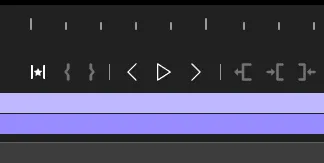
Tasks that include these controls require you to track the object both backward and forward in time and mark the frames where it is not visible using the object visibility editing tools.
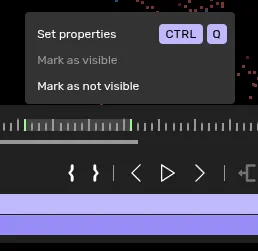
Mark an object as not visible
If you are standing in a frame within an active lifespan, you can mark an object as not visible. This will hide the object in the frame where you are currently standing.
Marking the object as visible
If you are standing in a frame outside an active lifespan, you can mark an object as visible. This will display the object in the frame where you are currently standing.
Extend object visibility to the right
If you are outside an active lifespan, you can extend the object's visibility from the previous active lifespan, i.e., from the right. This will show the object from the previous visible frame up until the frame you are currently standing in.
Extend object visibility to the left
If you are outside an active lifespan, you can extend the object's visibility from the next active lifespan, i.e., from the left. This will show the object from the next visible frame backwards until the frame you are currently standing in.
Trim object visibility from the right
If you are within an active lifespan, you can trim the object's visibility from the end of the active lifespan, i.e., from the right. This will remove the object from the last visible frame backwards until the frame you are currently standing in.
Trim object visibility from the left
If you are within an active lifespan, you can trim the object's visibility from the beginning of the active lifespan, i.e., from the left. This will remove the object from the first visible frame forward until the frame you are currently standing in.
The mark frames feature lets you mark frame ranges with mark in and mark out. When you have marked many frames, you can perform batch actions on those frames.
- Set properties over multiple frames using Quick-properties.
- Mark frames as visible
- If any frame is not visible in the selected interval, this will become available.
- Mark frames as not visible
- If any frame is visible in the selected interval, this will become available.
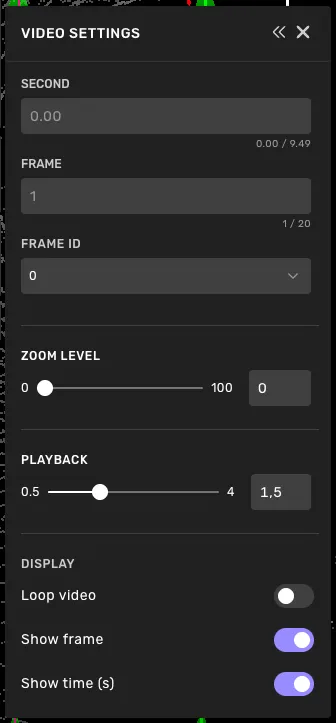
Click on the Settings button on the right-hand side of the video bar to open the Video settings window. From here, you can jump to a specific frame, adjust the appearance of the video bar, and control playback.
Jump to a frame
- Second: Type a time in seconds to jump to the closest frame.
- Frame: Type a frame number to jump to that frame.
- Frame ID: Search for and select a specific frame by its ID.
Zoom level
Use the Zoom level slider to zoom the video bar in or out. This is useful when the sequence has many frames and the markers are tightly packed.
Playback
Use the Playback slider to set the playback speed, from 0.5x (half real-time) up to 4.0x (four times real-time, if your hardware allows it).
Display
- Loop video: When on, the video automatically restarts from the beginning when it reaches the end.
- Show frame: Show or hide the frame number on the video bar.
- Show time (s): Show or hide the timestamp (in seconds) on the video bar.