The 2D Grid view
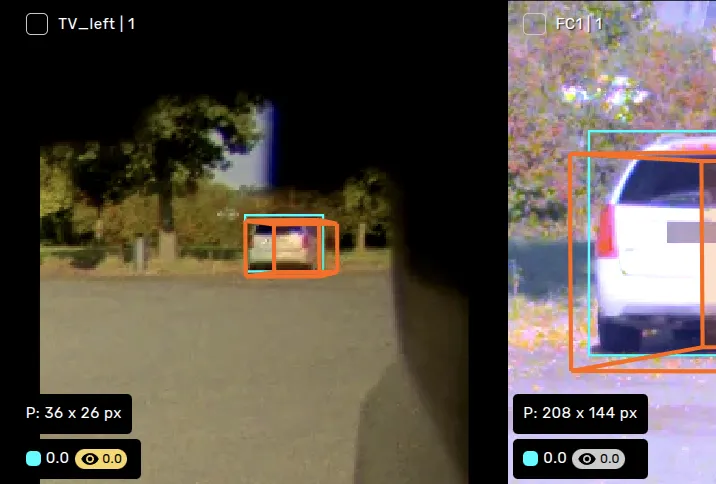
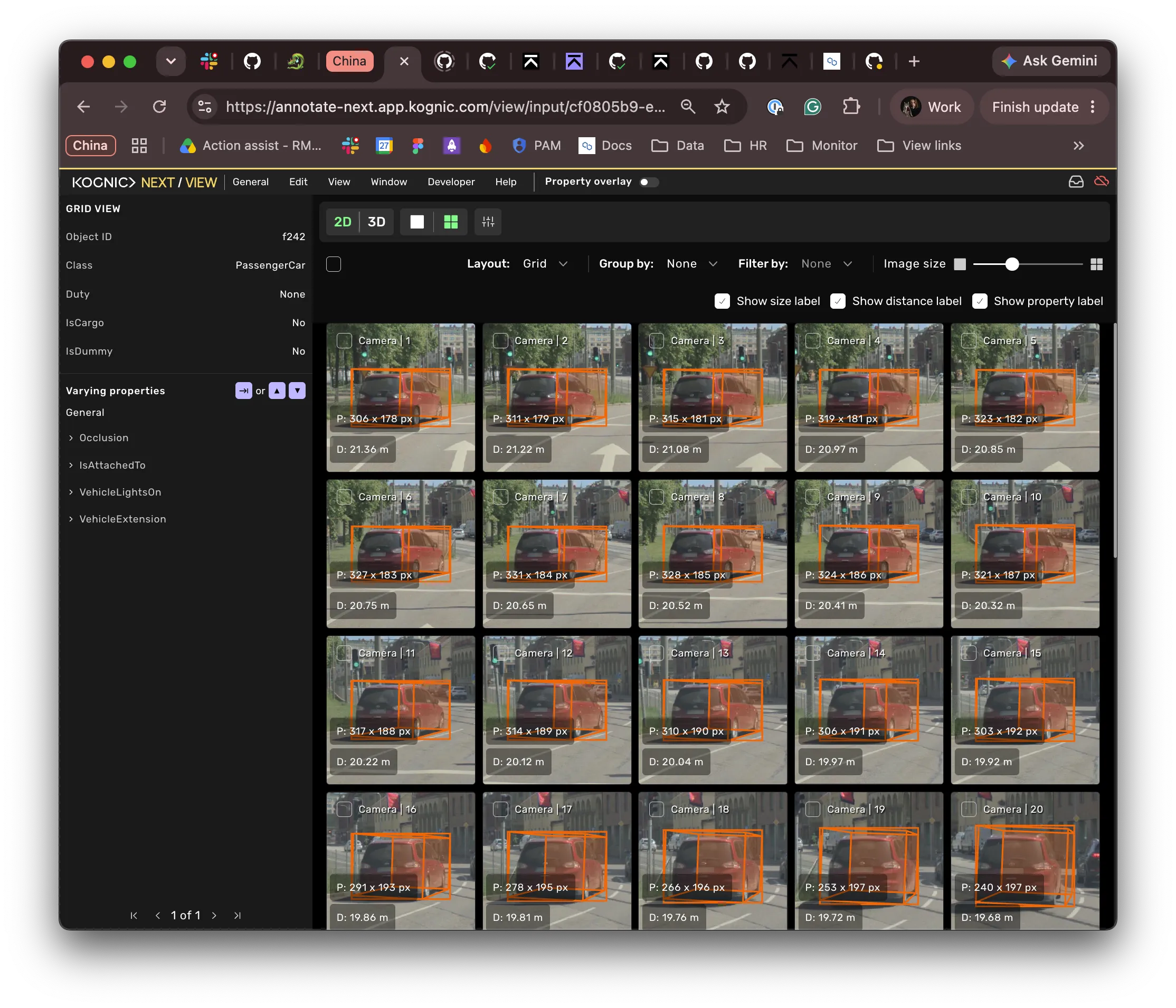
In the grid, you will see the selected object from all camera sources and frames. In this view you can leave feedback and set properties in multiple frames at once.
The 2D grid view is available in sequences with 2D bounding boxes.
Multi-select
Hold shift and move the mouse across the images you wish to select. Once selected, you are given different actionable options, e.g., leave feedback or change properties.

Expand
Hold alt and move the mouse across the images to expand the image. This allows you to quickly inspect the image in more detail.
Changing object
You can step to the next object in the task by pressing enter. The object will be marked as inspected and the progress bar in the top will increment by one showing how many objects you have viewed in the 2d grid view.
Context menu
Right-clicking on an image will open a context menu. The menu option Show in main view deactivates grid view and goes to the frame and source in the main view.
The 2D grid view has two display modes, chosen with the mode select at the top: Grid, which shows all images at once, and Slideshow, which shows one image at a time so you can focus on a single source and frame.
In Slideshow mode, step through the images of the selected object one at a time:
- Press arrow right or e to step to the next image.
- Press arrow left or q to step to the previous image.
- Hold shift and scroll to step through the images.
You can also use the Step to previous image and Step to next image arrow buttons in the control bar below the image. The control bar shows your position as the current image number out of the total. Images you have hidden are skipped while you step.
Mode
Choose how the images are displayed. Grid shows all images at once; Slideshow shows them one at a time.
Group By
Group the grid by source or frame. Each group is shown as a collapsible section with the number of visible images next to its name; click a section to expand or collapse it.
- With source, all frames from a specific source are grouped together.
- With frame, all sources for a specific frame are grouped together.
Select none to show the grid without grouping.
Groups where the object is not visible in any image are hidden.
Filter By
Select one or more camera sources to show only those sources in the grid. By default, all sources are shown.
Image Size
This setting lets you adjust the number of columns of images you will see in the grid. Additionally, hold ctrl and scroll to adjust.
Group by AI review result
When the selected property has an AI review result, this groups the images by the AI's recommendation: which frames and camera sources are suggested for review, and which can be skipped. It is available only when AI review results exist for the selected property.
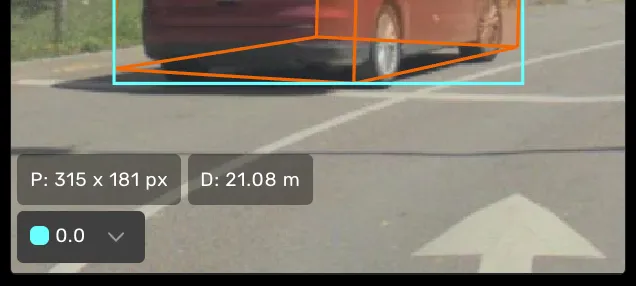
Show size label
Shows the width and height of the object's 2D bounding box in pixels on each image, for example, P: 84 x 120 px. It is on by default. Images where the object has no 2D bounding box do not show a size label.
Show distance label
Shows the distance from the ego vehicle to the object on each image, for example, D: 24.67 m, next to the size label. It is on by default, and the setting is only shown in tasks that have cuboids. Only objects that have a 3D cuboid get a distance, so images of objects without one show no label.
If a task has a region of interest set for its cameras, the distance appears in yellow when the object is beyond the camera's range. Hover the label to see "Outside the camera region of interest." Use this to check if the object is in the camera coverage before setting properties.
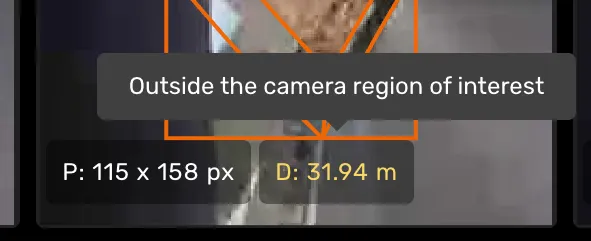
Show property label
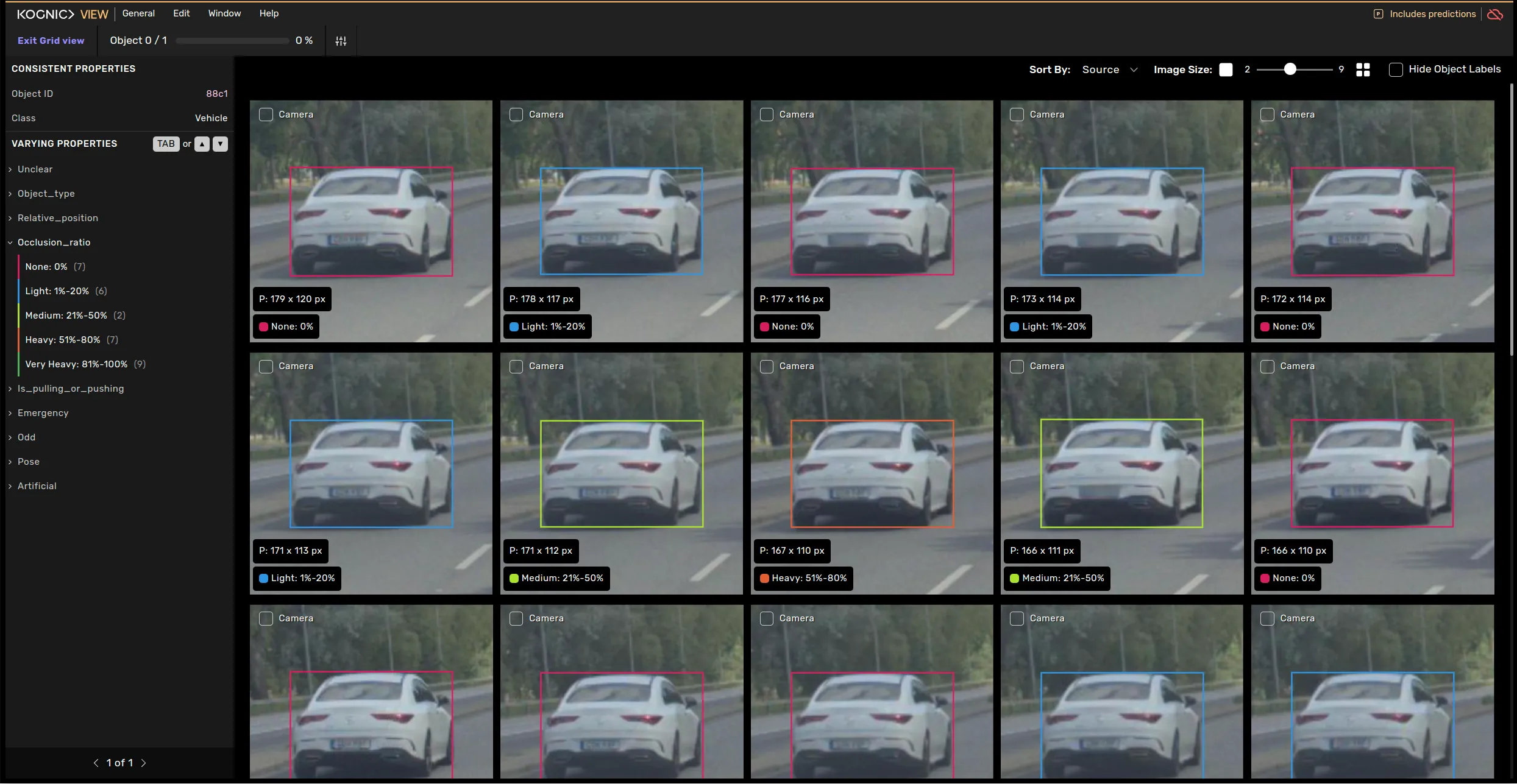
Shows the value of the selected property on each image, with a color dot matching the color the value has in the grid. Images where the property has no value show "Property not found". It is on by default.
When the selected property has a single value, and the image has a 2D annotation, the label is a dropdown you can use to set the value on that image directly.
Turn all three off if you need an unobstructed view of the object temporarily.
In the left side menu you will find all the varying properties for the selected object. Selecting a varying property will highlight the geometry with a unique color for each value that has been set. You will also find the value in the object labels in the corner.
Select a property value to filter the gallery. Once selected, you will only show the images that has that property value. You can step between the property values using tab .
Use the arrow up and arrow down keys to step between the different properties.
You are able to use Quick-feedback in order to add feedback items more efficiently. Activate by clicking on the icon in the top bar or use the shortcut (default ctrl+x) and click on an image.
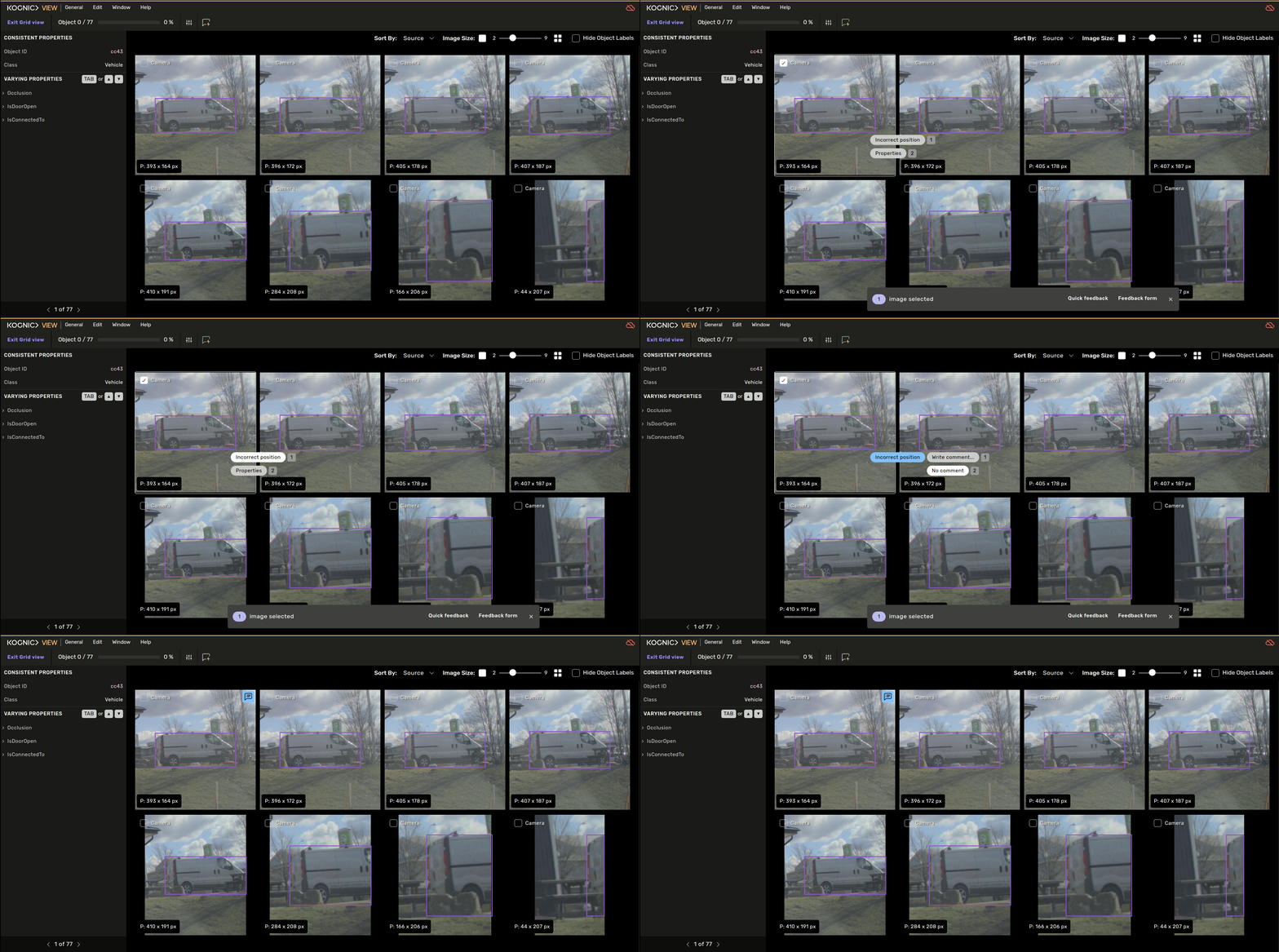
When you have a property selected the quick feedback will automatically be filtered to leave feedback on the selected property.
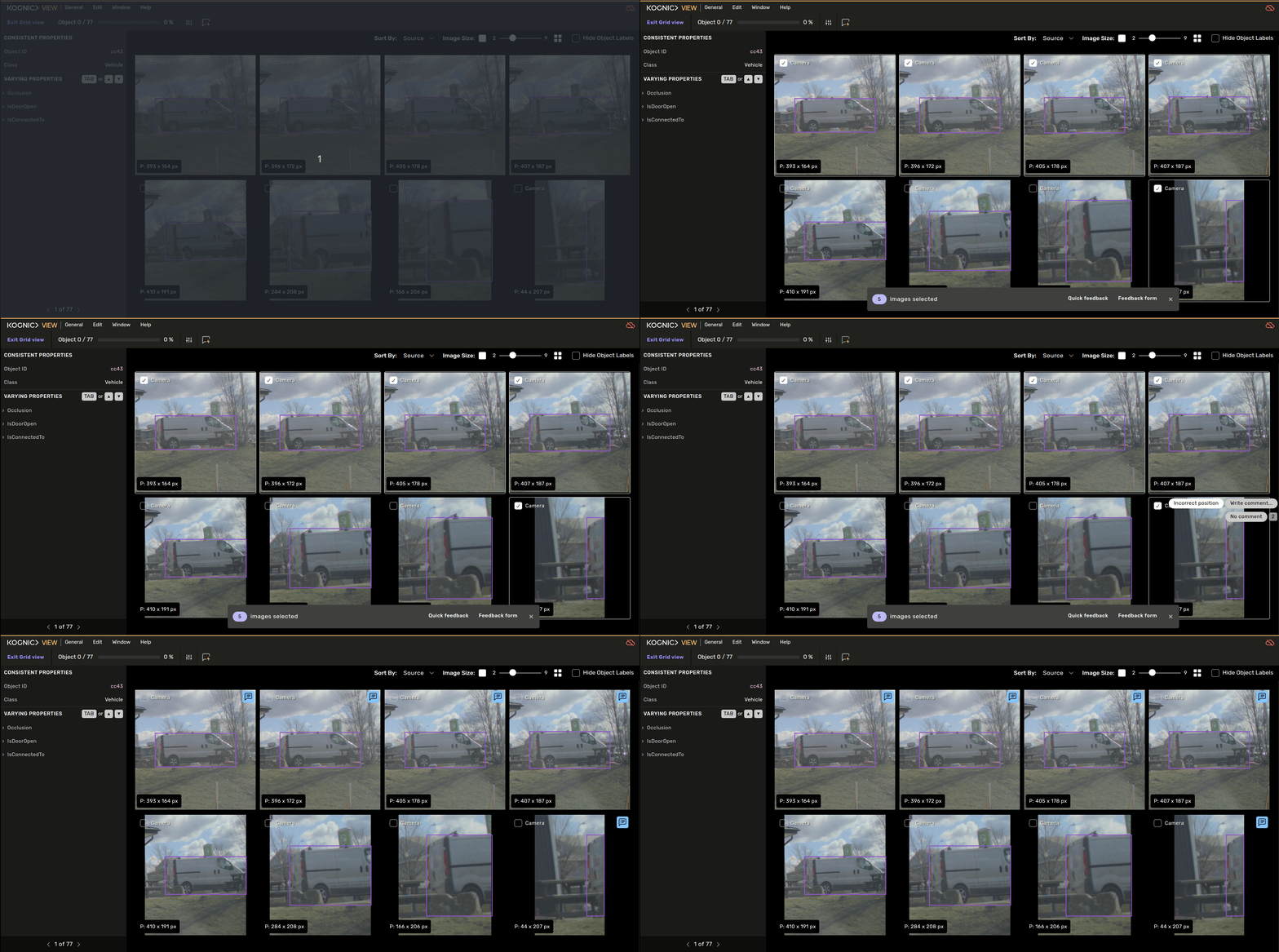
You can also utilize multiselect to provide feedback to many frames at once. Select all images you wish to leave the same type of feedback on and active quick-feedback.
You are able to use Quick-properties in the 2d grid view. Select the images you want to apply the property to either one by one or using multi-select. Then activate quick-properties (ctrl+q by default) and select the property and value to apply.

When you select a varying property with occlusion configured, each image in the grid displays an estimated occlusion value as a small badge. The camera source with the best visibility is highlighted in yellow.