The action bar
2 min
The action bar for 3D lines, lanes, and points is enabled by default. You can deactivate it from the action bar context menu accessible from the ...-button or by right-clicking on the shape and toggling off "Show action bar" in the shape context menu.
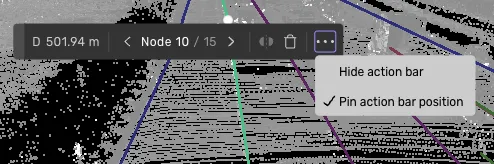
The action bar
The action bar for 3D lines and lanes is enabled by default. You can deactivate it from the action bar context menu accessible from the ...-button or by right-clicking on the shape and toggling off "Show action bar" in the shape context menu.
Action bar tools and information
- Change the position of the action bar by dragging on the light grey handle to the left of the bar
- View distance and width information (width only for lanes)
- View measurements and property labels (3D points only)
- Go to the previous or next node
- Delete the currently selected node
- Detach the currently selected node
- Hide the action bar
- Pin the position of the action bar (otherwise, the position will change whenever you select a new line, lane, or point)
- When the grid view is active, the action bar is docked at the center of the screen and cannot be moved.
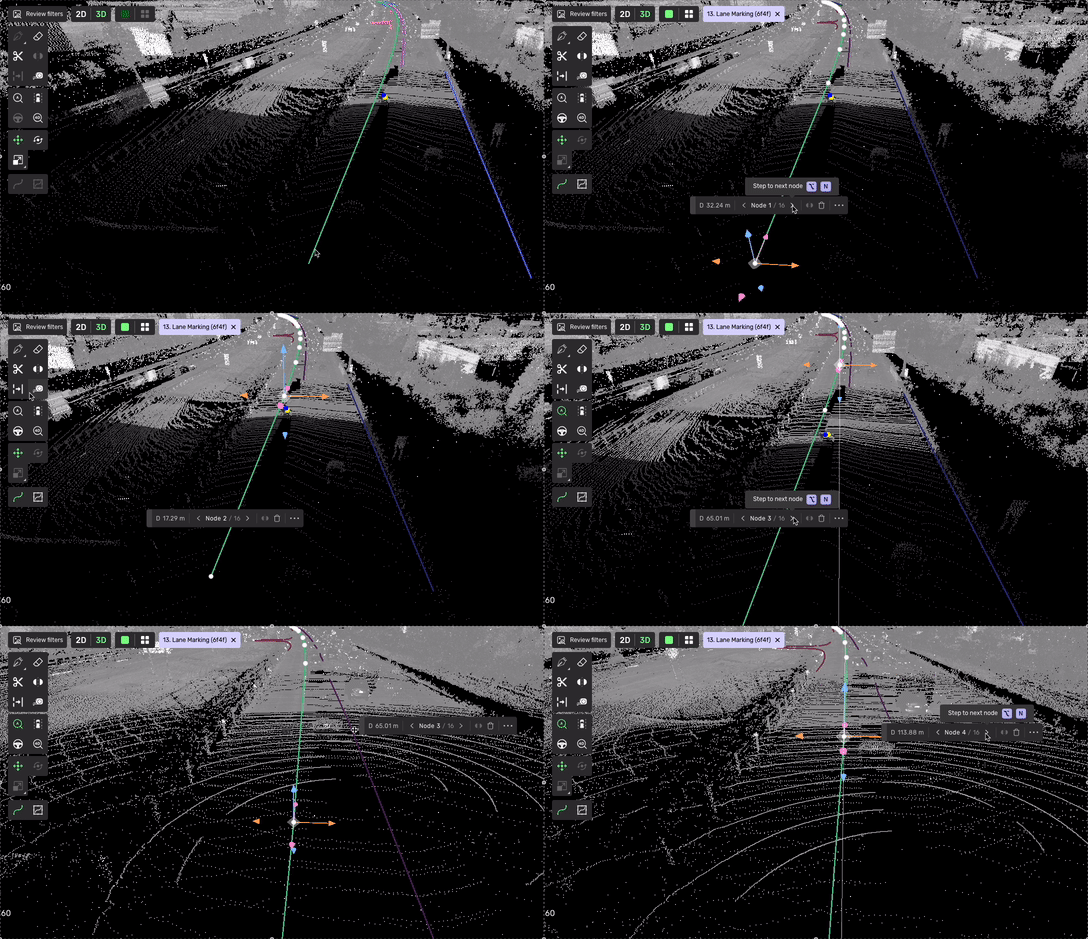
Stepping between nodes