Geometry collection (drawing)
Geometry collections are used to group many different geometries of the same object.
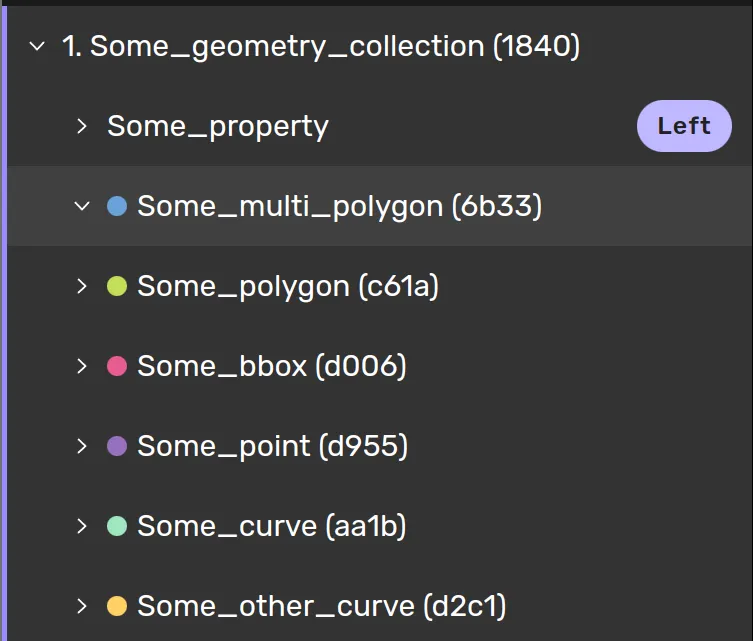
There is no specific drawing tool for the geometry collection. Instead you will use the drawing tool for the specific shape type within the geometry collection.
Drawing process
Select a class
Draw the shape according to its drawing process
You have now created a shape in a geometry collection
Repeat step 1-3 for as many shapes you need to add to the geometry collection
When you have a geometry collection selected you are only allowed to create shapes within the collection. The other shapes are blocked so that you do not accidentally leave the geometry collection. Pressing escape twice will guarantee that you deselect both the object and the geometry collection.
There is a special setting available for 2D curves and 3D lines that lets you draw continuous lines with many different objects. While drawing and you select a new class, or the same class again, you will start drawing a new object that is automatically started at the last point in the previously drawn geometry.
Without this setting, the 2D curves and 3D lines will not automatically connect to the previous geometry.


You can end up in a situation where a geometry collection that should be continuous is not. Then you are able to reattach geometries into the group via 'point snapping' - holding by alt. For 2D curves you will only be able to attach the beginning of one curve to the end of another, or vice versa.

When a geometry collection is selected in 3D, all objects will be included in the selection and marked with a white outline.

You can use the Transformation controls to rotate, scale, and translate all objects in the geometry collection at once. Select the geometry collection, and you can transform all the geometries.
When you have selected a geometry collection it will be indicated by a purple badge in the left corner.
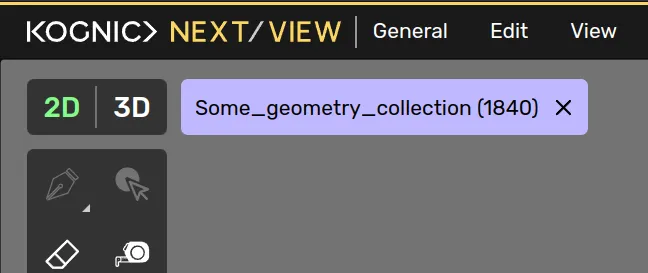
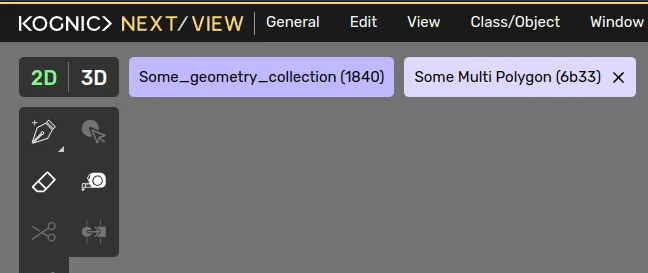
When you select an object inside a geometry collection you will see two badges, one with for the collection and one for the current object. Pressing escape once or by clicking the 'x' will deselect the current object and select the geometry collection. Escaping again will clear any selection.
Related content
Objects in geometry collectionsGeometry collections