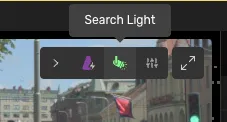
2D miniature image
The 3D view will also include a 2D image in the top right corner. You can expand it by clicking on the expand icon or the assigned shortcut.
The Image Settings window can be opened by clicking the Settings button in the expanded toolbar. You can select objects in the miniature image by clicking on them.
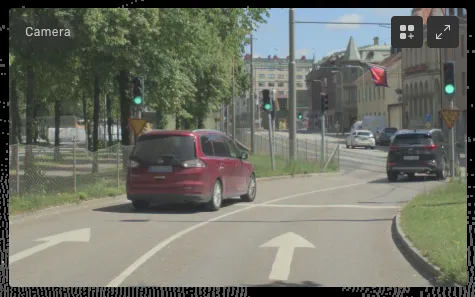
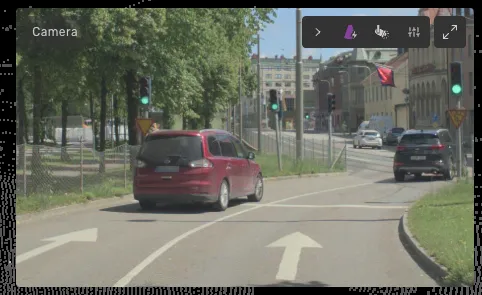
The quick projection feature allows you to create a temporary box to highlight a point cloud region in the 2D image.
Enable Quick projection by clicking on the button in the toolbar
Go to the miniature 2D image in the 3D view
Press Shift and drag the cursor over the area in the 2D image you're interested in
Follow the purple-colored projection to find the area of interest.

The search light allows you to hover over the miniature image with your mouse, highlighting the corresponding point in the point cloud at your cursor's position in the image. Activate it by clicking the Search light button in the expanded toolbar.
When the search light is activated, selecting objects in the miniature image is not possible.