Object cameras
You will see the selected object from straight above. This is good for estimating the width.
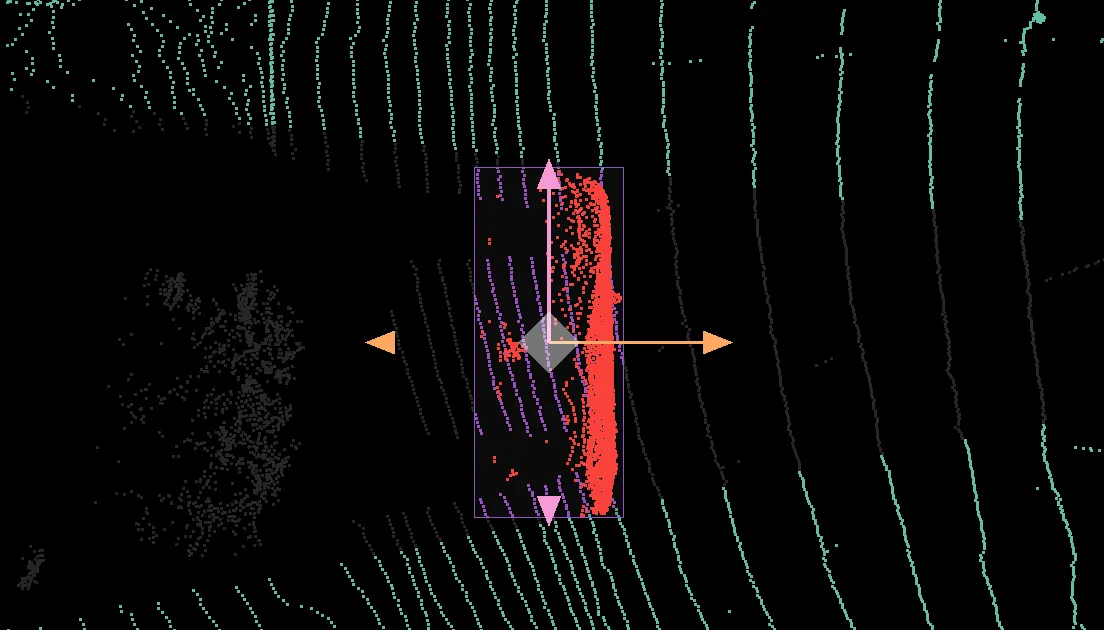
When you enter birdseye view - the top view camera will not be displayed since you're observing the object from a similar view point. This leaves more room for the right and back view which will become bigger. You can disable this behavior in the top View settings.

You will see the object from the right side. This is good for estimating the length.
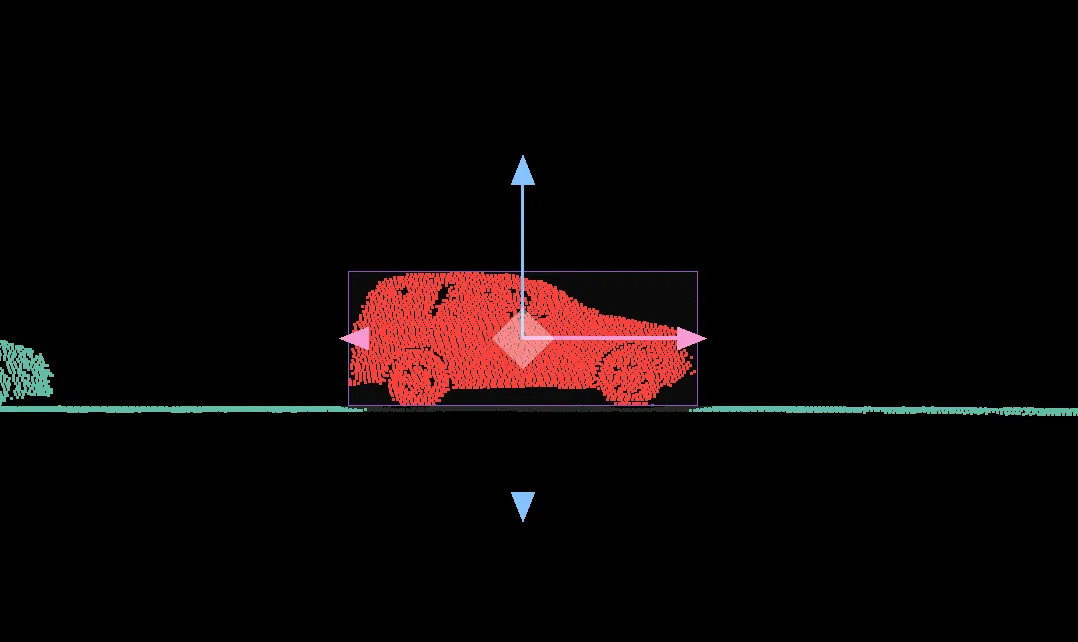
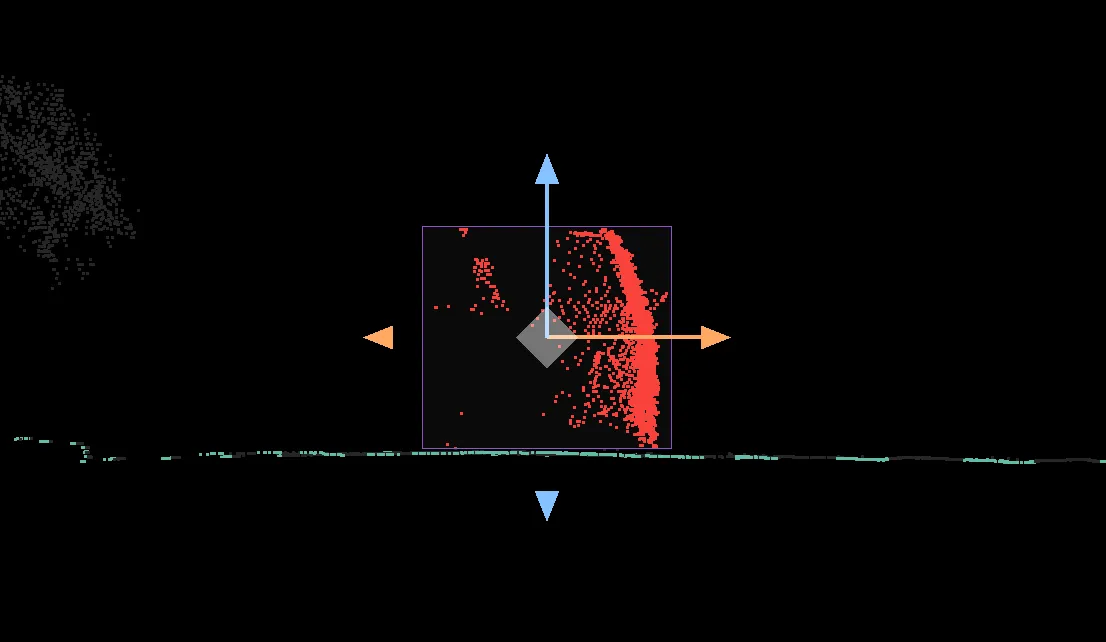
You will see the object from the back. This is good for estimating the height.
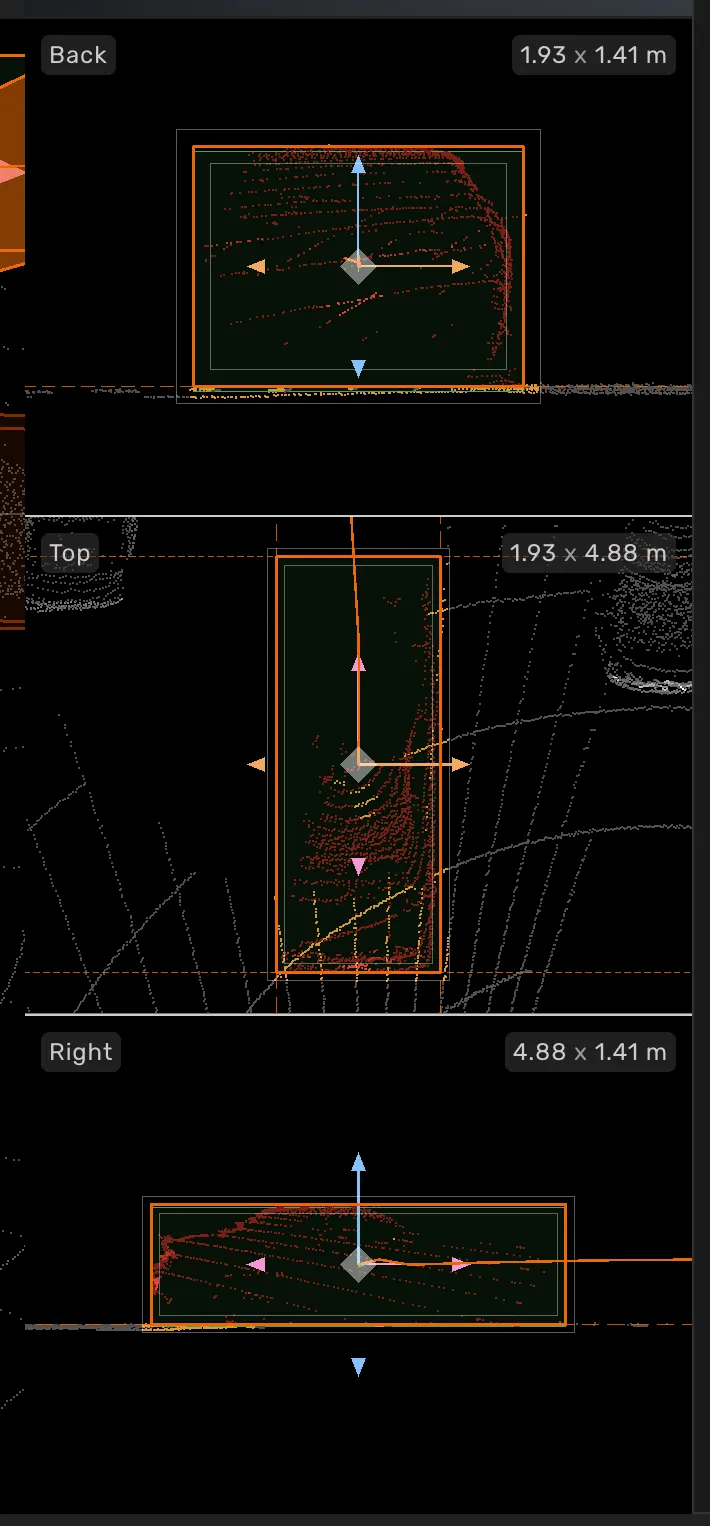
When a cuboid is selected, each object camera shows the two dimensions you see in that view, in meters. Use them to check the size of an object without opening its properties.
The number of decimals follows your setting in the object labelobject label. Dimensions are not shown in the 2D Grid view.
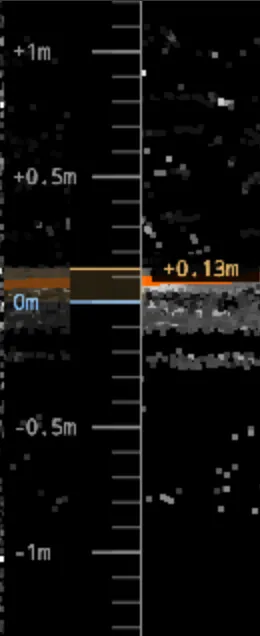
View Z-axis measurements in the object camera views, with real-time feedback when moving objects vertically.
When to use the Object camera ruler
Use the Object camera ruler to get a sense of scale at a glance and avoid unnecessary vertical adjustments. The always-visible Z-axis markings and color-coded delta indicator let you quickly see whether a move is meaningful.
Right now, we consider adjustments ≥25 cm to be meaningful, turning the delta indicator completely green.
How to use the ruler
Enable Top menu -> View -> Object camera ruler.
Select an object and drag it vertically to see a delta indicator showing how far it has moved (for example, +3 cm or +0.5 m).
The indicator is color-coded from red to green — small movements show red to flag potential micro-adjustments, while larger movements turn green to confirm the change is meaningful.
The ruler displays metric units and automatically switches between meters and centimeters depending on the zoom level.
