Class/ Objects
Depending on the task and view, this menu tab will vary in items.
Hide selected
This feature will hide the selected object or class in the view and camera sources.
Hide all objects
This feature will hide all objects in the view and camera sources.
Hide selected class
In 3D point classification tasks, this hides all points belonging to the selected class in the view.
Hide all classes
In 3D point classification tasks, this hides all classified points in the view.
Hide all but selected
When you have an object selected and use this feature, all other objects in the view will be hidden.
Hide annotations in 2D
This will hide all 2D boxes in the view and camera sources.
Lock selected object
Locks the selected object only. You cannot edit its size or volume while it is locked.
Lock selected class
Locks every object of the selected class. You cannot edit their size or volume while locked.
Lock all classes
Locks every class in the task.
Lock all objects
Locks every object in the task.
Action assist
Opens the Action assist panel, which gathers the assistance actions available for the current task and lets you apply them quickly. Read more on the Action assistAction assist page.
Annotation hover info
Available in semantic segmentation tasks. Toggle Polygon class to show the class of a polygon when you hover over it in the view.
Property labels
Available when the shapes in your task have properties. Choose how property labels are displayed on objects in the view:
- Shorthand name: Shows the abbreviated property label.
- Full name: Shows the full property label.
Auto-adjust to ground
This feature affects the box automation tools Auto-adjust this frame and machine assisted box creation. If activated, the pitch, roll and position of the box will be adjusted to align with the level and slope of the road. See also in Auto-adjust objectAuto-adjust object (3D).
Trajectory
A trajectory will show how the selected object changes position along the sequence. Each point along the line represents a frame and the object's position in that frame. Click on a trajectory point to go to that point in time. Read more about this feature in Object trajectoryTrajectories.
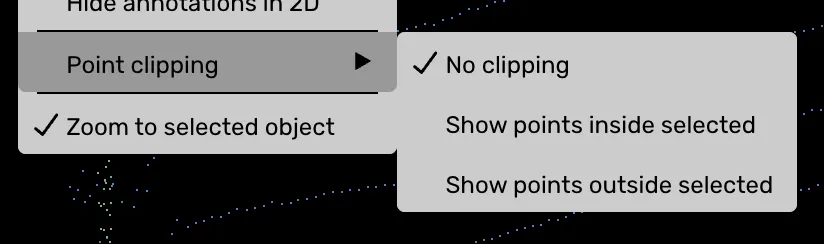
Point clipping
Point clipping has three alternatives:
- No clipping (default): All points inside and outside the selected objects are visible.
- Show points inside selected: This will hide all points outside the selected object.
- Show points outside selected: This will hide all points inside the selected object.
Unify size
This feature allows you to add the same size to the 3D cuboid across all frames it is visible in. We recommend that you use it when you think you have reached the frame in which the cuboid is the most visible (have the most points).
Unify direction
The Unify direction feature unifies the direction for an object in a sequence, i.e. make the object have approximately the same direction in all frames in the sequence.
Zoom to selected object
When you select a 2D or 3D box and activate this feature, you will zoom in on the object while the camera angle remains the same. In other words, the only change will be the camera's position.
Show all objects in grid view
Toggele whether you want to see other objects in grid view in the The 3D viewThe 3D view. Other objects can sometimes interefere visually with the current object, so there is an optional shortcut that can be assigned for this setting. The default is shortcut is unbound.