Card information
An item/card in the validation list will represent one error or warning in the task.
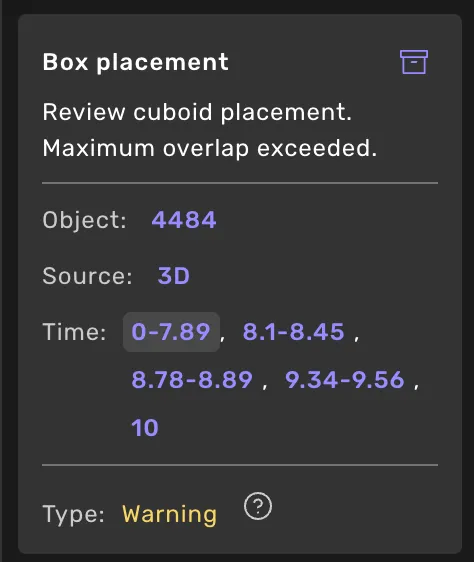
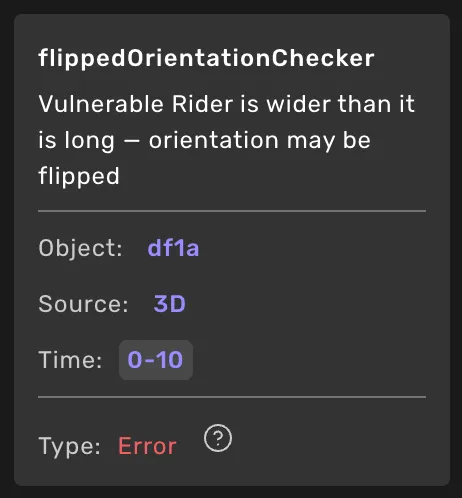
Headline (error or warning type)
The headline tells you what error type was detected and what issue you must address.
Comment/ message
Detailed information about the issue and what to do to resolve it.
Archive/Restore
Warnings have an Archive button that removes the warning from view for the active validation and object. If the same validation fires a new warning for a new timestamp, it stays hidden. If a different validation creates a new warning for the object, it becomes visible. To see archived warnings, turn on the Show archived filter, where you can Restore them.
Object ID
Click to select and go to the object.
Source
Click to go to the 2D/ 3D source or sensor mentioned.
Time
In a sequence task, you can read whether the feedback targets one frame or the entire sequence. Click on the link to go to the specific frame mentioned or the first frame in the sequence.
A validation item can have one of the following statuses.
Error
A critical issue. An error needs to be fixed before the task can pass validation.
Warning
A less critical issue. A warning doesn't have to be fixed before you submit the task. Please talk to your quality manager/team manager about how to handle warnings in your specific task.
If you fix any of the mentioned issues, and live validation is not available, the application will not automatically remove errors or warnings from the list. You'll need to validate the task again to confirm that the errors or warnings have been fixed.
The report card shows the validation errors and warnings for one object, right next to it in the view.
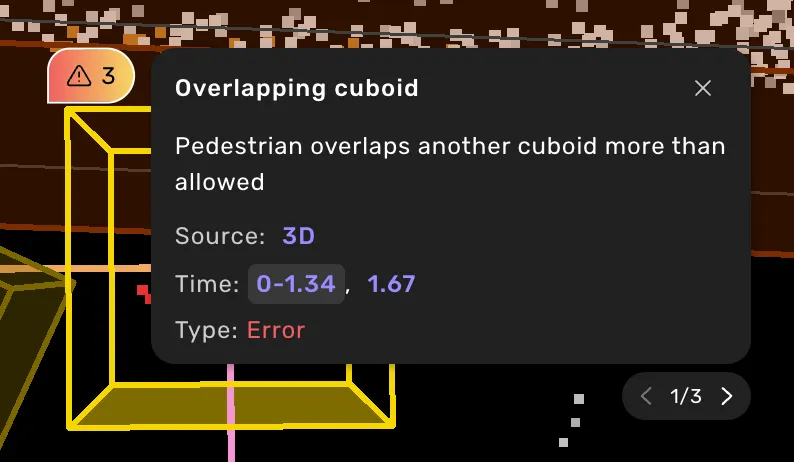
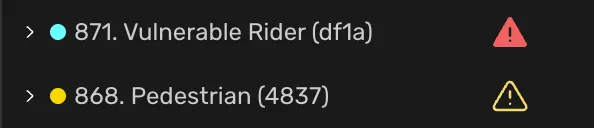
Open it by clicking the warning icon next to the object in the object list, or the object's validation pin in the view. Clicking the icon selects the object, goes to the source and frame of its first issue, zooms in, and opens the validation log filtered to that object.
The card shows one issue at a time, errors first. Use the arrows at the bottom to step through the rest. Each issue shows its type as the heading, the message, and Source, Time, and Type. Click a source or time to go there. Warnings can be archived from the card.
Drag the card by its heading to move it. Close it with the X, or by selecting another object.