Knowledge base
On this page, you can create documents and send them to a team or individual users.
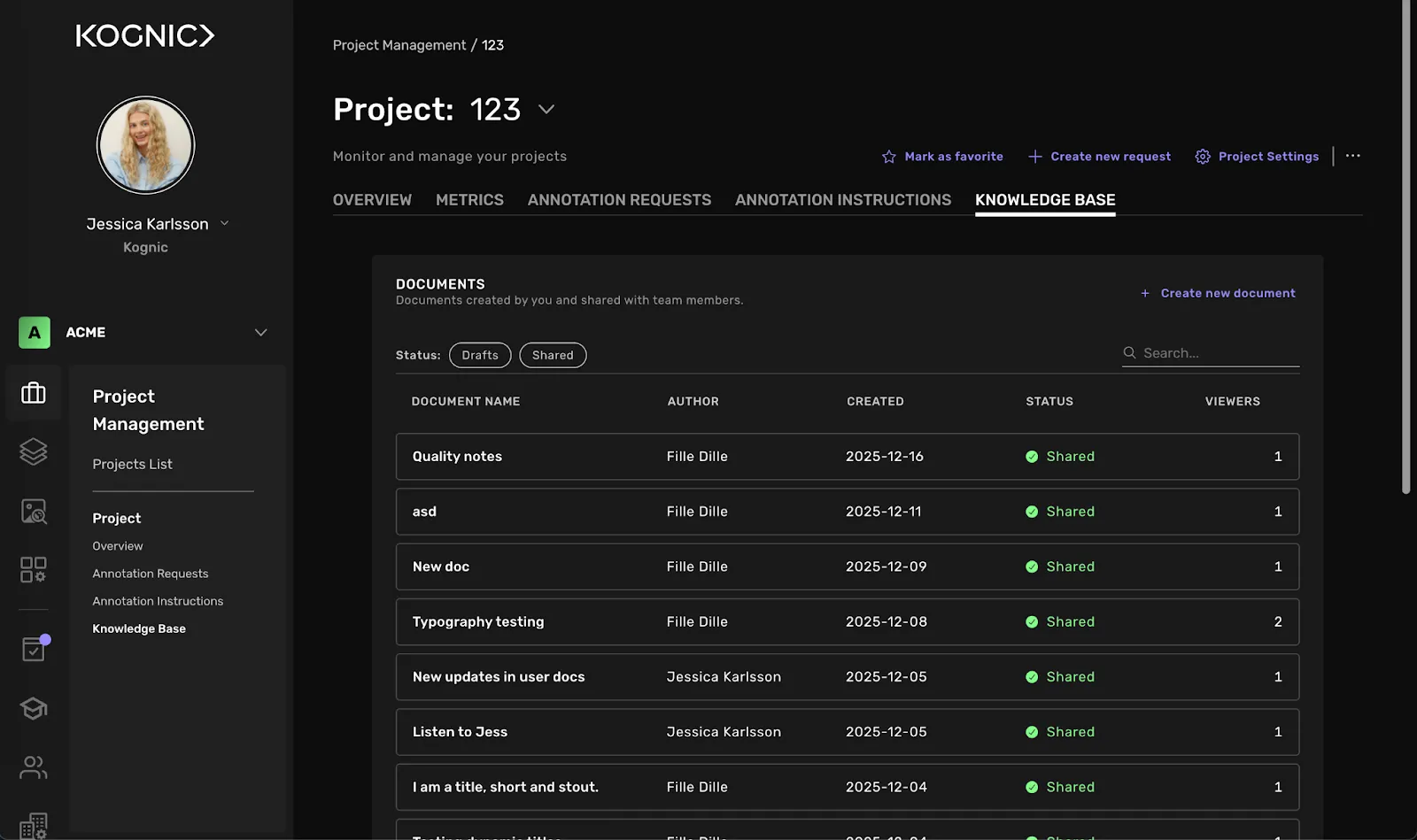
How do I create a new document?
To create a new document, click on the "Create new document" located on the right. This will take you to our document editor.
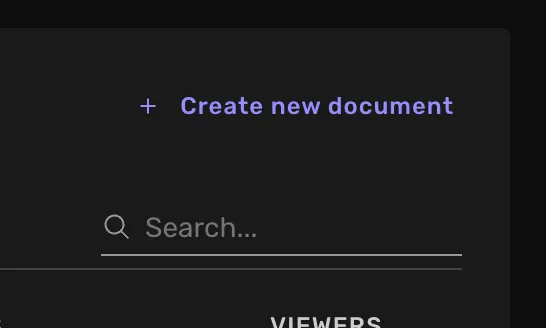
Start by giving your document a name. Then go down a step and write “/” to add the content you want: bullet points, headlines, images, etc.
Drafts
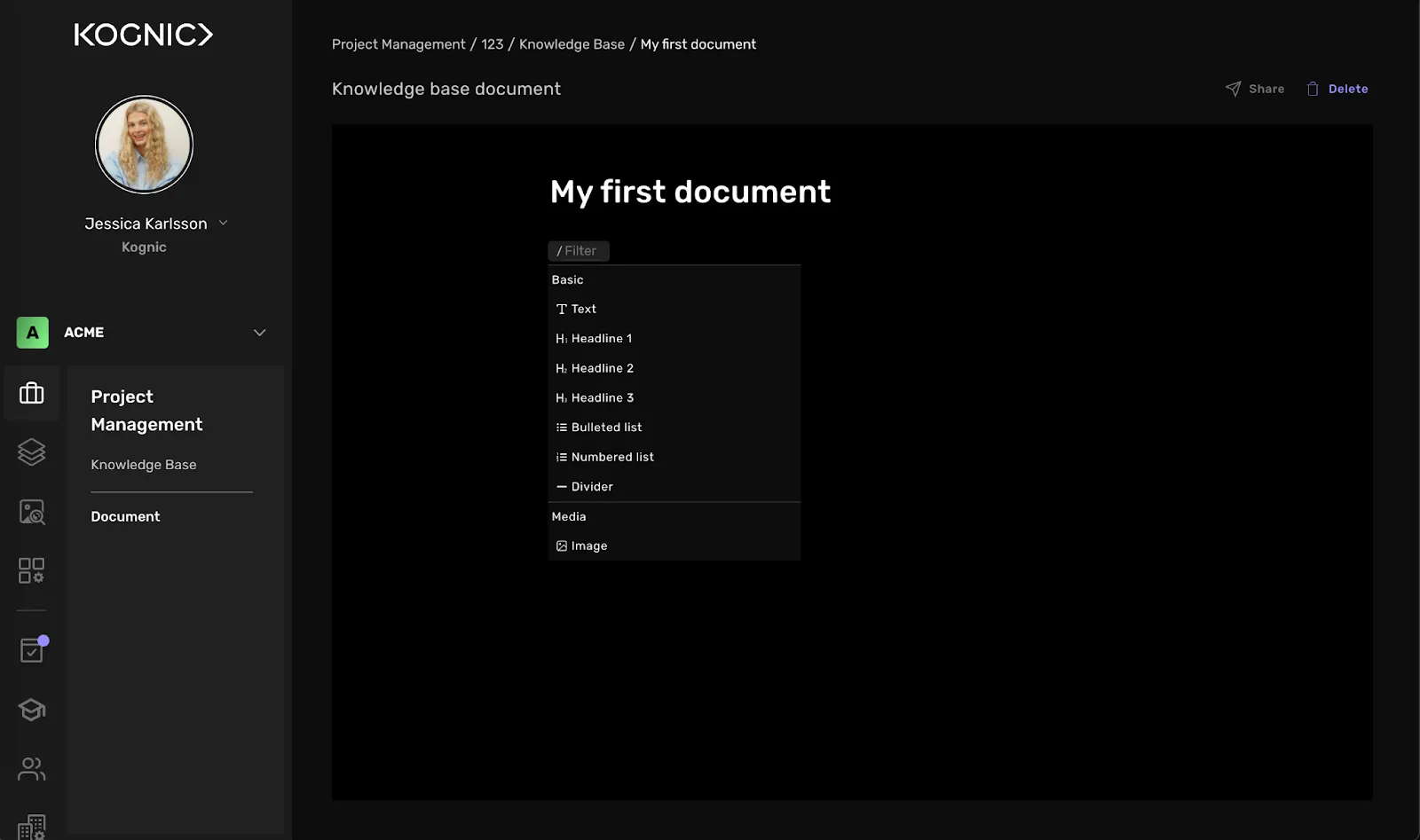
All documents will be saved automatically. If you leave the page, you can return to the draft at any time.
How do I share a document?
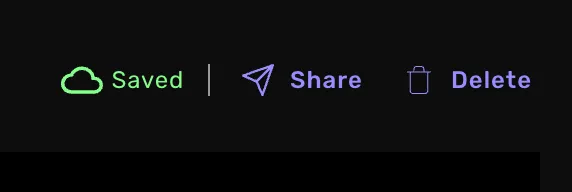
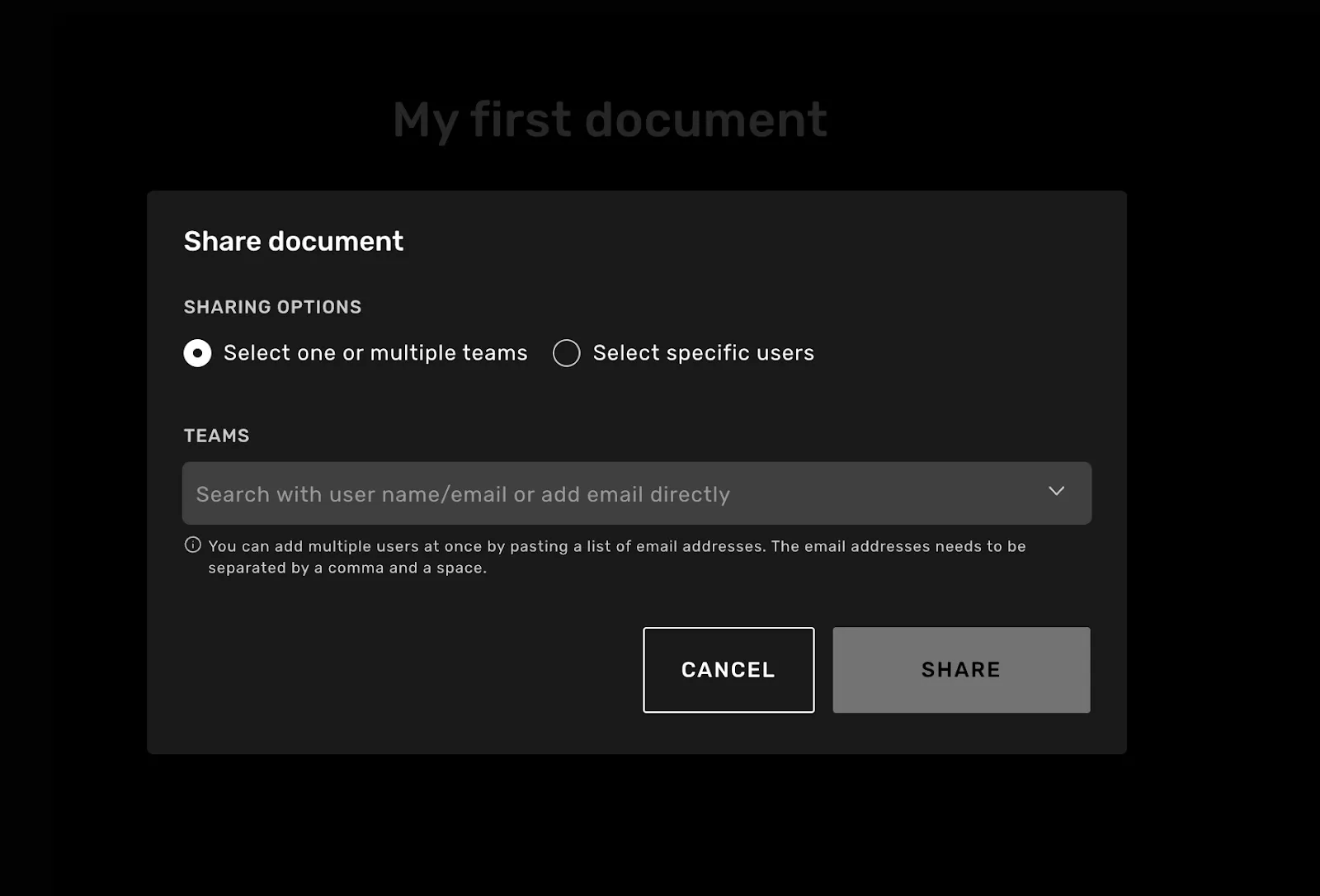
Once all the information has been written, you can go to the top right corner and click “Share”. In the dialogue, choose the team to which you want to send the document or individual users.
Can I edit shared documents?
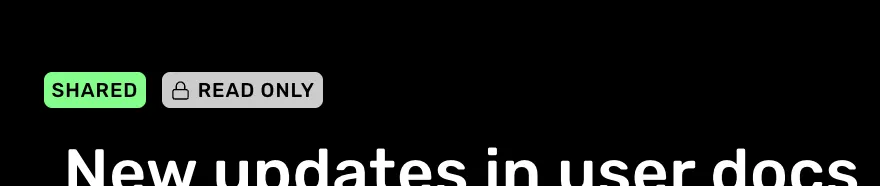
No, once a document has been sent, you can no longer edit its content. You can, however, update who you've shared it with or archive it for everyone.
Why do we not allow edits?
We don't want the receivers to feel required to go back and read already read documents in case and edit has been made, therefore we block editing. This is was a deliberate decision, but depending on how the document sharing evolves, this might change. So for now, writers have to be a bit more careful with what they send out.
How will the user be notified about the documents?
In the Platform
To indicate that a new document is available, a purple dot will appear on the Campus icon in the left menu, along with a purple bubble displaying a number next to its name.
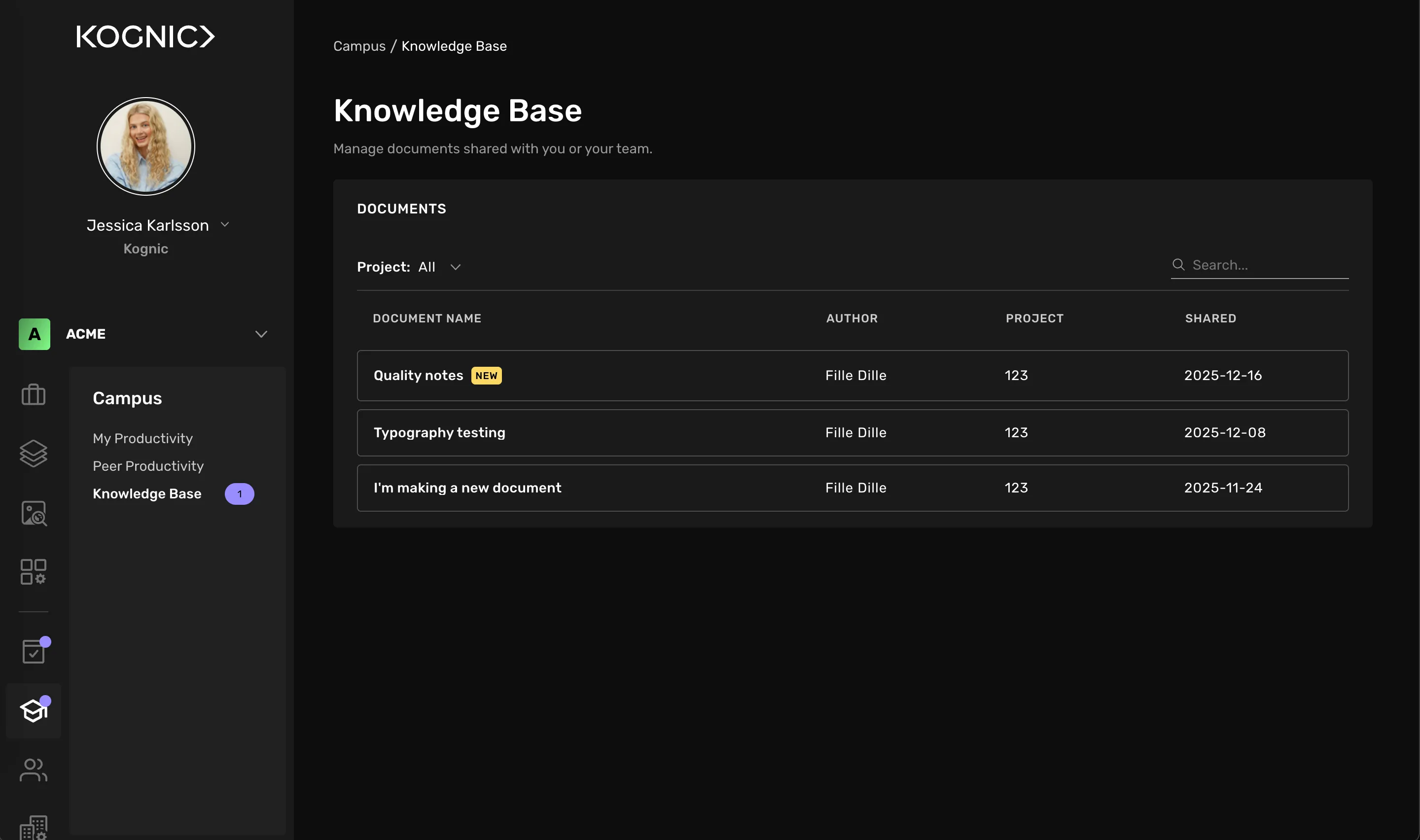
Learn more about reading shared documents under Knowledge base.
In the Task view
A push notification will appear in the top right corner to inform about the new document. By clicking on the notification, the document will open in the Task view.
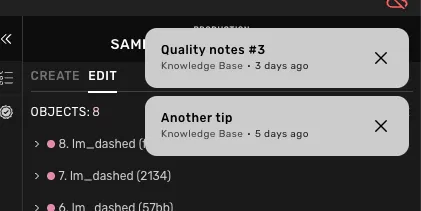
Learn more about reading documents in the Task view here: Notification inboxhere.