My productivity
This page provides an overview of your overall performance.
1. Productivity
Path: Campus ▶︎ User Productivity ▶︎ Productivity Tab
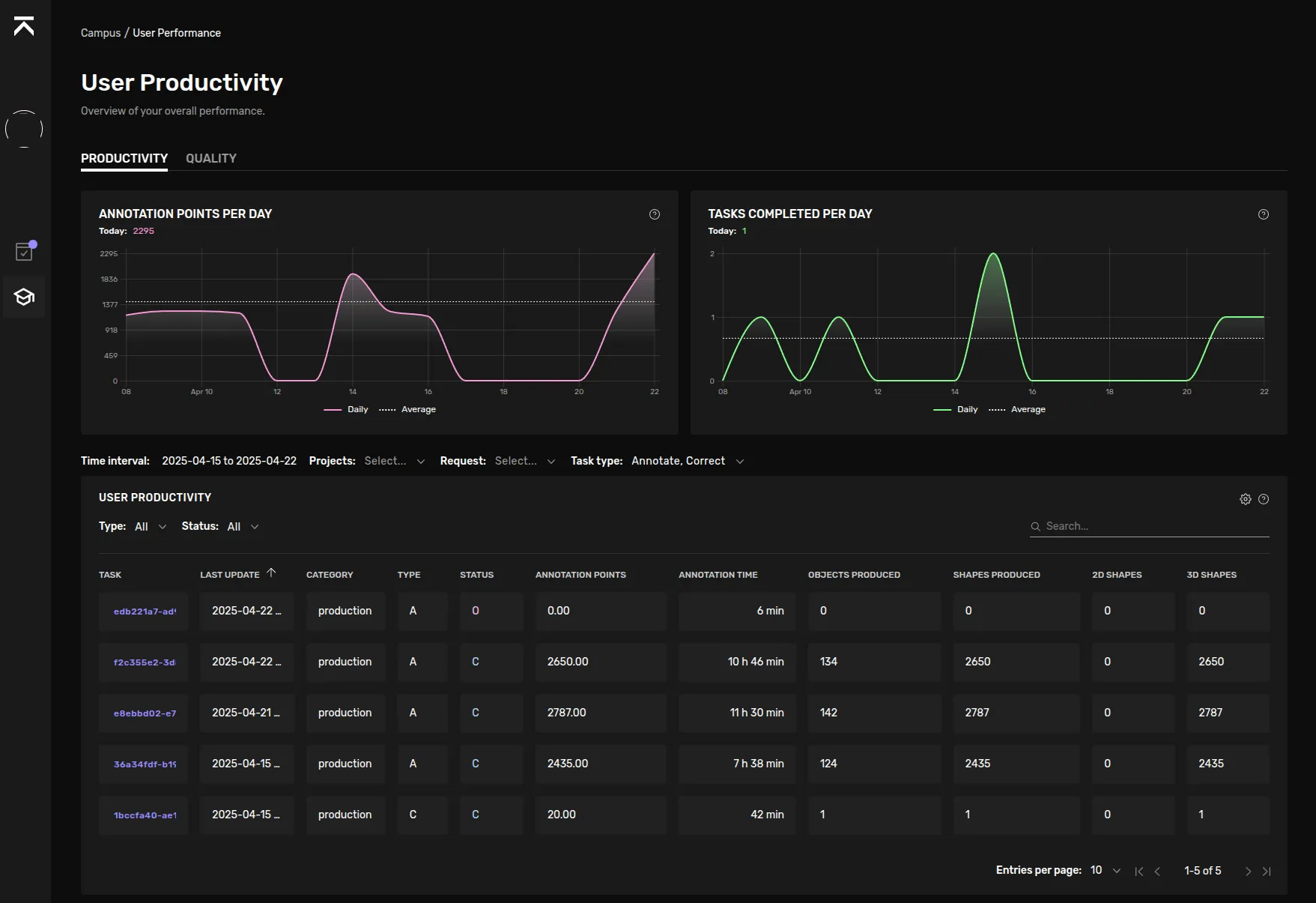
Get a daily view of your annotation output—points, tasks, objects—and dig into each task’s details.
Controls & Filters
- Time Interval Select any date range. By default, shows the last 7 days (daily granularity).
- Projects Filter metrics to one or more projects.
- Request Type Filter by request category.
- Task Type Choose between Annotate, Correct, Review, or All.
Trend Charts
Chart | What it shows |
|---|---|
Annotation Points per Day | Daily sum of annotation “points” (e.g. dataset‑specific scoring). The dotted line is your average over the selected interval. |
Tasks Completed per Day | Count of tasks you finished each day. Dotted line = average. |
Tip: Hover over any point on the chart to see the exact value and date.
User Productivity Table
A pageable table listing every task in the selected range:
Column | Description |
|---|---|
Task | Clickable task ID — opens the task in the annotation tool. |
Last Update | Timestamp of the most recent state change or submission. |
Category | Internal grouping (e.g. “productivity”, “training”...). |
Type | Task type: A = Annotate, C = Correct, R = Review, |
Status | Current status code (e.g. C = Completed, O = Ongoing, E = Expired). |
Annotation Points | Total points earned for that task (scoring rules vary by project). |
Annotation Time | Total time spent on the task (formatted as hh mm). |
Objects Produced | Number of individual objects annotated (sum of 2D + 3D instances). |
Shapes Produced | Total geometries created (object * frame count). |
2D Shapes | Count of 2D-only shapes. |
3D Shapes | Count of 3D-only shapes. |
2. Reviewer Productivity
Location: Campus > User Productivity > Reviewer Productivity Tab
Get a detailed view of your review performance—track time spent, efficiency metrics, and feedback contributions across all your review tasks.
Overview
The Reviewer Productivity tab provides insights into your quality assurance work, helping you understand how efficiently you're reviewing tasks and managing time budgets. This view is tailored specifically for users performing review activities.
Controls & Filters
- Time Interval: Select a date range to analyze
- Projects: Filter metrics by specific projects
- Request Type: Filter by request category
Key Performance Indicator
Time Budget Usage: Shows the percentage of allocated review time budget you've used during the selected period. This metric is calculated based on your project's hourly target per task and only includes time from the first review round of each phase.
- Green/Normal: Using budget efficiently (≤100%)
- Red: Over budget (>100%)
- Hover over the percentage to see detailed breakdown: "X hours used on Y hours budget"
Reviewer Statistics Table
The table displays detailed metrics for each reviewed task:
Column | Description |
|---|---|
Task | Clickable task ID that opens the task details |
Review Time | Total time spent reviewing this task |
Review Ratio | The ratio of annotation time to review time (annotation time ÷ review time). A higher number means you reviewed faster relative to the original annotation effort. Shows "-" if not available. |
Time Budget Usage | Percentage of the allocated review budget used for this task. Color-coded (red if over 100%). Shows "N/A" for tasks without a review budget. |
Feedback Created | Number of feedback items you created while reviewing this task |
Understanding Review Metrics
Review Time The amount of time you spent in review tasks during the selected interval. This includes all review activities but excludes follow-up reviews in subsequent rounds.
Review Ratio Indicates review efficiency compared to the original annotation effort. For example, a ratio of 2.5 means the review took 2.5 times less time than the original annotation. This helps identify tasks that may need more review attention or training.
Time Budget Usage Tracks how your review time compares to the project's expected review time per task. This is based on the hourly target configured at the project level and helps ensure quality review without exceeding planned resource allocation.
Feedback Created Shows your contribution to team learning and quality improvement through feedback items. Higher numbers indicate active quality mentoring and error identification.
Tips
- Use the date range filter to identify trends over time
- Compare your review ratio across different task types to understand where you're most efficient
- Monitor time budget usage to balance thoroughness with efficiency
3. Quality Alignment
Path: Campus ▶︎ User Productivity ▶︎ Quality AlignmentTab
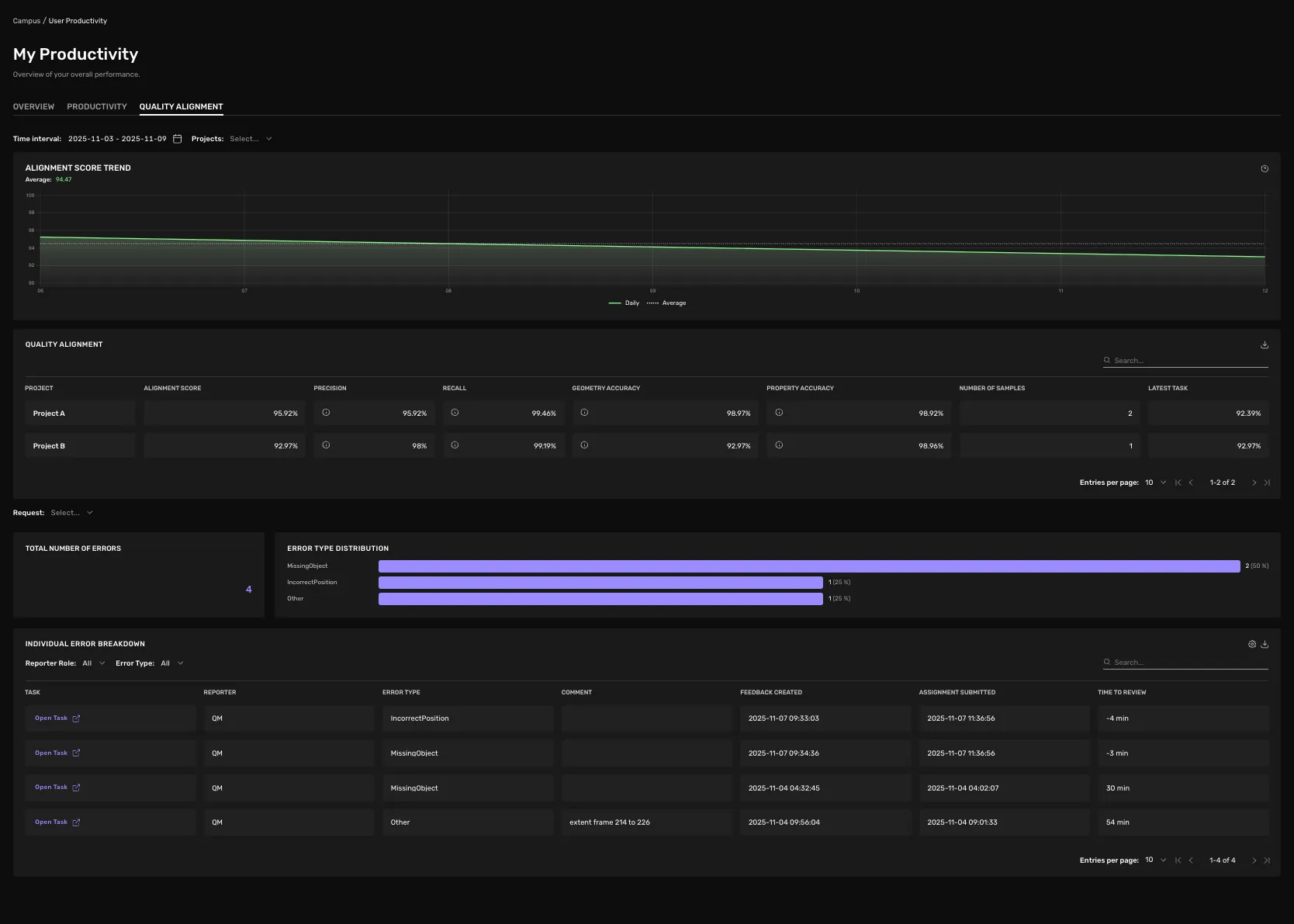
This page provides statistics of your alignment on the expected quality and the error types you’ve generated, empowering you to pinpoint your most common issues and focus on targeted improvements. Note: The figures in the Quality Alignment tab that refer to errors are based on feedback— each “Error” corresponds to one feedback entry.
Controls & Filters
- Time Interval Choose any date range. This will affect both Alignment and Error content of the page.
- Projects Filter by project. This will affect both Alignment and Error content of the page.
- Request Type Filter by request. Only applicable for the Error content.
Alignment
For more detailed information about the alignment statistics, you can read the general documentation for Quality Alignmenthere.
Total Number of Errors
A summary card displaying the aggregate count of errors recorded in the selected time interval.
Error Type Distribution
Horizontal bar chart displaying each error type and its percentage, example.
Error Type | Count | % |
|---|---|---|
MissingObject | 2 | 67% |
FeedbackErrorType | 1 | 33% |
Individual Error Breakdown
A pageable table listing every feedback entry:
- Task Click Open Task ▶ to jump to the corresponding annotation.
- Reporter Who left the feedback (usually a Quality Manager), but could be a Lead, Client or Automatic Feedback.
- Error Type The error category which was selected when giving the feedback.
- Comment Free‑form notes on what’s wrong.
- Feedback Date Timestamp when the error was logged.
Filters above the table allow you to:
- Show only errors from certain reporter roles (e.g. QM, LQM).
- Filter by specific error types.
- Search by keyword in comments.
4. FAQs
Q: Who can see my errors?
A: Only you and users with QM/admin roles.