Priority
Beta This feature is currently only available to certain organizations. The plan is to make it available in all projects as soon as possible.
The Priority tab shows the order your workforce picks up work across all requests in a project. Use it when one request matters more than the others, or when a request should wait behind what you upload next.
Prerequisites
The Priority tab is in Project Management, on each project where priority is enabled. Users with the workspace role Admin, Project Manager, Annotation Manager or Developer can see it.
To change priority, you need the workspace role Admin or Project Manager, and access to every request in the project. If you can access only some of the requests, you see just those, numbered from 1 in each tier, and cannot change the order. See Roles & permissions.
Overview
By default, the workforce is always given the task closest to delivery. Priority lets you override that for specific requests by moving them into one of three tiers: Critical, Normal, or Low.
How priority works
Each time someone in your workforce submits a task, the platform picks their next task from all requests in the project. Two things decide the order: the request's tier, and how close each task is to delivery.
Closest to delivery goes first. Within a tier, a task late in the workflow (for example a correction after Client QA) is picked before a task early in it (a new annotation). This is what shortens turnaround: nothing that is nearly finished waits behind new work.
Tiers override that for whole requests.
Tier | What it means | Order inside the tier |
|---|---|---|
Critical (up to 3 per project) | Worked on before everything else, even ahead of nearly finished work in other requests. | The order you set. |
Normal | The default. Every new request lands here. | Closest to delivery first. Your order breaks ties. |
Low | Ranks below every Normal request, including ones you upload later. Use it for work that should wait. | Closest to delivery first. Your order breaks ties. |
Use Critical with care. A critical request can push nearly-finished work from other requests back in line, so it is capped at three per project.
Completed requests stay in their tier, with the status Completed. Archived requests are not shown.
Change priority
Nothing is applied until you save, so you can rearrange freely and discard if you change your mind.
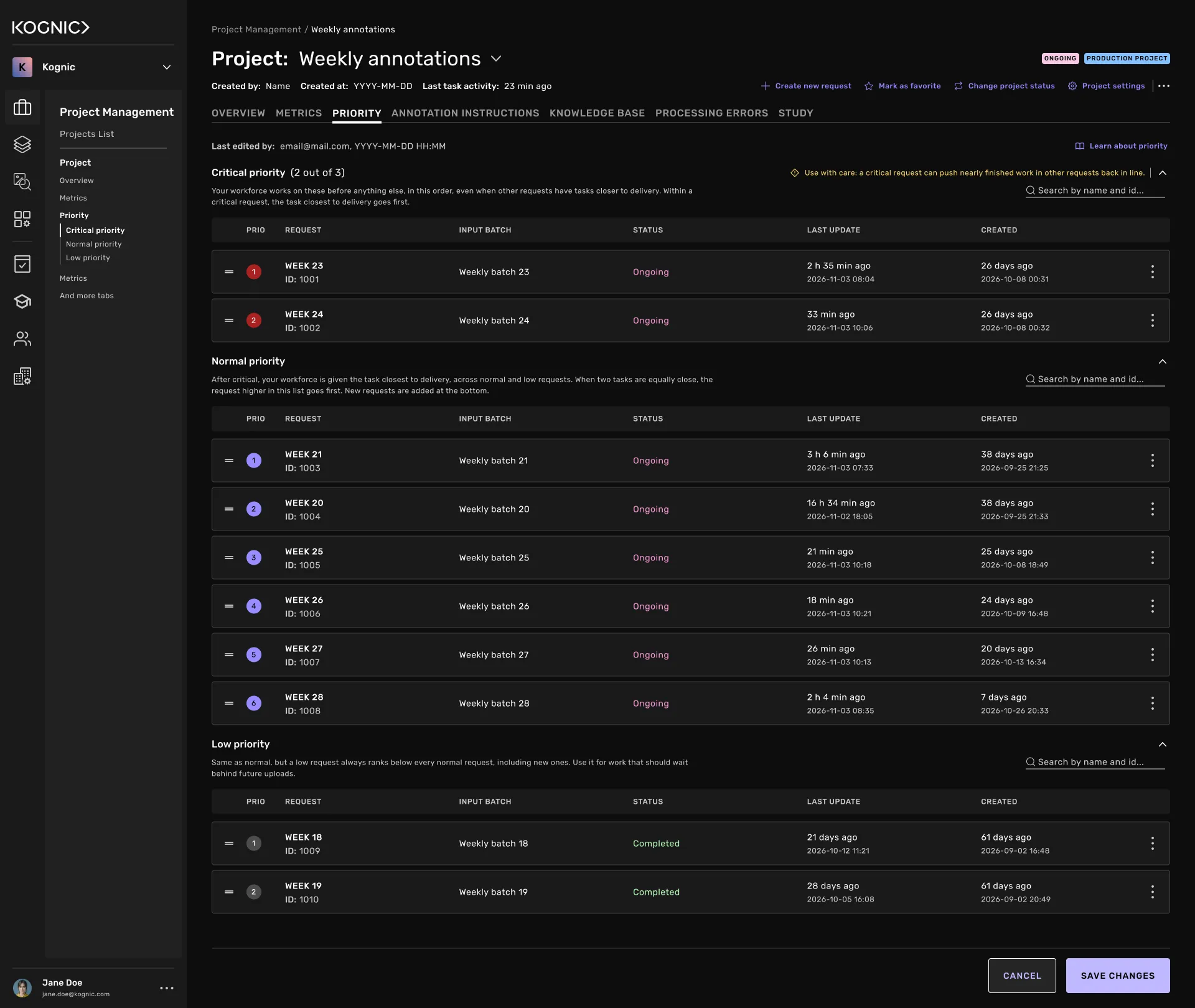
Open the project and go to the Priority tab.
Click Edit priority. Drag handles appear on each request.
Drag a request by its handle to a new position, or into another tier.
Click Save changes, then Save to confirm. Your workforce is given tasks in the new order from their next submit. Nobody is moved mid-task.
Click Cancel to discard all changes. If you changed anything, you are asked to confirm first. The same happens if you leave the page while editing. Save changes stays disabled until you change the order.
If Critical already holds three requests, you cannot drop a fourth. Move one out first.
Each tier has its own search field. Search by request name or ID. Matches are highlighted in place, so you can drag them while searching.
Common questions
Related
- My Tasks, where your workforce sees the prioritized task per project
- Roles & permissions, the roles needed to see and edit priority
- Annotation Workflows, the stages that decide how close a task is to delivery