Workforce
When should I visit the Workforce tab?
In the workforce tab, you specify which users should work on the request and in which workflow stages.
What is the request workforce?
The request workforce serves as the staff/team for the request. Users added to the workforce are expected to complete tasks within the request. Task assignments are determined by each workforce member's workflow stages. The method of task assignment (automatic or manual) is determined by the type of task allocation assigned to each workforce member
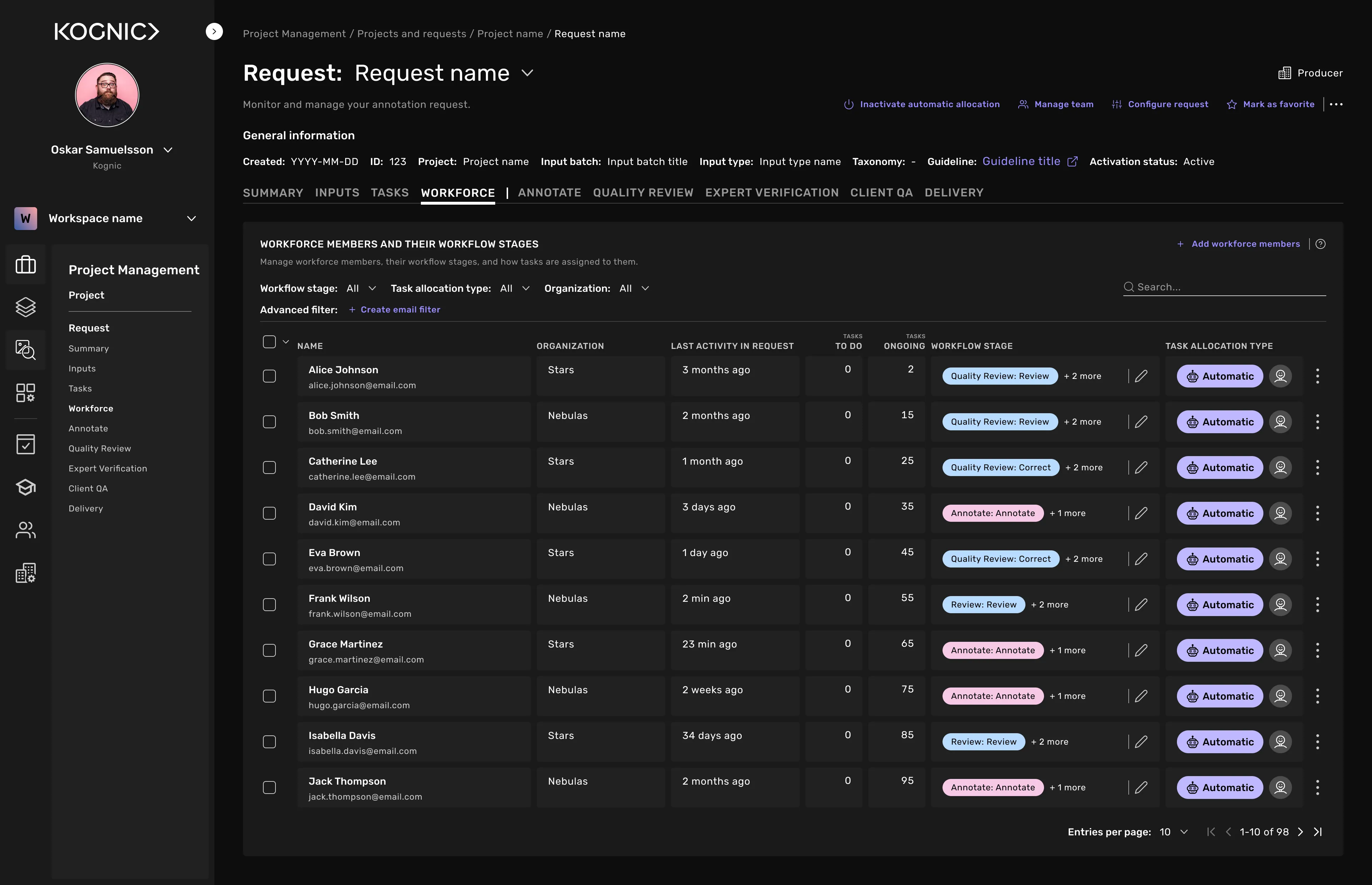
Adding and removing workforce members
You can add users from your organization and partner organizations with workforce access agreements.
Manually add workforce
Open your request and navigate to the Workforce tab.
Click Add workforce members (located in the upper right, or in the center of the table if empty).
Select a task allocation type:
- Automatic allocation: Members receive tasks automatically from assigned stages when they click "Start a task."
- Manual allocation: Tasks must be assigned individually; no automatic distribution occurs.
Choose workflow stages for new members (determined by the request's annotation workflow).
Search for users by name or paste multiple email addresses separated by commas and spaces.
Select the users you want to add to the workforce. You can add them one by one by searching for their name, or add multiple users by pasting a list of email addresses separated by commas and spaces.
Click Add members to confirm.
Copying from or to another request
Instead of adding members manually, you can copy a workforce from an existing request. Copied members retain their task allocation type and workflow stages. Stages that exist in the origin request but not in the target are skipped, and only matching stages are applied.
Copy from another request Use this to populate the current request's workforce by copying members from an existing request.
Navigate to the Workforce tab and click Copy workforce from request, located in the upper right, or in the center of the table if empty).
Select the origin request. The members that will be copied are shown below the selector.
Click Copy workforce to confirm.
Copy to another request
Use this to replicate the current request's workforce to one or more other requests.
Navigate to the Workforce tab and click Copy workforce to request in the toolbar.
Select one or more target requests.
Click Copy workforce to confirm.
Yes, by using the "Copy from another request" feature.
Copy from another request Use this to populate the current request's workforce by copying members from an existing request.
Navigate to the Workforce tab and click Copy workforce from request, located in the upper right, or in the center of the table if empty).
Select the origin request. The members that will be copied are shown below the selector.
Click Copy workforce to confirm.
You can add users from your organization and organizations your organization has workforce access to.
The process for removing users from a request workforce depends on whether you're removing one user or multiple users at once.
Removing a user from a request's workforce will delete all of their ongoing tasks in that request.
Removing one workforce member
Open the request you want to remove a workforce member from.
Go to the "Workforce" tab.
Find the workforce member in the "Workforce members and their workflow stages" table.
Click the three dots to the right of the member's row to open their options menu.
Select "Remove from workforce"
Click "Remove" to confirm.
Removing multiple workforce members
Open the request from which you want to remove a group of workforce members.
Go to the "Workforce" tab.
In the "Workforce members and their workflow stages" table, select the members you want to remove using the checkbox next to each name.
An action bar will appear at the bottom of the page. Click "Remove from workforce."
Click "Remove" to confirm.
Workflow stages
Before an input receives a delivery-ready annotation, it moves through a series of workflow stages. Each stage represents a single action within a workflow phase, for example, the "Correct" action in the "Review" phase.
You can read about the different workflows and their workflow stages in Annotation Workflows.
The process depends on whether you're editing stages for one member or multiple members at once.
When you change workflow stages, new tasks will be automatically allocated to the workforce member based on the new set of assigned stages. Any tasks that haven't been started (in the "To Do" state) linked to removed workflow stages will be expired.
Editing workflow stages for one workforce member
Find the member in the "Workforce members and their workflow stages" table.
In the "Workflow stage" column, click the pen icon ✏️.
In the dialog that appears, edit the "Workflow stages" field.
Click "Apply edit" to save your changes
Editing the workflow stages for multiple members at once
In the "Workforce members and their workflow stages" table, select the members you want to edit using the checkbox next to each name.
An action bar will appear at the bottom of the page. Click "Edit workflow stages."
In the dialog that appears, select which batch action mode you want to use.
Add mode adds one or more workflow stages to the members' currently assigned stages.
Replace mode replaces the members' currently assigned workflow stages.
Remove mode removes one or more workflow stages from the members' currently assigned stages.
Select which workflow stages you want to add, remove, or replace.
Click "Confirm" to save your changes.
This is likely because the request uses the deprecated Classic workflow type. In classic workflows, a settingg called responsibility determines which task types a workforce member can work on. The responsibilities are:
The workforce member will be able to work on available annotation tasks and if specified in the request workflow settings, correction tasks during automatic task allocation.
The team member can work on available Quality Assurance tasks during automatic task allocation. Depending on request workflow settings, the team member can also work on correction tasks when available
The team member can work on available Review tasks during automatic task allocation.
The workforce members' activity
Check the "Last task activity in request" column to see when a workforce member was last active in one of the request's tasks.
Check the "Tasks: Ongoing" column to see if they have any ongoing tasks.
To learn more about tasks assigned to a workforce member:
Find the workforce member in the "Workforce members and their workflow stages" table.
Click the three dots to the right of the member's row to open their options menu.
Select "View assigned tasks."
You'll be taken to the Tasks tab, where the table shows only this member's assigned tasks.
Check the "Tasks: To Do" column to see if there are any assigned but unstarted tasks.
If the column shows 0, it means one of two things: either the member has no more tasks they can work on, or there are tasks available to them, but those tasks haven't been specifically assigned to them. To confirm that the member actually has tasks available, follow these steps:
Go to the "Tasks" tab.
Set the "Workflow stage" filter to match the workflow stages assigned to the member you have in mind.
Click the advanced filter "Create assignment filter".
Select filter type "Not assigned to anyone".
Click "Apply filter".
The tasks table will now show all available but unassigned tasks in the specified workflow stages. These are the tasks available to the member. Our automatic allocation system determines which task they start first.
Other questions
Only use these actions after receiving proper training from Kognic or your manager.
When workforce members run out of tasks due to a lack of inputs to annotate, correct, or review, you can mark them as idle. This allows workforce managers to track idle time and automatically makes training tasks available to those members.
To mark workforce members as idling or in retention, either use the member's options menu and select "Manage idling," or select multiple users and use the batch action "Manage idling."
Idling modes
Idle Unplanned breaks in work are considered idling. Planned breaks longer than one day that have been communicated to the BPO can be classified as retention if agreed upon by the account team, PM, and BPO.
Idle users receive dedicated idling training tasks in the current request. This affects the types of tasks and requests they see on My Tasks.
Retention A client or Kognic can choose to retain annotators, keeping them allocated to the same project even when work isn't currently available. This ensures the trained workforce remains available when work resumes, eliminating the need to pay for onboarding again.
Users in retention receive dedicated retention training tasks in the current request. This affects the types of tasks and requests they see on My Tasks.
Related content