Summary
Within the Summary tab, you find information with the intention to help you get a good overview of the request and its current progress.
KPI Cards
The Summary tab displays two KPI cards at the top of the page, visible to request producers only. Each card provides a high-level metric with a link to its detailed analytics page.
Productivity
Shows the overall productivity ratio as a percentage, comparing expected annotation time (based on AP target rates) to actual reported time for Annotate and Correct tasks.
- The score is color-coded: green when productivity is at or above 99.5%, red when below.
- A subtitle shows the productivity ratio for the most recent rolling period (e.g. "Past 30 days: 82%").
- Hover the score to see a breakdown of reported time, AP produced, AP targets, and expected time.
- Click View details to open the Productivity Insights page, pre-filtered to this request.
Quality Estimation
Shows a weighted estimation of annotation quality across all inputs in the request, expressed as a percentage score.
- The score is color-coded: green at 95% or above, red below 90%, and neutral in between.
- When available, a 95% confidence interval is shown below the score (e.g. "91.5%–96.8%").
- A warning icon appears if any inputs could not be estimated.
- Hover the score to see a breakdown by Precision, Recall, Geometry, and Properties.
- Click View details to open the Alignment Analytics page for this request.
Input Progress
In this card, you can monitor the progress of the request on an input level. The information is intended to help you answer questions such as:
- In which state are the majority of the inputs?
- Are there any delivery-ready annotations that I could download already?
- Do we need to review more data?
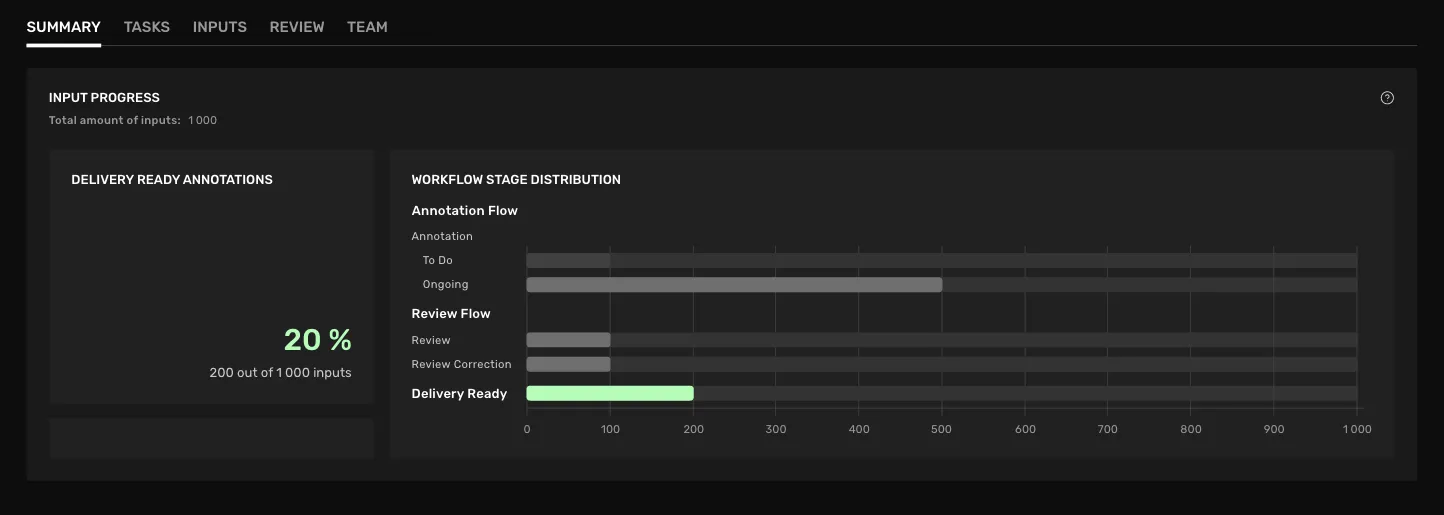
Inputs with delivery-ready annotations
Shows the percentage and the absolute number of inputs that have a delivery-ready annotation.
Workflow Stage Distribution
This bar chart shows the distribution of inputs between the request's different workflow stages. On the input's way toward getting a delivery-ready annotation, it goes through a series of workflow stages. Each stage corresponds to one action in one of the workflow's different phases, such as the action “Correct” in the phase “Review”.
Which stages the input goes through depends on the workflow used in the request. An input can only be in one workflow stage at a time.
Generally, inputs "move forward" in the workflow except that they can circle between the actions inside a phase. So, for example, an input can move in between the actions Review and Correct in the Review phase before moving forward to the next phase.
Which stages do I see?
Which stages the input goes through depends on the workflow used in the request. Some stages are only visible to the organization being Producer for the request.
An input can only be in one stage at a time. You can read more about the stages below.
What do the workflow stages mean?
Production
- Not started Inputs that are waiting to be annotated.
- Annotation: Annotate Inputs that are being annotated using annotate tasks.
- Correction: Correct Annotated inputs waiting to be or currently being quality assured using correction tasks.
- Review: Review Annotated inputs that are waiting to be or currently are being reviewed.
- Review: Correct Annotated inputs that got rejected in review and now either are waiting to be or currently are being corrected.
Delivery
- Delivery: Ready Annotated inputs that have gotten their final annotations and thus are ready for delivery.
- Delivery: Review Delivery-ready inputs that are waiting for or currently being reviewed in the Delivery phase.
- Delivery: Correct Delivery-ready inputs that are waiting for or currently being corrected in the Delivery phase, either due to being rejected in Delivery review or being quick rejected.