Quick-Feedback
Setting up quick feedback options in your project can speed up your review process. It helps reviewers give standardized feedback quickly without having to type everything out.
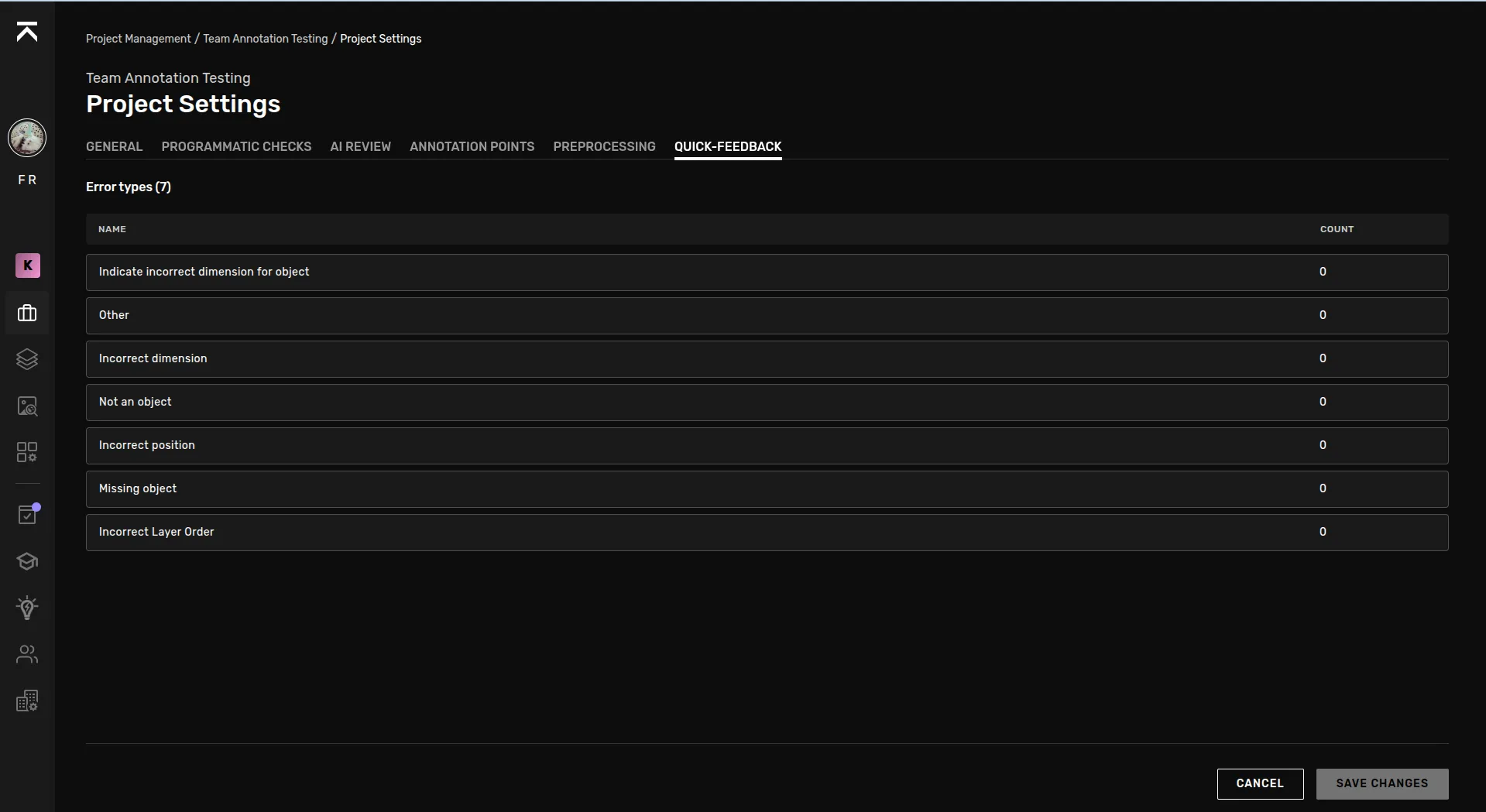
See the quick-feedback section of the Task View Guide to familiarize yourself with how this works in the Task View.
How do I add new quick-feedback options?
Select which error type the option should be categorized under.
Click "Add option" in the panel that appeared.
Fill in the three paramaters (see table below)
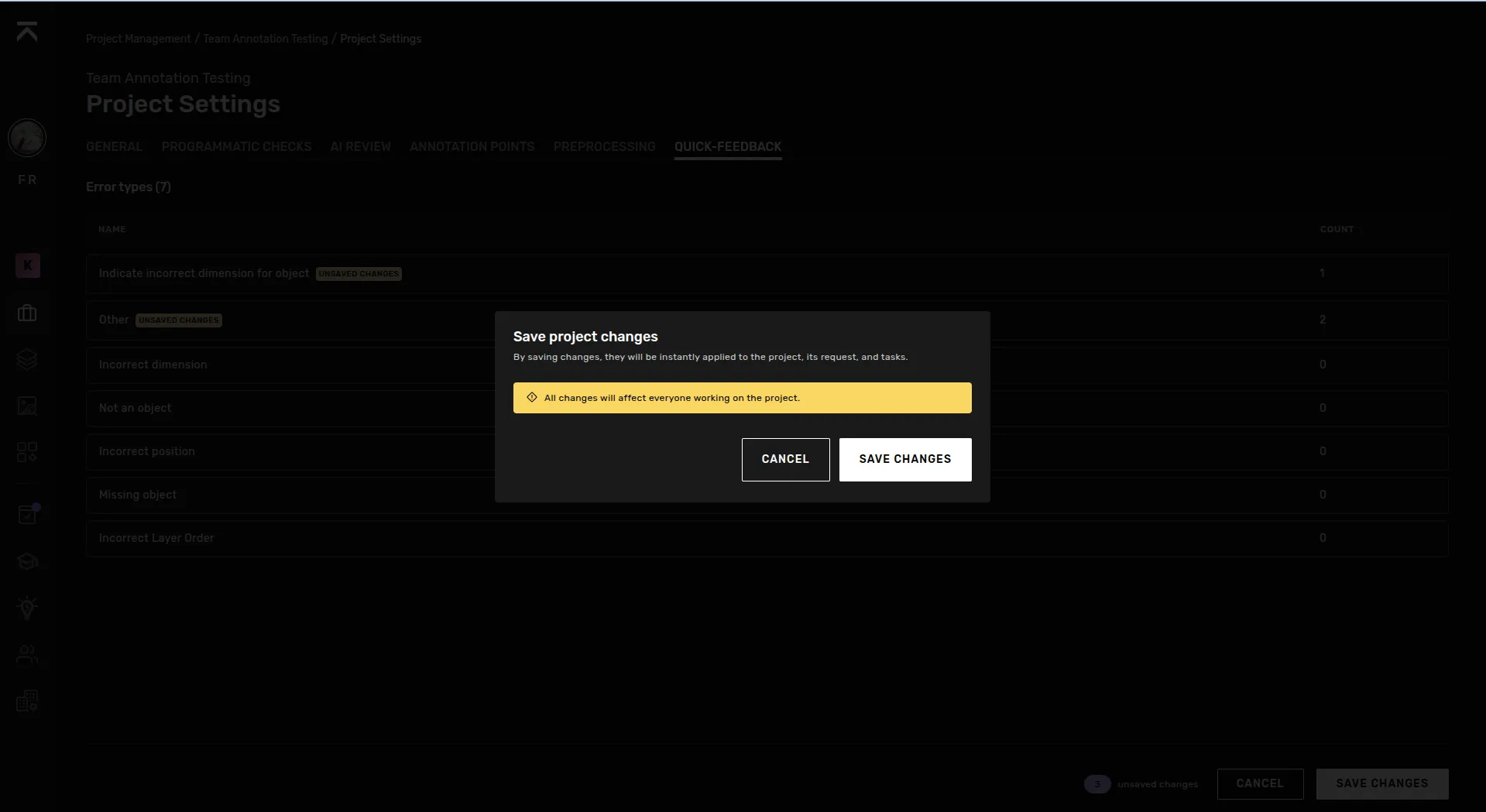
Save changes
Check if the changes were applied to the task view
What are the parameters?
Each quick-feedback option has three parameters:
Group | An optional text that can be used to group together similar options, if configured they will appear under the group in the task view. |
|---|---|
Title | A required text that is shown to the reviewer while in the quick-feedback mode, this should be short and make it clear to the user what the comment is referring to. |
Comment | A required text that will be the text in the feedback that is supplied to the correcter. |
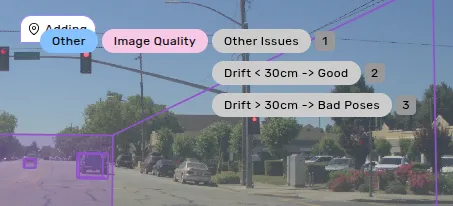
In the image above
- "Other" is the Error type,
- "Image Quality" is the Group and,
- The three options are Titles
How do I save my changes?
While editing, nothing is saved until you press "Save changes", so feel free to add multiple options at once and edit existing ones.
Once you are ready to publish your changes to the entire project, press "Save changes" and it will be available to all users in the task view on their next task or when they reload.
How do I test my quick-feedback options?
Once you have saved your changes, they should be visible if you enter any review task in the project and press ctrl+x in order to active the quick-feedback mode (see the Task View Guide for further instructions.)