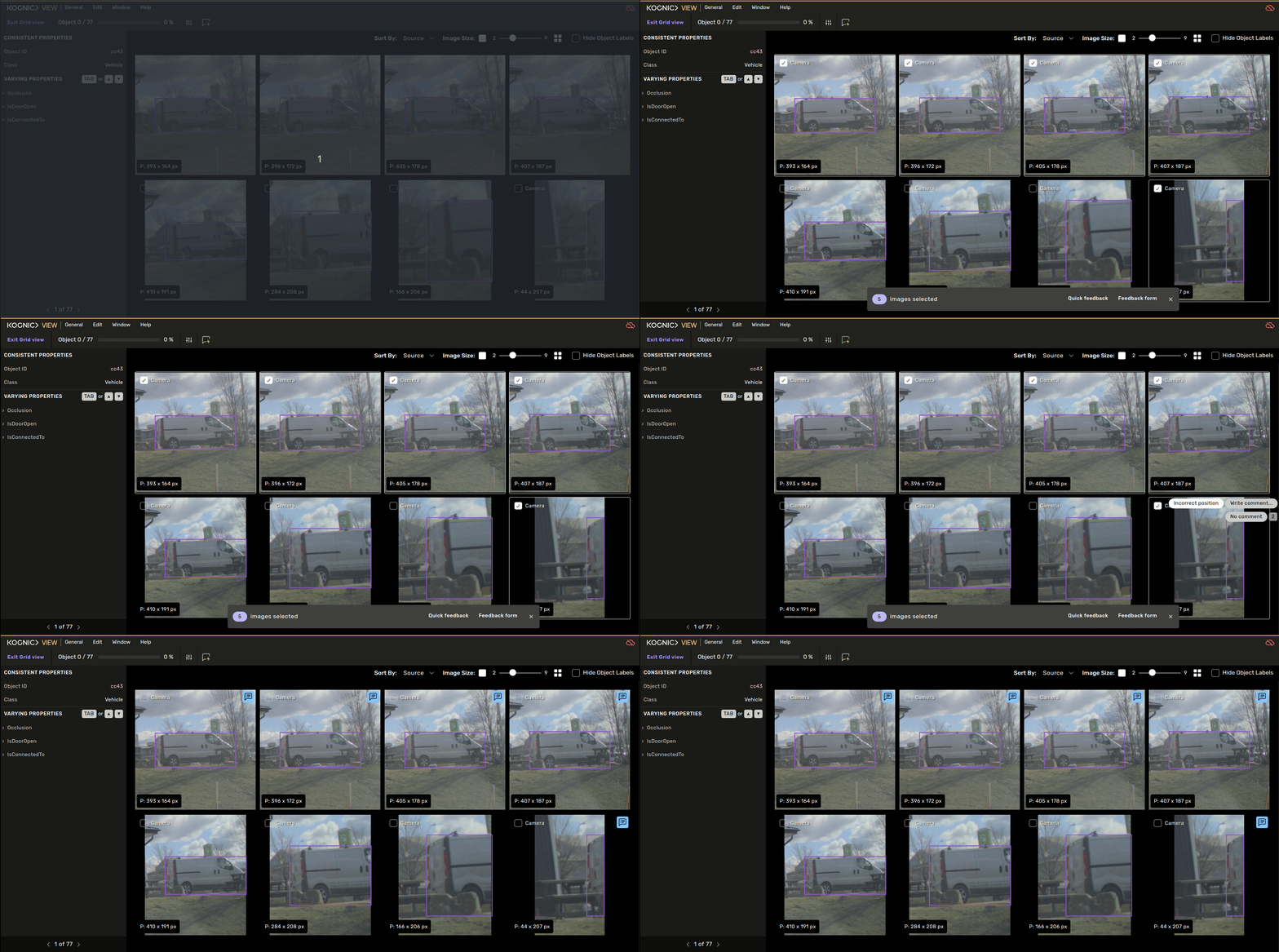
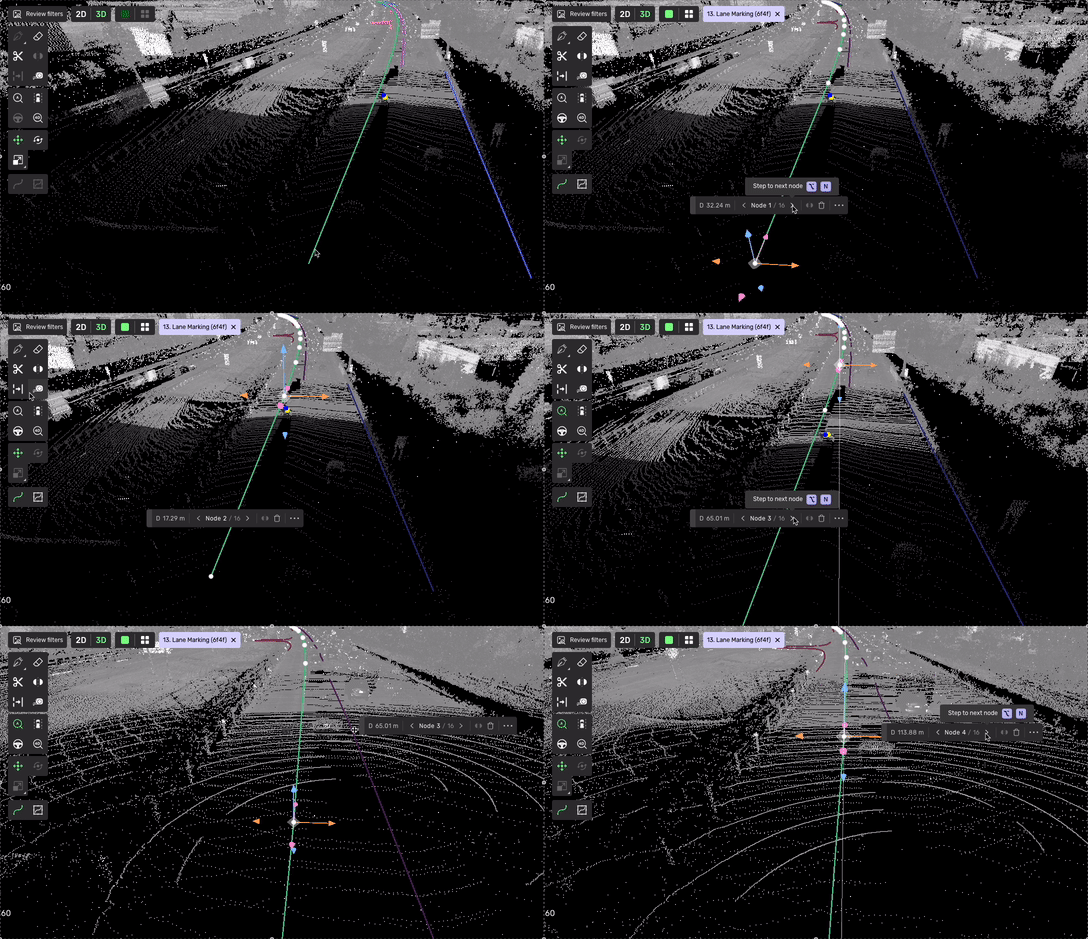
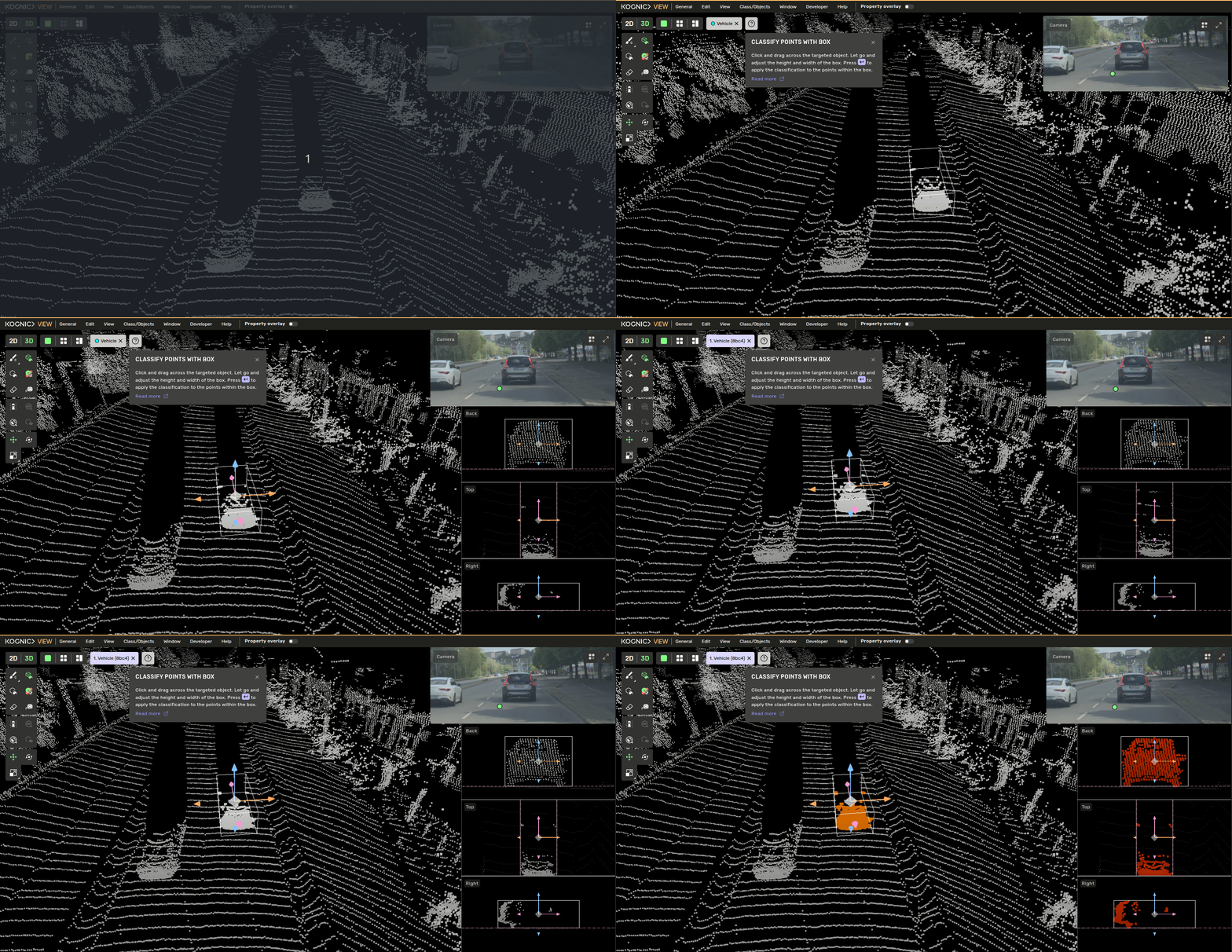
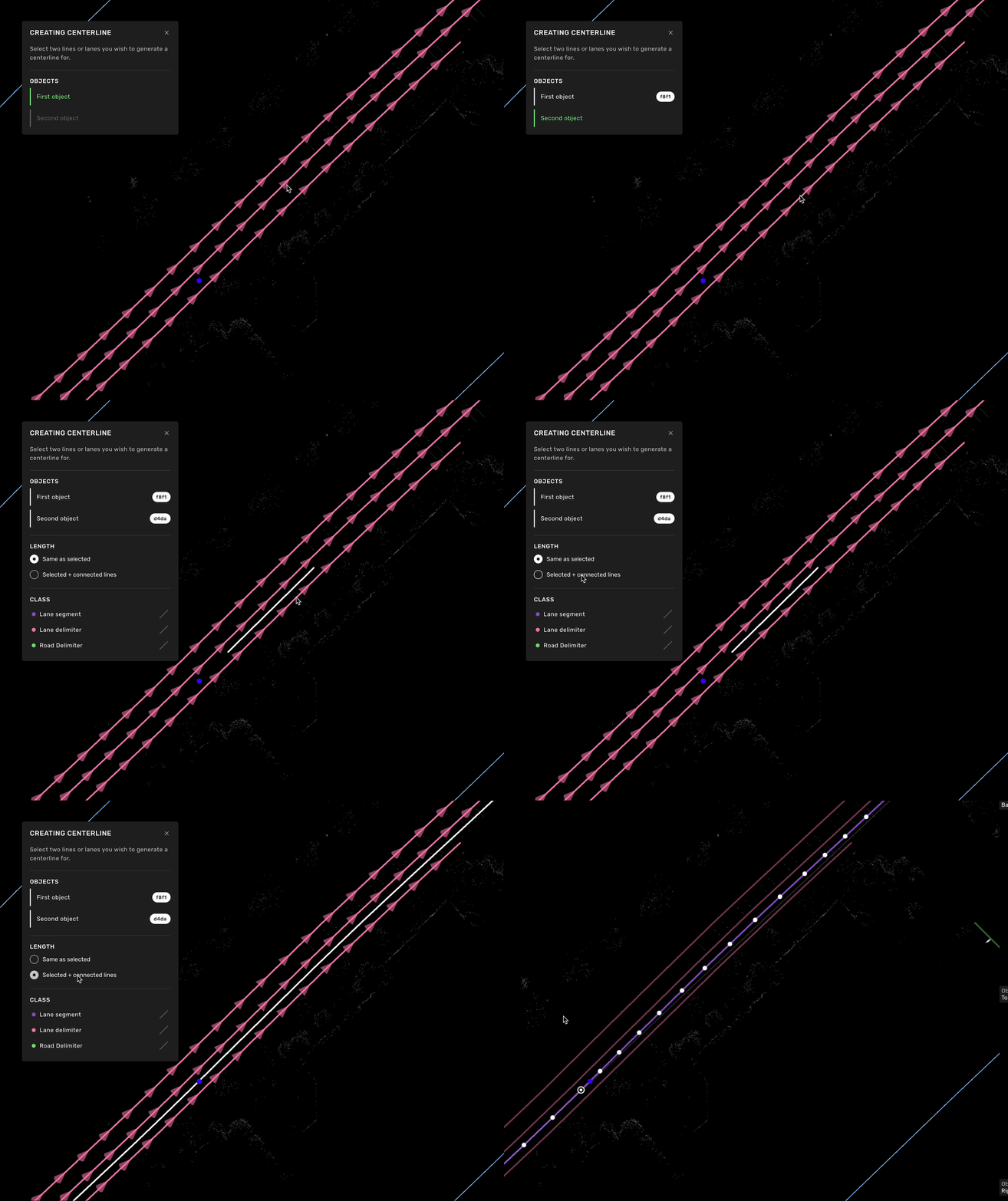
[space] Kognic Platform Guide

[title] Idle Members
[path] TEAM MANAGEMENT/

In this view, you can browse and manage the members of your team who are marked as idle or in retention.

**Idle:&#x20;**&#x75;nplanned breaks in work is idling. Planned, longer (>1 day) breaks in work that has been communicated to the BPO can be retention if agreed between the account team, PM & BPO.&#x20;

**Retention:&#x20;**&#x41; client/Kognic can choose to retain annotators (keep them allocated to the same project) even if there isn’t work for them to do at the moment.&#x20;
This helps ensure that the trained workforce remains available when work does become available and ensures that the client won’t have to pay for onboarding again.

**Training Request:&#x20;**&#x55;sed to create training tasks, the user being set to idle/retention doesn't need to be a team member to the chosen request, it will not show as part of the team but only receive training tasks with the config and data from the request.

### Adding members

Adding members to this will move them to Idle or retention mode and you can also choose a request to be used to create training tasks, keep in mind that *Training Request* is optional and if you leave it unselected, the idle members will not receive training tasks to work on.

![](https://archbee-image-uploads.s3.amazonaws.com/wLEz_RbWP6nIMpY-prjlm/dFEGN1wIWi4LBDl03rWbB_idlegif1.gif)

### Edit idle member

You can select one or a group of members from the table and edit their state, updating the idle mode and the used training request. You ca do that using both the batch action bar or the context menu option.

![](https://archbee-image-uploads.s3.amazonaws.com/wLEz_RbWP6nIMpY-prjlm/d_oZMWKeUR8zTx2sQQDn9_idlegif2.gif)


### Remove team members from idle list

Similar to editing, you can select one or multiple team members and remove the idle mode, this will make production tasks available again to the user.&#x20;

![](https://archbee-image-uploads.s3.amazonaws.com/wLEz_RbWP6nIMpY-prjlm/SIU6j1FwfMiCo8jDiI-y8_idlegif3.gif)


[title] Workflow phases
[path] PROJECT MANAGEMENT/Annotation Requests/Request details/

![](https://archbee-image-uploads.s3.amazonaws.com/wLEz_RbWP6nIMpY-prjlm/TBTzHclzbRPMFX1P2-aQq_phase-tabs.png "The phase tabs inside Request details")

Annotation requests are completed through an [annotation workflow](docId:5WO8vmPiFWYst3v5LTfOs) that goes through different workflow phases. Each phase is represented by a tab inside request details, which contains phase-specific actions and monitoring.&#x20;

**The commonly available workflow phases are:**

- [Annotate](docId\:lBJsWo33feHl2zElvn_R9)&#x20;
- [Full review](docId\:TpATxJFzdDmu73Q7VoxtP)
- [Sampled review](docId\:chSzFp4BVErygs2_jn0rf), which can be configured as a [Client sampled review](docId\:wOVWzA3Ikw_xQTv9Itvza).
- [Delivery](docId\:R2TntQu_snFL4yGGZK1Dj)


**Workflow phases under development**
The following workflow phases are only available inside [Kognic Standard Workflow](docId\:SEuKel_BW5WXsOb2Z2tuk), which is a new workflow and set of phases currently under development:&#x20;

- [Quality Review](docId\:f6zSPDJLHC7QauBQOVP3L) (Limited access)
- [Expert Verification](docId\:G0xuQWbIZIYOjW7JyHAyj) (Limited access)
- [Client QA](docId\:WRC_OkYWzEq0kDYskB0mH) (Limited access)&#x20;

[title] 
[path] /


[title] Create and manage chunks
[path] DATASET EXPLORATION/

# Creating chunks

1. Start by selecting the relevant objects in the gallery-view.&#x20;
2. In the selection bar at the bottom of the viewport, click **Add to chunk.**
3. In the dialog that opens, choose whether to add your selection to a previously created chunk or to a new one. 
4. If you’re creating a new chunk, you will be instructed to give it a name as well as a description.
5. Click **Save**. The chunk has been created, or updated, and is accessible via:
   1. The **Chunks-page**.
   2. The **dropdown-list** named Chunks.

# Managing chunks & chunk contents

To manage your created chunks, go to the Chunks-page. Find the chunk you're interested in and click the icon on the right ('More options'). From here, you can perform any of the actions that are available. Read more about these in [Chunks](docId\:vLr8xq6pFbRg9py6QVUI5).

In order to remove objects from a chunk, you need to do the following:&#x20;

1. Select the chunk, either via the chunks dropdown-list on the Data-page, or via the "Show chunk contents" action, available via the context menu in the table on the Chunks-page.&#x20;
2. In the gallery, select the objects you want to remove and choose the "Remove from chunk" action in the selection bar.&#x20;


[title] Annotate
[path] PROJECT MANAGEMENT/Annotation Requests/Request details/Workflow phases/

# What is an annotate phase?&#x20;

::Image[]{src="https://archbee-image-uploads.s3.amazonaws.com/wLEz_RbWP6nIMpY-prjlm/w1PWoXyF86MRfz7yqwjid_image.png" darkSrc="https://archbee-image-uploads.s3.amazonaws.com/wLEz_RbWP6nIMpY-prjlm/smhFSgWDl8H3-OMz182rM_annotationdark.png" size="70" width="2610" height="652" darkWidth="1305" darkHeight="326" position="center" caption="Flowchart of the phase type &#x22;Annotation&#x22;" showCaption="true"}

Annotate phases are usually used as the first phase of a requests workflow. In this phase workforce members either label an input's scene from scratch or continue labeling an annotation created elsewhere (by a model or in another request).&#x20;

In an annotate phase, all inputs entering the phase will eventually be labeled by a workforce member. This labeling is done in tasks of the type "Annotate." When an annotate task is completed, the now-annotated input moves to the next phase of the request's workflow.&#x20;

# Available actions

In an annotate phase, no specific actions are available. If you want to view or edit the task allocation of annotate tasks, you can do that inside the tab [Tasks](docId\:nZJyNOhSyM97-HqECnq4W).

# Available monitoring

## Progress

In this section, you can monitor the current progress of the annotate phase and answer questions such as:

- How many inputs have been annotated and moved to the next phase?
- How many inputs are currently in this phase?

### Inputs in phase&#x20;

The number of inputs is currently in the phase.&#x20;

### Completed inputs

The percentage out of all inputs that have completed and left the phase. In annotate phases, "completed" means that an annotate task has been completed for the input.&#x20;

### General phase progress

This graph provides insight into how the request inputs are distributed in relation to this phase and other phases. You can see how many inputs are in this phase and how many have completed the phase and thus moved forward in the request workflow.&#x20;

[title] Knowledge base
[path] CAMPUS/

A Kognic employee, or quality manager, can write documents and send them to a team or individual annotators.&#x20;

This means that if you see a document on the Knowledge Base page in Campus, it has been specifically sent to you (or the team you're in). It is essential that you read the document, as it contains feedback and information intended for you.&#x20;

![](https://archbee-image-uploads.s3.amazonaws.com/wLEz_RbWP6nIMpY-prjlm/SvcXTVYTIpWmzv7zwdHdZ-20251216-150200.png "Document selected/ open")

# How do I know that new documents are available?

## In the Platform

To indicate that a new document is available, a purple dot will appear on the Campus icon in the left menu, along with a purple bubble displaying a number next to its name.&#x20;

![](https://archbee-image-uploads.s3.amazonaws.com/wLEz_RbWP6nIMpY-prjlm/M6CXwFrDvpf1b47c-TnrG-20251216-144324.png "New document indicators")

### In the Task view&#x20;

A push notification will appear in the top right corner to inform about the new document. By clicking on the notification, the document will open in the Task view.&#x20;

::Image[]{src="https://archbee-image-uploads.s3.amazonaws.com/wLEz_RbWP6nIMpY-prjlm/6YD6Kv5sRAHz21-xsZZEz-20260115-101156.png" size="50" width="421" height="211" position="center" caption="Push notification" showCaption="true"}


[title] Quality Alignment
[path] TEAM MANAGEMENT/Productivity Insights/

## Background

Quality Alignment indicates how well annotators work aligns with expected quality standards. It measures the accuracy of annotation work by comparing it against review corrections and ground truth data. This page helps quality managers and team leads:

- **Monitor individual annotator performance** across key quality metrics.
- **Identify training opportunities** by spotting consistent patterns in errors (missing shapes, incorrect classifications, geometry inaccuracies, property mistakes).
- **Track quality trends over time** to see if performance is improving or decreasing.
- **Make data-driven decisions** about team assignments, training needs and quality processes.

## How It Works

Quality alignment metrics are calculated by analyzing the edits made during the review phase. When an annotator's work is **corrected**, these corrections are tracked across four key dimensions:

- **Precision** - Are annotators labeling shapes correctly, or are they frequently mislabeling things?
  ***Formula:** (Correct identifications) / (Total identifications made)*
- **Recall** - Are annotators finding all the shapes they should, or are they missing important items?
  ***Formula:** (Correct identifications) / (Total shapes that should have been found)*
- **Geometry Accuracy** - Are shapes, sizes, positions, and orientations correct?
  ***Formula:** 1 - (edited\_shapes / reviewed\_shapes)*
- **Property Accuracy** - Are shape attributes and properties assigned correctly?
  ***Formula:** 1 - (edited\_properties / reviewed\_properties)*

The **Alignment Score** provides a single overall quality indicator by taking the minimum of these four metrics. This ensures that weaknesses in any dimension are reflected in the overall score.&#x20;

The **Quality Score** provides an overall quality indicator by averaging these four metrics. Unlike the Alignment Score which takes the minimum value, the Quality Score gives a balanced view of overall performance across all dimensions.

### Shape based calculations

We are using a shape-based method instead of an object-based method to evaluate each individual geometric shape independently, providing granular accuracy measurements.

**Benefits:**

- **Higher precision**: Captures partial errors within multi-shape objects
- **Fairer evaluation**: Accuracy reflects actual geometric work, not just object-level decisions
- **Better training data**: Identifies specific geometric issues rather than broad object-level failures

## When to Use This

- Use Quality Alignment when you need to evaluate annotator readiness for production work
- Investigate quality issues reported by reviewers or clients
- Compare performance across team members
- Track the effectiveness of training programs
- Identify which types of errors (class confusion, geometry issues, property mistakes) are most common

## Components

### Alignment score trend

A trend graph showing the selected quality metric over time with currently applied filters, displaying the average value per day. Can be further filtered on specific users. Hovering over data points displays the metric value with a % suffix and the number of samples.

Use the **metric selector** in the graph header to switch between:

- **Quality Score** (default) — average of precision, recall, geometry accuracy, and property accuracy
- **Alignment Score** — minimum of the four sub-metrics
- **Precision** — ratio of correct identifications to total identifications
- **Recall** — ratio of correct identifications to total expected shapes
- **Geometry Accuracy** — shape and boundary accuracy
- **Property Accuracy** — attribute assignment accuracy

![](https://archbee-image-uploads.s3.amazonaws.com/wLEz_RbWP6nIMpY-prjlm/TPsxf_Xr24tXv6iGyRpF4_image.png)

### User Quality Alignment Table

![](https://archbee-image-uploads.s3.amazonaws.com/wLEz_RbWP6nIMpY-prjlm/0jYRjtH4A9SjY07uezrVc_image.png)

### Assignment Quality Alignment Table

![](https://archbee-image-uploads.s3.amazonaws.com/wLEz_RbWP6nIMpY-prjlm/JS6b_-jte1YKEFn8uYf4K_image.png "Shows quality alignment score on assignment level")

###


[title] Annotation Workflows
[path] PROJECT MANAGEMENT/

In the Kognic platform, annotations can be produced using a selection of workflows. These workflows determine the steps used to produce the annotations and in what order the steps should happen. They define what type of steps (tasks) to complete before we have produced a deliverable annotation.

Multiple factors, such as the desired quality, time, and cost, determine which workflow suits each request.&#x20;

## Our available workflows

## Two-tier review

**Phases:&#x20;**&#x41;nnotate -> Full review --> Sampled review -> Delivery
**Availability:&#x20;**&#x41;ll organizations

This request workflow features two quality assurance phases. In the initial review phase, all inputs are selected for review and require reviewer acceptance to complete the phase. The second review examines only a sample of inputs. Insights from this sample help estimate the quality of the remaining annotated inputs. This approach allows for reduced review effort when the estimated quality is good, while still enabling full review when needed.&#x20;

Read more in [Two-tier review](docId\:NFxQay29jqu2ULBmqvpN7).

## Two-tier sampled review

**Phases:&#x20;**&#x41;nnotate -> Sampled review --> Sampled review -> Delivery
**Availability:&#x20;**&#x41;ll organizations

This request workflow features two sampled review phases. In these phases, only a subset of inputs is initially selected for review. Insights from this sample help estimate the quality of the remaining annotated inputs. This approach allows for reduced review effort when the estimated quality is good, while still enabling full review when needed.&#x20;

Read more in [Two-tier sampled review](docId\:qlcZRsoLSXC2JuD3uo6XN).

***

# Key concepts

## Task

A task is what ties an input to a team member and what type of action the team member should take with the input. There are three types of tasks - **annotate**, **correct**, and **review**.

On its way from original input to **a** **delivery-ready&#x20;**(or *final*) annotation, the input spawns one or multiple tasks, sometimes even multiple tasks of the same type. The number of tasks depends on the workflows used in the request and if tasks expire and get assigned to new users.&#x20;

### Task types

**Annotate**
An annotate task will be given to a team member with the purpose of them annotating it from scratch. It is always the initial task inside the annotation workflow.&#x20;

**Correct**
A task where the team member is asked to correct a task with existing annotations. Depending on the workflow, a Correct task follows either each Annotate task or tasks that got rejected during a Review task.

**Review**
Review tasks are similar to Correct tasks but allow a team member to give structured feedback on objects, specific timestamps, and specific sensors inside the app. Review tasks also include a final judgement on whether to Accept or Reject the reviewed annotation

### Task Assignments

For a user to be able to work on a task it has to be assigned to the user. The user can now **complete** the assignment or let it expire. Once it **expires**, the task becomes available for assignment to other users.&#x20;

The task is assigned either automatically by our system or manually by a manager, see [Workforce](docId\:Fiopd5YTqEla7kyAHrPYl) for more details.

***


[title] Project Metrics
[path] PROJECT MANAGEMENT/

:::hint{type="info"}
The metrics page is under active development and the components below may evolve.
:::

The Metrics tab is split into five sub-tabs, selectable from the chip row at the top. Each chip writes a ?metricsTab=… parameter to the URL, so individual tabs can be deep-linked or shared. The default tab is **Productivity**.

## Productivity

The Productivity tab is the default landing view. It surfaces a 7-card KPI row in **playbook diagnostic order**: when productivity is below target, you walk these ratios left-to-right to find where to look first.

The cards, in order:

1. **Productivity Ratio** — AP ÷ (APT × reported hours)
2. **Time Allocation Ratio** — annotation tool time ÷ reported time
3. **Annotate Speed (AP/h)** — annotation points per hour in annotate tasks. Should sit \~30% above the project's AP target to absorb time allocation and correction/review overhead.
4. **Correction Ratio** — time spent on corrections relative to total
5. **Review Ratio** — time spent on reviews relative to total
6. **Reported Time** — total hours reported
7. **Active Users** — annotators active in the period

When productivity is below target, walk these ratios left to right to find where to look first.

Each card displays the headline value, a comparison against the previous 7 days (with a coloured chevron indicating whether the change is good or bad for that metric), and a &#x35;**-week graph** with per-dot tooltips. The most recent graph point may differ slightly from the headline number, because the headline is a rolling 7-day value while the graph shows weekly buckets.

### APT calibration warning

A banner appears above the KPI row when the project's effective AP target looks miscalibrated — for example, when no annotator has reached 100% productivity in the available data. The playbook is: when nobody is hitting target, the target itself is likely wrong — recalibrate the project's APT before reading the diagnostic ratios, since they all assume a realistic benchmark.

### Productivity vs Target

A weekly distribution chart showing how the team splits across three fixed bands: above target, approaching target, and below target.

### Weekly AP Produced

A bar chart of total annotation points produced per week, with value labels on each bar.

### Tables

Below the charts: a weekly summary table and a per-user breakdown table. Clicking a user opens their full productivity report; the originating project is preserved via ?projectId=\<id> so the breadcrumb back-button returns to this metrics view.

## Efficiency

The Efficiency tab focuses on the drivers behind the Productivity headline. It contains:

- **Efficiency Drivers** table — per-user efficiency breakdown.
- **AP/h trend** — weekly AP/h over time.
- **Productivity spread** — distribution of productivity across the team.
- **QA ratio trend** — review + correction time as a share of tool time, over time.
- **Active users trend** — weekly active user counts.
- **Productivity-vs-Target bucket trend** — how the distribution across the three target bands has shifted week over week.

## Delivery

Delivery groups the throughput-oriented charts:

- **Weekly Counts** — inputs delivered per week.
- **Weekly Detailed Counts** — same data broken down by phase or status.
- **Turnaround Time** — average time from request creation to delivery.

## Composition

Composition tracks what is in the data — shapes per input, objects per input, and geometry-type density across requests. The data-source toggle and shape-prediction overlay still apply here.

## Quality

Quality KPIs are split out into their own tab. The headline cards cover Review Quality (share of annotated objects accepted by Quality Reviewers without changes) and Expert Verification (share of QR-approved objects also accepted by Experts). A sub-metric breakdown table covers precision, recall, geometry accuracy, property accuracy, and the count of reviewed scenes.

## Learning Curve

The Learning Curve tab tracks how quickly new annotators ramp up their annotation speed during their first weeks in a project. Each user's timeline is aligned so that Week 0 is their first day in the project, making it easy to compare onboarding progress regardless of start date.

### Chart

The main chart displays one line per user, plotting annotation speed (AP/hour) against onboarding weeks. Reference lines provide context:

- **Annotation speed target** — 140% of the configured annotation points target (APT), representing the speed needed for 100% productivity.
- **P90 and P50** — percentile lines across all displayed users.
- **Expected learning curve** — a shaded band showing the configured min/max speed range per week (see Annotation Points and Target for configuration).

You can brush-select a region on the chart to filter the summary table to only the users whose lines pass through the selection.

### KPI Cards

Three KPI cards summarize onboarding health:

- **Above expected learning curve** — percentage of onboarding users performing above the configured learning curve band.
- **Reached target speed** — number of users who have reached the annotation speed target.
- **Avg. days to target** — average number of active days it took users to reach the target (among those who have).

If the expected learning curve is not yet configured, the first KPI card displays a link to project settings where it can be set up.

### Filters

- **Max active weeks** — slider to limit the chart to users with at most N active weeks.
- **Hide users above annotation speed target** — checkbox to focus on users still ramping up.
- **User filter** — search by name or email. Supports pasting comma-separated email lists.

### Summary Table

Displays a row per onboarding user with columns for days active, current speed, speed delta (weekly and bi-weekly), productivity percentage, and curve deviation.

Actions:

- **CSV export** — download the table data.
- **Copy emails** — copy selected user emails to clipboard.

## Who sees what

Access controls are applied per tab:

- **Productivity,** **Quality** and **Learning curve** require the team-overview permission. Productivity is also hidden when time-spent is hidden.
- **Efficiency** requires the team-overview permission.
- **Delivery** and **Composition** are visible to all users with access to the metrics tab.

When a user lacks permission to see a tab, the chip is hidden from the row.

##


[title] Team report
[path] TEAM MANAGEMENT/Manage Team Report/

Team Report is the first tab of **Manage Team Report**. It gives you an overview of the working time reported by every person you have permission to manage over a period you choose.

It answers two questions at once. How much time has each person reported? And is any of that time wrong because somebody forgot to stop their timer or left an interval to expire?

The information on this page comes from **Stopwatch sessions**. It reflects the time people logged, not the tasks they completed.

**Use it when you need to:**

- Check how much time your team reported over a period of time.
- See how much of that time is marked non-billable.
- Spot people whose reported time looks unusually high or low.
- Find uncorrected expired intervals and get to the sessions that need fixing.
- Export the figures for payroll, invoicing, or your own analysis.

Note: There’s two other tabs: **User Sessions** for inspecting and editing one persons individual sessions and **Time by Project** for the same working time grouped by project rather than by person.

## Good to know

- You can only look back one month interval.
- Only time reported through the stopwatch appears here.
- Non-billable can only be set manually and made on individual sessions, not something the system decides. Otherwise, all time will be counted as billable.
- The page shows the people you have permission to manage.

## What does the page filter mean?

- **State** — the work phase people had selected on their stopwatch while logging the time.
- **Project** — the projects you want to count. Choosing projects narrows the Request list. Choosing a project also clears any requests you had already selected, so set Project first and Request second.
- **Request** — individual annotation work orders. If you leave Request unselected, the report covers every request in the projects you picked.

## How do I focus on specific people?

Select a group of people by using **Filter by email** to instantly update all page metrics, charts and tables.

## What does the distribution chart show?

The chart is titled *Distribution of average reported time split into segments*. It is a distribution, not a timeline.
&#x20;Each person is reduced to a single number: their total reported time divided by the number of days in the period. The chart then counts how many people fall into each band of that number.

- The horizontal axis is **average hours per day**, from zero upwards.
- The vertical axis is **Users** — how many people fall into each band.
- The dashed **Average** line marks the average across everyone shown. Hover it to see the value.
- **Segment length** sets how wide each band is: 15, 30, or 60 minutes.

One thing to keep in mind when reading it. The divisor is the number of *calendar* days in your interval, weekends included.

## What do the table columns mean?

The table is titled **Reported time**.

| Column             | What it shows                                                                                               |
| ------------------ | ----------------------------------------------------------------------------------------------------------- |
| Name               | The person's name and email address. People who have since been removed appear as *Removed user*.           |
| Expired intervals  | The number of uncorrected intervals where the person forgot to stop their timer. Blank when there are none. |
| Non-billable hours | Time marked non-billable, for this person, in this selection.                                               |
| Avg. time per day  | Their total reported time divided by the calendar days in the period — the same number the chart plots.     |
| Time reported      | Their total reported time in the period.                                                                    |

## What is an expired interval?

When somebody starts the stopwatch and never stops it. The session does not run forever, it expires after 12h. The interval is left without a proper end time until somebody corrects it.

## Find everyone who has an expired interval

There’s an checkbox option to sort the table to **Show users** **with** **Expired intervals** and is the fastest way to bring the people with expired intervals.

## How to correct them

1. Find the person in the table.
2. Open the context menu at the end of their row.
3. Choose **View sessions**.
4. You will be redirected to the **User Sessions** tab with that person already selected.
5. Find the expired session and use **Edit reported time** to give it an accurate end time.

Editing is limited to the current calendar month. Sessions from earlier months are read-only unless you hold the right permissions.

## Change time to non-billable

Billable status is set per session, not per person. Open a session row context menu and choose **Set session as non-billable** or **Set session as billable**.
&#x20;The Team Report will be updated to match.


[title] Time by project
[path] TEAM MANAGEMENT/Manage Team Report/

Time by Project is the third tab of Manage Team Report. It takes the working time your team has reported through the stopwatch and groups it by project. Here’s where you can see where the hours in a period actually went.

The Team Report tab answers "how much has each person reported?".&#x20;
This tab turns the same data around and answers "how much has each project consumed, and who worked on it?".

Everything on this page comes from reported stopwatch sessions. It reflects the time people reported and not the tasks they completed or the annotations they delivered.

**Use it when you need to:**

- Compare how much time different projects are consuming over a period.
- Split a projects hours into billable and non-billable.
- See *how many* and *which people* contributed time to a project
- Find reported time that was stated unknown.

## Good to know

- A single selection can span at most 60 days.
- Only time reported through the stopwatch appears here.
- Billable and non-billable is a manual classification applied to individual sessions, not something the system decides. Time nobody has classified counts as billable.
- The page shows time for people you have permission to manage and projects you have access to.

## Choose a time period

The page opens on the last seven days. To change it:

1. Open the **Time interval** picker at the top of the page.
2. Pick a start date and an end date.
3. The report reloads for the new period.

## What is unknown time?

Below the project lists sits **Users with reported unknown time**. Time which the system could not tie back to a project. I can be for example when the session was logged against work that no longer resolves to a project.

It is listed per person rather than per project, because there is no project to list it under. Each row shows the person, their total reported time and the billable and non-billable split.

Unknown time is kept out of the main project list and out of the *"Total reported time excluding Unknown Projects"* card, so that a project's figures are never inflated by hours that may not belong to it.

This table is not affected by the **Project** filter. Filtering to a single project still shows all the unknown time in the period, because unknown time has no project to filter on.

## See who worked on a project and when

1. In the main table, click the row for the project you are interested in.
2. A panel opens on the right, titled with the project name.
3. **User breakdown** lists every person who reported time on the project, with their reported, billable and non-billable totals.
4. **Daily breakdown** lists the projects reported time day by day, most recent day first.

## If the numbers do not look right

**A project's total is lower than you expected.** Scroll down to the unknown time table. Hours that could not be attributed to a project are held there instead of being folded into the project.

**The totals do not add up to your organisation's reported hours.** The reported-time card deliberately excludes unknown time. Add "Total reported time excluding Unknown Projects" and "Total unknown time" together.

[title] Key concepts
[path] INTRODUCTION/

Below follows descriptions of common concepts used by Kognic, in the Annotation Platform and this documentation.&#x20;

### Guideline

Each project comes with its own guideline. It will describe what you want to be annotated/the client wants you to annotate, how to annotate it, and give you visual examples of how to interpret the given instructions.&#x20;

### Input batch and input

An input batch is a group of inputs. An input is a set of sensor data you want to annotate. It usually consists of at least one image/frame. It can also contain images from several cameras, a point cloud, a video, or a sequence of images.

### Project

Annotation work on different tasks or task types is always grouped by projects. The projects and their content is defined by Kognic and its clients.&#x20;

### (Annotation) Request

Annotation Request is the major concept in the organization of annotation work at Kognic. A request can also be viewed as a subproject. There can be multiple types of requests in one project. The type of request determines what interface and annotation tool you/or the annotators will work in/ with. 

A single request ties together input data with the annotation guideline, the taxonomy, the annotator/reviewer/supervisor team, and configuration of the annotation tool as well as the workflow. The request has all the information needed to produce the annotations on the input data.

### Workflow stage

On the input's way toward getting a delivery-ready annotation, it goes through a series of workflow stages. Each stage corresponds to one action in one of the workflow's different phases, such as the action “Correct” in the phase “Review”.&#x20;

Which stages the input goes through depends on the workflow used in the request. An input can only be in one workflow stage at a time.&#x20;

### Task

Tasks are created in each of the request's workflow stages and become available for team members to complete. The most common task actions are annotate, correct, and review.

**Annotate**
An annotate task will be assigned with the purpose of being annotated from scratch. &#x20;

**Correct**
A task where you are asked to correct a task with existing annotations. The annotation you are asked to correct can be from someone else or your own.&#x20;

In the Kognic platform, we have multiple different types of correction tasks, you can read more about them under [My Tasks](docId\:bGTv8PrkHlmdeOxeBBu31).

**Review**
In a review task, you are asked to determine if an annotation is of acceptable or unacceptable quality. If the task is of unacceptable quality you are also expected to provide correction requests and feedback to the annotator so they can improve the quality while becoming a more skilled annotator.&#x20;

### Objects and shapes

An object is a unique object in the world that can be annotated in multiple sensors or multiple frames. An object has a unique object id, which is visible in the annotation tool's object list.

A shape is the representation of an object in a specific sensor and in a specific time frame.

**Examples:**

- If you work in a sequence task with one sensor there can, for one object, exist a maximum of one shape per frame.
- If you work on an image task with one 2D sensor and one 3D sensor there can exist two shapes per object, one in 2D and one in 3D.
- If you work in a sequence task with one 2D sensor and one 3D sensor there can maximum exist two shapes per frame per object.&#x20;

###


[title] Full review
[path] PROJECT MANAGEMENT/Annotation Requests/Request details/Workflow phases/

## What is a review phase?

:::hint{type="info"}
A request can contain multiple review phases, and each review phase has its own tab inside Request Details.&#x20;
:::

A review phase acts as a quality control step inside the request workflow, where all annotated inputs or a selection of them need to be approved by a reviewer to leave the phase. Rejected annotations are sent for correction and then re-reviewed.&#x20;

There are **multiple different types of review phases** available: Full review, [Sampled review](docId\:chSzFp4BVErygs2_jn0rf), [Quality Review](docId\:f6zSPDJLHC7QauBQOVP3L), [Expert Verification](docId\:G0xuQWbIZIYOjW7JyHAyj), and [Client QA](docId\:WRC_OkYWzEq0kDYskB0mH).&#x20;

# What is full review?

![](https://archbee-image-uploads.s3.amazonaws.com/wLEz_RbWP6nIMpY-prjlm/mXJvx7AEZOEKrwYGY49q5_image.png "Flow chart of the phase type \"Full review\"")

In phases of the type "Full review" all of the intermediate annotations entering the phase are sent for review by a reviewer.&#x20;

A reviewer must accept its quality for the annotated input to complete and leave the phase. If the annotation quality isn't acceptable, a task with the action "correct" is created, and a labeler is asked to improve the quality according to the reviewer's feedback. The updated annotation is then reviewed again; if the quality isn't acceptable, the cycle is repeated until it is.&#x20;

:::hint{type="info"}
An essential characteristic of the **Review Phase** is that it allows for giving structured **feedback** on the annotation. You can read more about this in the [ Feedback Tools](https://docs.kognic.com/AHwD-introduction) chapter.
:::

# Available actions

## Decision

:::hint{type="info"}
The decision section is only available for review phases of the type "Sampled review".&#x20;
:::

![](https://archbee-image-uploads.s3.amazonaws.com/wLEz_RbWP6nIMpY-prjlm/4zmGuBqiAkMkuU-niyQmh_image.png "The decision interface")

This sampled review phase contains a mandatory decision in which you, as a manager, determine what should happen to the annotated inputs that haven't been selected for initial review (including inputs that haven't entered the phase yet) based on the result of the initial review. &#x20;

**Making a decision**

::::WorkflowBlock
:::WorkflowBlockItem
**Evaluate the review results**
Start by evaluating the review results and consider if all annotated inputs require a review to ensure sufficient annotation quality.&#x20;
:::

:::WorkflowBlockItem
**Decide if all annotated inputs should be reviewed or not &#x20;**

a. If the sampled review results indicate that the annotated inputs are of sufficient quality when entering the phase, and a review and correction cycle isn't needed --> **Send the inputs not selected for review directly to the next phase.**

b. If a review and correction cycle seems required to reach sufficient quality --> **Send all annotated inputs through review.**
:::
::::

:::hint{type="info"}
Both of the available decisions only affect annotated inputs not selected for review. This means that inputs that have been selected for review need to be accepted to exit the phase. You can accept the input in a review task or use the Quick Accept action.
:::

:::hint{type="warning"}
The decision is permanent and can't be reverted.&#x20;
:::

## Quick Accept and Quick Reject

With these actions, you can ensure that specific phase inputs either move to the next phase without review or go directly to review correction.&#x20;

### Quick accept

Accepts and moves inputs with unstarted review tasks to the next phase without needing to be accepted by a reviewer inside a review task. Inputs with unstarted review tasks have the Task type "Review" and current task state "To Do".&#x20;

::::WorkflowBlock
:::WorkflowBlockItem
Find the input/inputs you want to Quick Accept inside the **Phase inputs&#x20;**&#x74;able. You can use the search bar or the input ID filter if needed.&#x20;
:::

:::WorkflowBlockItem
If you only want to quick accept one input, you can use the "Quick accept"-option in the inputs options menu.&#x20;
:::

:::WorkflowBlockItem
If you want to quick accept multiple inputs, select them using the row checkboxes and then click the "Quick accept"-option inside the action bar that appears at the bottom of the page.&#x20;
:::
::::

### Quick reject

Rejects inputs with unstarted review tasks without requiring a reviewer to reject it inside a review task. When rejecting a review correction task is created, which is automatically assigned to the original annotator. Inputs with unstarted review tasks have the Task type "Review" and current task state "To Do".&#x20;

::::WorkflowBlock
:::WorkflowBlockItem
Find the input/inputs you want to Quick Reject inside the **Phase inputs&#x20;**&#x74;able. You can use the search bar or the input ID filter if needed.&#x20;
:::

:::WorkflowBlockItem
If you only want to quick reject one input, you can use the "Quick reject"-option in the inputs options menu.&#x20;
:::

:::WorkflowBlockItem
If you want to quick reject multiple inputs, select them using the row checkboxes and then click the "Quick reject"-option inside the action bar that appears at the bottom of the page.&#x20;
:::
::::

### Assigning tasks

If you want to view or edit the task allocation of review and correct tasks, you can do that inside the tab [Tasks](docId\:nZJyNOhSyM97-HqECnq4W).

***

# Available monitoring

## Progress

In this section, you can monitor the current progress of the review phase and answer questions such as:

- How many inputs with annotations have been accepted and have, therefore, moved to the next phase?
- How many annotated inputs are currently being corrected or re-reviewed?&#x20;

### Inputs in phase&#x20;

The number of inputs is currently in the phase.&#x20;

### Completed inputs

The percentage out of all inputs that have completed and left the phase. In review phases, "completed" means that the input has been accepted by a reviewer, either via a review task or a **quick accept&#x20;**&#x61;ction.&#x20;

### General phase progress

In this graph, you get insight into how the requests inputs are distributed in relation to this phase and its workflow stages. You can see how many inputs are in an earlier phase, how many are inside the phase, and in which workflow stage they are, as well as how many have been accepted and left the phase.&#x20;

![](https://archbee-image-uploads.s3.amazonaws.com/wLEz_RbWP6nIMpY-prjlm/VvNQ0_k3O-VSNT1fBmOma_image.png "General monitoring in a review phase")

### Distribution of inputs in rounds

In the review phase, an annotated input can pass through multiple review rounds, depending on how many reviews and corrections it takes for it to become acceptable quality. Each round contains a cycle of correction and review, with the exception of round 1, which only contains a review step. When the annotated input is rejected, it moves to a new round.&#x20;

In the card **Distribution of inputs in rounds,&#x20;**&#x79;ou can view how the different inputs are currently spread throughout different states and rounds. Per round, you can see how many annotated inputs are currently in correction, in review (first review or re-review), or have been accepted and are, therefore, delivery-ready.

![](https://archbee-image-uploads.s3.amazonaws.com/wLEz_RbWP6nIMpY-prjlm/fzj1MdnUH1joye1j1OE9g_round-distribution.png "Distribution of inputs in rounds")

***

## Task acceptance and rejection

The chart visualizes the absolute number and percentage of accepted and rejected review tasks per round, which helps you understand the acceptance ratio of annotations entering the phase as well as in later rounds.&#x20;

![](https://archbee-image-uploads.s3.amazonaws.com/wLEz_RbWP6nIMpY-prjlm/SU9KrjoMPiE7O6CGwErL6_acceptreject.png "Chart showing how many review tasks that got accepted and rejected in each round")

***

## Phase inputs

In the phase input table, you can see all inputs that are currently inside the phase. For each input, you can see when it changed workflow stage, how many tasks have been done on it in the current phase, and what the state and type is of any current task.

The actions **Quick Accept&#x20;**&#x61;nd **Quick Reject&#x20;**&#x61;re available for inputs with unstarted review tasks. You can read more about them in the section Actions above.&#x20;

***

## Error Summary

With the Error summary you get insight into what issues reviewers have found and commented on during the phase's review tasks. It helps you understand the most common and less frequent identified issues.&#x20;

:::hint{type="info"}
The error summary insights are based on feedback items written by the phase's reviewers. Absolute numbers represent actual feedback items, not the edits made in response to the feedback.
:::

![](https://archbee-image-uploads.s3.amazonaws.com/wLEz_RbWP6nIMpY-prjlm/q_CvVbpQe0I2hj4tfVzlF_error-summary.png "Example error summary")

### No of Correction Requests

The number of feedback items of the type "Correction Requests". This is the sum of all errors shown in the "Error Type Distribution" to the right.

### No of Feedback Items

The number of feedback items of the type "Advice". These are excluded from the chart "Error Type Distribution" and "Suggested properties".&#x20;

### Error Type Distribution

Shows the absolute count and relative share of all feedback items categorized as "Correction Requests", grouped by their error type.

### Suggested Properties

For those items with the error type *Properties,&#x20;*&#x74;his shows the distribution of properties that we affected. Each error indicated as *Properties* has a single property connected to it.

***

## Individual Feedback Items

This section helps you to get an overview of all given feedback, to answer questions such as:

- How detailed and critical is the feedback of my colleague reviewers?
- Are the reviewers giving valid feedback given the current guideline?
- What is feedback where the reviewer and annotator are discussing in the comments?
- How does feedback of type "MissingObject" look?
- What type of feedback is marked as "invalid"?

The items are split up by their feedback type.

### Correction Requests

In this section, you see feedback items for the type Correction Request. These are things that the reviewer wants to get corrected before accepting the review.&#x20;

You can filter the feedback items by their Resolved status, the Error type, whether a discussion thread exists, or whether the overall Review of the input has been accepted yet.

Below is a description of what information is available for each correction request.&#x20;

**Status**

| Status     | Comment                                                                                                                                                                                                       |
| ---------- | ------------------------------------------------------------------------------------------------------------------------------------------------------------------------------------------------------------- |
| Unresolved | When created by the reviewer, and not yet approved                                                                                                                                                            |
| Corrected  | When the annotator has fixed the issue mentioned in the correction request.                                                                                                                                   |
| Resolved   | When the reviewer has approved the annotators fix.                                                                                                                                                            |
| Invalid    | An item can be marked as "Invalid" by the user if they think it's not accurate with respect to the guidelines of the task, this can be due to mistakes in machine-generated feedback or from human reviewers. |

An item can be "Unresolved" even if the overall Review was accepted, or the other way around.&#x20;

**Error Type**
The type of error that was selected in the Correction Request.

**Suggested property**
If the Error type is "Properties", this column shows which property and value was suggested by the reviewer.

**Comment**
Shows the description that the reviewer might have given.

**Thread exists**
Will say "Yes", if there was any reply to the item, i.e. a discussion thread has been started in relation to the item. &#x20;

**External Scene ID**
The scene ID of the reviewed annotation.

**Current Round**
The review round in which the input of this feedback item currently is. All inputs start in round 1. With each rejected review, they progress 1 round forward.

**Accepted Review**
Whether the overall Review was accepted or not.

![](https://archbee-image-uploads.s3.amazonaws.com/wLEz_RbWP6nIMpY-prjlm/m__Duxa9yu_dSSesbTt6Q_screenshot-2024-04-09-at-105222.png)

### Feedback&#x20;

In this section you see feedback items of the type Advice. As the underlying data has less structure, the table has fewer columns and filtering options, but otherwise, it looks the same as the one above.

[title] Workspaces
[path] /


[title] Get started!
[path] INTRODUCTION/

Let's start by introducing the different pages and features you might encounter here on the Kognic platform! ✨ &#x20;

***

# My tasks

**Available for:&#x20;**&#x45;veryone

[My Tasks](docId\:bGTv8PrkHlmdeOxeBBu31) is your main entry point to annotate, correct, and review tasks in the Kognic platform. On this page, you find all requests in which you have tasks available. And if you want to work on a task - this is where you open it from. In addition to this, you can find statistics for your working progress during the last few weeks - giving you insight into both how much time you have worked and how productive you have been.

![](https://archbee-image-uploads.s3.amazonaws.com/wLEz_RbWP6nIMpY-prjlm/9Nn0Z0z0sMeXXKFS0uZHP_image.png "My Tasks")

***

# The task view&#x20;

**Available for:&#x20;**&#x45;veryone

When we refer to the task view, we are talking about the view in which you can produce, correct, review or preview annotations. You end up in the task view when selecting a task to work on from the My tasks page or when you open a task preview from other parts of the platform such as Project Management. &#x20;

The task view's content and design will depend on which type of task you are working with and which drawing tool and type of media/input (image, point cloud, or sequence) the task contains.

You can read more in [Enter a task](docId\:WEJIiP9Rr9-U1XwT2Hlie).

## The 2D view

This is one of the two views in which you can annotate, correct, and review. You can draw using different 2D tools and use specific features or functions here that are different from the 3D view. The camera lenses, classes to annotate and properties will vary depending on projects and requests but the view layout remains the same.&#x20;

Learn all you need to know about the 2D view by reading [Enter a task](docId\:WEJIiP9Rr9-U1XwT2Hlie) and 2D related tools from [Task shapes](docId\:GkIVKg2f18KbiCVTfNrGl).&#x20;

![](https://archbee-image-uploads.s3.amazonaws.com/wLEz_RbWP6nIMpY-prjlm/B9MncEHVX7HoWUcIY-pPk_2d-fullscreen-sequence.png "Task view example: 2D sequence task")

## The 3D view

This is the second view in which you can annotate, correct, and review. You will draw using different 3D tools and use specific features or functions here that are different from the 2D view. Just like in 2D tasks, you will annotate different classes and set properties depending on projects and requests. Another thing that will vary is the number of sensors that will be a part of a task. Regardless of these differences between all types of tasks - the layout in the 3D view will remain the same.&#x20;

Learn all you need to know about the 3D view by reading [Enter a task](docId\:WEJIiP9Rr9-U1XwT2Hlie) and 3D related shapes [here](docId\:GkIVKg2f18KbiCVTfNrGl).

![](https://archbee-image-uploads.s3.amazonaws.com/wLEz_RbWP6nIMpY-prjlm/KW4iUE4KEJ0ekozdV-g6Y_3d-fullscreen-sequence.png "Task view example: 3D sequence task")

***

# Campus

**Available for:&#x20;**&#x41;nnotation workforce team members and managers with Campus included in the license.

This part of the platform contains features related to onboarding and training of annotation workforces. The offering today is My Performance.

[My Performance](docId\:lHzsSUVwDBFNnS5OlTpd3) gives you as an annotation team member insight into your performance within a specific request.&#x20;

***

# Project Management

**Available for:&#x20;**&#x50;roject Managers, Workforce Managers, Developers, etc.

The [project management area](docId\:M5IZ-Lp3yRaosaSPmYuvZ) of the Kognic platform is your main entrance to projects and requests within the Kognic platform. From here you can monitor and manage your projects and requests.&#x20;

![](https://archbee-image-uploads.s3.amazonaws.com/wLEz_RbWP6nIMpY-prjlm/aTboABRLlx0-vo9L3nXZu_kognic-project-annotation-requests-docs.png "Project Management - Project Page")

***

# Team Management

**Available for:&#x20;**&#x57;orkforce Managers

Under the Team Management category, you can find information about your team members and their work. This includes information about their productivity, quality, and working hours.&#x20;

::::LinkArray
:::LinkArrayItem
[Teams](docId\:ff1oKCiidO0xVqgLW_Tsx)&#x20;
Create workforce teams and monitor their performance.&#x20;
:::

:::LinkArrayItem
[Productivity Insights](docId\:xj1mhUxJxKjmgQKg6qgTC)&#x20;

Monitor how your workforce is performing according to productivity and quality targets.
:::

:::LinkArrayItem
[Manage Team Report](docId\:KN-jLpWsF2DDsFqqA_u2p)&#x20;

Monitor your workforce members' reported working hours.&#x20;
:::

:::LinkArrayItem
[Idle Members](docId:2djdU9ek04lBA2DmMInnT)&#x20;

View and manage workforce members who are idle (unplanned shortage of work) or in retention (planned shortage of work).&#x20;
:::
::::


***

# Platform Administration

**Available for:&#x20;**&#x41;dministrators

Platform Administration and the User Management page enable you to manage your existing users as well as invite new users to the platform.&#x20;


[title] General settings
[path] PROJECT MANAGEMENT/Project settings/

# Default request workflow

Ensure process consistency in your project by configuring a default [request workflow](docId:5WO8vmPiFWYst3v5LTfOs). You can set this up in the Projects settings under the General tab.

Once you've applied a default workflow to your project, all newly created requests will automatically use this workflow. There's one exception: when you create a request using the "Use as template" feature, the new request will inherit the original request's workflow instead.

![](https://app.archbee.com/api/optimize/wLEz_RbWP6nIMpY-prjlm/otF2edX5YTPZ6fnFVOAlW-20250917-062001.png "Configure a default request workflow in Project Settings")

### 🙋🏻 Must I have a default workflow for my project?

No, it's completely optional. This feature is designed for projects with an established workflow where you want to simplify process adherence for everyone involved.

### 🙋🏻 What if I want to create a request with a different workflow than what is configured as the default?&#x20;

If you need to use a different workflow than the configured default, you'll need to remove the default workflow setting in Project Settings.&#x20;

***

# Quality Configuration

Select which strategy should be used to calculate team and team member data quality inside the project. These quality metrics are currently only available in [Team Management](https://app.archbee.com/docs/a_Z2X5g73vsVY_af9aUDR/QX7MVeUYkyzUT49Pk73fM#2CnRY) and [Campus](https://app.archbee.com/docs/a_Z2X5g73vsVY_af9aUDR/raUWQVJy2kTSFquovHX9n#pD0Oz) views.

The configuration consists of two parts: which calculation strategy to use and which quality threshold is acceptable for the project.

![](https://app.archbee.com/api/optimize/wLEz_RbWP6nIMpY-prjlm/LGaN4joZ-D5ymvesoiOzo-20250917-074855.png "Selecting a quality strategy")

## Strategy: Gross Feedback Objects

This strategy calculates quality based on the number of feedback items divided by the number of objects. If no strategy has been selected, this strategy is applied by default.&#x20;

`Quality = 1 - (#feedback items / #objects)`

## Strategy: Faulty Objects

Quality is calculated by dividing the total number of objects by the number of objects that have attached feedback items.

`Quality = 1 - (#objects with feedback / #objects)`

## Strategy: Faulty Shapes

Quality is calculated by dividing the total number of shapes by the number of shapes that have attached feedback items.

`Quality = 1 - (#shapes with feedback / #shapes)`

:::hint{type="info"}
For all of these strategies, the KPI does not include any feedback items that are set as invalid.
:::


[title] 
[path] PROJECT MANAGEMENT/Annotation Requests/Request details/Workflow phases/


[title] Data Orchestration
[path] /


[title] P2P Sessions
[path] TEAM MANAGEMENT/

P2P Sessions shows peer-to-peer coaching across all your projects at once: where it should be running and is not, which studies report this week, and what the coaching changed.

Where a study is a single coaching round inside one project, this page is the layer above it. Available under **Team Management ▸ P2P Sessions**.

:::BlockQuote
**Note:** P2P Sessions is available to organization users with the Team manager or Admin role — the same access as Productivity Insights.
:::

## Scope

Two pickers at the top decide which rows you see:

- **Workspaces** — the page opens on your current workspace. The label shows how many of your workspaces are in scope, for example Workspaces (2 of 7).
- **Organizations** — narrows to the annotator organizations you want to look at.

Both travel in the link. Copy the URL and the person you send it to sees the same scope. A link naming a workspace they cannot open falls back to their default rather than showing an empty page.

The **Evaluation window** (1 to 4 weeks) sets how far back the speed figures are measured. Changing it costs no extra loading — the page always fetches four weeks and reads the tail you asked for.

## Coverage

One row per active project in scope.

| **Column**       | **Description**                                                                                                                                                                                                                           |
| ---------------- | ----------------------------------------------------------------------------------------------------------------------------------------------------------------------------------------------------------------------------------------- |
| **Project**      | The project the row describes. Opens that project's Studies tab.                                                                                                                                                                          |
| **Workspace**    | The workspace the project belongs to.                                                                                                                                                                                                     |
| **Active users** | People with enough annotation work in the last four weeks to measure: at least five days with output and at least five annotate hours. Anyone below that floor cannot be read, so they are not counted and cannot be placed in a session. |
| **Gap**          | The percentage-point difference between the top 20% and bottom 20% average Annotate Speed, over the selected evaluation window.                                                                                                           |
| **Status**       | Whether a session is expected here.                                                                                                                                                                                                       |
| **State**        | Whether P2P is actually running: **Ongoing (n)** with the number of sessions running or booked, **Inactive since \<date>**, or **Never run**.                                                                                             |
| **Auto-suggest** | Opens the planner for that project.                                                                                                                                                                                                       |

**Status** has four values:

- **Above threshold** — the gap exceeds the threshold, so a session is expected.
- **Below threshold** — the project qualifies for P2P, but the gap is under the threshold.
- **Exempt** — the process does not expect P2P at this stage.
- **Few users** — the gap could not be measured.

Projects sort so the ones needing attention come first. A project counts as needing attention once a fortnight has passed since its last session. Every column heading carries the rule behind its figures on hover.

Projects where nobody can be paired — fewer than the people a session needs — are left out of the list, because P2P cannot run in them at all. **Show all projects** brings them back, reading **Few users**.

Click anywhere on a row to open a panel beside the list with that project's studies: what is running, what is booked, and, under **Previously run**, what has already finished. Each card opens its study. The list behind the panel stays usable; Esc closes it, and so does changing tab.

### Trigger criteria

Expand **Trigger criteria** to see the rules the verdicts are derived from, and change them:

| **Field**              | **Default** | **What it does**                                                                                                                                         |
| ---------------------- | ----------- | -------------------------------------------------------------------------------------------------------------------------------------------------------- |
| **Min users**          | 5           | Half of the exemption rule. A project is left out of P2P only when it has fewer than this many measurable users **and** is younger than the minimum age. |
| **Min age (weeks)**    | 4           | The other half. A project older than this is expected to run P2P however few users it has.                                                               |
| **Gap threshold (pp)** | 20          | The main trigger. When the gap between the top and bottom fifth exceeds it, a session is expected even if the project is hitting its overall target.     |
| **Cooldown (days)**    | 10          | Days after a study ends before its members are suggested for another one. Clear the field to switch the rule off.                                        |

Min users, min age and the gap threshold are the P2P process's own numbers. The cooldown is ours: it keeps a second session from landing inside the first one's evaluation window, where the reading would be unattributable.

Editing a field re-derives every verdict immediately, with no loading. The values stay for your session and deliberately do **not** travel in a shared link — a link carrying a 30pp bar would show the recipient non-standard verdicts with nothing on screen saying so.

## Reviews due

The weekly report's figures first:

- **Completed in the last two weeks**
- **Ongoing or booked**
- **Reporting this week**

People are counted distinctly, so someone in two studies is one person.

Below that, one row per project: **First review**, **Second review**, **Just finished** and the distinct **Members** across them. Click a project to see the studies behind the counts, which review each is due, and its Annotate Speed change.

The two review points are fixed by the process:

- **First review** — the first Monday after the session. A session delivered on a Monday reports the following Monday, not the same morning.
- **Second review** — the Monday on or after the study's end date.

## Impact

Annotate Speed improvement from coaching, in two views.

**By project** — one row per project with the number of studies, the average change and how many changed clearly.

**By coach** — one row per person who delivered sessions, with the projects they delivered in and the distinct people they worked with. Filter to a single project and the figures are rebuilt for that project rather than the other rows being hidden.

Coaches are listed best result first, in two tiers: those whose average cleared their studies' own pre-session variation, then those whose average sits inside it. The second tier are the readings we cannot call, not the worst performers.

An average that no study's change cleared is greyed out, with the reason on hover. It is arithmetic over readings that are each inside their own noise, so it is a real number but not yet evidence.

[title] Guide: Plan a round of P2P sessions
[path] TEAM MANAGEMENT/Untitled/

The planner composes coaching groups across a whole project and creates a study for each of them in one go. Use it when several groups need to run in parallel — for a single group, creating one study by hand is quicker.

## 1. Find the projects that need a session

Open **Team Management ▸ P2P Sessions**. The **Coverage** tab lists every active project in your workspaces, with the ones needing attention first.

Look for rows reading **Above threshold** in **Status** — the gap between the fastest and slowest fifth of annotators exceeds the trigger — together with a **State** of **Never run** or **Inactive since** a date some weeks back.

Click a row first to see what has already run there. A project that looks untouched may have a session booked for next week.

## 2. Open the planner

Select **Auto-suggest** on the project's row. The dialog opens with groups already suggested: it groups the candidates the table has already loaded, so nothing needs fetching first.

Groups are built from people of similar Annotate Speed and never span two annotator organizations, so no group needs a coach who cannot work with it.

## 3. Set who the session is for

Under **Coach**, choose how far down the distribution the session reaches:

- **Below project median** — the default. More groups usually run in parallel when a large share of a project needs coaching.
- **Bottom 20%** — only the slowest fifth.
- **Everyone** — includes people with no measurable Annotate Speed, who no speed rule can rank.

Reviewers are left out by default. Tick **Include reviewers** to bring back anyone whose review time is at least five hours and at least matches their annotate time — likely a reviewer or QM rather than an annotator.

People with too little annotation work in the last four weeks to read — under five days with output, or under five annotate hours — are never grouped. That is a hard floor, not a filter, and it is a statement about how much data exists, not about performance. The planner reports how many were held back for it.

## 4. Shape the groups

**Target group size** defaults to 6. **Max groups** is optional; leave it empty for no limit.

Change either and select **Suggest again** to re-roll the plan. Everyone excluded is reported under the groups rather than silently dropped, with the reason:

- already in a study that is running or booked
- coached in the last 10 days, with the date they are eligible again
- too little annotation work to place
- not a coaching target under the current **Coach** setting
- held back because a filter is unticked
- left over because the plan hit its group cap

Each group gets a suggested coach from the 30–40 percentage-point band above the group's average — the process document's trainer guideline. A coach outside the band is still offered, with a note saying so; a larger gap is acceptable when nobody sits in the band, a smaller one is worth avoiding.

## 5. Override anything

Remove a group, remove a member, or use **Add member** to add anyone by hand. Adding by hand is how every suggestion rule gets overridden — including the cooldown, so someone you want to coach again sooner is still available.

A group needs at least 2 members. One that falls below asks you to add someone or remove it.

## 6. Create the studies

Enter a **Study name** and the **Session dates**, then select **Create N studies**. One study is created per group, named after your prefix and the group number.

Each group reports its own outcome. If some fail, the plan stays on screen and **Retry failed groups** resubmits only those — the ones already created are not touched.

While the batch runs, both **Create** and **Close** are held, so a group cannot be submitted twice and a half-finished run cannot be walked away from.

## 7. Follow the round

Back on **P2P Sessions**, the projects you just planned move to **Ongoing** in **State**, with the number of sessions running or booked.

**Reviews due** then tells you when each reports: the first review on the first Monday after the session, the second on the Monday the two weeks end. **Impact** carries what the round changed once the readings are in.

[title] PLATFORM ADMINISTRATION
[path] /


[title] Welcome
[path] /

## The Kognic Platform guide

In this guide, you can learn everything about using the Kognic platform to create and explore annotations. You will find guidance on how to set up and manage annotation projects, how to explore annotated data, how to conduct tasks, and evaluating your performance.&#x20;

***

### Other documentation spaces&#x20;

::::LinkArray{contentSource="CUSTOM"}
:::LinkArrayItem{headerType="COLOR" headerColor="#FFEDD5"}
[Task View guide](https://docs.kognic.com/task-view-guide)

This guide provides essential information for annotating, correcting, or reviewing tasks.&#x20;
:::

:::LinkArrayItem{headerType="COLOR" headerColor="#D8E5F5"}
[Kognic API guide](https://docs.kognic.com/api-guide)
:::
::::

***

## Kognic's user documentation

The documentation spaces allows us to guide you through the Kognic platform and its functions, features, and workflows. Check out our guides or introduction pages to learn more about the Kognic platform.

[Get started!](docId\:xNYIeLmyZNujDa2vtTzfs) 🚀&#x20;

### Setting up

We want you to have the best possible user experience while using the Kognic platform, so make sure you have the right [System requirements](docId:9Za2C372IHY7SyNpMMCGY).&#x20;

### Troubleshooting

First, we recommend you look through the documentation and see if you can find an answer to your question or problem. If that doesn't cut it, you can turn to our [Troubleshooting](docId\:gns3KZSw4iHtu-lgApca-) page.&#x20;


[title] Roles & permissions
[path] INTRODUCTION/

# Organization roles

In an **organization**, a user can have one or several of the following roles:&#x20;

`Member`, `Time reporter`, `Time report manager`, `Team manager` and `Admin`.&#x20;

The table below describes the high-level access (in terms of features and actions) granted to each role.&#x20;

:::hint{type="info"}
Organization roles control organization-level features and actions. These are configured from [Organization administration](docId\:xSnwYhqVd7uQpHL1Iglgn).
:::

|                                 | **Member** | **Time reporter** | **Time report manager** | **Team manager** | **Admin** |
| ------------------------------- | ---------- | ----------------- | ----------------------- | ---------------- | --------- |
| **My tasks**                    | ✅          | ✅                 | ✅                       | ✅                | ✅         |
| **Campus**                      | ✅          | ✅                 | ✅                       | ✅                | ✅         |
| Peer productivity               | ✅          | ✅                 | ✅                       | ✅                | ✅         |
| User productivity               | ✅          | ✅                 | ✅                       | ✅                | ✅         |
| My performance                  | ✅          | ✅                 | ✅                       | ✅                | ✅         |
| **Team management**             | ❌          | ❌                 | ✅                       | ✅                | ✅         |
| Teams                           | ❌          | ❌                 | ❌                       | ✅                | ✅         |
| Productivity insights           | ❌          | ❌                 | ❌                       | ✅                | ✅         |
| Idle members                    | ❌          | ❌                 | ❌                       | ✅                | ✅         |
| Manage team reports             | ❌          | ❌                 | ✅                       | ❌                | ✅         |
| **Organization administration** | ❌          | ❌                 | ❌                       | ❌                | ✅         |
| User management                 | ❌          | ❌                 | ❌                       | ❌                | ✅         |
| **Report time**                 | ❌          | ✅                 | ❌                       | ❌                | ❌         |

# Workspace roles

In a workspace, a user that is part of the organisation that owns the workspace can have one or several of the following roles:&#x20;

`Member`, `Annotation manager`, `Project manager`, `Developer` and `Admin`.&#x20;

If a user is part of an organisation that has been invited as a collaborator to the workspace, the roles available to them will depend on the collaboration type assigned to their organisation. How workspace roles relate to collaborator types are described in [this table](https://docs.kognic.com/collaborators#CQURK).&#x20;

The table below describes the high-level access (in terms of features and actions) granted to each role.&#x20;

:::hint{type="info"}
Workspace roles control workspace-level features and actions. These are configured from [Workspace administration](docId\:YBgkK5zAWzVfUHnD9Sq-L).

Whether someone can access request-level features and actions will depend on their organisation's assigned [request role](docId\:ofZICvod6cGlj5sUvji6T) in the specific request.
:::

|                              | **Member** | **Annotation manager** | **Project manager** | **Developer** | **Admin** |
| ---------------------------- | ---------- | ---------------------- | ------------------- | ------------- | --------- |
| **Receive tasks**            | ✅          | ✅                      | ✅                   | ✅             | ✅         |
| **Project management**       | ❌          | ✅                      | ✅                   | ✅             | ✅         |
| Create projects              | ❌          | ❌                      | ✅                   | ❌             | ✅         |
| Create request               | ❌          | ❌                      | ✅                   | ❌             | ✅         |
| Request                      | ❌          | ✅                      | ✅                   | ✅             | ✅         |
| Annotation instructions      | ❌          | ❌                      | ✅                   | ✅             | ✅         |
| **Data Orchestration**       | ❌          | ❌                      | ❌                   | ✅             | ✅         |
| Scenes                       | ❌          | ❌                      | ❌                   | ✅             | ✅         |
| Integrations                 | ❌          | ❌                      | ❌                   | ✅             | ✅         |
| **Workspace administration** | ❌          | ✅                      | ✅                   | ✅             | ✅         |
| Workspace settings           | ❌          | ❌                      | ❌                   | ❌             | ✅         |
| Members                      | ❌          | ✅                      | ✅                   | ✅             | ✅         |
| Collaborators                | ❌          | ❌                      | ✅                   | ✅             | ✅         |
| **API credentials**          | ❌          | ❌                      | ❌                   | ✅             | ✅         |

# FAQ

**Why can’t a user see Project Management or request details even after being added to a workspace?**

Adding the user as member of a workspace is not enough. Make sure that the following conditions are true:&#x20;

1. The organization that the user belongs to are added as a [collaborator](docId\:cQcqf1jwpZOH14g580-b0) with type `Annotation Partner` , `Producer Partner` or `Data Partner`.
2. The organization has [project access](https://app.archbee.com/docs/a_Z2X5g73vsVY_af9aUDR/cQcqf1jwpZOH14g580-b0#UWTb1) configured for the relevant project.
3. The organization is added as a request producer of the request.
4. The user is assigned the workspace role `Annotation manager`, `Project manager` or `Developer`.


[title] Annotation Instructions
[path] PROJECT MANAGEMENT/

:::hint{type="info"}
Annotation instructions can be created, viewed & managed by anyone with access to the project the has the workspace role `Project manager`, `Developer` or `Admin` .
:::

An Annotation Instruction is a **specification of what** you want to be annotated, but also an **explanation or guidance of** **how** you want it to be annotated.
&#x20;
For example, you may specify that you would like to annotate the *Classes* cars and pedestrian&#x73;*.&#x20;*&#x49;n addition, you may also want to clarify class-related annotation rules in a separate guideline document, for example, that the 3D bounding box annotations around each car should not include the side mirrors.

**Where can I find it?&#x20;**

Defining your Annotation Instruction is done in the project where you want the annotations delivered. The tool is available under the tab Annotation Instruction.&#x20;

***

# Revisions

You can have multiple revisions of your annotation instruction. This becomes important when a version of your instruction has been used in production. Once used in production, it has to be left in that state to keep a version-controlled history that allows us to go back and see which version was used when producing a specific annotation. As you learn more about your dataset, you probably want to update your instruction, which is handled by creating new revisions.

## Revision states

A newly created revision will always be in draft mode. The following flowchart describes the different states a revision must go through to be available to use in production.

::Image[]{src="https://archbee-image-uploads.s3.amazonaws.com/wLEz_RbWP6nIMpY-prjlm/Xj90PhS1w0hxxUHf6DsDj_image.png" size="80" width="1358" height="180" caption="Illustration of a revision's path towards being used in production." position="center" darkWidth="1358" darkHeight="180" showCaption="true"}

- <font color="#8b82f6">**Draft**</font> - A draft where everything is editable.
- <font color="#f582f6">**Published**</font> - A *published* revision is considered completed and locked for further changes. However, to use it in production some configuration still needs to be added by Kognic experts.
- <font color="#97ee6b">**Ready for production**</font> - A revision that is *ready for production* has been extended with the required configuration and is ready to be used in production. The revision is locked for further changes.

## Revision visibility

All revisions that are either *published* or *ready for production&#x20;*&#x61;re visible to every project manager with access to the specific project. Revisions in draft mode can either be *private* or *public*.

- **Private drafts** - Only visible to the creator when listing revisions. If the creator shares a link to their private draft, the revision is still viewable (and editable) by another manager with project access.
- **Public drafts** - Visible (and editable) by any manager with project access. This is mainly used to ease collaboration when working on a revision together.

## Revision content

Each revision contains *Classes, Class Properties,* *Scene Properties,&#x20;*&#x61;nd a *Guideline.* A description of each part can be found below.

### Classes

A class is a description of what type of objects you want to have annotated, e.g., cars or traffic signs.

**Geometry Type**

The *Geometry Type* of the class determines which tool you want it to be annotated with, e.g., a 3D cube or a semantic segmentation polygon. Each annotated instance/object of a class will get a unique ID in the exported content. You can connect *Class Properties* to your class in order to annotate object attributes, e.g. if a car is parked or not. 

We currently support the following *Geometry Types*:

| **Geometry Type**                              | **Description**                                                                                                                                                                             |
| ---------------------------------------------- | ------------------------------------------------------------------------------------------------------------------------------------------------------------------------------------------- |
| **2D bounding box**                            | Mark an object in an image using a box.                                                                                                                                                     |
| **3D bounding box**                            | Mark an object in a point cloud using a cuboid.                                                                                                                                             |
| **2D & 3D bounding box**                       | Mark an object in both an image and a point cloud using a box and a cuboid.                                                                                                                 |
| **2D semantic segmentation**                   | Mark a class in an image using multiple polygons.                                                                                                                                           |
| **3D semantic segmentation**                   | Mark a class in a point cloud using multiple 3D polygons.                                                                                                                                   |
| **2D instance segmentation**                   | Mark an instance of a class in an image using a polygon.                                                                                                                                    |
| **2D line**                                    | Mark an object, e.g. lane marking or object boundary, in an image using a polyline.                                                                                                         |
| **2D point Cluster**                           | Allows you to place a set amount of points each with its' own properties.                                                                                                                   |
| **2D point**                                   | Place a point in a 2D space.                                                                                                                                                                |
| **3D point**                                   | Place a point in a 3D space.                                                                                                                                                                |
| **3D line**                                    | Place a line using x, y, and z coordinates.                                                                                                                                                 |
| **3D lane**                                    | Place a polyline in 3D with a width that's defined by the left and right edges. At each node, you will get the left and right points which are orthogonal to the direction of the geometry. |
| **2D Instance segmentation & 3D Bounding box** | Mark an instance of a class in an image using a polygon in 2D and an object in a point cloud using a cuboid in 3D                                                                           |
| **2D line & 3D Line**                          | Mark an object with a polygon in 2D and with a cuboid in 3D                                                                                                                                 |

### Add condition to a property in a class card

Any property added to a classification can be used under a condition of another property. This is also available in **Scene properties**.

:::hint{type="info"}
Nesting is only supported for properties of the type `True / False` and `Multiple choice` where the number of selectable options is `Single`.
:::

![](https://archbee-image-uploads.s3.amazonaws.com/wLEz_RbWP6nIMpY-prjlm/akv8DMxvcXALfib1VPZKe_add-condition.png)

### Class collections

With this feature, users can group classes into a class collection and add properties to it.&#x20;

Class collections are created in the classifications tab. Simply select the classes you want in your collection with the left-hand checkboxes and then click the Create New Class button at the bottom of the screen.

![Two classes selected](https://archbee-image-uploads.s3.amazonaws.com/wLEz_RbWP6nIMpY-prjlm/93ZXbVsr3STwMkKs4uxmn_screenshot-2023-12-20-at-132425.png "Classes selected")

![](https://archbee-image-uploads.s3.amazonaws.com/wLEz_RbWP6nIMpY-prjlm/XfnuP1knUB6l_8j5uvsP2_screenshot-2024-01-11-at-161938.png)

### Class properties

If you want to annotate specific attributes on a class object you can add *Class Properties*. These can be reused for multiple classes in the revision. We support a variety of class *Property Types* ranging from *true or false (boolean)* questions, to drawing sub-objects within your annotated object.

Which properties you can connect to your class depends on its geometry type. Some property types, like *Horizontal reference line*, are only available for 2D bounding box geometries.

We currently support the following *Property* *Types*:

| **Property Type**             | **Description**                                                                                                                                                     |
| ----------------------------- | ------------------------------------------------------------------------------------------------------------------------------------------------------------------- |
| **Multiple choice**           | Use when your question can be answered with either a single answer or multiple answers from a set of options. The different options can be configured to your need. |
| **True / False**              | Use when your question can be answered with either true or false                                                                                                    |
| **Connect object**            | Used if you want the property to match with another annotated object. For example, used when you want to answer which object another object is pulling.             |
| **Free form text**            | Used if you need text as input.                                                                                                                                     |
| **Horizontal reference line** | Used to mark a horizontal line within a 2D bounding box.                                                                                                            |
| **Vertical reference line**   | Used to mark a vertical line within a 2D bounding box, e.g. to indicate the closest corner of a vehicle.                                                            |
| **Number**                    | Used if you need number as input.                                                                                                                                   |
| **Reference point**           | Corner point on a vehicle e.g.                                                                                                                                      |

### Scene properties

Scene Properties are questions/attributes on the uploaded scene instead of the class, for example, what the weather is. They are very similar to class properties, except that you can't use property types only applicable for classes, e.g., *connect object* aren't available.

| **Scene Property Type** | **Description**                                                                                                                                                     |
| ----------------------- | ------------------------------------------------------------------------------------------------------------------------------------------------------------------- |
| **Multiple choice**     | Use when your question can be answered with either a single answer or multiple answers from a set of options. The different options can be configured to your need. |
| **True / False**        | Use when your question can be answered with either true or false                                                                                                    |
| **Free form text**      | Used if you need text as input.                                                                                                                                     |
| **Number**              | Used if you need number as input.                                                                                                                                   |


### Configuration

Configuration contains various advanced global task settings. Most of these settings can be edited in the UI, but it is also to edit settings throught the JSON editor since some advanced and experimental features are not yet available in the UI.&#x20;

| setting name                                      | Description                                                                                                                                                                                                                                                                                                                                                                                                                                | Default value             |
| ------------------------------------------------- | ------------------------------------------------------------------------------------------------------------------------------------------------------------------------------------------------------------------------------------------------------------------------------------------------------------------------------------------------------------------------------------------------------------------------------------------ | ------------------------- |
| **Persist shape properties**                      | Property shapes will be interpolated in the same way as normal shapes<br />                                                                                                                                                                                                                                                                                                                                                                | false                     |
| **Enable Copilot**                                | Use pre-annotations as predictions for copilot.                                                                                                                                                                                                                                                                                                                                                                                            | false                     |
| **Interpolate polygons**                          | Enables interpolation of regular Polygons (not MultiPolygons).<br />                                                                                                                                                                                                                                                                                                                                                                       | false                     |
| **Allow outside image**                           | Used for limiting drawing to be within a percent of the image width/height. Set it to 0 (zero) to force all shapes to be within the image.                                                                                                                                                                                                                                                                                                 | 0.5                       |
| **Disable histogram equalization**                | Disable the histogram equalization functionality                                                                                                                                                                                                                                                                                                                                                                                           | false                     |
| **Disable image settings**                        | Disable image settings for controlling brightness and contrast.                                                                                                                                                                                                                                                                                                                                                                            | false                     |
| **Use frustum**                                   | Show frustum in lidar based on the camera calibration to highlight the area which the image corresponds to.                                                                                                                                                                                                                                                                                                                                | true                      |
| **Frustum length**                                | How long you want the frustum to be in meters.                                                                                                                                                                                                                                                                                                                                                                                             | 10000                     |
| **Disable filter empty cuboids**                  | Disable the filter empty stationary cuboid feature in lidar cuboid sequence tasks.                                                                                                                                                                                                                                                                                                                                                         | false                     |
| **Disable field of view toggle**                  | Disable the toggle function for fov in lidar                                                                                                                                                                                                                                                                                                                                                                                               | false                     |
| **Projections**                                   | Enable time compensated projections both from 3D to 2D and 3D to 3D.                                                                                                                                                                                                                                                                                                                                                                       | false                     |
| **Require polygon coverage**                      | Require that polygons covers the entire image                                                                                                                                                                                                                                                                                                                                                                                              | false                     |
| **Enable 2D layering**                            | If true all drawn 2D shapes will have an "order" which dictates which objects are in front of other objects.                                                                                                                                                                                                                                                                                                                               | false                     |
| **Default to cuboid estimation**                  | When enabled, machine-assisted drawing will be activated by default, and users will be forced to draw cuboids with machine-assisted center/side mode. When not enabled, users can select other drawing tools for cuboids, such as 'Point mode'. To use machine assistance, users must hold 'shift' when drawing. Without this setting, there's a risk that users will not use the tools available to them to be as productive as they can. | false                     |
| **Default point cloud color mode**                | Default point cloud color mode. Can be changed by the user.                                                                                                                                                                                                                                                                                                                                                                                | Last selected by user     |
| **Override multi-lidar colors**                   | In a multi-lidar setup, each lidar sensor is assigned a default point cloud color based on its ID. If the default colors lack sufficient contrast, specify the sensors to override and customize their colors below.                                                                                                                                                                                                                       | false                     |
| **Region of interest**                            | Defines one or more regions from a bird's eye perspective. The first region blocks annotation outside its boundary. Additional regions are visual guides only. Enable 'Join across frames' to unify a region across all frames following ego movement. Dimensions are in meters. In ISO8855, X is length and Y is width.                                                                                                                   |                           |
| **Enable Multi-Sensor**                           | When enabled, annotators will be required to pick a primary lidar-sensor, for which an object is mostly visible in. The export will also be affected by this. Required for all inputs using multiple lidars to get compensated boxes for all lidar sensors.                                                                                                                                                                                | false                     |
| **Disabled sensors**                              | Disabled sensors can't be chosen as primary sensor. Their corresponding point clouds are also hidden by default, and need to be toggled on via a settings menu in the task view.                                                                                                                                                                                                                                                           | false                     |
| **Export at frame timestamp**                     | Determines whether the exported open-labels should reflect the motion-compensated point cloud or revert to the original non-motion compensated point cloud.                                                                                                                                                                                                                                                                                | false                     |
| **Disable field of view toggle**                  | Enforces the user to see the tasks in configured point cloud highlight mode and prevents them from switching between field of view and full view modes.                                                                                                                                                                                                                                                                                    | false                     |
| **Disable interpolation**                         | Disable interpolation for sequence data.                                                                                                                                                                                                                                                                                                                                                                                                   | false<br />               |
| **Multi-lidar sensor coloring**                   | When using a multi-lidar setup, you can specify the point cloud colors for the different lidar sensors, making sure that these become distinct.                                                                                                                                                                                                                                                                                            | Randomly generated colors |
| **Always export at image timestamps**             | Determines if multi-sensor exports should always contain cuboids projected to each camera's shutter time, or only if the annotated object is visible in the camera.                                                                                                                                                                                                                                                                        | false                     |
| **Include 3D bounding box point count**           | The number of points inside each 3D bounding box will be added as a property to the export. If multi-sensor is enabled the point count from each sensor in the annotated box will be included.                                                                                                                                                                                                                                             | false                     |
| **Include region of interest**                    | The region of interest will be added to the export as a 3D Line.                                                                                                                                                                                                                                                                                                                                                                           | false                     |
| **Include 3D bounding box & 3D line projections** | Will calculate the projection of 3D bounding boxes and 3D lines and include in the export. 3D lines will be represented as a 2D line or a 2D polygon if the line is closed. 3D cubes will be projected into extreme point boxes.                                                                                                                                                                                                           | false                     |
| **Aggregate point cloud**                         | Aggregate sequential point clouds across frames in order to improve the visibility of static features, e.g. lanes and road markings.                                                                                                                                                                                                                                                                                                       | false                     |
| **Densify during export**                         | Controls the export. When enabled a shape will be created for every timestamp in the scene. Otherwise geometries will only be included for the first timestamp.                                                                                                                                                                                                                                                                            | false                     |


### Guideline

A guideline is a document that describes how to annotate.

***

# Tips & Tricks

Below are some tips and tricks to help you succeed when creating your Annotation Instruction.

### Help annotators by keeping your elements in an intuitive order

All items that can be moved and **rearranged**, e.g.

- Classes
- A class's properties
- A multiple-choice property's options
- Scene properties

will also appear in the same order for the annotators in the [Task view](https://docs.kognic.com/qfO1-introduction). Placing these entities in an intuitive order will help the annotator while annotating!

### Preview your annotation instruction in a task context

While adding classes, class properties, etc., you can easily verify that the annotation instruction looks and behaves as intended by using the **preview** **tool**.

You can select the type of scene you would like to preview the revision for. Options are a generic **single-lidar**, generic **multi-lidar**, or a specific scene by providing its **UUID**.


The **preview tool** will open the instruction together with some dummy data in the [Task view](https://docs.kognic.com/qfO1-introduction). This is done by simply pressing the preview button.

::Image[]{src="https://archbee-image-uploads.s3.amazonaws.com/wLEz_RbWP6nIMpY-prjlm/ruzJvO4xKe47W3c-LwhoR_image.png" size="20" width="192" height="66" caption="Preview Button" position="center" darkWidth="192" darkHeight="66" showCaption="true"}


You can also share the preview link by copying the URL if you want someone else to have a look at your work.

[title] Request Access Management
[path] PROJECT MANAGEMENT/Annotation Requests/

# Organizational Request Roles

During the lifetime of a request, several users and organizations collaborate on it. Organizational request roles control the access that organizations' users have to different phase, information, and actions in requests.

## Producer

Organizations with the request role Producer are responsible for producing annotated data in the request. Users from these organizations are allowed detailed monitoring and management options and can configure the request workforce in detail. All to ensure they can successfully monitor and manage the production process.  Additional non-producer organizations with access to the request will be limited in their monitoring and management options during the request's production phases.&#x20;

**Users from the producer organizations can:**

- Monitor a request's general progress—understanding how many inputs are in each state.
- Manage and monitor all phases in detail, including assigning workforce members, distributing tasks, and completing tasks.

## Owner

The Owner is the organization that houses the project and request within the platform. This organization uploads data and receives the completed annotations.

After production is complete, the request owner often quality-assures the produced annotations.&#x20;

**Users from the owner organization can:**

- Monitor a request's general progress—understanding how many inputs are in each state.
- Manage and monitor the Delivery phase, including assigning workforce members, distributing tasks, and completing tasks.
- Manage and monitor specific review/Client QA phases, including assigning workforce members, distributing tasks, and completing tasks. *To enable this, you must turn it on under request settings.*

## Client QA Contributor

Organizations specified as Client QA contributors support the owner with conducting quality assurance of produced annotations.

After production is complete, the Client QA Contributor organization quality-assures the produced annotations. Either independently or together with the owner organization.&#x20;

**Users from Client QA contributor organizations can:**

- Monitor a request's general progress—understanding how many inputs are in each state.
- Manage and monitor the Delivery phase, including assigning workforce members, distributing tasks, and completing tasks.
- Manage and monitor specific review/Client QA phases, including assigning workforce members, distributing tasks, and completing tasks. *To enable this, you must turn it on under request settings.*

# Access details

| **Tab**                                                                                        | **Owner**                                                                                       | **Producer**                                                     | **Client QA Contributor**                                                                        | **Documentation**                            |
| ---------------------------------------------------------------------------------------------- | ----------------------------------------------------------------------------------------------- | ---------------------------------------------------------------- | ------------------------------------------------------------------------------------------------ | -------------------------------------------- |
| **Summary**<br />View progress                                                                 | ✅<br />*Excl. detailed information about production progress*                                   | ✅<br />*Incl. detailed information about progress in all phases* | ✅<br />*Excl. detailed information about production progress*                                    | [Summary](docId\:o_SkEdD0WZSAEzXSzxLis)      |
| **Inputs**<br />View list of inputs with their status                                          | ✅<br />                                                                                         | ✅<br />                                                          | ✅                                                                                                | [Inputs](docId\:GYAjIGudprOP2efE1A1RV)<br /> |
| **Tasks**<br />View list of tasks, to-do, in-progress or completed                             | ✅<br />*Only tasks in phases managed by owner/Client QA contributor*                            |  ✅                                                               | ✅<br />*Only tasks in phases managed by owner/Client QA contributor*                             | [Tasks](docId\:nZJyNOhSyM97-HqECnq4W)        |
| **Workforce&#x20;**<br />Manage your request workforce and their responsibilities              | ✅<br />*Can only configure workforce members for phases managed by owner/Client QA contributor* | ✅                                                                | ✅ <br />*Can only configure workforce members for phases managed by owner/Client QA contributor* | [Workforce](docId\:Fiopd5YTqEla7kyAHrPYl)    |
| **Production phases**                                                                          | ❌<br />*Only an overview of progress.*<br />                                                    |                                                                  | ❌<br />*Only an overview of progress.*                                                           |                                              |
| **Client QA Review phase**<br />*Sampled review phase with specific configuration, see below.* | ✅                                                                                               | ✅                                                                | ✅                                                                                                |                                              |
| **Delivery phase**                                                                             | ✅                                                                                               | ✅                                                                | ✅                                                                                                |                                              |


## Configuring a specific Client QA phase

You can designate a Sampled Review Phase as a Client QA phase, where the Owner and Client QA contributors quality assure the produced annotations. To do this, activate the "Allow workspace/request owner and Client QA Contributors to manage the review stage" setting under the review phase you want them to manage (Request settings → Phases tab).

***

# Related content

::::LinkArray{contentSource="CUSTOM"}
:::LinkArrayItem{headerType="COLOR" headerColor="#E9D5FF"}
[Roles & permissions](docId\:Zush2h50kKF5pd3n0dWSL)&#x20;
:::

:::LinkArrayItem{headerType="COLOR" headerColor="#E9D5FF"}
[Workspaces](docId\:YBgkK5zAWzVfUHnD9Sq-L) - General info, Roles, and Collaborators
:::
::::


[title] Request details
[path] PROJECT MANAGEMENT/Annotation Requests/

:::hint{type="info"}
This view is available for Admins, Project Managers, Annotation Managers and Developers.
:::

![](https://archbee-image-uploads.s3.amazonaws.com/wLEz_RbWP6nIMpY-prjlm/bDPJswdpbFxzZcMVG6-oF_image.png "Request Header showing your Request Role - Producer")

The request is the central concept in relation to annotation work at Kognic. It connects a dataset and an annotation instruction, and the main bulk of progress monitoring and workforce management is done in relation to it. The request details page will be where you can monitor and manage the main part of your or Kognic's annotation production. Therefore, **many of the parts** described below are **only visible for requests** in which **your organization&#x20;**&#x69;s responsible for either th&#x65;**&#x20;annotation production&#x20;**&#x61;nd/or **reviewing&#x20;**&#x74;he produced annotations.

Which tabs that are shown on the request details page differ depending on your organizational request role see [Request Access Management](docId\:ofZICvod6cGlj5sUvji6T)&#x20;


[title] Tasks
[path] PROJECT MANAGEMENT/Annotation Requests/Request details/

:::hint{type="info"}
The Tasks tab is only relevant and visible for requests where your organization is responsible for annotation production and/or review of the annotations.
:::

# When should I visit the Tasks tab?

It is in the Tasks tab that you view and manage tasks created within a request. Here you can assign specific tasks to workforce members, view individual tasks, and expand the task chain for specific inputs, among other functions.

You can find frequently asked questions related to Tasks in the section below.&#x20;

![](https://archbee-image-uploads.s3.amazonaws.com/wLEz_RbWP6nIMpY-prjlm/g3m4iQUDZg4WU6BwvuDBd_image.png "Task table")

***

# What is a task?

A task connects an input to a workforce member and defines what action they should perform with that input. As an input progresses from its original state to a delivery-ready (or final) annotation within the request, it can generate one or multiple tasks, sometimes even multiple tasks of the same type. The number of tasks is determined by the workflow used in the request and whether tasks expire and get reassigned to new users.

:::ExpandableHeading
## What types of tasks exist?&#x20;

There currently exist four types of tasks: Annotate, Correct, Review, and Review Correct. &#x20;

| **Task Type**  | **Description**                                                                                                                                                                                                                                              |
| -------------- | ------------------------------------------------------------------------------------------------------------------------------------------------------------------------------------------------------------------------------------------------------------ |
| Annotate       | A task where you should annotate from scratch, i.e. you start with an empty task and fill it with annotations based on the provided guideline.                                                                                                               |
| Correct        | A regular correction task, where you should go through and correct the full task.                                                                                                                                                                            |
| Review Correct | A correction task where you should improve the annotation based on correction requests and feedback. Review corrections are created when a reviewer rejects the quality of an annotation.                                                                    |
| Review         | A task in which a Quality Expert is asked to determine if the annotation is of acceptable or unacceptable quality. If the task quality is unacceptable the expert also provides correction requests and feedback, which is presented in a review correction. |


:::

***

# Viewing tasks

:::::ExpandableHeading
## View a specific task

::::WorkflowBlock
:::WorkflowBlockItem
Open the task tab within your selected request.&#x20;
:::

:::WorkflowBlockItem
Locate the task you want to view.
:::

:::WorkflowBlockItem
Open the task's options menu by clicking the three dots to the right of the task's table row.&#x20;
:::

:::WorkflowBlockItem
Click the "View in task view" menu option.
:::

:::WorkflowBlockItem
The task is now open in a new tab. 🕵🏻‍♀️
:::
::::


:::::

# Finding tasks

::::::ExpandableHeading
## Find tasks that a specific workforce member has worked on, is currently working on, or will work on

:::::WorkflowBlock
:::WorkflowBlockItem
Open the task tab within your selected request.&#x20;
:::

:::WorkflowBlockItem
Click the advanced filter "Create assignment filter" to create an assignment filter.
:::

:::WorkflowBlockItem
In the top field, select the "Assigned to a specific workforce member" filter type.
:::

:::WorkflowBlockItem
In the bottom field, search for the workforce member whose tasks you want to find.&#x20;

![](https://archbee-image-uploads.s3.amazonaws.com/wLEz_RbWP6nIMpY-prjlm/iNOj7MiQm0FI-zRsJ7f4l_image.png)
:::

:::WorkflowBlockItem
Click "Apply filter" and the table should now only show tasks assigned to the workforce member in question.&#x20;
:::

::::WorkflowBlockItem
If you want to filter the tasks further, you can use the search bar or the following filters:

:::Paragraph{indent="1"}
**Workflow stage:&#x20;**&#x46;ilters the tasks based on the workflow stage they were created in.&#x20;
:::

:::Paragraph{indent="1"}
**Type:** Allows you to filter among tasks of different types, i.e. Annotate, Correct, Review, and Review Correct tasks.&#x20;
:::

:::Paragraph{indent="1"}
**State:&#x20;**&#x46;ilters the tasks based on their progress.
:::

| State         | Abbreviation | Description                                                      |
| ------------- | ------------ | ---------------------------------------------------------------- |
| **To Do**     | T            | The task hasn't been started.                                    |
| **Ongoing**   | O            | The task has been started, and is not yet completed or expired.  |
| **Completed** | C            | The task has been submitted and is considered completed.         |
| **Paused**    | P            | The task has been paused.                                        |
| **Expired**   | E            | The task has expired.                                            |

:::Paragraph{indent="1"}
**Final:&#x20;**&#x46;ind tasks which either became the final delivery-ready annotation (Final = Yes), or didn't (Final = No).&#x20;
:::

:::Paragraph{indent="1"}
**Status (Advanced filter):&#x20;**&#x46;ilter the tasks based on their status and status context. Such as `Task Assigned < 1 day ago`.
:::
::::
:::::
::::::

::::::ExpandableHeading
## Find tasks created for a specific input/scene/file

Each scene/file within the request is represented by a request input. This input moves through the request's workflow and, once completed, is populated with a delivery-ready annotation.&#x20;

:::::WorkflowBlock
:::WorkflowBlockItem
Locate either the **Scene External ID&#x20;**&#x6F;r the **Scene UUID&#x20;**&#x66;or the input you want to find. Copy it 📋
:::

:::WorkflowBlockItem
Open the task tab within your selected request.&#x20;
:::

:::WorkflowBlockItem
Paste the ID inside the search bar located at the top right corner of the Tasks table.&#x20;
:::

::::WorkflowBlockItem
All tasks matching this specific ID should now be visible in the table.&#x20;

:::hint{type="info"}
The search function displays all tasks with values that fully or partially match your query. For example, if you search for ID "1234," results will include tasks with IDs like "012345" and "1234658".
:::
::::
:::::
::::::

# Assigning tasks

:::::ExpandableHeading
## Assign a task to a specific workforce member

Generally, tasks are assigned automatically within a request, provided that workforce members have been added and [automatic task allocation](docId\:c7ebfN74OMk_zk2b3N-9O) has been activated.&#x20;

If you want to manually assign a specific task to a particular workforce member, you can do so in different ways, depending on the Task's state.&#x20;

### Assign a task that hasn't been assigned yet

If the task is in the **'To Do' state&#x20;**&#x61;nd hasn't been assigned to a specific workforce member, you can use the **'Assign' action.&#x20;**&#x59;ou can use it in the following ways.

**Assigning a single task**

::::WorkflowBlock
:::WorkflowBlockItem
Open the task tab within your selected request.&#x20;
:::

:::WorkflowBlockItem
Locate the task you want to assign, and make sure it has the state **To Do&#x20;**&#x61;nd hasn't been assigned to any workforce member yet.&#x20;
:::

:::WorkflowBlockItem
Open the task's options menu by clicking the three dots to the right of the task's table row.&#x20;
:::

:::WorkflowBlockItem
Click the "Assign..." menu option.
:::

:::WorkflowBlockItem
Select the workforce member you want to assign the task to.
:::

:::WorkflowBlockItem
Confirm by clicking the "Assign task" button, and the task will be assigned to the selected workforce member. 🎉
:::
::::

**Assigning multiple tasks to the same workforce member**

::::WorkflowBlock
:::WorkflowBlockItem
Open the task tab within your selected request.&#x20;
:::

:::WorkflowBlockItem
Select all tasks you want to assign by clicking the checkbox to the left of each task's row.&#x20;
:::

:::WorkflowBlockItem
An action bar will now appear at the bottom of the page. Click the option "Assign".&#x20;
:::

:::WorkflowBlockItem
Select the workforce member you want to assign the tasks to.
:::

:::WorkflowBlockItem
Confirm by clicking the "Assign task" button, and the tasks will be assigned to the selected workforce member. 🎉
:::
::::

### Reassign a task that is already assigned or even ongoing

If a task has been assigned or even started, you can't use the assign action described above. Instead, you will have to use the "Reassign" action.&#x20;

Reassigning will expire the current task and create a new one for the selected inputs. The workforce member who is currently assigned this task will lose access, and the workforce member you select will be assigned the new task instead.

All completed work will be carried over to the new task, and the newly assigned workforce member can continue where the previous workforce member left off.&#x20;

:::hint{type="warning"}
When reassigning tasks that contain progress (task with the state Ongoing), existing objects, shapes, and properties are duplicated into the new assignees’ tasks. The original assignees keep their collected annotation points, but the new assignees may appear more productive since they also get points for the previous work.
:::

**Reassigning a single task**

::::WorkflowBlock
:::WorkflowBlockItem
Open the task tab within your selected request.&#x20;
:::

:::WorkflowBlockItem
Locate the task you want to assign.
:::

:::WorkflowBlockItem
Open the task's options menu by clicking the three dots to the right of the task's table row.&#x20;
:::

:::WorkflowBlockItem
Click the "Reassign..." menu option.
:::

:::WorkflowBlockItem
Select the workforce member you want to reassign the task to.
:::

:::WorkflowBlockItem
Click "Reassign" to confirm. This will create a new task for your selected workforce member with all the progress from the expired task.
:::
::::

**Assigning multiple tasks to the same workforce member**

::::WorkflowBlock
:::WorkflowBlockItem
Open the task tab within your selected request.&#x20;
:::

:::WorkflowBlockItem
Select all tasks you want to assign by clicking the checkbox to the left of each task's row.&#x20;
:::

:::WorkflowBlockItem
An action bar will now appear at the bottom of the page. Click the option "Reassign".&#x20;
:::

:::WorkflowBlockItem
Select the workforce member you want to reassign the tasks to.
:::

:::WorkflowBlockItem
Click "Reassign" to confirm. This will create new tasks for your selected workforce member with all the progress from the expired tasks.
:::
::::
:::::

:::::ExpandableHeading
## Reassign a task that has already been started and contains progress

If a task has been assigned or even started, you can't use the assign action described above. Instead, you will have to use the "Reassign" action.&#x20;

Reassigning will expire the current task and create a new one for the selected inputs. The workforce member who is currently assigned this task will lose access, and the workforce member you select will be assigned the new task instead.

All completed work will be carried over to the new task, and the newly assigned workforce member can continue where the previous workforce member left off.&#x20;

:::hint{type="warning"}
When reassigning tasks that contain progress (task with the state Ongoing), existing objects, shapes, and properties are duplicated into the new assignees’ tasks. The original assignees keep their collected annotation points, but the new assignees may appear more productive since they also get points for the previous work.
:::

**Reassigning a single task**

::::WorkflowBlock
:::WorkflowBlockItem
Open the task tab within your selected request.&#x20;
:::

:::WorkflowBlockItem
Locate the task you want to reassign.
:::

:::WorkflowBlockItem
Open the task's options menu by clicking the three dots to the right of the task's table row.&#x20;
:::

:::WorkflowBlockItem
Click the "Reassign..." menu option.
:::

:::WorkflowBlockItem
Select the workforce member you want to reassign the task to.
:::

:::WorkflowBlockItem
Click "Reassign" to confirm. This will create a new task for your selected workforce member with all the progress from the expired task.
:::
::::

**Reassigning multiple tasks to the same workforce member**

::::WorkflowBlock
:::WorkflowBlockItem
Open the task tab within your selected request.&#x20;
:::

:::WorkflowBlockItem
Select all tasks you want to reassign by clicking the checkbox to the left of each task's row.&#x20;
:::

:::WorkflowBlockItem
An action bar will now appear at the bottom of the page. Click the option "Reassign".&#x20;
:::

:::WorkflowBlockItem
Select the workforce member you want to reassign the tasks to.
:::

:::WorkflowBlockItem
Click "Reassign" to confirm. This will create new tasks for your selected workforce member with all the progress from the expired tasks.
:::
::::


:::::

::::::ExpandableHeading
## Make an assigned task available for automatic allocation again

You can expire a task if you want it automatically reassigned from one workforce member to another. This is especially useful when some workforce members have completed all their work while others have unstarted assigned tasks that could be redistributed to those without work.&#x20;

**Expiring a single task**

:::::WorkflowBlock
:::WorkflowBlockItem
Open the task tab within your selected request.&#x20;
:::

::::WorkflowBlockItem
Locate the task you want to expire. Ideally, it should be in the 'To Do' state since you lose started work by expiring, but the option is also available for ongoing tasks.&#x20;

:::hint{type="danger"}
If you expire an ongoing task, all progress made inside the task will be lost.&#x20;

Consider using the reassign action to combat this limitation. It is described under the question "How do I reassign a task that has already been started and contains progress?" above.&#x20;
:::
::::

:::WorkflowBlockItem
Open the task's options menu by clicking the three dots to the right of the task's table row.&#x20;
:::

:::WorkflowBlockItem
Click the "Expire" menu option.
:::

:::WorkflowBlockItem
Click the "Expire" button to confirm. This will expire the task and make a new task available for automatic allocation. The new task will have the same initial state as the expired one.
:::
:::::

**Expiring multiple tasks**

:::::WorkflowBlock
:::WorkflowBlockItem
Open the task tab within your selected request.&#x20;
:::

::::WorkflowBlockItem
Select all tasks you want to expire by clicking the checkbox to the left of each task's row. Ideally, the tasks should be in the 'To Do' state, as you lose started work by expiring; however, the option is also available for ongoing tasks.&#x20;

:::hint{type="danger"}
If you expire an ongoing task, all progress made inside the task will be lost.&#x20;

Consider using the reassign action to combat this limitation. It is described under the question "How do I reassign a task that has already been started and contains progress?" above.
:::
::::

:::WorkflowBlockItem
An action bar will now appear at the bottom of the page. Click the option "Expire".&#x20;
:::

:::WorkflowBlockItem
Click "Expire" to confirm. This will expire the tasks and make new tasks available for automatic allocation. The new tasks will have the same initial state as the expired ones.
:::
:::::

&#x20;
::::::

# Other questions

:::ExpandableHeading
## How do I know which workforce member has been assigned a specific task?

Open the task tab within your selected request. In the table, each row represents a task. The **Assigned workforce member&#x20;**&#x63;olumn shows who is responsible for each task. If a task hasn't been assigned yet, you'll see "No workforce member assigned" instead of a name.&#x20;
:::


[title] Two-tier sampled review
[path] PROJECT MANAGEMENT/Annotation Workflows/

This request workflow features two sampled review phases. In these phases, only a subset of inputs is initially selected for review. Insights from this sample help estimate the quality of the remaining annotated inputs. This approach allows for reduced review effort when the estimated quality is good, while still enabling full review when needed.&#x20;

You can change the selection probability of a Sampled Review phase (default: 20%) within [Phase Settings](https://docs.kognic.com/settings#3qmsT).

![](https://app.archbee.com/api/optimize/wLEz_RbWP6nIMpY-prjlm/f0HFJEfgDtavgZgBkXD9Y-20250916-124253.png "A general sketch of the workflow \"Two-tier sampled review\"")

# Phase type: Annotate

::Image[]{src="https://archbee-image-uploads.s3.amazonaws.com/wLEz_RbWP6nIMpY-prjlm/w1PWoXyF86MRfz7yqwjid_image.png" darkSrc="https://archbee-image-uploads.s3.amazonaws.com/wLEz_RbWP6nIMpY-prjlm/smhFSgWDl8H3-OMz182rM_annotationdark.png" size="70" width="2610" height="652" darkWidth="1305" darkHeight="326" position="center" caption="Flowchart of the phase type &#x22;Annotation&#x22;" showCaption="true"}

In phases of the type "Annotation" all inputs that enter the phase will be annotated by a labeler. This is done in tasks with the action "Annotate". When a task is completed and the input has been annotated, it moves to the next phase.&#x20;

***

# Phase type: Sampled review

:::hint{type="info"}
This workflow has two sampled review phases placed after each other. Both have the same functionality but have separate settings, such as sampling level.
:::


![](https://archbee-image-uploads.s3.amazonaws.com/wLEz_RbWP6nIMpY-prjlm/B1E3Tzi_a4ViiMRLDXE5J-20250916-130635.png "Flow chart of the phase type \"Sampled review\".")

In phases of the type "Sampled review" only a number of the annotated inputs (intermediate annotations) that enter the phase are initially selected for review (approximately 20 % in the flowchart above). The inputs not selected for review stay in the phase until a manager decides, based on the result of the sampled review, if the non-selected inputs should be reviewed or if they can be sent directly to the next phase without being reviewed and potentially corrected.

Annotated inputs selected for review (both initially selected and selected due to phase decision) must have their quality approved by a reviewer to complete and leave the phase. If the annotation quality isn't acceptable, a task with the action "correct" is created, and a labeler is asked to improve the quality according to the reviewer's feedback. The updated annotation is then reviewed again; if the quality isn't acceptable, the cycle is repeated until it is.&#x20;

:::hint{type="info"}
An essential characteristic of the **Review Phase** is that it allows for giving structured **feedback** on the annotation. You can read more about this in the [ Feedback Tools](https://docs.kognic.com/AHwD-introduction) chapter.
:::

:::ExpandableHeading
### Which user will get the correction task if a review is rejected?

The correct task is assigned based on the type of the previous phase:

- Previous phase was an annotate phase: the annotator gets the correct task.
- Previous phase was a review phase and the input was reviewed there: the reviewer gets the correct task.
- No eligible specific assignee (e.g., the input wasn't sampled in the previous sampled review phase, or the intended assignee doesn't have the matching `phase name: correct`stage: the task becomes available to all users with that workflow stage. The first to pick it up corrects it.
:::

:::ExpandableHeading
### How is the sampling/selection done?

When entering the phase, each annotated input has a set likelihood of being selected for review. That means if the sample size is set to 20 %, each annotated input entering the phase has a 20 % likelihood of being selected for review. Thus, the final sample size could add up to just below or just above the configured sample size.  &#x20;
:::

:::ExpandableHeading
### What is the decision, and how does it work?&#x20;

::Image[]{src="https://archbee-image-uploads.s3.amazonaws.com/wLEz_RbWP6nIMpY-prjlm/4zmGuBqiAkMkuU-niyQmh_image.png" size="60" width="2976" height="976" position="center" caption="The decision interface" showCaption="true"}

This phase contains a mandatory decision in which you, as a manager, based on the result of the initial review, determine what should happen to the annotated inputs that haven't been selected for initial review (incl. inputs that haven't entered the phase yet as well). &#x20;

1. **Evaluate the review results**
   Start by evaluating the review results and consider if all annotated inputs require a review to ensure sufficient annotation quality.&#x20;
2. **Decide if all annotated inputs should be reviewed or not &#x20;**&#xA;If the sampled review results indicate that the annotated inputs are of sufficient quality when entering the phase, and a review and correction cycle isn't needed --> **Send the inputs not selected for review directly to the next phase.**
   If a review and correction cycle seems required to reach sufficient quality --> **Send all annotated inputs through review.**
:::

:::hint{type="info"}
Both of the available decisions only affect annotated inputs not selected for review. This means that inputs that have been selected for review need to be accepted by a reviewer to exit the phase.&#x20;
:::

:::hint{type="warning"}
The decision is permanent and can't be reverted.&#x20;
:::

## Configuring a sampled review as a client sampled review

Often the people who need to sign off on annotation quality aren't internal reviewers. They're the client. A sampled review phase can be configured so the *client* gives the verdict instead of someone on the workforce.

We call this a **client sampled review**. It's not a separate phase type. It's the same sampled review phase, with one extra setting that opens the review to client-side users.

Sometimes the people who need to sign off on annotation quality aren't internal reviewers. They're the client. A sampled review phase can be configured so the *client* gives the verdict instead of someone on the workforce.

We call this a **client sampled review**. It's not a separate phase type. It's the same sampled review phase, with one extra setting that opens the review to client-side users.

### When to use it

A client sampled review fits when the client wants a final pass on annotations before delivery.&#x20;

If you need something heavier (quality metrics, formal verdicts, dispute handling, or rounds of client review), see [Client QA](docId\:WRC_OkYWzEq0kDYskB0mH) in the Kognic Standard Workflow. Client sampled review is the lightweight option; Client QA is the full one.

### How to enable it

1. Open the request and go to **Request Settings → Phases**.
2. Find the sampled review phase you want to convert. We recommend the last one before delivery.
3. Enable **Allow workspace/request owner and Client QA Contributors to manage the review stage**.

That's it. The phase is now a client sampled review. Sampling rate and all other phase settings still work the same way.

:::hint{type="warning"}
**A note on naming.** You can't rename phases on a request, so the phase keeps the name it was given when the workflow was set up. In Request Settings, monitoring views, and task assignments it will look like any other sampled review unless its original name already reflects the intent.
:::

### What changes

- **Who reviews:** users with the request organization role of *Owner* or *Client QA Contributor*. See [Request Access Management](docId\:ofZICvod6cGlj5sUvji6T) for how those roles work. Like internal reviewers, they need the matching workflow stage assigned (e.g., `phase name:review`) to be auto-assigned tasks.
- **Who corrects rejected inputs:** the rule depends on the previous phase: Clients never receive correction tasks themselves.
  - Previous phase was an annotate phase: the annotator gets the correct task.
  - Previous phase was a review phase and the input was reviewed there: the reviewer gets the correct task.
  - No eligible specific assignee (e.g., the input wasn't sampled in the previous sampled review, or the intended assignee doesn't have the right workflow stage): the task becomes available to anyone with the matching `phase name: correct` stage. First to pick it up corrects it.
- **Sampling:** unchanged. Sampling rate behaves the same as in a regular sampled review. Setting it to 100% is allowed and effectively turns the phase into a client *full* review.
- **The manager decision:** unchanged. After the initial sampled results, a manager decides whether the unselected inputs go through review or move directly to delivery. The decision is permanent.

### Recommended placement

Use the **last** sampled review phase before delivery. That way the client only sees annotations that have already passed at least one round of internal review. The platform doesn't enforce this. You *can* enable the setting on any sampled review phase, but other placements aren't recommended without a specific reason.

***

# Phase type: Delivery

When entering this last phase of the workflow, the annotated inputs become Delivery: Ready and have completed the request. 🎉&#x20;

In the Delivery phase, there are more optional stages to iterate further on an annotation, if needed. These are "Delivery: Correct" and "Delivery: Review"

[Read more about the different actions in this phase here.](https://docs.kognic.com/delivery)

[title] Guide: Create a new project
[path] PROJECT MANAGEMENT/

:::hint{type="info"}
Only Project Managers and Workforce Managers can create new projects.&#x20;
:::

Projects are used to group and organize annotation work in the Kognic platform. Inside each project, annotation work is organized into annotation requests that detail what data to annotate and how. Below is a guide on creating a new project.

![location of create project button](https://archbee-image-uploads.s3.amazonaws.com/wLEz_RbWP6nIMpY-prjlm/B2hapIszsbbqCDcsg0PkO_screenshot-2024-10-07-at-133247.png "where to find create project button")

# Creating a new project

Create a new project by clicking the "Create new project" button in the top right corner of the project management page. When setting up the project, you'll need to provide a name and an external ID.&#x20;

### Project name

Since the project name is frequently referenced both inside and outside the Kognic app, it should be straightforward and memorable. We recommend choosing a name that clearly describes its content rather than using random letters and numbers.

### External ID

You can complement the name with an optional external ID, which can be used to identify the project through our available APIs.

# Getting work started in the Project

Annotation work in the Kognic platform is organized and conducted through **Annotation Requests**. Each request specifies what data to annotate, how it should be annotated, the process required, and who is responsible for each task in said process.

Projects group similar types of requests and manage general configuration that applies to all requests within that project. Since this configuration affects all requests in a project, we recommend organizing different types of annotation tasks (those with different instructions) into separate projects.

To get started, read:

[Guide: Create a request](docId\:icSj2PcF7FuvhMQOrdIyA)&#x20;


[title] Annotation Requests
[path] PROJECT MANAGEMENT/

Under Project Management: Annotation Requests, you can find and navigate to non-archived annotation requests, by project.

The request is the central concept in relation to annotation work at Kognic. It connects a dataset and an annotation instruction, and the main bulk of progress monitoring and workforce management is done in relation to it.

# Annotation Request List

Within the tab Annotation Request&#x73;**,&#x20;**&#x79;ou find the request list, as shown in the image below. The list, in addition to giving you an **overview of the project progress**, acts as a **navigation to the requests.&#x20;**

![](https://archbee-image-uploads.s3.amazonaws.com/wLEz_RbWP6nIMpY-prjlm/6_IZir6p8AypO_6hdxhBn_kognic-project-annotation-requests-docs.png "Annotation requests")

## List controls

On top of the request list, you find controls that can help you refine the list for your goal. The controls are:

- **Group by**
  All the requests in a given project often share lots of common attributes, like taxonomy or input batch. This control allows you to see all requests grouped by their Taxonomy or Input Batch.
- **Sort group by**
  Sort the groups by their creation date, or alphabetically.&#x20;
- **Sort requests by**
  Sort the requests within a group either by creation date or alphabetically.
- **Filter**
  Filter the requests by their Input Batch or their Taxonomy.&#x20;

![](https://archbee-image-uploads.s3.amazonaws.com/wLEz_RbWP6nIMpY-prjlm/5JVkKLEJVdpQQibUTel76_annotation-requests-filter.png "Controls of the request list")

## The annotation request list

In the list, you can find all requests within the project. Each request card provides you insight into the request's progress as well as current task allocation (only available for Producing organizations).&#x20;

Each card also acts as the main navigation to the request's own page - [Request details](docId\:wayWw2ekB81abYaMGbkaC). On the page request details, you can monitor and manage the request in greater detail.&#x20;

![](https://archbee-image-uploads.s3.amazonaws.com/wLEz_RbWP6nIMpY-prjlm/H7JNnmgcKrBiCDJwFjvCc_request-card.png "An annotation request")

In addition to general information, such as name and taxonomy, you find information about the request's current progress and state on the card. A description of this information follows below.&#x20;

### Status

Statuses indicating the current phase of the request. They are:

| **Status**  | **Name**                                                                     |
| ----------- | ---------------------------------------------------------------------------- |
| In Setup    | The request requires more configuration                                      |
| Configured  | The request is fully configured, and annotation can start.                   |
| In Progress | Annotation started, i.e. any task in the request has been started            |
| Finished    | All inputs have a final and Delivery Ready Annotation                        |
| Inactive    | The request is configured and some annotation is done but it got deactivated |

### Delivery Ready Annotations

A progress bar indicating **Delivery** **Ready**, **In-Progress** and **Total** number of annotations to be done. The total number of annotations to be done equals the number of inputs that were uploaded to this Input Batch.

As a refresher (see [Key concepts](docId\:f4wSr2qmQWX5nD6UgxWUq)), **input** is the entity to be annotated. For example, a single camera frame, a single camera + lidar frame but also a sequence of camera frames.

To view the numbers, hover over the progress bar and they will be displayed in a tooltip.&#x20;

### Task Status

:::hint{type="info"}
This column (and any other task-related information) is **only visible** **for requests** in which you&#x72;**&#x20;organization has the role "Producer"**.&#x20;
:::

The information in this table gives you a snapshot of the current distribution of tasks among the task types and their completion status. This can help you understand how the production is progressing as well as where you might need to take action.&#x20;

| **Task type** | **Description**                                                                                                                                                                                                                                                             |
| ------------- | --------------------------------------------------------------------------------------------------------------------------------------------------------------------------------------------------------------------------------------------------------------------------- |
| Annotate      | The initial and usually the main (annotation) task inside the annotation workflow.                                                                                                                                                                                          |
| Correct       | Correct tasks allow edits on the annotation, with or without feedback as guidance.  <br />Depending on the workflow a Correct task follows either each Annotate task, randomly sampled Annotate tasks or such that got rejected during a Review/QA tasks.                   |
| Review        | Review tasks are similar to Correct tasks but provide additional functionality to give structured feedback on objects, specific timestamps, and specific sensors, inside the app. They also include a final judgment on whether to Accept or Reject the reviewed annotation |

| **Completion status** | **Description**                    |
| --------------------- | ---------------------------------- |
| **T**o Do             | Tasks that are lined up to be done |
| **O**ngoing           | Tasks on which work has started    |
| **C**ompleted         | Tasks that are submitted and done. |

### Example reading of Task Status table

As the interpretation of these numbers depends on the configured Annotation Workflow, an example reading of this data follows below.&#x20;

Here is the right-most column of an example request.&#x20;

::Image[]{src="https://archbee-image-uploads.s3.amazonaws.com/wLEz_RbWP6nIMpY-prjlm/TNWDf9Ztw1o4Rot7MVe7M_task-matrix-headings.png" size="40" width="528" height="166" position="center" showCaption="false"}

::Image[]{src="https://archbee-image-uploads.s3.amazonaws.com/wLEz_RbWP6nIMpY-prjlm/fOzqYqHHN4kESq_XYzCi8_matrix-example.png" size="42" width="1806" height="714" position="center" showCaption="false"}

This request has 248 inputs. The workflow follows an "Annotate - Review (- Correct)" pattern where each Input starts with an Annotate task, is followed by a Review task and, if that Review task is rejected, a correct task is issued until the following Review task is accepted.&#x20;

1. In the *first column*, we see that we completed **246** out of **248** Annotate tasks and **2** are still ongoing. Once those **2** are completed (and we don't upload more Inputs) the numbers in this first column are final and won't change anymore. This is because all workflows produce exactly 1 Annotate task per Input.
2. In the *second column,* we see the Correct tasks. We immediately see that it's much less Correct tasks than Annotate tasks / Inputs, namely **102&#x20;**&#x69;n total. Currently **12** Correct tasks are ongoing and these are usually done by "Annotate" team members.
3. In the *third column,* we see Review tasks. In total we got **307** Review tasks issued. This is more Review tasks than the **246** completed Annotate Task / Inputs which means that some Inputs already received two or more reviews, namely those where one or multiple Reviews were rejected and follow-up Reviews were issued based on the **61** completed Corrections.&#x20;
   1. The total number of Reviews **307** matches the sum of **246** completed Annotate task and **61** completed Corrections.
   2. We got **194** Reviews in *To Do* and only **2** are *Ongoing* which is an indication that we maybe need more team members doing Reviews to work off that queue.
   3. The fact that we have **111** Reviews Completed and **102** Corrections in total means, in the case of this linear Annotate-Review-Correct workflow, that **102** Reviews were rejecte&#x64;*.&#x20;*&#x54;his doesn't necessarily map onto **102** Inputs. The annotations of some Inputs might have gotten rejected in several consecutive Reviews.
4. From the *progress bar* (not screenshotted) we see that there's **9 Delivery-Ready Annotations**. In the case of our current workflow, this means **9** of the completed **Reviews** were **accepted**. That fits the reading of Corrections from above, so from **111** Reviews **9** were accepted and **102** rejected.
   That's all Review metrics we can conclude at this point, for more details we need to wait for a more detailed view in our App.

***

# View and manage a request

The request is the main concept in the organization of annotation work at Kognic - and a lot of the daily monitoring and managing is done in relation to it. This is done from the request details page. You open it by clicking the request you want to access in the request list.&#x20;

Read more about the request details page and its content in the section [Request details](docId\:wayWw2ekB81abYaMGbkaC)&#x20;


[title] Knowledge base
[path] PROJECT MANAGEMENT/

On this page, you can create documents and send them to a team or individual users.&#x20;

![](https://archbee-image-uploads.s3.amazonaws.com/wLEz_RbWP6nIMpY-prjlm/pwu70hdzMojXQcR5rS3Mn_.blob "The Knowledge base page")

# How do I create a new document?

To create a new document, click on the "Create new document" located on the right. This will take you to our document editor.&#x20;

::Image[]{src="https://archbee-image-uploads.s3.amazonaws.com/wLEz_RbWP6nIMpY-prjlm/sTx5WSkLr4ceo49oE6BZm_.blob" size="50" width="546" height="328" darkWidth="546" darkHeight="328" position="center" caption="Create new document button" showCaption="true"}

Start by giving your document a name. Then go down a step and write “/” to add the content you want: bullet points, headlines, images, etc.&#x20;

![](https://archbee-image-uploads.s3.amazonaws.com/wLEz_RbWP6nIMpY-prjlm/wobOjqyCqtX4N6evM-3E-_.blob "Editing document")

## Drafts

All documents will be saved automatically. If you leave the page, you can return to the draft at any time. 

# How do I share a document?

Once all the information has been written, you can go to the top right corner and click “Share”. In the dialogue, choose the team to which you want to send the document or individual users. 

::Image[]{src="https://archbee-image-uploads.s3.amazonaws.com/wLEz_RbWP6nIMpY-prjlm/PtDnWhYoww26IDcaTF-YM_.blob" size="50" width="572" height="192" darkWidth="572" darkHeight="192" position="center" caption="Sharing button" showCaption="true"}

![](https://archbee-image-uploads.s3.amazonaws.com/wLEz_RbWP6nIMpY-prjlm/OUY5sCW_DN2XjkElRMasr_.blob "Sharing window")

## Can I edit shared documents?

No, once a document has been sent, you can no longer edit its content. **You** **can**, however, update who you've shared it with or archive it for everyone. 

### Why do we not allow edits?&#x20;

We don't want the receivers to feel required to go back and read already read documents in case and edit has been made, therefore we block editing. This is was a deliberate decision, but depending on how the document sharing evolves, this might change. So for now, writers have to be a bit more careful with what they send out.

![](https://archbee-image-uploads.s3.amazonaws.com/wLEz_RbWP6nIMpY-prjlm/9pg6mOA-UCTsRJUVLBON7_.blob "Shared document indicators")

***

# How will the user be notified about the documents?&#x20;

### In the Platform&#x20;

To indicate that a new document is available, a purple dot will appear on the Campus icon in the left menu, along with a purple bubble displaying a number next to its name.&#x20;

![](https://archbee-image-uploads.s3.amazonaws.com/wLEz_RbWP6nIMpY-prjlm/M6CXwFrDvpf1b47c-TnrG-20251216-144324.png "New document indicators")

Learn more about reading shared documents under [Knowledge base](docId\:Zk7Uj6fNQBhalH1MuGm_c).&#x20;

### In the Task view&#x20;

A push notification will appear in the top right corner to inform about the new document. By clicking on the notification, the document will open in the Task view.&#x20;

::Image[]{src="https://archbee-image-uploads.s3.amazonaws.com/wLEz_RbWP6nIMpY-prjlm/6YD6Kv5sRAHz21-xsZZEz-20260115-101156.png" size="50" width="421" height="211" position="center" caption="Push notification" showCaption="true"}

Learn more about reading documents in the Task view here: [Notification inbox](docId\:yhdCdCvSPNXzA1QpL_gns).

[title] Annotation Points
[path] PROJECT MANAGEMENT/

## Annotation Points (AP) Overview

:::hint{type="info"}
**What are Annotation Points?**
Annotation Points (AP) are a project-level scoring system that quantifies every annotation action—tasks, objects, shapes, and properties—into a single, normalized unit.&#x20;

For setting AP see our [Annotation Points & Targets](https://docs.kognic.com/annotation-points-and-target) guide for details.
:::

## 1. Why use AP?

- **Normalize effort.** Different projects and taxonomies vary in complexity; AP lets you compare “apples to apples.”
- **Set clear targets.** Define an AP/hour goal per project and track productivity as a percentage of that target.
- **Align on value.** Reward high-effort work (3D boxes, property setting etc..) and discourage low value work such as micro adjustments.

## 2. How is AP calculated?

**AP Calculation Formula**

:::BlockQuote
AP = (Points Per Task × #Tasks)
&#x20;  \+ ∑\[Points Per Object × #Objects]
&#x20;  \+ ∑\[Points Per Shape  × #Total Shapes]
&#x20;  \+ ∑\[Points Per Property × #Properties]
&#x20;  \+ ∑\[Points Per Dynamic Shape × (#Total Shapes - #Static Shapes)]
&#x20;  \+ ∑\[Points Per Static Object × #Static Objects]
:::

- **Points Per Task:** flat bonus for submitting a task
- **Points Per Object:** base points for creating each object
- **Points Per Shape:** additional points per frame/shape instance
- **Points Per Property:** points for setting or updating object/scene properties
- **Points Per Static Objects:&#x20;**&#x50;oints for setting or updating a static object
- **Points Per Dynamic Object**: Points for setting or updating a dynamic object.

AP are only generated during annotation and correction tasks (not pure reviews).
Actual AP appear in parentheses next to your productivity percentage.

### AP Targets & Productivity %

Once your project’s AP specification is configured, set an **hourly AP target** (e.g. 300 AP/h). Productivity is then:

:::BlockQuote
Productivity (%) = (Total AP earned ÷ (Target AP/h × Hours worked)) × 100
:::

- 🟢 **≥ 100%:** meeting or exceeding target
- 🔴 **\< 100%:** below target

Stopwatch-reported hours are used for “Hours worked.” If no stopwatch data exists, Productivity shows as **N/A**.

In addition to the overall AP/hour target, projects can configure an **expected learning curve** — a per-week speed ramp-up expressed as a percentage of the annotation speed target. This is used on the Learning Curve metrics tab to visualize whether new annotators are onboarding at the expected pace. See Annotation Points and Target for configuration details.

## 3. FAQs

### Q: Why did my AP drop, or even go negative when I added shapes?

**A:&#x20;**&#x4F;ur system takes a “snapshot” of your total AP every 10 minutes and recalculates the **entire** annotation chain using the **current** point weights. If the Project Manager have recently **lowered** the points per object/shape, the snapshot will:&#x20;

1. Apply the **new** lower weights retroactively to all previously annotated shapes.
2. Compare that new total against your last snapshot.

If the new weights are lower than before, your **historic** AP total shrinks—so adding shapes can produce a **negative delta** in AP.

[title] Annotation Points and Target
[path] PROJECT MANAGEMENT/Project settings/

Knowing how much data is being produced, and how productive annotators are, are important measures for running a project. There are several metrics which are common in the industry, such as number of shapes or objects, the amount of properties set or tasks completed. To normalize these measures across different projects and taxonomies Kognic has developed a suite of productivity tools. The basis for these tools is the Annotation Points Specification and the Annotation Points Target.

### Finding The Configuration Menu

To setup Annotation Points and targets visit *Project Settings*, found under Project Management.

![](https://archbee-image-uploads.s3.amazonaws.com/wLEz_RbWP6nIMpY-prjlm/_MEQ2RrWZHjXFVn1gmggh_image.png)

From there you should be able to see the *Annotation Points* Tab. Select it and now you're able to use the Annotation Points Configuration.

![Annotation Points Tab](https://archbee-image-uploads.s3.amazonaws.com/wLEz_RbWP6nIMpY-prjlm/-yCh4Sz0cGNp_snLz7mGv_image.png "Annotation Points Tab")

## Connection with the Annotation Instruction

:::hint{type="warning"}
To be able to use the Annotation Points Configuration, you need to have configured an Annotation Instruction for the project. 
:::

The Annotation Points configuration uses all the Annotation Instruction revisions that have been made during the project's lifecycle. That means that you might see fields that don't exist within the currently used Annotation Instruction. **This is perfectly fine, and to be expected**.

An AI allows for possibly multiple of the same geometries. If you’ve configured an Annotation Instruction to use both 2D semantic Segmentation, and 2D instance Segmentation without having *Allow Instances with multiple polygons* checked. Then both of these will be merged into *2D Segmentation*.

### Annotation Points Specification

Each article that can be created in the Kognic platform can be given an amount of Annotation Points that will be awarded the annotator adding them in a task. These articles can be things like completing the task, finishing an object or setting properties. 

Below is an example of how a specification is applied to some annotator work to amount to a number of annotation points:

Specification:

Task: 10p
Cuboid object: 4p
2D Bounding box object: 2p

Task content:

Cuboid objects: 10
2D Bounding box objects: 7

Annotation Points = 10p \* 1 + 4p \* 10 + 2p \* 7 = 10 + 40 + 14 = 64p

### Annotation Points Target

To measure how productive an annotator is there needs to be a target which they are expected to reach. The unit is Annotation Points per hour.

## Configuration

The configuration allows for you to set the following values which then make up an entire Annotation Points Specification.

**Annotation Point Target**:

This is the total value of expected Annotation Points that the Annotators are supposed to be meeting every hour. 

![Annotation Points Target](https://archbee-image-uploads.s3.amazonaws.com/wLEz_RbWP6nIMpY-prjlm/ARpyjldlaTBLKkYtHXblF_image.png "Annotation Points Target")

**Points Per Task**:

This is how many Annotation Points a task should be given to the annotators upon submission of the task.&#x20;

![Points Per Task](https://lh7-qw.googleusercontent.com/docsz/AD_4nXd2UZofxmILvL8wN8pxC-1QuAUOGOl3V3K8Jb2DbpJ58YkyI4IlAgj0MLG2WLGjKIxJrm5yHGDbapT_hS6sz64ZE_sqtBZmagCCh9P3jEuu_KIpNW0tRoe3lhen6faa6pbJIphArw?key=eIBIQAJzBBZwMcef8ozQMOKM "Points Per Task")

**Points Per Geometry**:

This is where you’re able to configure how many Annotation Points that should be rewarded for a specific Geometry. The fields that you’re able to set the values for are:

Base Points per object - This is how many points an object should be rewarded

Additional Points per shape -  How many points should be awarded per shape. (Object \* Frames that the object lives in)

![Points Per Geometry](https://archbee-image-uploads.s3.amazonaws.com/wLEz_RbWP6nIMpY-prjlm/NNKFE3Y6JAZP6Ps4EVaID_image.png "Points Per Geometry")

**Points Per Property**:

You’re able to configure Points Per Property for the Object Properties or Scene Properties that exist within the AI. The values for Dynamic properties are those that may change over time such as \`Occlusion\`, whereas Consistent properties are those that are consistent such as Car. 

![Points Per Property](https://lh7-qw.googleusercontent.com/docsz/AD_4nXcm9DTMjQX0btFnzX01GJu2UYdwdFW-NpoB5vU5dzIcEjru6yPC9dClnHcjrdz14xYAi1UXOQzloETAZ8Amr5oUjzz6Uc4umUjisRV52sjDQalBvDo9mUo-P1yXh8yM2Sjjd43ZmA?key=eIBIQAJzBBZwMcef8ozQMOKM "Points Per Property")

**Review Point Target**:

Similar to the Annotation Points Target, this setting defines the expected productivity for reviewers. The unit is Reviewed Annotation Points per Hour.

Setting this target allows the system to calculate a Review Budget (in hours) for every task. This provides reviewers with a clear time expectation based on the complexity of the annotation work.

![Specify a review point target](https://archbee-image-uploads.s3.amazonaws.com/wLEz_RbWP6nIMpY-prjlm/gZ_eQfgAsNQLYbkIC8zDE-20251211-095106.png "Specify a review point target")

**Review Budget Calculation:**

```tex
\text{Review Budget (hours)} = \frac{\text{Total Task Annotation Points}}{\text{Review Target (AP/hour)}}
```

Example:

- Task Value: 2000 Annotation Points
- Review Target: 1000 AP/hour
- Result: The reviewer has a 2-hour budget to review the task.

:::hint{type="info"}
Review 1 Onl&#x79;**:** Time budgets are calculated for the first review round only (Review 2+ are excluded).
:::

## Expected Learning Curve

The expected learning curve defines the speed ramp-up you expect from new annotators during their first weeks in a project. It appears as a shaded band on the Learning Curve metrics chart, giving project managers a visual reference for whether annotators are onboarding on track.

:::BlockQuote
This section is only available when an annotation points target has been configured.
:::

### Configuration

Each row represents one onboarding week (starting from Week 0) and specifies a **min** and **max** value as a percentage of the annotation speed target:

- **Min** — the lower bound of expected speed for that week.
- **Max** — the upper bound of expected speed for that week.

For example, if the annotation speed target is 100 AP/hour and Week 1 is configured as 40%–60%, the expected speed range for that week is 40–60 AP/hour.

You can add up to 7 weeks (W0–W6). The last defined week's values automatically extend to fill any remaining weeks beyond the configured range.

### Saving

Click **Save learning curve** to persist the configuration. Changes are reflected immediately on the Learning Curve metrics tab.

[title] Quality Review
[path] PROJECT MANAGEMENT/Annotation Workflows/Kognic Standard Workflow/

:::hint{type="warning"}
**Limited access**
This phase is currently under development and is only available to a limited number of organizations.&#x20;
:::

The Quality Review (QR) phase is part of the [Kognic Standard Workflow](docId\:SEuKel_BW5WXsOb2Z2tuk), which aims to enable the delivery of sufficient-quality annotations on time and at the expected cost.&#x20;

# Goal

The phases' main goal is to ensure that the quality of the labels produced by Annotators align with the expectations of the Quality Managers (QMs) working in the request.

# Users and Actions

The QR phase contains two actions, Review and Correct, which should be configured to contain different groups of users.

## Annotators

To ensure the phase functions as expected, configure users who annotate data in Annotate phase with the Correct action in the QR phase. This ensures they are available for monitoring and configuration and that they receive correction tasks for the inputs they have labeled.

::Image[]{src="https://app.archbee.com/api/optimize/wLEz_RbWP6nIMpY-prjlm/WJyHK8xMAskdGtI22NvIl_image.png" size="68" width="832" height="272" position="center" caption="Workflow stages for Annotators in KSW" showCaption="true"}

## Reviewers

QMs responsible for data quality should be configured with the Review action. They will receive Review tasks that allow them to assess the quality of labels created by annotators in the request.

::Image[]{src="https://app.archbee.com/api/optimize/wLEz_RbWP6nIMpY-prjlm/Vc-NsGXK3w8Ww9tEMQ_yo_image.png" size="68" width="922" height="272" position="center" caption="Workflow stages for QMs in KSW" showCaption="true"}

# Monitoring

The primary monitoring tool for the QR phase is the Annotator Sampling table. It contains some basic user information (name, e-mail, organization and workforce) as well as some phase specific metrics and controls.

![Annotator samping table inside the QR phase](https://app.archbee.com/api/optimize/wLEz_RbWP6nIMpY-prjlm/_dHZXggkXZf82bE3Ju-cE_screenshot-2025-11-19-at-132522.png "Annotator samping table inside the QR phase")

### R1 (Round 1) Acceptance

The primary measure of Annotator label quality is the percentage of their sampled annotations accepted on first review by a QM during this phase.

### Current Review Sample

This shows the percentage and absolute number of an annotator's work that has been reviewed and used to calculate the R1 acceptance ratio. The absolute numbers help you determine if the sample size is large or small for this specific request.

### Alignment score

The alignment score indicate how well an annotator's work aligns with the established quality standards of the project. These scores help in assessing the annotator's performance and identifying areas for improvement. Read more about&#x20;

# Tooling

Various controls and tools are available to reviewers in the QR phase. These are mainly concerned with modifying how labels are sampled for review depending on the users' performance and the overall state of the request.

## Sampled Review

Label quality is primarily estimated based on Feedback Items generated in Review Tasks performed by the QMs. The allocation of review tasks are team based if possible. If the annotator is part of an annotation team which has an QM who is present in the request, review task will assigned to that QM if possible. The team column in the annotator sampling table will give you information on the current allocation situation for that user.

When review is done these items are then aggregated, and various metrics are calculated and provided for the QMs to evaluate and coach Annotators based on their performance.

### Sampling Rate

All users undergo continuous performance evaluation through "baseline sampling." This ensures at least one task is sampled for every annotator in the phase, regardless of their performance or other settings, allowing metrics to be calculated for everyone.

The Annotator Sampling table allows you to set custom sampling rates for individual users. This is particularly useful for more thoroughly evaluating annotators who may be producing lower quality labels. The increased sampling provides more accurate performance measurements and enables Quality Managers to give direct feedback. Annotators then receive Correction tasks where they can learn from this feedback while improving their labels before they proceed through the pipeline.

You can leverage the Alignment Score to understand how well the annotators initial work aligns with the Reviewers expectation for the specific phase and in general for the project. A high alignment score indicates that the reviewer don't need to review the annotators work before accepting it. Read more [Quality Alignment](docId\:PgNCjI7eZTSD4pEkQ2PIa).

### Send non-selected inputs for review

Depending on the sampling rate configured for an Annotator at different times, only a subset of their labels may have been selected for review. In cases where performance is sub-par, it is possible to later create review tasks for all or a subset of labels created by a specific user. This feature is available in the Annotator Sampling table, under the ...-menu on the right.

It is also possible to send individual non-selected inputs for review from the Phase Inputs table.

## Gate

To allow for manual review selection of inputs, the gate is a mechanism for preventing inputs from moving out of the phase before adequate assessments of label quality can be made.

Two actions can be taken in the gate controls, and they have different effects on currently waiting inputs and future inputs arriving in the phase.

![](https://app.archbee.com/api/optimize/wLEz_RbWP6nIMpY-prjlm/8Z53fdbB6lEXb4JgsmHX2_screenshot-2025-09-25-at-095654.png "Gate controls")

### Open gate for non-sampled inputs

Opening the gate will forward all currently waiting inputs to the next phase and ensure that any future inputs entering the Quality Review phase are sent forward to the Expert Verification phase without review.

### Review Everything

If this option is selected, review tasks will be created for all currently waiting unselected inputs. Any future inputs entering the Quality Review phase will automatically be selected for review and have tasks created.

When this option has been selected, sampling levels for individual users will no longer be relevant, and it will not be possible to change them since they are not longer relevant.

## Phase inputs

In the phase input table, you can see all inputs that are currently inside the phase. For each input, you can see when it changed workflow stage, how many tasks have been done on it in the current phase, and what the state and type is of any current task.&#x20;

The table includes an **Estimated Quality** column that shows a conservative quality estimate for each input, based on the lower bound of the confidence interval. This helps reviewers prioritize which inputs to review first. The table is sorted by estimated quality ascending by default, so the worst-quality inputs appear at the top.

These estimates use the same quality metrics shown in [Alignment Analytics](docId\:P_GtK2PqoXXgMXhxlIfLM), surfaced here for convenience.

The actions **Quick Accept&#x20;**&#x61;nd **Quick Reject&#x20;**&#x61;re available for inputs with unstarted review tasks. You can read more about them [here](https://docs.kognic.com/review#fVIuD)

::Image[]{src="https://app.archbee.com/api/optimize/wLEz_RbWP6nIMpY-prjlm/YG6kYJVRb-KiX5TFlLlge-20250925-125856.png" size="82" width="1353" height="401" position="center" showCaption="false"}

## Error Summary

With the Error summary you get insight into what issues reviewers have found and commented on during the phase's review tasks. It helps you understand the most common and less frequent identified issues.&#x20;

:::hint{type="info"}
The error summary insights are based on feedback items written by the phase's reviewers. Absolute numbers represent actual feedback items, not the edits made in response to the feedback.
:::

![](https://archbee-image-uploads.s3.amazonaws.com/wLEz_RbWP6nIMpY-prjlm/q_CvVbpQe0I2hj4tfVzlF_error-summary.png "Example error summary")

### No of Correction Requests

The number of feedback items of the type "Correction Requests". This is the sum of all errors shown in the "Error Type Distribution" to the right.

### No of Feedback Items

The number of feedback items of the type "Advice". These are excluded from the chart "Error Type Distribution" and "Suggested properties".&#x20;

### Error Type Distribution

Shows the absolute count and relative share of all feedback items categorized as "Correction Requests", grouped by their error type.

### Suggested Properties

For those items with the error type *Properties,&#x20;*&#x74;his shows the distribution of properties that we affected. Each error indicated as *Properties* has a single property connected to it.

***

## Individual Feedback Items

This section helps you to get an overview of all given feedback, to answer questions such as:

- How detailed and critical is the feedback of my colleague reviewers?
- Are the reviewers giving valid feedback given the current guideline?
- What is feedback where the reviewer and annotator are discussing in the comments?
- How does feedback of type "MissingObject" look?
- What type of feedback is marked as "invalid"?

The items are split up by their feedback type.

### Correction Requests

In this section, you see feedback items for the type Correction Request. These are things that the reviewer wants to get corrected before accepting the review.&#x20;

You can filter the feedback items by their Resolved status, the Error type, whether a discussion thread exists, or whether the overall Review of the input has been accepted yet.

Below is a description of what information is available for each correction request.&#x20;

**Status**

| Status     | Comment                                                                                                                                                                                                       |
| ---------- | ------------------------------------------------------------------------------------------------------------------------------------------------------------------------------------------------------------- |
| Unresolved | When created by the reviewer, and not yet approved                                                                                                                                                            |
| Corrected  | When the annotator has fixed the issue mentioned in the correction request.                                                                                                                                   |
| Resolved   | When the reviewer has approved the annotators fix.                                                                                                                                                            |
| Invalid    | An item can be marked as "Invalid" by the user if they think it's not accurate with respect to the guidelines of the task, this can be due to mistakes in machine-generated feedback or from human reviewers. |

An item can be "Unresolved" even if the overall Review was accepted, or the other way around.&#x20;

**Error Type**
The type of error that was selected in the Correction Request.

**Suggested property**
If the Error type is "Properties", this column shows which property and value was suggested by the reviewer.

**Comment**
Shows the description that the reviewer might have given.

**Thread exists**
Will say "Yes", if there was any reply to the item, i.e. a discussion thread has been started in relation to the item. &#x20;

**External Scene ID**
The scene ID of the reviewed annotation.

**Current Round**
The review round in which the input of this feedback item currently is. All inputs start in round 1. With each rejected review, they progress 1 round forward.

**Accepted Review**
Whether the overall Review was accepted or not.

![](https://archbee-image-uploads.s3.amazonaws.com/wLEz_RbWP6nIMpY-prjlm/m__Duxa9yu_dSSesbTt6Q_screenshot-2024-04-09-at-105222.png)

### Feedback&#x20;

In this section you see feedback items of the type Advice. As the underlying data has less structure, the table has fewer columns and filtering options, but otherwise, it looks the same as the one above.

[title] Two-tier review
[path] PROJECT MANAGEMENT/Annotation Workflows/

This request workflow features two quality assurance phases. In the initial review phase, all inputs are selected for review and require reviewer acceptance to complete the phase. The second review examines only a sample of inputs. Insights from this sample help estimate the quality of the remaining annotated inputs. This approach allows for reduced review effort when the estimated quality is good, while still enabling full review when needed.&#x20;

This annotation workflow consists of three phases: Annotation, Full Review, and Sampled Review.&#x20;

![](https://app.archbee.com/api/optimize/wLEz_RbWP6nIMpY-prjlm/qvnKn1aU3J1SjZQtwB8xK_image.png "A general sketch of the workflow \"Two-tier review\"")

# Phase type: Annotate

::Image[]{src="https://archbee-image-uploads.s3.amazonaws.com/wLEz_RbWP6nIMpY-prjlm/w1PWoXyF86MRfz7yqwjid_image.png" darkSrc="https://archbee-image-uploads.s3.amazonaws.com/wLEz_RbWP6nIMpY-prjlm/smhFSgWDl8H3-OMz182rM_annotationdark.png" size="70" width="2610" height="652" darkWidth="1305" darkHeight="326" position="center" caption="Flowchart of the phase type &#x22;Annotation&#x22;" showCaption="true"}

In phases of the type "Annotation" all inputs that enter the phase will be annotated by a labeler. This is done in tasks with the action "Annotate". When a task is completed and the input has been annotated, it moves to the next phase.&#x20;

***

# Phase type: Full review

![](https://archbee-image-uploads.s3.amazonaws.com/wLEz_RbWP6nIMpY-prjlm/mXJvx7AEZOEKrwYGY49q5_image.png "Flow chart of the phase type \"Full review\"")

In phases of the type "Full review" all of the intermediate annotations entering the phase are sent for review by a reviewer.&#x20;

A reviewer must accept its quality for an annotated input to complete and leave the phase. If the annotation quality isn't acceptable, a task with the action "correct" is created, and a labeler is asked to improve the quality according to the reviewer's feedback. The updated annotation is then reviewed again; if the quality isn't acceptable, the cycle is repeated until it is.&#x20;

:::hint{type="info"}
An essential characteristic of the **Review Phase** is that it allows for giving structured **feedback** on the annotation. You can read more about this in the [ Feedback Tools](https://docs.kognic.com/AHwD-introduction) chapter.
:::

**🙋🏻 Which user will get the correction task if a review is rejected?**

We have configured this phase such that **the workforce member who annotated the input in the previous phase** is asked to correct the annotated input in this phase.&#x20;

This workforce member must be [assigned the corresponding workflow stage](https://docs.kognic.com/team-20) to ensure this works as intended. I.e., if this phase has been named "Review 1" the workforce member needs to be assigned the workflow stage "Review 1: Correct" for us to assign this task directly to them. If they haven't been assigned the correct workflow stage, another workforce member who has can access the task and start working on it.&#x20;

***

# Phase type: Sampled review

![](https://archbee-image-uploads.s3.amazonaws.com/wLEz_RbWP6nIMpY-prjlm/Jsxp3NJIIklRSFz7ssWhb_image.png "Flow chart of the phase type \"Sampled review\".")

In phases of the type "Sampled review" only a number of the annotated inputs (intermediate annotations) that enter the phase are initially selected for review (approximately 20 % in the flowchart above). The inputs not selected for review stay in the phase until a manager decides, based on the result of the sampled review, if the non-selected inputs should be reviewed or if they can be sent directly to the next phase without being reviewed and potentially corrected.

Annotated inputs selected for review (both initially selected and selected due to phase decision) must have their quality approved by a reviewer to complete and leave the phase. If the annotation quality isn't acceptable, a task with the action "correct" is created, and a labeler is asked to improve the quality according to the reviewer's feedback. The updated annotation is then reviewed again; if the quality isn't acceptable, the cycle is repeated until it is.&#x20;

:::hint{type="info"}
An essential characteristic of the **Review Phase** is that it allows for giving structured **feedback** on the annotation. You can read more about this in the [ Feedback Tools](https://docs.kognic.com/AHwD-introduction) chapter.
:::

**🙋🏻 Which user will get the correction task if a review is rejected?**

We have configured this phase such that **the workforce member who reviewed the input in the previous phase** (of the type "Full review") is asked to correct the annotated input in this phase.&#x20;

This workforce member must be [assigned the corresponding workflow stage](https://docs.kognic.com/team-20) to ensure this works as intended. I.e., if this phase has been named "Review 2" the workforce member needs to be assigned the workflow stage "Review 2: Correct" for us to assign this task directly to them. If they haven't been assigned the correct workflow stage, another workforce member who has can access the task and start working on it.&#x20;

**🙋🏻 How is the sampling/selection done?&#x20;**

When entering the phase, each annotated input has a set likelihood of being selected for review. That means if the sample size is set to 20 %, each annotated input entering the phase has a 20 % likelihood of being selected for review. Thus, the final sample size could add up to just below or just above the configured sample size.  &#x20;

**🙋🏻 What is the decision, and how does it work?&#x20;**

::Image[]{src="https://archbee-image-uploads.s3.amazonaws.com/wLEz_RbWP6nIMpY-prjlm/4zmGuBqiAkMkuU-niyQmh_image.png" size="60" width="2976" height="976" position="center" caption="The decision interface" showCaption="true"}

This phase contains a mandatory decision in which you, as a manager, based on the result of the initial review, determine what should happen to the annotated inputs that haven't been selected for initial review (incl. inputs that haven't entered the phase yet as well). &#x20;

1. **Evaluate the review results**
   Start by evaluating the review results and consider if all annotated inputs require a review to ensure sufficient annotation quality.&#x20;
2. **Decide if all annotated inputs should be reviewed or not &#x20;**
   1. If the sampled review results indicate that the annotated inputs are of sufficient quality when entering the phase, and a review and correction cycle isn't needed --> **Send the inputs not selected for review directly to the next phase.**
   2. If a review and correction cycle seems required to reach sufficient quality --> **Send all annotated inputs through review.**

:::hint{type="info"}
Both of the available decisions only affect annotated inputs not selected for review. This means that inputs that have been selected for review need to be accepted by a reviewer to exit the phase.&#x20;
:::

:::hint{type="warning"}
The decision is permanent and can't be reverted.&#x20;
:::

## Configuring a sampled review as a client sampled review

Often the people who need to sign off on annotation quality aren't internal reviewers. They're the client. A sampled review phase can be configured so the *client* gives the verdict instead of someone on the workforce.

We call this a **client sampled review**. It's not a separate phase type. It's the same sampled review phase, with one extra setting that opens the review to client-side users.

Sometimes the people who need to sign off on annotation quality aren't internal reviewers. They're the client. A sampled review phase can be configured so the *client* gives the verdict instead of someone on the workforce.

We call this a **client sampled review**. It's not a separate phase type. It's the same sampled review phase, with one extra setting that opens the review to client-side users.

### When to use it

A client sampled review fits when the client wants a final pass on annotations before delivery.&#x20;

If you need something heavier (quality metrics, formal verdicts, dispute handling, or rounds of client review), see [Client QA](docId\:WRC_OkYWzEq0kDYskB0mH) in the Kognic Standard Workflow. Client sampled review is the lightweight option; Client QA is the full one.

### How to enable it

1. Open the request and go to **Request Settings → Phases**.
2. Find the sampled review phase you want to convert. We recommend the last one before delivery.
3. Enable **Allow workspace/request owner and Client QA Contributors to manage the review stage**.

That's it. The phase is now a client sampled review. Sampling rate and all other phase settings still work the same way.

:::hint{type="warning"}
**A note on naming.** You can't rename phases on a request, so the phase keeps the name it was given when the workflow was set up. In Request Settings, monitoring views, and task assignments it will look like any other sampled review unless its original name already reflects the intent.
:::

### What changes

- **Who reviews:** users with the request organization role of *Owner* or *Client QA Contributor*. See [Request Access Management](docId\:ofZICvod6cGlj5sUvji6T) for how those roles work. Like internal reviewers, they need the matching workflow stage assigned (e.g., `phase name:review`) to be auto-assigned tasks.
- **Who corrects rejected inputs:** the rule depends on the previous phase: Clients never receive correction tasks themselves.
  - Previous phase was an annotate phase: the annotator gets the correct task.
  - Previous phase was a review phase and the input was reviewed there: the reviewer gets the correct task.
  - No eligible specific assignee (e.g., the input wasn't sampled in the previous sampled review, or the intended assignee doesn't have the right workflow stage): the task becomes available to anyone with the matching `phase name: correct` stage. First to pick it up corrects it.
- **Sampling:** unchanged. Sampling rate behaves the same as in a regular sampled review. Setting it to 100% is allowed and effectively turns the phase into a client *full* review.
- **The manager decision:** unchanged. After the initial sampled results, a manager decides whether the unselected inputs go through review or move directly to delivery. The decision is permanent.

### Recommended placement

Use the **last** sampled review phase before delivery. That way the client only sees annotations that have already passed at least one round of internal review. The platform doesn't enforce this. You *can* enable the setting on any sampled review phase, but other placements aren't recommended without a specific reason.

***

# Phase type: Delivery

When entering this last phase of the workflow, the annotated inputs become Delivery: Ready and have completed the request. 🎉&#x20;

In the Delivery phase, there are more optional stages to iterate further on an annotation, if needed. These are "Delivery: Correct" and "Delivery: Review"

[Read more about the different actions in this phase here.](https://docs.kognic.com/delivery)

[title] Summary
[path] PROJECT MANAGEMENT/Annotation Requests/Request details/

Within the Summary tab, you find information with the intention to help you get a good overview of the request and its current progress.&#x20;

### KPI Cards

The Summary tab displays two KPI cards at the top of the page, visible to **request producers** only. Each card provides a high-level metric with a link to its detailed
analytics page.

### Productivity

Shows the overall productivity ratio as a percentage, comparing expected annotation time (based on AP target rates) to actual reported time for Annotate and Correct tasks.

- The score is color-coded: **green** when productivity is at or above 99.5%, **red** when below.
- A subtitle shows the productivity ratio for the most recent rolling period (e.g. "Past 30 days: 82%").
- Hover the score to see a breakdown of reported time, AP produced, AP targets, and expected time.
- Click **View details** to open the [Productivity Insights](#) page, pre-filtered to this request.

:::BlockQuote
**Note:** The "View details" link is only visible to users with Team Overview permissions.
:::

### Quality Estimation

Shows a weighted estimation of annotation quality across all inputs in the request, expressed as a percentage score.

- The score is color-coded: **green** at 95% or above, **red** below 90%, and neutral in between.
- When available, a 95% confidence interval is shown below the score (e.g. "91.5%–96.8%").
- A warning icon appears if any inputs could not be estimated.
- Hover the score to see a breakdown by Precision, Recall, Geometry, and Properties.
- Click **View details** to open the [Alignment Analytics](#) page for this request.

:::BlockQuote
**Note:** Quality estimation is based on producer phases only and does not include client phases.
:::

# Input Progress

In this card, you can monitor the progress of the request on an input level. The information is intended to help you answer questions such as:

- In which state are the majority of the inputs?
- Are there any delivery-ready annotations that I could download already?
- Do we need to review more data?

:::ExpandableHeading
### What is an input?&#x20;

An input is a set of sensor data that you want to be annotated as a single entity. It usually consists of at least one image/frame. It can also contain images from several cameras, a point cloud, a video or a sequence of images. The input is a part of an input batch i.e. a dataset.


:::

![](https://archbee-image-uploads.s3.amazonaws.com/wLEz_RbWP6nIMpY-prjlm/ElmkrgBf-sqDyRTKmVt3z_input-progress-laas.png "The input progress card")

## Inputs with delivery-ready annotations

Shows the percentage and the absolute number of inputs that have a delivery-ready annotation.&#x20;

## Workflow Stage Distribution

This bar chart shows the distribution of inputs between the request's different workflow stages. On the input's way toward getting a delivery-ready annotation, it goes through a series of workflow stages. Each stage corresponds to one action in one of the workflow's different phases, such as the action “Correct” in the phase “Review”.&#x20;

Which stages the input goes through depends on the workflow used in the request. An input can only be in one workflow stage at a time.&#x20;

Generally, inputs "move forward" in the workflow except that they can circle between the actions inside a phase. So, for example, an input can move in between the actions Review and Correct in the Review phase before moving forward to the next phase.&#x20;

### Which stages do I see?

Which stages the input goes through depends on the workflow used in the request. Some stages are only visible to the organization being Producer for the request.&#x20;

An input can only be in one stage at a time. You can read more about the stages below.

### What do the workflow stages mean?

**Production**

- **Not started**
  Inputs that are waiting to be annotated.
- **Annotation: Annotate**
  Inputs that are being annotated using annotate tasks. &#x20;
- **Correction: Correct**
  Annotated inputs waiting to be or currently being quality assured using correction tasks.&#x20;
- **Review: Review**
  Annotated inputs that are waiting to be or currently are being reviewed.
- **Review: Correct**
  Annotated inputs that got rejected in review and now either are waiting to be or currently are being corrected.

**Delivery**

- **Delivery: Ready**
  Annotated inputs that have gotten their final annotations and thus are ready for delivery.
- **Delivery: Review**
  Delivery-ready inputs that are waiting for or currently being reviewed in the Delivery phase.
- **Delivery: Correct**
  Delivery-ready inputs that are waiting for or currently being corrected in the Delivery phase, either due to being rejected in Delivery review or being quick rejected.&#x20;


[title] Project Management
[path] /


[title] Settings
[path] PROJECT MANAGEMENT/Annotation Requests/Request details/

Request Settings allows you to manage and customize how annotation requests behave within the Kognic platform. You can access these settings from the Project Management area by navigating to a specific request and selecting the settings option.

The settings are organized into two tabs: **General** and **Phases**.

***

# General tab

The General tab contains core configuration options for your request, organized into several sections.

## Request name

The request name functions as an identifier in multiple locations. Ensure you choose a name that makes the request easy to identify. The name cannot be empty—whitespace-only values will be trimmed.

Update the request name if its purpose has changed or to improve clarity for your team.

## Request workflow

:::hint{type="danger"}
Only available for non-legacy workflows.
:::

Change the workflow template used for this request. The workflow controls which phases and workflow stages are available.

You can change the workflow if you are an Admin or Project Manager and your organization both owns the workspace and is a Producer on the request. That is, teams annotating in their own workspace. If Kognic or a partner produces your annotations, workflow changes are handled by Kognic.

You can only modify this setting before the request has started processing inputs. Use this if requirements change before production begins and you need to switch to a different workflow template.

## Kognic-managed and custom workflows

If the request's current workflow is not one of the workflows available to your organization, the field shows a read-only value instead of a selection:

- **Kognic-managed workflow** - the workflow was set up by Kognic and is managed by Kognic. It is not available in the workflow list.
- **Custom workflow** - the phases of this request were tailored and do not match any standard workflow.

Select **Change** to switch to another workflow. The list opens with the current workflow pre-selected and marked **Current**. Leaving it selected keeps the current workflow and stages no change. You can switch away from a Kognic-managed workflow, but only Kognic can switch it back.

## Organizational request roles

These roles define how organizations collaborate on the request and determine access levels and responsibilities.

### Request owner

The organization that houses the project and request within the platform. The owner:

- Uploads the data to be annotated
- Is the end consumer of the processed/annotated information
- Once production is complete, the request owner can quality assure annotations either within the request workflow or during the Delivery phase. Within the workflow, quality assurance happens in dedicated Client QA or sampled review phases. You can enable this under Request settings/Phases, if the workflow supports it.
- Users of the owner organization have limited monitoring and management capabilities in the request's production phases.

This field is read-only.

### Request producer

The organization responsible for producing annotated data in the request. The producer:

- Manages the annotation production process
- Has access to detailed monitoring and management options
- Can configure the request workforce in detail

Users from the producer organization have expanded permissions compared to non-producer organizations.

### Client QA Contributor&#x20;

Organizations specified as Client QA contributors support the owner organization with conducting quality assurance of produced annotations.

After production is complete, Client QA contributors can quality assure annotations in two ways: within the request workflow or during the Delivery phase. Within the workflow, quality assurance occurs in dedicated Client QA or sampled review phases. You can enable this under Request settings/Phases if the workflow supports it.


## Input batch information

### Only available to Kognic users.

This section displays the input batch associated with the request. An input batch contains the scenes and inputs that will be labeled.

⚠️ **Important:** The input batch can be used in multiple requests. Any changes made here will affect the batch globally across all requests using it.

| Field       | Description                                                                        | Editable |
| ----------- | ---------------------------------------------------------------------------------- | -------- |
| External ID | Customer-defined identifier for the batch. Useful for mapping to external systems. | Yes      |
| Batch name  | Human-readable name for the batch.                                                 | Yes      |

Click the **Edit** button next to each field to open an edit dialog. Changes are saved immediately upon confirmation.

When editing, keep in mind:

- External ID cannot be empty
- External ID must be unique within the project
- Batch name cannot be empty

***

## Annotation instruction

Configure what to annotate and how annotations should be performed. This section displays differently depending on whether your request uses the legacy or modern instruction format.

### Modern annotation instructions

For requests using the current instruction format, you can configure:

**Instruction** — Select which Annotation Instruction to use for this request. An Annotation Instruction specifies what you want to annotate and provides guidance on how to perform the annotation.

**Revision** — Select which revision (version) of the instruction to use. A revision represents a specific version of the instruction that has been used in production. As you learn more about your dataset, you can create new revisions to update guidelines.

### Warnings when changing instructions

| Warning                      | When it appears                                                                             | What it means                                          |
| ---------------------------- | ------------------------------------------------------------------------------------------- | ------------------------------------------------------ |
| Multi-sensor scenes mismatch | Instruction configured for single lidar but request has multi-sensor scenes (or vice versa) | May cause annotation issues                            |
| Pre-annotation warning       | Request contains pre-annotations                                                            | Instruction must match pre-annotation format           |
| Corrections may be needed    | Ongoing or completed inputs exist                                                           | Switching revisions may require correction tasks       |
| Multiple active instructions | Switching causes multiple revisions to be active in the project                             | Custom checkers and monitoring may behave unexpectedly |

:::hint{type="warning"}
Changing annotation instruction revision in a way that introduce breaking changes is only allowed if the annotation request is not automatically allocating tasks, and if there are no completed tasks. If you experience issues in trying to make such an update, make sure the request adhere to these requirements before contacting support.
:::

### Legacy task definition (deprecated)

For requests using the deprecated instruction format, the Task Definition name and Revision are displayed as read-only fields. A deprecation notification recommends migrating to the new Annotation Instructions format. These settings cannot be edited within Request Settings.

***

# Phases tab

The Phases tab allows you to configure workflow phases for non-legacy requests. Only phases with configurable settings are displayed.

⚠️ **Important:** All changes to configurations will impact future outcomes exclusively. Changes will not retroactively affect previously processed inputs.

## General settings

### Workflow checkpoints

:::hint{type="danger"}
Only available to Kognic users, and only for non-legacy workflows.
:::

Enable more specific progress tracking for request inputs by defining workflow checkpoints. This is an experimental feature.

**Production complete checkpoint** — Defines when an input is considered to have completed the production flow.

| Setting              | Description                                                                                            |
| -------------------- | ------------------------------------------------------------------------------------------------------ |
| Checkpoint placement | Select which workflow phase the checkpoint should be placed before                                     |
| Effect               | When an input passes through this checkpoint, it becomes available to the client for quality assurance |
| Default              | If not defined, the checkpoint is placed before the Delivery phase                                     |

⚠️ **Important:** Once saved, the checkpoint placement cannot be edited. A critical warning is displayed before saving, and after saving, the field becomes read-only with a locked indicator.

***

## Phase settings

Each workflow phase has specific configurable options. The available settings depend on the phase type.

### Common settings

These settings appear across multiple phase types:

| Setting                                        | Description                                                                                                                                                                                 | Available in                                                        |
| ---------------------------------------------- | ------------------------------------------------------------------------------------------------------------------------------------------------------------------------------------------- | ------------------------------------------------------------------- |
| Keep reviewer throughout phase                 | Follow-up reviews are automatically assigned to the person who originally reviewed the input in this phase                                                                                  | Sampled Review, Full Review, Client QA, Delivery                    |
| Assign corrections to last input assignee      | When a review is rejected, the correction task is assigned to the team member who submitted the last task before the review, regardless of phase                                            | Sampled Review, Full Review, Client QA, Delivery                    |
| Allow team member to perform consecutive tasks | Allows the same person to perform consecutive tasks. Primarily used for testing purposes                                                                                                    | All phases                                                          |
| Focused review                                 | For corrections: tasks include a filtered list of objects that received feedback. For review rounds 2+: tasks include objects that addressed feedback and new objects created in correction | Sampled Review, User Quality Review, Expert Verification, Client QA |

***

### Sampled Review phase

A review phase where only a percentage of inputs are selected for review.

**Sampling rate** — Set the probability (0-100%) of an input entering the phase being selected for review. Changes only affect inputs that have not yet entered the phase.

Additional settings available:

| Setting                                        | Description                                                                                                                           |
| ---------------------------------------------- | ------------------------------------------------------------------------------------------------------------------------------------- |
| Keep reviewer throughout phase                 | Follow-up reviews assigned to original reviewer                                                                                       |
| Assign corrections to last input assignee      | Corrections go to last task submitter                                                                                                 |
| Allow team member to perform consecutive tasks | Same person can do sequential tasks                                                                                                   |
| Allow workspace owner to manage review stage   | Grants owner permission to manage review actions                                                                                      |
| Focused review                                 | Filters objects in correction and follow-up reviews                                                                                   |
| Prevent editing of annotations in review tasks | Annotations can be viewed but not edited in review. Feedback can still be added and edited. This applies to all ongoing review tasks. |

***

### Full Review phase

A review phase where all inputs are reviewed.

| Setting                                        | Description                                     |
| ---------------------------------------------- | ----------------------------------------------- |
| Allow team member to perform consecutive tasks | Same person can do sequential tasks             |
| Keep reviewer throughout phase                 | Follow-up reviews assigned to original reviewer |
| Assign corrections to last input assignee      | Corrections go to last task submitter           |

***

### Quality Review phase

A quality assurance review phase for monitoring annotator performance.

| Setting        | Description                                         |
| -------------- | --------------------------------------------------- |
| Focused review | Filters objects in correction and follow-up reviews |

***

### Expert Verification phase

A verification phase for expert-level quality checks.

| Setting        | Description                                         |
| -------------- | --------------------------------------------------- |
| Focused review | Filters objects in correction and follow-up reviews |

***

### Client QA Review phase

A quality assurance phase for client review of annotations.

**Sampling rate** — Set the probability (0-100%) of an input being selected for client QA. Changes only affect inputs that have not yet entered the phase.

Additional settings available:

| Setting                                        | Description                                         |
| ---------------------------------------------- | --------------------------------------------------- |
| Keep reviewer throughout phase                 | Follow-up reviews assigned to original reviewer     |
| Assign corrections to last input assignee      | Corrections go to last task submitter               |
| Allow team member to perform consecutive tasks | Same person can do sequential tasks                 |
| Focused review                                 | Filters objects in correction and follow-up reviews |

***

### Correction phase

A phase where annotators address feedback from review stages.

| Setting                                        | Description                         |
| ---------------------------------------------- | ----------------------------------- |
| Allow team member to perform consecutive tasks | Same person can do sequential tasks |

***

### Delivery phase

The final phase, where completed annotations are delivered.

| Setting                                        | Description                                     |
| ---------------------------------------------- | ----------------------------------------------- |
| Allow team member to perform consecutive tasks | Same person can do sequential tasks             |
| Keep reviewer throughout phase                 | Follow-up reviews assigned to original reviewer |
| Assign corrections to last input assignee      | Corrections go to last task submitter           |

| Setting                                        | Description                                                                                                                                                                                 | Available in                                                        |
| ---------------------------------------------- | ------------------------------------------------------------------------------------------------------------------------------------------------------------------------------------------- | ------------------------------------------------------------------- |
| Keep reviewer throughout phase                 | Follow-up reviews are automatically assigned to the person who originally reviewed the input in this phase                                                                                  | Sampled Review, Full Review, Client QA, Delivery                    |
| Assign corrections to last input assignee      | When a review is rejected, the correction task is assigned to the team member who submitted the last task before the review, regardless of phase                                            | Sampled Review, Full Review, Client QA, Delivery                    |
| Allow team member to perform consecutive tasks | Allows the same person to perform consecutive tasks. Primarily used for testing purposes                                                                                                    | All phases                                                          |
| Focused review                                 | For corrections: tasks include a filtered list of objects that received feedback. For review rounds 2+: tasks include objects that addressed feedback and new objects created in correction | Sampled Review, User Quality Review, Expert Verification, Client QA |


[title] 
[path] PROJECT MANAGEMENT/Annotation Requests/Request details/Workflow phases/


[title] 
[path] PROJECT MANAGEMENT/Annotation Requests/Request details/Workflow phases/


[title] Project Studies
[path] PROJECT MANAGEMENT/

A study tracks how a group of members improves over a set period. You pick the members and set a start and end date. The page then compares their work against the rest of the project.&#x20;

Use a study to follow a coaching effort or any group whose progress you want to measure over time. Available as a tab inside your Project.&#x20;

## Study types

- **P2P coaching**: one coach and their students. Pick the coach, then add the students as members.
- **Group tracking**: a group of members with no coach. Use this to follow any group you choose.

P2P coaching is the default.

## Create a study

Open a project, go to **Study** in the left menu, and select **Create new study**. Then fill in:

- **Study type**: P2P coaching or Group tracking.
- **Name**.
- **Period**: the start and end date. New studies default to two weeks, which is the usual length — change either date if you need a different window. A study that starts today is already running.
- **Coach**: P2P coaching only. Candidates are ordered by **Annotate Speed**, fastest first, and each option shows the speed it was ranked on. Members with no annotation work in the last 7 days sit at the bottom without a number. A coach needs to be fast enough to have something to teach, so this ordering is the shortlist.
- **Members**: search by name, or paste a list of emails. Each option also shows the member's Annotate Speed, but the list keeps its normal order — these are the people being coached, not the coach.

A study needs at least one member. If a pasted address is not a member of the project it is named back to you rather than dropped, so you can correct it before creating the study.

You can only add members you have workforce access to. You can change the members later under **Manage members**. Members you are about to add stay highlighted until you save.

## Metrics

Every study tracks four metrics. Annotate Speed is the main one.

- **Annotate Speed**: how fast members annotate, as a percentage of target. 100% means they reach the target pace. Only annotation work counts. It leaves out review and correction time. Higher is better.
- **Quality score**: the quality from review sampling, from 0 to 100%. Higher is better.
- **Time allocation ratio**: the share of reported working time spent in the task view (annotate, review, and correction). A healthy range is 75 to 90%.
- **Correction ratio**: the share of task-view time spent on corrections. Lower is better, because it means less rework.

## Training sessions

**Training sessions** counts how many P2P coaching studies in this project a user has already taken part in, so you can spread coaching around instead of picking the same people every round. It shows up in two places: the **Manage members** panel of a study, and the user breakdown table on the **Metrics ▸ Productivity** tab.

How the count is built:

- Only **P2P coaching** studies count. Group tracking studies are left out, and a coach is not counted as having been coached.
- Only studies that have **started** count. Someone booked into a round that hasn't started yet is shown after the count as (+n) — for example 2 (+1), or — (+1) for someone who has never been coached. Bookings are deliberately kept out of the number, which is a statement about the past.
- Hover a count to list the sessions behind it: the studies the user was coached in with the date each ended, and, under their own heading, the rounds they are booked into with the start date.
- Opening the column from inside a study excludes that study, so its own members do not appear as already coached by it.

The column is only shown when the project's studies can be read. Without study access, or if the studies fail to load, the column and its filter are left out rather than showing a dash, which would read as "never coached".

## Reading a study

The **cards at the top** show the current value of each metric and how much it has changed since the study started.

The color shows how sure we are about the change:

- **Green**: a clear improvement.
- **Red**: a clear drop.
- **Grey**: the change is small and could just be normal day-to-day movement, so we do not call it good or bad.

Time allocation is green when it sits in the healthy 75 to 90% range.

### How the change is measured

The change does not compare two single days. Instead it draws a line through the group's daily values during the study to find the overall direction. It then takes where that line sits over the last 5 working days and compares it to the 5 working days before the study started.

Using every day makes the number stable, so it does not jump around if you move the start or end date by one day. The study skips days with no reported time, so a day off does not count against the group. After a study ends, it only uses days up to the end date.

A study needs at least 2 working days of data before it shows a change. One day is not enough to see a direction, so until then the change stays grey.

The change only gets a color when it is larger than the group's normal day-to-day movement before the study. If the group already went up and down a lot, a small change stays grey and shows "within normal range", because it may just be noise. A larger and steadier change is more likely to show as a real improvement or drop.

### Charts and header

The **charts** plot the study group against the project baseline, which is the average of everyone else in the project. Annotate Speed also has a chart per member, so you can see each person. Switch between **Daily** and **Weekly**, and turn on **Hide days without reported time** to drop idle days. A line marks the study start.

The **header** shows the status (**Not started**, **Ongoing**, or **Completed**), how many days are left or how long since the study ended, and the coach for a P2P study.

## The studies list

The project's **Study** page lists every study, with a column for the study **Type** (P2P coaching or Group tracking) and, for coaching studies, the **Coach**. Group tracking studies show a dash for coach.

Narrow the list with the filter bar at the top:

- **Status**, **Type** and **Coach** — pick any number of values in each. Every option shows how many studies it covers, for example Ongoing (3). Selecting nothing and selecting everything both show all studies. The coach filter includes a **No coach** option for group tracking studies, and is hidden entirely on projects with no coaching studies.
- **Search** — filter by study name.

Sort by any column. Studies that tie on the column you sorted by are ordered by name, so the list stays in the same readable order when you flip the sort direction.

The **Speed change** column shows each study's Annotate Speed change since it started, in percentage points. It uses the same colors as the cards: green or red for a clear move, grey when the change is within the group's normal range.

## Who sees what

Anyone with access to the project can use studies. You only see and add members you have workforce access to. The person who created a study can edit or delete it.

[title] Processing Errors
[path] PROJECT MANAGEMENT/

The results of a task is processed by the systems in various ways. For instance we produce a dense representation of the produced data from the original format which is sparse. We also convert the data to a number of different format for various downstream processing purposes.

This processing can fail in various ways due to outages, misconfiguration and bugs. In order to make such failures visible and actionable, there's a tab called Processing Errors placed in the Project Management Tooling.

Failed and missing processing results can lead to scenes not being exported or processed as expected.

# Overview

The default filters shows a project's Failed and Missing processing items. When something is missing it means that a result has not been produced within the expected time frame. Users can retry items that have failed or that are missing, and in order for these items to not fall out of view, the default filters also show items that are being retried or that have succeeded after one or more retries.&#x20;

By changing the filter selection a user can also view successful and pending processing items. There is also a filter for request, to limit the items visible to those of a selection of requests. Successful processing items are saved for a month, failed processing items are saved for a year but may be manually deleted before that.

This view is available for users that have the role Admin or Developer in the project's workspace.

![A screenshot of the default view of Processing Errors in a project. There is one failed processing item and an error message is being displayed.](https://archbee-image-uploads.s3.amazonaws.com/wLEz_RbWP6nIMpY-prjlm/_RFx4GrEDSYb8cdIFcKXm-20260318-100429.png "The default view showing one failed processing item")

# Retry item

Failed and Missing items can be retried. Items are then placed in the state Processing (retry), and the system will try to process the item again. In the case of repeated failures, please contact support. The option to retry an item is available by clicking an item's context menu (the three vertical dots to the right), or by selecting one or more items with the checkbox to the left on each row and using the batch action menu that is shown at the bottom of the page if any items are selected.

# Delete item

Items that are Failed or Missing can be deleted manually, if the user wants to hide the processing information. One potential use for this function is to hide information regarding an experimental request or a proof of concept where misconfiguration might be expected. The delete functionality is available in the same location as the retry functionality. Please note that deleting an item makes it impossible to retry, and thus could lead to data loss.


[title] Legacy checks
[path] PROJECT MANAGEMENT/Project settings/Untitled/

Before live checks were available, the custom and template checks were available. You can still use these in your projects but we recommend using live checks instead.

## Custom checks

Custom checks are a type of task validation check. They locate potential mistakes in the annotation task and run whenever a team member clicks "validate" in one of this project's tasks.&#x20;

Custom checks differ from template checks in their flexibility. Kognic broadly defines template checks, while you fully define custom checks.

You find all currently created custom checks and add new ones inside **Project Settings&#x20;**&#x61;nd the tab **Programmatic Checks.&#x20;**

![](https://archbee-image-uploads.s3.amazonaws.com/wLEz_RbWP6nIMpY-prjlm/GUxcljTkOO297xzUruPLR_image.png)

### How do I add and activate a new custom check?

To add and activate a new check you go through the following steps:

1. Click the "Add custom check"-button in either the top right corner of the custom checks list or, if no custom checks exist, in the center of the empty custom checks list.
2. Select from the available parameters and operators to define the check's conditions. You can select parameters of the type **Property&#x20;**&#x6F;r **Geometry.&#x20;**
3. *(Optional)* Add additional AND or OR conditions if needed.&#x20;
4. Give your check a **name** and a **description**. This will help you and others recognize and understand its function.
5. Select what should happen if the check conditions are met during task validation. The check can either trigger a **warning** or an **error**. A warning doesn't block task submission, while errors do.&#x20;
6. Write a validation **message** that should be displayed to the team member performing the task. Make sure it is informative and instructive.
7. Click "Add check" and the check is added to the project but in an **inactive** state.&#x20;
8. Locate your new check in the "Custom check" list and click **activate**.&#x20;
9. **Save** your updated project settings.&#x20;
10. You have created and activated a new check! 🎉

### How do I ensure my custom checks work as intended?

You can preview custom checks while creating or editing them.&#x20;

1. Locate and click the button called "Test check in task view" (see GIF below). This opens a view link in which the check is activated.&#x20;
2. Create a situation that meets the check's conditions.
3. Validate the task by clicking "Test custom check."&#x20;
4. If the check was correctly configured and you successfully created a situation that meets its conditions, a warning or error message should be displayed.&#x20;

![GIF showing how to preview a custom check.](https://archbee-image-uploads.s3.amazonaws.com/wLEz_RbWP6nIMpY-prjlm/B4NU4t-zZZ4_i_HoP1B6c_previewcheck.gif "Previewing a custom check")

### How do I turn off an already existing custom check?

There are two ways to ensure a custom check isn't used in the project's tasks: deactivating or deleting it. If you deactivate the check, it remains available but is currently not used for task validation. If you delete the check, it is removed from the project permanently.&#x20;

## Template checks

Template checks are a type of task validation check. They locate potential mistakes in the annotation task and run whenever a team member clicks "validate" in one of this project's tasks.&#x20;

Kognic creates and maintains the template checks, but you decide which to use in your project and how to configure them.

You find all available template checks inside **Project Settings&#x20;**&#x61;nd the tab **Programmatic Checks.&#x20;**

![](https://archbee-image-uploads.s3.amazonaws.com/wLEz_RbWP6nIMpY-prjlm/EwCqnrx5EAdXwUA7Plv3u_image.png)

### How do I activate and configure a template check?

If you find a template check which seems suitable for the error you want to prevent you can customize and activate it by completing the following steps:

1. When you have located a template check you want to use, click "Activate and configure".&#x20;
2. A dialog opens in which you can configure the check to your needs. You do this by editing the check configuration JSON.
3. When you feel happy with your configuration, click "Activate check." &#x20;
4. **Save** your updated project settings.&#x20;
5. You have created and activated a new check! 🎉

### How do I turn off an already existing template check?

You can turn off the template check by deactivating it. This means it is no longer used for task validation in the project.&#x20;

[title] Guide: Finding tasks to work on
[path] PROJECT MANAGEMENT/Annotation Requests/Guides/

This guide covers how to find and start working on a task, for any task type, whether it's already assigned to you or you need to assign it to yourself.

There are two paths, depending on your workspace role:

- [My Tasks](docId\:bGTv8PrkHlmdeOxeBBu31)**:** available to everyone. Shows the tasks at the front of your queue. Use this for everyday work.
- **Request details →&#x20;**[Tasks](docId\:nZJyNOhSyM97-HqECnq4W)**&#x20;tab:** available if your workspace role includes request management (Annotation Manager, Project Manager, Developer, Admin). Use this when you need a *specific* task that isn't at the front of your queue, or when you need to assign a task to yourself.

## Via My Tasks

On the [My Tasks](docId\:bGTv8PrkHlmdeOxeBBu31) page, tasks are organized under their parent request (the delivery they belong to).

::::WorkflowBlock
:::WorkflowBlockItem
Under **Production**, locate the request you want to work in.
:::

:::WorkflowBlockItem
Open the task:

- **Not started:** for tasks you haven't begun yet.
- **Ongoing:** to continue a task you've already started.

Each task is clearly labeled with its type, e.g. **Annotate**, **Correct,&#x20;**&#x61;nd **Review**.
:::
::::

## Via the Tasks tab in Request details

If your workspace role gives you access to a request's management page, Request details, you can open and work on tasks from there. Workspace roles with access to Request management are Annotation Manager, Project Manager, Developer, and Admin.

::::WorkflowBlock
:::WorkflowBlockItem
Open the request, either from its project page or the operational overview.
:::

:::WorkflowBlockItem
Open the Tasks tab.
:::

:::WorkflowBlockItem
Locate the task you want. A few useful starting points:

- **Filter by Type** to narrow to a specific kind of task, for example **Type = Annotate** when you only want annotation tasks.
- **Filter by status** to see only To Do or Ongoing tasks.
- **Use the Assignment filter** to find tasks assigned to you or unassigned tasks.
- **Search by scene or assignment ID** when you know exactly which task or scene you're after.
:::

:::WorkflowBlockItem
Make sure the task is assigned to you. Your name should appear in the **Assigned workforce member** column. If it isn't:

- **If the task isn't assigned to anyone:** open its context menu and select **Assign**. Choose yourself, then confirm.
- **If the task is assigned to someone else:** use **Reassign** to take it over. Only do this if you're certain it's the right call. Reassigning takes the task away from a colleague who may already be working on it.
:::

:::WorkflowBlockItem
Open the task's context menu and select **Work on this task**.
:::
::::


[title] Guides
[path] PROJECT MANAGEMENT/Annotation Requests/

Here you can find available guides for the topic Project management.&#x20;

::::LinkArray
:::LinkArrayItem{headerType="COLOR" headerColor="#988cff"}
[Guide: Create a new project](docId\:f4U4TGqWMj1ZXPCNzNJSH)
:::

:::LinkArrayItem{headerType="COLOR" headerColor="#988cff"}
[Guide: Create a request](docId\:icSj2PcF7FuvhMQOrdIyA)
:::

:::LinkArrayItem{headerType="COLOR" headerColor="#988cff"}
[Guide: Review management](docId:0W42-Ha9ZEPq42KDRTydK)
:::

:::LinkArrayItem{headerType="COLOR" headerColor="#988cff"}
[Guide: Automatic task allocation](docId\:c7ebfN74OMk_zk2b3N-9O)
:::
::::


[title] Workforce
[path] PROJECT MANAGEMENT/Annotation Requests/Request details/

# When should I visit the Workforce tab?

In the workforce tab, you specify which users should work on the request and in which workflow stages.&#x20;

# What is the request workforce?

The request workforce serves as the staff/team for the request. Users added to the workforce are expected to complete tasks within the request. Task assignments are determined by each workforce member's workflow stages. The method of task assignment (automatic or manual) is determined by the type of task allocation assigned to each workforce member

![](https://archbee-image-uploads.s3.amazonaws.com/wLEz_RbWP6nIMpY-prjlm/1FXZ5EkNoXkjlpPsxbrak_image.png)

***

# Adding and removing workforce members&#x20;

:::::ExpandableHeading
## How do I add workforce members?

:::hint{type="info"}
You can add users from your organization and partner organizations with workforce access agreements.
:::

### Manually add workforce

::::WorkflowBlock
:::WorkflowBlockItem
Open your request and navigate to the **Workforce** tab.
:::

:::WorkflowBlockItem
Click **Add workforce members** (located in the upper right, or in the center of the table if empty).
:::

:::WorkflowBlockItem
Select a task allocation type:

- **Automatic allocation**: Members receive tasks automatically from assigned stages when they click "Start a task."
- **Manual allocation**: Tasks must be assigned individually; no automatic distribution occurs.
:::

:::WorkflowBlockItem
Choose workflow stages for new members (determined by the request's annotation workflow).
:::

:::WorkflowBlockItem
Search for users by name or paste multiple email addresses separated by commas and spaces.
:::

:::WorkflowBlockItem
Select the users you want to add to the workforce. You can add them one by one by searching for their name, or add multiple users by pasting a list of email addresses separated by commas and spaces.
:::

:::WorkflowBlockItem
Click **Add members** to confirm.
:::
::::

### Copying from or to another request

Instead of adding members manually, you can copy a workforce from an existing request. Copied members retain their task allocation type and workflow stages. Stages that exist in the origin request but not in the target are skipped, and only matching stages are applied.

**Copy from another request**
Use this to populate the current request's workforce by copying members from an existing request.

::::WorkflowBlock
:::WorkflowBlockItem
Navigate to the **Workforce** tab and click **Copy workforce from request,&#x20;**&#x6C;ocated in the upper right, or in the center of the table if empty).
:::

:::WorkflowBlockItem
Select the origin request. The members that will be copied are shown below the selector.
:::

:::WorkflowBlockItem
Click **Copy workforce** to confirm.
:::
::::

**Copy to another request**

Use this to replicate the current request's workforce to one or more other requests.

::::WorkflowBlock
:::WorkflowBlockItem
Navigate to the **Workforce** tab and click **Copy workforce to request** in the toolbar.
:::

:::WorkflowBlockItem
Select one or more target requests.
:::

:::WorkflowBlockItem
Click **Copy workforce** to confirm.
:::
::::
:::::

:::::ExpandableHeading
## Can I copy the workforce from another request?

Yes, by using the "Copy from another request" feature.&#x20;

**Copy from another request**
Use this to populate the current request's workforce by copying members from an existing request.

::::WorkflowBlock
:::WorkflowBlockItem
Navigate to the **Workforce** tab and click **Copy workforce from request,&#x20;**&#x6C;ocated in the upper right, or in the center of the table if empty).
:::

:::WorkflowBlockItem
Select the origin request. The members that will be copied are shown below the selector.
:::

:::WorkflowBlockItem
Click **Copy workforce** to confirm.
:::
::::
:::::

:::ExpandableHeading
## Which users can be part of the workforce?&#x20;

You can add users from your organization and organizations your organization has workforce access to.
:::

:::::ExpandableHeading
## How do I remove a workforce member?

The process for removing users from a request workforce depends on whether you're removing one user or multiple users at once.

:::hint{type="warning"}
Removing a user from a request's workforce will delete all of their ongoing tasks in that request.&#x20;
:::

### Removing one workforce member

::::WorkflowBlock
:::WorkflowBlockItem
Open the request you want to remove a workforce member from.
:::

:::WorkflowBlockItem
Go to the "Workforce" tab.&#x20;
:::

:::WorkflowBlockItem
Find the workforce member in the "Workforce members and their workflow stages" table.
:::

:::WorkflowBlockItem
Click the three dots to the right of the member's row to open their options menu.
:::

:::WorkflowBlockItem
Select "Remove from workforce"
:::

:::WorkflowBlockItem
Click "Remove" to confirm.
:::
::::

### Removing multiple workforce members

::::WorkflowBlock
:::WorkflowBlockItem
Open the request from which you want to remove a group of workforce members.
:::

:::WorkflowBlockItem
Go to the "Workforce" tab.&#x20;
:::

:::WorkflowBlockItem
In the "Workforce members and their workflow stages" table, select the members you want to remove using the checkbox next to each name.
:::

:::WorkflowBlockItem
An action bar will appear at the bottom of the page. Click "Remove from workforce."
:::

:::WorkflowBlockItem
Click "Remove" to confirm.
:::
::::
:::::

# Workflow stages

:::ExpandableHeading
## What are workflow stages?

Before an input receives a delivery-ready annotation, it moves through a series of workflow stages. Each stage represents a single action within a workflow phase, for example, the "Correct" action in the "Review" phase.

You can read about the different workflows and their workflow stages in [Annotation Workflows](docId:5WO8vmPiFWYst3v5LTfOs).
:::

::::::ExpandableHeading
## How do I edit a member's assigned workflow stages?

The process depends on whether you're editing stages for one member or multiple members at once.

:::hint{type="warning"}
When you change workflow stages, new tasks will be automatically allocated to the workforce member based on the new set of assigned stages. Any tasks that haven't been started (in the "To Do" state) linked to removed workflow stages will be expired.
:::

### Editing workflow stages for one workforce member

::::WorkflowBlock
:::WorkflowBlockItem
Find the member in the "Workforce members and their workflow stages" table.
:::

:::WorkflowBlockItem
In the "Workflow stage" column, click the pen icon ✏️.
:::

:::WorkflowBlockItem
In the dialog that appears, edit the "Workflow stages" field.
:::

:::WorkflowBlockItem
Click "Apply edit" to save your changes
:::
::::

### Editing the workflow stages for multiple members at once

:::::WorkflowBlock
:::WorkflowBlockItem
In the "Workforce members and their workflow stages" table, select the members you want to edit using the checkbox next to each name.
:::

:::WorkflowBlockItem
An action bar will appear at the bottom of the page. Click "Edit workflow stages."
:::

::::WorkflowBlockItem
In the dialog that appears, select which batch action mode you want to use.&#x20;

:::Paragraph{indent="1"}
**Add&#x20;**&#x6D;ode adds one or more workflow stages to the members' currently assigned stages.
:::

:::Paragraph{indent="1"}
**Replace&#x20;**&#x6D;ode replaces the members' currently assigned workflow stages.
:::

:::Paragraph{indent="1"}
**Remove&#x20;**&#x6D;ode removes one or more workflow stages from the members' currently assigned stages.
:::
::::

:::WorkflowBlockItem
Select which workflow stages you want to add, remove, or replace.
:::

:::WorkflowBlockItem
Click "Confirm" to save your changes.
:::
:::::
::::::

:::::ExpandableHeading
## When I add members, why can't I see the option "Workflow stages"?

This is likely because the request uses the deprecated **Classic workflow&#x20;**&#x74;ype. In classic workflows, a settingg called responsibility determines which task types a workforce member can work on. The responsibilities are:

::::Tabs
:::Tab{title="Annotate"}
The workforce member will be able to work on available annotation tasks and if specified in the request workflow settings, correction tasks during automatic task allocation.
:::

:::Tab{title="Assure Quality"}
The team member can work on available Quality Assurance tasks during automatic task allocation. Depending on request workflow settings, the team member can also work on correction tasks when available
:::

:::Tab{title="Review"}
The team member can work on available Review tasks during automatic task allocation.
:::
::::
:::::

# The workforce members' activity

:::ExpandableHeading
## When did a workforce member last work on the request?

Check the "Last task activity in request" column to see when a workforce member was last active in one of the request's tasks.&#x20;
:::

:::::ExpandableHeading
## Does a workforce member have ongoing tasks?

Check the "Tasks: Ongoing" column to see if they have any ongoing tasks.

To learn more about tasks assigned to a workforce member:

::::WorkflowBlock
:::WorkflowBlockItem
Find the workforce member in the "Workforce members and their workflow stages" table.
:::

:::WorkflowBlockItem
Click the three dots to the right of the member's row to open their options menu.&#x20;
:::

:::WorkflowBlockItem
Select "View assigned tasks."
:::

:::WorkflowBlockItem
You'll be taken to the Tasks tab, where the table shows only this member's assigned tasks.
:::
::::
:::::

:::::ExpandableHeading
## Does a workforce member have tasks available to work on?

Check the "Tasks: To Do" column to see if there are any assigned but unstarted tasks.

If the column shows 0, it means one of two things: either the member has no more tasks they can work on, or there are tasks available to them, but those tasks haven't been specifically assigned to them. To confirm that the member actually has tasks available, follow these steps:

::::WorkflowBlock
:::WorkflowBlockItem
Go to the "Tasks" tab.
:::

:::WorkflowBlockItem
Set the "Workflow stage" filter to match the workflow stages assigned to the member you have in mind.
:::

:::WorkflowBlockItem
Click the advanced filter "Create assignment filter".
:::

:::WorkflowBlockItem
Select filter type "Not assigned to anyone".
:::

:::WorkflowBlockItem
Click "Apply filter".
:::

:::WorkflowBlockItem
The tasks table will now show all available but unassigned tasks in the specified workflow stages. These are the tasks available to the member. Our automatic allocation system determines which task they start first.
:::
::::
:::::

# Other questions

:::::ExpandableHeading
## How do I set a workforce member as idle or in retention?

:::hint{type="warning"}
Only use these actions after receiving proper training from Kognic or your manager.
:::

When workforce members run out of tasks due to a lack of inputs to annotate, correct, or review, you can mark them as idle. This allows workforce managers to track idle time and automatically makes training tasks available to those members.

To mark workforce members as idling or in retention, either use the member's options menu and select "Manage idling," or select multiple users and use the batch action "Manage idling."

### Idling modes

**Idle**
Unplanned breaks in work are considered idling. Planned breaks longer than one day that have been communicated to the BPO can be classified as retention if agreed upon by the account team, PM, and BPO.

Idle users receive dedicated idling training tasks in the current request. This affects the types of tasks and requests they see on [My Tasks](docId\:bGTv8PrkHlmdeOxeBBu31).

**Retention**
A client or Kognic can choose to retain annotators, keeping them allocated to the same project even when work isn't currently available. This ensures the trained workforce remains available when work resumes, eliminating the need to pay for onboarding again.

Users in retention receive dedicated retention training tasks in the current request. This affects the types of tasks and requests they see on [My Tasks](docId\:bGTv8PrkHlmdeOxeBBu31).

**Related content**

::::LinkArray{contentSource="CUSTOM"}
:::LinkArrayItem{headerType="COLOR" headerColor="#FBCFE8"}
[Idle Members](docId:2djdU9ek04lBA2DmMInnT)&#x20;
:::
::::

****
:::::

***

## Related content

::::LinkArray{contentSource="CUSTOM"}
:::LinkArrayItem
[Identify tasks a workforce member has, will, or is currently working on in a request](https://app.archbee.com/docs/a_Z2X5g73vsVY_af9aUDR/nZJyNOhSyM97-HqECnq4W#v0rME)
:::

:::LinkArrayItem
[Assign a task to a specific workforce member](https://app.archbee.com/docs/a_Z2X5g73vsVY_af9aUDR/nZJyNOhSyM97-HqECnq4W#WByia)
:::
::::


[title] How to write feedback for trustworthy quality metrics
[path] PROJECT MANAGEMENT/Annotation Workflows/Kognic Standard Workflow/Client QA/

During Client Review, your feedback is not just a communication tool; it is the **foundation for the quality metrics** used to evaluate the overall annotation quality and inform the accept/reject verdict. This guide explains how to write feedback that produces accurate, meaningful metrics.

## Why feedback quality matters

Quality metrics in Client QA are calculated directly from the feedback items you submit during review. If feedback is missing, incomplete, or not properly categorized, the metrics will be incomplete or misleading — and may not reflect the true quality of the delivery.

A verdict based on inaccurate metrics makes it harder to reach a shared understanding of quality between you and the producer, and can lead to unnecessary rework or missed issues.

***

# How to add feedback

There are three ways to add a feedback item in the task view. For efficiency, **Quick feedback is recommended.&#x20;**&#x49;t lets you tag errors without having to fill out the full feedback form.

### Quick feedback<font color="#4283c7"> (recommended)</font>

[Quick feedback](docId\:NrzwF0eqX6UTNFyuvIE8Y) is the fastest way to log errors during review.

::::WorkflowBlock
:::WorkflowBlockItem
Activate Quick feedback with **Ctrl+X**, or click the Quick feedback icon in the expandable sidebar.
:::

:::WorkflowBlockItem
Click directly on an object or a location in the scene. The tool auto-detects whether you're flagging an object or placing a location pin.
:::

:::WorkflowBlockItem
A feedback chip appears next to your cursor. Use keys **1–9** to rapidly select the error type, then optionally add a comment.
:::
::::

You can hold **Ctrl/Cmd** to multi-select objects and leave feedback on several at once.

### Object feedback

Use [Object feedback](docId\:J6DVumpe0fwoqWQZ-QWFH) when you need more control, for example to explicitly set the time scope (current frame or entire sequence) and sensor scope (current sensor or all sensors).

- **With an object selected:** Open the feedback form, and the object is automatically linked.
- **Without a selection:** Open the feedback form, click **Select objects**, then click one or more objects in the main view or edit tab.

### Location feedback (pins)

Use [Location feedback (pins)](docId\:IVBQxIRB7MDTY-7mBmXQR) to mark a position in the scene without referencing an existing object. This is the right approach for **missing objects**, see the dedicated section below.

Open the feedback form, click **Place pin**, then click the location of the issue in the 2D or 3D view. The current frame and sensor are auto-filled, and you can clarify the scope further in the comment field.

## How to apply feedback: time and sensor scope

When using Object feedback, you explicitly control the **time** and **sensor** scope of a feedback item. This directly affects how errors are counted in the quality metrics.

**Time scope:**

- *This frame* -> the error applies to the object in the current frame only.
- *All frames* -> the error applies to the object across the entire sequence.

**Sensor scope:**

- *This sensor* -> the error applies to the object in the current sensor only.
- *All sensors* -> the error applies to the object across all sensors.

Together, these choices define how many shapes the feedback item covers:

| **Time**   | **Sensor**  | **Errors counted**            |
| ---------- | ----------- | ----------------------------- |
| This frame | This sensor | 1 (a specific shape)          |
| This frame | All sensors | One per sensor in that frame  |
| All frames | This sensor | One per frame for that sensor |
| All frames | All sensors | One per frame × sensor        |

:::hint{type="info"}
**Key principle:** Scope feedback as precisely as the error warrants. A misplaced box in one camera in one frame should be scoped to that frame and sensor. A wrong class label that applies across the entire sequence should be scoped to all frames and all sensors; the metrics will count it across all shapes accordingly.
:::

***

# Error types and what they measure

Always select the correct **error type** when submitting a correction request. Each error type maps to a specific quality metric. Using the wrong type means the error will either not be counted (Other or Advice) or will be attributed to the wrong metric.

| **Error type**                         | **What it means**                                                     | **Metric it affects**       |
| -------------------------------------- | --------------------------------------------------------------------- | --------------------------- |
| **Not an object**                      | The annotated shape should not exist; it is a false detection         | False positives             |
| **Missing object**                     | An object that should have been annotated was missed                  | False negatives             |
| **Incorrect dimension**                | The shape size is wrong (e.g. bounding box is too large or too small) | Shapes with geometry errors |
| **Incorrect position**                 | The shape is placed at the wrong location                             | Shapes with geometry errors |
| **Incorrect layer order**              | The depth ordering of overlapping shapes is wrong                     | Shapes with geometry errors |
| **Incorrect class**                    | The object is annotated with the wrong class label                    | Shapes with property errors |
| **Properties**                         | One or more attribute values on the object are wrong                  | Shapes with property errors |
| **Properties** *(on a scene property)* | A scene-level property value is wrong                                 | Scene property errors       |

:::hint{type="info"}
For Incorrect class and Properties, the UI will prompt you to suggest the correct class or property value. Providing this makes the feedback much more actionable for the producer during rework.
:::

***

# How to report a missing object

Reporting a missing object is different from other feedback types because there is no existing annotation to click on since the shape is absent by definition. Use **location feedback (pins)** for this.

::::WorkflowBlock
:::WorkflowBlockItem
Navigate to the frame where the object should have been annotated.
:::

:::WorkflowBlockItem
Activate Quick feedback (Ctrl+X), then click the location in the scene where the object should be, or open the feedback form manually and click Place pin.
:::

:::WorkflowBlockItem
Set the error type to Missing object.
:::

:::WorkflowBlockItem
Add a comment describing what is missing and where, for example: *"Pedestrian on the left side of the road, approximately 15 m from ego vehicle, not annotated."*
:::
::::

Missing-object feedback is used to calculate the **false-negative rate**: the proportion of objects that should have been annotated but were not. The more precisely you describe the location and nature of the missing object, the more actionable the feedback is for the producer.

***

# Common mistakes to avoid

**Writing feedback of the type "Advice" instead of "Correction request".** Advice allows you to write encouraging words and general tips for improvement. An advice item should not tell the annotator to fix anything in the current task. Therefore, feedback of the type 'advice' isn't counted as an error in the feedback-based quality metrics in Client QA. Instead, always select "Correction request" when you want to point out an actual error.&#x20;

**Using the error type "Other".** This error type lets you flag an error with only a written comment. Because correction requests of this type are free-text only, they aren't counted in the feedback-based quality metrics.&#x20;

**Over-scoping feedback.** If a box is misplaced in one specific frame and camera, scope the feedback to that frame and sensor only. Setting all frames and all sensors will inflate the error count across the entire sequence.

**Under-scoping feedback.** If the same error occurs across all frames, scope the feedback to all frames, not just the current frame.

***

# Related pages


::::LinkArray{contentSource="CUSTOM"}
:::LinkArrayItem{headerType="COLOR" headerColor="#E9D5FF"}
[Client QA](docId\:WRC_OkYWzEq0kDYskB0mH)&#x20;
:::

:::LinkArrayItem{headerType="COLOR" headerColor="#E9D5FF"}
[Add feedback](docId\:dYaP_Cmm72dMzPvZ6e5lB)&#x20;
:::

:::LinkArrayItem{headerType="COLOR" headerColor="#E9D5FF"}
[Quick-Feedback](docId\:NrzwF0eqX6UTNFyuvIE8Y)&#x20;
:::

:::LinkArrayItem{headerType="COLOR" headerColor="#E9D5FF"}
[Object feedback](docId\:J6DVumpe0fwoqWQZ-QWFH)&#x20;
:::

:::LinkArrayItem{headerType="COLOR" headerColor="#E9D5FF"}
[Location feedback (pins)](docId\:IVBQxIRB7MDTY-7mBmXQR)&#x20;
:::

:::LinkArrayItem{headerType="COLOR" headerColor="#E9D5FF"}
[Error Types](docId:7sa8-Gk8s48crtht3yPmZ)&#x20;
:::
::::


[title] Kognic Standard Workflow
[path] PROJECT MANAGEMENT/Annotation Workflows/

:::hint{type="warning"}
**Limited access**
This workflow is currently under development and is only available to a limited number of organizations.&#x20;
:::

The Kognic Standard Workflow (KSW) is a workflow template that streamlines the process of producing and delivering labels to clients. We aim to establish a standardized production line to provide better monitoring and oversight for managing personnel.

The core principle is that maintaining high performance at the individual level will collectively result in quality labels.

# Phases

Like all workflows, KSW consists of a set of phases, each with a specific purpose in the production and QA process.

![](https://archbee-image-uploads.s3.amazonaws.com/wLEz_RbWP6nIMpY-prjlm/6cUkvcQJsmCK-W9aoZp8I_ksw-light.png "Kognic Standard Workflow")

## Annotate

In phases of the type "Annotate", all inputs that enter the phase will be annotated by a labeler. This is done in tasks with the action "Annotate". When a task is completed and the input has been annotated, it moves to the next phase.&#x20;

## Quality Review

The main goal of this phase is to ensure that the quality of labels produced by Annotators aligns with the expectations of Quality Managers (QMs) working on the request. &#x20;

Read more about [Quality Review](docId\:f6zSPDJLHC7QauBQOVP3L).&#x20;

## Expert Verification

In this phase, Lead Quality Managers (LQMs) review annotations previously examined by Quality Managers (QMs) during the Quality Review phase. LQMs compare errors they identify with those originally found by QMs.

The main goal of this phase is to verify that QMs are performing their duties adequately.

Read more about [Expert Verification](docId\:G0xuQWbIZIYOjW7JyHAyj).

## Client QA&#x20;

Client QA is an optional phase in which the client reviews a sample of the produced annotations and submits a quality verdict. If the quality meets the acceptance criteria, any errors found during review are corrected before final delivery. If rejected, the producer and client align on the issues before rework begins, ensuring only agreed-upon corrections are made. The phase repeats until the quality is accepted.

Read more about [Client QA](docId\:WRC_OkYWzEq0kDYskB0mH).

## Delivery

When entering this last phase of the workflow, the annotated inputs become Delivery: Ready and have completed the request. 🎉&#x20;


[title] Project Overview
[path] PROJECT MANAGEMENT/

The Overview tab is the first thing you see when you open a project. It answers two questions at a glance: is this project healthy, and how much of it is done.

## Prerequisites

You need **Project management** access in the workspace to open a project at all — that is the Annotation manager, Project manager, Developer, or Admin workspace role. See Roles & permissions.

The **Project health** section has an extra condition. It is only shown to users whose *organization* role can view productivity data — Team manager or Admin. It is also hidden for every user in organizations that do not have access to productivity statistics, regardless of role. If you do not see it, the rest of the tab still works as described.

# Overview

Use this page as the starting point for a project. It gives production managers a quick read on whether a project is on track and provides access to individual requests.

The tab has three collapsible sections, top to bottom:

- **Project health** — four outcome KPIs for the project as a whole.
- **Progress** — how many inputs are done, and where the rest are.
- **Requests** — the list of requests in the project.

## Project Health&#x20;

Four cards, each showing a headline figure and a comparison against an earlier period.

| Card                       | Headline                                                                 | Comparison                          |
| -------------------------- | ------------------------------------------------------------------------ | ----------------------------------- |
| **Productivity**           | Rolling 7-day productivity against the project's AP target               | Previous 7 days                     |
| **Client acceptance rate** | Share of requests accepted in their first round of Client QA.            | The same rate over the last 30 days |
| **Inputs delivered**       | Inputs delivered in the most recent week                                 | Previous week                       |
| **Team health**            | Share of active annotators within healthy working limits on this project | The same figure a week ago          |

Productivity and Inputs delivered also plot a **5-week trend**. Hover a point to see that week's value.

A colored chevron next to the headline indicates whether the change since the previous period is positive or negative for that metric. No chevron means the value is flat.

Where a card has no data yet, the headline shows a dash (—) rather than a zero.

Hover the ⓘ on any card for its definition and the fine print on what the comparison figure means.

Project health is a quick-scan surface only. When a number looks wrong, use Open detailed metrics to move to the Project Metrics tab, which has the weekly tables, charts, and per-user breakdowns behind it. Each card is also clickable and takes you straight to the matching metrics sub-tab.

## Progress

**Project completion** is the share of inputs that have reached the delivery-ready state, with the absolute counts below it (*x out of y inputs*).

**General project progress** is a single horizontal bar covering every input in every request in the project, split by phase:

- **Not started** — no work has begun on the input.
- **Production** — the input is being annotated or corrected.
- **Client QA** — the input is being reviewed by the client.
- **Delivery** — the input has been delivered.

**Input progress** breaks the same data down per request. Choose between two views with the radio buttons:

- Across requests (default) — one row per request, each a stacked bar of its phase distribution.
- Across phases — one row per phase, showing how that phase is composed across requests.

Each view has its own toggle, and only that view's toggle is shown:

- In Across requests: Hide requests with only delivery ready inputs removes finished requests from the chart so you can focus on remaining work. It is disabled when there are no such requests.
- In Across phases: Hide Delivery phase drops the Delivery phase from every row.

Requests with no inputs are left out of the chart automatically.

## Requests

The requests in the project, with their input batch name, active phase, input count, last update, and Client QA verdict. Filter by status, active phase, and Client QA verdict, and choose whether to include archived requests. The count in the section header reflects the current filter.

This is the way in to an individual request — see [Request details](docId\:wayWw2ekB81abYaMGbkaC).

***

# Frequently asked questions

:::ExpandableHeading
## Why can't I see the Project health section?

Either your organization role is not Team manager or Admin, or your organization does not have access to productivity statistics. See Roles & permissions.
:::

:::ExpandableHeading
## Client acceptance rate shows a dash, is that a problem?

No. It means no request in the project has a first-round Client QA verdict yet. The card starts showing a figure as soon as one does.
:::

:::ExpandableHeading
## A request I expected is missing from the list.

Check the filters, including Include archived. If it is still missing, you may not have access to that request.


:::


[title] Guide: Run a P2P coaching study
[path] PROJECT MANAGEMENT/Project Studies/

A P2P coaching study pairs one fast annotator with a small group — typically 3 to 6 people — for a couple of weeks, and measures whether the group's Annotate Speed moves. This guide walks the whole round.

## 1. Shortlist the people to coach

Open your project and go to **Metrics ▸ Productivity**. The user breakdown table at the bottom carries the numbers the choice is made on: Annotate Speed, correction ratio, time allocation, days worked and **Training sessions**.

In **Advanced filters**, narrow to the people worth coaching — for example **Training sessions** "less than 2 sessions" to skip anyone who has been coached recently, and **Reported time** "more than 8 hours" to skip anyone with too little activity to judge. Sort by Annotate Speed to find the slowest of what is left.

Hover a **Training sessions** count to see which rounds someone was already in, and whether they are booked into one that hasn't started yet, shown as (+n).

## 2. Create the study from the selection

Tick the users you picked. The batch bar reads "N users selected" and offers **Create study** — click it and the create dialog opens with those people already added as members.

Fill in:

- **Study type**: P2P coaching.
- **Name**.
- **Period**: two weeks by default.
- **Coach**: the list is ordered by Annotate Speed, fastest first, and shows the number each candidate was ranked on. Pick someone clearly faster than the group.

Select **Create**. You can also start from the **Study** tab with **Create new study** and pick members by name there.

## 3. Follow the study

Open the study from the **Study** tab. The cards at the top show each metric and how far it has moved since the study started; Annotate Speed is the one to watch, and it also has a chart per member. The charts plot the group against the project baseline — everyone else in the project — so a project-wide change doesn't read as coaching.

A study needs at least 2 working days of data before it shows a change, and a change only gets a colour when it is bigger than the group's normal day-to-day movement.

## 4. Adjust the group

Use **Manage members** to add or remove people while the study runs. The same **Training sessions** column is shown there, excluding the study you opened it from.

## 5. Plan the next round

Back on **Metrics ▸ Productivity**, everyone from the finished study now counts one session higher, so the "less than 2 sessions" shortlist moves on to the next group by itself. On the **Study** tab, filter the list by **Type**, **Coach** or **Status** to find earlier rounds and compare.


## Running P2P across several projects

This guide plans one round inside one project. If you are responsible for coaching across an organization, start from **Team Management ▸ P2P Sessions** instead.

Its **Coverage** tab lists every active project with the gap between its fastest and slowest fifth of annotators, whether a session is expected there, and whether one is already running — so the choice of project is made from the numbers rather than from memory. **Auto-suggest** on a row opens a planner that composes the groups and creates a study for each of them in one go, which replaces steps 1 and 2 above when a project needs more than one group.

**Reviews due** then tracks which studies report this week, and **Impact** carries what previous rounds changed, per project and per coach.

[title] Programmatic checks and task validation
[path] PROJECT MANAGEMENT/Project settings/

# What are programmatic checks?

Using programmatic checks in your project, you can catch specified errors and ensure they are fixed before task submission.

All currently available checks are so-called **task validation checks**. They locate potential mistakes in the annotation task and run whenever a change is made in the task. These checks either warn the team members or block them from submitting the task while the check conditions are met.&#x20;

::Image[]{src="https://archbee-image-uploads.s3.amazonaws.com/wLEz_RbWP6nIMpY-prjlm/f2CeDsnp_Pe18oyi0OXLL_2026-09-11-12-24.png" size="50" isUploading="false" position="center" caption="In this task there are blocking check violations, the submit button is disabled" width="538" height="590" darkWidth="538" darkHeight="590" alt="A screenshot of the annotation tool with a task with active errors and warnings" showCaption="true"}

Live checks have replaced the legacy checks, there were previously two parallel systems called custom checks and template checks. These are currently still available but will be phased out. In a project that has custom or template checks configured, these will be converted on the fly to live checks and evaluated live in a team members browser as they annotate.

👉🏻 The chapter [Validate task](docId\:uOiUuxRKbC4vhOVLDnxuo)  provides more information about the experience of validating a task while working on it.

# Configuring programmatic checks

Programmatic checks are configured on a project level. When activated, they are part of the task validation in all of the project's tasks.&#x20;

You can only configure programmatic checks in projects that contain one or multiple requests, where at least one request has a configured taxonomy.

## Live checks

Active live checks are evaluated live in the browser as the annotator is working on a task, a project's live checks can be managed in Project Settings in the tab Programmatic Checks.

![An overview of some configured live checks in a project](https://archbee-image-uploads.s3.amazonaws.com/wLEz_RbWP6nIMpY-prjlm/BDpcW6R67fFqXxhm3G0au_2026-09-11-10-32.png "Live checks list with the check's status, severity and warning class")

### How do I add and configure a live check?

1. Press + Add live check in the top right corner of the live checks list.
2. Give your check a **Name** and **Description**, these will be displayed in the list of live checks and should reflect what the check aims to catch.
3. In the **Consequence** sections you can configure annotator facing values, if a violation of the check causes a blocking Error, or an informative warning is set in **Severity**. Each check has a **Warning class**, violations of checks with the same warning class are displayed together in the annotation tool. Here you can also configure the **Message shown to the annotator** with a few placeholders that can be used to clarify the message.
4. Under **Scope** you can select which **Annotation Instruction** will be used to generate a taxonomy that in turn will be used to find which classes, geometries and properties that are available for checks to use. You can also limit the scope of the check by selecting one or more **Object classes** that are available in your taxonomy, these will be used to limit what object classes that can cause check violations.
5. In **Scope and Condition&#x20;**&#x79;ou configure the actual check. This section contains mainly a JSON editor for the check contents, but also two links: one that copies the configured taxonomy to the clipboard along with a link to the reference guide and the other being a link to the reference guide. The **Copy taxonomy for an LLM** button enables you to prompt an LLM to provide you with the JSON for a check that will catch what you aim to catch by providing a short description of what you aim to catch as well as the contents of your clipboard. It is also possible to edit the check or hand crafting it from scratch using the JSON editor.&#x20;
6. Click the **Add check** button to add the check to the list, then activate it by clicking **Activate** in the list, and don't forget to **Save changes.&#x20;**&#x43;hecks can be edited by clicking the **Edit&#x20;**&#x62;utton in the list, and **Deleted&#x20;**&#x66;rom the three dots to the right of each item in the list.

### How do I test my checks?

There's currently limited support for simultaneous tweaking and testing of the checks, this is under development. We currently recommend you to use task or assignment view links. All activated checks will be loaded when a task is loaded, and evaluated when any of the targeted properties or geometries are changed. This way you can test all your configured checks, and how they catch the errors your annotators might produce.

### What can I check for?

The mentioned reference guide details the JSON format and describes all the current capabilities. It also contains some examples of what type of checks can be created. At the top level you will find the **Scope&#x20;**&#x61;nd **Conditions&#x20;**&#x66;ields.&#x20;

The scope determine what the check is evaluated for (such as different types of objects and/or geometries) and the conditions determine what will trigger a check violation. Conditions can be combined with other conditions, and grouped in various ways to support a large array of different types of checks.&#x20;

A condition commonly consist of either a geometry check or a property check, but it can also look at things such as object links. For an updated view of the current capabilities, please look at the reference available via the Add/Edit check dialog. LLMs are useful in creating and editing checks as well as understanding the available capabilities. Reach out to Kognic if you find the current capabilities to be lacking.


[title] Integrations
[path] DATA ORCHESTRATION/

On this page users can create and manage their data integrations. It is possible to set up data integrations with your cloud buckets, which allows you to import data (scenes and pre-annotations) to the Kognic Platform without having to upload it from your local machine. After setting up a data integration, it is possible to use Kognic IO to import data from the specified bucket.

![](https://archbee-image-uploads.s3.amazonaws.com/UEsak7qRkcTDH_27M-apg-zUNyChBGtdczsl0P9Ld7Z-20250225-141845.png)

## Supported cloud storage providers

Right now it is possible to set up data integrations with the following cloud storage providers:&#x20;

- Google Cloud Platform (GCS)
- Amazon Web Services (S3)

:::hint{type="info"}
If you are using a different cloud provider that you would like to set up a data integration with, reach out to your Kognic contact.
:::

## Create a new integation

To set up a new integration, click on `Create new integration`. Follow the steps below depending on which cloud provider you will set up the integration with.&#x20;

:::hint{type="info"}
Note that the guides below walk you through the process of giving Kognic **read access** to one of your cloud buckets.&#x20;
:::

### Google Cloud Platform (GCS)

::::WorkflowBlock
:::WorkflowBlockItem
**Choose cloud provider**

Select the option `Google Cloud Platform`.
:::

:::WorkflowBlockItem
**Provide Bucket information**&#x20;

In GCP, navigate to the bucket you want to integrate with. Copy the bucket’s name and paste it in the `Name` field.
:::

:::WorkflowBlockItem
**Grant service account access**

In the Kognic Platform, copy the `Kognic service account` number. In GCP, within the bucket’s `Permission` tab, click `Grant Access` and paste the service account number as a `New Principal` and assign the role `Storage Object Viewer`.
:::

:::WorkflowBlockItem
**Finalize setup**

&#x20;In Kognic, click `Create integration` in the bottom right corner.
:::
::::

### Amazon Web Services (S3)

::::WorkflowBlock
:::WorkflowBlockItem
**Choose cloud provider**&#x20;

Select the option `Amazon Web Services`.
:::

:::WorkflowBlockItem
**Provide Bucket information**

In this step you need to provide the name and AWS region of the bucket you will integrate with.

**a) Specify bucket name&#x20;**&#x20;

In AWS, navigate to the bucket you want to integrate with. Copy the bucket’s name and paste it in the `Name` field in Kognic.

**b) Specify AWS region&#x20;**

For the same bucket, specify it’s AWS region, e.g. eu-north-1, in the `AWS region field` in Kognic.&#x20;
:::

:::WorkflowBlockItem
**Create a role for Kognic in AWS**

Next, you need to set up a Role for Kognic in AWS and give it S3 read access to your bucket.

**a) Create a new role in AWS**

In AWS, navigate to `Identity and Access Management (IAM)`, select `Roles` and click on `Create role`. For Trusted entity type select `Custom trust policy`. 

Copy the `Trust policy` from the Kognic Platform, go back to AWS and paste it in the Custom trust policy section.

Click `Next` and skip the permissions step for now by clicking `Next` again. Give your role a descriptive name and click the `Create role` button.

**b) Specify the Role ARN**

In AWS, click on the role you just created and copy the `Amazon Resource Name (ARN)`. Paste it in the `Role ARN` field in Kognic.

**c) Give the role S3 read access**

In AWS, for the role that you just created, scroll down to the `Permission policies` section and click on `Add permissions` followed by `Create inline policy`.

Copy the `Inline policy` from the Kognic Platform, head back to AWS and in the policy editor, click on `JSON` and paste the policy.

Click on next, give the policy a name and click `Create Policy`.
:::

:::WorkflowBlockItem
**Finalize setup**

In Kognic, click `Create integration` in the bottom right corner.
:::
::::

## Test your integation

When an integration has been created you can test if it works by following the steps below:&#x20;

::::WorkflowBlock
:::WorkflowBlockItem
**Find the integration you want to test**

In the Kognic Platform, locate the integration you want to test in the Integrations-table. Click on the three dots next to it and in the subsequent context menu click Run a test...
:::

:::WorkflowBlockItem
**Find and copy an object's URI**

**In GCP:**

Navigate to the bucket and open it. Next to any folder of file, click the three dots and in the subsequent context menu click `Copy gsutil URI`.

**In AWS:**

Navigate to the bucket and open it. Click on a file to open it and then click on `Copy S3 URI`.
:::

:::WorkflowBlockItem
**Run integration test**

Go back to the Kognic Platform and paste the object URI into the "URI" field in the dialog window. Click Test integration.&#x20;

If test was successful, you will get a success message and can click on OK, I got it!. The Test status value will change to "Successful" in the table.&#x20;

If the test fails you an notification will appear with an error message that you can use for debugging.
:::
::::

## Use your integation

Now you're all set up to start creating scenes using external resources. Read more about how to this in our [API guide](docId\:aEWTqKrztf5ZoO5sAsyDv).&#x20;

[title] Introduction
[path] DATA ORCHESTRATION/

:::hint{type="info"}
Data Orchestration is available to users with the workspace role `Developer` or `Admin`.
:::

Data Orchestration is the main entrance for users working with getting data into the Kognic Platform. Here you can upload scenes, view information about them as well as set up data integrations with your cloud buckets.&#x20;

![](https://archbee-image-uploads.s3.amazonaws.com/UEsak7qRkcTDH_27M-apg-Thwqe2r4BhM3ZdbjPJ3ap-20250226-095732.png)


[title] Dataset Refinement
[path] /


[title] Key concepts
[path] DATASET EXPLORATION/

# Dataset

A dataset is a collection of images, point clouds, annotations, and predictions relevant to your use case. It is continuously updated with new annotations whenever tasks are completed within a project linked to the dataset. You can learn how to create a new dataset in the guide [Creating a new dataset](docId\:G1uNniTsXSXcPpYsoTxDS) .

# Chunk

A chunk is a subset of data (i.e., a group of items) and is useful when grouping, e.g., annotation errors or prediction mistakes of similar characteristics. Apart from the grouping itself, chunks enable users to send items to the annotation workforce for correction, along with instructions for what to correct.

# Item

In Dataset Exploration, items are represented as individual thumbnails in the gallery.&#x20;

For object detection datasets, items are *object-centric*, meaning that each item represents an individual object in **one frame,** such as a car, pedestrian, or a traffic sign. For sequence data, each item consists of all frames where a specific object is labeled.&#x20;

For segmentation datasets, items represent a frame.

[title] Sequence gallery
[path] DATASET EXPLORATION/Gallery/

When viewing sequence data in the gallery you have some different UI-elements and interactions that differ from the single-frame gallery.&#x20;

# What's in the gallery

The gallery is an object centric sequence gallery, so each gallery item consists of all frames where a specific object is labeled. The lifetime of the object is not restricted to just one sensor, but every sensor is taken into account.

# Filters

Filters are based on frames, so the result of a filter will show one gallery item for each object which has at least one frame that matches the filter. This frame is also the one shown by default in the thumbnail. &#x20;

One powerful filter that is only available for sequence data is the "... \[property change]" filter! This allow you to find objects where a property has changed value from one frame to another.&#x20;

# Sorting options

Sorting options are sometimes referring to the values over the objects entire lifetime and sometimes referring to what you could call meta traits of the object.&#x20;

A few examples:&#x20;

- **"Volume change (%)**" sorts the gallery on the difference (in percentage) between the maximum volume for an object and the minimum volume of an object during its lifetime.&#x20;
- **"Volume (average, m3)"** sorts the gallery on the average volume (in m3) over all frames in an objects lifetime.
- **"Largest gap"&#x20;**&#x73;orts the gallery on the amount of time where an object doesn't exist, between two frames where the object does exist.

# Metrics

The charts in the [Metrics](https://docs.kognic.com/1_SD-metrics)-tab are object-frame centric. The data used when creating the charts are therefore **all frames** for **all objects**. This means that Object A with 24 frames will be represented 24 times in the data, while Object B with 3 frames will only be represented 3 times in the data. Depending on the nature of the object and the property you are looking at, the different values can be the same for each frame (example: if the "width" doesn't change there can be 24 data points for "width=3.14 meters" for Object A and 3 data points for "width=1.23 meters" for Object B) or the different values can differ from each-other (example: if the "distance to object" changes constantly the 24 data points for Object A can be spread out between e.g. 9.2 and 12.4 meters and the 3 data points for Object B can be spread out between e.g. 2.4 and 2.7 meters).&#x20;

When creating a filter by interacting with the charts your filter will hit all objects which has at least one frame matching the filter, just like filters created in the filter section.&#x20;

# The gallery item


![](https://archbee-image-uploads.s3.amazonaws.com/wLEz_RbWP6nIMpY-prjlm/0SlFuuiZRfp_9LjQfViIP_screenshot-2024-09-11-at-161216.png "Fig. 1. Chart showing object existence. ")

![](https://archbee-image-uploads.s3.amazonaws.com/wLEz_RbWP6nIMpY-prjlm/MlUTJA3W3BRsXdH-bqI8w_screenshot-2024-09-11-at-161351.png "Fig. 2. Chart showing the change in value for the property \"status\".")

##

![Line chart, showing the volume of the object over time. Frame #66 is hovered, showing a tooltip.](https://archbee-image-uploads.s3.amazonaws.com/wLEz_RbWP6nIMpY-prjlm/oZt9SZBtEc7vT0A_oSRfC_screenshot-2024-09-13-at-080433.png "Fig. 3. Line chart showing the change in the property \"volume\" over time. Frame #66 is hovered, showing a tooltip.")

## Charts

In the gallery control bar you can change what chart property should be displayed. Depending on the type of property the chart will look different. When no chart property is selected you will see a white bar indicating the lifetime of the object (fig. 1). When a categorical property is selected the previously white bar will get different colors depending on the property value in the different frames (like in fig. 2, where we have selected "status" of a pedestrian, which has the possible values "standing" or "walking"). When a numerical property is selected you will instead see a line chart showing how the value changes during the objects lifetime (like in fig. 3, where we are looking at the change in volume for an object).&#x20;

## Scrub

By hovering over the image from left to right you can change which frame is being displayed.

## Tooltip

When hovering over the chart you will see a tooltip (fig. 3). The tooltip shows information about the object in the frame you are hovering. The info is the frame id, the sequential frame number, and the value of your currently selected chart property.&#x20;

## Right clicking

When hovering over the chart you can right click to open the currently shown frame in the task view.


[title] Identify false negatives in predictions
[path] DATASET EXPLORATION/

The application can be used to view instances where objects have been annotated but not detected by the machine learning model. This is useful if one wants to diagnose where the model is struggling.

In the data-view, with a prediction group selected:

1. Click the **Show objects in-dropdown.**
2. Select **Annotations only.**
3. Create any **object filters**, depending on what you are interested in.&#x20;
4. Scroll down to the gallery.&#x20;
5. Browse the gallery and look for cases where a prediction should have been present.


[title] Identify missing objects in annotations
[path] DATASET EXPLORATION/

The dataset refinement application allow users to identify missed annotations by comparing annotations against predictions. 

In the data-view, with a prediction set selected:

1. Click the **Show objects in-dropdown.**
2. Select **Predictions only.**
3. Create any **object- and/or scene filters**, depending on what you are interested in.
4. Scroll down to the gallery. By default, the gallery is sorted on predicted confidence (descending). If you have specified any other rankings, you can select the one you’re interested in.
5. Browse the gallery and look for cases where an annotation should be present.


[title] Metrics
[path] DATASET EXPLORATION/

The metrics-tab offers a second way of exploring your dataset: by looking at how the data is distributed for different metrics. From this tab, you can set filters just like on the gallery-tab, look at metrics for your dataset and create filters by interacting directly with the charts. This tab is connected with the gallery-tab, meaning that you can at any time go back to the gallery and see the results of any filters created in this tab.

![](https://archbee-image-uploads.s3.amazonaws.com/wLEz_RbWP6nIMpY-prjlm/ynxHVHIUkQ9tfnFi9ZSr-_screenshot-2024-02-06-at-093442.png)


[title] Workspaces
[path] WORKSPACE ADMINISTRATION/

Workspaces allow organisations to group data and control access to it. It can be thought of as a container for data (e.g. uploaded scenes and datasets) and annotation projects. Additionally, workspaces enable organisations to invite other organisations as collaborators, to work together on a specific set of projects.

![](https://archbee-image-uploads.s3.amazonaws.com/UEsak7qRkcTDH_27M-apg-MTB9W0v3KBe4hScWdCmNN-20250402-133815.png)

By default, your organisation will only have one workspace. However, you might want to create another workspace if your organisation needs to partition data into different parts due to access requirements, e.g. internal NDAs.

![](https://archbee-image-uploads.s3.amazonaws.com/UEsak7qRkcTDH_27M-apg-BDzldd1BSPyt0Ux9gtQvy-20250402-133750.png)

## Switching workspaces

If you have access to multiple workspaces you can switch to another by clicking on the workspace selector in the left menu and selecting a workspace in the list. The list displays your organisation's workspaces as well as any other workspaces you are a member of.

:::hint{type="info"}
The workspace selector is available to users with the workspace role `Annotation manager`, `Project manager`, `Developer` or `Admin`.
:::

![](https://archbee-image-uploads.s3.amazonaws.com/UEsak7qRkcTDH_27M-apg-U7yShFPCqDp6aLc9mgW71-20250402-125624.png "Workspaces can be switched from the left menu")

## Create a new workspace

:::hint{type="info"}
This action is available to users that are `Admin` in their organization.
:::

To create a new workspace, open the workspace selector in the left menu and click "+Create new workspace". Give the workspace a name and specify an external ID for it. When you are done, click "Create".&#x20;

:::hint{type="warning"}
Please note that data (sensor recordings, annotations and pre-annotations), annotations projects, instructions and datasets can't be moved from one workspace to another.
:::


[title] Collaborators
[path] WORKSPACE ADMINISTRATION/

:::hint{type="info"}
Users with the workspace role `Admin`, `Developer` or `Project manager` can access the collaborator page in Workspace Administration.
:::

Other organisations can get invited to a workspace, e.g. to assist in producing annotations. This is done by adding the organisation as a workspace **collaborator**. Collaborators are managed from the Collaborators tab in Workspace Administration.


![](https://app.archbee.com/api/optimize/UEsak7qRkcTDH_27M-apg-zUIETsC1STsQ6WFpJpACE-20240916-063944.png "In this example, the organisation \"Data partner\" is invited as a collaborator to ACME's workspace \"Area A\".")

:::hint{type="info"}
You will only be able to see collaborators that you have **workforce access** to. The only exception is that members with the `Admin` role will see all collaborators in the workspace because it's important that an Admin is in control of what **project access&#x20;**&#x65;ach collaborator has.
:::

### Invite an organization as a collaborator

:::hint{type="info"}
Users with the workspace role `Admin` and `Developer` are allowed to invite an organization as any collaboration type. Users with the workspace role `Project manager` are only allowed to invite them as **Annotation partners**.
:::

::::WorkflowBlock
:::WorkflowBlockItem
Inside the collaborators tab in Workspace Administration, click the "Add collaborator" button in the top right of the collaborators table.
:::

:::WorkflowBlockItem
In the modal dialog, start by specifying what collaboration type(s) the organisation should have. When you're done, click "Next".
:::

:::WorkflowBlockItem
Next, invite the organisation either via an email address of someone belonging to the organisation, or by selecting an organisation that you have *workforce access* to. If inviting via email, you will also be prompted to specify a workspace role for that user. When you're done, click "Next".&#x20;
:::

:::WorkflowBlockItem
Lastly, specify what projects the collaborator should be given access to. When you're done, click "Add collaborator".
:::
::::

## Collaboration type

Depending on how the organisations will collaborate, different collaboration types can be assigned to the organisation, which in turn will determine what workspace roles users from the collaborator organisation can receive. A collaborator can receive one or several of the following types: **Data partner, Producer partner, Annotation partner.&#x20;**&#x54;he organisation who created and owns the workspace has the additional type **Owner&#x20;**&#x61;ssigned to them.&#x20;

| **Collaboration type** | **Description**                                                                               | **Workspace roles**                                   |
| ---------------------- | --------------------------------------------------------------------------------------------- | ----------------------------------------------------- |
| Owner                  | Implicitly given to the organisation that created and owns the workspace. Cannot be assigned. | Admin, Developer, Project manager, Annotation manager |
| Data partner           | A partner to the owner that shares the responsibility of providing data to the workspace.     | Developer                                             |
| Producer partner       | The organisation handling the process of the projects and deliveries.                         | Project manager, Annotation manager                   |
| Annotation partner     | A third party organisation that provides workforce to the workspace.                          | Annotation manager<br />                              |

:::hint{type="info"}
**Note:&#x20;**&#x41; Data partnership is a close collaboration with the owner organization (or another data partner). These parties agree to share identities of any `Developers` or `Admins` in the workspace. This makes it possible to e.g. Developers to get tasks assigned to them in a request, without the owner organization needing to have workforce access to the entire data partner organization.
:::

### Edit an organisation's collaboration type

:::hint{type="warning"}
**Caution:&#x20;**&#x52;emoving a collaboration type will remove any forbidden roles, according to the table above. This might remove access to certain features in the app for the collaborator's members!
:::

::::WorkflowBlock
:::WorkflowBlockItem
Click on the "three dots" next to the organisation that you would like to edit collaboration type for.
:::

:::WorkflowBlockItem
Click "Edit collaboration type" and select or de-select the desired type(s).
:::

:::WorkflowBlockItem
Click "Save changes".
:::
::::

## Project access

A workspace collaborator can get access to one, multiple or all projects within a workspace.&#x20;

![](https://archbee-image-uploads.s3.amazonaws.com/UEsak7qRkcTDH_27M-apg-DLigVtwd2gB27Qrdjnx4D-20240916-064005.png "In this example, the organisation \"Data partner\" is invited to a workspace owned by the organisation ACME. The Data partner organisation gets access to one of two projects.")

### Edit an organisation's project access

:::hint{type="info"}
**Note:&#x20;**&#x55;sers are only allowed to edit project access for the projects their organisation has been given access to.&#x20;
:::

::::WorkflowBlock
:::WorkflowBlockItem
Click on the "three dots" next to the organisation that you would like to edit project access for.
:::

:::WorkflowBlockItem
Click "Edit project access" and select either "Limited access" or "Full access".
:::

:::WorkflowBlockItem
If selecting "Limited access", you'll be presented with a list of your accessible annotation projects in the workspace, and you can select which of these the collaborator should get access to.
:::

:::WorkflowBlockItem
Click "Save changes".
:::
::::

## Automatic membership

It is possible to automatically add any new users invited to a specific organisation as members to your workspace.&#x20;

::::WorkflowBlock
:::WorkflowBlockItem
In the collaborators table, find the organisation you want to automatically invite new users from.
:::

:::WorkflowBlockItem
Click on the toggle switch ("Auto invite") on that organisation's row.
:::
::::

## Add existing users

Conveniently it is also possible to add all current users from an organisation if you want to make sure everyone in a certain organisation has access to your workspace. &#x20;

:::hint{type="info"}
**Note:&#x20;**&#x54;his action can only be performed on organisations to which one has *workforce access*.
:::

::::WorkflowBlock
:::WorkflowBlockItem
Click on the "three dots" next to the organisation that you would like to add all existing users for.
:::

:::WorkflowBlockItem
Click "Add all existing users".
:::

:::WorkflowBlockItem
In the modal dialog, Click "Add all users".
:::
::::

## Remove collaborator

:::hint{type="warning"}
Removing a collaborator will remove all members from that organisation from the workspace and they may lose access to projects, data and the ability to perform annotation tasks.
:::

::::WorkflowBlock
:::WorkflowBlockItem
Click on the "three dots" next to the organisation that you would like to add all existing users for.
:::

:::WorkflowBlockItem
Click "Remove collaborator".
:::

:::WorkflowBlockItem
In the modal dialog, click "Remove".
:::
::::


[title] 🙋🏼‍♀️ Guide: Pausing tasks
[path] MY TASKS/

# When does it make sense to pause a task?

Pausing a task lets you start a new task without submitting your current work. This is helpful if you're waiting for someone's help and can't move forward otherwise.&#x20;

# How do I pause a task?

You can pause a task by following these steps:

::::WorkflowBlock
:::WorkflowBlockItem
Inside a **production task,** open the [General menu ](https://docs.kognic.com/task-view-guide/general)in the task view's top bar.&#x20;

*The option is not available in training and demo tasks, as well as in view links.&#x20;*
:::

:::WorkflowBlockItem
Click the option "Pause task"

*If the option is disabled, it means that you have already reached the maximum limit of allowed paused tasks. This limit is currently 3.*
:::

:::WorkflowBlockItem
A dialog will open, in which you must **provide a note** before pausing the task. The purpose of this note is to allow you to write down details that make you recognize the task as well as remember why you paused it. This will make it easier for you to find the task when you later want to resume it.&#x20;
:::

:::WorkflowBlockItem
Click the "Pause task" button, and the task should be paused thereafter! 🎉
:::
::::

# How many tasks can I pause?

You can only have three tasks paused at a time. If you have paused three tasks the "Pause task"-button will be disabled.

# How do I resume a paused task?

Once you are ready to resume a paused task, you can do so from the My Tasks page. You can resume the task in two ways, both of which are described below.&#x20;

### Resuming from the banner

::::WorkflowBlock
:::WorkflowBlockItem
Go to the page [My Tasks](docId\:bGTv8PrkHlmdeOxeBBu31).
:::

:::WorkflowBlockItem
When you have paused one or more tasks a banner will appear at the top of the "Production tasks"-section.&#x20;

To view the currently paused tasks and resume them later, click "Resume paused tasks".&#x20;
:::

:::WorkflowBlockItem
A dialog will open that contains all your currently paused tasks, no matter which request or workflow stage they're part of.&#x20;

Locate the task you want to resume. You can use the available information (such as request name, paused date, and note) and filters to help you find the task you're looking for.&#x20;
:::

:::WorkflowBlockItem
Select the task you want to resume by clicking on it.&#x20;
:::

:::WorkflowBlockItem
Click the "Resume task" button in the lower-right corner of the dialog.&#x20;
:::

:::WorkflowBlockItem
The task is resumed and opened in the task view. 🎉
:::
::::

### Resuming from a request card

::::WorkflowBlock
:::WorkflowBlockItem
Go to the page [My Tasks](docId\:bGTv8PrkHlmdeOxeBBu31).
:::

:::WorkflowBlockItem
Locate the request in which you paused the task you want to resume. *A separate card on the page represents each request. &#x20;*
:::

:::WorkflowBlockItem
Find the [workflow stage](https://docs.kognic.com/key-concepts#dFpIW) of the paused task and click the "Resume paused task" button.
:::

:::WorkflowBlockItem
A dialog will open showing all paused tasks for the selected workflow stage and request.

Find the task you want to resume. If there are multiple paused tasks, use the available information, such as pause date and note, to identify the right one.
:::

:::WorkflowBlockItem
Select the task you want to resume by clicking on it.&#x20;
:::

:::WorkflowBlockItem
Click the "Resume task" button in the lower-right corner of the dialog.&#x20;
:::

:::WorkflowBlockItem
The task is resumed and opened in the task view. 🎉
:::
::::

# As a manager, can I see that tasks are paused in a request?

To determine if any tasks have been paused within a specific request, you can do so via the request's [Tasks](docId\:nZJyNOhSyM97-HqECnq4W) tab. A paused task will have the task status "Paused.&#x20;

If you want to find all currently paused tasks inside the request, you can use the task status filter to find all paused tasks.&#x20;

# Can I unpause someone else's task?

You can't unpause a task that someone else has paused.

If you want the team member who paused the task to continue working on it, you will need to reach out to them and ask them to do so. If you are in a situation where a task is paused, the team member who paused it isn't available, and the task needs to be resumed, you can reassign it to another team member. You can read more about how to do this in the guide [Reassigning an already started task](https://docs.kognic.com/tasks#ZVpGh).

[title] My Tasks
[path] /


[title] My Tasks
[path] MY TASKS/

![My tasks](https://archbee-image-uploads.s3.amazonaws.com/wLEz_RbWP6nIMpY-prjlm/ap19zITJo1ylAIuQYIzln_image.png)

**When should I visit My Tasks?**

The My Tasks page lets you access, start, and resume your assigned tasks. This is where you open tasks to work on them. You can also view statistics on your work progress from the past few weeks, showing how much time you've worked and how productive you've been.

Initially, this page will outline tasks and provide guidance on how to find a task to work on. The available metrics and how you can use them are described at the bottom of the page in the section 'Task metrics.'&#x20;

***

# What is a task?

Well, it is what we use to produce annotated data. When a client orders annotated data, a chain of tasks are used to produce that annotated data. For example, to annotate one image and the vehicles in it, we might use multiple tasks:&#x20;

1. An **annotate** task to annotate the data from scratch. The team member working on the task receives an empty image and marks out the vehicles within it.&#x20;
2. A **review** task in which a quality manager can look at the annotation and decide if it is of sufficient quality and ready to send to the client.&#x20;
3. A r**eview correct task&#x20;**&#x77;here issues found in the review are corrected.
4. Another **review** task to review the corrected issues.&#x20;

To learn about our available workflows, please refer to the relevant chapter  [Annotation Workflows](docId:5WO8vmPiFWYst3v5LTfOs).&#x20;

### What types of tasks exist?&#x20;

There currently exist four types of tasks: Annotate, Review, Review Correct, and Correct. &#x20;

::::Tabs
:::Tab{title="Annotate"}
A task where you annotate from scratch or use preannotations as a starting point. You either begin with an empty scene and add annotations based on the provided guideline, or start with a partially annotated scene and continue annotating while fixing any issues with the existing preannotations.&#x20;
:::

:::Tab{title="Review"}
A task where a Quality Expert determines whether an annotation meets acceptable quality standards. If the quality is unacceptable, the expert provides feedback about the found issues, and a review correction is created.
:::

:::Tab{title="Review Correct"}
A correction task where you improve annotations based on feedback given by a Quality Expert. These tasks are created when a Quality Expert rejects an annotation's quality.
:::

:::Tab{title="Correct"}
A regular correction task, where you should go through and correct the full task. In this type of correct task no feedback is available inside the task.&#x20;
:::
::::

***

# Finding a task to work on

![](https://archbee-image-uploads.s3.amazonaws.com/wLEz_RbWP6nIMpY-prjlm/tQMb6Tv42VHpwXLzw1S5T_image.png)

On the page, you can see all [requests](https://docs.kognic.com/key-concepts#Bo3F6) in which you can either start a new task or resume an already started task. The requests and their tasks are organized in different sections, depending on the purpose for which they are used. The sections are the following:

:::::Tabs
:::Tab{title="Production tasks"}
Production tasks are used to produce annotated data for an end customer. Here, you should focus on performing according to the task's time and quality expectations. What you produce and submit will be part of the end delivery.

ℹ&#xFE0F;*&#x20;The section can contain requests with assigned demo tasks if the request also contains available production tasks. &#x20;*
:::

::::Tab{title="Training tasks"}
Training tasks are assigned to you when a manager sets you in Retention or Idle mode, and are there for you to practice using the annotation tool and applying the project guideline.&#x20;

:::hint{type="info"}
Administrators may place annotators in Retention or Idle mode. When in this mode, only Training tasks will appear on the dashboard; all other tasks will be hidden for as long as they are in Retention or Idle mode.
:::
::::

:::Tab{title="Demo tasks"}
Demo tasks are example tasks. The annotations and corrections made in these tasks aren't saved on submission, but you can work on them, and your progress in a specific task will&#x20;
:::
:::::

:::::ExpandableHeading
## Starting a new task

If you don't have any ongoing tasks in your currently prioritized request, you can start a new task. It is done in the following way:

::::WorkflowBlock
:::WorkflowBlockItem
Locate the request you want to start a task in. *Each request is represented by a separate card on the page. &#x20;*
:::

:::WorkflowBlockItem
In the section **Not started&#x20;**&#x66;ind the [workflow stage](https://docs.kognic.com/key-concepts#dFpIW) you want to start a task in, such as "Annotate: Annotate", click the button "Start task".
:::

:::WorkflowBlockItem
The task is started and opened in the task view. 🎉
:::
::::
:::::

:::::ExpandableHeading
## Resuming an already started task

When you leave the task view without submitting your task, you will have to resume it to continue working on it. This is done in the following way:

::::WorkflowBlock
:::WorkflowBlockItem
Locate the request you want to resume a task in. *Each request is represented by a separate card on the page. &#x20;*
:::

:::WorkflowBlockItem
In the section **Ongoing&#x20;**&#x66;ind the [workflow stage](https://docs.kognic.com/key-concepts#dFpIW) you want to resume a task from, such as "Annotate: Annotate", click the button "Resume ongoing task".
:::

:::WorkflowBlockItem
The task is resumed and opened in the task view. 🎉
:::
::::
:::::

:::::ExpandableHeading
## Resuming a paused task

Sometimes you need to pause a task, for example, when you're waiting for guidance or support and can't progress otherwise. Once you receive the help you need, you can resume the task from the My Tasks page. &#x20;

&#x20;You can learn more about pausing tasks in the [🙋🏼‍♀️ Guide: Pausing tasks](docId:9YWwhEurxWn0RCLcpe2TH).&#x20;

### Resuming from banner

::::WorkflowBlock
:::WorkflowBlockItem
When you have paused one or more tasks a banner will appear at the top of the "Production tasks"-section.&#x20;

To view the currently paused tasks and resume them later, click "Resume paused tasks".&#x20;
:::

:::WorkflowBlockItem
A dialog will open that contains all your currently paused tasks, no matter which request or workflow stage they're part of.&#x20;

Locate the task you want to resume. You can use the available information (such as request name, paused date, and note) and filters to help you find the task you're looking for.&#x20;
:::

:::WorkflowBlockItem
Select the task you want to resume by clicking on it.&#x20;
:::

:::WorkflowBlockItem
Click the "Resume task" button in the lower-right corner of the dialog.&#x20;
:::

:::WorkflowBlockItem
The task is resumed and opened in the task view. 🎉
:::
::::

### Resuming from a request card

::::WorkflowBlock
:::WorkflowBlockItem
Locate the request in which you paused the task you want to resume. *Each request is represented by a separate card on the page. &#x20;*
:::

:::WorkflowBlockItem
Find the [workflow stage](https://docs.kognic.com/key-concepts#dFpIW) of the paused task and click the button "Resume paused task".
:::

:::WorkflowBlockItem
A dialog will open showing all paused tasks for the selected workflow stage and request.

Find the task you want to resume. If there are multiple paused tasks, use the available information, such as pause date and note, to identify the right one.
:::

:::WorkflowBlockItem
Select the task you want to resume by clicking on it.&#x20;
:::

:::WorkflowBlockItem
Click the "Resume task" button in the lower-right corner of the dialog.&#x20;
:::

:::WorkflowBlockItem
The task is resumed and opened in the task view. 🎉
:::
::::
:::::

***

# Understand your current and recent productivity

The metrics section at the top of My Tasks provides an overview of your recent performance, scoped to a selected project.

**Project selector** — A dropdown above the metrics area lets you choose which project's data to display. It defaults to the project you most recently worked on.

**Speed chart** (left side) — An "Annotate speed" line graph showing your daily annotation points per hour. A dashed target line shows the expected speed based on your project's annotation points target (APT). The legend shows "My speed" and "Target" labels.

**KPI metric cards** (right side, stacked vertically):

- **Correction ratio** — The share of your total task time spent on corrections over the last 7 calendar days, weighted by task time. Target: 0-10%, lower is better. Shown in red when above 10%.
- **Time allocation ratio** — The percentage of your reported time spent actively working in the task view over the last 7 calendar days, weighted by reported time. Target: 85%.
- **Quality score** — Your average quality score over the last 7 days, scoped to the selected project. Hover to see a breakdown tooltip showing Precision, Recall, Geometry accuracy, and Property accuracy with deltas from the previous period.

Each card shows the metric value, the measurement period ("Last 7 Days"), a target range, and a trend arrow. Hover a card to see the previous week's value for comparison.


You can learn more about your productivity via the Campus view, see related content below to learn more about them.&#x20;

**Related content:**

::::LinkArray{contentSource="CUSTOM"}
:::LinkArrayItem{headerType="COLOR" headerColor="#E9D5FF"}
[Peer productivity](docId\:s_wQbM6GbU1Gp--9VE7dX)&#x20;
:::

:::LinkArrayItem{headerType="COLOR" headerColor="#E9D5FF"}
[My productivity](docId\:raUWQVJy2kTSFquovHX9n)&#x20;
:::
::::


[title] Peer productivity
[path] CAMPUS/

This page provides an overview of your team’s overall performance.

:::BlockQuote
**Path:** Team Management ▶︎ Productivity Insights ▶︎ **Peer Productivity**
:::

## 1. Controls & Filters

- **Time Interval**&#x20;
  Select any date range. By default, shows the last 7 days (daily granularity).
- **Projects**
  Filter metrics to one or more projects.
- **Request Type&#x20;**&#x20;
  Filter by request category.
- **Task Type**
  Choose between Annotate, Correct, Review, or All.
- **Task Category**
  Choose between Production, Training, or Demo.

## 2. Annotate speed

:::BlockQuote
**Note:** “Annotation Points” is a project-level metric. See our [Annotation Points & Targets](https://docs.kognic.com/annotation-points-and-target) guide for details.
:::

The speed of which the user producers Annotation points while active in a annotation task.

:::hint{type="info"}
Points are not generated for review tasks but only when objects are added in correction tasks. This is by design.
:::


Points are only generated during annotation/correction, not in pure review tasks.

### 2.1 Target

The speed target accounts for the fact that annotators don't spend all their tool time on annotation — approximately 10% goes to review tasks and 5% to corrections. The effective target is adjusted by a factor of 1.3× so that 100% productivity reflects realistic performance given this workload mix.

### 2.2 Average Performance Over Time

Focus on your long-term average—tasks vary in complexity, so balance productivity with quality.

***

## 3. Quality

Estimate data quality (%) in the **Quality** column:
&#x20;**Quality = 100 − (feedback items / reviewed objects × 100)**

Higher **Tasks Reviewed** increases confidence in the estimate.

**Example**
&#x20;100 objects produced, 20 issues found → Quality = **80%**

Use Quality only to monitor sustainable pace—it’s not a precise QA metric.

:::hint{type="info"}
This is a metric that will not be used for purposes other than ensuring that you are working at a sustainable pace.&#x20;
:::

***

## 4. Working Time

### 4.1 Working Time Column

Shows Stopwatch-reported time.
&#x20;If no Stopwatch data, displays annotation time with a red \* and disables productivity %.

### 4.2 Time Allocation

Ratio of annotation time to total working time:

| Ratio     | Indicator   |
| --------- | ----------- |
| ≤ 0.70    | 🔴 Too Low  |
| 0.70–0.75 | 🟡 Border   |
| 0.75–0.85 | ⚪️ Optimal  |
| 0.85–0.90 | 🟡 Border   |
| ≥ 0.90    | 🔴 Too High |

***

## 5. Objects and Shapes Produced

These columns show how many objects the user has created during the selected timespan. This might be a negative number if:&#x20;

- The user is doing **Correction tasks** and removing objects
- The user is doing **Review Tasks** and is removing objects
- The user started the day by removing objects from a scene started on a previous day, and the timespan only accounts for today.&#x20;

See [Objects and Shapes](https://docs.kognic.com/key-concepts#IFnby) for details.


[title] Annotator: Performance Insights
[path] /


[title] Tool features, settings and workflows for efficient annotation
[path] TEAM MANAGEMENT/Productivity Insights/Untitled/Guide: How do I improve my performance?/

### General annotation tool tips and tricks

- Use shortcuts. You can find the shortcuts written on multiple locations in the app:
  - In the [keyboard shortcut dialog](https://docs.kognic.com/adjustments-and-settings#xn-keyboard-shortcuts) that you can access from the top menu.&#x20;
  - In tooltips shown when hovering over buttons/menu items. If there is a shortcut we generally write it out in a paranthesis next to the description. Ex. "Activate auto-zoom (alt+k)".
  - On buttons, for example in the drawing dialog and in the class list.&#x20;
- If the object has [property markings](https://docs.kognic.com/classes-objects-and-properties#w5-object-properties) - use the set all mode to place all markings at once.
- Use the function [duplicate properties](https://docs.kognic.com/classes-objects-and-properties#w5-object-properties) to speed up setting properties for objects that are similar.

### Bounding box with extreme points

- Activate the [crosshair cursor](https://docs.kognic.com/adjustments-and-settings#or-2d-drawing-tool-settings) to increase your precision when placing the extreme points.
- Use the [auto-zoom to selected object](https://docs.kognic.com/the-bounding-box-with-extreme-points-tool#zx-auto-zoom-in-on-selected-object) feature when you are doing a correction task or a sequence task. It can help you locate the object faster.&#x20;
- If you work in a sequence (video) task you can use the [platform's interpolation feature](https://docs.kognic.com/the-bounding-box-with-extreme-points-tool#4-in-sequences-tasks) to speed up the tracking of the objects.
- If you work in a 2D/3D fusion task make sure you activate[ projections.](https://docs.kognic.com/2d-3d-fusion-tools#k-projections)&#x20;

### Center point box

- Use the [auto-zoom to selected object](https://docs.kognic.com/the-center-point-box-tool#vj-auto-zoom-in-on-selected-object) feature. It will zoom in on the center point box and help you make sure the correct box is assigned.&#x20;

### 2D polygon

- Use the [lock feature](https://docs.kognic.com/the-polygon-tool#m0-lockunlock-polygons-for-faster-and-more-precise-annotations) to be able to draw faster.&#x20;
- Use the [snap to point](https://docs.kognic.com/the-polygon-tool#rp-snap-to-polygon-point) feature to draw polygons closer to eachother.
- Use the [eraser tool](https://docs.kognic.com/the-polygon-tool#a-erasing-parts-of-the-polygon) when removing large areas of an already drawn polygon.&#x20;

### Ellipse

- If you work in a sequence (video) task you can use the [platform's interpolation feature](https://docs.kognic.com/the-ellipse-tool#dd-in-sequence-tasks) to speed up the tracking of the objects.

### Point

No specific suggestions.

### Line

- If you work in a sequence (video) task you can use the [platform's interpolation feature](https://docs.kognic.com/the-line-tool#zl-in-sequence-tasks) to speed up the tracking of the objects.

### 3D box tools

- In general, use the recommended workflow for the type of task (image or sequence) and the box tool you are using. For the 3D box tools we have a lot of assistive features, which we have included in our recommended "Drawing with the tool"-workflows.&#x20;
- If available, use the[ auto-adjust ](https://docs.kognic.com/assistive-3d-box-features#4h-auto-adjust-box-feature-box-refinement)feature to edit the box in one or multiple frames.
- If you are working in a sequence task and want to move the box a larger distance - try using the [smart move](https://docs.kognic.com/assistive-3d-box-features#bw-smart-move-box-quick-refinement) feature.&#x20;
- If the machine assisted box tool is activated for all or some classes in your task - make sure you use it correctly. Read [Machine assisted tool: Vehicles and trucks](https://docs.kognic.com/vehicles-and-trucks) and/or [Machine assisted tool: Signs](https://docs.kognic.com/signs) to see how to use it best.&#x20;
- If you work in a sequence task where you are required to have the same sized 3D box for an object in every frame - you can use the [Unify size](https://docs.kognic.com/assistive-3d-box-features#an-unify-size) feature to set it to the same size in all frames it is visible in.
- If you can't see the selected object, use the function [Zoom to selected object](https://docs.kognic.com/assistive-3d-box-features#5f-zoom-on-selected-object) to zoom in on it.
- If you work in a 2D/3D fusion task make sure you activate [projections](https://docs.kognic.com/2d-3d-fusion-tools#k-projections).&#x20;


[title] Guide: How do I improve my performance?
[path] TEAM MANAGEMENT/Productivity Insights/Untitled/

# General suggestions

**Ask your quality manager for help**
In general we suggest you to ask you quality manager for help. This as they have a lot experience and might have some good advice as well as tricks and tips up their sleeves.&#x20;

**Read about the annotation views and the annotation tool you are using**
The annotation tool is full of helpful features and settings you can use. Some are general and are described in the chapter [The task view](https://docs.kognic.com/qfO1-introduction). Some are specific to the drawing tools and you can read about them under each drawing tool. [2D Drawing Tools](docId\:g14DO6fodREZ1ffdwOXWW), [3D Drawing Tools](docId\:NboPn2k-ffVimMeynWXad) and [2D/ 3D fusion tools](docId\:NM4dNbsJtH0h2AZrGh4KK) are great places to start.&#x20;

**Try some of the tips and tricks below**
If you want to improve on your own, we will give you some guideance on how to improve your performance using the right tools and workflows.&#x20;

***

## Decreasing the time per task, object and shape

There are two main ways of decreasing the time you spend per task, object and shape - without decreasing the quality of the annotation.&#x20;

### Increase you guideline understanding

By learning the guideline well you can make decisions faster and eliminate the need to stop and check the guideline or ask your QM for help. This is of course easier said than done, but with good knowledge about the basic instructions you will come a long way.

There is usually also some information about quality requirements in the guideline, which we encourage you to learn about. Learning these will help you know when you have reached sufficient quality and are ready to move on move on to the next object or frame. This helps you save time as you don't spend too much time fine-tuning already great looking objects.&#x20;

### Using the annotation tool more efficiently

We know that annotations take time to complete as they require precision work. With that said there are ways you can increase the speed but keep the quality high by usings features, settings and workflows described here in the user docs. &#x20;

On the next page you can find a summary of features, settings and workflows you can use to increase your efficiency.[Tool features, settings and workflows for efficient annotation](docId\:CxOt7vouYNk4gSIqlNC-X)&#x20;

## Making sure you find all objects and don't add unnecessary ones

**Make sure you understand the definition of what to annotate and when**
The first thing you can do is to double check the guideline and make sure you have understood what to annotate and when.&#x20;

If you can't find any clue what is causing missed or extra objects there - talk to your Quality Manager. They might know what mistakes you tend to do, or can at least help you understand what the most common misunderstandings and mistakes are in your team. &#x20;

Pay extra attention to the following situations as these are where mistakes tend to happen:

- Distant objects
- Small objects
- Occluded objects
- Objects with few points (3D)
- Objects extending outside of an image


### Monitor your metrics on My Tasks

Your **My Tasks** page now shows key performance indicators at a glance:

- **Annotate speed** — Check the speed chart to see if you're meeting the project's target annotation points per hour. Consistently falling below the target may indicate you need more familiarity with the annotation guidelines or tool features.
- **Correction ratio** — A ratio above 10% means a significant portion of your time is spent on corrections. Focus on accuracy in your initial annotations to reduce rework.
- **Time allocation ratio** — This shows how much of your reported time is active work. A low ratio may indicate idle time or inefficient workflows. Target: 85%.
- **Quality score** — Hover for a breakdown into Precision, Recall, Geometry accuracy, and Property accuracy. Low scores in specific areas help you target what to improve.

Use these metrics alongside feedback from your quality manager to identify specific areas for improvement.


[title] Teams
[path] TEAM MANAGEMENT/

A team is a group of annotators that work together on the same project. The annotators are supervised and assisted by one or more Quality managers. The platforms entails tooling to manage teams, and to monitor the productivity and quality of the existing teams.

![A view of the existing teams, the name of their quality manager and some team metrics](https://archbee-image-uploads.s3.amazonaws.com/o8HLfefkb0-ERNbTiIXuS-_GPNwFRm_FkelUJPB6Sy4-20250326-134124.png "Teams overview")

# Create team

By clicking the button "Create new team" in the upper right corner of the Teams over view the user is presented with the following view

![The dialog used to create a new team](https://archbee-image-uploads.s3.amazonaws.com/o8HLfefkb0-ERNbTiIXuS-wqHfG5fLhwVUpRLXOPnLT-20250326-134452.png "Create team")

Here the user is presented with a randomly generated name for the team, and if the user has workforce access to the users in more than one organization, they are able to select in which organization to create the team.

# Team details

When clicking one of the visible teams the user is taken to the following view

![A view of the details of a team and its members](https://archbee-image-uploads.s3.amazonaws.com/o8HLfefkb0-ERNbTiIXuS-n_Mv5p3AByJD63eeiXBxa-20250326-134943.png "Team details")

This view has the same content that the Productivity Insights view, and the details can be studied [here](https://docs.kognic.com/productivity-insights).

# Team settings

By clicking the "Manage team members" button in the upper right corner of the team details view, the user is presented with the following view.

![A view of the team settings](https://archbee-image-uploads.s3.amazonaws.com/o8HLfefkb0-ERNbTiIXuS-pklFso476HT5WW8G8Ca4B-20250326-135607.png "Team settings view")

Here the user can see the team's members and their assigned role(s). The user can also add and remove team members. Users are added to the team by clicking "Add team member" in the top right corner of this view, here the user will be able to select which users to add to the team and which role(s) they should have in the team.&#x20;

Users are removed from the team by clicking the three dots to the right in the table, and then clicking "Remove user from team". It's also possible to selecting several members by clicking the check box to the left in the table and removing them in batch.

[title] User Productivity
[path] TEAM MANAGEMENT/Productivity Insights/

This view is designed to help you gain even more insights into any given individual annotator and their performance. It gives a more in-depth view of the work that the annotator has done on each individual task.&#x20;

## 1.Productivity

:::BlockQuote
**Path:** Team Management ▶︎ Productivity Insights ▶︎User Productivity▶︎ **Productivity Tab**
:::

Get a daily view of your annotation output—points, tasks, objects—and dig into each task’s details.

![Productivity of a user](https://archbee-image-uploads.s3.amazonaws.com/wLEz_RbWP6nIMpY-prjlm/yB-SqDikD089g9Lkw6mD1_image.png "Productivity Tab")

### 1.1 Select a Team Member

You are able to quickly select a team member by using the Team Member Selector (see image below), or by pressing a name in the table. It will then switch out the data, and display the selected team member.&#x20;

![](https://archbee-image-uploads.s3.amazonaws.com/wLEz_RbWP6nIMpY-prjlm/8eWGJaiW9YLP9eSbBIZVX_image.png "Team Member Selector")

### 1.2 Controls & Filters

- **Time Interval**&#x20;
  Select any date range. By default, shows the last 7 days (daily granularity).
- **Projects**
  Filter metrics to one or more projects.
- **Request Type&#x20;**&#x20;
  Filter by request category.
- **Task Type**
  Choose between Annotate, Correct, Review, or All.

### 1.3 Trend Charts

| Chart                         | What it shows                                                                                                                 |
| ----------------------------- | ----------------------------------------------------------------------------------------------------------------------------- |
| **Annotation Points per Day** | Daily sum of annotation “points” (e.g. dataset‑specific scoring). The dotted line is your average over the selected interval. |
| **Tasks Completed per Day**   | Count of tasks you finished each day. Dotted line = average.                                                                  |

:::BlockQuote
**Tip:** Hover over any point on the chart to see the exact value and date.
:::

### 1.4 User Productivity Table

A pageable table listing every task in the selected range:

| Column                | Description                                                         |
| --------------------- | ------------------------------------------------------------------- |
| **Task**              | Clickable task ID — opens the task in the annotation tool.          |
| **Last Update**       | Timestamp of the most recent state change or submission.            |
| **Category**          | Internal grouping (e.g. “productivity”, “training”...).             |
| **Type**              | Task type: A = Annotate, C = Correct, R = Review,                   |
| **Status**            | Current status code (e.g. C = Completed, O = Ongoing, E = Expired). |
| **Annotation Points** | Total points earned for that task (scoring rules vary by project).  |
| **Annotation Time**   | Total time spent on the task (formatted as hh mm).                  |
| **Objects Produced**  | Number of individual objects annotated (sum of 2D + 3D instances).  |
| **Shapes Produced**   | Total geometries created (object \* frame count).                   |
| **2D Shapes**         | Count of 2D-only shapes.                                            |
| **3D Shapes**         | Count of 3D-only shapes.                                            |

***

## 2. Quality Alignment

:::BlockQuote
**Path:** Team Management ▶︎ Productivity Insights ▶︎ User Productivity ▶︎ **Quality Alignment Tab**
:::

This page provides statistics of your alignment on the expected quality and the error types the user has generated. This empowers pinpointing the user's most common issues and focus on targeted improvements.

**Note:&#x20;**&#x54;he figures in the Quality Alignment tab that refer to errors are based on feedback— each “Error” corresponds to one feedback entry.

![](https://archbee-image-uploads.s3.amazonaws.com/wLEz_RbWP6nIMpY-prjlm/xx-KuHTx55j77ssFh9uN2-20251211-130318.png "Quality Alignment tab")

### 2.1 Controls & Filters

- **Time Interval**
  &#x20;Choose any date range. This will affect both Alignment and Error content of the page.
- **Projects**
  &#x20;Filter by project. This will affect both Alignment and Error content of the page.
- **Request Type**
  &#x20;Filter by request. Only applicable for the Error content.

### 2.2 Alignment

For more detailed information about the alignment statistics, you can read the general documentation for [`Quality Alignment`](docId\:PgNCjI7eZTSD4pEkQ2PIa).&#x20;

### 2.3 Total Number of Errors

A summary card displaying the aggregate count of errors recorded in the selected time interval.

### 2.4 Error Type Distribution

Horizontal bar chart displaying each error type and its percentage, example.

| Error Type        | Count | %   |
| ----------------- | ----- | --- |
| MissingObject     | 2     | 67% |
| FeedbackErrorType | 1     | 33% |

### 2.5 Individual Error Breakdown

A pageable table listing every feedback entry:

- **Task**
  &#x20;Click **Open Task ▶** to jump to the corresponding annotation.
- **Reporter**
  &#x20;Who left the feedback (usually a Quality Manager), but could be a Lead, Client or Automatic Feedback.
- **Error Type**
  &#x20;The error category which was selected when giving the feedback.
- **Comment**
  &#x20;Free‑form notes on what’s wrong.
- **Feedback Date**
  &#x20;Timestamp when the error was logged.

Filters above the table allow you to:

- Show only errors from certain reporter roles (e.g. QM, LQM).
- Filter by specific error types.
- Search by keyword in comments.

## 3. FAQs

**Q: Who can see my errors?**

:::BlockQuote
A: Only you and users with QM/admin roles.
:::

#


[title] Productivity Insights
[path] TEAM MANAGEMENT/

:::hint{type="info"}
Productivity insights is available to organization users that has the role `Team manager` assigned to them.&#x20;
:::

This page surfaces your organization’s annotation and review productivity in one place, updating automatically every 10 minutes.

:::BlockQuote
**Note:** “Annotation Points” is a project-level metric. See our [Annotation Points & Targets](https://docs.kognic.com/annotation-points-and-target) guide for details.
:::

![A screenshot of the Productivity Insights view, detailing the data produced in a particular project](https://archbee-image-uploads.s3.amazonaws.com/o8HLfefkb0-ERNbTiIXuS-RiLPmUjnEt1uKPfApn1Oe-20250326-112218.png "Annotators Overview with summary and filters")

## 2. Annotate Productivity Tab

:::BlockQuote
**Path:** Campus ▶︎ Productivity Insights ▶︎ **Annotate Productivity**
:::

Track how your annotators perform against targets.

### 2.1 Summary Cards

- **Total Productivity**
  &#x20;Overall productivity percentage for the team
- **Annotate Speed** — AP/h across the team
- **Completed Tasks** — total tasks completed in the period
- **Team Annotation Points** — total AP produced
- **Objects Created** and **Shapes Produced**

### 2.2 Annotators Table

A pageable table listing each user’s metrics:

| **Column**                  | **Description**                                                                                      |
| --------------------------- | ---------------------------------------------------------------------------------------------------- |
| **Name**                    | Annotator name                                                                                       |
| **Annotate Speed**          | Annotation points produced per hour in annotate tasks. This is the primary performance metric.       |
| **Ongoing Tasks**           | Number of tasks currently in progress                                                                |
| **Tasks Completed**         | Tasks finished in the selected period                                                                |
| **Tasks Reviewed**          | Tasks sent through review                                                                            |
| **Working Time**            | Total reported working time                                                                          |
| **Time Allocation Ratio**   | Ratio of annotation tool time to reported working time                                               |
| **Time Spent in Task View** | Total time the user spent working in the task view, including annotate, review, and correction tasks |
| **Objects Produced**        | Number of objects created                                                                            |
| **Shapes Produced**         | Number of shapes created                                                                             |

###

## 3. Review Productivity Tab

:::BlockQuote
**Path:** Campus ▶︎ Productivity Insights ▶︎ **Review Productivity**
:::

Gauge how your reviewers are keeping up with and finding errors in annotation work.

### 3.1 Summary Cards

- **Time Budget Usage**
  (Time spent on review / [Review time budget](docId\:E97p577eRChm0LWk8T_ZW)) \* 100
- **Total Tasks Completed**
  &#x20;Number of review tasks submitted.
- **Found Errors**
  &#x20;% of errors detected by reviewers compared to a follow-up reviewer.
- **Total Follow-up Reviews**
  &#x20;Count of second-pass reviews performed.

![Image showing the Review productivity table](https://archbee-image-uploads.s3.amazonaws.com/wLEz_RbWP6nIMpY-prjlm/jnUSvozbjG1i32PlUoK75-20251211-101306.png "Review Productivity")

### 3.2 Reviewers Table

| Column                | Description                                                                  |
| --------------------- | ---------------------------------------------------------------------------- |
| **Name**              | Reviewer’s name and email.                                                   |
| **Review Coverage**   | % of annotation points reviewed / annotation points created                  |
| **Tasks Completed**   | Number of review tasks finished.                                             |
| **Found Errors**      | % of errors the reviewer flagged versus those found by the follow-up review. |
| **Follow-up Reviews** | Count of follow-up reviews on this reviewer’s work.                          |
| **Review Time**       | Time spent in the annotation tool performing reviews.                        |
| **Review Ratio**      | Review time / annotation time ratio.                                         |
| **Feedback Created**  | Number of feedback items the reviewer submitted.                             |

## 4. FAQs

**Q: Why is working time not showing correctly?**

:::BlockQuote
A: Make sure the Task Category is including **Training and Onboarding.**&#x20;
:::

**Q: Why is working time not showing correctly i've toggled the additional filters?**

:::BlockQuote
A: If working time is not showing correctly and time utilization is >1.0, it means that the annotator accidentally turned of the Stopwatch while working. To get an accurate measurement of annotation time. Please check the graphs in **User Productivity**.
:::

**Q: How often does this view update?**

:::BlockQuote
A: Every 10 minutes—no manual refresh needed.
:::

**Q: Who can see this view?**

:::BlockQuote
A: Only users with the **Team Manager** role.
:::


[title] User sessions
[path] TEAM MANAGEMENT/Manage Team Report/

User Sessions is the second tab of Manage Team Report. Team Report gives you one row per person, this tab opens a **single person** and lists every working time session they recorded in the period. It‘s also where corrections happen.

**Use it when you need to:**

- Inspect exactly when somebody worked, on what and for how long.
- Edit an expired session.
- Correct a state.
- Mark time as billable or non-billable, one session at a time or in a bulk.
- Add a session by hand when the stopwatch was never started..

## Good to know

- **Editing is limited to the current calendar month.** Sessions that started before the first of this month are read-only.
- **Only the end time of a session can be changed.** The start time is fixed.
- **Ongoing sessions can’t be edited.** A timer that is still running has no actions available until it stops.
- Billable and non-billable is a manual edit. Unclassified time is treated as billable.

## How do I open somebody's sessions?

You will most often arrive here from the **Team Report** tab, by opening the context menu on somebody's row and choosing **View sessions**. That brings you straight here with the person already selected

1. Set the **Time interval** and any other filters you need at the top of the page. These work exactly as they do on the Team Report tab.
2. Open the **User** selector and choose a person. The list shows names with email addresses underneath.
3. Their metrics and sessions appear below.

Nothing is shown on the page until a person is selected.

## Why is somebody missing from the user list?

The list is not everyone you manage. It is everyone who **reported time** matching your current filters.

So if you have filtered by **State**, **Project** or **Request**, anybody without matching time disappears from the dropdown. If you can't find the person you are looking for, widen the interval and clear the other filters before concluding there is nothing to see.

## How to read the table columns

The table is titled **Reported time** and opens with the most recent session first.

| Column     | What it shows                                                                         |
| ---------- | ------------------------------------------------------------------------------------- |
| Start time | When the session began — weekday, date, and time on a 24-hour clock.                  |
| End time   | When it ended, in the same format. A red warning icon here means the session expired. |
| Edited     | *Yes* when somebody has already corrected this session. It appears empty otherwise.   |
| Billable   | Whether the time counts as billable.                                                  |
| Request    | The annotation work order the time was logged against. Hover for its details.         |
| State      | The work phase selected on the stopwatch, such as Annotate or Review.                 |
| Time spent | How long the session lasted.                                                          |

## To spot an expired session

Look for the warning icon in the **End time** column. Hover it and it reads *Expired time*.

An expired session is one where somebody started the stopwatch and never stopped it. The timer ran on until it expired on its own (12h).

## How do I fix an expired session?

1. Find the session with the warning icon.
2. Open the context menu at the end of its row.
3. Choose **Edit reported time**.
4. Enter the correct **End time**. The start time is shown but can not be changed.
5. Save.

The save button stays unavailable until you have actually changed something.
Once saved, the expired count for that person should now be cleared and updated to a realistic number.

## How to correct the state or request

1. Open the context menu on the session.
2. Choose **Edit state and request**.
3. Pick the correct one and save.

## How do I change whether time is billable?

Open the sessions context menu and choose **Set session as non-billable** or **Set session as billable**. The dialog confirms how many sessions are affected before anything changes.

This is the only place billable status can be set. If you corrected billable status, **Time by Project** will show the new split for the projects involved.

## Change several sessions at once

1. Tick the checkboxes on the sessions you want.
2. An action bar appears at the bottom of the screen, showing how many are selected.
3. Choose **Edit state and request**, **Billable**, or **Non-billable**.

## How do I add a session by hand?

This is for the case where the stopwatch was never started at all. It requires you to have the right permission or access. Ask a contact person in Kognic to provide you with the right access.

[title] Manage Team Report
[path] TEAM MANAGEMENT/

## What is Manage Team Report?

Manage Team Report is where you review the working time your team has reported through the stopwatch. It covers the people you have permission to manage over a period you choose.

The same underlying data is presented three ways, one per tab. Which tab you want depends on whether you are asking about people, about a single person or about projects.

## The tabs

### Team report&#x20;

**Groups time by:** People
**Use it to:** See what everyone reported and find uncorrected expired intervals.

### User Sessions

**Groups time by:** Individual session
**Use it to:** Inspect one persons sessions and correct them if needed.

### Time by project

**Groups time by:** Project
**Use it to:&#x20;**&#x53;ee where the hours went, split into billable and non-billable.

[title] What's new?
[path] /

# Video in Knowledge Base documents

2026-08-18

Knowledge Base documents can now contain video. In the editor, type / and pick Video to see the supported formats and size limit, then choose a file from your computer — upload progress shows in the menu, and Escape cancels it. The video plays with normal controls wherever the document is read: the editor preview, the Campus viewer, and the Knowledge Base in the annotation tool.

Learn more about how to create [Knowledge base](docId\:xZ23DKuBzaCjRanpXvFYx) documents.

***

# Client QA phase for Kognic Standard Workflow

Released 2026-04-21

A new Client QA phase is now available for requests using Kognic Standard Workflow. The client reviews a sample of annotations and submits a quality verdict. The producer reviews the assessment, and together they align before any rework starts. The phase includes sampling tools, feedback-based quality metrics, and acceptance rates tracked in the platform.

Learn more about [Client QA](docId\:WRC_OkYWzEq0kDYskB0mH).

***

# Copy workforce members to/from another request

Released 2026-03-10

You can now copy a workforce setup from one request to another. Copied members retain their task allocation type and matching workflow stages; stages that don't exist in the target request are skipped. You can also copy the current request's workforce to one or more other requests at once.

Learn more about [managing your request workforce.](docId\:Fiopd5YTqEla7kyAHrPYl)

***

# Notification inbox

Released 2026-02-24
You can now see all your notifications in one location with the new notification inbox. Simply click the inbox icon in the navigation header to open a slide-out panel listing all notifications. A dot on the icon indicates unread notifications, and you can mark all as read or filter to display only unread items.

:::hint{type="info"}
Currently, the inbox only supports one notification type: Knowledge Base documents.&#x20;
:::

![](https://archbee-image-uploads.s3.amazonaws.com/wLEz_RbWP6nIMpY-prjlm/vZ4u1voSwncK27ijV1_QO-20260217-141755.png)

***

# Iterated left-side menu design

Released 2026-01-28

The following changes have been made to the left-side menu

1. The *account menu* has been replaced with a *more menu* at the bottom of the screen. Click the three dots to open the context menu.&#x20;
2. The *profile page* has been removed. To update your profile picture, username, and password, navigate to the *more menu*.&#x20;

![](https://archbee-image-uploads.s3.amazonaws.com/wLEz_RbWP6nIMpY-prjlm/byRDDndV1llQYUK6CSR8o_old-vs-new-menu.png)

The updates have been made as a preparation for upcoming menu additions.

***

# Knowledge base

Released 2026-01-20

If you have access to the project page, you can now write and share documents with teams or individual users.&#x20;

If you receive a push notification, a document has been shared with you. You can open the document on the Campus page or via the Task view.&#x20;

Learn more about writing documents: [Knowledge base](docId\:xZ23DKuBzaCjRanpXvFYx)&#x20;
Learn more about reading documents: [Knowledge base](docId\:Zk7Uj6fNQBhalH1MuGm_c)&#x20;
Learn more about the [Push notification](docId\:yhdCdCvSPNXzA1QpL_gns) &#x20;

***

# Knowledge base (beta test)

Released 2025-12-17

We have assigned one quality manager to write feedback documents through our new Platform editor.&#x20;

If you see a document on the Knowledge Base page in Campus, it has been specifically sent to you (or the team you're in). It is essential that you read the document, as it contains feedback and information intended for you.

Learn more by reading the [Knowledge base](docId\:Zk7Uj6fNQBhalH1MuGm_c) page.&#x20;

***

# Quick-feedback&#x20;

Released 2025-11-17

Setting up quick feedback options in your project can speed up your review process. It helps reviewers give standardized feedback quickly without having to type everything out.

Learn more about how to **add** quick-feedback options: [Quick-Feedback](docId\:NrzwF0eqX6UTNFyuvIE8Y).

Learn more about how to **use** quick-feedback in the task view: [Quick-feedback](docId\:krKomu08gw23lDa3tIhUH).&#x20;

***

# Pausing tasks

Released 2025-11-11

Pausing a task lets you start a new one without submitting your current work. This is helpful when you need someone else's guidance to complete your current task.

Learn more about pausing tasks and its limitations in the [🙋🏼‍♀️ Guide: Pausing tasks](docId:9YWwhEurxWn0RCLcpe2TH).

***

# Default request workflows

Released 2025-09-17

Ensure process consistency in your project by configuring a default [request workflow](docId:5WO8vmPiFWYst3v5LTfOs). You can set this up in the Projects settings under the General tab.

Once you've applied a default workflow to your project, all newly created requests will automatically use this workflow. There's one exception: when you create a request using the "Use as template" feature, the new request will inherit the original request's workflow instead.

Read more in [Project settings](docId\:orBcU48bW02L7x2okk3vi).

![](https://app.archbee.com/api/optimize/wLEz_RbWP6nIMpY-prjlm/otF2edX5YTPZ6fnFVOAlW-20250917-062001.png "Configure a default request workflow for your project")

***


[title] Expiration Reasons
[path] PROJECT MANAGEMENT/Annotation Requests/Request details/Tasks/

Assigned tasks can be expired for several reasons

- Automatic Expiration
  - The standard expiration when a task wasn't updated for the duration defined as *Expiry time*
- Manually expired
  - Task got expired by individual manual expiration in the Tasks table
- Manually expired with direct manual assigning to other workforce member
  - Task got expired and re-assigned by individual manual action in the Tasks table
- Idle workforce member expiration
  - The unstarted task got expired to be assigned to an idle workforce member who was out of tasks
- Workforce member removed from Workforce
- Workforce removed from request
- Task deleted
- Workforce member state changed
- Workforce member responsibility changed
  - Workforce member responsibility was changed e.g. from Annotate to Review
- Workforce member was deactivated
- Unknown
- User was removed from Platform
  - User account got locked or deleted
- Assignment queue was purged


[title] Guides
[path] /

ViBelow, you can find all our available guides.&#x20;

# Getting started

::::LinkArray{contentSource="CUSTOM"}
:::LinkArrayItem
[Guide: Create your first annotation](docId\:W3GR9K8jSTkklMUz0FE5V)
:::
::::


# Troubleshooting

::::LinkArray{contentSource="CUSTOM"}
:::LinkArrayItem
[Troubleshooting](docId\:gns3KZSw4iHtu-lgApca-)
:::
::::

# Working in Tasks&#x20;

::::LinkArray{contentSource="CUSTOM"}
:::LinkArrayItem
[🙋🏼‍♀️ Guide: Pausing tasks](docId:9YWwhEurxWn0RCLcpe2TH) [Guide: Finding tasks to work on](docId\:DHfNz-8UF_bO5zTvTpFfk)&#x20;
:::

:::LinkArrayItem
[Guide: Finding tasks to work on](docId\:DHfNz-8UF_bO5zTvTpFfk)&#x20;
:::
::::


# Project Management

::::LinkArray{contentSource="CUSTOM"}
:::LinkArrayItem
[Guide: Create a new project](docId\:f4U4TGqWMj1ZXPCNzNJSH)
:::

:::LinkArrayItem
[Guide: Create a request](docId\:icSj2PcF7FuvhMQOrdIyA)
:::

:::LinkArrayItem
[Guide: Automatic task allocation](docId\:c7ebfN74OMk_zk2b3N-9O)
:::

:::LinkArrayItem
[Viewing, finding and assigning specific ](https://docs.kognic.com/tasks#jqr6o)[tasks](https://docs.kognic.com/tasks#jqr6o)
:::

:::LinkArrayItem{headerType="NONE"}
[Guide: Run a P2P coaching study](docId\:UoWedNE5kU5S46CkdJXtx)
:::
::::

# Team Management

#

::::LinkArray{contentSource="CUSTOM"}
:::LinkArrayItem
[Guide: Plan a round of P2P sessions](docId\:GAlkA5wefFmnwaHrZmFzD)
:::
::::

#


[title] Guide: Automatic task allocation
[path] PROJECT MANAGEMENT/Annotation Requests/Guides/

Tasks can be distributed in two ways in the Kognic platform - manually by you as a manager or automatically by our system. The following guide will describe how to ensure tasks are automatically allocated, so you can spend less time assigning tasks yourself!&#x20;

***

# How are the tasks allocated?&#x20;

Tasks are automatically allocated based on two conditions, the task type, and the workforce member's responsibility. To access and start a task of a specific type (such as Annotate), a workforce member must be given the correct responsibility (for example, Annotate).&#x20;

As long as the request has tasks available and its workforce members have been given the responsibilities required to work on the tasks that are part of the request's annotation workflow - tasks will continuously be available for the workforce members to start.&#x20;

***

# How do I ensure tasks are allocated automatically?

## 1. Set up the workforce

For the tasks to be allocated to someone, you need a workforce. The workforce needs to contain members who can work on all the different task types that will appear throughout the request's annotation workflow. The request workforce is configured under the tab [Workforce](docId\:Fiopd5YTqEla7kyAHrPYl).

If you want a workforce member to receive tasks automatically, they ***need to be given the task allocation type Automatic***, and ***one of the responsibilities Annotate, Assure Quality, and Review***.&#x20;

:::ExpandableHeading
### The responsibilities and their task types&#x20;

**Annotate🖋️**
The workforce member will be able to work on available annotation tasks and if specified in the request workflow settings, correction tasks (correct or QA correct) during automatic task allocation.

*Note! This responsibility can only be applied in requests where your organization is the Producer.&#x20;*

**Assure Quality🖍️**
The workforce member can work on available Quality Assurance tasks during automatic task allocation. Depending on request workflow settings, the workforce member can also work on correction tasks (Correct or QA Correct) when available.

*Note! This responsibility can only be applied in requests where your organization is the Producer.&#x20;*

**Review 👍👎**
The workforce member can work on available Review tasks during automatic task allocation.
:::

## 2. Check if the automatic allocation is active, otherwise activate automatic task allocation for the request

:::hint{type="info"}
Only workspace administrators and project managers in the request's producer organization can activate the automatic task allocation.&#x20;
:::

On the request page under General information, you can see if the automatic allocation is active or inactive. If it is inactive, you need to activate it for us to start distributing tasks automatically. This you do by clicking the button "**Activate automatic allocation"&#x20;**&#x69;n the upper right corner of the request's page.&#x20;

When activated, tasks will become available on the workforce members' My Tasks pages, and they can start working.&#x20;

![](https://archbee-image-uploads.s3.amazonaws.com/wLEz_RbWP6nIMpY-prjlm/zqbt6vaSQmzyMudrCPIRE_skarmavbild-2023-07-10-kl-161235.png "Activating automatic task allocation")

### Why can't I activate automatic task allocation?

I&#x66;***&#x20;you can see the button, but it is greyed out***, the request configuration hasn't been completed. It means the request lacks one or more of the following: an Annotation Workflow and an Annotation Instruction (guideline and taxonomy). &#x20;

If ***you can't see the button***, you don't have the role required (Workspace Administrator or Project Manager) to activate it, or your organization isn't the Producer of the request.&#x20;

***

# Why aren't tasks automatically allocated?

If automatic task allocation is active, but tasks aren't available for one or multiple workforce members, it is because there are no tasks of the status ***To Do*** available matching the workforce member's/members' responsibility. This means that all matching tasks are completed, and no additional ones will become available, or that another task needs to be finished before a task of the matching type can be created.&#x20;

If you have confirmed that there are tasks available to work on and that there are workforce members with a responsibility that should allow them to work on them - reach out to Kognic via our [support form](https://share.hsforms.com/1nXA39qwsR3SY1dCApWnTXw2i3j9), and we will look at what could be going on!

***

# What if I want to allocate tasks manually?

As long as tasks are available to work on, you can assign them manually to specific workforce members using the task table in the tab [Tasks](docId\:nZJyNOhSyM97-HqECnq4W). You can assign tasks to workforce members with any responsibility, and it can be done regardless if automatic allocation is activated or not.&#x20;

You can read more about how to assign tasks in the chapter [Tasks](docId\:nZJyNOhSyM97-HqECnq4W).

[title] Quick-Feedback
[path] PROJECT MANAGEMENT/Project settings/

Setting up quick feedback options in your project can speed up your review process. It helps reviewers give standardized feedback quickly without having to type everything out.

![](https://archbee-image-uploads.s3.amazonaws.com/wLEz_RbWP6nIMpY-prjlm/UowDeOmQjWsDSS53zqJZg-20251216-212904.png "Quick-feedback error type list")

See the [quick-feedback section](https://app.archbee.com/docs/KYH-j_Hh2zb0nkBSNxKQ3/krKomu08gw23lDa3tIhUH) of the Task View Guide to familiarize yourself with how this works in the Task View.

# How do I add new quick-feedback options?

::::WorkflowBlock
:::WorkflowBlockItem
Select which error type the option should be categorized under.
:::

:::WorkflowBlockItem
Click "Add option" in the panel that appeared.
:::

:::WorkflowBlockItem
Fill in the three paramaters (see table below)
:::

:::WorkflowBlockItem
Save changes&#x20;
:::

:::WorkflowBlockItem
Check if the changes were applied to the task view
:::
::::

## What are the parameters?

Each quick-feedback option has three parameters:

| **Group**   | An optional text that can be used to group together similar options, if configured they will appear under the group in the task view.                                     |
| ----------- | ------------------------------------------------------------------------------------------------------------------------------------------------------------------------- |
| **Title**   | A required text that is shown to the reviewer while in the quick-feedback mode, this should be short and make it clear to the user what the **comment** is referring to.  |
| **Comment** | A required text that will be the text in the feedback that is supplied to the correcter.                                                                                  |

::Image[]{src="https://archbee-image-uploads.s3.amazonaws.com/wLEz_RbWP6nIMpY-prjlm/n-SJxdfjYi-qdDbodab5w-20251216-215310.png" size="48" width="453" height="206" position="center" caption="The three parameters in the task view" showCaption="true"}

In the image above&#x20;

- "Other" is the **Error type**,&#x20;
- "Image Quality" is the **Group** and,&#x20;
- The three options are **Titles**

## How do I save my changes?

While editing, nothing is saved until you press "Save changes", so feel free to add multiple options at once and edit existing ones.

Once you are ready to publish your changes to the entire project, press "Save changes" and it will be available to all users in the task view on their next task or when they reload.

![](https://archbee-image-uploads.s3.amazonaws.com/wLEz_RbWP6nIMpY-prjlm/pxOR391nR-5bL3lsN2nHi-20251216-214757.png "Saving quick-feedback options")

## How do I test my quick-feedback options?

Once you have saved your changes, they should be visible if you enter any review task in the project and press `ctrl+x` in order to active the quick-feedback mode (see the [Task View Guide](https://app.archbee.com/docs/KYH-j_Hh2zb0nkBSNxKQ3/krKomu08gw23lDa3tIhUH) for further instructions.)

[title] Pre-annotations
[path] DATA ORCHESTRATION/

In the pre-annotations page, users can view and manage all scenes that have been uploaded to the workspace.&#x20;

![](https://archbee-image-uploads.s3.amazonaws.com/wLEz_RbWP6nIMpY-prjlm/uNCsozuRFdLt---QnvRnK_screenshot-2025-05-05-at-144346.png)

## View pre-annotations

The Overview section provides an aggregated view of the amount of pre-annotations in the workspace, the number of available pre-annotations per day, as well as status[ ](https://docs.kognic.com/api-guide/working-with-scenes-and-inputs#FlSJU)distribution.

In the pre-annotations table below, pre-annotations are listed with the following columns:

- Pre-annotation UUID
- Pre-annotation External ID
- Scene External ID (The scene that the pre-annotation is connected to)
- Pre-annotation status
- External source

It is possible to filter the results on this page by:&#x20;

- Pre-annotation status
- Last status update

## Make indexed pre-annotations available

If you have a data integration against your cloud bucket and use that to index pre-annotation data, these pre-annotations are listed with the status "indexed".&#x20;

Indexed pre-annotations can be imported, or *made available,&#x20;*&#x62;y following these steps:

::::WorkflowBlock
:::WorkflowBlockItem
Find the indexed pre-annotation(s) you want to import and select them in the table.
:::

:::WorkflowBlockItem
Click "Make available".&#x20;
:::

:::WorkflowBlockItem
Update the page to see the latest status of the import jobs.&#x20;
:::
::::


[title] Gallery
[path] DATASET EXPLORATION/

Under the Dataset Exploration: Gallery, you can set filters, browse items in the gallery, and select items that should be sent for correction.

![](https://archbee-image-uploads.s3.amazonaws.com/wLEz_RbWP6nIMpY-prjlm/qjGrokRk2OBDljs6oHSjM_screenshot-2024-02-06-at-093203.png)

# Filter section&#x20;

In the filter section, you can create filters, and view any currently active filters.&#x20;

# Gallery section

In the gallery, you can view items that belong to your dataset. Each item is represented in a thumbnail, that apart from an image and it's associated annotation and/or prediction, includes the following information:

1. Select control (checkbox)
2. More actions (e.g. open in task view)
3. Annotated and predicted class label (object detection datasets only)
4. The items value of the currently selected sorting metric (e.g existence confidence).&#x20;

::Image[]{src="https://archbee-image-uploads.s3.amazonaws.com/wLEz_RbWP6nIMpY-prjlm/xi6mkQOC6GRrWlKD8qRnJ_screenshot-2023-05-08-at-091622.png" size="62" width="1012" height="706" position="flex-start" showCaption="false"}

## Changing the gallery settings

The gallery view can be customized using the different controls available directly above the thumbnails. Settings you can adjust include:

- **Sort by:&#x20;**&#x49;f you have uploaded several different rankings along with your predictions, you can select which of these to sort by in the “Sort by”-dropdown.

- **Sort order:&#x20;**&#x53;elect if items should be sorted in ascending or descending order.

- **Thumbnail size:** Adjust by selecting the “show as”-dropdown and then setting the number of columns.

- **Hide labels:** This adjustment hides all thumbnail-labels.

- **Display property (object detection datasets only):&#x20;**&#xA;
- **Color settings (segmentation datasets only):&#x20;**&#x53;elect what areas to highlight (annotation, prediction or areas where they disagree). Also contains a color legend and advanced settings for how to color areas of disagreement.&#x20;

- **Chart property (sequence datasets only):&#x20;**&#x53;elect which property should be displayed in the chart for each gallery item. &#x20;

## Viewing an item in the task-view&#x20;

If you want to be able to view an item in more detail you can open it in the task-view. This is done by clicking the icon in the top right of a thumbnail.&#x20;

When you open the item in the task view it will open in a view link. This means that any changes that you make to the annotation won’t be saved and that you can’t submit it. You still have access to all the task view's regular functions (such as edit, view etc).

For segmentation datasets, there is currently no support for displaying predictions in the task view.

## Selecting items

Item can be selected individually, or as a batch.&#x20;

- **Selecting individual items:** When no selection is active, this is done by clicking the checkbox in the top-left corner of a thumbnail. Whenever at least one item is selected, you can click anywhere on a thumbnail to select or de-select it.&#x20;

- **Batch selecting items:&#x20;**&#x49;n order to select multiple items, use the batch selection control located above the gallery, to the left. Clicking the checkbox selects all images You can choose to:&#x20;
  - Select all items
  - Select all items on this page
  - Select all items up to and including this page


[title] Guide: Create a request
[path] PROJECT MANAGEMENT/

:::hint{type="info"}
Only Project Managers and Workforce Managers can create new requests.&#x20;
:::

Annotation work in the Kognic platform is organized and conducted through **Annotation Requests**. Each request specifies what data to annotate, how it should be annotated, the process required, and who is responsible for each task in said process.

To create a request, you first need a project. You can learn how to create a project in the [Guide: Create a new project](docId\:f4U4TGqWMj1ZXPCNzNJSH).

Requests can be created in two ways: fully from scratch or by using an existing request as a template. Both ways will be described below.&#x20;

***

# Create a request from scratch

To get started, open the project in which you want to create a new request. Then, locate the "Create request" button at the top right corner of the project page.&#x20;

![](https://archbee-image-uploads.s3.amazonaws.com/wLEz_RbWP6nIMpY-prjlm/ErEuywEojBuYIk3Gtr1sU-20250915-122911.png)

## Configure the request

### General configuration

**Request name**
The request name functions as an identifier in multiple locations. Ensure you choose a name that makes the request easy to identify.

**Request Producers**
The organization with the request role Producer is responsible for producing annotated data in the request. Users from this organization are allowed more detailed monitoring and management options and can configure the request workforce in detail. All to ensure they can successfully monitor and manage the production process.&#x20;

Additional non-producer organizations with access to the request will be limited in regard to their monitoring and management options.

### Request inputs&#x20;

Specify what data the request should contain and where to upload it.

**Input batch name and ID**
An input batch is a group of inputs. An input is a set of input data that you want to be annotated. When creating a request, you need to create an input batch alongside it. It is to this input batch you later upload your data to have it annotated in the request.

**Input Type**
Defines what type of data the input batch can contain.

| **Input type**                         | **Description**                                                                                                                                                                     |
| -------------------------------------- | ----------------------------------------------------------------------------------------------------------------------------------------------------------------------------------- |
| Lidar and Cameras                      | A single frame, containing both camera data (from one or multiple cameras) and lidar data.                                                                                          |
| Lidar and Cameras Sequence             | A sequence of frames, containing both camera data (from one or multiple cameras) and lidar data.                                                                                    |
| Cameras                                | A single frame of camera data. The data can be from one or multiple cameras.                                                                                                        |
| Cameras Sequence                       | A sequence of camera frames. The data can be from one or multiple cameras.                                                                                                          |
| Aggregated Lidars and Cameras Sequence | A sequence of frames, containing both camera data (from one or multiple cameras) and lidar data. The lidar data will be aggregated with respect to the first frame of the sequence. |

### Annotation Instruction&#x20;

An Annotation Instruction specifies what you want to annotate and provides guidance on how to perform the annotation. When creating a request, you select which instruction to use as well as which revision (version).&#x20;

Read more about annotation instruction on the page [Annotation Instructions](docId\:AiBHOmP8oBoYZmBeuVL-J).

### Request workflow

The request workflow defines the specific phases and tasks used to produce and deliver annotations. The most suitable workflow for your request will depend on several factors such as quality requirements, time constraints, and budget considerations.

The currently available workflows are listed and linked below.&#x20;

**Currently available workflows:**

| Workflow name                                           | Phases                                                    | Availablity |
| ------------------------------------------------------- | --------------------------------------------------------- | ----------- |
| [Two-tier review](docId\:NFxQay29jqu2ULBmqvpN7)         | Annotate -> Full review --> Sampled review -> Delivery    | Full        |
| [Two-tier sampled review](docId\:qlcZRsoLSXC2JuD3uo6XN) | Annotate -> Sampled review --> Sampled review -> Delivery | Full        |


:::hint{type="info"}
**Configuring a default request workflow for your project**
Ensure process consistency in your project by configuring a default request workflow. With this setup, all new requests must follow your defined workflow, except those created using the "Use request as template" feature.

Learn more about configuring a default request workflow in [Project settings](docId\:orBcU48bW02L7x2okk3vi).
:::

### Review Error Types

The error types are available in the Feedback Tools during Review tasks, and during follow-up Correction tasks. If your organization has many error types configured, you might want to select a subset of error types that are relevant for this request. You can learn more about error types on the page [Error Types](docId:7sa8-Gk8s48crtht3yPmZ).

## Create the request

Once everything above has been specified, you can create your new request. 🎉

## Prepare the request for production

After creating your request,***&#x20;you need to ensure the following things are done:***

1. **Upload data to the input batch**
   You can read more about this process in our [API documentation](https://developers.kognic.com/). If questions remain, reach out to your Kognic contact.&#x20;

2. **Prepare an&#x20;**[Annotation Instructions](docId\:AiBHOmP8oBoYZmBeuVL-J)&#x20;
   A guideline and a taxonomy are needed to start the production of annotations in the request. These specify what types of annotations should be created in the request and are needed to ensure the relevant information and tools are available to the workforce members. &#x20;

   The taxonomy and guideline are part of what we call an Annotation Instruction. You can create and publish Annotation Instructions in the app, see [Annotation Instructions](docId\:AiBHOmP8oBoYZmBeuVL-J).

   When you have set the revision in Annotation Instruction to published, Kognic will then add the additional settings and set it to ready for production. You will then be able to select the revision when creating a request.

3. **Add workforce members**
   To get the data label according to your selected workflow, you need a workforce. This workforce will be responsible for completing tasks during production.

   In the tab [Workforce](docId\:Fiopd5YTqEla7kyAHrPYl) you can add workforce members and configure what type of tasks they should access and if they should get them automatically or not. Read more about adding workforce members in the chapter [Workforce](docId\:Fiopd5YTqEla7kyAHrPYl).&#x20;

4. **Activate automatic task allocation**
   When all configuration is completed and you are ready to start producing annotations in the request - we encourage you to activate our automatic task allocation system. You can read how the system works and how to activate it in [Guide: Automatic task allocation](docId\:c7ebfN74OMk_zk2b3N-9O)**.**

***

# Create a request using an existing request as a template

When using an existing request as a template, the new request will use the same input type and workflow as the original request. You also have the option of using the same annotation instruction, which saves you time in preparing the request for production.&#x20;

:::hint{type="warning"}
If a default request workflow has been configured for the selected request’s project it won’t be considered when using this feature.
:::

:::hint{type="info"}
If you don't want your new request to use the same input type and workflow as an existing request in the project, create the request from scratch instead.
:::

## 1. Open the request that you want to use as a template

To get started, open the request you want to use as a template for your new request. Then open the context menu at the top right corner of the page, and select the menu option "Use as template".&#x20;

::Image[]{src="https://archbee-image-uploads.s3.amazonaws.com/wLEz_RbWP6nIMpY-prjlm/s6LjqOIqIDi7X3Mn2T7Wl_skarmavbild-2023-07-05-kl-084600.png" size="48" width="740" height="379" position="center" caption="Accessing the &#x22;Use as template&#x22; option" showCaption="true"}

:::hint{type="info"}
The new request will be created in the same project as the request that is used as a template.&#x20;
:::

## 2. Configure the request


::Image[]{src="https://archbee-image-uploads.s3.amazonaws.com/wLEz_RbWP6nIMpY-prjlm/31a6luQ-nKYEf1YxR_pjd_image.png" size="60" width="960" height="1406" position="center" caption="Creating a request using an existing one as template" showCaption="true"}

### Add request and input batch information

**Name the request**
The request name functions as an identifier in multiple locations. Ensure you choose a name that makes the request easy to identify.

**Name the input batch**
When creating a request, you need to create a new input batch alongside it. To this input batch, you later upload your data to have it annotated in the request. &#x20;

An input batch is a group of inputs. An input is a set of input data you want to annotate. It usually consists of at least one image/frame. It can also contain images from several cameras, a point cloud, a video, or a sequence of images.

## 3. Create the request

Once everything above has been specified, you can create your new request. 🎉

## 4. Prepare the request for production

After creating your request,***&#x20;you need to collaborate with Kognic to ensure the request is ready for production***. This means ensuring the following things are done:

1. **Upload data to the input batch**
   You can read more about this process in our [API documentation](https://developers.kognic.com/). If questions remain, reach out to your Kognic contact.&#x20;

2. **Prepare an&#x20;**[Annotation Instructions](docId\:AiBHOmP8oBoYZmBeuVL-J)**&#x20;and ask Kognic to connect it to the request&#x20;**&#xA;******
   ***Note!*** *This step can be skipped if you selected "Use same instruction" in the "Use as template"-dialog.*****

   A guideline and a taxonomy are needed to start the production of annotations in the request. These specify what types of annotations should be created in the request and are needed to ensure the relevant information and tools are available to the workforce members. &#x20;

   The taxonomy and guideline are part of what we call an Annotation Instruction. You can create and publish Annotation Instructions in the app, see [Annotation Instructions](docId\:AiBHOmP8oBoYZmBeuVL-J).

   When the Annotation Instruction is published and ready for production, you need to communicate to your Kognic contact which request you want to use it for.&#x20;

3. **Add workforce members**
   To get the data label according to your selected workflow, you need a workforce. This workforce will be responsible for completing tasks during production.

   In the tab [Workforce](docId\:Fiopd5YTqEla7kyAHrPYl) you can add workforce members and configure what type of tasks they should access and if they should get them automatically or not. Read more about adding workforce members in the chapter [Workforce](docId\:Fiopd5YTqEla7kyAHrPYl).&#x20;

4. **Activate automatic task allocation**
   When all configuration is completed and you are ready to start producing annotations in the request - we encourage you to activate our automatic task allocation system. You can read how the system works and how to activate it in [Guide: Automatic task allocation](docId\:c7ebfN74OMk_zk2b3N-9O)**.**


[title] System requirements
[path] INTRODUCTION/

To get the best user experience while using the Kognic platform we recommend you to make sure you follow the system requirements below. 

## Browser

Did this dialog pop up when you entered a task? Learn how to get it to disappear in this section.

::Image[]{src="https://archbee-image-uploads.s3.amazonaws.com/wLEz_RbWP6nIMpY-prjlm/T1HIwt4bIMMoy5QkCXGHo_webglnotsupported.png" size="60" width="1036" height="555" caption="No WebGL support detected" position="center" darkWidth="1036" darkHeight="555" showCaption="true"}

As described in the dialog, you need to use the latest version of Chrome. You can check if your browser supports WebGL in this link [https://get.webgl.org/](https://get.webgl.org/).

## WebGL compatibility

Did this dialog pop up when you entered a task? Learn how to get it to disappear in this section.

::Image[]{src="https://archbee-image-uploads.s3.amazonaws.com/wLEz_RbWP6nIMpY-prjlm/FcjI5HSs-Ghdk0CaWb8J7_webglextensionsdialog.jpg" size="60" width="1123" height="905" caption="Missing WebGL extensions dialog" position="center" showCaption="true"}

:::hint{type="info"}
If we have detected that your computer does not support core WebGL features out of the box, you will be shown a pop-up dialog when entering a task. Once you have followed the instructions in the box (also described below), the dialog will disappear.
:::

### Follow these steps to configure Chrome

To prevent common WebGL errors for computers with unsupported GPUs and to improve rendering of images, videos and point clouds you will need to enable two specific Chrome flags. You set these flags by opening Chrome and navigating to the address `chrome://flags`.

- **Accelerated 2D canvas:** Enabled
  - `chrome://flags/#ignore-gpu-blacklist`
- **Override software rendering list:&#x20;**&#x45;nabled
  - `chrome://flags/#disable-accelerated-2d-canvas`

After you have enabled these flags you will need to restart your browser.

::Image[]{src="https://archbee-image-uploads.s3.amazonaws.com/wLEz_RbWP6nIMpY-prjlm/vRya2dgpd24SUug_vU5Cu_skarmavbild-2021-03-15-kl-152255.png" size="34" width="223" height="33" caption="What you write in Chromes adress field to access the Chrome flag settings." position="center" showCaption="true"}

## Internet speed

We recommend having an internet speed from 100 Mbps and up.&#x20;

## Hardware recommendations

To get the best possible experience we recommend you use a computer with minimun **8 GB RAM&#x20;**&#x61;nd a screen with minimum **1920x1080 resolution**.&#x20;


[title] Inputs
[path] PROJECT MANAGEMENT/Annotation Requests/Request details/

Within the Inputs tab, you will find information to help you get a good overview of the inputs inside the request and their current status.&#x20;

Please see the section [Key concepts](docId\:f4wSr2qmQWX5nD6UgxWUq) for some essential background information. We'll revise the main parts also below.

# The input concept

An input is a set of sensor data you want to have annotated in a request. It usually consists of at least one image/frame. It can also contain images from several cameras, a point cloud, a video, or a sequence of images.

A request input goes through the annotation, and sometimes the review workflow before its annotation i&#x73;**&#x20;Delivery Ready**. On its way through the request, each input gets treated by Annotate, Correct, or Review Tasks.

At a given time, the input is part of a specific workflow stage within the request's workflow. You might be familiar with the stages from the [Summary](docId\:o_SkEdD0WZSAEzXSzxLis) page.

***

# All Inputs

This table shows each input and high-level information about it. In the section below, we will describe its columns and their possible values in further detail.

![](https://archbee-image-uploads.s3.amazonaws.com/wLEz_RbWP6nIMpY-prjlm/wIjkgneRe0fEa3qWV-xGn_image.png "\"All Inputs\"-table")

## Input information

### Scene External ID

The identifier given to the input by the user or process uploading the input. It's different from the Scene UUID.

### Workflow stage

Shows which stage of the annotation workflow the input currently is in. Sorting this column will sort according to the order stages order in the annotation workflow.

The workflow stages are:

**Production**

- **Not started**
  Inputs that are waiting to be annotated.
- **Annotation: Annotate\***
  Inputs that are being annotated using annotate tasks. &#x20;
- **Sampled QA:** **Quality Assurance\***
  Annotated inputs waiting to be or currently are being quality assured as a part of the annotation phase CQC. It also includes inputs that are waiting for a quality decision based on the outcome of sampled quality assurance.&#x20;
- **Correction: Correct\***
  Annotated inputs waiting to be or currently being quality assured using correction tasks.&#x20;
- **Review: Review**
  Annotated inputs that are waiting to be or currently are being reviewed.
- **Review: Correct**
  Annotated inputs that got rejected in review and now either are waiting to be or currently are being corrected.

**Delivery**

- **Delivery: Ready**
  Annotated inputs that have gotten their final annotations and thus are ready for delivery.

:::hint{type="info"}
\*The stages Quality Assurance and Correction are only shown for organizations with the request role Producer. For organizations with other request roles, these stages are part of the stage **In Annotation.&#x20;**
:::

### Scene UUID

The unique identifier of the scene inside the Kognic platform.

## Input actions

You can conduct input actions for one input at a time or multiple inputs simultaneously. Where and how to do it will be described below.&#x20;

**Actions for individual inputs**

Any actions available for a specific input can be found in its context menu. You open it by clicking the three dots (...) at the rightmost part of the inputs table row.&#x20;

::Image[]{alt="Input actions" src="https://archbee-image-uploads.s3.amazonaws.com/wLEz_RbWP6nIMpY-prjlm/M_78dn0UbYNJW3h58gZgy_image.png" size="44" width="290" height="343" caption="Individual input actions" position="center" showCaption="true"}

**Batch actions**

To select which inputs you want to conduct an action for, you can use either the selection box in the table header, the drop-down next to it, or the selection boxes on each row. When you select one or multiple inputs this way, you will see a toolbar at the bottom of your screen - where all the available actions for your selection are presented.&#x20;

If your selection contains a variety of inputs, it might be that the available batch actions don't apply to every input in the selection. If so, you will be notified before completing the action.&#x20;


![](https://archbee-image-uploads.s3.amazonaws.com/wLEz_RbWP6nIMpY-prjlm/exDtmF0LGpeSWSM3Ae3rV_image.png "Batch actions in the input table")

### Viewing the input and its tasks

By interacting with an input's context menu, you can open and view either the input's current task, its last completed task, or the empty input itself in the task view.&#x20;

You can also copy view links to these tasks using the same menu.&#x20;

### Rejecting the input's currently accepted annotation (Available as batch action)

:::hint{type="info"}
This option is only available in requests with a workflow containing the review phase and where your organization has the request role **Producer**.
:::

Rejecting an input's currently accepted annotation returns it to the [Review flow](https://docs.kognic.com/annotation-workflowspolicies#Nr0sS) and its Review Correction stage. To reject the input's currently accepted annotation, the input must be in the workflow stage **Delivery Ready.**

This action is available both as a single action and a batch action.&#x20;

### Deleting inputs from the request (Available as a batch action)

:::hint{type="info"}
This option is only available in requests where your organization has the request role **Producer**.
:::

Deleting an input from a request has the following consequences:&#x20;

- We will delete all the inputs' created tasks and their annotations.
- If a Delivery-ready annotation exists for any of the inputs, we invalidate it.
- If the request uses the review phase, we delete any potential review statistics for the inputs and their tasks. Any potential feedback provided on the inputs and their annotations will no longer be available.

The above consequences only affect the inputs within the currently selected request. I.e., the inputs will remain in their input batch and will not be deleted from any other requests they are part of.

This action is available both as a single action and a batch action.&#x20;

:::hint{type="danger"}
Deleting inputs from the request is a permanent action that can't be undone.&#x20;
:::


[title] Project settings
[path] PROJECT MANAGEMENT/


[title] Expert Verification
[path] PROJECT MANAGEMENT/Annotation Workflows/Kognic Standard Workflow/

The Expert Verification (EV) phase is part of the [Kognic Standard Workflow](docId\:SEuKel_BW5WXsOb2Z2tuk) , which aims to enable the delivery of sufficient-quality annotations on time and at the expected cost.

In this phase, only annotated inputs that were previously reviewed by QMs in the Quality Review phase are selected for review. This enables comparison of errors found by the Expert (LQM) against those originally identified by the QM.

# Goal

The phases' main goal is to ensure that Expert's such as  Lead Quality Managers (LQMs) can verify that Quality Managers (QMs) are performing their duties adequately.

# Users and Actions

The phase contains two actions, Review and Correct, which should be configured to include different user groups.

## QMs

To ensure the phase works correctly, QMs who review labels in the Quality Review phase must be configured with the Correct action in the EV phase. This configuration ensures they are available for monitoring and can receive correction tasks for inputs they previously reviewed.

::Image[]{src="https://app.archbee.com/api/optimize/wLEz_RbWP6nIMpY-prjlm/RvguU0ZXG_2ECmXyCDCj2_image.png" size="68" width="922" height="272" position="center" caption="Workflow stages for QMs in KSW" showCaption="true"}

## Experts (LQMs)

Experts (LQMs) responsible for QM performance in the request should be configured with the Review action. They will receive Review tasks that allow them to assess the quality of labels following the Quality Review phase's review.

::Image[]{src="https://app.archbee.com/api/optimize/wLEz_RbWP6nIMpY-prjlm/Qhlxsmg7JsLSStQAZQ13s_image.png" size="68" width="576" height="272" position="center" caption="Workflow stages for Expert in KSW" showCaption="true"}

# Monitoring

The primary monitoring tool for the EV phase is the Quality Manager Sampling table. It contains some basic user information (name, e-mail, organization) as well as some phase specific metrics and controls.

## R1 (Round 1) Acceptance

The basic measurement of QM label quality is the percentage of their sampled reviewed annotations that are accepted after an Expert's (LQM's) first look in this phase.

## Alignment score

The alignment score indicates how well a QM's review aligns with the Expert's expectation for the specific phase and in general for the project. These scores help assess the quality manager's performance and identify areas for improvement. Read more [Quality Alignment](docId\:PgNCjI7eZTSD4pEkQ2PIa).


You can leverage the Alignment Score to understand how well the QMs review aligns with the Expert's expectation for the specific phase and in general for the project. A high alignment score indicates that the Expert don't need to review the QMs work before accepting it. Read more [Quality Alignment](docId\:PgNCjI7eZTSD4pEkQ2PIa).

## Found Errors

The Found Errors metric compares the errors found by the QM as a reviewer in the previous phase with the errors found in the EV phase by the Expert. It is shown as the percentage of errors found by the QM compared to the total errors found by both the QM and the Expert (in the EV phase). Note that only inputs that have been reviewed in both phases are considered in this metric.

## Current Review Sample

The percentage and absolute numbers of a QM's reviewed annotations that have been reviewed by an Expert and used to calculate the R1 acceptance ratio. The absolute numbers help you determine whether the sample size is large or small in the context of this specific request.

# Tooling

Various controls and tools are available to reviewers in the EV phase. These are mainly concerned with modifying how labels are sampled for review depending on the users' performance and the overall state of the request.

## Sampled Review

Label quality is primarily estimated based on Feedback Items generated in Review Tasks performed by the Experts. These items are then aggregated and various metrics are calculated and provided for the Experts to evaluate and coach QMs based on their performance.

### Sampling Rate

To ensure that all users' performance is continuously evaluated, a sample of tasks will be generated for all users in the phase, regardless of performance and other settings. This is called "baseline sampling" and assures that at least one task will be sampled for every annotator in the phase, so that metrics can be calculated for them.

In the Quality Manager Sampling table, it's possible to configure custom sampling rates for each user annotating in the request, to allow Experts to more thoroughly evaluate QMs who may currently not be supporting their Annotators in producing labels of sufficient quality. This will both allow for more accurate performance measurements, as well as allow the Expert to provide direct feedback on the issues missed by the QM, who will then get a Correction task where they can learn from the feedback while improving the labels before it moves forward in the pipeline.

You can leverage the Alignment Score to understand how well the QMs review aligns with the Experts' expectation for the specific phase and in general for the project. A high alignment score indicates that the Expert don't need to review the QMs work before accepting it. Read more [Quality Alignment](docId\:PgNCjI7eZTSD4pEkQ2PIa).

### Send non-selected inputs for review

Depending on the sampling rate configured for a QM at different times, only a subset of their labels may have been selected for review. In cases where performance is sub-par, it is possible to later create review tasks for all labels created by a specific user. This feature is available in the Annotator Sampling table, under the ...-menu on the right.

It is also possible to send individual non-selected inputs for review from the Phase Inputs table.

## Gate

To allow for manual review selection of inputs, the gate is a mechanism for preventing inputs from moving out of the phase before adequate assesments of label quality have can be made.

There are two actions that can be taken in the gate controls, and which have different effects on currently waiting inputs as well as future inputs arriving in the phase.

![](https://archbee-image-uploads.s3.amazonaws.com/wLEz_RbWP6nIMpY-prjlm/8dR8Cv0NR3_1QXFbteMdi_screenshot-2025-09-25-at-095654.png)

### Open gate for non-sampled inputs

Opening the gate will send all currently waiting inputs forward to the next phase, and make it so that any future inputs are sent forward to the next phase without review.

### Review Everything

If this option is selected, review tasks will be created for all currently wating un-selected inputs. Any future inputs will automatically be selected for review, and have tasks created.

When this option has been selected, sampling levels for individual users will no longer be relevant, and it will not be possible to change them since they are not longer relevant.


## Phase inputs

In the phase input table, you can see all inputs that are currently inside the phase. For each input, you can see when it changed workflow stage, how many tasks have been done on it in the current phase, and what the state and type is of any current task.

The table includes an **Estimated Quality** column that shows a conservative quality estimate for each input, based on the lower bound of the confidence interval. This helps experts prioritize which inputs to verify first. The table is sorted by estimated quality ascending by default, so the worst-quality inputs appear at the top.

These estimates use the same quality metrics shown in [Alignment Analytics](docId\:P_GtK2PqoXXgMXhxlIfLM), surfaced here for convenience.

The actions **Quick Accept&#x20;**&#x61;nd **Quick Reject&#x20;**&#x61;re available for inputs with unstarted review tasks. You can read more about them [here](https://docs.kognic.com/review#fVIuD)


::Image[]{src="https://app.archbee.com/api/optimize/wLEz_RbWP6nIMpY-prjlm/V9WGT4S6kBouuN1Nu8BNS-20250925-130145.png" size="82" width="1492" height="465" position="center" showCaption="false"}

**

## Error Summary

With the Error summary you get insight into what issues reviewers have found and commented on during the phase's review tasks. It helps you understand the most common and less frequent identified issues.&#x20;

:::hint{type="info"}
The error summary insights are based on feedback items written by the phase's reviewers. Absolute numbers represent actual feedback items, not the edits made in response to the feedback.
:::

![](https://archbee-image-uploads.s3.amazonaws.com/wLEz_RbWP6nIMpY-prjlm/q_CvVbpQe0I2hj4tfVzlF_error-summary.png "Example error summary")

### No of Correction Requests

The number of feedback items of the type "Correction Requests". This is the sum of all errors shown in the "Error Type Distribution" to the right.

### No of Feedback Items

The number of feedback items of the type "Advice". These are excluded from the chart "Error Type Distribution" and "Suggested properties".&#x20;

### Error Type Distribution

Shows the absolute count and relative share of all feedback items categorized as "Correction Requests", grouped by their error type.

### Suggested Properties

For those items with the error type *Properties,&#x20;*&#x74;his shows the distribution of properties that we affected. Each error indicated as *Properties* has a single property connected to it.

***

## Individual Feedback Items

This section helps you to get an overview of all given feedback, to answer questions such as:

- How detailed and critical is the feedback of my colleague reviewers?
- Are the reviewers giving valid feedback given the current guideline?
- What is feedback where the reviewer and annotator are discussing in the comments?
- How does feedback of type "MissingObject" look?
- What type of feedback is marked as "invalid"?

The items are split up by their feedback type.

### Correction Requests

In this section, you see feedback items for the type Correction Request. These are things that the reviewer wants to get corrected before accepting the review.&#x20;

You can filter the feedback items by their Resolved status, the Error type, whether a discussion thread exists, or whether the overall Review of the input has been accepted yet.

Below is a description of what information is available for each correction request.&#x20;

**Status**

| Status     | Comment                                                                                                                                                                                                       |
| ---------- | ------------------------------------------------------------------------------------------------------------------------------------------------------------------------------------------------------------- |
| Unresolved | When created by the reviewer, and not yet approved                                                                                                                                                            |
| Corrected  | When the annotator has fixed the issue mentioned in the correction request.                                                                                                                                   |
| Resolved   | When the reviewer has approved the annotators fix.                                                                                                                                                            |
| Invalid    | An item can be marked as "Invalid" by the user if they think it's not accurate with respect to the guidelines of the task, this can be due to mistakes in machine-generated feedback or from human reviewers. |

An item can be "Unresolved" even if the overall Review was accepted, or the other way around.&#x20;

**Error Type**
The type of error that was selected in the Correction Request.

**Suggested property**
If the Error type is "Properties", this column shows which property and value was suggested by the reviewer.

**Comment**
Shows the description that the reviewer might have given.

**Thread exists**
Will say "Yes", if there was any reply to the item, i.e. a discussion thread has been started in relation to the item. &#x20;

**External Scene ID**
The scene ID of the reviewed annotation.

**Current Round**
The review round in which the input of this feedback item currently is. All inputs start in round 1. With each rejected review, they progress 1 round forward.

**Accepted Review**
Whether the overall Review was accepted or not.

![](https://archbee-image-uploads.s3.amazonaws.com/wLEz_RbWP6nIMpY-prjlm/m__Duxa9yu_dSSesbTt6Q_screenshot-2024-04-09-at-105222.png)

### Feedback&#x20;

In this section you see feedback items of the type Advice. As the underlying data has less structure, the table has fewer columns and filtering options, but otherwise, it looks the same as the one above.

[title] Introduction
[path] PROJECT MANAGEMENT/

The project management area of the Kognic platform is your main entrance to projects and requests within the Kognic platform. Here you are able to monitor and manage your projects and requests.&#x20;


![](https://archbee-image-uploads.s3.amazonaws.com/wLEz_RbWP6nIMpY-prjlm/C-EeNPBbBHC0FFmOiYOMa_image.png)

## The Project Management landing page

This is where you can get an overview of all the projects in your workspace.

When you open Project Management, you see two tabs:

- Projects: every project in the workspace, plus shortcuts to the ones you use most.
- Operational overview: progress across requests from several projects in one view.

To create a project, click "Create new project" in the top-right corner. You can read more about creating projects and requests in the chapters [Guide: Create a new project](docId\:f4U4TGqWMj1ZXPCNzNJSH) and [Guide: Create a request](docId\:icSj2PcF7FuvhMQOrdIyA).

## Last visited

The top of the Projects tab shows the most recent project and the most recent request you opened. Click a card to go back to it.

## Favorite projects

Star the projects you're currently working in, and they stay pinned at the top of the page. You can mark a project as a favorite from its project page (Mark as favorite) or from the list below.

## All projects

The list shows every project in the workspace, with its name, ID, category, status, and creation date. Click a row to open the project.

You can narrow the list with:

- Category: `Production`, `Training`, `Pilot` or `Demo`.
- Status: click one or more status chips. The number on each chip is how many projects have that status.
- Include archived: archived projects are hidden unless you tick this box.
- Search: search by project name or ID.

To export the table as a CSV file, click the download icon.

## Project status

| **Status**     | **Meaning**                                     |
| -------------- | ----------------------------------------------- |
| Not configured | There is still some configuration work needed.  |
| Not started    | The project is set up, but work hasn't started. |
| Ongoing        | Work on the project is in progress.             |
| Paused         | Work is on hold.                                |
| Completed      | The work is done.                               |

To change the status, open the project and choose "Change project status".

:::hint{type="warning"}
When a project is Paused, Completed or archived, the request workforce can't open tasks from that project's requests in My Tasks. You archive a project from the project options menu, not with the status dialog.
:::


[title] Scenes
[path] DATA ORCHESTRATION/

In the scenes page, users can view and manage all scenes that have been uploaded to the workspace.&#x20;

![](https://archbee-image-uploads.s3.amazonaws.com/UEsak7qRkcTDH_27M-apg-Thwqe2r4BhM3ZdbjPJ3ap-20250226-095732.png)

## View scenes

The Overview section provides an aggregated view of the amount of scenes in the workspace, the [scene type](https://docs.kognic.com/api-guide/overview#sdVeK) distribution as well as the [scene status ](https://docs.kognic.com/api-guide/working-with-scenes-and-inputs#FlSJU)distribution.

In the scene table below, scenes are listed with the following columns:

- Scene UUID
- Scene External ID
- Scene Type
- Scene Status
- Uploaded date

The following information is also available for a scene and can be viewed by clickin on the three dots next to it and then on View details...:

- Calibration UUID
- Request(s): This section lists all annotation requests in which the scene has been, or is being, annotated.

It is possible to filter the results on this page by:&#x20;

- Scene type
- Scene status
- Upload date

## Upload scenes

You can upload scenes to the Kognic Platform either via our [API](https://docs.kognic.com/api-guide/upload-your-first-scene) or directly in the UI.&#x20;

:::hint{type="info"}
Right now, only the scene types [Cameras](https://docs.kognic.com/api-guide/cameras) and [Cameras sequence](https://docs.kognic.com/api-guide/cameras-sequence) are possible to upload via the UI.
:::

:::hint{type="info"}
Note that in order to upload scenes via the UI, the file names need to contain sensor name and a frame identifier (for squences) in order to
:::

To upload a scene via the UI, click on `Upload scene` in the top right corner of the Data orcehestration page and follow the steps below:

::::WorkflowBlock
:::WorkflowBlockItem
**Select scene type**

Choose `Cameras` or `Cameras sequence` and click `Next`.
:::

:::WorkflowBlockItem
**Add files**

Drop your files in the upload area. Each sensor should have one camera image for each frame.

When you are done, click `Next`.&#x20;
:::

:::WorkflowBlockItem
**Specify scene information**

This step is where you make sure that files map to the correct sensor and frame. This is done by extracting that information from the file names. This can be done by splitting the file name by a certain character and then extracting the part before or after. Alternatively, you can use a regular expression (regex) to extract the information you need.

After extracting the sensor and frame (sequence-only) information, you need to specify a timestamp interval (sequence-only).&#x20;

Validate in the table below that the information looks right and click `Upload scene`.
:::
::::

## Make indexed scenes available

If you have a data integration against your cloud bucket and use that to index scene data, these scenes are listed with the status "indexed".&#x20;

Indexed scenes can be imported, or *made available,&#x20;*&#x62;y following these steps:

::::WorkflowBlock
:::WorkflowBlockItem
Find the indexed scene(s) you want to import and select them in the table.
:::

:::WorkflowBlockItem
Click "Make available".&#x20;
:::

:::WorkflowBlockItem
Update the page to see the latest status of the import jobs.&#x20;
:::
::::


[title] Adding data to the Kognic Platform
[path] DATA ORCHESTRATION/

There are currently four ways of getting data into the Kognic Platform:

1. Upload via API.
2. Upload via UI.
3. Import from your cloud using a data integration.
4. Index from your cloud using a data integration, and import it on-demand via the UI.

## Upload via API

You can upload data using our API. Read more about how to upload data this way in the [API guide](https://docs.kognic.com/api-guide/upload-your-first-scene).

## Upload via UI

This is supported for uploading scene data (specifically the scene types [Cameras](https://docs.kognic.com/api-guide/cameras) and [Cameras sequence](https://docs.kognic.com/api-guide/cameras-sequence)) and is done via the Scenes-tab in Data Orchestration. Read more about how to upload scenes via UI [here](https://docs.kognic.com/scenes#t6aqN).&#x20;

## Import from cloud&#x20;

This option is suitable if your data is stored in a a Kognic-supported format on a bucket. You can set up a data integration with that bucket and import your data directly from there, without having to first download it locally.&#x20;

Start by [creating a data integration](https://docs.kognic.com/integrations#TCHjM) with your cloud bucket. This is done via the Integrations-tab in Data Ochestration. After that, you can use the API to import data from your bucket. Read more on how to do that [here](https://docs.kognic.com/api-guide/upload-your-first-scene#2HvV1).

## Index data from cloud, import on-demand via UI

Similarly to the option above, this option allow users to set up an integration with their cloud bucket. The difference here being that data is merely indexed and listed in the kognic platform, without the actual resources being imported. Importing the actual resources is done from the data orchestration view in the UI.&#x20;

This option is suitable if your data is stored in a a Kognic-supported format on a bucket. If you are dealing with large data quantities, and if your data needs to be quickly available for  usage inside the Kognic Platform, this option is the best for you.

Just like the option abouve you need to [create a data integration](https://docs.kognic.com/integrations#TCHjM) with your cloud bucket and then do use the API to index your data (read more [here](https://docs.kognic.com/api-guide/upload-your-first-scene#2HvV1)), making sure that `postpone_external_resource_import` is set to `True`.


[title] Chunks
[path] DATASET EXPLORATION/

Within the chunks-tab you can view and manage chunks that have been created for the dataset by anyone in your organisation.&#x20;

# Chunk information

### Name

The identifier that was given to the chunk by the user who created or edited it.

### Description

Additional optional information that has been given to the chunk by the user who created or edited it. Shows in which stage of the correction flow the item is in.&#x20;

### No. of items

Additional optional information that has been given to the chunk by the user who created or edited it. Shows in which stage of the correction flow the item is in.&#x20;

### Status

The statuses a chunk can have are:

- **Created:** A chunk that has been created sent to correction.
- **In Review**:  Chunks that are waiting to be, or currently are, being reviewed.
- **Corrected:&#x20;**&#x43;hunks that have been reviewed and corrected.

### Created

The date of when the chunk was created

### Created by

The user who created the chunk.

# Chunk actions

From the context menu (More options) you can perform any of the following actions:

### View chunk contents

Filters the item gallery to only display the items that are part of the chunk. When this action is performed, you are redirected to the data-page. This action is available regardless of the chunk's state.

### Send to Kognic for correction

Triggers the creation of review correction tasks for all assignments that the items in the chunk correspond to. These tasks will have pins on the specific items selected, as well as a correction request that is defined by the user in the dialog that opens when clicking "Send to Kognic for correction". Note that this correction request will be the same for all items in the chunk. The status of the chunk changes to "In correction". This action is available regardless of the chunk's state.

### Edit info

Opens a dialog where you can edit:&#x20;

- Name
- Description

This action is available regardless of the chunk's state.

### Delete chunk

This action permanently removes the chunk. This does NOT remove the data or annotations that are part of the chunk. It does, however, remove the grouping of those items. This action is available for chunks that has the state "Created" or "Corrected".

****


[title] Filtering your dataset
[path] DATASET EXPLORATION/

There are two different ways to set filters in Dataset Exploration:

1. Set a default filter
2. Set a custom filter
3. Set a filter using via a chart on the metrics-tab

# Default filters

The default filters are available in the "Filter Dataset"-section. These include:

- Filter on items included in a specific chunk
- Filter on items that have been annotated only, predicted only, or both annotated and predicted
- Filter on items that have not been added to any chunk

## Filter on items in a specific chunk

By selecting an existing chunk from the dropdown labeled “Chunks”, you can create a filter that only shows the items that are part of that chunk.

## Filter on “items found in”

In situations where you want to look at either: 

- False negatives or positives in the annotations,
- False negatives or positives predicted by your model, or
- Classification errors

you can use the “Show items found in” dropdown and select one of the following options:

- Annotations only: Show items that have been annotated but not predicted. Useful e.g. when wanting to identify model false negatives. 
- Predictions only: Show items that have been predicted but not annotated. Useful e.g. when wanting to identify annotation misses.
- Annotations OR Predictions: Show items that have been annotated or predicted. Useful when wanting to browse all items.
- Annotations AND Predictions: Show items that have been annotated and predicted. Useful when wanting to identify classification errors.

## Filter on items not included in a chunk

By ticking the checkbox "Hide items included in a chunk" you exclude all items that are added to any chunk.

# items filters

Items filters are used to narrow your search by filtering on item attributes such as class, or a geometric attribute (e.g. size, distance from ego vehicle). Items filters can be created for either annotated or predicted items.

To create an item filter:

1. Click the “Create filter” button in the “Filter Dataset”-section.
2. Select items, either “Annotations” or “Predictions” in the first dropdown.
3. Select a filter type, an operator (is or is not) and one or multiple values.
4. Click the "Apply Filter"-button.
5. Your filter is applied and added as a chip in the “Filter dataset” section. 


[title] Introduction
[path] DATASET EXPLORATION/

:::hint{type="info"}
This product is under development and only available to some organizations. If you are interested in it, contact your project contact at Kognic.&#x20;
:::

The Dataset Exploration product helps engineering teams improve their datasets and, thus, their models. The product allows you to:

- Visualize and explore your dataset
- Review annotations and compare them against your predictions
- Create correction requests

# The Dataset Exploration pages:

## Dataset Exploration

Browse between available datasets and create new ones. Learn how to create datasets in the guide [Creating a new dataset](docId\:G1uNniTsXSXcPpYsoTxDS).

## [Gallery](docId\:rPYA-VhEA8SnH5Bi6gaeV)

The gallery page displays individual examples (items) of your data.&#x20;

## [Metrics](docId:1_SDBeFHejSSkC2QB0BWC)&#x20;

Here, you are presented with metrics about your dataset. All charts are interactive, and you can filter your results by clicking and dragging.&#x20;

## [Chunks](docId\:vLr8xq6pFbRg9py6QVUI5)

Here, you can view and manage chunks created for the dataset by anyone in your organization.&#x20;


[title] My productivity
[path] CAMPUS/

This page provides an overview of your overall performance.

## 1. Productivity

:::BlockQuote
**Path:** Campus ▶︎ **User Productivity** ▶︎ **Productivity Tab**
:::

Get a daily view of your annotation output—points, tasks, objects—and dig into each task’s details.


![Productivity of a user](https://archbee-image-uploads.s3.amazonaws.com/wLEz_RbWP6nIMpY-prjlm/Nq_xLyIdktrQoVvW_CvE7_image.png "Productivity Tab")

### Controls & Filters

- **Time Interval**&#x20;
  Select any date range. By default, shows the last 7 days (daily granularity).
- **Projects**
  Filter metrics to one or more projects.
- **Request Type&#x20;**&#x20;
  Filter by request category.
- **Task Type**
  Choose between Annotate, Correct, Review, or All.

### Trend Charts

| Chart                         | What it shows                                                                                                                 |
| ----------------------------- | ----------------------------------------------------------------------------------------------------------------------------- |
| **Annotation Points per Day** | Daily sum of annotation “points” (e.g. dataset‑specific scoring). The dotted line is your average over the selected interval. |
| **Tasks Completed per Day**   | Count of tasks you finished each day. Dotted line = average.                                                                  |

:::BlockQuote
**Tip:** Hover over any point on the chart to see the exact value and date.
:::

### User Productivity Table

A pageable table listing every task in the selected range:

| Column                | Description                                                         |
| --------------------- | ------------------------------------------------------------------- |
| **Task**              | Clickable task ID — opens the task in the annotation tool.          |
| **Last Update**       | Timestamp of the most recent state change or submission.            |
| **Category**          | Internal grouping (e.g. “productivity”, “training”...).             |
| **Type**              | Task type: A = Annotate, C = Correct, R = Review,                   |
| **Status**            | Current status code (e.g. C = Completed, O = Ongoing, E = Expired). |
| **Annotation Points** | Total points earned for that task (scoring rules vary by project).  |
| **Annotation Time**   | Total time spent on the task (formatted as hh mm).                  |
| **Objects Produced**  | Number of individual objects annotated (sum of 2D + 3D instances).  |
| **Shapes Produced**   | Total geometries created (object \* frame count).                   |
| **2D Shapes**         | Count of 2D-only shapes.                                            |
| **3D Shapes**         | Count of 3D-only shapes.                                            |


## 2. Reviewer Productivity

**Location:** Campus > User Productivity > Reviewer Productivity Tab

Get a detailed view of your review performance—track time spent, efficiency metrics, and feedback contributions across all your review tasks.

### Overview

The Reviewer Productivity tab provides insights into your quality assurance work, helping you understand how efficiently you're reviewing tasks and managing time budgets. This view is tailored specifically for users performing review activities.

### Controls & Filters

- **Time Interval:** Select a date range to analyze
- **Projects:** Filter metrics by specific projects
- **Request Type:** Filter by request category

### Key Performance Indicator

**Time Budget Usage:** Shows the percentage of allocated review time budget you've used during the selected period. This metric is calculated based on your project's hourly target per task and only includes time from the first review round of each phase.

- **Green/Normal:** Using budget efficiently (≤100%)
- **Red:** Over budget (>100%)
- Hover over the percentage to see detailed breakdown: "X hours used on Y hours budget"

### Reviewer Statistics Table

The table displays detailed metrics for each reviewed task:

| Column                | Description                                                                                                                                                                                    |
| --------------------- | ---------------------------------------------------------------------------------------------------------------------------------------------------------------------------------------------- |
| **Task**              | Clickable task ID that opens the task details                                                                                                                                                  |
| **Review Time**       | Total time spent reviewing this task                                                                                                                                                           |
| **Review Ratio**      | The ratio of annotation time to review time (annotation time ÷ review time). A higher number means you reviewed faster relative to the original annotation effort. Shows "-" if not available. |
| **Time Budget Usage** | Percentage of the allocated review budget used for this task. Color-coded (red if over 100%). Shows "N/A" for tasks without a review budget.                                                   |
| **Feedback Created**  | Number of feedback items you created while reviewing this task                                                                                                                                 |

### Understanding Review Metrics

**Review Time**
The amount of time you spent in review tasks during the selected interval. This includes all review activities but excludes follow-up reviews in subsequent rounds.

&#x20;

**Review Ratio**
Indicates review efficiency compared to the original annotation effort. For example, a ratio of 2.5 means the review took 2.5 times less time than the original annotation. This helps identify tasks that may need more review attention or training.

&#x20;

**Time Budget Usage**
Tracks how your review time compares to the project's expected review time per task. This is based on the hourly target configured at the project level and helps ensure quality review without exceeding planned resource allocation.


**Feedback Created**
Shows your contribution to team learning and quality improvement through feedback items. Higher numbers indicate active quality mentoring and error identification.

### Tips

- Use the date range filter to identify trends over time
- Compare your review ratio across different task types to understand where you're most efficient
- Monitor time budget usage to balance thoroughness with efficiency

## 3. Quality Alignment

:::BlockQuote
**Path:** Campus ▶︎ **User Productivity** ▶︎ **Quality AlignmentTab**
:::

![](https://archbee-image-uploads.s3.amazonaws.com/wLEz_RbWP6nIMpY-prjlm/h0HzvQFxYqgoN1xUD4s2g-20251211-130318.png "Quality alignment tab")

This page provides statistics of your alignment on the expected quality and the error types you’ve generated, empowering you to pinpoint your most common issues and focus on targeted improvements.

**Note:&#x20;**&#x54;he figures in the Quality Alignment tab that refer to errors are based on feedback— each “Error” corresponds to one feedback entry.

### Controls & Filters

- **Time Interval**
  &#x20;Choose any date range. This will affect both Alignment and Error content of the page.
- **Projects**
  &#x20;Filter by project. This will affect both Alignment and Error content of the page.
- **Request Type**
  &#x20;Filter by request. Only applicable for the Error content.

### Alignment

For more detailed information about the alignment statistics, you can read the general documentation for [`Quality Alignment`](docId\:PgNCjI7eZTSD4pEkQ2PIa).&#x20;

### Total Number of Errors

A summary card displaying the aggregate count of errors recorded in the selected time interval.

### Error Type Distribution

Horizontal bar chart displaying each error type and its percentage, example.

| Error Type        | Count | %   |
| ----------------- | ----- | --- |
| MissingObject     | 2     | 67% |
| FeedbackErrorType | 1     | 33% |

### Individual Error Breakdown

A pageable table listing every feedback entry:

- **Task**
  &#x20;Click **Open Task ▶** to jump to the corresponding annotation.
- **Reporter**
  &#x20;Who left the feedback (usually a Quality Manager), but could be a Lead, Client or Automatic Feedback.
- **Error Type**
  &#x20;The error category which was selected when giving the feedback.
- **Comment**
  &#x20;Free‑form notes on what’s wrong.
- **Feedback Date**
  &#x20;Timestamp when the error was logged.

Filters above the table allow you to:

- Show only errors from certain reporter roles (e.g. QM, LQM).
- Filter by specific error types.
- Search by keyword in comments.

## 4. FAQs

**Q: Who can see my errors?**

:::BlockQuote
A: Only you and users with QM/admin roles.
:::


[title] Alignment Analytics
[path] PROJECT MANAGEMENT/Annotation Requests/Request details/

# Alignment Analytics

## Prerequisites

To access Alignment Analytics, you need one of the following:

- A role with access to **Request Management** in your organization
- Kognic internal user access
- Pilot access for specific projects

You can find the page by navigating to a request in **Request Management** and clicking **View alignment analytics** on the request summary tab.

## Overview

Alignment Analytics shows you how well annotation work aligns with review standards. It gives you a quality picture for a specific request — covering reviewed work, partially reviewed work, and estimates for unreviewed work.

Use this page to:

- Understand the quality level of delivered annotations
- Identify annotators whose work may need additional review
- Track whether review rounds are catching and correcting issues effectively

## How It Works

Each time work passes through a review phase, the system compares the version before and after that phase. The reviewer may accept the work as-is or make corrections — either way, the system records every difference: shapes that were added, removed, or modified, and properties that were changed. These differences are turned into measurable quality metrics.

Think of it as a before-and-after comparison:

- **Before**: The work as it entered the review phase
- **After**: The work as it left the review phase (after the reviewer accepted or corrected it)

The smaller the difference, the higher the quality.

## Quality Metrics

Quality is broken down into four sub-metrics:

| Metric         | What it measures                                       |
| -------------- | ------------------------------------------------------ |
| **Precision**  | How accurately annotators identify the correct objects |
| **Recall**     | How completely all objects in the scene are covered    |
| **Geometry**   | How accurately shape boundaries match the ground truth |
| **Properties** | How accurately object properties are set               |

Each metric is displayed as a percentage. A score near 100% means almost no corrections were needed.

## Quality Phases

The page shows three quality cards, each measuring quality at a different stage of the review workflow:

###

![](https://archbee-image-uploads.s3.amazonaws.com/wLEz_RbWP6nIMpY-prjlm/X4fmOyAmIiKvs2ngTt5aQ_image.png "Quality phases in Alignment Analytics")

Initial quality

*"How much did the first review round need to correct?"*

This compares the annotator's original work to the output after the first review. A low score means the reviewer had to make significant corrections. A high score means the annotation was already close to the desired result.

### Post-review quality

*"How good is the work after the first review round?"*

This compares the first review round output to the output after a second review. If this score is near 100%, the first review round produced work that needed almost no further corrections.

### Overall quality

*"What is the estimated quality of everything delivered in this request?"*

This combines all available data into a single quality picture. It is the best estimate of the actual quality your customer receives. See [Understanding the overall quality estimate](#) for how this is calculated.

## Understanding the Overall Quality Estimate

Not every assignment gets reviewed. The overall quality metric provides a complete picture by combining three types of data:

- **Fully reviewed work** (reviewed twice) — treated as the ground truth for quality measurement
- **Partially reviewed work** (reviewed once) — quality inferred from available review data
- **Unreviewed work** — quality estimated using the annotator's track record

### How unreviewed work is estimated

The system estimates quality for unreviewed assignments by looking at reviewed work from the same annotator:

| Estimation type           | How it works                                                                                   |
| ------------------------- | ---------------------------------------------------------------------------------------------- |
| **Request sampling**      | Uses reviewed work from the same annotator in this request                                     |
| **Project sampling**      | Uses reviewed work from the same annotator in other requests within the project                |
| **No sampling available** | No review data exists for this annotator anywhere in the project — quality cannot be estimated |

If some assignments cannot be estimated, a warning is displayed on the overall quality card.

## Confidence Intervals

Every metric comes with a confidence interval that tells you how reliable the number is. The interval gets tighter as more data becomes available.

**What to watch for:**

- **Wide intervals** (e.g., 60%–95%) mean the metric could shift significantly as more reviews come in. Treat the score as an early indicator, not a definitive result.
- **Narrow intervals** (e.g., 88%–92%) mean the metric is stable and reliable.

## Unreviewed Inputs

Below the quality cards, the page shows the distribution of unreviewed work:

- **Unreviewed inputs** — total number of inputs not yet reviewed in this request
- **Unreviewed in request** — annotators with no reviews in this request but reviewed elsewhere in the project (number of users and inputs)
- **Unreviewed in project** — annotators never reviewed anywhere in this project. These are flagged with a warning because their quality cannot be estimated.

### Unreviewed inputs table

The table lists every unreviewed assignment with:

| Column                | Description                                                                                 |
| --------------------- | ------------------------------------------------------------------------------------------- |
| **Scene ID**          | The input identifier                                                                        |
| **Name**              | The annotator who completed the work                                                        |
| **Estimated Quality** | The estimated quality score (hover for sub-metric breakdown)                                |
| **Estimation type**   | How the score was calculated — request sampling, project sampling, or no sampling available |

You can filter the table by **Estimation type** to focus on specific groups. Right-click any row and select **Open in task view\...** to see the assignment in the annotation tool.

### Quality estimates in phase inputs

The same estimated quality scores shown in the unreviewed inputs table above are also available directly in the phase inputs table of Quality Review and Expert Verification phases. In those tables, inputs are sorted by estimated quality ascending by default, making it easy to prioritize reviewing the lowest-quality inputs first.

These scores use the **lower bound** of the confidence interval rather than the point estimate. This conservative approach means the platform shows the worst-case estimate within the confidence range, so a displayed score of 85% means "we are confident the true quality is at least 85%." As more review data accumulates and confidence intervals narrow, the lower bound converges toward the point estimate

## FAQ

### Why does the overall quality card show a warning?

Some annotators have no reviewed work anywhere in the project. The system cannot estimate their quality, so those inputs are excluded from the overall score. The warning tells you how many inputs are affected.

### Why is an estimated quality score showing "N/A"?

This means there is no review data available to estimate quality for that annotator — neither in this request nor elsewhere in the project.

### What's the difference between "Unreviewed in request" and "Unreviewed in project"?

"Unreviewed in request" means the annotator has been reviewed in other requests within the same project — we can still estimate their quality using project sampling. "Unreviewed in project" means the annotator has never been reviewed in this project at all — we cannot estimate their quality.

### How can I improve the reliability of quality scores?

Review more assignments. As the number of reviewed samples increases, confidence intervals narrow and estimates become more stable. Prioritize reviewing annotators who appear under "Unreviewed in project" since those are your biggest blind spots.

## Related

- [Request Management](https://docs.kognic.com/request-management) — where you access Alignment Analytics from
- [Annotation Workflows](https://docs.kognic.com/annotation-workflows) — how review phases work
- [Roles and Permissions](https://docs.kognic.com/roles-and-permissions) — access control details
- [Quality Alignment](docId\:PgNCjI7eZTSD4pEkQ2PIa) - Analyze individual users alignment

[title] Introduction
[path] /


[title] Sampled review
[path] PROJECT MANAGEMENT/Annotation Requests/Request details/Workflow phases/

## What is a review phase?

:::hint{type="info"}
A request can contain multiple review phases, and each review phase has its own tab inside Request Details.&#x20;
:::

A review phase acts as a quality control step inside the request workflow, where all annotated inputs or a selection of them need to be approved by a reviewer to leave the phase. Rejected annotations are sent for correction and then re-reviewed.&#x20;

There are **multiple different types of review phases** available: [Full review](docId\:TpATxJFzdDmu73Q7VoxtP), Sampled review, [Quality Review](docId\:f6zSPDJLHC7QauBQOVP3L), [Expert Verification](docId\:G0xuQWbIZIYOjW7JyHAyj), and [Client QA](docId\:WRC_OkYWzEq0kDYskB0mH).&#x20;

# How does a sampled review phase work?

![](https://archbee-image-uploads.s3.amazonaws.com/wLEz_RbWP6nIMpY-prjlm/Jsxp3NJIIklRSFz7ssWhb_image.png "Flow chart of the phase type \"Sampled review\".")

In phases of the type "Sampled review" only a number of the annotated inputs (intermediate annotations) that enter the phase are initially selected for review (approximately 20 % in the flowchart above). The inputs not selected for review stay in the phase until a manager decides, based on the result of the sampled review, if the non-selected inputs should be reviewed or if they can be sent directly to the next phase without being reviewed and potentially corrected.

Annotated inputs selected for review (both initially selected and selected due to phase decision) must have their quality approved by a reviewer to complete and leave the phase. If the annotation quality isn't acceptable, a task with the action "correct" is created, and a labeler is asked to improve the quality according to the reviewer's feedback. The updated annotation is then reviewed again; if the quality isn't acceptable, the cycle is repeated until it is.&#x20;

:::hint{type="info"}
An essential characteristic of the **Review Phase** is that it allows for giving structured **feedback** on the annotation. You can read more about this in the [ Feedback Tools](https://docs.kognic.com/AHwD-introduction) chapter.
:::

### How is the sampling/selection done?&#x20;

When entering the phase, each annotated input has a set likelihood of being selected for review. That means if the sample size is set to 20 %, each annotated input entering the phase has a 20 % likelihood of being selected for review. Thus, the final sample size could be just below or just above the configured sample size.  &#x20;

### What is the decision, and how does it work?&#x20;

::Image[]{src="https://archbee-image-uploads.s3.amazonaws.com/wLEz_RbWP6nIMpY-prjlm/4zmGuBqiAkMkuU-niyQmh_image.png" size="60" width="2976" height="976" position="center" caption="The decision interface" showCaption="true"}

This phase contains a mandatory decision in which you, as a manager, based on the result of the initial review, determine what should happen to the annotated inputs that haven't been selected for initial review (incl. inputs that haven't entered the phase yet as well).  You can either decide to send them directly to the next phase or send them all for review.&#x20;

You can read more about the decision in the section Decision below.&#x20;

## Configuring sampled review as a client sampled review

A sampled review phase can be configured as a [Client sampled review](docId\:wOVWzA3Ikw_xQTv9Itvza), where the verdict comes from the client instead of an internal reviewer. For richer client review (quality metrics, formal verdicts, dispute handling), see [Client QA](docId\:WRC_OkYWzEq0kDYskB0mH) in the Kognic Standard Workflow.

# Available actions

## Decision

:::hint{type="info"}
The decision section is only available for review phases of the type "Sampled review".&#x20;
:::

![](https://archbee-image-uploads.s3.amazonaws.com/wLEz_RbWP6nIMpY-prjlm/4zmGuBqiAkMkuU-niyQmh_image.png "The decision interface")

This sampled review phase contains a mandatory decision in which you, as a manager, determine what should happen to the annotated inputs that haven't been selected for initial review (including inputs that haven't entered the phase yet) based on the result of the initial review. &#x20;

**Making a decision**

::::WorkflowBlock
:::WorkflowBlockItem
**Evaluate the review results**
Start by evaluating the review results and consider if all annotated inputs require a review to ensure sufficient annotation quality.&#x20;
:::

:::WorkflowBlockItem
**Decide if all annotated inputs should be reviewed or not &#x20;**

a. If the sampled review results indicate that the annotated inputs are of sufficient quality when entering the phase, and a review and correction cycle isn't needed --> **Send the inputs not selected for review directly to the next phase.**

b. If a review and correction cycle seems required to reach sufficient quality --> **Send all annotated inputs through review.**
:::
::::

:::hint{type="info"}
Both of the available decisions only affect annotated inputs not selected for review. This means that inputs that have been selected for review need to be accepted to exit the phase. You can accept the input in a review task or use the Quick Accept action.
:::

:::hint{type="warning"}
The decision is permanent and can't be reverted.&#x20;
:::

## Quick Accept and Quick Reject

With these actions, you can ensure that specific phase inputs either move to the next phase without review or go directly to review correction.&#x20;

### Quick accept

Accepts and moves inputs with unstarted review tasks to the next phase without needing to be accepted by a reviewer inside a review task. Inputs with unstarted review tasks have the Task type "Review" and current task state "To Do".&#x20;

::::WorkflowBlock
:::WorkflowBlockItem
Find the input/inputs you want to Quick Accept inside the **Phase inputs&#x20;**&#x74;able. You can use the search bar or the input ID filter if needed.&#x20;
:::

:::WorkflowBlockItem
If you only want to quick accept one input, you can use the "Quick accept"-option in the inputs options menu.&#x20;
:::

:::WorkflowBlockItem
If you want to quick accept multiple inputs, select them using the row checkboxes and then click the "Quick accept"-option inside the action bar that appears at the bottom of the page.&#x20;
:::
::::

### Quick reject

Rejects inputs with unstarted review tasks without requiring a reviewer to reject it inside a review task. When rejecting a review correction task is created, which is automatically assigned to the original annotator. Inputs with unstarted review tasks have the Task type "Review" and current task state "To Do".&#x20;

::::WorkflowBlock
:::WorkflowBlockItem
Find the input/inputs you want to Quick Reject inside the **Phase inputs&#x20;**&#x74;able. You can use the search bar or the input ID filter if needed.&#x20;
:::

:::WorkflowBlockItem
If you only want to quick reject one input, you can use the "Quick reject"-option in the inputs options menu.&#x20;
:::

:::WorkflowBlockItem
If you want to quick reject multiple inputs, select them using the row checkboxes and then click the "Quick reject"-option inside the action bar that appears at the bottom of the page.&#x20;
:::
::::

### Assigning tasks

If you want to view or edit the task allocation of review and correct tasks, you can do that inside the tab [Tasks](docId\:nZJyNOhSyM97-HqECnq4W).

***

# Available monitoring

## Progress

In this section, you can monitor the current progress of the review phase and answer questions such as:

- How many inputs with annotations have been accepted and have, therefore, moved to the next phase?
- How many annotated inputs are currently being corrected or re-reviewed?&#x20;

### Inputs in phase&#x20;

The number of inputs is currently in the phase.&#x20;

### Completed inputs

The percentage out of all inputs that have completed and left the phase. In review phases, "completed" means that the input has been accepted by a reviewer, either via a review task or a **quick accept&#x20;**&#x61;ction.&#x20;

### General phase progress

In this graph, you get insight into how the requests inputs are distributed in relation to this phase and its workflow stages. You can see how many inputs are in an earlier phase, how many are inside the phase, and in which workflow stage they are, as well as how many have been accepted and left the phase.&#x20;

![](https://archbee-image-uploads.s3.amazonaws.com/wLEz_RbWP6nIMpY-prjlm/VvNQ0_k3O-VSNT1fBmOma_image.png "General monitoring in a review phase")

### Distribution of inputs in rounds

In the review phase, an annotated input can pass through multiple review rounds, depending on how many reviews and corrections it takes for it to become acceptable quality. Each round contains a cycle of correction and review, with the exception of round 1, which only contains a review step. When the annotated input is rejected, it moves to a new round.&#x20;

In the card **Distribution of inputs in rounds,&#x20;**&#x79;ou can view how the different inputs are currently spread throughout different states and rounds. Per round, you can see how many annotated inputs are currently in correction, in review (first review or re-review), or have been accepted and are, therefore, delivery-ready.

![](https://archbee-image-uploads.s3.amazonaws.com/wLEz_RbWP6nIMpY-prjlm/fzj1MdnUH1joye1j1OE9g_round-distribution.png "Distribution of inputs in rounds")

***

## Task acceptance and rejection

The chart visualizes the absolute number and percentage of accepted and rejected review tasks per round, which helps you understand the acceptance ratio of annotations entering the phase as well as in later rounds.&#x20;

![](https://archbee-image-uploads.s3.amazonaws.com/wLEz_RbWP6nIMpY-prjlm/SU9KrjoMPiE7O6CGwErL6_acceptreject.png "Chart showing how many review tasks that got accepted and rejected in each round")

***

## Phase inputs

In the phase input table, you can see all inputs that are currently inside the phase. For each input, you can see when it changed workflow stage, how many tasks have been done on it in the current phase, and what the state and type is of any current task.

The actions **Quick Accept&#x20;**&#x61;nd **Quick Reject&#x20;**&#x61;re available for inputs with unstarted review tasks. You can read more about them in the section Actions above.&#x20;

***

## Error Summary

With the Error summary you get insight into what issues reviewers have found and commented on during the phase's review tasks. It helps you understand the most common and less frequent identified issues.&#x20;

:::hint{type="info"}
The error summary insights are based on feedback items written by the phase's reviewers. Absolute numbers represent actual feedback items, not the edits made in response to the feedback.
:::

![](https://archbee-image-uploads.s3.amazonaws.com/wLEz_RbWP6nIMpY-prjlm/q_CvVbpQe0I2hj4tfVzlF_error-summary.png "Example error summary")

### No of Correction Requests

The number of feedback items of the type "Correction Requests". This is the sum of all errors shown in the "Error Type Distribution" to the right.

### No of Feedback Items

The number of feedback items of the type "Advice". These are excluded from the chart "Error Type Distribution" and "Suggested properties".&#x20;

### Error Type Distribution

Shows the absolute count and relative share of all feedback items categorized as "Correction Requests", grouped by their error type.

### Suggested Properties

For those items with the error type *Properties,&#x20;*&#x74;his shows the distribution of properties that we affected. Each error indicated as *Properties* has a single property connected to it.

***

## Individual Feedback Items

This section helps you to get an overview of all given feedback, to answer questions such as:

- How detailed and critical is the feedback of my colleague reviewers?
- Are the reviewers giving valid feedback given the current guideline?
- What is feedback where the reviewer and annotator are discussing in the comments?
- How does feedback of type "MissingObject" look?
- What type of feedback is marked as "invalid"?

The items are split up by their feedback type.

### Correction Requests

In this section, you see feedback items for the type Correction Request. These are things that the reviewer wants to get corrected before accepting the review.&#x20;

You can filter the feedback items by their Resolved status, the Error type, whether a discussion thread exists, or whether the overall Review of the input has been accepted yet.

Below is a description of what information is available for each correction request.&#x20;

**Status**

| Status     | Comment                                                                                                                                                                                                       |
| ---------- | ------------------------------------------------------------------------------------------------------------------------------------------------------------------------------------------------------------- |
| Unresolved | When created by the reviewer, and not yet approved                                                                                                                                                            |
| Corrected  | When the annotator has fixed the issue mentioned in the correction request.                                                                                                                                   |
| Resolved   | When the reviewer has approved the annotators fix.                                                                                                                                                            |
| Invalid    | An item can be marked as "Invalid" by the user if they think it's not accurate with respect to the guidelines of the task, this can be due to mistakes in machine-generated feedback or from human reviewers. |

An item can be "Unresolved" even if the overall Review was accepted, or the other way around.&#x20;

**Error Type**
The type of error that was selected in the Correction Request.

**Suggested property**
If the Error type is "Properties", this column shows which property and value was suggested by the reviewer.

**Comment**
Shows the description that the reviewer might have given.

**Thread exists**
Will say "Yes", if there was any reply to the item, i.e. a discussion thread has been started in relation to the item. &#x20;

**External Scene ID**
The scene ID of the reviewed annotation.

**Current Round**
The review round in which the input of this feedback item currently is. All inputs start in round 1. With each rejected review, they progress 1 round forward.

**Accepted Review**
Whether the overall Review was accepted or not.

![](https://archbee-image-uploads.s3.amazonaws.com/wLEz_RbWP6nIMpY-prjlm/m__Duxa9yu_dSSesbTt6Q_screenshot-2024-04-09-at-105222.png)

### Feedback&#x20;

In this section you see feedback items of the type Advice. As the underlying data has less structure, the table has fewer columns and filtering options, but otherwise, it looks the same as the one above.


[title] Client QA
[path] PROJECT MANAGEMENT/Annotation Workflows/Kognic Standard Workflow/

The Client QA Phase is part of the [Kognic Standard Workflow](docId\:SEuKel_BW5WXsOb2Z2tuk), which aims to enable the delivery of sufficient-quality annotations on time and at the expected cost.

# Overview

![](https://archbee-image-uploads.s3.amazonaws.com/wLEz_RbWP6nIMpY-prjlm/6cUkvcQJsmCK-W9aoZp8I_ksw-light.png "Client QA in Kognic Standard Workflow")

The Client QA phase is a structured handoff stage that sits between the production flow and final delivery. It gives clients a formal opportunity to review annotation quality, provide feedback, and submit a verdict before delivery is confirmed. If quality does not meet the agreed acceptance criteria, a structured alignment and rework process ensures issues are resolved efficiently before the next review.

The Client QA phase fits into the Kognic Standard Workflow as follows:

:::BlockQuote
Annotate → Quality Review → Expert Verification → Client QA → Delivery
:::

### When to use this phase

Client QA is used when a client wants to verify that delivered annotations meet agreed quality standards before the data is considered final.&#x20;

### Workflow variants

When you create a request, you choose which Client QA workflow to use:

- **Client QA&#x20;**- the standard workflow.
  After quality is accepted, corrected inputs move directly to Delivery.
- **Client QA with Follow-up review**&#x20;
  After quality is accepted, rejected inputs go through a re-review loop before reaching Delivery. This gives the client a chance to verify that corrections meet their expectations, even when they accepted the full delivery.&#x20;

Both workflows share the same review, verdict, and rework stages described on this page. The only difference is what happens to rejected inputs after quality is accepted. See **Follow-up Review** under Rework: Accepted quality for details.

### End state

Client QA ends when the overall quality verdict is *Accepted,&#x20;*&#x65;ither directly by the client, or jointly after Verdict Verification. Once accepted, remaining corrections are completed and all inputs move to the Delivery phase.

If quality is rejected, additional Client QA phases may follow rework until acceptance is reached.

***

# Phase stages

A single Client QA phase consists of the following stages:

1. **Client Review:&#x20;**&#x54;he client samples and reviews annotations, then submits a quality verdict.
2. **Verdict Verification** *(only when the client rejects):&#x20;*&#x54;he producer reviews the rejection rationale and either verifies or adjusts the verdict.
3. **Rework:&#x20;**&#x54;he producer corrects annotations based on the joint verdict.
4. **Delivery:&#x20;**&#x41;ccepted and corrected inputs are delivered.

![](https://archbee-image-uploads.s3.amazonaws.com/wLEz_RbWP6nIMpY-prjlm/xp2skw8kBkaJlggUsLHt8-20260220-102213.png "The Client QA phase stages")

ℹ️ *Note that the flow chart shows the regular Client QA phase. If you want to see how the flow changes when Follow-up review is activated, you can do so in the section Rework: Accepted quality.*

***

# Stage: Client Review

### What happens here

The client team reviews a representative sample of the produced annotations to determine whether the overall annotation quality meets the communicated acceptance criteria.

### How to sample inputs

Inputs can be sampled in two ways:

- **Manual sampling:&#x20;**&#x53;elect individual inputs or a batch of inputs from the phase inputs table. The table shows supporting metrics, including the number of objects and shapes per input.
- **Automatic input sampling:&#x20;**&#x43;onfigure an automatic sampling level. The platform tracks both *actual sample size* (inputs where review is complete) and *planned sample size* (inputs completed, in review, or waiting for review) across inputs, objects, and shapes.

### Quality metrics

During Client Review, feedback-based quality metrics are calculated for the reviewed annotations and made visible to both the client and the producer. The metrics are provided both on an aggregated phase level and individually for all inputs that have been reviewed. The following metrics are available:

| **Metric**                      | **Aggregated&#x20;**(phase level)                                                                                                                                                                                                                                                                                                                                                                                                                                                                                                                                                                                                                                                                                               | **Per input**                                                                                                            |
| ------------------------------- | ------------------------------------------------------------------------------------------------------------------------------------------------------------------------------------------------------------------------------------------------------------------------------------------------------------------------------------------------------------------------------------------------------------------------------------------------------------------------------------------------------------------------------------------------------------------------------------------------------------------------------------------------------------------------------------------------------------------------------- | ------------------------------------------------------------------------------------------------------------------------ |
| **Reviewed shapes**             | Total number of annotated shapes in inputs that have completed review. Includes false positives, excludes false negatives.                                                                                                                                                                                                                                                                                                                                                                                                                                                                                                                                                                                                      | -                                                                                                                        |
| **Shapes with feedback**        | Percentage of reviewed shapes with feedback attached. <br />*(Shapes with feedback / Reviewed shapes) × 100*                                                                                                                                                                                                                                                                                                                                                                                                                                                                                                                                                                                                                    | Percentage of reviewed shapes with feedback attached.                                                                    |
| **False positives**             | Percentage of reviewed shapes given feedback with the error type "Not an object". <br />*(Shapes with "Not an object" feedback / Reviewed shapes) × 100*                                                                                                                                                                                                                                                                                                                                                                                                                                                                                                                                                                        | Percentage of reviewed shapes given feedback with the error type "Not an object".                                        |
| **False negatives**             | Percentage of missed shapes during annotation (error type "Missing object"). <br />*("Missing object" feedback items / (Reviewed shapes + "Missing object" feedback items)) × 100*                                                                                                                                                                                                                                                                                                                                                                                                                                                                                                                                              | Percentage of missed shapes during annotation (error type "Missing object").                                             |
| **Shapes with geometry errors** | Percentage of reviewed shapes with feedback for "Incorrect dimension", "Incorrect position", or "Incorrect layer order". <br />*(Shapes with these error types / Reviewed shapes) × 100*                                                                                                                                                                                                                                                                                                                                                                                                                                                                                                                                        | Percentage of reviewed shapes with feedback for "Incorrect dimension", "Incorrect position", or "Incorrect layer order". |
| **Shapes with property errors** | Percentage of reviewed shapes with feedback for "Incorrect class" or "Properties". <br />*(Shapes with these error types / Reviewed shapes) × 100*                                                                                                                                                                                                                                                                                                                                                                                                                                                                                                                                                                              | Percentage of reviewed shapes with feedback for "Incorrect class" or "Properties".                                       |
| **Scene property errors**       | The percentage of scene property errors across all frames and sources.<br /><br />The percentage of scene property errors across all frames and sources.  Scene properties describe the scene (e.g., weather, vehicle speed, lighting).<br /><br />*Each property type contributes potential errors based on its scope:*<br />*- Static global: 1 potential error per property (applies to entire scene)*<br />*- Static source-specific: 1 potential error per property per source*<br />*- Dynamic global: 1 potential error per property per frame*<br />*- Dynamic source-specific: 1 potential error per property per frame per source*<br />**<br />*Error rate = (Total actual errors) / (Total potential errors) × 100* | The percentage of scene property errors across all of the input’s frames and sources.                                    |

:::hint{type="info"}
Quality metrics are calculated from feedback items. For metrics to be meaningful, the client must provide structured, categorized feedback during review. Feedback without proper categorization will not be reflected in the metrics.  See [How to write feedback for trustworthy quality metrics](docId:9VBD9S1DxeGZRYyOwpqdo) for best practices.
:::

:::hint{type="info"}
Disputed feedback items are excluded from all quality metric calculations.
:::

### Submitting a verdict

Once the client has reviewed a sufficiently sized sample and evaluated the annotation quality, they submit a verdict:

- **Accept:&#x20;**&#x54;he overall quality meets the acceptance criteria. Only the specific errors found during review need to be corrected.
- **Reject:&#x20;**&#x54;he overall quality does not meet acceptance criteria. A broader rework is required.

When a verdict is submitted, all open and ongoing review tasks are closed, any in-progress work on those tasks is lost, and no new inputs can be selected for review. The phase then moves in one of two directions:

- **Reject →** Verdict Verification
- **Accept →** Rework (Accepted quality)

***

# Stage: Verdict Verification

:::hint{type="info"}
This stage only occurs when the client submits a Reject verdict.
:::

### What happens here

The producer reviews the client's rejection rationale, the feedback-based quality metrics, and individual feedback items to determine whether the rejection is well-founded. The producer may also contact the client to clarify any feedback or resolve misunderstandings.

Based on this review, the producer reaches a joint quality verdict:

- **Verify (Rejected):** The producer agrees that the quality does not meet acceptance criteria. The phase moves to Rework: Rejected quality.
- **Adjust (Accepted):** Following review and clarification with the client, the producer determines the quality meets acceptance criteria. The joint verdict becomes Accepted, and the phase moves to Rework: Accepted quality.

**Disputing feedback items**

Before submitting the joint verdict, the producer can dispute individual feedback items they believe are incorrect. Only users with the producer role can initiate disputes. Disputes are managed through the Correction Request table in the Client QA tab, where one or more items can be disputed at a time. Disputed feedback is excluded from quality metrics and correction tasks — which may change the overall quality picture and inform the joint verdict.

Either the producer or the client can dismiss a dispute before the joint verdict is submitted, which reinstates the feedback in metrics and corrections. Both disputing and dismissing require a written reason. Once the joint verdict is submitted, any remaining disputes are final — disputed items are permanently excluded from metrics and corrections.

:::hint{type="info"}
Disputing feedback items is a phase-level action in Client QA — it is separate from task-level feedback interactions such as replying to, resolving, or marking feedback as invalid in the Task View.
:::

***

# Stage: Rework

The Rework stage differs depending on whether the joint verdict is *Rejected* or *Accepted*.

## Rework: Rejected quality

When the joint verdict is Rejected, no inputs are sent for correction automatically. You select what needs correcting in the phase inputs table.

A rejected quality verdict does not reject the individual inputs inside it. Each input keeps its own review verdict, so a phase whose quality was rejected still contains inputs the client accepted.

### Selecting inputs for correction

Selecting an input sends it for correction. Every input in the phase has one of two outcomes:

- **Selected.** A correction task is created. The input moves to the next Client QA phase as soon as that correction is submitted.
- **Not selected.** The input is untouched. It moves to the next Client QA phase when you mark the selection as completed.

:::hint{type="warning"}
You must select every input the client rejected. You cannot mark the selection as completed until they have all been sent for correction.
:::

Inputs the client accepted or did not review do not have to be corrected, and are usually left unselected. Use the client's rejection rationale and the quality metrics to decide whether any of them need work as well, which is more common for non-reviewed inputs.

When sending inputs for correction, you can attach additional feedback. This feedback is applied to all currently selected inputs and appears as a feedback item in the resulting correction tasks. Use this to communicate high-level instructions, such as systematic issues identified during Client Review.

**Input information available**

- Review status (rejected, accepted, or not reviewed by the client)
- Number of objects and shapes

### Completing the selection

**Mark selection as completed** is a phase-level action. There is no way to mark an individual input as done. The one action moves every input that is not in correction to the next Client QA phase at once.

You will find it in two places during Rework: step 3 of the Rework to-do list, and the top right of the Rework selection panel above the phase inputs table.

Finish selecting before you use it. Anything still unselected at that point moves to the next phase uncorrected.

Inputs that are not selected do not advance on their own. They stay in the phase until you mark the selection as completed.

Marking the selection as completed does not affect inputs already in correction. Those move on as soon as their correction tasks are submitted, whether or not you have marked the selection as completed.

After rework, a new Client QA phase is created, allowing the client to review the corrected annotations. The new phase starts a fresh Client Review, so the client reviews from scratch.

## Rework: Accepted quality

When the joint verdict is Accepted (either directly from Client Review, or revised to Accepted during Verdict Verification), inputs are handled as follows. This describes the standard Client QA workflow, see Follow-up Review below for that variant.

- **Client-rejected inputs:** Automatically sent for correction.
- **Client-accepted or non-reviewed inputs:** Move directly to the Delivery phase and are considered delivered immediately.

Once correction tasks are completed, the corrected inputs also move to the Delivery phase. Once all inputs reach Delivery, the request is complete.

### Follow-up Review

When you select the **Client QA with Follow-up Review** workflow for a request, rejected inputs don't move straight to Delivery after correction. Instead, a Follow-up phase is added between Client QA and Delivery.

In the Follow-up phase, the client re-reviews corrected inputs. Inputs cycle through **Review → Correct** until the client accepts them. Accepted and non-reviewed inputs are not affected, they move to Delivery as usual.

![](https://archbee-image-uploads.s3.amazonaws.com/wLEz_RbWP6nIMpY-prjlm/Cm75dfzZjE_aucjlDy3Zy-20260430-084601.png)

***

# Delivery

Once all inputs have been accepted and any required corrections have been completed, they move to the [Delivery](docId\:R2TntQu_snFL4yGGZK1Dj) phase. The request is then considered complete.&#x20;

***

# Frequently asked questions

:::ExpandableHeading
### When does a new Client QA phase start?&#x20;

A new Client QA phase is created when the joint verdict in the current phase is *Rejected*. The next phase allows the client to review the corrected annotations.
:::

:::ExpandableHeading
### What extra information is available when sampling in a second or later Client QA round?

From round 2 onward, the phase inputs table shows two additional pieces of information per input: whether it was accepted, rejected, or not reviewed in a previous round, and whether it was corrected. This helps the client focus their sampling on the most relevant inputs, for example, prioritising those corrected since the last review.
:::

:::ExpandableHeading
### What happens to inputs the client did not review?

Non-reviewed inputs are treated the same as accepted inputs when the overall verdict is Accepted. They move directly to the Delivery phase.
:::

:::ExpandableHeading
### Why does the quality metrics look incomplete or lower than expected?

Quality metrics rely on feedback items being properly categorized. Make sure each feedback item has a defined error type. Unstructured comments without categorization will not be included in the metric calculations.
:::

:::ExpandableHeading
### Can the client add more inputs to review after submitting a verdict?

No. Once a verdict is submitted, all open review tasks are closed and no additional inputs can be selected for review in that phase.
:::

:::ExpandableHeading
### What happens when a feedback item is disputed?

Disputed feedback items are excluded from quality metrics and correction tasks. Only users with the producer role can initiate a dispute, and only through the Correction Request table in the Client QA tab — not from the Task View. Before the joint verdict is submitted, either the producer or the client can dismiss a dispute, which reinstates the feedback. Both disputing and dismissing require a written reason. Once the joint verdict is submitted, any remaining disputes are final — the excluded items are permanently removed from metrics and will not generate correction tasks.
:::

:::ExpandableHeading
### Who can dispute feedback items in Client QA?

Only the producer can initiate disputes, and only through the Correction Request table in the Client QA tab during the Verdict Verification stage. This is not the same as replying to, resolving, or marking feedback as invalid in the Task View — those are task-level actions available to annotators and reviewers. Disputing is a phase-level action that excludes feedback from quality metrics and correction tasks.
:::

:::ExpandableHeading
### What is Follow-up Review?

Follow-up Review is a Client QA workflow variant you select when creating a request. When this workflow is active, rejected inputs go through a re-review loop after correction, and the client reviews them again before they reach Delivery.&#x20;
:::

:::ExpandableHeading
### Does Follow-up Review affect accepted or non-reviewed inputs?

No. Only rejected inputs enter the Follow-up phase. Accepted and non-reviewed inputs move to Delivery as usual, regardless of which workflow you selected.
:::

:::ExpandableHeading
### The quality verdict was Rejected. Do the inputs the client accepted move on automatically?

No. When the joint verdict is Rejected, nothing moves on automatically. Accepted and non-reviewed inputs stay in the phase until you mark the selection as completed. They move on by themselves only when the verdict is Accepted.
:::


***

## Related pages

::::LinkArray{contentSource="CUSTOM"}
:::LinkArrayItem{headerType="COLOR" headerColor="#E9D5FF"}
[Kognic Standard Workflow](docId\:SEuKel_BW5WXsOb2Z2tuk)&#x20;
:::

:::LinkArrayItem{headerType="COLOR" headerColor="#E9D5FF"}
[How to write feedback for trustworthy quality metrics](docId:9VBD9S1DxeGZRYyOwpqdo)&#x20;
:::

:::LinkArrayItem{headerType="COLOR" headerColor="#E9D5FF"}
[The Delivery phase](docId\:R2TntQu_snFL4yGGZK1Dj)&#x20;
:::
::::

**

[title] Creating a new dataset
[path] DATASET EXPLORATION/

Inside Dataset Exploration, datasets, and their items can be explored using our powerful [Gallery](docId\:rPYA-VhEA8SnH5Bi6gaeV)  and [Metrics](docId:1_SDBeFHejSSkC2QB0BWC) views.&#x20;

A new dataset can be created from the Dataset Exploration page.&#x20;

![](https://archbee-image-uploads.s3.amazonaws.com/wLEz_RbWP6nIMpY-prjlm/pYTFZ6SbmBYIhYmTzxu4r_dataset-exploration.png "You find the \"Create new dataset\"-button in the upper right corner")

## Defining the dataset content and how its displayed

When defined, the dataset will contain a specific type of annotation created for a specific set of scenes. These annotated scenes will be displayed as items in Dataset Exploration.&#x20;

![](https://archbee-image-uploads.s3.amazonaws.com/wLEz_RbWP6nIMpY-prjlm/a_pVYzW0Vbj3OfX_q8DWZ_create-new-dataset.png)

### Specifying scenes

You decide which annotated scenes (specific images, sequences, or point clouds) should be part of the dataset by first selecting the annotation projects they are part of and later selecting which taxonomy their annotations were created with.&#x20;

The included scenes can be further limited by selecting to exclude annotated scenes from specific annotation requests.&#x20;

### Specifying the type of annotations

The type of annotations that are included in the dataset is defined by their annotation taxonomy. The annotation taxonomy (in some instances equal to annotation instruction) is what defines what type of geometries and attributes that are annotated in the scenes.&#x20;

Only taxonomies used in all defined projects can be selected.&#x20;

### Deciding how to display the dataset

All datasets are represented as items inside Dataset Exploration. These items are represented as individual thumbnails in the [Gallery](docId\:rPYA-VhEA8SnH5Bi6gaeV) . When creating a new dataset you define which type of item the dataset should be displayed as by selecting a **dataset type**.

**Object-centric datasets**

For object detection datasets, items are *object-centric*, meaning that each item represents an individual object in one frame.

For sequence data, each item consists of all frames where a specific object is labeled.&#x20;

If your scenes contain single frame data, you can select between the types `Single Frame - 2D Box` and `Single Frame - 3D Box. `

If your scenes contain sequence data, you can only select the type `Sequence - 3D Box`.&#x20;

**Frame-centric datasets**
For frame-centric datasets, where attributes are applicable for the full frame, you can select the type `Single Frame - Frame Properties.` For these datasets items represent one frame.

**Segmentation datasets**

In segmentation datasets, items represent a frame. These datasets can currently only be created manually by Kognic. Reach out if you need help creating such a dataset.&#x20;

## Creating the dataset

After specifying the content of the dataset and how it should be displayed, you can create it. When created, Kognic starts the process of creating the dataset items. Depending on the size of the dataset the time it takes will vary. If you think it is taking a suspicious amount of time, reach out to Kognic, and we will make sure things are working as expected.&#x20;


[title] Delivery
[path] PROJECT MANAGEMENT/Annotation Requests/Request details/Workflow phases/

# What is the Delivery Phase?

Every workflow ends in a delivery phase. When an input enters this phase, it becomes a delivery-ready annotation and completes the request. 🎉&#x20;


![](https://archbee-image-uploads.s3.amazonaws.com/wLEz_RbWP6nIMpY-prjlm/qvnKn1aU3J1SjZQtwB8xK_image.png "A general sketch of the workflow \"Annotation + Full review + Sampled review\"")

# Available actions

In the Delivery phase, there are multiple ways to iterate further on an annotation, if needed. These are presented below.&#x20;

### Send for correction

Managers inside a requests producer organization of a request you can send a delivery-ready input for correction. This will move the input to the workflow stage *Delivery: Correct* and create a Correction task. The action will remove the Input from *Delivery: Ready* state but keep it in the same Workflow phase (Delivery).

If desired, you can assign the Correction task to a specific workforce member. However, this is an optional function and not selecting this means the task will be available for workforce members configured to work in the stage *Delivery: Correct*.

![](https://archbee-image-uploads.s3.amazonaws.com/wLEz_RbWP6nIMpY-prjlm/hCY50z2Rv1A3812Wmbnny_send-for-correction.gif)

### Send for Review

Managers of a request's producer or owner organizations can create review tasks for *Delivery: Ready* inputs.&#x20;

Just after sending a delivery-ready input for review and while the input is in its first review round it will be part of both the workflow stages *Delivery: Review* and Delivery: Ready. This is because the delivery-ready annotation isn't replaced until it has been accepted or rejected in review.&#x20;

If desired, you can assign the Review task to a specific workforce member. However, this is an optional function and not selecting this means the task will be available for workforce members configured to work in *Delivery: Review*.

![](https://archbee-image-uploads.s3.amazonaws.com/wLEz_RbWP6nIMpY-prjlm/-N8r2MmhvhuW1JJY7pCCR_send-for-review.gif "Sending an delivery-ready input for review")

### Quick accept

Accepts and moves inputs with unstarted review tasks to the stage *Delivery: Ready&#x20;*&#x77;ithout needing to be accepted by a reviewer inside a review task. Inputs with unstarted review tasks have the Task type "Review" and current task state "To Do".&#x20;

::::WorkflowBlock
:::WorkflowBlockItem
Find the input/inputs you want to Quick Accept inside the **Phase inputs&#x20;**&#x74;able. You can use the search bar or the input ID filter if needed.&#x20;
:::

:::WorkflowBlockItem
If you only want to quick accept one input, you can use the "Quick accept"-option in the inputs options menu.&#x20;
:::

:::WorkflowBlockItem
If you want to quick accept multiple inputs, select them using the row checkboxes and then click the "Quick accept"-option inside the action bar that appears at the bottom of the page.&#x20;
:::
::::

### Download Annotation

For Delivery: Ready inputs, you can download the Annotation in the OpenLabel format. You do this by opening the inputs option menu and clicking the button "Download annotation".&#x20;

***

# Available monitoring

## Progress

This section's content helps you understand how many inputs are delivery-ready and whether any additional iteration is being performed inside the delivery phase.&#x20;

### Inputs in this phase&#x20;

The number of inputs inside the delivery phase that currently are in the stages Delivery: Review and Delivery: Correct.&#x20;

### Inputs ready for delivery

The percentage out of all inputs that are ready for delivery and download.&#x20;

### General phase progress

In this graph, you get insight into how the requests inputs are distributed in relation to this phase and its workflow stages. You can see how many inputs are in an earlier phase, how many are inside the phase, and in which workflow stage they are, as well as how many have are delivery-ready.

***

## Phase inputs

In the phase input table, you can see all inputs that are currently inside the delivery phase. For each input, you can see when it changed workflow stage, how many tasks have been done on it in the current phase, and the state and type of any current task.

The actions **Send for review**,**&#x20;Send for correction**, and **Quick Accept&#x20;**&#x61;re available for specific inputs. You can read more about them in the section "Available actions" above.&#x20;

***

## Error Summary

With the Error summary you get insight into what issues reviewers have found and commented on during the delivery phase's review tasks. It helps you understand the most common and less frequent identified issues.&#x20;

:::hint{type="info"}
The error summary insights are based on feedback items written by the phase's reviewers. Absolute numbers represent actual feedback items, not the edits made in response to the feedback.
:::

![](https://archbee-image-uploads.s3.amazonaws.com/wLEz_RbWP6nIMpY-prjlm/q_CvVbpQe0I2hj4tfVzlF_error-summary.png "Example error summary")

### No of Correction Requests

The number of feedback items of the type "Correction Requests". This is the sum of all errors shown in the "Error Type Distribution" to the right.

### No of Feedback Items

The number of feedback items of the type "Advice". These are excluded from the chart "Error Type Distribution" and "Suggested properties".&#x20;

### Error Type Distribution

Shows the absolute count and relative share of all feedback items categorized as "Correction Requests", grouped by their error type.

### Suggested Properties

For those items with the error type *Properties,&#x20;*&#x74;his shows the distribution of properties that we affected. Each error indicated as *Properties* has a single property connected to it.

***

## Individual Feedback Items

This section helps you to get an overview of all given feedback, to answer questions such as:

- How detailed and critical is the feedback of my colleague reviewers?
- Are the reviewers giving valid feedback given the current guideline?
- What is feedback where the reviewer and annotator are discussing in the comments?
- How does feedback of type "MissingObject" look?
- What type of feedback is marked as "invalid"?

The items are split up by their feedback type.

### Correction Requests

In this section, you see feedback items for the type Correction Request. These are things that the reviewer wants to get corrected before accepting the review.&#x20;

You can filter the feedback items by their Resolved status, the Error type, whether a discussion thread exists, or whether the overall Review of the input has been accepted yet.

Below is a description of what information is available for each correction request.&#x20;

**Status**

| Status     | Comment                                                                                                                                                                                                       |
| ---------- | ------------------------------------------------------------------------------------------------------------------------------------------------------------------------------------------------------------- |
| Unresolved | When created by the reviewer, and not yet approved                                                                                                                                                            |
| Corrected  | When the annotator has fixed the issue mentioned in the correction request.                                                                                                                                   |
| Resolved   | When the reviewer has approved the annotators fix.                                                                                                                                                            |
| Invalid    | An item can be marked as "Invalid" by the user if they think it's not accurate with respect to the guidelines of the task, this can be due to mistakes in machine-generated feedback or from human reviewers. |

An item can be "Unresolved" even if the overall Review was accepted, or the other way around.&#x20;

**Error Type**
The type of error that was selected in the Correction Request.

**Suggested property**
If the Error type is "Properties", this column shows which property and value was suggested by the reviewer.

**Comment**
Shows the description that the reviewer might have given.

**Thread exists**
Will say "Yes", if there was any reply to the item, i.e. a discussion thread has been started in relation to the item. &#x20;

**External Scene ID**
The scene ID of the reviewed annotation.

**Current Round**
The review round in which the input of this feedback item currently is. All inputs start in round 1. With each rejected review, they progress 1 round forward.

**Accepted Review**
Whether the overall Review was accepted or not.

![](https://archbee-image-uploads.s3.amazonaws.com/wLEz_RbWP6nIMpY-prjlm/m__Duxa9yu_dSSesbTt6Q_screenshot-2024-04-09-at-105222.png)

### Feedback&#x20;

In this section you see feedback items of the type Advice. As the underlying data has less structure, the table has fewer columns and filtering options, but otherwise, it looks the same as the one above.


[title] Members & roles
[path] WORKSPACE ADMINISTRATION/

:::hint{type="info"}
Workspace administration is available to users with the workspace workspace role `Admin`, `Developer`**,&#x20;**`Project manager` or `Annotation manager`.&#x20;
:::

In the workspace members table you can find all users with access to the workspace. In addition to just browsing the members, you can view and edit their given roles.&#x20;

![](https://archbee-image-uploads.s3.amazonaws.com/UEsak7qRkcTDH_27M-apg--iX22ke8qa4CkqVgqXd0k-20241016-084817.png)

You will only be able to see members that you have *workforce access* to. The only exception is that members with the `Admin` or `Developer` role will be able see each other.   `Admins` are also able to see `Project managers` since it's important that an admin knows who can perform significant actions in their workspace.&#x20;

## Roles

Users that are members of a workspace can also have roles. The following roles exist; `Admin`, `Developer`, `Project Manager` ,`Annotation manager` and the base role `Member`.

:::hint{type="info"}
The role you can assign a user in a workspace depend on what **collaboration type(s)** the user's organisation has been assigned in that workspace.&#x20;

Read more about how roles relate to collaboration types in the "collaborators" section.
:::

- `Admins` can add, edit and remove: users with any role.
- `Developers` can add, edit and remove: `Developers`, `Project managers`,  `Annotation managers` and `Members`.
- `Project managers` can add, edit and remove: `Project managers`,  `Annotation managers` and `Members`.
- `Annotation managers` can add, edit and remove: `Annotation managers` and `Members`

### Add workspace members

:::hint{type="info"}
Before inviting a user to a workspace, make sure that the organisation they belong to is added as a collaborator.
:::

::::WorkflowBlock
:::WorkflowBlockItem
In Workspace Administration, in the members tab, click on "Add members"&#x20;
:::

:::WorkflowBlockItem
In the modal dialog, select either "Add members by email" or "Add members by organisation".&#x20;
:::

:::WorkflowBlockItem
If adding by email, type any number of email addresses of users you want to invite, and then select what role to assign to them.&#x20;

If adding by organisation, select an organisation in the list of your added collaborators. All existing users of that organisation will be invited.&#x20;
:::

:::WorkflowBlockItem
Click "Add members".
:::
::::

### Implicit membership

If your organisation only has one workspace, new users added to your organisation will be added as members to your workspace automatically.

### Remove workspace members

:::hint{type="warning"}
Removing a workspace member will remove their access to any projects, data or annotation tasks within that workspace.
:::

To remove a workspace member:&#x20;

::::WorkflowBlock
:::WorkflowBlockItem
Click on the "three dots" next to the member you want to remove.&#x20;
:::

:::WorkflowBlockItem
Click "Remove".&#x20;
:::

:::WorkflowBlockItem
In the modal dialog, click "Remove".
:::
::::

### Edit workspace roles for members

To edit the role(s) of a workspace member:

::::WorkflowBlock
:::WorkflowBlockItem
In the members table, find the member whose role(s) you want to edit.
:::

:::WorkflowBlockItem
Click on the roles dropdown and select or de-select any roles in the list.
:::
::::


[title] Guide: Create your first annotation
[path] INTRODUCTION/

One of our main goals with this user documentation is to get you started using our annotation platform and doing tasks. There are a lot of views, modes, and features to read about but let's get you started with the basics - creating annotations.&#x20;

### What is a task?

Well, it is what we use to produce annotated data. When a client orders annotated data from us we use a chain of tasks to produce that annotated data. For example, to annotate one image and the vehicles in it we might use multiple tasks:&#x20;

1. An **Annotate** task to annotate the data from scratch. The team member working on the task gets an empty image and gets to mark out the vehicles in it.&#x20;
2. A **Correct** task to find and fix any mistakes the first team member did.&#x20;
3. A **Review** task where the client can look at the annotated image and give feedback as well as ask for corrections of mistakes.&#x20;
4. A **Review** **Correct** task where the issues found in the review are corrected.
5. Another **Review** task to review the corrected issues.&#x20;

***

# Complete your first annotation

## 1. Find a task

To find a task to work on you need to navigate to the page [My Tasks](docId\:bGTv8PrkHlmdeOxeBBu31). On this page, you will find the tasks you have been assigned and can work on.&#x20;

In the section **Available tasks**, you find all requests in which you have been assigned a task. In each card representing a request, you can see which type of tasks (annotate, correct, review) you have been assigned and open them when needed. So, if you are assigned tasks in Request A and Request B, you will see two cards in this section.

To learn the basics, we suggest you select a task with the action **Annotate.&#x20;**&#x53;o, find a request in which you have been assigned an Annotate task and click **Start a task** to open it. *If you can't find an annotate task - you can try the steps below in any other task as well. &#x20;*&#x20;

![](https://archbee-image-uploads.s3.amazonaws.com/wLEz_RbWP6nIMpY-prjlm/NSf7UPTQ9P-M4i_JUjgW2_image.png "A request task card containing assigned annotate tasks")

## 2. Select a class

You will go into a task looking for specific objects, for example, vehicles, pedestrians, or signs. Exactly what you are supposed to annotate is something a guideline ([Key concepts](docId\:f4wSr2qmQWX5nD6UgxWUq)) will tell you detailed information about.&#x20;

So when you have entered a task, the first thing you should do is *scan the image*. In other words - look for objects to annotate. When you have found an object it is time to pick a class.

Picking a class happens in two ways:&#x20;

1. By choosing an option in the class list located in the right-side menu, or
2. By using a shortcut (press the hotkey number that is next to the class name).&#x20;

::::VerticalSplit{layout="middle"}
:::VerticalSplitItem
![](https://archbee-image-uploads.s3.amazonaws.com/wLEz_RbWP6nIMpY-prjlm/DPQuKirhByyER5dGY3IJp_create-class-list.png "The create tab with class list")
:::

:::VerticalSplitItem
::Image[]{src="https://archbee-image-uploads.s3.amazonaws.com/wLEz_RbWP6nIMpY-prjlm/k1SWvIZaLmdZ6nfA_S7ck_edit-object-list.png" size="98" width="301" height="806" position="center" caption="The edit tab with object list" showCaption="true"}
:::
::::

## 3. Draw the object

Depending on the type of task you have, you will have to use one of the different [Task shapes](docId\:GkIVKg2f18KbiCVTfNrGl). To make sure we keep it to the basics we will annotate using one of the **2D tools** as an example here.

When using the 2D drawing tool in this example task we are supposed to place extreme points around the object. The extreme points should be placed on the highest, lowest, rightmost or leftmost point of the object.&#x20;

Once you have placed all four points, a colored squared box should have appeared around your object.

## 4. Set object properties

In the right side menu, in what we call the *object list* (a list with all your created objects), you will be able to tell that the drawing you just made was added to the list as an object.&#x20;

Underneath the object name, there are a bunch of options to choose from - these are the *property values*.&#x20;

By looking at the object you just created - try and set a value under each property name. Use the guideline ([Key concepts](docId\:f4wSr2qmQWX5nD6UgxWUq)) if you're not sure about the different property values.&#x20;

Once a value has been chosen it will show up as a purple chip next to the property name. You can change the value by clicking on it.&#x20;

When you have selected a value for each property you are done with the object.&#x20;

::Image[]{src="https://archbee-image-uploads.s3.amazonaws.com/wLEz_RbWP6nIMpY-prjlm/Mg9vmhWtf6mJBM_B9i8Pe_properties.png" size="40" width="300" height="806" position="center" caption="Property list" showCaption="true"}

...and just like that you should have successfully created your first annotation in our platform 🥳  To complete the full task you repeat steps 2-4 for each relevant object you find. &#x20;


[title] Troubleshooting
[path] /

Sometimes, errors occur that either block or disturb your work. Below are the steps we recommend you take when that happens and you haven't been given any other directions within the application.

### 1. Do a hard reload of Chrome

**Windows:**

- Hold down `Ctrl` and press the `reload`
  `button`
- Or, hold down `Ctrl` and press `F5`

**Mac:**

- Hold down `Shift` and press the `reload button`
- Or, hold down `Cmd` + `Shift` + `R`

### 2. Clear cache

1. At the top right corner of Chrome, click ***More*** (three dots).
2. Click ***More tools*** and then ***Clear browsing data**.*
3. At the top, choose a time range. To delete everything, select ***All time.***
4. Next to ***Cookies and other site data*** and ***Cached images and files***, check the
   boxes.
5. Click ***Clear data.***

You can also access the dialog directly via **chrome://settings/clearBrowserData**

### 3. Restart your browser

Close and restart the browser.&#x20;

### 4. Make sure you have the latest Chrome version

You can find out by going to **chrome://settings/help** and seeing if an update is available.

### 5. Make sure you have followed the platform's system requirements

You can see what they are in under [System requirements](docId:9Za2C372IHY7SyNpMMCGY).

### 6. Report the error using our support form&#x20;

If the error remains, report it via our [support form](https://share.hsforms.com/1nXA39qwsR3SY1dCApWnTXw2i3j9).

***

## Other

If one of the following dialogs pops up when you open a task you need to configure or update Chrome. Read more about how to do this in [System requirements](docId:9Za2C372IHY7SyNpMMCGY).

::Image[]{src="https://archbee-image-uploads.s3.amazonaws.com/wLEz_RbWP6nIMpY-prjlm/LXCjb-jdPJW20lmQ0qVTS_webglextensionsdialog.jpg" size="60" width="1123" height="905" caption="WebGL extensions dialog" position="center" showCaption="true"}

::Image[]{src="https://archbee-image-uploads.s3.amazonaws.com/wLEz_RbWP6nIMpY-prjlm/-QdZs7mMG5ln96gV3tlv2_webglnotsupported.png" size="60" width="1036" height="555" caption="No WebGL support detected dialog" position="center" showCaption="true"}


[title] Invite users
[path] ORGANIZATION ADMINISTRATION/User Management/

# Inviting users

As a user administrator you have the ability to invite users from your organisation to the Kognic platform. You can select one or multiple roles that the invited users will have in the Kognic platform.

The invitations are sent to the provided email addresses. To fully activate the account the users then have to, via an invitation link provided in the invitation email, finish the creation of their account.&#x20;

## Organisation roles

Organisation roles unlock features that are organisation specific in the Kognic platform. Different roles unlock a different set of features. A user in the Kognic platform can be assigned one or multiple organisation roles. If a user is assigned multiple roles the user will unlock all features that each individual role has unlocked.

The roles are specific to the user's organisation. If you want to know what features that are available within a specific role - talk to your contact at Kognic.&#x20;

![](https://archbee-image-uploads.s3.amazonaws.com/wLEz_RbWP6nIMpY-prjlm/laiP3-S3PG2M7lzj-v1qm_invite-users.png)

# Users with pending invitations

Users who have not yet created their account are available in the "**Users with pending invitations"**-table. The table shows when an invitation link was sent and if the link is still active.&#x20;

If you want to send a new invitation link to a user you can do that by clicking the three dots next to a user's row. You can only send a new invitation link if the previous link is older than 24 hours.

## Deleting invitations

You can delete an invitation via the menu next to the specific invite's row in the "**Users with pending invitations"**-table. After deleting the invitation the previously sent invitation link can no longer be used to register on the platform.

![](https://archbee-image-uploads.s3.amazonaws.com/wLEz_RbWP6nIMpY-prjlm/Z6tm0yqQfpNzIRzK_Ueqe_delete-user.png "delete invite / send new invitation link")

***

# FAQ

## The user you invited can't find their invitation link

If a user can't find their invitatioin link in their inbox it's recommended that they check their spam folder. If the invite is not located in their spam folder it's recommended to send a new invitation. A user administrator in your organisation or someone from Kognic can create a new activation link in the Users pending activation table.

## A users invitation link is no longer active

All invitation links have an expiration date. A user administrator in the user's organisation or someone from Kognic can send a new invitation link, from thein the "**Users with pending invitations"**-table, if this has happened.&#x20;

## Im getting a domain warning when adding users

This is because you are trying to add email adresses that is not using the main domain of your organisation. So if your working for Example Inc. and your main is example.com and you trying to add user\@notexample.com you will be warned about this. This is just a warning to make sure you really want to add this user or may have mispelled the email adress. You can ignore the warning this and use this email adresses if you want to.

#


[title] Active users
[path] ORGANIZATION ADMINISTRATION/User Management/

In the active users table you can find all active users within the organisations you have workforce access to. In addition to just browsing the users, you can view and edit their given roles.&#x20;

![](https://archbee-image-uploads.s3.amazonaws.com/wLEz_RbWP6nIMpY-prjlm/oJYTV7fIEL_5lD2Vap3K1_user-managament.png "User managament can be found under Platform administration tab")

# User roles

Roles unlock features of the Kognic platform. Different roles unlock different set of features. A user in the Kognic platform can be assigned one or multiple roles. If a user is assigned multiple roles the user will unlock all features that each individual Role has unlocked.

The roles are specific to the user's organisation. If you want to know what features that are available within a specific role - talk to your contact at Kognic. &#x20;

## Add or remove role

You can add and remove roles from a specific user via the dropdown menu next to a user. A user can be assigned one or multiple roles. The user will then unlock all features that each individual role has unlocked.

![](https://archbee-image-uploads.s3.amazonaws.com/wLEz_RbWP6nIMpY-prjlm/26wbBeLTl8V3r2KL0vaso_skarmavbild-2022-09-20-kl-112225.png "Assigne one or multiple role")

# Delete a user's account

You can delete a user's platform account via the drop-down menu next to the user's row in the table.&#x20;

When deleting the user account the user will be removed from the platform permanently. This means that they no longer can log in to the platform, any ongoing work will be terminated and any previously provided access will be revoked. Historical performance data will be saved to ensure accurate statistics, but everything else is deleted.&#x20;

::Image[]{src="https://archbee-image-uploads.s3.amazonaws.com/wLEz_RbWP6nIMpY-prjlm/BVdDByvv60Mi_RRnZ7I4r_skarmavbild-2022-09-20-kl-114836.png" size="50" width="784" height="812" caption="Click on the &#x22;three dots&#x22; to lock or delete an user account" position="center" showCaption="true"}


[title] Multi-factor authentication (MFA)
[path] ORGANIZATION ADMINISTRATION/

It is possible to set up multi-factor authentication for users in your organization. Once enabled, users will be required to use an authentication app, e.g. Google Authenticator or Authy, as an extra step of authentication when signing in to the Kognic Platform.

:::hint{type="info"}
As of now, there is no support for enabling MFA directly in the platform, it has to be setup manually by Kognic. If your organization need MFA enabled, reach out to your contact at Kognic and we will help you out.
:::

Once MFA has been enabled for your organization by Kognic, users will need to set up MFA the next time they're signing in to the platform. This is done the following way:

::::WorkflowBlock
:::WorkflowBlockItem
Download an authentication app on your mobile device, e.g. Google Authenticator or Authy, available on Google Play and App Store.&#x20;
:::

:::WorkflowBlockItem
Scan the QR code that appears in the dialog window.
:::

:::WorkflowBlockItem
In the input field below, insert the six digit code provided in your authentication app.
:::
::::

![](https://archbee-image-uploads.s3.amazonaws.com/wLEz_RbWP6nIMpY-prjlm/gwYhlvGYhyDNnw6_NnIGL-20251007-124318.png)

After this, whenever the user is signing in, they will be asked to open their authenticator app and provide the six digit code for the Kognic App in the same input field.

![](https://archbee-image-uploads.s3.amazonaws.com/wLEz_RbWP6nIMpY-prjlm/pha_mf0oD1dHxccfpd_Nx-20251007-114208.png)

If you lose access to your verification codes you can contact Kognic's support team.

[title] Workforce access
[path] ORGANIZATION ADMINISTRATION/Access Control/

This tab gives you an overview of and lets you control which organizations an organization has workforce access to.


![](https://archbee-image-uploads.s3.amazonaws.com/wLEz_RbWP6nIMpY-prjlm/d4wacXRkS6cvSdNziRys0_image.png)


[title] Access Control
[path] ORGANIZATION ADMINISTRATION/

The Access Control page and its tabs allow you to:&#x20;

Create new roles and permission, control which permissions are enabled for certain roles. editing workforce access for organizations.

- Create new roles and permissions.
- Control which permissions are enabled for which roles.&#x20;
- Viewing and editing workforce access for organizations.


[title] Time report
[path] ACCOUNT/

The Time report is your own working time, as recorded by your stopwatch. It shows how much you have reported this week, what you spent that time on and every session behind the totals.

**Use it to:**

- Check how many hours you have logged so far this week.
- See what your time has divided in.
- Edit a session if you forgot to stop your timer.
- Correct a session if a state or request is logged incorrectly.

## Good to know

- **You can’t export.** There is no CSV download on this page.
- **You can’t add a session by hand.** If time was never recorded at all, ask your manager to add it for you.
- Editing is limited to the current calendar month.
- **Only the end time of a session can be changed.** The start time is fixed.

## Finding the page

Open your profile menu in the navigation and choose **Time report**.
Can't see this option? Make sure the **Time Reporter** role is assigned to your account.

## What do the table columns mean?

The table is titled **Reported time past 7 days** and opens with the most recent session first.

| Column     | What it shows                                                               |
| ---------- | --------------------------------------------------------------------------- |
| Start time | When the session began — weekday, date, and time on a 24-hour clock.        |
| End time   | When it ended, in the same format. *Ongoing* if the timer is still running. |
| Edited     | *Yes* when the session has already been corrected.                          |
| Billable   | Whether the time counts as billable.                                        |
| Request    | The annotation work order the time was logged against. Hover for details.   |
| State      | The work phase selected on your stopwatch.                                  |
| Time spent | How long the session lasted.                                                |

### Is my ongoing session included?

Yes. If your stopwatch is running, it appears at the top of the table with the text “**Ongoing”** in the cell under the column title **end time.** An ongoing session has no actions available.

### How do I know if a session has expired?

A red warning icon in the **End time** column, reading *Expired time*, means you started the stopwatch and never stopped it. The timer ran on until it expired by itself (12h) and it is overstating your hours until you correct it.

## Correcting your own sessions

1. Find the session with the warning icon.
2. Open the context menu at the end of its row.
3. Choose **Edit reported time**.
4. Enter the correct **End time**. The start time is shown but cannot be changed.
5. Save.

The icon disappears once the session is fixed, while the **Edited** column keeps a permanent *Yes*.

## Correct the state or request

If you logged time against the wrong state:

1. Open the context menu on the session.
2. Choose **Edit state and request**.
3. Pick the correct ones and save.

## How do I mark time billable or non-billable?

Open the sessions context menu and choose **Set session as non-billable** or **Set session as billable.**

## Change several sessions at once

Tick the checkboxes on the sessions you want. An action bar appears at the bottom of the screen showing how many are selected, with **Billable** and **Non-billable** actions.

State and request can only be changed one session at a time here.

# What if…

**The menu items are greyed out.** The tooltip reads *Cannot edit entries from before the current month*. The session started before the first of this month. Ask your manager to help you correct the working time.

**Edit reported time is not offered.** That action is for sessions that expired. A session that ended normally is treated as correct. If it is genuinely wrong, ask your manager to help you correct the working time.


[title] User settings
[path] ACCOUNT/

To change your username, password, or profile picture, open the *more menu* at the bottom of the left sidebar.&#x20;

::Image[]{src="https://archbee-image-uploads.s3.amazonaws.com/wLEz_RbWP6nIMpY-prjlm/VW_AwhPql8smPvWyK64Vw_skairmavbild-2026-01-28-kl-143257.png" size="60" width="493" height="176" position="center" showCaption="false"}

# How do I change my username?&#x20;

::::WorkflowBlock
:::WorkflowBlockItem
Open the more menu
:::

:::WorkflowBlockItem
Select "Change name"
:::

:::WorkflowBlockItem
Edit the first or last name&#x20;
:::

:::WorkflowBlockItem
When you're ready, press "Update" to complete the name change.
:::
::::

***

# How do I change my profile picture?

To change your profile picture you:

::::WorkflowBlock
:::WorkflowBlockItem
Open the more menu
:::

:::WorkflowBlockItem
Select "Change profile picture"
:::

:::WorkflowBlockItem
Upload a picture from your computer or select an avatar.
:::

:::WorkflowBlockItem
When you're ready, press "Save image" to complete the profile picture change.
:::
::::

***

# How do I change my password?

::::WorkflowBlock
:::WorkflowBlockItem
Open the more menu
:::

:::WorkflowBlockItem
Select "Change password"
:::

:::WorkflowBlockItem
Fill in your current password
:::

:::WorkflowBlockItem
Enter a new password. It should consist of at least 16 characters and include letters, numbers, and symbols.
:::

:::WorkflowBlockItem
Repeat the new password
:::

:::WorkflowBlockItem
When you're ready, press "Update" to complete the password change.
:::
::::


[title] Single sign-on (SSO)
[path] ORGANIZATION ADMINISTRATION/

:::hint{type="info"}
To get started with SSO, reach out to your Kognic contact.
:::

### Overview

Kognic supports single sign-on, allowing your organization's users to log in through your existing identity provider instead of managing separate Kognic passwords. We support both SAML 2.0 and OpenID Connect, and SSO works with providers like Okta, Azure AD, Google Workspace, and OneLogin. SSO is configured per email domain. All users with a given domain, for example @acme.com, are routed to the same identity provider. SSO users are passwordless within Kognic, meaning there is no Kognic password to set or manage, and actions like changing your password, resetting your password, or resetting MFA are automatically hidden in the platform. All credential and MFA management is handled through your identity provider. The user’s display name in Kognic is inferred from their email address unless provided by the identity provider.

### Setting up users

There are two ways users get access to the Kognic platform when SSO is enabled:&#x20;

1. `Organization admins`can invite users from [User Management](docId\:xSnwYhqVd7uQpHL1Iglgn). The invited user receives an email with a link that routes them to the correct SSO provider. They authenticate with their identity provider and their account is activated on first login. There is no password setup step.&#x20;
2. Alternatively, **Just-In-Time provisioning (JIT)&#x20;**&#x63;an be enabled to link an email domain to a Kognic organization. When enabled, a user who logs in via SSO for the first time will automatically have an account created in Kognic with the `Member` role assigned to them. There's no need for sending out invites manually. You have full control over which users can access Kognic by managing the allowed email addresses in your identity provider.

### Offboarding

When a user leaves your organization, we recommend that an administrator removes or locks the user in the Kognic platform as part of your offboarding process, in addition to deprovisioning them from your identity provider. While their Kognic user account is active, users can still use any API credentials, even though they will not be able to log in through their external SSO provider.


[title] Profile
[path] /


[title] 
[path] /


[title] User Management
[path] ORGANIZATION ADMINISTRATION/

:::hint{type="info"}
This page is only available to users with the Organisation role `Admin`.
:::

The User Management page and its tabs enable you to manage your existing users as well as invite new users to the platform.&#x20;

![](https://archbee-image-uploads.s3.amazonaws.com/wLEz_RbWP6nIMpY-prjlm/mXoDlb0vh8hoWy4gFFZm8_user-managament.png "You can find User managament in the Platform administration tab")


[space] API Guide (/api-guide)

[title] Scene Feature Flags
[path] UPLOAD DATA/In depth theory/Scenes/

To make the scene creation process more flexible we support optional *feature flags* that can be passed at scene creation time. Feature flags are used to turn on or off some options when creating scenes.

`FeatureFlags` is a set-like object that holds the flags. There are three ways to establish a set of flags:

- Defaults (some flags will be set): `FeatureFlags.default()`
- Empty (no flags are set): `FeatureFlags()`
- Custom (exactly the specified flags are
  set): `FeatureFlags(FeatureFlags.PointCloudFeatures.MOTION_COMPENSATION)`

The `FeatureFlags` constructor takes one or more params, each of which is a flag from the lists defined below. If the argument `feature_flags` is not passed when creating a scene (i.e. `feature_flags=None`), then the default set will be used.

## Currently Supported Features

### `PointCloudFeatures`

| Flag                  | Default state | Description                                                                                 |
| --------------------- | ------------- | ------------------------------------------------------------------------------------------- |
| `MOTION_COMPENSATION` | Enabled       | Causes [motion compensation of point clouds ](docId\:rhbSetWlNtFlfO6FMD_1e) using IMU data. |


[title] Key concepts
[path] GETTING STARTED/Indepth theory/Untitled/

:::hint{type="info"}
### Do I need to read this page?

If you have already gone through the [Quickstart](docId\:b6im5U-kiWn9UkybzJX6D) page then **you usually don't have to read this page.&#x20;**&#x54;his is page covers more background information.
:::

## Project

**Project** is the top-most concept when interfacing with the Kognic Platform. It is possible to have multiple ongoing projects, and they act as a container for other Kognic resources.
Project setup is usually performed by the Kognic Professional Services team during the Guideline Agreement Process (GAP) of a new client engagement.

Within the Kognic APIs, projects are identified using an external identifier.

![](https://archbee-image-uploads.s3.amazonaws.com/wLEz_RbWP6nIMpY-prjlm/guYBL24DaGlpRRXIe28C9_kognic-domain.png)

## Batch

Input **batches** allow grouping of input data into smaller batches within a project. By default, every project has at least one input batch.

Ongoing projects can be benefited from having multiple batches in two ways:

- Group input data that are collected during a certain time interval
- Perform guideline or task definition changes without the need for retroactive changes.

### Batch Status

| Status      | Description                                                                                                          |
| ----------- | -------------------------------------------------------------------------------------------------------------------- |
| pending     | Batch has been created but is still not fully configured by Kognic. Either during project setup or requested changes |
| open        | Batch is open for new inputs                                                                                         |
| ready       | Batch has been published and no longer open for new inputs.                                                          |
| in-progress | Kognic has started annotation of inputs within the batch.                                                            |
| completed   | Annotations has been completed.                                                                                      |

## Request

During GAP, projects can have several annotation types as the end goal. For example, a project consisting of images can be assigned for both lane detection and object annotation. Within Kognic, a **Request** represents a specific annotation goal for a given input. We divide big and complex projects into several independent annotation Requests.
This makes it possible to:

- Reduce the cognitive load on the annotators
- More annotators can work on the same data in parallel
- Simplify user interfaces

All of these contribute to a high level of quality while also reducing the total time needed for producing an annotation.

### Guideline

In order to produce annotations, one needs to know what to annotate and how. This type of information is found in **Guideline**. A guideline defines what specific object to mark (e.g. vehicles and pedestrians), as well as how (e.g. bounding box). A guideline also includes detailed information about how to interpret the data, e.g. what it means by a vehicle is "heavily occluded".

### Task Definition & Annotation Instructions

**Task Definition** describes what should/could be annotated. How many object types? Bounding box, semantic segmentation or lines/splines for each object type? What are the properties for each object type? Task definitions are JSON files that the Kognic Professional Services team generates from the guideline. The task definition is then used by the Kognic App to construct the appropriate drawing tool. In other words, task definition can be understood as the machine readable quivalent of a guideline.

We are adopting **Annotation Instructions** as a more intuitive way to define the task definition through our platform, and you may hear this concept mentioned too. From outside the platform, Annotation Instructions and Task Definitions amount to the same thing; annotation tool setup and hence content of the finished labels.

## Scene

Before setting up any annotation task, the raw data needs to be correctly uploaded to the Kognic Platform. The **scene** specifies how data from different sources are combined together. Resources are images and point clouds, as well as metadata and calibrations (define sensors' properties). We support different types of setup, for example:

- Image(s) from a (multiple) camera(s)
- Image(s) from camera(s) combined with lidar point clouds

Another concept related to scene is **frame**. A frame is a discrete moment of a scene in time. Scenes can be either *single frame* or *sequence* (multiple frames). Sequence should be used when temporal information is important for producing the annotation.

### Scene Types

| Type                                                                    | Description                                                                                                                                                                             |
| ----------------------------------------------------------------------- | --------------------------------------------------------------------------------------------------------------------------------------------------------------------------------------- |
| [Cameras](docId\:hKMLpeIBxzCP4SpBBjnjX)                                 | A single frame consisting of image(s) from 1-20 cameras                                                                                                                                 |
| [Lidars and cameras](docId\:zyoDx_rb8sn5uByMpjoAc)                      | A single frame consisting of 1-20 lidar point clouds and image(s) from 1-20 cameras                                                                                                     |
| [Cameras sequence](docId\:Hy8jVLTuESA41AmlMNL0O)                        | A sequence of frames, each frame consisting of image(s) from 1-20 cameras                                                                                                               |
| [Lidars and Cameras Sequence](docId\:ySVc-B_Xr0KmxGT92B6pv)             | A sequence of frames, each frame consisting of 1-20 lidar point clouds and image(s) from 1-20 cameras                                                                                   |
| [Aggregated Lidars and Cameras Sequence](docId\:Wk30FzM6vJvDcTDkX-Mgh)  | A sequence of frames, each frame consisting of 1-20 lidar point clouds and image(s) from 1-20 cameras. However, point clouds are aggregated over time, producing a unified point cloud. |

### Pre-Annotations

Also called pre-labels. If Annotations are labels coming out of the Kognic platform, then pre-annotations are labels going in. These, in the form of OpenLabel JSON, are uploaded onto a scene after it has been created, and can capture any initial labelling for the scene, such as estimates for bounding boxes, or previously-hand-labelled data that needs to be revisited.

A scene has 0 or more pre-annotations, and when an input is created from a scene, one of the pre-annotations may be attached to it. See Pre-annotations for details of how.

Pre-annotation data must be a valid OpenLabel (JSON) document. Kognic also validates that it is broadly 'sensible' - e.g. that it uses the same sensor names as the scene and has the correct number of frames.

When a pre-annotation is added to an input, we further validate that it is compatible with the Task Definition. It is possible for a pre-annotation to be a valid OpenLabel document but not valid for use in a particular Request.

### Calibrations

Calibrations are essential to accurate multi-sensor annotation. They contain *extrinsic* properties for every sensor attached to the ego vehicle (where it is), and *intrinsic* properties of the specific sensor (e.g. field of view, resolution for cameras). Calibrations allow us to transform positions between the different 3D and 2D co-ordinate systems in a scene. See [Coordinate Systems](docId\:XqF6UaQSoFwvAVmtePdEC) for technical detail.

## Input

Once a scene has been uploaded to the Kognic Platform, one can create annotation tasks as **inputs** where each input is associated to a request. Differenciate input from scene enables efficient reuse of the uploaded data. For instance, multiple inputs can be created from the same scene enabling different kinds of annotation setups.

Note that one can create an input simultaneously when creating a scene by providing the project/batch that it should be associated to, see examples in [Working with Scenes & Inputs](docId\:utysHj-BNg1V85n2e6_eh).

## Annotation

An **annotation** is produced when inputs are successfully annotated in a request. Annotations are provided by `kognic-io` API as json objects in [OpenLABEL Format](docId\:AWHHsRojM96zOWLirYW7D). More information on how to download these annotations along with some examples of
how to work with them is available in the [Download Annotations](docId:5J-McgJYo5xFFxqkKrQGo) chapter.

Apart from `kognic-io` API, Kognic also provides a library called [kognic-openlabel](docId\:s0nQG6DB56u4sIhk3jTlx),
which makes it easy to parse and work with the OpenLABEL json objects.


[title] Data requirements
[path] GETTING STARTED/Indepth theory/

The Kognic platform supports multiple types of data and information to enable an efficient annotation process, mainly **images**, **point clouds**, **calibrations** and **ego vehicle poses/IMU data**. In this section we describe the supported formats for each type.

## Images

We currently support the following image formats: **png**, **jpg**, **jpeg**, **webp** and **avif**.

## Point clouds

Kognic uses a potree format internally to represent and present point clouds, this means that uploaded point cloud data needs to be converted into this format before it can be used as scene in the system.
We currently support automatic conversion of the following formats: **pcd**, **csv** and **las**. The converter does not however exhaustively support all possible versions of these formats, see below for details of each format.

A timestamp field must always be present in point clouds, both in single-frame and sequence scenes, but the values are irrelevant if [Motion compensation](docId\:rhbSetWlNtFlfO6FMD_1e) is not enabled.
An intensity field may be provided in point clouds and will be preserved during conversion. If omitted, the intensity for all points will be zero.
Color and other auxiliary data that is not used in the platform is currently discarded in the conversion to potree.

[A more detailed description of the point cloud formats is found here](docId\:rJCFQbi_5Abkcad_j7Mcw)&#x20;

## Calibrations

Scenes with 2D and 3D data across various [Coordinate Systems](docId\:XqF6UaQSoFwvAVmtePdEC) need **calibrations** to align sensors by location and orientation. Both an extrinsic calibration that maps the position and rotation in 3D relative to the reference system and an intrinsic camera calibration that projects the 3D points to camera's image plane. All extrinsic calibrations shall represent the transformation from the sensor to the reference system.

::::ExpandableHeading
## Types of calibrations

All calibrations detail a sensor’s 3D position and orientation relative to the reference system, the calibrations shall map the transformation from the sensor to the reference system. They also map 3D points to the camera’s image plane.

- For LiDAR/RADAR, there is only one type of calibration available, [read more here](docId:6Oyu1CiLW9EBedSGrJd3F)
- For cameras, we support different types of [Standard Camera Calibrations](docId:0cLkGYTfE9bOn5xU9zeaL), where you have to provide the intrinsic parameters of the camera.
  All camera calibration are implemented using the **OpenCV coordinate system**.

:::hint{type="success"}
### Unsupported camera model

If your camera model is not supported, you can also provide a [custom camera calibration](#) where you provide the implementation in the form of a WebAssembly module.
:::


::::

## Ego vehicle poses

An ego vehicle pose can optionally be added to each frame which describes the relative pose.
It is highly recommended for 3D sequence annotations as it enables more efficient workflows and functions in the Kognic platform, especially for static objects.

The pose is represented using a 3D position and a quaternion in the local coordinate system.
For a single lidar input the poses shall be on the lidar coordinate system. For multi-lidar inputs the poses shall be on the reference coordinate system

| Key                   | Value                         | Parameters         |
| --------------------- | ----------------------------- | ------------------ |
| `rotation_quaternion` | A `RotationQuaternion` object | `w`, `x`, `y`, `z` |
| `position`            | A `Position` object           | `x`, `y`, `z`      |

In addition to the frame poses, there is also the option to upload higher frequency IMU data to enable motion compensation.
More details on motion compensation can be found [here](docId\:rhbSetWlNtFlfO6FMD_1e)&#x20;

## FAQ

### How do I check the if the calibration is correct

Follow the instructions [here](docId\:P-1ioDJpVBrChU-UkvpuS) to check your calibration. You can also quickly check the orientation of your camera quickly by opening a scene and go to the 3D viewer. At the ego vehicle there is a small yellow circle representing the position and a red arrow representing the orientation of the currently selected camera. Check that the arrow is pointing in the direction that you expect, for example in front of the ego vehicle.

[title] 
[path] /


[title] Custom Camera Calibrations
[path] UPLOAD DATA/In depth theory/Calibrations/

:::hint{type="info"}
### Note

This feature is new in version 1.8.0 of kognic-io and some parts require optional dependencies. Run `pip install kognic-io[wasm]` to install it.
:::

If your calibration is not in the list of supported standard camera calibrations, you can provide a custom calibration. The table below show the attributes of the `CustomCameraCalibration` object. The `wasm_base64` attribute is a base64 encoded string of the WebAssembly module that implements the calibration. The `test_cases` attribute is a list of `TestCase` objects that are used to validate the calibration during creation. It is recommended to provide a few test cases to make sure that the
calibration is correct.

| Key                   | Value                         | Parameters         |
| --------------------- | ----------------------------- | ------------------ |
| `rotation_quaternion` | A `RotationQuaternion` object | `w`, `x`, `y`, `z` |
| `position`            | A `Position` object           | `x`, `y`, `z`      |
| `image_width`         | Integer                       | NA                 |
| `image_height`        | Integer                       | NA                 |
| `wasm_base64`         | String                        | NA                 |
| `test_cases`          | A list of `TestCase` objects  | point3d, point2d   |

The `CustomCameraCalibration` object can conveniently be instantiated directly from the binary or a wasm-file:

```python
calibration_file = CustomCameraCalibration.from_file("/path/to/calibration.wasm", ...)
calibration_binary = CustomCameraCalibration.from_bytes(b"...", ...)
```

We provide a set of utilities that will make it easier to work with the WebAssembly module. More specifically we provide validation code and compilation code from a few different languages to WebAssembly. The code is available both as python functions and via the `kognicutil` cli.

## The WebAssembly module

The WebAssembly must follow a strict interface where the module exports a function called `project_point_to_image`. The function must take three arguments of type `float64` and return two values of type `float64`. Thus, the WebAssembly text representation of this interface is `func (param f64 f64 f64) (result f64 f64)`. The three arguments are the x, y and z coordinates of the 3D point. The two return values are the x and y coordinates of the projected point in the image plane. WebAssembly doesn't support multiple return values by default but this can be enabled with the [multi-value](https://github.com/WebAssembly/multi-value)
proposal.

If the point is not within the field of view, the function should return [NaN](https://en.wikipedia.org/wiki/NaN) for both the x and y coordinates.

## Validation

:::hint{type="info"}
### Note

This requires `wasmtime` to be installed which is an optional of dependency kognic-io. Run `pip install kognic-io[wasm]` to install it.
:::

We provide validation code both as python functions and via the `kognicutil` cli. We validate things such as but not limited to

1. The module can be loaded
2. The function exists and has the correct signature
3. That a point can be projected using the module
4. That points are projected correctly if test cases are provided

In python there are three different ways to validate a calibration

```python
import kognic.io.tools.calibration.validation as wasm_validation
from kognic.io.model.calibration.camera.custom_camera_calibration import CustomCameraCalibration, Point2d, Point3d, TestCase

test_cases = [
    TestCase(
        point3d=Point3d(x=1.0, y=2.0, z=3.0),
        point2d=Point2d(x=2.0, y=5.6)
    ),
    TestCase(
        point3d=Point3d(x=1.0, y=1.0, z=-1.0),
        point2d=Point2d(x=float("nan"), y=float("nan")) # point is outside field of view
    )
]

wasm_file = "/path/to/calibration.wasm"
calibration = CustomCameraCalibration.from_bytes(wasm_file, test_cases=test_cases, ...)
wasm_bytes = calibration.to_bytes()

# Validate the calibration object
wasm_validation.validate_custom_camera_calibration(calibration, test_cases=test_cases)

# Validate the wasm file
wasm_validation.validate_wasm_file(wasm_file, test_cases=test_cases)

# Validate the wasm binary
wasm_validation.validate_wasm_bytes(wasm_bytes, test_cases=test_cases)
```

The `kognicutil` cli can be used as follows

```bash
kognicutil wasm validate calibration.wasm
```

## Compilation

:::hint{type="warning"}
### Caution
:::

Rust 1.82.0 removes support for the multivalue feature target (returning multiple values from a function). Since this feature is currently needed for custom camera calibrations to work, the Rust and/or Cargo version needs to be pinned to \< 1.82.0.

:::hint{type="info"}
### Note

It is recommended to keep the wasm file as small as possible. Try to avoid dependencies that are not needed. For example, it may be preferred to implement some mathematical functions yourself instead of using the standard library.
:::

As stated above the WebAssembly module must follow a strict interface and compilation requires the multi-value proposal. We provide a set of utilities that will make it easier to compile the WebAssembly module from a few languages, see table below.

| **Language** | **Target**    | **Compilation tool** | **Required version** |
| ------------ | ------------- | -------------------- | -------------------- |
| Rust         | \*.rs         | rustc                | \< 1.82.0            |
| Rust (Cargo) | Cargo.toml    | cargo                | \< 1.82.0            |
| C++          | \*.cc, \*.cpp | emscripten           | N/A                  |
| C            | \*.c          | emscripten           | N/A                  |

The utilities are available both as python functions and via the `kognicutil` cli. From Python, you can compile the module with

```python
from kognic.io.tools.calibration.compilation import compile_to_wasm
wasm_binary = compile_to_wasm("path/to/source")
```

The returned binary can then be used to create a `CustomCameraCalibration` object. If the `output_wasm` parameter is passed, the binary will be saved to the specified path. The `kognicutil` cli can be used as follows

```bash
kognicutil wasm compile path/to/source path/to/output.wasm
```

Note that, validation is run by default after compilation. This can be disabled with the `--skip-validation` flag.

Calibration parameters have to be embedded in the binary so that they can be used by the WebAssembly module. Try to pre-compute as much as possible to increase the speed of the projection function at runtime.

Below follows examples of a simplified version of the pinhole calibration in a few different languages.

### Example: Rust

:::hint{type="info"}
### Note

Rust needs to be installed with the `wasm32-wasi` target for this. Install Rust according to the instructions [here](https://www.rust-lang.org/tools/install) and then add the target with `rustup target add wasm32-wasi`.
:::

A [Rust file ](https://github.com/annotell/kognic-io-examples-python/tree/master/examples/calibration/custom/pinhole.rs)can be compiled with

```bash
kognicutil wasm compile path/to/source.rs path/to/output.wasm
```

Note that `panics` are not supported and compilation will fail if the code contains it.

### Rust with Cargo

:::hint{type="info"}
### Note

Rust and Cargo need to be installed with the `wasm32-wasi` target for this. Install Rust and Cargo according to the instructions [here](https://doc.rust-lang.org/cargo/getting-started/installation.html) and then add the target with `rustup target add wasm32-wasi`.
:::

A [Rust module with Cargo ](https://github.com/annotell/kognic-io-examples-python/tree/master/examples/calibration/custom/pinhole-rust-cargo)can be compiled with

```bash
kognicutil wasm compile path/to/source/Cargo.toml path/to/output.wasm
```

Note that it is important to specify that the library is a `cdylib` and it is also recommended to set `strip = true` to reduce the size of the WebAssembly module. This is done by adding the following to the `Cargo.toml` file

```toml
[lib]
crate-type = ["cdylib"]

[profile.release]
strip = true
```

### Example: C++

:::hint{type="info"}
### Note

Emscripten needs to be installed for this, which can be done according to the instructions [here](https://emscripten.org/docs/getting_started/downloads.html).
:::

A [C++ file ](https://github.com/annotell/kognic-io-examples-python/tree/master/examples/calibration/custom/pinhole.cc)can be compiled with

```bash
kognicutil wasm compile path/to/source.cc path/to/output.wasm
```

or with

```bash
kognicutil wasm compile path/to/source.cpp path/to/output.wasm
```

### Example: C

:::hint{type="info"}
### Note

Emscripten needs to be installed for this, which can be done according to the instructions [here](https://emscripten.org/docs/getting_started/downloads.html).
:::

A [C file ](https://github.com/annotell/kognic-io-examples-python/tree/master/examples/calibration/custom/pinhole.c)can be compiled with

```bash
kognicutil wasm compile path/to/source.c path/to/output.wasm
```


[title] 
[path] UPLOAD DATA/In depth theory/


[title] Model: MyWorkspaceMemberAccess
[path] OpenAPI docs (Beta)/Models/

### Code examples

```json
{
  "allowedToDelete": false,
  "allowedToUpdate": false
}
```

[title] 
[path] GETTING STARTED/


[title] Working with Scenes & Inputs
[path] UPLOAD DATA/In depth theory/Scenes/

:::hint{type="info"}
### Note

For detailed information about different scene modalities, check the Scene Types section.
:::

:::hint{type="success"}
### Kognic users

As a Kognic user, it is possible to specify `client_organization_id` to `KognicIOClient` constructor to create scenes on behalf of a client organization
:::

## Creating Scenes

Each scene resource has a `create` method that can be used to create a scene of the corresponding type. It takes the corresponding scene model as input, so for example to create a `Cameras` scene you would do the following:

```python
from kognic.io.model.scene.cameras import Cameras

scene = Cameras(...)
created_scene = client.cameras.create(cameras_scene)
scene_uuid = created_scene.uuid
```

As you can see, the `create` method returns the associated `scene_uuid`, which can later be used to work with the scene. At this point all files have been uploaded to the Kognic Platform and the scene starts to be pre-processed. When pre-processing is finished, we say that the scene has been created. Refer to the [Scene Status](docId\:utysHj-BNg1V85n2e6_eh) section for more information about the different scene statuses.

Note that it is often useful to use the `dryrun` parameter when experimenting. This will validate the scene format but not create it.

### Scene Status

Once a scene has been uploaded, it might be preprocessed before being made available in the platform. During this process, the status property of a scene can be used to keep track of progress.

| Status      | Description                                                                                                                                                                                                               |
| ----------- | ------------------------------------------------------------------------------------------------------------------------------------------------------------------------------------------------------------------------- |
| indexed     | Scene has been created with cloud resources and has been validated but no data has left your cloud. The scene will remain here until someone makes it available through UI or API, or uses it to create an Request Input. |
| pending     | Scene has been validated but the server is waiting for the associated resources to be uploaded                                                                                                                            |
| processing  | Associated data has been uploaded and is currently being processed by the Kognic Platform, potentially performing conversion of file formats                                                                              |
| created     | Scene is created and available in the platform                                                                                                                                                                            |
| failed      | Conversion of scene failed. More information can be found in the associated error message                                                                                                                                 |
| invalidated | Scene was invalidated since it did not load                                                                                                                                                                               |
| invalidated | Scene was invalidated due to being uploaded several times                                                                                                                                                                 |
| invalidated | Scene was invalidated because it was incorrectly created                                                                                                                                                                  |

## Creating Inputs from Scene

Once a scene has been created, it can be used to create inputs which is done by associating it with a project and an input batch. Consider the following project setup:

```text
organization # root for projects and scenes
└── projects
   ├── project-a
       ├── batch-1 - completed
       ├── batch-2 - open
           ├── request-1
              ├── input 9c08f7a3-3216-4bd6-a41a-1dda6f66f53e – using scene 0edb
              ├── input ddf548e3-9806-433c-afb5-fb951a721462 - using scene 37d9
              └── ...
           └── request-2   
       └── batch-3 - pending
   └── project-b
       ├── batch-1
       └── ...
└── scenes
   ├── scene 0edb8f59-a8ea-4c9b-aebb-a3caaa6f2ba3
   ├── scene 37d9dda4-3a29-4fcb-8a71-6bf16d5a9c36
   └── ...
```

The `create_from_scene` method is used to create inputs from a scene. The method takes the scene uuid as input along with annotation information such as project, batch and annotation types. For example, to create inputs in `project-a` and `batch-2`, you would do the following:

```python
client.cameras.create_from_scene(
   scene_uuid="0edb8f59-a8ea-4c9b-aebb-a3caaa6f2ba3", 
   project="project-a", # Important: this is the external id and not the title
   batch="batch-2" # Important: this is the external id and not the title
)
```

The above code will create inputs for the scene in all requests in batch `batch-2` for project `project-a`. If the `batch`parameter is omitted, the latest open batch for the project will be used. You can later reuse the same scene to create inputs for other projects and batches.

## Creating Inputs Directly

It is often useful to create inputs directly instead of the 2-step process described above. To do this, you can simply pass the annotation information directly into the `create` method of the corresponding scene type. For example, to create an input in `project-a` and `batch-2`, you would do the following:

```python
client.cameras_sequence.create(
   ..., 
   project="project-a", # Important: this is the external id and not the title
   batch="batch-2" # Important: this is the external id and not the title
)
```

This would trigger the scene creation process, and once the scene is created, inputs are created in all requests in the given batch. If the `batch` parameter is omitted, the latest open batch for the project will be used. We also provide a wrapper function `create_inputs` to help with this process, see [Creating Multiple Inputs With One Call](docId\:utysHj-BNg1V85n2e6_eh).&#x20;

## List Scenes

It can be useful to list scenes that have been uploaded to the Kognic Platform. One example is to check the status during scene creation. Scenes can be retrieved in the following way:

```python
scene_uuids = ["cca60a67-cb68-4645-8bae-00c6e6415555", "cc8776d0-f537-4094-8b11-8c2111741e2f"]
client.scene.get_scenes_by_uuids(scene_uuids=scene_uuids)
```

### Response

The response is a list of `Scene` objects containing the following properties

| Property        | Description                                                                                          |
| --------------- | ---------------------------------------------------------------------------------------------------- |
| uuid            | UUID used to identify the scene within the Kognic Platform                                           |
| external\_id    | External ID supplied during scene creation                                                           |
| scene\_type     | Type of scene (see [Scene Types](docId:14DcXCaSr7o-nam1xYu5Z))                                       |
| status          | Scene status (see [Scene Status](docId\:utysHj-BNg1V85n2e6_eh))                                      |
| created         | When the scene was created                                                                           |
| calibration\_id | Calibration used for the scene (if any)                                                              |
| view\_link      | A url to view the scene in the Kognic Platform                                                       |
| error\_message  | If there is an error during scene creation the error message will be included, otherwise it's `None` |

## List Inputs

Inputs can be queried from the platform using the `query_inputs` method, which can be used in the following way

```python
scene_uuids = ["cca60a67-cb68-4645-8bae-00c6e6415555", "cc8776d0-f537-4094-8b11-8c2111741e2f"]
client.scene.get_scenes_by_uuids(scene_uuids=scene_uuids)
```

Additional filter parameters for querying inputs are listed below.

| Parameter     | Description                                                     |
| ------------- | --------------------------------------------------------------- |
| project       | Project identifier to filter by                                 |
| batch         | Which batch in the project to return inputs for                 |
| scene\_uuids  | Return inputs using scenes matching the supplied uuids          |
| external\_ids | Return inputs using scenes matching the supplied `external_ids` |

### Response

The response is a list of `Input` objects containing the following properties

| Property     | Description                                               |
| ------------ | --------------------------------------------------------- |
| uuid         | ID used to identify the input within the Kognic Platform  |
| scene\_uuid  | ID used to identify the scene that the input is using     |
| request\_uid | ID used to identify the request that the input belongs to |
| view\_link   | A url to view the input in the Kognic Platform            |

## Invalidate Scenes

If issues are detected upstream related to scenes created, it is possible to invalidate them. This could be useful during development or if issues are detected with the data. Invalidating a scene means that it will be removed from requests, meaning that **all** inputs using the scene will be deleted. In turn invalidated scenes will not produce annotations
and any completed annotations of the scene will be removed. There is no way to undo this operation so use with caution.

```python
from kognic.io.model.scene.invalidated_reason import SceneInvalidatedReason

scene_uuids = ["0edb8f59-a8ea-4c9b-aebb-a3caaa6f2ba3", "37d9dda4-3a29-4fcb-8a71-6bf16d5a9c36"]
reason = SceneInvalidatedReason.BAD_CONTENT
client.scene.invalidate_scenes(scene_uuids, reason)
```

The following reasons are available when invalidating scenes:

| Reason              | Description                                                                |
| ------------------- | -------------------------------------------------------------------------- |
| bad-content         | Scene does not load, or has erroneous metadata such as invalid calibration |
| duplicate           | If the same scene has been created several times                           |
| incorrectly-created | If the scene was unintentionally created.                                  |

## Deleting Inputs

:::hint{type="info"}
### Note

This feature is new in version 1.6.0
:::

If issues are detected upstream related to inputs created, it is possible to delete them. This could be useful when the issues are related to the input itself and not the scene. One example would be if there are two inputs for a lidars and cameras scene, one where we want to annotate in 2D/3D and one where we only want to annotate in 2D. If the issue
is an erroneous calibration the 2D input can still be used while the 2D/3D input should be deleted.

Deleting an input means that no annotations will be produced for it and any completed annotations of the input will be removed. There is no way to undo this operation so use with caution.

```python
input_uuid = "9c08f7a3-3216-4bd6-a41a-1dda6f66f53e"
client.input.delete_input(input_uuid)
```

## Creating Multiple Inputs With One Call

:::hint{type="info"}
### Note

This feature is new in version 1.1.9
:::

Since the input creation process is asynchronous, it is sometimes useful to wait for the inputs to be created before continuing. In order to do this, we provide a wrapper function `create_inputs` which can create multiple scenes and inputs, wait for them to be created (or failed) and yield the results. The function will block until it has a result to yield or all of the inputs have completed in one way or another. The function takes a list of `SceneWithPreannotation`(a new wrapper object containing a scene and optionally a pre-annotation) along with the normal input creation parameters.

```python
from kognic.io.tools.input_creation import create_inputs, SceneWithPreAnnotation, InputCreationStatus
from kognic.io.model.scene import LidarsAndCamerasSequence
from kognic.openlabel.models import OpenLabelAnnotation


scenes_with_pre_annotations: List[SceneWithPreAnnotation] = [
   SceneWithPreAnnotation(
      scene=LidarsAndCamerasSequence(...), 
      preannotation=OpenLabelAnnotation(...) # Optional
   ),
   ...
]

for input_result in create_inputs(client, scenes_with_pre_annotations, "project-identifier", batch="batch-identifier"):
    # Do something with the result
    if input_result.status == InputCreationStatus.CREATED:
        print(f"Input {input_result.external_id} was created, got uuid {input_result.input_uuid}")
    elif input_result.status == InputCreationStatus.FAILED:
        print(f"Input {input_result.external_id} failed to be created at stage {input_result.error.stage} with error {input_result.error.message}")
    else:
        print(f"Input {input_result.external_id} is in status {input_result.status}")
```

Note that the functions also accepts the parameters `wait_timeout` and `sleep_time` which can be used to control the wait-behavior. The `wait_timeout` parameter specifies the maximum time to wait for the inputs to be created/failed, while `sleep_time` specifies the time to sleep between each check. Units are in seconds. The time it takes for inputs to be created depends on their size and the number of inputs to be created so the `wait_timeout` should be set accordingly. The default value is 30 minutes, starting from the time when all scene jobs have been committed.

## Waiting for Scene Creation

It can sometimes be useful to wait for a scene to be created before continuing. This can be done by using below example in utils.py

```python
import time

from kognic.io.client import KognicIOClient
from kognic.io.model import SceneStatus


def wait_for_scene_job(client: KognicIOClient, scene_uuid: str, timeout=20) -> SceneStatus:
    start_time = time.time()
    while (time.time() - start_time) < timeout:
        response = client.scene.get_scenes_by_uuids(scene_uuids=[scene_uuid])
        scene = response[0]
        if scene.status in [SceneStatus.Created, SceneStatus.Failed]:
            return scene.status

        time.sleep(1)

    raise Exception(f"Job was not finished: {scene_uuid}")
```

Starting in mid 2026 it stopped being necessary to wait for scene creation to fully complete before moving on to pre-annotation and request input creation. Now scene and pre-annotation creation operations return a UUID which can immediately be used for the next step. You may still wish to wait for each step if you need immediate feedback on errors, but the newly-async processing now accumulates errors that can be queried later via Data Orchestration in the Kognic platform.

[title] Cameras sequence
[path] UPLOAD DATA/Guides/More & Older examples/

:::hint{type="info"}
Since kognic-io 2.5.0 we are promoting our newer scene model, which does not expose scene types (`CamerasSequence`) and simplifies creation of any scene from a single model.
:::

A `CamerasSeq`  consists of a sequence of camera images, where each frame can contain between 1-20 images from different sensors. For more documentation on what each field corresponds to in the `CamerasSeq` object please check the section related to [Scene Overview](docId\:yUnPNPwUhZlGG9Wb9Qnk8).

```python
from __future__ import absolute_import

from typing import Optional
from uuid import uuid4

import kognic.io.model.scene.cameras_sequence as CSM
from kognic.io.client import KognicIOClient
from kognic.io.logger import setup_logging
from kognic.io.model import CreateSceneResponse, Image


def run(client: KognicIOClient, dryrun: bool = True, **kwargs) -> Optional[CreateSceneResponse]:
    print("Creating Cameras Sequence Scene...")

    sensor1 = "RFC01"
    sensor2 = "RFC02"
    metadata = {"location-lat": 27.986065, "location-long": 86.922623, "vehicle_id": "abg"}

    scene = CSM.CamerasSequence(
        external_id=f"camera-seq-images-example-{uuid4()}",
        frames=[
            CSM.Frame(
                frame_id="1",
                relative_timestamp=0,
                images=[
                    # JPG Images in Frame 1
                    Image(
                        filename="./examples/resources/img_RFC01.jpg",
                        sensor_name=sensor1,
                    ),
                    Image(
                        filename="./examples/resources/img_RFC02.jpg",
                        sensor_name=sensor2,
                    ),
                ],
                metadata={"dut_status": "active"},
            ),
            CSM.Frame(
                frame_id="2",
                relative_timestamp=500,
                images=[
                    # PNG Images in Frame 2
                    Image(
                        filename="./examples/resources/img_RFC11.png",
                        sensor_name=sensor1,
                    ),
                    Image(
                        filename="./examples/resources/img_RFC12.png",
                        sensor_name=sensor2,
                    ),
                ],
                metadata={"dut_status": "active"},
            ),
            CSM.Frame(
                frame_id="3",
                relative_timestamp=1000,
                images=[
                    # WebP VP8 Images in Frame 3
                    Image(
                        filename="./examples/resources/img_RFC21.webp",
                        sensor_name=sensor1,
                    ),
                    Image(
                        filename="./examples/resources/img_RFC22.webp",
                        sensor_name=sensor2,
                    ),
                ],
                metadata={"dut_status": "active"},
            ),
            CSM.Frame(
                frame_id="4",
                relative_timestamp=1500,
                images=[
                    # WebP VP8L Images in Frame 4
                    Image(
                        filename="./examples/resources/img_RFC31.webp",
                        sensor_name=sensor1,
                    ),
                    Image(
                        filename="./examples/resources/img_RFC32.webp",
                        sensor_name=sensor2,
                    ),
                ],
                metadata={"dut_status": "active"},
            ),
            CSM.Frame(
                frame_id="5",
                relative_timestamp=2000,
                images=[
                    # WebP VP8X Images in Frame 5
                    Image(
                        filename="./examples/resources/img_RFC41.webp",
                        sensor_name=sensor1,
                    ),
                    Image(
                        filename="./examples/resources/img_RFC42.webp",
                        sensor_name=sensor2,
                    ),
                ],
                metadata={"dut_status": "active"},
            ),
            CSM.Frame(
                frame_id="6",
                relative_timestamp=2500,
                images=[
                    # AVIF Images in Frame 6
                    Image(
                        filename="./examples/resources/img_RFC51.avif",
                        sensor_name=sensor1,
                    ),
                    Image(
                        filename="./examples/resources/img_RFC52.avif",
                        sensor_name=sensor2,
                    ),
                ],
                metadata={"dut_status": "active"},
            ),
        ],
        metadata=metadata,
    )

    # Create scene
    return client.cameras_sequence.create(scene, dryrun=dryrun, **kwargs)


if __name__ == "__main__":
    setup_logging(level="INFO")
    # Project - Available via `client.project.get_projects()`
    project = "<project-identifier>"

    client = KognicIOClient()
    run(client, project=project)
```

:::hint{type="success"}
### Use dryrun to validate scene

Setting `dryrun` parameter to true in the method call, will validate the scene using the API but not create it.
:::


[title] Lidar Calibrations
[path] UPLOAD DATA/In depth theory/Calibrations/

A LIDAR calibration is represented as a `LidarCalibration` object and consists of a position expressed with three coordinates and a rotation in the form of a [Quaternion](https://en.wikipedia.org/wiki/Quaternions_and_spatial_rotation). Optionally, the sensor's field of view may be specified by providing an object that has a sweep start angle and sweep stop angle. The field of view may also optionally include the depth to which the field extends.

| Key                        | Value                         | Parameters                                                 |
| -------------------------- | ----------------------------- | ---------------------------------------------------------- |
| `rotation_quaternion`      | A `RotationQuaternion` object | `w`, `x`, `y`, `z`                                         |
| `position`                 | A `Position` object           | `x`, `y`, `z`                                              |
| `field_of_view` (optional) | A `LidarFieldOfView` object   | `start_angle_deg`, `stop_angle_deg` and optionally `depth` |

See the code example below for creating a base `LidarCalibration` object.

```python
from kognic.io.model.calibration.common import Position, RotationQuaternion
from kognic.io.model.calibration.lidar.lidar_calibration import LidarCalibration, LidarFieldOfView


def unity_lidar_calibration():
    lidar_position = Position(x=0.0, y=0.0, z=0.0)
    lidar_rotation = RotationQuaternion(w=1.0, x=0.0, y=0.0, z=0.0)
    lidar_fov = LidarFieldOfView(start_angle_deg=315, stop_angle_deg=45, depth=200)
    return LidarCalibration(position=lidar_position, rotation_quaternion=lidar_rotation, field_of_view=lidar_fov)
```


[title] Download Annotations
[path] DOWNLOAD ANNOTATIONS/

# Download Annotations

After annotations are ordered for a scene they will be produced, reviewed and quality-controlled within the Kognic Platform.

Once the annotations are made delivery-ready and are exported, they can be downloaded in the [OpenLABEL Format](docId\:AWHHsRojM96zOWLirYW7D) .

## Annotations for a Scene

```python
from kognic.io.client import KognicIOClient

client = KognicIOClient()

for annotation in client.annotation.get_annotations_for_scene(scene_uuid=scene_uuid):
    openlabel_dict = annotation.content
    # ...
```

This method returns all delivered annotations in the form of `Annotation` objects, containing the OpenLABEL json, using a Scene UUID.

## Annotations for a Project or Batch

```python
from kognic.io.client import KognicIOClient

client = KognicIOClient()

# Get generator with annotations
annotations = client.annotation.get_project_annotations(project="project-identifier",
                                                        batch="batch-identifier")
for annotation in annotations:
    openlabel_dict = annotation.content
    # ...
```

This retrieves `Annotation` objects for all delivered annotations for the given `project` & `batch`.

[title] Upload your first scene
[path] UPLOAD DATA/Guides/

When uploading raw data to the Kognic Platform, you need to do so in the form of a **scene**.
A scene is a collection of data from different sources, such as images, point clouds, and other sensor data.

This guide will walk you through the process of uploading your first scene, either in 2D (camera only) or 3D (camera and LiDAR/RADAR).

## Prerequisites

You have successfully followed the [Quickstart](docId\:b6im5U-kiWn9UkybzJX6D) guide and have the `kognic-io` library installed. For users with access to multiple workspaces you need to [specify a workspace to upload data too.](docId\:xMGM2k-Teox9jtN_otqBM)

## Code examples

:::::ExpandableHeading
### Uploading a 2D scene

To upload a 2D scene, you need to have the raw images available on your local machine (or create a [callback](docId\:yUnPNPwUhZlGG9Wb9Qnk8) for remote data).
It is a two-step process:

1. Build the scene object in Python
2. Upload the scene object to the Kognic Platform

Below follows examples for a few different cases.

::::Tabs
:::Tab{title="One Image"}
```python
from kognic.io.client import KognicIOClient
from kognic.io.model.scene.cameras import Cameras, Frame
from kognic.io.model.scene.resources import Image

# 1. Build scene object
scene = Cameras(
    external_id="my-first-scene",
    frame=Frame(images=[Image(filename="path/to/image.jpg")])
)

# 2. Upload scene
client = KognicIOClient()
scene_uuid = client.cameras.create(scene).scene_uuid
print("Scene uploaded, got uuid:", scene_uuid)
```
:::

:::Tab{title="Multiple Images"}
```python
from kognic.io.client import KognicIOClient
from kognic.io.model.scene.cameras import Cameras, Frame
from kognic.io.model.scene.resources import Image

# 1. Build scene object
scene = Cameras(
    external_id="my-first-scene",
    frame=Frame(
        images=[
          # Sensor names must be unique
          Image(sensor_name = "CAM1", filename="path/to/image1.jpg"),
          Image(sensor_name = "CAM2", filename="path/to/image2.jpg")
        ],
    )
)

# 2. Upload scene
client = KognicIOClient()
scene_uuid = client.cameras.create(scene).scene_uuid
print("Scene uploaded, got uuid:", scene_uuid)
```
:::

:::Tab{title="Sequence"}
```python
from kognic.io.client import KognicIOClient
from kognic.io.model.scene.cameras_sequence import CamerasSequence, Frame
from kognic.io.model.scene.resources import Image

# 1. Build scene object
scene = CamerasSequence(
    external_id="my-first-scene",
    frames=[
        # Relative timestamps must be unique and strictly increasing
        Frame(
            relative_timestamp=0,
            frame_id="1",
            images=[Image(filename="path/to/image1.jpg")],
        ),
        Frame(
            relative_timestamp=100,
            frame_id="2",
            images=[Image(filename="path/to/image2.jpg")],
        ),
        Frame(
            relative_timestamp=200,
            frame_id="3",
            images=[Image(filename="path/to/image3.jpg")],
        ),
    ]
)

# 2. Upload scene
client = KognicIOClient()
scene_uuid = client.cameras_sequence.create(scene).scene_uuid
print("Scene uploaded, got uuid:", scene_uuid)
```
:::
::::


:::::

:::::ExpandableHeading
### Uploading a 2D/3D scene

To upload a 2D/3D scene, you need to have the raw images and point clouds available on your local machine (or create a [callback](docId\:yUnPNPwUhZlGG9Wb9Qnk8) for remote data).
In addition you need to have calibration data available.
It is a three-step process:

1. Create a [calibration](docId:4mFC9aTWcxuPfLNE7V1Iz)&#x20;
2. Build the scene object in Python, referencing the calibration from the previous step
3. Upload the scene object to the Kognic Platform

Below follows examples for a few different cases.

::::Tabs
:::Tab{title="One Image"}
```python
from kognic.io.client import KognicIOClient
from kognic.io.model.calibration import SensorCalibration, PinholeCalibration, LidarCalibration
from kognic.io.model.scene.lidars_and_cameras import LidarsAndCameras, Frame
from kognic.io.model.scene.resources import Image, PointCloud

client = KognicIOClient()

# 1. Create calibration (see calibration section for more details)
sensor_calibration = SensorCalibration(
    external_id = "my-first-calibration",
    calibration = {
        "CAM": PinholeCalibration(...),
        "lidar": LidarCalibration(...)
    }
)
created_calibration = client.calibration.create_calibration(sensor_calibration)

# 2. Build scene object
scene = LidarsAndCameras(
    external_id=f"my-first-scene",
    calibration_id = created_calibration.id,
    frame=Frame(
        images=[Image(sensor_name = "CAM", filename="path/to/image.jpg")],
        point_clouds=[PointCloud(sensor_name = "lidar", filename="path/to/pointcloud.pcd")]
    )
)

# 3. Upload scene
scene_uuid = client.lidars_and_cameras.create(scene).scene_uuid
print("Scene uploaded, got uuid:", scene_uuid)
```
:::

:::Tab{title="Multiple Images"}
```python
from kognic.io.client import KognicIOClient
from kognic.io.model.calibration import SensorCalibration, PinholeCalibration, LidarCalibration
from kognic.io.model.scene.lidars_and_cameras import LidarsAndCameras, Frame
from kognic.io.model.scene.resources import Image, PointCloud

client = KognicIOClient()

# 1. Create calibration (see calibration section for more details)
sensor_calibration = SensorCalibration(
    external_id = "my-first-calibration",
    calibration = {
        "CAM1": PinholeCalibration(...),
        "CAM2": PinholeCalibration(...),
        "lidar": LidarCalibration(...)
    }
)
created_calibration = client.calibration.create_calibration(sensor_calibration)

# 2. Build scene object
scene = LidarsAndCameras(
    external_id="my-first-scene",
    calibration_id = created_calibration.id,
    frame=Frame(
        images=[
          Image(sensor_name = "CAM1", filename="path/to/image1.jpg"),
          Image(sensor_name = "CAM2", filename="path/to/image2.jpg"),
        ],
        point_clouds=[PointCloud(sensor_name = "lidar", filename="path/to/pointcloud.pcd")]
    )
)

# 3. Upload scene
client = KognicIOClient()
scene_uuid = client.lidars_and_cameras.create(scene).scene_uuid
print("Scene uploaded, got uuid:", scene_uuid)
```
:::

:::Tab{title="Sequence"}
```python
from kognic.io.client import KognicIOClient
from kognic.io.model.calibration import SensorCalibration, PinholeCalibration, LidarCalibration
from kognic.io.model.scene.lidars_and_cameras_sequence import LidarsAndCamerasSequence, Frame
from kognic.io.model.scene.resources import Image, PointCloud

client = KognicIOClient()

# 1. Create calibration (see calibration section for more details)
calibration = { "CAM": PinholeCalibration(...), "lidar": LidarCalibration(...) }
sensor_calibration = SensorCalibration(
    external_id = "my-first-calibration",
    calibration = {
        "CAM": PinholeCalibration(...),
        "lidar": LidarCalibration(...)
    }
)
created_calibration = client.calibration.create_calibration(sensor_calibration)

# 2. Build scene object
scene = LidarsAndCamerasSequence(
    external_id="my-first-scene",
    calibration_id = created_calibration.id,
    frames=[
        # Relative timestamps must be unique and strictly increasing
        Frame(
            relative_timestamp=0,
            frame_id="1",
            images=[Image(sensor_name = "CAM", filename="path/to/image1.jpg")],
            point_clouds=[PointCloud(sensor_name = "lidar", filename="path/to/pointcloud1.pcd")]
        ),
        Frame(
            relative_timestamp=100,
            frame_id="2",
            images=[Image(sensor_name = "CAM", filename="path/to/image2.jpg")],
            point_clouds=[PointCloud(sensor_name = "lidar", filename="path/to/pointcloud2.pcd")]
        ),
        Frame(
            relative_timestamp=200,
            frame_id="3",
            images=[Image(sensor_name = "CAM", filename="path/to/image3.jpg")],
            point_clouds=[PointCloud(sensor_name = "lidar", filename="path/to/pointcloud3.pcd")]
        ),
    ]
)

# 3. Upload scene
scene_uuid = client.lidars_and_cameras_sequence.create(scene).scene_uuid
print("Scene uploaded, got uuid:", scene_uuid)
```
:::
::::

:::hint{type="info"}
Multiple point clouds is also supported, but not shown in the examples above since that requires a bit more data. See the [Motion compensation](docId\:rhbSetWlNtFlfO6FMD_1e) section for more details.
:::


:::::

:::ExpandableHeading
### Uploading using ZOD Data

We have exemplar code and a tutorial for uploading scenes using [Zenseact Open Dataset (ZOD)](https://zod.zenseact.com/) data, including 2D, 3D, and aggregated 3D scenes. [Check out the guide document and exemplar code here!](docId\:Cz51X_3_lqOnBcPFtoHmq)

If you have the ZOD data downloaded, and have Kognic API credentials, the examples will run out of the box to create functional scenes!
:::

::::ExpandableHeading
### Creating  scenes from files in a bucket

:::hint{type="info"}
Supported in `kognic-io>=2.5.1`
:::

To use this feature need to have configured a [data integration](docId\:L93_PNIEAhqPK-6j-OuEF) .

If you have your data in a Kognic supported format in a bucket, and have set up a data integration for the bucket, you can create your scene like this, providing paths to files in your bucket instead of downloading and uploading data through the script. This example is a full 2D+3D scene, but can be reduced to a 2D-only scene by removing pointclouds, IMU data and Ego vehicle poses.

Doing it this way uses a newer scene model which does not require you to specify the scene type; it is inferred from the presence of images and pointclouds, and scenes created this way are always 'sequence' type scenes.

A code example and more information can be found at [Scene examples](docId\:HxbEKMQTar-nCcl7pmGxr).

IMU data uploaded this way is expected as JSON in the following format:

```javascript
[
 {
  "postion": {
   "x": 0.0,
   "y": 0.0,
   "z": 0.0
  },
  "rotationQuaternion": {
   "w": 0.0,
   "x": 0.0,
   "y": 0.0,
   "z": 0.0
  }
  "timestamp": <unix timestamp in nano seconds>
 },
 ...
]
```
::::


[title] kognic-openlabel
[path] DOWNLOAD ANNOTATIONS/Indepth theory/

Using this OpenLABEL json schema we have created a python package [`kognic-openlabel`](https://pypi.org/project/kognic-openlabel)which makes it easier to work with annotations. The python models the OpenLABEL format as `pydantic` models and can be installed with

```bash
pip install --upgrade kognic-openlabel
```

Since `pydantic` is used, the model contains validation as well as methods for serialization and deserialization. Below are examples of how you can easily change between different formats

```python
openlabel_dict = {
    "openlabel": {
        "metadata": {
            "schema_version": "1.0.0"
        }
    }
}

from kognic.openlabel.models import OpenLabelAnnotation

# Deserialize dict
openlabel_annotation = OpenLabelAnnotation.model_validate(openlabel_dict)

# Serialize to json
openlabel_json = openlabel_annotation.model_dump_json(exclude_none=True)

# Deserialize json
openlabel_annotation = OpenLabelAnnotation.model_validate_json(openlabel_json)

# Serialize to dict
openlabel_dict = openlabel_annotation.model_dump(exclude_none=True)
```


[title] Request Input
[path] OpenAPI docs (Beta)/


[title] Get calibration by id
[path] OpenAPI docs (Beta)/Calibration/

{
  "id": "shcgQoFMkaFaznctOAo2o",
  "type": "api-oas-v2",
  "data": {
    "method": "GET",
    "url": "https://api.app.kognic.com/v2/calibrations/{id}",
    "servers": [
      {
        "url": "https://api.app.kognic.com/v2/calibrations/{id}"
      }
    ],
    "name": "Get calibration by id",
    "description": "",
    "contentType": "application/json",
    "request": {
      "pathParameters": [
        {
          "kind": "required",
          "name": "id",
          "type": "string<uuid>",
          "description": "The uuid of the calibration",
          "format": "uuid"
        }
      ],
      "headerParameters": [
        {
          "name": "accept",
          "type": "string",
          "kind": "optional",
          "description": "Generated from available response content types",
          "enum": [
            "application/json"
          ],
          "default": "application/json"
        }
      ],
      "queryParameters": [],
      "bodyDataParameters": [],
      "formDataParameters": [],
      "oAuthParameters": [],
      "cookieParameters": []
    },
    "responses": [
      {
        "statusCode": "200",
        "description": "",
        "jsonExample": "",
        "isExpanded": true,
        "schema": [
          {
            "kind": "optional",
            "type": "object",
            "description": "",
            "customType": "Enveloped_Calibration",
            "schema": [
              {
                "name": "data",
                "kind": "required",
                "type": "object",
                "description": "",
                "modelRef": "#/components/schemas/Calibration",
                "customType": "Calibration",
                "schema": [
                  {
                    "name": "content",
                    "kind": "required",
                    "type": "",
                    "description": ""
                  },
                  {
                    "name": "createdAt",
                    "kind": "required",
                    "type": "string<date-time>",
                    "description": "",
                    "format": "date-time"
                  },
                  {
                    "name": "externalId",
                    "kind": "required",
                    "type": "string",
                    "description": ""
                  },
                  {
                    "name": "id",
                    "kind": "required",
                    "type": "string<uuid>",
                    "description": "",
                    "format": "uuid"
                  },
                  {
                    "name": "workspaceId",
                    "kind": "required",
                    "type": "string<uuid>",
                    "description": "",
                    "format": "uuid"
                  }
                ]
              }
            ],
            "modelRef": "#/components/schemas/Enveloped_Calibration",
            "isExpanded": true
          }
        ]
      },
      {
        "statusCode": "400",
        "description": "Bad request",
        "jsonExample": "",
        "isExpanded": true,
        "schema": [
          {
            "kind": "optional",
            "type": "object",
            "description": "",
            "customType": "BadRequest",
            "schema": [
              {
                "name": "errorCode",
                "kind": "optional",
                "type": "string",
                "description": ""
              },
              {
                "name": "message",
                "kind": "required",
                "type": "string",
                "description": ""
              }
            ],
            "modelRef": "#/components/schemas/BadRequest",
            "isExpanded": true
          }
        ]
      },
      {
        "statusCode": "401",
        "description": "Unauthorized",
        "jsonExample": "",
        "isExpanded": true,
        "schema": [
          {
            "kind": "optional",
            "type": "object",
            "description": "",
            "customType": "Unauthorized",
            "schema": [
              {
                "name": "message",
                "kind": "required",
                "type": "string",
                "description": ""
              }
            ],
            "modelRef": "#/components/schemas/Unauthorized",
            "isExpanded": true
          }
        ]
      },
      {
        "statusCode": "403",
        "description": "Forbidden",
        "jsonExample": "",
        "isExpanded": true,
        "schema": [
          {
            "kind": "optional",
            "type": "object",
            "description": "",
            "customType": "Forbidden",
            "schema": [
              {
                "name": "message",
                "kind": "required",
                "type": "string",
                "description": ""
              }
            ],
            "modelRef": "#/components/schemas/Forbidden",
            "isExpanded": true
          }
        ]
      },
      {
        "statusCode": "404",
        "description": "Not found",
        "jsonExample": "",
        "isExpanded": true,
        "schema": [
          {
            "kind": "optional",
            "type": "object",
            "description": "",
            "customType": "NotFound",
            "schema": [
              {
                "name": "message",
                "kind": "required",
                "type": "string",
                "description": ""
              }
            ],
            "modelRef": "#/components/schemas/NotFound",
            "isExpanded": true
          }
        ]
      }
    ],
    "hasXCodeSamples": false
  },
  "children": [
    {
      "text": ""
    }
  ]
}
[title] Task
[path] OpenAPI docs (Beta)/


[title] User
[path] OpenAPI docs (Beta)/


[title] List requests
[path] OpenAPI docs (Beta)/Request/

{
  "id": "59_yI__vdyyK3tgtnzQ_b",
  "type": "api-oas-v2",
  "data": {
    "method": "GET",
    "url": "https://api.app.kognic.com/v2/requests",
    "servers": [
      {
        "url": "https://api.app.kognic.com/v2/requests"
      }
    ],
    "name": "List requests",
    "description": "",
    "contentType": "application/json",
    "request": {
      "pathParameters": [],
      "headerParameters": [
        {
          "name": "accept",
          "type": "string",
          "kind": "optional",
          "description": "Generated from available response content types",
          "enum": [
            "application/json"
          ],
          "default": "application/json"
        }
      ],
      "queryParameters": [
        {
          "kind": "required",
          "name": "projectId",
          "type": "string<uuid>",
          "description": "",
          "format": "uuid"
        },
        {
          "kind": "optional",
          "name": "includeInputProgressCounts",
          "type": "boolean",
          "description": "<p>Include per-request input progress counts (notStarted, completed, total). Defaults to false.</p>"
        }
      ],
      "bodyDataParameters": [],
      "formDataParameters": [],
      "oAuthParameters": [],
      "cookieParameters": []
    },
    "responses": [
      {
        "statusCode": "200",
        "description": "",
        "jsonExample": "",
        "isExpanded": true,
        "schema": [
          {
            "kind": "optional",
            "type": "object",
            "description": "",
            "customType": "Enveloped_Seq_Request",
            "schema": [
              {
                "name": "data",
                "kind": "optional",
                "type": "array",
                "description": "",
                "modelRef": "#/components/schemas/Request",
                "customType": "Request[]",
                "schema": [
                  {
                    "name": "createdAt",
                    "kind": "required",
                    "type": "string<date-time>",
                    "description": "",
                    "format": "date-time"
                  },
                  {
                    "name": "id",
                    "kind": "required",
                    "type": "string<uuid>",
                    "description": "",
                    "format": "uuid"
                  },
                  {
                    "name": "inputProgressCounts",
                    "kind": "optional",
                    "type": "object",
                    "description": "",
                    "modelRef": "#/components/schemas/InputProgressCounts",
                    "customType": "InputProgressCounts",
                    "schema": [
                      {
                        "name": "completed",
                        "kind": "required",
                        "type": "integer<int32>",
                        "description": "",
                        "format": "int32"
                      },
                      {
                        "name": "inProgress",
                        "kind": "required",
                        "type": "integer<int32>",
                        "description": "",
                        "format": "int32"
                      },
                      {
                        "name": "notStarted",
                        "kind": "required",
                        "type": "integer<int32>",
                        "description": "",
                        "format": "int32"
                      },
                      {
                        "name": "total",
                        "kind": "required",
                        "type": "integer<int32>",
                        "description": "",
                        "format": "int32"
                      }
                    ]
                  },
                  {
                    "name": "projectId",
                    "kind": "required",
                    "type": "string<uuid>",
                    "description": "",
                    "format": "uuid"
                  },
                  {
                    "name": "title",
                    "kind": "required",
                    "type": "string",
                    "description": ""
                  }
                ]
              }
            ],
            "modelRef": "#/components/schemas/Enveloped_Seq_Request",
            "isExpanded": true
          }
        ]
      },
      {
        "statusCode": "400",
        "description": "Bad request",
        "jsonExample": "",
        "isExpanded": true,
        "schema": [
          {
            "kind": "optional",
            "type": "object",
            "description": "",
            "customType": "BadRequest",
            "schema": [
              {
                "name": "errorCode",
                "kind": "optional",
                "type": "string",
                "description": ""
              },
              {
                "name": "message",
                "kind": "required",
                "type": "string",
                "description": ""
              }
            ],
            "modelRef": "#/components/schemas/BadRequest",
            "isExpanded": true
          }
        ]
      },
      {
        "statusCode": "401",
        "description": "Unauthorized",
        "jsonExample": "",
        "isExpanded": true,
        "schema": [
          {
            "kind": "optional",
            "type": "object",
            "description": "",
            "customType": "Unauthorized",
            "schema": [
              {
                "name": "message",
                "kind": "required",
                "type": "string",
                "description": ""
              }
            ],
            "modelRef": "#/components/schemas/Unauthorized",
            "isExpanded": true
          }
        ]
      },
      {
        "statusCode": "403",
        "description": "Forbidden",
        "jsonExample": "",
        "isExpanded": true,
        "schema": [
          {
            "kind": "optional",
            "type": "object",
            "description": "",
            "customType": "Forbidden",
            "schema": [
              {
                "name": "message",
                "kind": "required",
                "type": "string",
                "description": ""
              }
            ],
            "modelRef": "#/components/schemas/Forbidden",
            "isExpanded": true
          }
        ]
      },
      {
        "statusCode": "404",
        "description": "Not found",
        "jsonExample": "",
        "isExpanded": true,
        "schema": [
          {
            "kind": "optional",
            "type": "object",
            "description": "",
            "customType": "NotFound",
            "schema": [
              {
                "name": "message",
                "kind": "required",
                "type": "string",
                "description": ""
              }
            ],
            "modelRef": "#/components/schemas/NotFound",
            "isExpanded": true
          }
        ]
      }
    ],
    "hasXCodeSamples": false
  },
  "children": [
    {
      "text": ""
    }
  ]
}
[title] Introduction
[path] OpenAPI docs (Beta)/


[title] Workspace
[path] OpenAPI docs (Beta)/


[title] Models
[path] OpenAPI docs (Beta)/


[title] Request Phase
[path] OpenAPI docs (Beta)/


[title] Request
[path] OpenAPI docs (Beta)/


[title] Calibration
[path] OpenAPI docs (Beta)/


[title] Project
[path] OpenAPI docs (Beta)/


[title] Workspace Access
[path] OpenAPI docs (Beta)/


[title] Workspace Collaboration
[path] OpenAPI docs (Beta)/


[title] Model: Enveloped_WorkspaceMembersCreated
[path] OpenAPI docs (Beta)/Models/

### Code examples

```json
{
  "data": {
    "ids": [
      ""
    ]
  }
}
```

[title] Model: LightUser
[path] OpenAPI docs (Beta)/Models/

### Code examples

```json
{
  "email": "",
  "firstName": "",
  "id": "",
  "lastName": "",
  "organization": {
    "id": "",
    "name": ""
  }
}
```

[title] List accessible workspace collaborators
[path] OpenAPI docs (Beta)/Workspace Collaboration/

{
  "id": "TBXj2MUe6TfBoQU2a5DLq",
  "type": "api-oas-v2",
  "data": {
    "method": "GET",
    "url": "https://api.app.kognic.com/v1/workspace-collaborators",
    "servers": [
      {
        "url": "https://api.app.kognic.com/v1/workspace-collaborators"
      }
    ],
    "name": "List accessible workspace collaborators",
    "description": "",
    "contentType": "application/json",
    "request": {
      "pathParameters": [],
      "headerParameters": [
        {
          "name": "accept",
          "type": "string",
          "kind": "optional",
          "description": "Generated from available response content types",
          "enum": [
            "application/json"
          ],
          "default": "application/json"
        }
      ],
      "queryParameters": [
        {
          "kind": "required",
          "name": "workspaceId",
          "type": "string<uuid>",
          "description": "",
          "format": "uuid"
        }
      ],
      "bodyDataParameters": [],
      "formDataParameters": [],
      "oAuthParameters": [],
      "cookieParameters": []
    },
    "responses": [
      {
        "statusCode": "200",
        "description": "",
        "jsonExample": "",
        "isExpanded": true,
        "schema": [
          {
            "kind": "optional",
            "type": "object",
            "description": "",
            "customType": "Enveloped_Seq_WorkspaceCollaborator",
            "schema": [
              {
                "name": "data",
                "kind": "optional",
                "type": "array",
                "description": "",
                "modelRef": "#/components/schemas/WorkspaceCollaborator",
                "customType": "WorkspaceCollaborator[]",
                "schema": [
                  {
                    "name": "automaticMembership",
                    "kind": "required",
                    "type": "boolean",
                    "description": ""
                  },
                  {
                    "name": "collaborationTypes",
                    "kind": "optional",
                    "type": "array",
                    "description": "",
                    "modelRef": "#/components/schemas/CollaborationType",
                    "customType": "CollaborationType[]",
                    "schema": []
                  },
                  {
                    "name": "isOwner",
                    "kind": "required",
                    "type": "boolean",
                    "description": ""
                  },
                  {
                    "name": "isWorkforceAccessible",
                    "kind": "required",
                    "type": "boolean",
                    "description": ""
                  },
                  {
                    "name": "organization",
                    "kind": "required",
                    "type": "object",
                    "description": "",
                    "modelRef": "#/components/schemas/LightOrganization",
                    "customType": "LightOrganization",
                    "schema": [
                      {
                        "name": "id",
                        "kind": "required",
                        "type": "integer<int64>",
                        "description": "",
                        "format": "int64"
                      },
                      {
                        "name": "name",
                        "kind": "required",
                        "type": "string",
                        "description": ""
                      }
                    ]
                  },
                  {
                    "name": "projectAccess",
                    "kind": "required",
                    "type": "object",
                    "description": "",
                    "modelRef": "#/components/schemas/ProjectAccess",
                    "customType": "ProjectAccess",
                    "schema": [
                      {
                        "name": "accessType",
                        "kind": "required",
                        "type": "string",
                        "description": "",
                        "modelRef": "#/components/schemas/ProjectAccessType",
                        "customType": "ProjectAccessType",
                        "schema": []
                      },
                      {
                        "name": "limitedProjectIds",
                        "kind": "optional",
                        "type": "array",
                        "description": "",
                        "example": "",
                        "itemType": "integer",
                        "customType": "integer[]",
                        "itemExample": "",
                        "itemDefault": ""
                      }
                    ]
                  }
                ]
              }
            ],
            "modelRef": "#/components/schemas/Enveloped_Seq_WorkspaceCollaborator",
            "isExpanded": true
          }
        ]
      },
      {
        "statusCode": "400",
        "description": "Bad request",
        "jsonExample": "",
        "isExpanded": true,
        "schema": [
          {
            "kind": "optional",
            "type": "object",
            "description": "",
            "customType": "BadRequest",
            "schema": [
              {
                "name": "errorCode",
                "kind": "optional",
                "type": "string",
                "description": ""
              },
              {
                "name": "message",
                "kind": "required",
                "type": "string",
                "description": ""
              }
            ],
            "modelRef": "#/components/schemas/BadRequest",
            "isExpanded": true
          }
        ]
      },
      {
        "statusCode": "401",
        "description": "Unauthorized",
        "jsonExample": "",
        "isExpanded": true,
        "schema": [
          {
            "kind": "optional",
            "type": "object",
            "description": "",
            "customType": "Unauthorized",
            "schema": [
              {
                "name": "message",
                "kind": "required",
                "type": "string",
                "description": ""
              }
            ],
            "modelRef": "#/components/schemas/Unauthorized",
            "isExpanded": true
          }
        ]
      },
      {
        "statusCode": "403",
        "description": "Forbidden",
        "jsonExample": "",
        "isExpanded": true,
        "schema": [
          {
            "kind": "optional",
            "type": "object",
            "description": "",
            "customType": "Forbidden",
            "schema": [
              {
                "name": "message",
                "kind": "required",
                "type": "string",
                "description": ""
              }
            ],
            "modelRef": "#/components/schemas/Forbidden",
            "isExpanded": true
          }
        ]
      },
      {
        "statusCode": "404",
        "description": "Not found",
        "jsonExample": "",
        "isExpanded": true,
        "schema": [
          {
            "kind": "optional",
            "type": "object",
            "description": "",
            "customType": "NotFound",
            "schema": [
              {
                "name": "message",
                "kind": "required",
                "type": "string",
                "description": ""
              }
            ],
            "modelRef": "#/components/schemas/NotFound",
            "isExpanded": true
          }
        ]
      }
    ],
    "hasXCodeSamples": false
  },
  "children": [
    {
      "text": ""
    }
  ]
}
[title] List available projects
[path] OpenAPI docs (Beta)/Project/

{
  "id": "5AjHJcqYIp_UNRJjONEtO",
  "type": "api-oas-v2",
  "data": {
    "method": "GET",
    "url": "https://api.app.kognic.com/v2/projects",
    "servers": [
      {
        "url": "https://api.app.kognic.com/v2/projects"
      }
    ],
    "name": "List available projects",
    "description": "List available projects",
    "contentType": "application/json",
    "request": {
      "pathParameters": [],
      "headerParameters": [
        {
          "name": "accept",
          "type": "string",
          "kind": "optional",
          "description": "Generated from available response content types",
          "enum": [
            "application/json",
            "text/plain"
          ],
          "default": "application/json"
        }
      ],
      "queryParameters": [
        {
          "kind": "optional",
          "name": "workspaceId",
          "type": "string<uuid>",
          "description": "Filter on workspace id",
          "format": "uuid"
        }
      ],
      "bodyDataParameters": [],
      "formDataParameters": [],
      "oAuthParameters": [],
      "cookieParameters": []
    },
    "responses": [
      {
        "statusCode": "200",
        "description": "",
        "jsonExample": "",
        "isExpanded": true,
        "schema": [
          {
            "kind": "optional",
            "type": "object",
            "description": "",
            "customType": "Enveloped_Seq_Project",
            "schema": [
              {
                "name": "data",
                "kind": "optional",
                "type": "array",
                "description": "",
                "modelRef": "#/components/schemas/Project",
                "customType": "Project[]",
                "schema": [
                  {
                    "name": "createdAt",
                    "kind": "required",
                    "type": "string<date-time>",
                    "description": "",
                    "format": "date-time"
                  },
                  {
                    "name": "externalId",
                    "kind": "required",
                    "type": "string",
                    "description": ""
                  },
                  {
                    "name": "id",
                    "kind": "required",
                    "type": "string<uuid>",
                    "description": "",
                    "format": "uuid"
                  },
                  {
                    "name": "status",
                    "kind": "required",
                    "type": "string",
                    "description": "",
                    "modelRef": "#/components/schemas/ProjectStatus",
                    "customType": "ProjectStatus",
                    "schema": []
                  },
                  {
                    "name": "title",
                    "kind": "required",
                    "type": "string",
                    "description": ""
                  },
                  {
                    "name": "workspaceId",
                    "kind": "required",
                    "type": "string<uuid>",
                    "description": "",
                    "format": "uuid"
                  }
                ]
              }
            ],
            "modelRef": "#/components/schemas/Enveloped_Seq_Project",
            "isExpanded": true
          }
        ]
      },
      {
        "statusCode": "400",
        "description": "<p>Invalid value for: query parameter workspaceId</p>",
        "jsonExample": "",
        "isExpanded": true
      },
      {
        "statusCode": "403",
        "description": "Forbidden",
        "jsonExample": "",
        "isExpanded": true,
        "schema": [
          {
            "kind": "optional",
            "type": "object",
            "description": "",
            "customType": "Forbidden",
            "schema": [
              {
                "name": "message",
                "kind": "required",
                "type": "string",
                "description": ""
              }
            ],
            "modelRef": "#/components/schemas/Forbidden",
            "isExpanded": true
          }
        ]
      }
    ],
    "hasXCodeSamples": false
  },
  "children": [
    {
      "text": ""
    }
  ]
}
[title] List workspace roles by collaborator
[path] OpenAPI docs (Beta)/Workspace Access/

{
  "id": "WxWtzYz87m32B8-EgOf1c",
  "type": "api-oas-v2",
  "data": {
    "method": "GET",
    "url": "https://api.app.kognic.com/v1/workspace-collaborator-roles",
    "servers": [
      {
        "url": "https://api.app.kognic.com/v1/workspace-collaborator-roles"
      }
    ],
    "name": "List workspace roles by collaborator",
    "description": "",
    "contentType": "application/json",
    "request": {
      "pathParameters": [],
      "headerParameters": [
        {
          "name": "accept",
          "type": "string",
          "kind": "optional",
          "description": "Generated from available response content types",
          "enum": [
            "application/json"
          ],
          "default": "application/json"
        }
      ],
      "queryParameters": [
        {
          "kind": "required",
          "name": "workspaceId",
          "type": "string<uuid>",
          "description": "",
          "format": "uuid"
        }
      ],
      "bodyDataParameters": [],
      "formDataParameters": [],
      "oAuthParameters": [],
      "cookieParameters": []
    },
    "responses": [
      {
        "statusCode": "200",
        "description": "",
        "jsonExample": "",
        "isExpanded": true,
        "schema": [
          {
            "kind": "optional",
            "type": "object",
            "description": "",
            "customType": "Enveloped_Seq_WorkspaceRolesForCollaborator",
            "schema": [
              {
                "name": "data",
                "kind": "optional",
                "type": "array",
                "description": "",
                "modelRef": "#/components/schemas/WorkspaceRolesForCollaborator",
                "customType": "WorkspaceRolesForCollaborator[]",
                "schema": [
                  {
                    "name": "organizationId",
                    "kind": "required",
                    "type": "integer<int64>",
                    "description": "",
                    "format": "int64"
                  },
                  {
                    "name": "roles",
                    "kind": "optional",
                    "type": "array",
                    "description": "",
                    "modelRef": "#/components/schemas/WorkspaceRole",
                    "customType": "WorkspaceRole[]",
                    "schema": []
                  }
                ]
              }
            ],
            "modelRef": "#/components/schemas/Enveloped_Seq_WorkspaceRolesForCollaborator",
            "isExpanded": true
          }
        ]
      },
      {
        "statusCode": "400",
        "description": "Bad request",
        "jsonExample": "",
        "isExpanded": true,
        "schema": [
          {
            "kind": "optional",
            "type": "object",
            "description": "",
            "customType": "BadRequest",
            "schema": [
              {
                "name": "errorCode",
                "kind": "optional",
                "type": "string",
                "description": ""
              },
              {
                "name": "message",
                "kind": "required",
                "type": "string",
                "description": ""
              }
            ],
            "modelRef": "#/components/schemas/BadRequest",
            "isExpanded": true
          }
        ]
      },
      {
        "statusCode": "401",
        "description": "Unauthorized",
        "jsonExample": "",
        "isExpanded": true,
        "schema": [
          {
            "kind": "optional",
            "type": "object",
            "description": "",
            "customType": "Unauthorized",
            "schema": [
              {
                "name": "message",
                "kind": "required",
                "type": "string",
                "description": ""
              }
            ],
            "modelRef": "#/components/schemas/Unauthorized",
            "isExpanded": true
          }
        ]
      },
      {
        "statusCode": "403",
        "description": "Forbidden",
        "jsonExample": "",
        "isExpanded": true,
        "schema": [
          {
            "kind": "optional",
            "type": "object",
            "description": "",
            "customType": "Forbidden",
            "schema": [
              {
                "name": "message",
                "kind": "required",
                "type": "string",
                "description": ""
              }
            ],
            "modelRef": "#/components/schemas/Forbidden",
            "isExpanded": true
          }
        ]
      },
      {
        "statusCode": "404",
        "description": "Not found",
        "jsonExample": "",
        "isExpanded": true,
        "schema": [
          {
            "kind": "optional",
            "type": "object",
            "description": "",
            "customType": "NotFound",
            "schema": [
              {
                "name": "message",
                "kind": "required",
                "type": "string",
                "description": ""
              }
            ],
            "modelRef": "#/components/schemas/NotFound",
            "isExpanded": true
          }
        ]
      }
    ],
    "hasXCodeSamples": false
  },
  "children": [
    {
      "text": ""
    }
  ]
}
[title] List workspace members
[path] OpenAPI docs (Beta)/Workspace Access/

{
  "id": "f0Z8TxWY7xMrHYng3QVZI",
  "type": "api-oas-v2",
  "data": {
    "method": "GET",
    "url": "https://api.app.kognic.com/v1/workspace-members",
    "servers": [
      {
        "url": "https://api.app.kognic.com/v1/workspace-members"
      }
    ],
    "name": "List workspace members",
    "description": "",
    "contentType": "application/json",
    "request": {
      "pathParameters": [],
      "headerParameters": [
        {
          "name": "accept",
          "type": "string",
          "kind": "optional",
          "description": "Generated from available response content types",
          "enum": [
            "application/json"
          ],
          "default": "application/json"
        }
      ],
      "queryParameters": [
        {
          "kind": "required",
          "name": "workspaceId",
          "type": "string<uuid>",
          "description": "",
          "format": "uuid"
        }
      ],
      "bodyDataParameters": [],
      "formDataParameters": [],
      "oAuthParameters": [],
      "cookieParameters": []
    },
    "responses": [
      {
        "statusCode": "200",
        "description": "",
        "jsonExample": "",
        "isExpanded": true,
        "schema": [
          {
            "kind": "optional",
            "type": "object",
            "description": "",
            "customType": "Enveloped_Seq_WorkspaceMember",
            "schema": [
              {
                "name": "data",
                "kind": "optional",
                "type": "array",
                "description": "",
                "modelRef": "#/components/schemas/WorkspaceMember",
                "customType": "WorkspaceMember[]",
                "schema": [
                  {
                    "name": "access",
                    "kind": "required",
                    "type": "object",
                    "description": "",
                    "modelRef": "#/components/schemas/MyWorkspaceMemberAccess",
                    "customType": "MyWorkspaceMemberAccess",
                    "schema": [
                      {
                        "name": "allowedToDelete",
                        "kind": "required",
                        "type": "boolean",
                        "description": ""
                      },
                      {
                        "name": "allowedToUpdate",
                        "kind": "required",
                        "type": "boolean",
                        "description": ""
                      }
                    ]
                  },
                  {
                    "name": "id",
                    "kind": "required",
                    "type": "string<uuid>",
                    "description": "",
                    "format": "uuid"
                  },
                  {
                    "name": "roles",
                    "kind": "optional",
                    "type": "array",
                    "description": "",
                    "modelRef": "#/components/schemas/WorkspaceRole",
                    "customType": "WorkspaceRole[]",
                    "schema": []
                  },
                  {
                    "name": "user",
                    "kind": "required",
                    "type": "object",
                    "description": "",
                    "modelRef": "#/components/schemas/LightUser",
                    "customType": "LightUser",
                    "schema": [
                      {
                        "name": "email",
                        "kind": "required",
                        "type": "string",
                        "description": ""
                      },
                      {
                        "name": "firstName",
                        "kind": "required",
                        "type": "string",
                        "description": ""
                      },
                      {
                        "name": "id",
                        "kind": "required",
                        "type": "integer<int64>",
                        "description": "",
                        "format": "int64"
                      },
                      {
                        "name": "lastName",
                        "kind": "required",
                        "type": "string",
                        "description": ""
                      },
                      {
                        "name": "organization",
                        "kind": "required",
                        "type": "object",
                        "description": "",
                        "modelRef": "#/components/schemas/LightOrganization",
                        "customType": "LightOrganization",
                        "schema": [
                          {
                            "name": "id",
                            "kind": "required",
                            "type": "integer<int64>",
                            "description": "",
                            "format": "int64"
                          },
                          {
                            "name": "name",
                            "kind": "required",
                            "type": "string",
                            "description": ""
                          }
                        ]
                      }
                    ]
                  },
                  {
                    "name": "workspaceId",
                    "kind": "required",
                    "type": "string<uuid>",
                    "description": "",
                    "format": "uuid"
                  }
                ]
              }
            ],
            "modelRef": "#/components/schemas/Enveloped_Seq_WorkspaceMember",
            "isExpanded": true
          }
        ]
      },
      {
        "statusCode": "400",
        "description": "Bad request",
        "jsonExample": "",
        "isExpanded": true,
        "schema": [
          {
            "kind": "optional",
            "type": "object",
            "description": "",
            "customType": "BadRequest",
            "schema": [
              {
                "name": "errorCode",
                "kind": "optional",
                "type": "string",
                "description": ""
              },
              {
                "name": "message",
                "kind": "required",
                "type": "string",
                "description": ""
              }
            ],
            "modelRef": "#/components/schemas/BadRequest",
            "isExpanded": true
          }
        ]
      },
      {
        "statusCode": "401",
        "description": "Unauthorized",
        "jsonExample": "",
        "isExpanded": true,
        "schema": [
          {
            "kind": "optional",
            "type": "object",
            "description": "",
            "customType": "Unauthorized",
            "schema": [
              {
                "name": "message",
                "kind": "required",
                "type": "string",
                "description": ""
              }
            ],
            "modelRef": "#/components/schemas/Unauthorized",
            "isExpanded": true
          }
        ]
      },
      {
        "statusCode": "403",
        "description": "Forbidden",
        "jsonExample": "",
        "isExpanded": true,
        "schema": [
          {
            "kind": "optional",
            "type": "object",
            "description": "",
            "customType": "Forbidden",
            "schema": [
              {
                "name": "message",
                "kind": "required",
                "type": "string",
                "description": ""
              }
            ],
            "modelRef": "#/components/schemas/Forbidden",
            "isExpanded": true
          }
        ]
      },
      {
        "statusCode": "404",
        "description": "Not found",
        "jsonExample": "",
        "isExpanded": true,
        "schema": [
          {
            "kind": "optional",
            "type": "object",
            "description": "",
            "customType": "NotFound",
            "schema": [
              {
                "name": "message",
                "kind": "required",
                "type": "string",
                "description": ""
              }
            ],
            "modelRef": "#/components/schemas/NotFound",
            "isExpanded": true
          }
        ]
      }
    ],
    "hasXCodeSamples": false
  },
  "children": [
    {
      "text": ""
    }
  ]
}
[title] Create workspace members
[path] OpenAPI docs (Beta)/Workspace Access/

{
  "id": "SPJIQ3WOTByitCDjl2RQh",
  "type": "api-oas-v2",
  "data": {
    "method": "POST",
    "url": "https://api.app.kognic.com/v1/workspace-members",
    "servers": [
      {
        "url": "https://api.app.kognic.com/v1/workspace-members"
      }
    ],
    "name": "Create workspace members",
    "description": "",
    "contentType": "application/json",
    "request": {
      "pathParameters": [],
      "headerParameters": [
        {
          "name": "accept",
          "type": "string",
          "kind": "optional",
          "description": "Generated from available response content types",
          "enum": [
            "application/json"
          ],
          "default": "application/json"
        }
      ],
      "queryParameters": [],
      "bodyDataParameters": [
        {
          "kind": "required",
          "name": "body",
          "type": "object",
          "description": "",
          "customType": "CreateWorkspaceMembers",
          "schema": [
            {
              "name": "organizationIds",
              "kind": "optional",
              "type": "array",
              "description": "",
              "example": "",
              "itemType": "integer",
              "customType": "integer[]",
              "itemExample": "",
              "itemDefault": ""
            },
            {
              "name": "roles",
              "kind": "optional",
              "type": "array",
              "description": "",
              "modelRef": "#/components/schemas/WorkspaceRole",
              "customType": "WorkspaceRole[]",
              "schema": []
            },
            {
              "name": "userIds",
              "kind": "optional",
              "type": "array",
              "description": "",
              "example": "",
              "itemType": "integer",
              "customType": "integer[]",
              "itemExample": "",
              "itemDefault": ""
            },
            {
              "name": "workspaceId",
              "kind": "required",
              "type": "string<uuid>",
              "description": "",
              "format": "uuid"
            }
          ],
          "modelRef": "#/components/schemas/CreateWorkspaceMembers",
          "isExpanded": true
        }
      ],
      "formDataParameters": [],
      "oAuthParameters": [],
      "cookieParameters": []
    },
    "responses": [
      {
        "statusCode": "201",
        "description": "Created",
        "jsonExample": "",
        "isExpanded": true,
        "schema": [
          {
            "kind": "optional",
            "type": "object",
            "description": "",
            "customType": "Enveloped_WorkspaceMembersCreated",
            "schema": [
              {
                "name": "data",
                "kind": "required",
                "type": "object",
                "description": "",
                "modelRef": "#/components/schemas/WorkspaceMembersCreated",
                "customType": "WorkspaceMembersCreated",
                "schema": [
                  {
                    "name": "ids",
                    "kind": "optional",
                    "type": "array",
                    "description": "",
                    "example": "",
                    "itemType": "string",
                    "customType": "string[]",
                    "itemExample": "",
                    "itemDefault": ""
                  }
                ]
              }
            ],
            "modelRef": "#/components/schemas/Enveloped_WorkspaceMembersCreated",
            "isExpanded": true
          }
        ]
      },
      {
        "statusCode": "400",
        "description": "Bad request",
        "jsonExample": "",
        "isExpanded": true,
        "schema": [
          {
            "kind": "optional",
            "type": "object",
            "description": "",
            "customType": "BadRequest",
            "schema": [
              {
                "name": "errorCode",
                "kind": "optional",
                "type": "string",
                "description": ""
              },
              {
                "name": "message",
                "kind": "required",
                "type": "string",
                "description": ""
              }
            ],
            "modelRef": "#/components/schemas/BadRequest",
            "isExpanded": true
          }
        ]
      },
      {
        "statusCode": "401",
        "description": "Unauthorized",
        "jsonExample": "",
        "isExpanded": true,
        "schema": [
          {
            "kind": "optional",
            "type": "object",
            "description": "",
            "customType": "Unauthorized",
            "schema": [
              {
                "name": "message",
                "kind": "required",
                "type": "string",
                "description": ""
              }
            ],
            "modelRef": "#/components/schemas/Unauthorized",
            "isExpanded": true
          }
        ]
      },
      {
        "statusCode": "403",
        "description": "Forbidden",
        "jsonExample": "",
        "isExpanded": true,
        "schema": [
          {
            "kind": "optional",
            "type": "object",
            "description": "",
            "customType": "Forbidden",
            "schema": [
              {
                "name": "message",
                "kind": "required",
                "type": "string",
                "description": ""
              }
            ],
            "modelRef": "#/components/schemas/Forbidden",
            "isExpanded": true
          }
        ]
      },
      {
        "statusCode": "404",
        "description": "Not found",
        "jsonExample": "",
        "isExpanded": true,
        "schema": [
          {
            "kind": "optional",
            "type": "object",
            "description": "",
            "customType": "NotFound",
            "schema": [
              {
                "name": "message",
                "kind": "required",
                "type": "string",
                "description": ""
              }
            ],
            "modelRef": "#/components/schemas/NotFound",
            "isExpanded": true
          }
        ]
      }
    ],
    "hasXCodeSamples": false
  },
  "children": [
    {
      "text": ""
    }
  ]
}
[title] Update workspace member (partial)
[path] OpenAPI docs (Beta)/Workspace Access/

{
  "id": "gdM9NBUZ3Dp-eGFuyYlyN",
  "type": "api-oas-v2",
  "data": {
    "method": "PATCH",
    "url": "https://api.app.kognic.com/v1/workspace-members/{workspaceMemberId}",
    "servers": [
      {
        "url": "https://api.app.kognic.com/v1/workspace-members/{workspaceMemberId}"
      }
    ],
    "name": "Update workspace member (partial)",
    "description": "",
    "contentType": "application/json",
    "request": {
      "pathParameters": [
        {
          "kind": "required",
          "name": "workspaceMemberId",
          "type": "string<uuid>",
          "description": "",
          "format": "uuid"
        }
      ],
      "headerParameters": [
        {
          "name": "accept",
          "type": "string",
          "kind": "optional",
          "description": "Generated from available response content types",
          "enum": [
            "application/json"
          ],
          "default": "application/json"
        }
      ],
      "queryParameters": [],
      "bodyDataParameters": [
        {
          "kind": "required",
          "name": "body",
          "type": "object",
          "description": "",
          "customType": "UpdateWorkspaceMember",
          "schema": [
            {
              "name": "roles",
              "kind": "optional",
              "type": "array",
              "description": "",
              "modelRef": "#/components/schemas/WorkspaceRole",
              "customType": "WorkspaceRole[]",
              "schema": []
            }
          ],
          "modelRef": "#/components/schemas/UpdateWorkspaceMember",
          "isExpanded": true
        }
      ],
      "formDataParameters": [],
      "oAuthParameters": [],
      "cookieParameters": []
    },
    "responses": [
      {
        "statusCode": "204",
        "description": "",
        "jsonExample": "",
        "isExpanded": true
      },
      {
        "statusCode": "400",
        "description": "Bad request",
        "jsonExample": "",
        "isExpanded": true,
        "schema": [
          {
            "kind": "optional",
            "type": "object",
            "description": "",
            "customType": "BadRequest",
            "schema": [
              {
                "name": "errorCode",
                "kind": "optional",
                "type": "string",
                "description": ""
              },
              {
                "name": "message",
                "kind": "required",
                "type": "string",
                "description": ""
              }
            ],
            "modelRef": "#/components/schemas/BadRequest",
            "isExpanded": true
          }
        ]
      },
      {
        "statusCode": "401",
        "description": "Unauthorized",
        "jsonExample": "",
        "isExpanded": true,
        "schema": [
          {
            "kind": "optional",
            "type": "object",
            "description": "",
            "customType": "Unauthorized",
            "schema": [
              {
                "name": "message",
                "kind": "required",
                "type": "string",
                "description": ""
              }
            ],
            "modelRef": "#/components/schemas/Unauthorized",
            "isExpanded": true
          }
        ]
      },
      {
        "statusCode": "403",
        "description": "Forbidden",
        "jsonExample": "",
        "isExpanded": true,
        "schema": [
          {
            "kind": "optional",
            "type": "object",
            "description": "",
            "customType": "Forbidden",
            "schema": [
              {
                "name": "message",
                "kind": "required",
                "type": "string",
                "description": ""
              }
            ],
            "modelRef": "#/components/schemas/Forbidden",
            "isExpanded": true
          }
        ]
      },
      {
        "statusCode": "404",
        "description": "Not found",
        "jsonExample": "",
        "isExpanded": true,
        "schema": [
          {
            "kind": "optional",
            "type": "object",
            "description": "",
            "customType": "NotFound",
            "schema": [
              {
                "name": "message",
                "kind": "required",
                "type": "string",
                "description": ""
              }
            ],
            "modelRef": "#/components/schemas/NotFound",
            "isExpanded": true
          }
        ]
      }
    ],
    "hasXCodeSamples": false
  },
  "children": [
    {
      "text": ""
    }
  ]
}
[title] Scenes
[path] UPLOAD DATA/In depth theory/

:::hint{type="info"}
This applies to users of kognic-io>2.5.0. If you're using a earlier version, look at the [legacy documentation](docId\:yUnPNPwUhZlGG9Wb9Qnk8)  or upgrade.
:::

The scene is how Kognic groups sensor resources together across a period of time (frames).

The scene model starts with a `SceneRequest` :

```python
class SceneRequest:
    """A scene request is used to create a scene in the Kognic platform.

    Attributes:
        workspace_id (str): The ID of the workspace where the scene will be created.
        external_id (str): The external ID of the scene.
        frames (List[Frame]): A list of frames that make up the scene.
        sensor_specification (Optional[SensorSpecification]): Sensor specification let's the user set the order and display names of the sensors.
        calibration_id (Optional[Calibration]): Calibration of the scene, required if the scene contains pointclouds.
        metadata (Optional[dict]): Metadata for the scene.
        imudata_resource (Optional[Resource]): IMU data of the scene, required for aggregation and motion compensation.
        should_motion_compensate (Optional[bool]): Whether to motion compensate the scene.
        postpone_external_resource_import (Optional[bool]): Whether to postpone the import of external resources. Only available for scenes with external resources.
    """
    workspace_id: str
    external_id: str
    frames: List[Frame]
    sensor_specification: Optional[SensorSpecification] = None
    calibration_id: Optional[str] = None
    metadata: Optional[dict] = None
    imudata_resource: Optional[Resource] = None
    should_motion_compensate: Optional[bool] = None
    postpone_external_resource_import: Optional[bool] = None
```

The **workspace id** is used to specify in which workspace to create the scene, you can read more about workspaces [here](docId\:YBgkK5zAWzVfUHnD9Sq-L) .

The **external id** helps the user to communicate about the scene without refering to the long UUID generated by kognic. The UUID is however the primary key and will be needed to take actions on the scene.

**Frames** is how time is captured by the scene, each frame corresponds to a timestamp with  sensor data (IMU data is not included in these sensors as it's usually much higher frequency). We will look closer at frames below.

**Sensor specifications** is a configuration for how to display the sensors. Here you can set an order of your different sensors and give them human friendly display names.

**Calibrations** are used when 1 or more lidar resource is provided. The calibration has to exist before you can create a scene with it. You can read more about calibrations [here](docId:4mFC9aTWcxuPfLNE7V1Iz).

**Metadata** is just a flat dictionary where you can add additional data about the scene.

**IMU data** is used for motion compensation of multi-lidar pointclouds. You can find the IMU format [here](docId\:rJCFQbi_5Abkcad_j7Mcw).

**Should motion compensate flag** is used to determine if the scene should be motion compensated or not.

**Postpone external resource import** determines if the Kognic platform should start processing the scene immediatly and thus read the cloud resource that you have provided. Therefore this flag only has effect if using external resources. If set to `true` the scene will be created in the indexed status. You can read more about indexed scenes here.

## Frame

The frame object contains most of the information of the scene, and looks as follows:

```python
class Frame:
    """A frame is a collection of images and pointcloud at a given timestamp.

    Attributes:
        frame_id (str): The ID of the frame.
        timestamp_ns (int): The timestamp of the frame in nanoseconds.
        images (List[ImageResource]): A list of images in the frame.
        pointclouds (Optional[List[SensorResource]]): A list of pointclouds in the frame.
        ego_vehicle_pose (Optional[EgoVehiclePose]): The pose of the ego vehicle at the time of the frame, required if providing
         pointclouds.
        metadata (Optional[dict]): Metadata for the frame.
    """

    frame_id: str
    timestamp_ns: int
    images: List[ImageResource]
    pointclouds: Optional[List[SensorResource]] = None
    ego_vehicle_pose: Optional[EgoVehiclePose] = None
    metadata: Optional[dict] = None
```

## Resouces

The resource are all extensions of the base resource. The base resource exists to provide a few different modes of specifying data. The modell looks as follows:

```python
class Resource:
    external_resource_uri: Optional[str]
    local_file: Optional[LocalFile]
    
class LocalFile:
    filename: str
    data: Optional[bytes] = None
    callback: Optional[Callback] = None
```

The resource can either have an external\_resource\_uri, which is a URI pointing to a [data integration](docId\:L93_PNIEAhqPK-6j-OuEF), or a local file. For the external\_resource\_uri to work you need to have set up a data integration as specified in the link.
A local file can be provided in three ways, by filename, by bytestream (data) or by a callback that returns a byte stream. In all cases the filename needs to be provided as it's used to identify the resource by the Kognic platform.

## Indexed scenes

Sometimes it's useful to not to have to upload data to Kognic before you need it. For example if you have a huge dataset of which you might only want to look at a subset, but you don't know at upload time which scenes you need to look at. Uploading your entire dataset would incur a large amount of egress as data moves from your cloud to the Kognic cloud. Therefore we have introduced indexed scenes, where you can specify the scene and only import it when you need it.
For an indexed scene you need to have created a [data integration](docId\:L93_PNIEAhqPK-6j-OuEF), which tells kognic how to access data in your cloud.
This lets you just create the specification for the scene, which resources belongs to which frame, if it has a calibration etc and Kognic can store it but don't have to read the resources just yet.
When you need to do something with the scene in the Kognic platform you can make it available with a click or a button or through an API call. Kognic will then read the resources from your cloud and process and store them in Kognic's cloud.

# Examples

## Creating scenes

For examples check out [Scene examples](docId\:HxbEKMQTar-nCcl7pmGxr)

## Listing scenes

```python
scene_uuids = ["cca60a67-cb68-4645-8bae-00c6e6415555", "cc8776d0-f537-4094-8b11-8c2111741e2f"]
client.scene.get_scenes_by_uuids(scene_uuids=scene_uuids)
```

## Import indexed scene

When a scene is in the indexed state it can be imported or "made available". There is a method for this in kognic-io

```python
client.scene.import_indexed_scene("cca60a67-cb68-4645-8bae-00c6e6415555"
```

## Reindex scene

If you no longer want Kognic to store the data for an indexed scene but do not want to delete the scene entirely you can reindex it i.e. put it back to the indexed state by running:

```python
client.scene.reindex_scene("cca60a67-cb68-4645-8bae-00c6e6415555"
```


[title] View an uploaded scene
[path] UPLOAD DATA/Guides/

Once a scene has been created, and we have processed it, it is possible to view it in the annotation tool (without annotation capabilities).

## Find the view link

Every scene has a view link that allows it to be viewed in the annotation tool, without any annotation capabilities. You can find the scene again either in the Kognic Platform or via the Python client:

::::Tabs
:::Tab{title="Python"}
Use the get\_scenes\_by\_uuids method to get the scene object, and then access its view\_link attribute, which is populated once the scene is ready.

```python
scene = client.scene.get_scenes_by_uuids([scene_uuid])[0]
print(f"View the scene at {scene.view_link}")
```
:::

:::Tab{title="Kognic Platform"}
**Note that you may need to contact Kognic to get access to *Data Orchestration* in case you do not see it.**

Go to the [Data Orchestration tab](https://app.kognic.com/data-orchestration) in the Kognic Platform and search for the scene by its UUID or use any other suitable search criteria. Once it is ready, you can view it by clicking on the link provided when opening the menu. It may take a short time for the scene to transition from "processing" to "ready".
:::
::::

## Check calibration of 3D scenes

3D scenes (those with LiDAR/RADAR) require a calibration, which can be checked for accuracy when viewing the scene. Start by opening the scene view link as described above.

::::Tabs
:::Tab{title="2D (Camera) View"}
In the 2D view you can overlay the projected pointcloud onto the camera images.

- Click on the "2D" button at the top left of the scene view
- Open the "View" menu, then "Pointcloud overlay" and then "Depth"
- Compare the overlaid points with the features of the image.
:::

:::Tab{title="3D (Pointcloud) View"}
In the 3D view you can compare where specific 3D points end up when projected into 2D.

1. Click on the "3D" button at the top left of the scene view
2. Find a well defined object in the pointcloud and hover the mouse cursor over a point on it.
3. The cursor position is projected into the selected camera and shown as a dot on the camera thumbnail at the top right.
:::
::::

:::hint{type="warning"}
### Calibrations are immutable

If you detect a calibration error this way, it is necessary to recreate a corrected calibration. It is therefore a good idea to check a few scenes before uploading a large dataset that all use the same calibration.
:::


[title] Scene examples
[path] UPLOAD DATA/Guides/

When uploading raw data to the Kognic Platform, you need to do so in the form of a **Scene**.
A scene is a collection of data from different sources, such as images, point clouds, and other sensor data.

In `kognic-io` 2.5.0 we released a new scene model that infers the scene type from the sensor data; if there are no pointclouds, a camera-only sequence is created.

:::hint{type="warning"}
Scenes created via this new model and its associated API will always be *sequences*, meaning they cannot be added to Requests that require non-sequence inputs. Over time, we expect to standardize on sequences everywhere, so this should become less of a concern over time.
:::

:::hint{type="info"}
There is no need to specify that a scene is aggregated with the new model, and we no longer support creation of so-called "pre-aggregated" scenes which contained a 'fat' pointcloud in the first frame, and nothing in the rest. See [Aggregated Lidars and Cameras Sequence](docId\:Wk30FzM6vJvDcTDkX-Mgh) for details.
:::

You can read more detailed information about this model [here](docId\:ly3sRVEnccTNimJ3b9W-b).

# Create scene from local files

This guide will walk you through the process of uploading a scene where the sources are located on your computer.

## Prerequisites

You have successfully followed the [Quickstart](docId\:b6im5U-kiWn9UkybzJX6D) guide and have the `kognic-io` library installed. For users with access to multiple workspaces you need to [specify a workspace to upload data too.](docId\:xMGM2k-Teox9jtN_otqBM)

To upload scenes using cloud resources you need the following:

- kognic-io >= 2.5.1
- a [calibration](docId:4mFC9aTWcxuPfLNE7V1Iz) for your scene
- data locally in a [file format](docId\:rJCFQbi_5Abkcad_j7Mcw)  that kognic supports

## Examples

:::hint{type="info"}
Note that postpone\_external\_resource\_import has to be false when working with local files since kognic cannot maintain a reference to your local files and fetch them at a later time.
:::

:::ExpandableHeading
### Creating a 2D scene from local files

```python
from kognic.io.client import KognicIOClient
from kognic.io.model.scene import SceneRequest, Frame, ImageResource

scene = SceneRequest(
  workspace_id="<workspace_id>",
  external_id="my_first_scene_from_external_resources",
  frames=[
    Frame(
      frame_id="1",
      timestamp_ns=1742225789000000000, # Absolute unix timestamp of frame
      images=[
        ImageResource(
          external_resource_uri=None,
          sensor_name="my_camera",
          local_file=LocalFile(filename="<path to your file>")
        )
      ],
    )
  ],
  postpone_external_resource_import=False
)

client = KognicIOClient()
scene_uuid = client.scene.create_scene(scene).scene_uuid
print("Scene uploaded, got uuid:", scene_uuid)
```
:::

:::ExpandableHeading
### Creating a 2D/3D scene from local files

```python
from kognic.io.client import KognicIOClient
from kognic.io.model.scene import SceneRequest, Frame, ImageResource, SensorResource, Resource, EgoVehiclePose

scene = SceneRequest(
  workspace_id="<workspace_id>",
  external_id="my_first_scene_from_external_resources",
  frames=[
    Frame(
      frame_id="1",
      timestamp_ns=1742225790000000000,
      pointclouds=[
        SensorResource(
          external_resource_uri=None,
          sensor_name="my_lidar",
          local_file=LocalFile(filename="<path to your file>")
        )
      ],
      images=[
        ImageResource(
          external_resource_uri=None,
          sensor_name="my_camera",
          start_shutter_timestamp_ns=1742225789000000000,
          end_shutter_timestamp_ns=1742225790000000000,
          local_file=LocalFile(filename="<path to your file>"),
        )
      ],
      ego_vehicle_pose=EgoVehiclePose(
        x=0.0, y=0.0, z=0.0, rotation_x=0.0, rotation_y=0.0, rotation_z=0.0, rotation_w=1.0
      )
    )
  ],
  calibration_id="<calibration_id>",
  imudata_resource=Resource(
      external_resource_uri=None,
      local_file=LocalFile(filename="<path to your file>")
  ),
  sensor_specification=None,
  should_motion_compensate=False,
  postpone_external_resource_import=False
)

client = KognicIOClient()
scene_uuid = client.scene.create_scene(scene).scene_uuid
print("Scene uploaded, got uuid:", scene_uuid)
```


:::

# Create scene from cloud resources

This guide will walk you through the process of uploading a scene where the sources are located on a bucket that you have access to.

## Prerequisites

You have successfully followed the [Quickstart](docId\:b6im5U-kiWn9UkybzJX6D) guide and have the `kognic-io` library installed. For users with access to multiple workspaces you need to [specify a workspace to upload data too.](docId\:xMGM2k-Teox9jtN_otqBM)

To upload scenes using cloud resources you need the following:

- kognic-io >= 2.5.1
- a valid [data integration](docId\:L93_PNIEAhqPK-6j-OuEF)
- a [calibration](docId:4mFC9aTWcxuPfLNE7V1Iz) for your scene
- data on your bucket in a [file format](docId\:rJCFQbi_5Abkcad_j7Mcw)  that kognic supports

## Overview

Instead of providing `local_file=LocalFile(...)` on each resource (image, pointcloud, IMU data) you will instead leave `local_file=None` and provide `external_resource_uri` using the native format of your cloud platform i.e. a `gs://` or `s3://` URL.

## Example

The example shows a full 2D+3D scene with IMU data an Ego vehicle poses. It can be reduced to a 2D-only scene by removing the IMU, ego and pointclouds.

Import may be deferred via `postpone_external_resource_import` creating so called 'Indexed' scenes. ('Indexed' because we only keep an index of what could be in the system and do not fetch the data until the scene is used or manually requested later.)

```python
from kognic.io.client import KognicIOClient
from kognic.io.model.scene import SceneRequest, Frame, ImageResource, SensorResource, Resource, EgoVehiclePose

scene = SceneRequest(
  workspace_id="<workspace_id>",
  external_id="my_first_scene_from_external_resources",
  frames=[
    Frame(
      frame_id="1",
      timestamp_ns=1742225790,
      # For 2D-only scenes, omit pointclouds entirely.
      pointclouds=[
        SensorResource(
          external_resource_uri="<uri>",
          sensor_name="my_lidar",
          local_file=None,
        )
      ],
      images=[
        ImageResource(
          external_resource_uri="<uri>",
          sensor_name="my_camera",
          start_shutter_timestamp_ns=1742225789,
          end_shutter_timestamp_ns=1742225790,
          local_file=None,
        )
      ],
      # For 2D-only scenes, omit ego_vehicle_pose entirely.
      ego_vehicle_pose=EgoVehiclePose(
        x=0.0, y=0.0, z=0.0, rotation_x=0.0, rotation_y=0.0, rotation_z=0.0, rotation_w=1.0
      )
    )
  ],
  calibration_id="<calibration_id>",
  # For 2D scenes, omit imudata_resource entirely.
  imudata_resource=Resource(
      external_resource_uri="<uri>",
      local_file=None
  ),
  sensor_specification=None,
  should_motion_compensate=False, # Omit for 2D, optionally set for 3D+2D
  postpone_external_resource_import=False, # Set true if you want to import at a later point in time
)

client = KognicIOClient()
scene_uuid = client.scene.create_scene(scene).scene_uuid
print("Scene uploaded, got uuid:", scene_uuid)
```


[title] Calibrations Overview
[path] UPLOAD DATA/In depth theory/Calibrations/

Scenes with 2D and 3D data across various [Coordinate Systems](docId\:XqF6UaQSoFwvAVmtePdEC) need **calibration** to align sensors by location and orientation. This includes projecting 3D points onto the camera’s image plane.

::::ExpandableHeading
## Types of calibrations

All calibrations detail a sensor’s 3D position and orientation relative to the reference system. They also map 3D points to the camera’s image plane.

- For LiDAR/RADAR, there is only one type of calibration available, [ read more here](docId:4QwTBDe2OxDChRgPxSZE4).&#x20;
- For cameras, we support different types of [Standard Camera Calibrations](docId:0cLkGYTfE9bOn5xU9zeaL), where you only have to provide the intrinsic parameters of the camera.

:::hint{type="success"}
### Unsupported camera model

If your camera model is not supported, you can also provide a [Custom Camera Calibrations](docId\:F_jarCzytV6CXwZc675zK) where you provide the implementation in the form of a WebAssembly module.
:::
::::

## How to create a calibration

See this example of how to create a calibration for a LIDAR sensor and two camera sensors of type Pinhole. **For other camera types as Kannala, Fisheye etc, see** [kognic-io-examples](https://github.com/annotell/kognic-io-examples-python/tree/master/examples/calibration).

```python
from kognic.io.client import KognicIOClient
from kognic.io.model import SensorCalibration
from kognic.io.model.calibration.camera.common import CameraMatrix, DistortionCoefficients
from kognic.io.model.calibration.camera.pinhole_calibration import PinholeCalibration
from kognic.io.model.calibration.common import Position, RotationQuaternion
from kognic.io.model.calibration.lidar.lidar_calibration import LidarCalibration, LidarFieldOfView

client = KognicIOClient()

# Create a sample calibration for lidar.
lidar_position = Position(x=0.0, y=0.0, z=0.0)
lidar_rotation = RotationQuaternion(w=1.0, x=0.0, y=0.0, z=0.0)
lidar_fov = LidarFieldOfView(start_angle_deg=315, stop_angle_deg=45, depth=200)

lidar_calibration = LidarCalibration(position=lidar_position, rotation_quaternion=lidar_rotation, field_of_view=lidar_fov)

# Create a sample calibration for a Pinhole camera. For other camera types visit:
# https://github.com/annotell/kognic-io-examples-python/tree/master/examples/calibration
camera_position = Position(x=0.0, y=0.0, z=0.0)
camera_rotation = RotationQuaternion(w=0.5, x=-0.5, y=0.5, z=-0.5)
camera_camera_matrix = CameraMatrix(fx=3450, fy=3250, cx=622, cy=400)
camera_distortion_coefficients = DistortionCoefficients(k1=0.0, k2=0.0, p1=0.0, p2=0.0, k3=1.0)

pinhole_calibration = PinholeCalibration(
    position=camera_position,
    rotation_quaternion=camera_rotation,
    camera_matrix=camera_camera_matrix,
    distortion_coefficients=camera_distortion_coefficients,
    image_height=1080,
    image_width=1920,
    field_of_view=190.0,
)

sensor_calibration = SensorCalibration(
  external_id="Create your own id here", # to make it easier for you to find the calibration later
  calibration={
    # The keys: "lidar", "LEFT_FRONT_CAMERA" etc, must match the
    # names of the sensors in the scenes that use this calibration
    "lidar": lidar_calibration,
    "LEFT_FRONT_CAMERA": pinhole_calibration,
    "RIGHT_FRONT_CAMERA": pinhole_calibration
  }
)
created_calibration = client.calibration.create_calibration(sensor_calibration)
print(f"Created calibration with id {created_calibration.id}")
```

:::hint{type="success"}
### Reuse calibration

Note that after a calibration has been created you can, and should, reuse the same calibration for multiple scenes if possible, see below.
:::

:::ExpandableHeading
## Get calibrations

Existing calibrations can be fetched with the retrieved id or with the provided external id. This can either be done via the client in Python or via `kognicutil`.

````text
# Fetch calibration by external id
client.calibration.get_calibrations(external_id="Collection 2020-06-16")
```
````

````text
# Fetch calibration by external id
kognicutil calibration --external-id "Collection 2020-06-16"
```
````
:::


[title] Model: CreateWorkspaceMembers
[path] OpenAPI docs (Beta)/Models/

### Code examples

```json
{
  "organizationIds": [
    0
  ],
  "roles": [
    ""
  ],
  "userIds": [
    0
  ],
  "workspaceId": ""
}
```

[title] Model: Enveloped_Seq_WorkspaceCollaborator
[path] OpenAPI docs (Beta)/Models/

### Code examples

```json
{
  "data": [
    {
      "automaticMembership": false,
      "collaborationTypes": [
        ""
      ],
      "isOwner": false,
      "isWorkforceAccessible": false,
      "organization": {
        "id": "",
        "name": ""
      },
      "projectAccess": {
        "accessType": "",
        "limitedProjectIds": [
          0
        ]
      }
    }
  ]
}
```

[title] Coordinate Systems
[path] UPLOAD DATA/In depth theory/

Scenes such as `lidars_and_cameras_sequence` need to be able to combine the data from different sensors and from different instants in time. This is done by transforming the recordings with sensor [calibrations](docId:4mFC9aTWcxuPfLNE7V1Iz) and the ego motion data. This section describes how this is done in 3D space and provides a summary about the coordinate systems that different kinds of data is expressed in. For camera sensors, we also need to be able to map
3D points to pixel coordinates in 2D. This is done using intrinsic parameters of the camera and these vary depending on the type of the camera. Refer to [camera calibrations](docId:0cLkGYTfE9bOn5xU9zeaL) for more information about this.

## The reference coordinate system and calibrations

Each sensor has its own coordinate system in 3D space that depends on its location and orientation on the ego vehicle. Being able to transform measurements between these sensor coordinate systems is important. To do this, a *reference coordinate system* is defined which works as a middle man between the sensor coordinate systems. The reference coordinate system can be chosen arbitrarily relative to the ego vehicle. By defining a calibration function&#x20;

```tex
C_i
```

for sensor&#x20;

```tex
i
```

we can map a point&#x20;

```tex
\vec{x_i}
```

to the reference coordinate system in the following way

```tex
\vec{x_R} = C_i(\vec{x_i})
```

In the same way we can map points from all other sensors to the reference coordinate system. Subsequently, we can also map a point from coordinate system&#x20;

```tex
i
```

to coordinate system

```tex
j
```

by applying the inverse of the calibration

```tex
\vec{x_j} = C_j^{-1}(C_i(\vec{x_i}))
```

## The world coordinate system and ego motion data

With this, we can now express points in coordinate systems local to the ego vehicle. This is great, but sometimes it is also valuable to express points recorded at different times in the same coordinate system. We call this the *world coordinate system* since it is static in time. We can transform a point to the world coordinate system using ego motion data, which describes the location and orientation of the ego vehicle at any given time. With the ego motion data we can transform a point

```tex
\vec{x_t}
```

to the world coordinate system with

```tex
\vec{x_w} = E_t(\vec{x_t})
```

Subsequently, we can also transform a point recorded at time

```tex
t
```

to the coordinate system at time

```tex
t'
```

by applying the inverse of the ego transformation function

```tex
\vec{x_{t'}} = E_{t'}^{-1}(E_t(\vec{x_t}))
```

This can be used to compensate each lidar point for the motion of the ego vehicle, a process also known [Motion compensation](docId\:rhbSetWlNtFlfO6FMD_1e). It is highly recommended to motion compensate point clouds since lidar points are recorded at different instants in time. This can be done by providing high frequency ego motion data (IMU data) when creating a scene.

## Single-lidar case

The image below displays how the different sensors relate to each other in 3D space in the single-lidar case. Note that the ego motion data should be expressed in the lidar coordinate system.

![](https://archbee-image-uploads.s3.amazonaws.com/wLEz_RbWP6nIMpY-prjlm/RzVSz8mdUL-wpGPOxgqHa_single-lidar-setup.png)

## Multi-lidar case

In the multi-lidar case (see image below) there are multiple point clouds, each in their own lidar coordinate system. These are merged into one point cloud in the reference coordinate system during scene creation since it's more efficient to annotate one point cloud rather than several. If IMU data is available, we can also compensate for the ego motion so
that each point is transformed to the reference coordinate system at the frame timestamp. This is done by applying

```tex
\vec{x_w} = E_t(C_i(\vec{x_{i,t}})) 
```

```tex

\vec{x_{t'}} = E_{t'}^{-1}(\vec{x_{w}})
```

where

```tex
\vec{x_{i,t}}
```

is the point expressed in the lidar coordinate system of lidar

```tex
i
```

at time

```tex
t
```

and

```tex
\vec{x_{t'}}
```

is the point expressed in the reference coordinate system at the frame time

```tex
t'
```

It is recommended to provide IMU data so that motion compensation can be utilized. Since the merged point cloud is expressed in the reference coordinate system we also expect any ego motion data to be expressed in the reference coordinate system.

![](https://archbee-image-uploads.s3.amazonaws.com/wLEz_RbWP6nIMpY-prjlm/ytWyjqNLyBkBdqCbfTEiM_multi-lidar-setup.png)

## Different coordinate systems for different kinds of data

Different kinds of data are expressed in different coordinate systems depending on whether it's single-lidar or multi-lidar. This is summarized in the table below where we can see that ego motion data should be expressed in the lidar coordinate system in the single-lidar case but in the reference coordinate system in the multi-lidar case for example.

| Type of data                        | Single-lidar | Multi-lidar |
| ----------------------------------- | ------------ | ----------- |
| Lidar point clouds                  | Lidar        | Lidar       |
| Ego poses & IMU data                | Lidar        | Reference   |
| OpenLABEL export<br />3D geometries | Lidar        | Reference   |
| OpenLABEL export<br />2D geometries | Pixel        | Pixel       |
| Pre-annotations<br />3D geometries  | Lidar        | Reference   |
| Pre-annotations<br />2D geometries  | Pixel        | Pixel       |


[title] List user roles
[path] OpenAPI docs (Beta)/User/

{
  "id": "n6s_xCMKG3ch7bn6D5sMx",
  "type": "api-oas-v2",
  "data": {
    "method": "GET",
    "url": "https://api.app.kognic.com/v2/user-roles",
    "servers": [
      {
        "url": "https://api.app.kognic.com/v2/user-roles"
      }
    ],
    "name": "List user roles",
    "description": "",
    "contentType": "application/json",
    "request": {
      "pathParameters": [],
      "headerParameters": [
        {
          "name": "accept",
          "type": "string",
          "kind": "optional",
          "description": "Generated from available response content types",
          "enum": [
            "application/json"
          ],
          "default": "application/json"
        }
      ],
      "queryParameters": [],
      "bodyDataParameters": [],
      "formDataParameters": [],
      "oAuthParameters": [],
      "cookieParameters": []
    },
    "responses": [
      {
        "statusCode": "200",
        "description": "",
        "jsonExample": "",
        "isExpanded": true,
        "schema": [
          {
            "kind": "optional",
            "type": "object",
            "description": "",
            "customType": "Enveloped_Seq_UserRole",
            "schema": [
              {
                "name": "data",
                "kind": "optional",
                "type": "array",
                "description": "",
                "modelRef": "#/components/schemas/UserRole",
                "customType": "UserRole[]",
                "schema": [
                  {
                    "name": "id",
                    "kind": "required",
                    "type": "string<uuid>",
                    "description": "",
                    "format": "uuid"
                  },
                  {
                    "name": "name",
                    "kind": "required",
                    "type": "string",
                    "description": ""
                  }
                ]
              }
            ],
            "modelRef": "#/components/schemas/Enveloped_Seq_UserRole",
            "isExpanded": true
          }
        ]
      },
      {
        "statusCode": "401",
        "description": "Unauthorized",
        "jsonExample": "",
        "isExpanded": true,
        "schema": [
          {
            "kind": "optional",
            "type": "object",
            "description": "",
            "customType": "Unauthorized",
            "schema": [
              {
                "name": "message",
                "kind": "required",
                "type": "string",
                "description": ""
              }
            ],
            "modelRef": "#/components/schemas/Unauthorized",
            "isExpanded": true
          }
        ]
      },
      {
        "statusCode": "403",
        "description": "Forbidden",
        "jsonExample": "",
        "isExpanded": true,
        "schema": [
          {
            "kind": "optional",
            "type": "object",
            "description": "",
            "customType": "Forbidden",
            "schema": [
              {
                "name": "message",
                "kind": "required",
                "type": "string",
                "description": ""
              }
            ],
            "modelRef": "#/components/schemas/Forbidden",
            "isExpanded": true
          }
        ]
      }
    ],
    "hasXCodeSamples": false
  },
  "children": [
    {
      "text": ""
    }
  ]
}
[title] Model: Enveloped_Seq_WorkspaceMember
[path] OpenAPI docs (Beta)/Models/

### Code examples

```json
{
  "data": [
    {
      "access": {
        "allowedToDelete": false,
        "allowedToUpdate": false
      },
      "id": "",
      "roles": [
        ""
      ],
      "user": {
        "email": "",
        "firstName": "",
        "id": "",
        "lastName": "",
        "organization": {
          "id": "",
          "name": ""
        }
      },
      "workspaceId": ""
    }
  ]
}
```

[title] Review
[path] ANNOTATION INTEGRATION/

A review is a decision that determines whether an annotation is of sufficient quality or if it needs improvement. In order to facilitate efficient improvements, the person or system that made the decision can provide [feedback](docId\:EAokNIu0RtITvVuDdsGVA) data that details potential errors or mistakes. Please refer to our [user documentation](docId\:kkOaaDN2hL33jbtqug7Po) regarding feedback to gain insight on how these concepts are used in the platform, note that these describe the full set of possibilities and workflows for dealing with reviews and feedback - the possibilities enabled by this integration are currently somewhat limited, as detailed below.

## Posting a review

The current integration capabilities only allow posting reviews for delivered annotations, and preliminary annotations in phases where you have review-access. The annotations are
identified using their open label UUID that can be found in the metadata (and in the file name) of [downloaded annotations](docId:5J-McgJYo5xFFxqkKrQGo).

When posting a review, the API expects feedback data as well as a boolean `accepted` that indicates whether the quality is perceived as sufficient or not. The API also expects an enum `workflow` that details how the improvement should happen. For a rejected review and the workflow 'correct', a single correction task is triggered, with no follow-up Review task. The completed Correction task becomes the new delivered Annotation.

A successful review post will return a UUID that identifies the review, and that can be used to fetch the posted feedback data. This will also create a task according to the chosen workflow. Depending on project set up, there might be a need for this to be coordinated with the project's managers.

Here's a example from kognic-io:

```python
def run(client: KognicIOClient, open_label_uuid: str, error_type_id: str) -> ReviewResponse:
    review = ReviewRequest(
        feedback_items=[
            AddFeedbackItem(
                sensor_id="<the id/name of the sensor>",
                frame_id="<the id of the frame>",  # in our OpenLabel file this is frame.frame_properties.external_id
                object_id="<the id of the object>",
                pin=AddFeedbackItemPin(x=0.0, y=0.0, z=0.0),
                description="I post this via the Python client",
                suggested_property=AddFeedbackItemSuggestedProperty(
                    property_name="propertyName", suggested_property_value="suggestedPropertyValue"
                ),
                error_type_id=error_type_id,
                metadata={"key": "value"},
            )
        ],
        workflow=ReviewWorkflowEnum.CORRECT,
        accepted=False,
    )

    return client.review.create_review(open_label_uuid=open_label_uuid, body=review)


if __name__ == "__main__":
    setup_logging(level="DEBUG")

    client = KognicIOClient()

    open_label_uuid = "<the uuid of the OpenLABEL>"
    error_type_id = "<the id of the error type>"
    annotation = run(client, open_label_uuid, error_type_id)
```

## Posting a partial review

A partial review is an incomplete review with optional feedback data, this capability may be used in order to achieve one or more of the following:

- Prepare a review task with manual or machine generated feedback
- Select what should be reviewed

This feature is available in requests where your organization is the [producer](docId\:wayWw2ekB81abYaMGbkaC) or the [owner](docId\:wayWw2ekB81abYaMGbkaC).&#x20;

When a partial review is posted, a review task will be created for the annotation. This review task will contain the feedback that may have been supplied when posting the partial review. The reviewer can then delete or invalidate any feedback they disagree with, or add their own feedback. It is currently not possible to override the workflow of a partial review, the default workflow is a review loop - where the correction of a rejected review task will be followed by a new review task. If the review is accepted by the reviewer, the annotation will be delivered again, updated to account for any potential changes the reviewer might have done.

## Feedback

A feedback item details something noteworthy in an annotation. In order to do this the following information is
available to add, and will be available for annotators when improving the annotation:

- **Error type ID** - a UUID selected from the list of available error types (fetch these using `KognicIOClient().review.get_error_types()`)
- **Description** - a string describing what should be improved
- **Sensor ID** - the identifier of the [sensor](docId\:yUnPNPwUhZlGG9Wb9Qnk8) where the error appears
- **Frame ID** - the identifier of the [frame](docId\:yUnPNPwUhZlGG9Wb9Qnk8) the error appears. In our OpenLabel file this is `frame.frame_properties.external_id`
- **Object ID** - the identifier of a particular object that is subject to this particular feedback
- **Pin** - a pointer to a specific area where something is of interest, this can be used to indicate missing objects (a
  pin contains mandatory x and y coordinates with an optional z coordinate, the coordinate unit in images are pixels and
  is sensor specific in 3d data)
- **Suggested properties** - when inappropriate property values are discovered, this field can be used to indicate a more
  appropriate value
- **Metadata** - this field may contain any data, it could be used to identify the version of the system that generated the
  feedback


[title] 
[path] /


[title] 
[path] DOWNLOAD ANNOTATIONS/


[title] Get request input
[path] OpenAPI docs (Beta)/Request Input/

{
  "id": "ZKrWOKirFxGfx30I3Ckma",
  "type": "api-oas-v2",
  "data": {
    "method": "GET",
    "url": "https://api.app.kognic.com/v2/request-inputs/{requestInputId}",
    "servers": [
      {
        "url": "https://api.app.kognic.com/v2/request-inputs/{requestInputId}"
      }
    ],
    "name": "Get request input",
    "description": "<p>Get a single request input, its status and its current workflow progress by request-input id.</p>\n<p><strong>Validation:</strong> flexible workflows only (a legacy-workflow request returns 400); returns 404 if the input\nor its request does not exist.</p>\n<p><strong>Access:</strong> the caller must be a collaborator on the request (owner, producer or reviewer) with a workspace\nrole in the project, otherwise 403.</p>\n<p><strong>Per-input field availability:</strong></p>\n<ul>\n<li><code>status</code> is <code>not_started</code> until work begins on the input, <code>completed</code> while it has a valid (non-invalidated)\ndelivery annotation, and <code>in_progress</code> otherwise. A re-correction invalidates the delivery annotation, so an\ninput can go back from <code>completed</code> to <code>in_progress</code>.</li>\n<li><code>progressDetails</code> is populated only when the caller has access to the input's current phase/action. A\nproducer sees every phase; a reviewer sees only the phases and actions granted to them, so an input\ncurrently sitting in a phase they cannot see returns <code>progressDetails</code> as <code>null</code>.</li>\n<li><code>progressDetails.currentTask</code> is <code>null</code> when no task is ongoing (for example the last task completed and\nthe input is awaiting a decision).</li>\n<li><code>progressDetails.currentWorkflowStage</code> splits into <code>phase</code>, <code>action</code> and a combined <code>name</code> (for example\n\"Review 1: Correct\"). <code>phase.id</code> identifies one phase of this request, while\n<code>phase.phaseDefinition.id</code> identifies the <em>kind</em> of phase (for example <code>annotate</code>, <code>correct</code>,\n<code>sampled-review</code>) and is the same for every request and project using that phase type, so it can be used\nto group inputs across requests. <code>action</code> is absent when the input is between actions — for example\nwaiting for a decision after the phase's last task completed.</li>\n<li><code>progressDetails.availableForIntegrationReview</code> is <code>true</code> only for an input sitting in an integration\nreview phase and awaiting a verdict, that is, one an integration review can be posted for right now. It\nturns <code>false</code> once the verdict is in, while a rejected input is being corrected, and for every input\noutside such a phase.</li>\n<li><code>lastCompletedAnnotationId</code> is the judgement produced by the input's most recently completed assignment. It\nis <code>null</code> until at least one task has completed and is not access-gated.</li>\n<li><code>createdAt</code>, <code>lastUpdatedAt</code> and <code>completedAt</code> are never access-gated. <code>createdAt</code> is when the input was\nadded to the request; <code>lastUpdatedAt</code> is its last workflow state change (entering a phase, a task being\ncreated, or completing a phase — not edits inside an ongoing task); <code>completedAt</code> holds the production\ntime of the input's current valid delivery annotation and is <code>null</code> whenever <code>status</code> is not <code>completed</code>.</li>\n</ul>",
    "contentType": "application/json",
    "request": {
      "pathParameters": [
        {
          "kind": "required",
          "name": "requestInputId",
          "type": "string<uuid>",
          "description": "",
          "format": "uuid"
        }
      ],
      "headerParameters": [
        {
          "name": "accept",
          "type": "string",
          "kind": "optional",
          "description": "Generated from available response content types",
          "enum": [
            "application/json"
          ],
          "default": "application/json"
        }
      ],
      "queryParameters": [],
      "bodyDataParameters": [],
      "formDataParameters": [],
      "oAuthParameters": [],
      "cookieParameters": []
    },
    "responses": [
      {
        "statusCode": "200",
        "description": "",
        "jsonExample": "",
        "isExpanded": true,
        "schema": [
          {
            "kind": "optional",
            "type": "object",
            "description": "",
            "customType": "Enveloped_RequestInputV2",
            "schema": [
              {
                "name": "data",
                "kind": "required",
                "type": "object",
                "description": "",
                "modelRef": "#/components/schemas/RequestInputV2",
                "customType": "RequestInputV2",
                "schema": [
                  {
                    "name": "completedAt",
                    "kind": "optional",
                    "type": "string<date-time>",
                    "description": "<p>When the input's current valid delivery annotation was produced. Set whenever <code>status</code> is\n<code>completed</code> and absent otherwise: a re-correction invalidates the annotation and clears this\nfield, and re-delivery sets it again to a later value. Not a first-delivery audit stamp —\nclients polling for completion must tolerate it reverting to <code>null</code>.</p>",
                    "format": "date-time"
                  },
                  {
                    "name": "createdAt",
                    "kind": "required",
                    "type": "string<date-time>",
                    "description": "When the input was added to the request. Not the scene's own creation time.",
                    "format": "date-time"
                  },
                  {
                    "name": "id",
                    "kind": "required",
                    "type": "string<uuid>",
                    "description": "",
                    "format": "uuid"
                  },
                  {
                    "name": "lastCompletedAnnotationId",
                    "kind": "optional",
                    "type": "string<uuid>",
                    "description": "",
                    "format": "uuid"
                  },
                  {
                    "name": "lastUpdatedAt",
                    "kind": "required",
                    "type": "string<date-time>",
                    "description": "<p>The input's last workflow state change: entering a phase, a task being created for it, or the\ninput completing a phase. Edits made inside an ongoing task do not bump it.</p>",
                    "format": "date-time"
                  },
                  {
                    "name": "progressDetails",
                    "kind": "optional",
                    "type": "object",
                    "description": "The input's current workflow progress. Only returned when the caller has access to the input's current phase.",
                    "modelRef": "#/components/schemas/InputProgressDetails",
                    "customType": "InputProgressDetails",
                    "schema": [
                      {
                        "name": "availableForIntegrationReview",
                        "kind": "required",
                        "type": "boolean",
                        "description": "<p>Whether an integration review verdict can be posted for the input right now: it sits in an\nintegration review phase and is awaiting a verdict. False for every input outside such a\nphase.</p>"
                      },
                      {
                        "name": "currentTask",
                        "kind": "optional",
                        "type": "object",
                        "description": "",
                        "modelRef": "#/components/schemas/CurrentTask",
                        "customType": "CurrentTask",
                        "schema": [
                          {
                            "name": "assignedUserId",
                            "kind": "optional",
                            "type": "integer<int64>",
                            "description": "",
                            "format": "int64"
                          },
                          {
                            "name": "isOngoing",
                            "kind": "required",
                            "type": "boolean",
                            "description": ""
                          },
                          {
                            "name": "taskId",
                            "kind": "required",
                            "type": "string<uuid>",
                            "description": "",
                            "format": "uuid"
                          },
                          {
                            "name": "taskType",
                            "kind": "required",
                            "type": "string",
                            "description": "",
                            "modelRef": "#/components/schemas/TaskType",
                            "customType": "TaskType",
                            "schema": []
                          }
                        ]
                      },
                      {
                        "name": "currentWorkflowStage",
                        "kind": "required",
                        "type": "object",
                        "description": "<p>The workflow stage an input is currently in. <code>name</code> combines the phase and action names, ex: \"Review 1: Correct\".</p>",
                        "modelRef": "#/components/schemas/WorkflowStageV2",
                        "customType": "WorkflowStageV2",
                        "schema": [
                          {
                            "name": "action",
                            "kind": "optional",
                            "type": "object",
                            "description": "The action within the phase that the input is currently at.",
                            "modelRef": "#/components/schemas/PhaseAction",
                            "customType": "PhaseAction",
                            "schema": [
                              {
                                "name": "id",
                                "kind": "required",
                                "type": "string<uuid>",
                                "description": "",
                                "format": "uuid"
                              },
                              {
                                "name": "name",
                                "kind": "required",
                                "type": "string",
                                "description": ""
                              }
                            ]
                          },
                          {
                            "name": "name",
                            "kind": "required",
                            "type": "string",
                            "description": ""
                          },
                          {
                            "name": "phase",
                            "kind": "required",
                            "type": "object",
                            "description": "<p>One phase of one request's workflow. Unlike <code>phaseDefinition.id</code>, <code>id</code> is unique to this request.</p>",
                            "modelRef": "#/components/schemas/Phase",
                            "customType": "Phase",
                            "schema": [
                              {
                                "name": "id",
                                "kind": "required",
                                "type": "string<uuid>",
                                "description": "",
                                "format": "uuid"
                              },
                              {
                                "name": "name",
                                "kind": "required",
                                "type": "string",
                                "description": ""
                              },
                              {
                                "name": "phaseDefinition",
                                "kind": "required",
                                "type": "object",
                                "description": "The phase type of a workflow stage. The id is the same for every request and project using this kind of phase.",
                                "modelRef": "#/components/schemas/PhaseDefinition",
                                "customType": "PhaseDefinition",
                                "schema": [
                                  {
                                    "name": "id",
                                    "kind": "required",
                                    "type": "string<uuid>",
                                    "description": "",
                                    "format": "uuid"
                                  },
                                  {
                                    "name": "name",
                                    "kind": "required",
                                    "type": "string",
                                    "description": ""
                                  }
                                ]
                              }
                            ]
                          }
                        ]
                      }
                    ]
                  },
                  {
                    "name": "requestId",
                    "kind": "required",
                    "type": "string<uuid>",
                    "description": "",
                    "format": "uuid"
                  },
                  {
                    "name": "sceneId",
                    "kind": "required",
                    "type": "string<uuid>",
                    "description": "",
                    "format": "uuid"
                  },
                  {
                    "name": "status",
                    "kind": "required",
                    "type": "string",
                    "description": "<p>not_started until work begins, completed while a valid delivery annotation exists, in_progress otherwise.</p>",
                    "modelRef": "#/components/schemas/RequestInputStatus",
                    "customType": "RequestInputStatus",
                    "schema": []
                  }
                ]
              }
            ],
            "modelRef": "#/components/schemas/Enveloped_RequestInputV2",
            "isExpanded": true
          }
        ]
      },
      {
        "statusCode": "400",
        "description": "Bad request",
        "jsonExample": "",
        "isExpanded": true,
        "schema": [
          {
            "kind": "optional",
            "type": "object",
            "description": "",
            "customType": "BadRequest",
            "schema": [
              {
                "name": "errorCode",
                "kind": "optional",
                "type": "string",
                "description": ""
              },
              {
                "name": "message",
                "kind": "required",
                "type": "string",
                "description": ""
              }
            ],
            "modelRef": "#/components/schemas/BadRequest",
            "isExpanded": true
          }
        ]
      },
      {
        "statusCode": "401",
        "description": "Unauthorized",
        "jsonExample": "",
        "isExpanded": true,
        "schema": [
          {
            "kind": "optional",
            "type": "object",
            "description": "",
            "customType": "Unauthorized",
            "schema": [
              {
                "name": "message",
                "kind": "required",
                "type": "string",
                "description": ""
              }
            ],
            "modelRef": "#/components/schemas/Unauthorized",
            "isExpanded": true
          }
        ]
      },
      {
        "statusCode": "403",
        "description": "Forbidden",
        "jsonExample": "",
        "isExpanded": true,
        "schema": [
          {
            "kind": "optional",
            "type": "object",
            "description": "",
            "customType": "Forbidden",
            "schema": [
              {
                "name": "message",
                "kind": "required",
                "type": "string",
                "description": ""
              }
            ],
            "modelRef": "#/components/schemas/Forbidden",
            "isExpanded": true
          }
        ]
      },
      {
        "statusCode": "404",
        "description": "Not found",
        "jsonExample": "",
        "isExpanded": true,
        "schema": [
          {
            "kind": "optional",
            "type": "object",
            "description": "",
            "customType": "NotFound",
            "schema": [
              {
                "name": "message",
                "kind": "required",
                "type": "string",
                "description": ""
              }
            ],
            "modelRef": "#/components/schemas/NotFound",
            "isExpanded": true
          }
        ]
      },
      {
        "statusCode": "413",
        "description": "Payload too large",
        "jsonExample": "",
        "isExpanded": true,
        "schema": [
          {
            "kind": "optional",
            "type": "object",
            "description": "",
            "customType": "PayloadTooLarge",
            "schema": [
              {
                "name": "message",
                "kind": "required",
                "type": "string",
                "description": ""
              }
            ],
            "modelRef": "#/components/schemas/PayloadTooLarge",
            "isExpanded": true
          }
        ]
      },
      {
        "statusCode": "500",
        "description": "Internal server error",
        "jsonExample": "",
        "isExpanded": true,
        "schema": [
          {
            "kind": "optional",
            "type": "object",
            "description": "",
            "customType": "InternalServerError",
            "schema": [
              {
                "name": "message",
                "kind": "required",
                "type": "string",
                "description": ""
              }
            ],
            "modelRef": "#/components/schemas/InternalServerError",
            "isExpanded": true
          }
        ]
      }
    ],
    "hasXCodeSamples": false
  },
  "children": [
    {
      "text": ""
    }
  ]
}
[title] Quickstart
[path] GETTING STARTED/

Kognic provides a client called [kognic-io](https://pypi.org/project/kognic-io/) to simplify calling our APIs using Python.

## Installation

Install via pip:

::::Tabs
:::Tab{title="kognic-io"}
Install `kognic-io` for the most common use cases like file uploads and project management.

```bash
pip install --upgrade kognic-io
```
:::

:::Tab{title="kognic-auth"}
Not needed for file uploads. Install `kognic-auth` if you intend to use Dataset exploration or Annotation integration.

```bash
pip install --upgrade kognic-auth
```

&#x20;
:::
::::

## Generating credentials

In the main platform, credentials can be generated by clicking here in the user menu.

::Image[]{src="https://archbee-image-uploads.s3.amazonaws.com/wLEz_RbWP6nIMpY-prjlm/G6e0fG28Y_oKoaAHuu_A__creds-en.png" size="60" isUploading="false" position="center" width="470" height="298" darkWidth="470" darkHeight="298" showCaption="false"}

## Setting credentials

Set the environment variable `KOGNIC_CREDENTIALS` to point to it.

```bash
export KOGNIC_CREDENTIALS=~/path/to/credentials.json
```

## Verify credentials

To verify that they are correct you can simply list projects in Python:

:::hint{type="info"}
Since kognic-io v2.4.0 you can provide a workspace id that will be used for writes.
For users with multiple workspaces this will be mandatory.   [See this page for instructions.](docId\:xMGM2k-Teox9jtN_otqBM)&#x20;
:::

::::Tabs
:::Tab{title="kognic-io"}
```python
from kognic.io.client import KognicIOClient

client = KognicIOClient()
client.project.get_projects()
print("success")
```

You should now be set up to interact with the Kognic Platform.
:::
::::

## Next step

- [Upload your first scene](docId\:aEWTqKrztf5ZoO5sAsyDv): Quick guide on how to upload data to the Kognic Platform


[title] Uploading predictions
[path] DATASET EXPLORATION/

## Introduction

In this example, we'll walk you through how to upload predictions using our API into an already existing dataset.

Before you begin: See [Prerequisites](docId\:ogY7Sv553eSIKlURZE4pP)  and learn about the [The prediction format](docId\:YPuzrd5pDuRfzTJox6I8W).

## Steps

Create a new python file and import the following libraries:

```python
import requests

from kognic.auth.requests.auth_session import RequestsAuthSession

base_url = "https://dataset.app.kognic.com/v1/"
client = RequestsAuthSession()
```

### 1. Get the UUID of the dataset

You can either access the tool and copy the UUID following `dataset/` in the URL, or utilize the datasets endpoint to get the uuid of the dataset:

```python
client.session.get("https://dataset.app.kognic.com/v2/datasets")
```

### 2. Get the UUID of an existing predictions group or create a new one

### 2.a Get the UUID of an existing predictions group

In order to upload predictions, a prediction group needs to exist. Predictions can be organized into groups for any purpose imaginable. The UUID of an existing prediction group can be found in the URL after `predictions/` or by using the endpoint

```python
client.session.get(base_url + f"/datasets/{datasetUuid}/predictions-groups")
```

### 2.b Creating a predictions group (optional)

For datasets not containing segmentation tasks, a new prediction group can be creaited **either by clicking in the app** (`Manage Predictions` in the upper right corner and then `+ Create predictions group`), **or by using the following code snippet**

```python
path = base_url + f"/datasets/{datasetUuid}/predictions-groups"
body = {"name": "My predictions group", "description": "A description of my new predictions group"}
try:
    response = client.session.post(path, json=body)
    response.raise_for_status()
    response_json = response.json()
    print(f"Created predictions group with uuid {response_json['data']}")
except requests.exceptions.RequestException as e:
    msg = e.response.text
    print(f"Request error: {e}. {msg}")
```

**Special case: Segmentation datasets**

Predictions groups connected to segmentation datasets mus be created using the code snippet, and requires also one extra parameter called `classMapping`. The mapping is used when calculating disagreement between predictions and annotations and will impact the sorting as well as how disagreements appear in the gallery. The `classMapping` parameter is a list of dictionaries, where each dictionary contains the keys `annotated` and `predicted`. The `annotated` key is the class name in the annotations, and the `predicted` key is the class name in the predictions. `{"annotated": "oak", "predicted": "tree"}` if you have annotated different species of trees, but only predict wether it is a tree or not.

All class names in the predictions and the annotations must be present in the class mappings, even if they don't need to be mapped. In the annotations, non-segmented areas are labeled with the class name `_background`.

```python
example_body = {
    "name": "My predictions group",
    "description": "A description of my new predictions group",
    "classMapping": [
        {"annotated": "oak", "predicted": "tree"},
        {"annotated": "_background", "predicted": "not_tree"},
        {"annotated": "only_in_annotations"}
    ]
}
```

### 3. Upload predictions

For a small amount of predictions, synchronous calls might work

```python
import requests

from kognic.auth.requests.auth_session import RequestsAuthSession

base_url = "https://dataset.app.kognic.com/v1/"
client = RequestsAuthSession()

predictions_group_uuid = "..."
openlabel_content = {"openlabel": ...}
data = {
    "sceneUuid": "...",
    "openlabelContent": openlabel_content,
}

try:
    response = client.session.post(
        base_url + f"predictions-groups/{predictions_group_uuid}/predictions",
        json=data
    )
    response.raise_for_status()
    response_json = response.json()
    print(f"Created prediction with uuid {response_json['data']}")
except requests.exceptions.RequestException as e:
    msg = e.response.text
    print(f"Request error: {e}. {msg}")
```

For larger amounts of predictions, asynchronous calls are recommended. The following example uses the async client from the `kognic-auth` library to make 100 asynchronous calls:

```python
import asyncio

from kognic.auth.httpx.async_client import HttpxAuthAsyncClient

base_url = "https://dataset.app.kognic.com/v1/"
predictions_group_uuid = "..."
url = base_url + f"predictions-groups/{predictions_group_uuid}/predictions"
openlabel_content = {"openlabel": ...}

MAX_CONNECTIONS = 10


async def upload_prediction(payload, session, sem):
    async with sem:
        response = await session.post(url, json=payload)
        response.raise_for_status()
        return response.json().get("data")


async def main(n_runs: int):
    client = HttpxAuthAsyncClient()
    session = await client.session

    sem = asyncio.Semaphore(MAX_CONNECTIONS)
    tasks = []
    for i in range(n_runs):
        payload = {"sceneUuid": "...", "openlabelContent": openlabel_content}
        task = upload_prediction(payload, session, sem)
        tasks.append(task)

    responses = await asyncio.gather(*tasks)
    await session.aclose()

    print(responses)


if __name__ == '__main__':
    asyncio.run(main(100))
```

Setting `MAX_CONNECTIONS` to something bigger than 10 might not work and is not recommended.

[title] Model: MyWorkspaceAccess
[path] OpenAPI docs (Beta)/Models/

### Code examples

```json
{
  "allowedToExploreDatasets": false,
  "allowedToManageCollaborators": false,
  "allowedToManageConfig": false,
  "allowedToManageMembers": false,
  "allowedToManageProjects": false,
  "allowedToOrchestrateData": false,
  "roles": [
    ""
  ]
}
```

[title] Create a new project
[path] OpenAPI docs (Beta)/Project/

{
  "id": "vD23pAZAWoDrz1IXb8Syz",
  "type": "api-oas-v2",
  "data": {
    "method": "POST",
    "url": "https://api.app.kognic.com/v2/projects",
    "servers": [
      {
        "url": "https://api.app.kognic.com/v2/projects"
      }
    ],
    "name": "Create a new project",
    "description": "Create a new project. It is required to provide a workspace id you have access to multiple workspaces.",
    "contentType": "application/json",
    "request": {
      "pathParameters": [],
      "headerParameters": [
        {
          "name": "accept",
          "type": "string",
          "kind": "optional",
          "description": "Generated from available response content types",
          "enum": [
            "application/json"
          ],
          "default": "application/json"
        }
      ],
      "queryParameters": [],
      "bodyDataParameters": [
        {
          "kind": "required",
          "name": "body",
          "type": "object",
          "description": "Project to create. The workspaceId is required if you have access to more than one workspace.",
          "customType": "CreateProject",
          "schema": [
            {
              "name": "title",
              "kind": "required",
              "type": "string",
              "description": ""
            },
            {
              "name": "workspaceId",
              "kind": "optional",
              "type": "string<uuid>",
              "description": "",
              "format": "uuid"
            }
          ],
          "modelRef": "#/components/schemas/CreateProject",
          "isExpanded": true
        }
      ],
      "formDataParameters": [],
      "oAuthParameters": [],
      "cookieParameters": []
    },
    "responses": [
      {
        "statusCode": "200",
        "description": "",
        "jsonExample": "",
        "isExpanded": true,
        "schema": [
          {
            "kind": "optional",
            "type": "object",
            "description": "",
            "customType": "Enveloped_CreatedProject",
            "schema": [
              {
                "name": "data",
                "kind": "required",
                "type": "object",
                "description": "",
                "modelRef": "#/components/schemas/CreatedProject",
                "customType": "CreatedProject",
                "schema": [
                  {
                    "name": "id",
                    "kind": "required",
                    "type": "string<uuid>",
                    "description": "",
                    "format": "uuid"
                  }
                ]
              }
            ],
            "modelRef": "#/components/schemas/Enveloped_CreatedProject",
            "isExpanded": true
          }
        ]
      },
      {
        "statusCode": "400",
        "description": "Bad request",
        "jsonExample": "",
        "isExpanded": true,
        "schema": [
          {
            "kind": "optional",
            "type": "object",
            "description": "",
            "customType": "BadRequest",
            "schema": [
              {
                "name": "errorCode",
                "kind": "optional",
                "type": "string",
                "description": ""
              },
              {
                "name": "message",
                "kind": "required",
                "type": "string",
                "description": ""
              }
            ],
            "modelRef": "#/components/schemas/BadRequest",
            "isExpanded": true
          }
        ]
      },
      {
        "statusCode": "403",
        "description": "Forbidden",
        "jsonExample": "",
        "isExpanded": true,
        "schema": [
          {
            "kind": "optional",
            "type": "object",
            "description": "",
            "customType": "Forbidden",
            "schema": [
              {
                "name": "message",
                "kind": "required",
                "type": "string",
                "description": ""
              }
            ],
            "modelRef": "#/components/schemas/Forbidden",
            "isExpanded": true
          }
        ]
      }
    ],
    "hasXCodeSamples": false
  },
  "children": [
    {
      "text": ""
    }
  ]
}
[title] List request inputs (paginated)
[path] OpenAPI docs (Beta)/Request Input/

{
  "id": "GfdpDI0Dt3PmOwuDkhhs-",
  "type": "api-oas-v2",
  "data": {
    "method": "GET",
    "url": "https://api.app.kognic.com/v2/request-inputs",
    "servers": [
      {
        "url": "https://api.app.kognic.com/v2/request-inputs"
      }
    ],
    "name": "List request inputs (paginated)",
    "description": "<p>List a request's inputs together with their current status and workflow progress, optionally narrowed to a\nsingle scene via <code>sceneId</code>.</p>\n<p><strong>Validation:</strong> only requests on flexible workflows are supported. A legacy-workflow request returns 400,\nand a 404 is returned if the request does not exist.</p>\n<p><strong>Access:</strong> the caller must be a collaborator on the request (owner, producer or reviewer) with a workspace\nrole in the project, otherwise 403.</p>\n<p><strong>Paging:</strong> results are cursor-paginated and returned in a stable order. Pass <code>metadata.nextCursorId</code> from\na page as the next request's <code>cursorId</code>; the last page has no <code>nextCursorId</code>. A <code>limit</code> above\n5000, and a <code>cursorId</code> that is not an input of this request, both return 400.</p>\n<p><strong>Per-input field availability:</strong></p>\n<ul>\n<li><code>status</code> is <code>not_started</code> until work begins on the input, <code>completed</code> while it has a valid (non-invalidated)\ndelivery annotation, and <code>in_progress</code> otherwise. A re-correction invalidates the delivery annotation, so an\ninput can go back from <code>completed</code> to <code>in_progress</code>.</li>\n<li><code>progressDetails</code> is populated only when the caller has access to the input's current phase/action. A\nproducer sees every phase; a reviewer sees only the phases and actions granted to them, so an input\ncurrently sitting in a phase they cannot see returns <code>progressDetails</code> as <code>null</code>.</li>\n<li><code>progressDetails.currentTask</code> is <code>null</code> when no task is ongoing (for example the last task completed and\nthe input is awaiting a decision).</li>\n<li><code>progressDetails.currentWorkflowStage</code> splits into <code>phase</code>, <code>action</code> and a combined <code>name</code> (for example\n\"Review 1: Correct\"). <code>phase.id</code> identifies one phase of this request, while\n<code>phase.phaseDefinition.id</code> identifies the <em>kind</em> of phase (for example <code>annotate</code>, <code>correct</code>,\n<code>sampled-review</code>) and is the same for every request and project using that phase type, so it can be used\nto group inputs across requests. <code>action</code> is absent when the input is between actions — for example\nwaiting for a decision after the phase's last task completed.</li>\n<li><code>progressDetails.availableForIntegrationReview</code> is <code>true</code> only for an input sitting in an integration\nreview phase and awaiting a verdict, that is, one an integration review can be posted for right now. It\nturns <code>false</code> once the verdict is in, while a rejected input is being corrected, and for every input\noutside such a phase.</li>\n<li><code>lastCompletedAnnotationId</code> is the judgement produced by the input's most recently completed assignment. It\nis <code>null</code> until at least one task has completed and is not access-gated.</li>\n<li><code>createdAt</code>, <code>lastUpdatedAt</code> and <code>completedAt</code> are never access-gated. <code>createdAt</code> is when the input was\nadded to the request; <code>lastUpdatedAt</code> is its last workflow state change (entering a phase, a task being\ncreated, or completing a phase — not edits inside an ongoing task); <code>completedAt</code> holds the production\ntime of the input's current valid delivery annotation and is <code>null</code> whenever <code>status</code> is not <code>completed</code>.</li>\n</ul>",
    "contentType": "application/json",
    "request": {
      "pathParameters": [],
      "headerParameters": [
        {
          "name": "accept",
          "type": "string",
          "kind": "optional",
          "description": "Generated from available response content types",
          "enum": [
            "application/json"
          ],
          "default": "application/json"
        }
      ],
      "queryParameters": [
        {
          "kind": "required",
          "name": "requestId",
          "type": "string<uuid>",
          "description": "The request whose inputs to list",
          "format": "uuid"
        },
        {
          "kind": "optional",
          "name": "sceneId",
          "type": "string<uuid>",
          "description": "<p>Optional scene filter; when set, only the input for that scene is returned</p>",
          "format": "uuid"
        },
        {
          "kind": "optional",
          "name": "limit",
          "type": "integer<int32>",
          "description": "<p>Max inputs per page (default 1000, max 5000)</p>",
          "format": "int32"
        },
        {
          "kind": "optional",
          "name": "cursorId",
          "type": "string<uuid>",
          "description": "Cursor from the previous page's metadata.nextCursorId",
          "format": "uuid"
        }
      ],
      "bodyDataParameters": [],
      "formDataParameters": [],
      "oAuthParameters": [],
      "cookieParameters": []
    },
    "responses": [
      {
        "statusCode": "200",
        "description": "",
        "jsonExample": "",
        "isExpanded": true,
        "schema": [
          {
            "kind": "optional",
            "type": "object",
            "description": "<p>A page of request inputs. <code>metadata.nextCursorId</code> is absent on the last page.</p>",
            "customType": "RequestInputPage",
            "schema": [
              {
                "name": "data",
                "kind": "optional",
                "type": "array",
                "description": "",
                "modelRef": "#/components/schemas/RequestInputV2",
                "customType": "RequestInputV2[]",
                "schema": [
                  {
                    "name": "completedAt",
                    "kind": "optional",
                    "type": "string<date-time>",
                    "description": "<p>When the input's current valid delivery annotation was produced. Set whenever <code>status</code> is\n<code>completed</code> and absent otherwise: a re-correction invalidates the annotation and clears this\nfield, and re-delivery sets it again to a later value. Not a first-delivery audit stamp —\nclients polling for completion must tolerate it reverting to <code>null</code>.</p>",
                    "format": "date-time"
                  },
                  {
                    "name": "createdAt",
                    "kind": "required",
                    "type": "string<date-time>",
                    "description": "When the input was added to the request. Not the scene's own creation time.",
                    "format": "date-time"
                  },
                  {
                    "name": "id",
                    "kind": "required",
                    "type": "string<uuid>",
                    "description": "",
                    "format": "uuid"
                  },
                  {
                    "name": "lastCompletedAnnotationId",
                    "kind": "optional",
                    "type": "string<uuid>",
                    "description": "",
                    "format": "uuid"
                  },
                  {
                    "name": "lastUpdatedAt",
                    "kind": "required",
                    "type": "string<date-time>",
                    "description": "<p>The input's last workflow state change: entering a phase, a task being created for it, or the\ninput completing a phase. Edits made inside an ongoing task do not bump it.</p>",
                    "format": "date-time"
                  },
                  {
                    "name": "progressDetails",
                    "kind": "optional",
                    "type": "object",
                    "description": "The input's current workflow progress. Only returned when the caller has access to the input's current phase.",
                    "modelRef": "#/components/schemas/InputProgressDetails",
                    "customType": "InputProgressDetails",
                    "schema": [
                      {
                        "name": "availableForIntegrationReview",
                        "kind": "required",
                        "type": "boolean",
                        "description": "<p>Whether an integration review verdict can be posted for the input right now: it sits in an\nintegration review phase and is awaiting a verdict. False for every input outside such a\nphase.</p>"
                      },
                      {
                        "name": "currentTask",
                        "kind": "optional",
                        "type": "object",
                        "description": "",
                        "modelRef": "#/components/schemas/CurrentTask",
                        "customType": "CurrentTask",
                        "schema": [
                          {
                            "name": "assignedUserId",
                            "kind": "optional",
                            "type": "integer<int64>",
                            "description": "",
                            "format": "int64"
                          },
                          {
                            "name": "isOngoing",
                            "kind": "required",
                            "type": "boolean",
                            "description": ""
                          },
                          {
                            "name": "taskId",
                            "kind": "required",
                            "type": "string<uuid>",
                            "description": "",
                            "format": "uuid"
                          },
                          {
                            "name": "taskType",
                            "kind": "required",
                            "type": "string",
                            "description": "",
                            "modelRef": "#/components/schemas/TaskType",
                            "customType": "TaskType",
                            "schema": []
                          }
                        ]
                      },
                      {
                        "name": "currentWorkflowStage",
                        "kind": "required",
                        "type": "object",
                        "description": "<p>The workflow stage an input is currently in. <code>name</code> combines the phase and action names, ex: \"Review 1: Correct\".</p>",
                        "modelRef": "#/components/schemas/WorkflowStageV2",
                        "customType": "WorkflowStageV2",
                        "schema": [
                          {
                            "name": "action",
                            "kind": "optional",
                            "type": "object",
                            "description": "The action within the phase that the input is currently at.",
                            "modelRef": "#/components/schemas/PhaseAction",
                            "customType": "PhaseAction",
                            "schema": [
                              {
                                "name": "id",
                                "kind": "required",
                                "type": "string<uuid>",
                                "description": "",
                                "format": "uuid"
                              },
                              {
                                "name": "name",
                                "kind": "required",
                                "type": "string",
                                "description": ""
                              }
                            ]
                          },
                          {
                            "name": "name",
                            "kind": "required",
                            "type": "string",
                            "description": ""
                          },
                          {
                            "name": "phase",
                            "kind": "required",
                            "type": "object",
                            "description": "<p>One phase of one request's workflow. Unlike <code>phaseDefinition.id</code>, <code>id</code> is unique to this request.</p>",
                            "modelRef": "#/components/schemas/Phase",
                            "customType": "Phase",
                            "schema": [
                              {
                                "name": "id",
                                "kind": "required",
                                "type": "string<uuid>",
                                "description": "",
                                "format": "uuid"
                              },
                              {
                                "name": "name",
                                "kind": "required",
                                "type": "string",
                                "description": ""
                              },
                              {
                                "name": "phaseDefinition",
                                "kind": "required",
                                "type": "object",
                                "description": "The phase type of a workflow stage. The id is the same for every request and project using this kind of phase.",
                                "modelRef": "#/components/schemas/PhaseDefinition",
                                "customType": "PhaseDefinition",
                                "schema": [
                                  {
                                    "name": "id",
                                    "kind": "required",
                                    "type": "string<uuid>",
                                    "description": "",
                                    "format": "uuid"
                                  },
                                  {
                                    "name": "name",
                                    "kind": "required",
                                    "type": "string",
                                    "description": ""
                                  }
                                ]
                              }
                            ]
                          }
                        ]
                      }
                    ]
                  },
                  {
                    "name": "requestId",
                    "kind": "required",
                    "type": "string<uuid>",
                    "description": "",
                    "format": "uuid"
                  },
                  {
                    "name": "sceneId",
                    "kind": "required",
                    "type": "string<uuid>",
                    "description": "",
                    "format": "uuid"
                  },
                  {
                    "name": "status",
                    "kind": "required",
                    "type": "string",
                    "description": "<p>not_started until work begins, completed while a valid delivery annotation exists, in_progress otherwise.</p>",
                    "modelRef": "#/components/schemas/RequestInputStatus",
                    "customType": "RequestInputStatus",
                    "schema": []
                  }
                ]
              },
              {
                "name": "metadata",
                "kind": "required",
                "type": "object",
                "description": "",
                "modelRef": "#/components/schemas/CursorMetadata",
                "customType": "CursorMetadata",
                "schema": [
                  {
                    "name": "nextCursorId",
                    "kind": "optional",
                    "type": "string<uuid>",
                    "description": "",
                    "format": "uuid"
                  }
                ]
              }
            ],
            "modelRef": "#/components/schemas/RequestInputPage",
            "isExpanded": true
          }
        ]
      },
      {
        "statusCode": "400",
        "description": "Bad request",
        "jsonExample": "",
        "isExpanded": true,
        "schema": [
          {
            "kind": "optional",
            "type": "object",
            "description": "",
            "customType": "BadRequest",
            "schema": [
              {
                "name": "errorCode",
                "kind": "optional",
                "type": "string",
                "description": ""
              },
              {
                "name": "message",
                "kind": "required",
                "type": "string",
                "description": ""
              }
            ],
            "modelRef": "#/components/schemas/BadRequest",
            "isExpanded": true
          }
        ]
      },
      {
        "statusCode": "401",
        "description": "Unauthorized",
        "jsonExample": "",
        "isExpanded": true,
        "schema": [
          {
            "kind": "optional",
            "type": "object",
            "description": "",
            "customType": "Unauthorized",
            "schema": [
              {
                "name": "message",
                "kind": "required",
                "type": "string",
                "description": ""
              }
            ],
            "modelRef": "#/components/schemas/Unauthorized",
            "isExpanded": true
          }
        ]
      },
      {
        "statusCode": "403",
        "description": "Forbidden",
        "jsonExample": "",
        "isExpanded": true,
        "schema": [
          {
            "kind": "optional",
            "type": "object",
            "description": "",
            "customType": "Forbidden",
            "schema": [
              {
                "name": "message",
                "kind": "required",
                "type": "string",
                "description": ""
              }
            ],
            "modelRef": "#/components/schemas/Forbidden",
            "isExpanded": true
          }
        ]
      },
      {
        "statusCode": "404",
        "description": "Not found",
        "jsonExample": "",
        "isExpanded": true,
        "schema": [
          {
            "kind": "optional",
            "type": "object",
            "description": "",
            "customType": "NotFound",
            "schema": [
              {
                "name": "message",
                "kind": "required",
                "type": "string",
                "description": ""
              }
            ],
            "modelRef": "#/components/schemas/NotFound",
            "isExpanded": true
          }
        ]
      },
      {
        "statusCode": "413",
        "description": "Payload too large",
        "jsonExample": "",
        "isExpanded": true,
        "schema": [
          {
            "kind": "optional",
            "type": "object",
            "description": "",
            "customType": "PayloadTooLarge",
            "schema": [
              {
                "name": "message",
                "kind": "required",
                "type": "string",
                "description": ""
              }
            ],
            "modelRef": "#/components/schemas/PayloadTooLarge",
            "isExpanded": true
          }
        ]
      },
      {
        "statusCode": "500",
        "description": "Internal server error",
        "jsonExample": "",
        "isExpanded": true,
        "schema": [
          {
            "kind": "optional",
            "type": "object",
            "description": "",
            "customType": "InternalServerError",
            "schema": [
              {
                "name": "message",
                "kind": "required",
                "type": "string",
                "description": ""
              }
            ],
            "modelRef": "#/components/schemas/InternalServerError",
            "isExpanded": true
          }
        ]
      }
    ],
    "hasXCodeSamples": false
  },
  "children": [
    {
      "text": ""
    }
  ]
}
[title] Update pre-annotation judgement for request input
[path] OpenAPI docs (Beta)/Request Input/

{
  "id": "FSCkhRATy4mySanMgZQO7",
  "type": "api-oas-v2",
  "data": {
    "method": "PATCH",
    "url": "https://api.app.kognic.com/v1/request-inputs/{requestInputId}",
    "servers": [
      {
        "url": "https://api.app.kognic.com/v1/request-inputs/{requestInputId}"
      }
    ],
    "name": "Update pre-annotation judgement for request input",
    "description": "<p>Set the pre-annotation judgement for a request input, used to seed annotation work from an existing\njudgement. Returns 204 No Content on success.</p>\n<p><strong>Access:</strong> the caller must hold a workspace Admin, Developer or Project Manager role on the input's\nproject, otherwise 403. Returns 404 if the input does not exist.</p>\n<p><strong>Body validation:</strong></p>\n<ul>\n<li><code>preAnnotationJudgementId</code> is required. Omitting it (<code>null</code>) returns 400: this endpoint cannot unset a\npre-annotation.</li>\n<li>The referenced judgement must exist, otherwise 404.</li>\n<li>The input must have no completed or live in-progress work, otherwise 400. Discarded work does not\ncount: an expired in-progress assignment, or work on a task that was deleted (e.g. by a request\nreset), still allows the pre-annotation to be (re)set.</li>\n</ul>",
    "contentType": "application/json",
    "request": {
      "pathParameters": [
        {
          "kind": "required",
          "name": "requestInputId",
          "type": "string<uuid>",
          "description": "",
          "format": "uuid"
        }
      ],
      "headerParameters": [
        {
          "name": "accept",
          "type": "string",
          "kind": "optional",
          "description": "Generated from available response content types",
          "enum": [
            "application/json"
          ],
          "default": "application/json"
        }
      ],
      "queryParameters": [],
      "bodyDataParameters": [
        {
          "kind": "required",
          "name": "body",
          "type": "object",
          "description": "",
          "customType": "UpdateRequestInput",
          "schema": [
            {
              "name": "preAnnotationJudgementId",
              "kind": "optional",
              "type": "string<uuid>",
              "description": "",
              "format": "uuid"
            }
          ],
          "modelRef": "#/components/schemas/UpdateRequestInput",
          "isExpanded": true
        }
      ],
      "formDataParameters": [],
      "oAuthParameters": [],
      "cookieParameters": []
    },
    "responses": [
      {
        "statusCode": "204",
        "description": "",
        "jsonExample": "",
        "isExpanded": true
      },
      {
        "statusCode": "400",
        "description": "Bad request",
        "jsonExample": "",
        "isExpanded": true,
        "schema": [
          {
            "kind": "optional",
            "type": "object",
            "description": "",
            "customType": "BadRequest",
            "schema": [
              {
                "name": "errorCode",
                "kind": "optional",
                "type": "string",
                "description": ""
              },
              {
                "name": "message",
                "kind": "required",
                "type": "string",
                "description": ""
              }
            ],
            "modelRef": "#/components/schemas/BadRequest",
            "isExpanded": true
          }
        ]
      },
      {
        "statusCode": "401",
        "description": "Unauthorized",
        "jsonExample": "",
        "isExpanded": true,
        "schema": [
          {
            "kind": "optional",
            "type": "object",
            "description": "",
            "customType": "Unauthorized",
            "schema": [
              {
                "name": "message",
                "kind": "required",
                "type": "string",
                "description": ""
              }
            ],
            "modelRef": "#/components/schemas/Unauthorized",
            "isExpanded": true
          }
        ]
      },
      {
        "statusCode": "403",
        "description": "Forbidden",
        "jsonExample": "",
        "isExpanded": true,
        "schema": [
          {
            "kind": "optional",
            "type": "object",
            "description": "",
            "customType": "Forbidden",
            "schema": [
              {
                "name": "message",
                "kind": "required",
                "type": "string",
                "description": ""
              }
            ],
            "modelRef": "#/components/schemas/Forbidden",
            "isExpanded": true
          }
        ]
      },
      {
        "statusCode": "404",
        "description": "Not found",
        "jsonExample": "",
        "isExpanded": true,
        "schema": [
          {
            "kind": "optional",
            "type": "object",
            "description": "",
            "customType": "NotFound",
            "schema": [
              {
                "name": "message",
                "kind": "required",
                "type": "string",
                "description": ""
              }
            ],
            "modelRef": "#/components/schemas/NotFound",
            "isExpanded": true
          }
        ]
      },
      {
        "statusCode": "413",
        "description": "Payload too large",
        "jsonExample": "",
        "isExpanded": true,
        "schema": [
          {
            "kind": "optional",
            "type": "object",
            "description": "",
            "customType": "PayloadTooLarge",
            "schema": [
              {
                "name": "message",
                "kind": "required",
                "type": "string",
                "description": ""
              }
            ],
            "modelRef": "#/components/schemas/PayloadTooLarge",
            "isExpanded": true
          }
        ]
      },
      {
        "statusCode": "500",
        "description": "Internal server error",
        "jsonExample": "",
        "isExpanded": true,
        "schema": [
          {
            "kind": "optional",
            "type": "object",
            "description": "",
            "customType": "InternalServerError",
            "schema": [
              {
                "name": "message",
                "kind": "required",
                "type": "string",
                "description": ""
              }
            ],
            "modelRef": "#/components/schemas/InternalServerError",
            "isExpanded": true
          }
        ]
      }
    ],
    "hasXCodeSamples": false
  },
  "children": [
    {
      "text": ""
    }
  ]
}
[title] Model: NotFound
[path] OpenAPI docs (Beta)/Models/

### Code examples

```json
{
  "message": ""
}
```

[title] List workspaces
[path] OpenAPI docs (Beta)/Workspace/

{
  "id": "mQ--uRJ3L0L-bgCeLmEKD",
  "type": "api-oas-v2",
  "data": {
    "method": "GET",
    "url": "https://api.app.kognic.com/v2/workspaces",
    "servers": [
      {
        "url": "https://api.app.kognic.com/v2/workspaces"
      }
    ],
    "name": "List workspaces",
    "description": "",
    "contentType": "application/json",
    "request": {
      "pathParameters": [],
      "headerParameters": [
        {
          "name": "accept",
          "type": "string",
          "kind": "optional",
          "description": "Generated from available response content types",
          "enum": [
            "application/json"
          ],
          "default": "application/json"
        }
      ],
      "queryParameters": [
        {
          "kind": "optional",
          "name": "organizationIds",
          "type": "array",
          "description": "",
          "schema": [],
          "itemType": "integer",
          "customType": "integer[]"
        },
        {
          "kind": "optional",
          "name": "workspaceIds",
          "type": "array",
          "description": "",
          "schema": [],
          "itemType": "string",
          "customType": "string[]"
        },
        {
          "kind": "optional",
          "name": "anyRoleIn",
          "type": "array",
          "description": "",
          "customType": "WorkspaceRole[]",
          "schema": [],
          "modelRef": "#/components/schemas/WorkspaceRole"
        }
      ],
      "bodyDataParameters": [],
      "formDataParameters": [],
      "oAuthParameters": [],
      "cookieParameters": []
    },
    "responses": [
      {
        "statusCode": "200",
        "description": "",
        "jsonExample": "",
        "isExpanded": true,
        "schema": [
          {
            "kind": "optional",
            "type": "object",
            "description": "",
            "customType": "Enveloped_Seq_Workspace",
            "schema": [
              {
                "name": "data",
                "kind": "optional",
                "type": "array",
                "description": "",
                "modelRef": "#/components/schemas/Workspace",
                "customType": "Workspace[]",
                "schema": [
                  {
                    "name": "access",
                    "kind": "required",
                    "type": "object",
                    "description": "",
                    "modelRef": "#/components/schemas/MyWorkspaceAccess",
                    "customType": "MyWorkspaceAccess",
                    "schema": [
                      {
                        "name": "allowedToExploreDatasets",
                        "kind": "required",
                        "type": "boolean",
                        "description": ""
                      },
                      {
                        "name": "allowedToManageCollaborators",
                        "kind": "required",
                        "type": "boolean",
                        "description": ""
                      },
                      {
                        "name": "allowedToManageConfig",
                        "kind": "required",
                        "type": "boolean",
                        "description": ""
                      },
                      {
                        "name": "allowedToManageMembers",
                        "kind": "required",
                        "type": "boolean",
                        "description": ""
                      },
                      {
                        "name": "allowedToManageProjects",
                        "kind": "required",
                        "type": "boolean",
                        "description": ""
                      },
                      {
                        "name": "allowedToOrchestrateData",
                        "kind": "required",
                        "type": "boolean",
                        "description": ""
                      },
                      {
                        "name": "roles",
                        "kind": "optional",
                        "type": "array",
                        "description": "",
                        "modelRef": "#/components/schemas/WorkspaceRole",
                        "customType": "WorkspaceRole[]",
                        "schema": []
                      }
                    ]
                  },
                  {
                    "name": "color",
                    "kind": "required",
                    "type": "string",
                    "description": ""
                  },
                  {
                    "name": "createdAt",
                    "kind": "required",
                    "type": "string<date-time>",
                    "description": "",
                    "format": "date-time"
                  },
                  {
                    "name": "externalId",
                    "kind": "required",
                    "type": "string",
                    "description": ""
                  },
                  {
                    "name": "id",
                    "kind": "required",
                    "type": "string<uuid>",
                    "description": "",
                    "format": "uuid"
                  },
                  {
                    "name": "name",
                    "kind": "required",
                    "type": "string",
                    "description": ""
                  },
                  {
                    "name": "organization",
                    "kind": "required",
                    "type": "object",
                    "description": "",
                    "modelRef": "#/components/schemas/LightOrganization",
                    "customType": "LightOrganization",
                    "schema": [
                      {
                        "name": "id",
                        "kind": "required",
                        "type": "integer<int64>",
                        "description": "",
                        "format": "int64"
                      },
                      {
                        "name": "name",
                        "kind": "required",
                        "type": "string",
                        "description": ""
                      }
                    ]
                  }
                ]
              }
            ],
            "modelRef": "#/components/schemas/Enveloped_Seq_Workspace",
            "isExpanded": true
          }
        ]
      },
      {
        "statusCode": "400",
        "description": "Bad request",
        "jsonExample": "",
        "isExpanded": true,
        "schema": [
          {
            "kind": "optional",
            "type": "object",
            "description": "",
            "customType": "BadRequest",
            "schema": [
              {
                "name": "errorCode",
                "kind": "optional",
                "type": "string",
                "description": ""
              },
              {
                "name": "message",
                "kind": "required",
                "type": "string",
                "description": ""
              }
            ],
            "modelRef": "#/components/schemas/BadRequest",
            "isExpanded": true
          }
        ]
      },
      {
        "statusCode": "401",
        "description": "Unauthorized",
        "jsonExample": "",
        "isExpanded": true,
        "schema": [
          {
            "kind": "optional",
            "type": "object",
            "description": "",
            "customType": "Unauthorized",
            "schema": [
              {
                "name": "message",
                "kind": "required",
                "type": "string",
                "description": ""
              }
            ],
            "modelRef": "#/components/schemas/Unauthorized",
            "isExpanded": true
          }
        ]
      }
    ],
    "hasXCodeSamples": false
  },
  "children": [
    {
      "text": ""
    }
  ]
}
[title] Delete workspace members
[path] OpenAPI docs (Beta)/Workspace Access/

{
  "id": "bATksw4CeakCYXFeIwVbs",
  "type": "api-oas-v2",
  "data": {
    "method": "DELETE",
    "url": "https://api.app.kognic.com/v1/workspace-members",
    "servers": [
      {
        "url": "https://api.app.kognic.com/v1/workspace-members"
      }
    ],
    "name": "Delete workspace members",
    "description": "",
    "contentType": "application/json",
    "request": {
      "pathParameters": [],
      "headerParameters": [
        {
          "name": "accept",
          "type": "string",
          "kind": "optional",
          "description": "Generated from available response content types",
          "enum": [
            "application/json"
          ],
          "default": "application/json"
        }
      ],
      "queryParameters": [],
      "bodyDataParameters": [
        {
          "kind": "required",
          "name": "body",
          "type": "object",
          "description": "",
          "customType": "DeleteWorkspaceMembers",
          "schema": [
            {
              "name": "ids",
              "kind": "optional",
              "type": "array",
              "description": "",
              "example": "",
              "itemType": "string",
              "customType": "string[]",
              "itemExample": "",
              "itemDefault": ""
            }
          ],
          "modelRef": "#/components/schemas/DeleteWorkspaceMembers",
          "isExpanded": true
        }
      ],
      "formDataParameters": [],
      "oAuthParameters": [],
      "cookieParameters": []
    },
    "responses": [
      {
        "statusCode": "204",
        "description": "",
        "jsonExample": "",
        "isExpanded": true
      },
      {
        "statusCode": "400",
        "description": "Bad request",
        "jsonExample": "",
        "isExpanded": true,
        "schema": [
          {
            "kind": "optional",
            "type": "object",
            "description": "",
            "customType": "BadRequest",
            "schema": [
              {
                "name": "errorCode",
                "kind": "optional",
                "type": "string",
                "description": ""
              },
              {
                "name": "message",
                "kind": "required",
                "type": "string",
                "description": ""
              }
            ],
            "modelRef": "#/components/schemas/BadRequest",
            "isExpanded": true
          }
        ]
      },
      {
        "statusCode": "401",
        "description": "Unauthorized",
        "jsonExample": "",
        "isExpanded": true,
        "schema": [
          {
            "kind": "optional",
            "type": "object",
            "description": "",
            "customType": "Unauthorized",
            "schema": [
              {
                "name": "message",
                "kind": "required",
                "type": "string",
                "description": ""
              }
            ],
            "modelRef": "#/components/schemas/Unauthorized",
            "isExpanded": true
          }
        ]
      },
      {
        "statusCode": "403",
        "description": "Forbidden",
        "jsonExample": "",
        "isExpanded": true,
        "schema": [
          {
            "kind": "optional",
            "type": "object",
            "description": "",
            "customType": "Forbidden",
            "schema": [
              {
                "name": "message",
                "kind": "required",
                "type": "string",
                "description": ""
              }
            ],
            "modelRef": "#/components/schemas/Forbidden",
            "isExpanded": true
          }
        ]
      },
      {
        "statusCode": "404",
        "description": "Not found",
        "jsonExample": "",
        "isExpanded": true,
        "schema": [
          {
            "kind": "optional",
            "type": "object",
            "description": "",
            "customType": "NotFound",
            "schema": [
              {
                "name": "message",
                "kind": "required",
                "type": "string",
                "description": ""
              }
            ],
            "modelRef": "#/components/schemas/NotFound",
            "isExpanded": true
          }
        ]
      }
    ],
    "hasXCodeSamples": false
  },
  "children": [
    {
      "text": ""
    }
  ]
}
[title] Introduction
[path] ANNOTATION INTEGRATION/

In order to enable a programmatic interface to the ground truth production process, an HTTP API is made available. This page aims at describing how to work with these integrations, what the available possibilities are, and the concepts and identifiers used.

The current possibilities are limited to reviewing delivered annotations.

## Prerequisites

Before you begin, make sure you have:

- An account with permissions to use our API
- Generated API credentials. See [API Credentials](docId\:xMGM2k-Teox9jtN_otqBM).
- Installed our Python 3 SDK for authentication - [kognic-auth](https://pypi.org/project/kognic-auth/)

This page will also assume that:

- the user has access to at least one project where at least one input batch has been
  uploaded.

## API Client

The [kognic-io Python client](https://pypi.org/project/kognic-io/) covers a majority of the endpoints. For the case of missing coverage, we'll provide examples of how you can
interact with our API with just kognic-auth and the requests library.

## Endpoints

You can discover the list of accessible endpoints within our [swagger documentation](https://annotation-integration.app.kognic.com/api).

## Request Example

Here's an example using the kognic-auth library to fetch the [feedback error types](docId\:EAokNIu0RtITvVuDdsGVA) available to the user:

```python
import requests

from kognic.auth.requests.auth_session import RequestsAuthSession

base_url = "https://annotation-integration.app.kognic.com/v1/"
client = RequestsAuthSession()

try:
    response = client.session.get(base_url + "reviews/error-types")
    response.raise_for_status()
    data = response.json()
    print(data)
except requests.exceptions.RequestException as e:
    print(f"Request error: {e}")
```


[title] Introduction
[path] DATASET EXPLORATION/

:::hint{type="warning"}
The dataset API is in an early release stage and might be subject to changes.
:::

## Prerequisites

Before you begin, make sure you have:

- Access to the dataset exploration tool
- An account with permissions to use our API
- Generated API credentials. See [API Credentials](docId\:xMGM2k-Teox9jtN_otqBM)&#x20;
- Installed our Python 3 SDK for authentication - [kognic-auth](https://pypi.org/project/kognic-auth/)

## No API Client Available

At the moment we do not provide an API client for the dataset exploration tool. Instead, we'll provide examples of how you can interact with our API.

## Endpoints

You can discover the list of accessible endpoints within our [swagger documentation](https://dataset.app.kognic.com/api).

## Request Example

Here's an example using the kognic-auth library to list all datasets available to the user:

```python
import requests

from kognic.auth.requests.auth_session import RequestsAuthSession

client = RequestsAuthSession()

try:
    response = client.session.get("https://dataset.app.kognic.com/v2/datasets")
    response.raise_for_status()
    data = response.json()
    print(data)
except requests.exceptions.RequestException as e:
    print(f"Request error: {e}")
```

(The v1 version of this endpoint, previously mentioned in this document, is now deprecated)

[title] 
[path] UPLOAD DATA/In depth theory/


[title] Update a project
[path] OpenAPI docs (Beta)/Project/

{
  "id": "M75AlqLFW44NwANqTEb9k",
  "type": "api-oas-v2",
  "data": {
    "method": "PATCH",
    "url": "https://api.app.kognic.com/v2/projects/{projectId}",
    "servers": [
      {
        "url": "https://api.app.kognic.com/v2/projects/{projectId}"
      }
    ],
    "name": "Update a project",
    "description": "Update a project",
    "contentType": "application/json",
    "request": {
      "pathParameters": [
        {
          "kind": "required",
          "name": "projectId",
          "type": "string<uuid>",
          "description": "",
          "format": "uuid"
        }
      ],
      "headerParameters": [
        {
          "name": "accept",
          "type": "string",
          "kind": "optional",
          "description": "Generated from available response content types",
          "enum": [
            "application/json",
            "text/plain"
          ],
          "default": "application/json"
        }
      ],
      "queryParameters": [],
      "bodyDataParameters": [
        {
          "kind": "required",
          "name": "body",
          "type": "object",
          "description": "<p>Configuration keys to update, any omitted keys will be unchanged</p>",
          "customType": "UpdateProject",
          "schema": [
            {
              "name": "title",
              "kind": "optional",
              "type": "string",
              "description": ""
            }
          ],
          "modelRef": "#/components/schemas/UpdateProject",
          "isExpanded": true
        }
      ],
      "formDataParameters": [],
      "oAuthParameters": [],
      "cookieParameters": []
    },
    "responses": [
      {
        "statusCode": "200",
        "description": "",
        "jsonExample": "",
        "isExpanded": true,
        "schema": [
          {
            "kind": "optional",
            "type": "object",
            "description": "",
            "customType": "Enveloped_Project",
            "schema": [
              {
                "name": "data",
                "kind": "required",
                "type": "object",
                "description": "",
                "modelRef": "#/components/schemas/Project",
                "customType": "Project",
                "schema": [
                  {
                    "name": "createdAt",
                    "kind": "required",
                    "type": "string<date-time>",
                    "description": "",
                    "format": "date-time"
                  },
                  {
                    "name": "externalId",
                    "kind": "required",
                    "type": "string",
                    "description": ""
                  },
                  {
                    "name": "id",
                    "kind": "required",
                    "type": "string<uuid>",
                    "description": "",
                    "format": "uuid"
                  },
                  {
                    "name": "status",
                    "kind": "required",
                    "type": "string",
                    "description": "",
                    "modelRef": "#/components/schemas/ProjectStatus",
                    "customType": "ProjectStatus",
                    "schema": []
                  },
                  {
                    "name": "title",
                    "kind": "required",
                    "type": "string",
                    "description": ""
                  },
                  {
                    "name": "workspaceId",
                    "kind": "required",
                    "type": "string<uuid>",
                    "description": "",
                    "format": "uuid"
                  }
                ]
              }
            ],
            "modelRef": "#/components/schemas/Enveloped_Project",
            "isExpanded": true
          }
        ]
      },
      {
        "statusCode": "400",
        "description": "<p>Invalid value for: path parameter projectId, Invalid value for: body</p>",
        "jsonExample": "",
        "isExpanded": true
      },
      {
        "statusCode": "403",
        "description": "Forbidden",
        "jsonExample": "",
        "isExpanded": true,
        "schema": [
          {
            "kind": "optional",
            "type": "object",
            "description": "",
            "customType": "Forbidden",
            "schema": [
              {
                "name": "message",
                "kind": "required",
                "type": "string",
                "description": ""
              }
            ],
            "modelRef": "#/components/schemas/Forbidden",
            "isExpanded": true
          }
        ]
      },
      {
        "statusCode": "404",
        "description": "Not found",
        "jsonExample": "",
        "isExpanded": true,
        "schema": [
          {
            "kind": "optional",
            "type": "object",
            "description": "",
            "customType": "NotFound",
            "schema": [
              {
                "name": "message",
                "kind": "required",
                "type": "string",
                "description": ""
              }
            ],
            "modelRef": "#/components/schemas/NotFound",
            "isExpanded": true
          }
        ]
      }
    ],
    "hasXCodeSamples": false
  },
  "children": [
    {
      "text": ""
    }
  ]
}
[title] Model: LightOrganization
[path] OpenAPI docs (Beta)/Models/

### Code examples

```json
{
  "id": "",
  "name": ""
}
```

[title] Model: Enveloped_Seq_WorkspaceRolesForCollaborator
[path] OpenAPI docs (Beta)/Models/

### Code examples

```json
{
  "data": [
    {
      "organizationId": "",
      "roles": [
        ""
      ]
    }
  ]
}
```

[title] Update user
[path] OpenAPI docs (Beta)/User/

{
  "id": "nQLfJWL-59jkIz14IlW2M",
  "type": "api-oas-v2",
  "data": {
    "method": "PATCH",
    "url": "https://api.app.kognic.com/v2/users/{userId}",
    "servers": [
      {
        "url": "https://api.app.kognic.com/v2/users/{userId}"
      }
    ],
    "name": "Update user",
    "description": "",
    "contentType": "application/json",
    "request": {
      "pathParameters": [
        {
          "kind": "required",
          "name": "userId",
          "type": "integer<int64>",
          "description": "",
          "format": "int64"
        }
      ],
      "headerParameters": [
        {
          "name": "accept",
          "type": "string",
          "kind": "optional",
          "description": "Generated from available response content types",
          "enum": [
            "application/json"
          ],
          "default": "application/json"
        }
      ],
      "queryParameters": [],
      "bodyDataParameters": [
        {
          "kind": "required",
          "name": "body",
          "type": "object",
          "description": "",
          "customType": "UpdateUser",
          "schema": [
            {
              "name": "firstName",
              "kind": "optional",
              "type": "string",
              "description": ""
            },
            {
              "name": "lastName",
              "kind": "optional",
              "type": "string",
              "description": ""
            },
            {
              "name": "roleIds",
              "kind": "optional",
              "type": "array",
              "description": "",
              "example": "",
              "itemType": "string",
              "customType": "string[]",
              "itemExample": "",
              "itemDefault": ""
            }
          ],
          "modelRef": "#/components/schemas/UpdateUser",
          "isExpanded": true
        }
      ],
      "formDataParameters": [],
      "oAuthParameters": [],
      "cookieParameters": []
    },
    "responses": [
      {
        "statusCode": "204",
        "description": "",
        "jsonExample": "",
        "isExpanded": true
      },
      {
        "statusCode": "400",
        "description": "Bad request",
        "jsonExample": "",
        "isExpanded": true,
        "schema": [
          {
            "kind": "optional",
            "type": "object",
            "description": "",
            "customType": "BadRequest",
            "schema": [
              {
                "name": "errorCode",
                "kind": "optional",
                "type": "string",
                "description": ""
              },
              {
                "name": "message",
                "kind": "required",
                "type": "string",
                "description": ""
              }
            ],
            "modelRef": "#/components/schemas/BadRequest",
            "isExpanded": true
          }
        ]
      },
      {
        "statusCode": "401",
        "description": "Unauthorized",
        "jsonExample": "",
        "isExpanded": true,
        "schema": [
          {
            "kind": "optional",
            "type": "object",
            "description": "",
            "customType": "Unauthorized",
            "schema": [
              {
                "name": "message",
                "kind": "required",
                "type": "string",
                "description": ""
              }
            ],
            "modelRef": "#/components/schemas/Unauthorized",
            "isExpanded": true
          }
        ]
      },
      {
        "statusCode": "403",
        "description": "Forbidden",
        "jsonExample": "",
        "isExpanded": true,
        "schema": [
          {
            "kind": "optional",
            "type": "object",
            "description": "",
            "customType": "Forbidden",
            "schema": [
              {
                "name": "message",
                "kind": "required",
                "type": "string",
                "description": ""
              }
            ],
            "modelRef": "#/components/schemas/Forbidden",
            "isExpanded": true
          }
        ]
      },
      {
        "statusCode": "404",
        "description": "Not found",
        "jsonExample": "",
        "isExpanded": true,
        "schema": [
          {
            "kind": "optional",
            "type": "object",
            "description": "",
            "customType": "NotFound",
            "schema": [
              {
                "name": "message",
                "kind": "required",
                "type": "string",
                "description": ""
              }
            ],
            "modelRef": "#/components/schemas/NotFound",
            "isExpanded": true
          }
        ]
      }
    ],
    "hasXCodeSamples": false
  },
  "children": [
    {
      "text": ""
    }
  ]
}
[title] Create a calibration
[path] OpenAPI docs (Beta)/Calibration/

{
  "id": "lRcNEIiqcYZS_8kpI9hSz",
  "type": "api-oas-v2",
  "data": {
    "method": "POST",
    "url": "https://api.app.kognic.com/v2/calibrations",
    "servers": [
      {
        "url": "https://api.app.kognic.com/v2/calibrations"
      }
    ],
    "name": "Create a calibration",
    "description": "",
    "contentType": "application/json",
    "request": {
      "pathParameters": [],
      "headerParameters": [
        {
          "name": "accept",
          "type": "string",
          "kind": "optional",
          "description": "Generated from available response content types",
          "enum": [
            "application/json"
          ],
          "default": "application/json"
        }
      ],
      "queryParameters": [],
      "bodyDataParameters": [
        {
          "kind": "required",
          "name": "body",
          "type": "object",
          "description": "",
          "customType": "CreateCalibration",
          "schema": [
            {
              "name": "content",
              "kind": "required",
              "type": "",
              "description": ""
            },
            {
              "name": "externalId",
              "kind": "required",
              "type": "string",
              "description": ""
            },
            {
              "name": "workspaceId",
              "kind": "required",
              "type": "string<uuid>",
              "description": "",
              "format": "uuid"
            }
          ],
          "modelRef": "#/components/schemas/CreateCalibration",
          "isExpanded": true
        }
      ],
      "formDataParameters": [],
      "oAuthParameters": [],
      "cookieParameters": []
    },
    "responses": [
      {
        "statusCode": "200",
        "description": "",
        "jsonExample": "",
        "isExpanded": true,
        "schema": [
          {
            "kind": "optional",
            "type": "object",
            "description": "",
            "customType": "Enveloped_CalibrationCreated",
            "schema": [
              {
                "name": "data",
                "kind": "required",
                "type": "object",
                "description": "",
                "modelRef": "#/components/schemas/CalibrationCreated",
                "customType": "CalibrationCreated",
                "schema": [
                  {
                    "name": "id",
                    "kind": "required",
                    "type": "string<uuid>",
                    "description": "",
                    "format": "uuid"
                  }
                ]
              }
            ],
            "modelRef": "#/components/schemas/Enveloped_CalibrationCreated",
            "isExpanded": true
          }
        ]
      },
      {
        "statusCode": "400",
        "description": "Bad request",
        "jsonExample": "",
        "isExpanded": true,
        "schema": [
          {
            "kind": "optional",
            "type": "object",
            "description": "",
            "customType": "BadRequest",
            "schema": [
              {
                "name": "errorCode",
                "kind": "optional",
                "type": "string",
                "description": ""
              },
              {
                "name": "message",
                "kind": "required",
                "type": "string",
                "description": ""
              }
            ],
            "modelRef": "#/components/schemas/BadRequest",
            "isExpanded": true
          }
        ]
      },
      {
        "statusCode": "401",
        "description": "Unauthorized",
        "jsonExample": "",
        "isExpanded": true,
        "schema": [
          {
            "kind": "optional",
            "type": "object",
            "description": "",
            "customType": "Unauthorized",
            "schema": [
              {
                "name": "message",
                "kind": "required",
                "type": "string",
                "description": ""
              }
            ],
            "modelRef": "#/components/schemas/Unauthorized",
            "isExpanded": true
          }
        ]
      },
      {
        "statusCode": "403",
        "description": "Forbidden",
        "jsonExample": "",
        "isExpanded": true,
        "schema": [
          {
            "kind": "optional",
            "type": "object",
            "description": "",
            "customType": "Forbidden",
            "schema": [
              {
                "name": "message",
                "kind": "required",
                "type": "string",
                "description": ""
              }
            ],
            "modelRef": "#/components/schemas/Forbidden",
            "isExpanded": true
          }
        ]
      },
      {
        "statusCode": "413",
        "description": "Payload too large",
        "jsonExample": "",
        "isExpanded": true,
        "schema": [
          {
            "kind": "optional",
            "type": "object",
            "description": "",
            "customType": "PayloadTooLarge",
            "schema": [
              {
                "name": "message",
                "kind": "required",
                "type": "string",
                "description": ""
              }
            ],
            "modelRef": "#/components/schemas/PayloadTooLarge",
            "isExpanded": true
          }
        ]
      }
    ],
    "hasXCodeSamples": false
  },
  "children": [
    {
      "text": ""
    }
  ]
}
[title] Advanced setup
[path] GETTING STARTED/Indepth theory/

:::hint{type="info"}
### Do I need to read this page?

If you have already gone through the [Quickstart](docId\:b6im5U-kiWn9UkybzJX6D) page then **you usually don't have to read this page.&#x20;**&#x54;his is page covers more background information.
:::

Kognic provides HTTP APIs to our client-facing services, and an API client library ([`kognic-io`](https://pypi.org/project/kognic-io/)), to wrap basic API calls and simplify calling the APIs from Python code.

## Authentication

Authentication is handled by [kognic-auth](https://pypi.org/project/kognic-auth/), a Python 3 library providing foundations for Kognic Authentication on top of the requests library.

The authentication builds on the standard Oauth 2.0 Client Credentials flow. There are a few ways to provide authentication credentials to our API clients. Kognic Python clients such as in kognic-query or kognic-io accept an `auth` parameter that can be set explicitly. Alternatively, one can set environment variables that point to the Kognic credentials file. See examples below.

## Generating Credentials

The credentials file that contains the Kognic Client ID and the Kognic Client secret, can be generated in the [Kognic web application](https://app.kognic.com) by clicking on "Api Credentials..." in the user menu, followed by clicking on the "Generate Credentials" button.


::Image[]{src="https://archbee-image-uploads.s3.amazonaws.com/wLEz_RbWP6nIMpY-prjlm/G6e0fG28Y_oKoaAHuu_A__creds-en.png" size="60" width="470" height="298" position="center" darkWidth="470" darkHeight="298" showCaption="false"}

The credentials file should be saved in an appropriate directory, such as `~/.config/kognic/credentials.json`.

## Examples

There are a **few different** ways to set your credentials in auth.

- Set the environment variable `KOGNIC_CREDENTIALS` to point to your Kognic Credentials file, by issuing the command `export KOGNIC_CREDENTIALS=~/.config/kognic/credentials.json`
- Set the environment variables `KOGNIC_CLIENT_ID` and `KOGNIC_CLIENT_SECRET`
- Set the `auth` parameter to the credentials file path, such as `auth="~/.config/kognic/credentials.json"`
- Set the `auth` parameter to credentials tuple, such as `auth=(<client_id>, <client_secret>)`

By default, Kognic API clients use the credentials set in environment variable(s). To create an authenticated kognic-io client, assuming the environment variable(s) are set correctly, simply do:

```python
from kognic.io.client import KognicIOClient

api_client = KognicIOClient()
```

Otherwise, one can override the credentials explicitly:

```python
from kognic.io.client import KognicIOClient

api_client = KognicIOClient(auth="~/.config/kognic/credentials.json")
```

Under the hood, they all use the AuthSession class which is implements a requests session with automatic token refresh.

## Specifying a workspace

From kognic-io v2.4.0 you can specify a workspace to use when uploading data, for users with access to multiple workspaces this is mandatory.

To find the workspace you want to upload data to, select it from the drop down:


![](https://archbee-image-uploads.s3.amazonaws.com/wLEz_RbWP6nIMpY-prjlm/DTPYjC4_WktFnmJ-qsTZ8_workspace-drop-down.png)

click on workspace managment:

![](https://archbee-image-uploads.s3.amazonaws.com/wLEz_RbWP6nIMpY-prjlm/QDi3AkOWfx287pjAuLS5W_workspace-management.png)

and find the copy option in the top right hand corner:

![](https://archbee-image-uploads.s3.amazonaws.com/wLEz_RbWP6nIMpY-prjlm/f63R2_2LM1c4kZEd6_HWz_copy-workspace-id.png)

When you create your kognic-io client you can now specify this id and it will be used when *uploading data*:

```python
from kognic.io.client import KognicIOClient

api_client = KognicIOClient(write_workspace_id=<Some workspace uuid>)
```

## Proxy Configuration

If your organizations' network policy requires HTTP(S) traffic to be proxied out via a specific host, then you should configure this via your OS or execution environment. `kognic-io` uses Python's `urllib` which [will pick up the proxy configuration from your OS and environment variables](https://docs.python.org/3/library/urllib.request.html#urllib.request.getproxies).

The correct proxy host/address to use depends on the network configuration within your organization, so reach out to your internal IT support for details.

For example:

```text
export HTTPS_PROXY='http://10.9.8.7:1234'
```


[title] 
[path] UPLOAD DATA/Guides/


[title] Cameras
[path] UPLOAD DATA/Guides/More & Older examples/

:::hint{type="info"}
Since kognic-io 2.5.0 we are promoting our newer scene model, which does not expose scene types (`Cameras`) and simplifies creation of any scene from a single model. We recommend adopting it if possible, but note that it creates single-frame sequences that may be incompatible with existing Requests that require `Cameras` scenes.
:::

A `Cameras`  consists of a single frame of camera images, where the frame can contain between 1-20 images from different sensors. For more documentation on what each field corresponds to in the `Cameras` object please check the section related to [Scene Overview](docId\:yUnPNPwUhZlGG9Wb9Qnk8).

```python
from __future__ import absolute_import

from pathlib import Path
from typing import Optional
from uuid import uuid4

import kognic.io.model.scene.cameras as CM
from kognic.io.client import KognicIOClient
from kognic.io.logger import setup_logging
from kognic.io.model import CreateSceneResponse, Image

base_dir = Path(__file__).parent.absolute()


def run(client: KognicIOClient, dryrun: bool = True, **kwargs) -> Optional[CreateSceneResponse]:
    print("Creating Cameras Scene...")

    metadata = {"location-lat": 27.986065, "location-long": 86.922623, "vehicle_id": "abg"}

    scene = CM.Cameras(
        external_id=f"cameras-example-{uuid4()}",
        frame=CM.Frame(
            images=[
                Image(
                    filename=str(base_dir) + "/resources/img_RFC01.jpg",
                    sensor_name="RFC01",
                ),
                Image(
                    filename=str(base_dir) + "/resources/img_RFC02.jpg",
                    sensor_name="RFC02",
                ),
            ]
        ),
        metadata=metadata,
    )

    # Create scene
    return client.cameras.create(scene, dryrun=dryrun, **kwargs)


if __name__ == "__main__":
    setup_logging(level="INFO")
    client = KognicIOClient()

    # Project - Available via `client.project.get_projects()`
    project = "Project-identifier"

    run(client, project=project)
```

:::hint{type="success"}
### Use dryrun to validate scene

Setting `dryrun` parameter to true in the method call, will validate the scene using the API but not create it.
:::


[title] Model: DeleteWorkspaceMembers
[path] OpenAPI docs (Beta)/Models/

### Code examples

```json
{
  "ids": [
    ""
  ]
}
```

[title] Model: Forbidden
[path] OpenAPI docs (Beta)/Models/

### Code examples

```json
{
  "message": ""
}
```

[title] Understand what your dataset contains
[path] DATASET EXPLORATION/

This page will help you comprehend the contents of your dataset.

## Understand which scenes you have annotations for in your dataset

To be able to know which scenes you can provide predictions for you need to understand which scenes you've annotations for in your dataset. This can be done by using an endpoint for listing annotations in your dataset. You're currently only able to add scenes indirectly to your dataset by adding annotations to the dataset. Please contact us if
this is something you want help with or if you want to connect scenes to your dataset. The following code snippet by utilizing an endpoint for will do this and save it to a csv file.

```python
from kognic.auth.requests.auth_session import RequestsAuthSession
import csv

base_url = "https://dataset.app.kognic.com"
client = RequestsAuthSession()
dataset_uuid = YOUR_DATASET_UUID
done = False
offset = 0
annotations = []
while not done:
    print(f"Fetched {offset} annotations")
    res = client.session.get(
        f"{base_url}/v1/datasets/{dataset_uuid}/annotations?offset={offset}"
    )
    res_annotations = res.json()['data']
    annotations += res_annotations
    offset += len(res_annotations)
    if len(res_annotations) == 0:
        done = True
print(f"Fetched {len(annotations)} annotations")

# save to csv called dataset_{dataset_uuid}_annotations.csv
with open(f'dataset_{dataset_uuid}_annotations.csv', 'w', newline='') as csvfile:
    writer = csv.writer(csvfile)
    writer.writerow(annotations[0].keys())
    for annotation in annotations:
        writer.writerow(annotation.values())
```


[title] List users
[path] OpenAPI docs (Beta)/User/

{
  "id": "-4uRzh7gIp0ZF3l5SmlqG",
  "type": "api-oas-v2",
  "data": {
    "method": "GET",
    "url": "https://api.app.kognic.com/v2/users",
    "servers": [
      {
        "url": "https://api.app.kognic.com/v2/users"
      }
    ],
    "name": "List users",
    "description": "",
    "contentType": "application/json",
    "request": {
      "pathParameters": [],
      "headerParameters": [
        {
          "name": "accept",
          "type": "string",
          "kind": "optional",
          "description": "Generated from available response content types",
          "enum": [
            "application/json"
          ],
          "default": "application/json"
        }
      ],
      "queryParameters": [
        {
          "kind": "optional",
          "name": "organizationId",
          "type": "integer<int64>",
          "description": "",
          "format": "int64"
        },
        {
          "kind": "optional",
          "name": "accountStatus",
          "type": "object",
          "description": "",
          "customType": "UserAccountStatus",
          "schema": [],
          "modelRef": "#/components/schemas/UserAccountStatus"
        },
        {
          "kind": "optional",
          "name": "email",
          "type": "array",
          "description": "",
          "schema": [],
          "itemType": "string",
          "customType": "string[]"
        },
        {
          "kind": "optional",
          "name": "accountType",
          "type": "object",
          "description": "",
          "customType": "AccountType",
          "schema": [],
          "modelRef": "#/components/schemas/AccountType"
        }
      ],
      "bodyDataParameters": [],
      "formDataParameters": [],
      "oAuthParameters": [],
      "cookieParameters": []
    },
    "responses": [
      {
        "statusCode": "200",
        "description": "",
        "jsonExample": "",
        "isExpanded": true,
        "schema": [
          {
            "kind": "optional",
            "type": "object",
            "description": "",
            "customType": "Enveloped_Seq_User",
            "schema": [
              {
                "name": "data",
                "kind": "optional",
                "type": "array",
                "description": "",
                "modelRef": "#/components/schemas/User",
                "customType": "User[]",
                "schema": [
                  {
                    "name": "accountStatus",
                    "kind": "required",
                    "type": "string",
                    "description": "",
                    "modelRef": "#/components/schemas/UserAccountStatus",
                    "customType": "UserAccountStatus",
                    "schema": []
                  },
                  {
                    "name": "accountType",
                    "kind": "required",
                    "type": "string",
                    "description": "",
                    "modelRef": "#/components/schemas/AccountType",
                    "customType": "AccountType",
                    "schema": []
                  },
                  {
                    "name": "email",
                    "kind": "required",
                    "type": "string",
                    "description": ""
                  },
                  {
                    "name": "firstName",
                    "kind": "required",
                    "type": "string",
                    "description": ""
                  },
                  {
                    "name": "id",
                    "kind": "required",
                    "type": "integer<int64>",
                    "description": "",
                    "format": "int64"
                  },
                  {
                    "name": "lastName",
                    "kind": "required",
                    "type": "string",
                    "description": ""
                  },
                  {
                    "name": "organization",
                    "kind": "required",
                    "type": "object",
                    "description": "",
                    "modelRef": "#/components/schemas/LightOrganization",
                    "customType": "LightOrganization",
                    "schema": [
                      {
                        "name": "id",
                        "kind": "required",
                        "type": "integer<int64>",
                        "description": "",
                        "format": "int64"
                      },
                      {
                        "name": "name",
                        "kind": "required",
                        "type": "string",
                        "description": ""
                      }
                    ]
                  },
                  {
                    "name": "roles",
                    "kind": "optional",
                    "type": "array",
                    "description": "",
                    "modelRef": "#/components/schemas/UserRole",
                    "customType": "UserRole[]",
                    "schema": [
                      {
                        "name": "id",
                        "kind": "required",
                        "type": "string<uuid>",
                        "description": "",
                        "format": "uuid"
                      },
                      {
                        "name": "name",
                        "kind": "required",
                        "type": "string",
                        "description": ""
                      }
                    ]
                  }
                ]
              }
            ],
            "modelRef": "#/components/schemas/Enveloped_Seq_User",
            "isExpanded": true
          }
        ]
      },
      {
        "statusCode": "400",
        "description": "Bad request",
        "jsonExample": "",
        "isExpanded": true,
        "schema": [
          {
            "kind": "optional",
            "type": "object",
            "description": "",
            "customType": "BadRequest",
            "schema": [
              {
                "name": "errorCode",
                "kind": "optional",
                "type": "string",
                "description": ""
              },
              {
                "name": "message",
                "kind": "required",
                "type": "string",
                "description": ""
              }
            ],
            "modelRef": "#/components/schemas/BadRequest",
            "isExpanded": true
          }
        ]
      },
      {
        "statusCode": "401",
        "description": "Unauthorized",
        "jsonExample": "",
        "isExpanded": true,
        "schema": [
          {
            "kind": "optional",
            "type": "object",
            "description": "",
            "customType": "Unauthorized",
            "schema": [
              {
                "name": "message",
                "kind": "required",
                "type": "string",
                "description": ""
              }
            ],
            "modelRef": "#/components/schemas/Unauthorized",
            "isExpanded": true
          }
        ]
      },
      {
        "statusCode": "403",
        "description": "Forbidden",
        "jsonExample": "",
        "isExpanded": true,
        "schema": [
          {
            "kind": "optional",
            "type": "object",
            "description": "",
            "customType": "Forbidden",
            "schema": [
              {
                "name": "message",
                "kind": "required",
                "type": "string",
                "description": ""
              }
            ],
            "modelRef": "#/components/schemas/Forbidden",
            "isExpanded": true
          }
        ]
      }
    ],
    "hasXCodeSamples": false
  },
  "children": [
    {
      "text": ""
    }
  ]
}
[title] Get request input
[path] OpenAPI docs (Beta)/Request Input/

{
  "id": "hSq4_7bZU8MpVI3gSjA_-",
  "type": "api-oas-v2",
  "data": {
    "method": "GET",
    "url": "https://api.app.kognic.com/v1/request-inputs/{requestInputId}",
    "servers": [
      {
        "url": "https://api.app.kognic.com/v1/request-inputs/{requestInputId}"
      }
    ],
    "name": "Get request input",
    "description": "<p>Get a single request input and its current workflow progress by request-input id.</p>\n<p><strong>Validation:</strong> flexible workflows only (a legacy-workflow request returns 400); returns 404 if the input\nor its request does not exist.</p>\n<p><strong>Access:</strong> the caller must be a collaborator on the request (owner, producer or reviewer) with a workspace\nrole in the project, otherwise 403.</p>\n<p><strong>Field availability</strong> matches <code>List request inputs</code>: <code>workflowStage</code>/<code>currentTask</code> require access to the\ninput's current phase (and an ongoing task for <code>currentTask</code>), <code>workflowStage.phaseDefinition</code> gives the\ncurrent stage's phase type with an <code>id</code> that is stable across requests and projects (unlike\n<code>requestPhaseId</code>), <code>lastCompletedAnnotationId</code> is <code>null</code> until a\ntask has completed, and <code>deliveryReady</code> reflects whether a valid delivery annotation exists. The\n<code>createdAt</code>/<code>lastUpdatedAt</code>/<code>completedAt</code> timestamps are ungated, and <code>completedAt</code> follows\n<code>deliveryReady</code> — cleared when a re-correction invalidates the delivery annotation, set again on\nre-delivery.</p>",
    "contentType": "application/json",
    "request": {
      "pathParameters": [
        {
          "kind": "required",
          "name": "requestInputId",
          "type": "string<uuid>",
          "description": "",
          "format": "uuid"
        }
      ],
      "headerParameters": [
        {
          "name": "accept",
          "type": "string",
          "kind": "optional",
          "description": "Generated from available response content types",
          "enum": [
            "application/json"
          ],
          "default": "application/json"
        }
      ],
      "queryParameters": [],
      "bodyDataParameters": [],
      "formDataParameters": [],
      "oAuthParameters": [],
      "cookieParameters": []
    },
    "responses": [
      {
        "statusCode": "200",
        "description": "",
        "jsonExample": "",
        "isExpanded": true,
        "schema": [
          {
            "kind": "optional",
            "type": "object",
            "description": "",
            "customType": "Enveloped_RequestInput",
            "schema": [
              {
                "name": "data",
                "kind": "required",
                "type": "object",
                "description": "",
                "modelRef": "#/components/schemas/RequestInput",
                "customType": "RequestInput",
                "schema": [
                  {
                    "name": "completedAt",
                    "kind": "optional",
                    "type": "string<date-time>",
                    "description": "<p>When the input's current valid delivery annotation was produced. Set whenever <code>deliveryReady</code> is\ntrue and absent otherwise: a re-correction invalidates the annotation and clears this field, and\nre-delivery sets it again to a later value. Not a first-delivery audit stamp — clients polling for\ncompletion must tolerate it reverting to <code>null</code>.</p>",
                    "format": "date-time"
                  },
                  {
                    "name": "createdAt",
                    "kind": "required",
                    "type": "string<date-time>",
                    "description": "When the input was added to the request. Not the scene's own creation time.",
                    "format": "date-time"
                  },
                  {
                    "name": "currentTask",
                    "kind": "optional",
                    "type": "object",
                    "description": "",
                    "modelRef": "#/components/schemas/CurrentTask",
                    "customType": "CurrentTask",
                    "schema": [
                      {
                        "name": "assignedUserId",
                        "kind": "optional",
                        "type": "integer<int64>",
                        "description": "",
                        "format": "int64"
                      },
                      {
                        "name": "isOngoing",
                        "kind": "required",
                        "type": "boolean",
                        "description": ""
                      },
                      {
                        "name": "taskId",
                        "kind": "required",
                        "type": "string<uuid>",
                        "description": "",
                        "format": "uuid"
                      },
                      {
                        "name": "taskType",
                        "kind": "required",
                        "type": "string",
                        "description": "",
                        "modelRef": "#/components/schemas/TaskType",
                        "customType": "TaskType",
                        "schema": []
                      }
                    ]
                  },
                  {
                    "name": "deliveryReady",
                    "kind": "required",
                    "type": "boolean",
                    "description": ""
                  },
                  {
                    "name": "id",
                    "kind": "required",
                    "type": "string<uuid>",
                    "description": "",
                    "format": "uuid"
                  },
                  {
                    "name": "lastCompletedAnnotationId",
                    "kind": "optional",
                    "type": "string<uuid>",
                    "description": "",
                    "format": "uuid"
                  },
                  {
                    "name": "lastUpdatedAt",
                    "kind": "required",
                    "type": "string<date-time>",
                    "description": "<p>The input's last workflow state change: entering a phase, a task being created for it, or the\ninput completing a phase. Edits made inside an ongoing task do not bump it.</p>",
                    "format": "date-time"
                  },
                  {
                    "name": "requestId",
                    "kind": "required",
                    "type": "string<uuid>",
                    "description": "",
                    "format": "uuid"
                  },
                  {
                    "name": "sceneId",
                    "kind": "required",
                    "type": "string<uuid>",
                    "description": "",
                    "format": "uuid"
                  },
                  {
                    "name": "workflowStage",
                    "kind": "optional",
                    "type": "object",
                    "description": "",
                    "modelRef": "#/components/schemas/WorkflowStage",
                    "customType": "WorkflowStage",
                    "schema": [
                      {
                        "name": "name",
                        "kind": "required",
                        "type": "string",
                        "description": ""
                      },
                      {
                        "name": "phaseActionId",
                        "kind": "optional",
                        "type": "string<uuid>",
                        "description": "",
                        "format": "uuid"
                      },
                      {
                        "name": "phaseDefinition",
                        "kind": "required",
                        "type": "object",
                        "description": "The phase type of a workflow stage. The id is the same for every request and project using this kind of phase.",
                        "modelRef": "#/components/schemas/PhaseDefinition",
                        "customType": "PhaseDefinition",
                        "schema": [
                          {
                            "name": "id",
                            "kind": "required",
                            "type": "string<uuid>",
                            "description": "",
                            "format": "uuid"
                          },
                          {
                            "name": "name",
                            "kind": "required",
                            "type": "string",
                            "description": ""
                          }
                        ]
                      },
                      {
                        "name": "requestPhaseId",
                        "kind": "required",
                        "type": "string<uuid>",
                        "description": "",
                        "format": "uuid"
                      }
                    ]
                  }
                ]
              }
            ],
            "modelRef": "#/components/schemas/Enveloped_RequestInput",
            "isExpanded": true
          }
        ]
      },
      {
        "statusCode": "400",
        "description": "Bad request",
        "jsonExample": "",
        "isExpanded": true,
        "schema": [
          {
            "kind": "optional",
            "type": "object",
            "description": "",
            "customType": "BadRequest",
            "schema": [
              {
                "name": "errorCode",
                "kind": "optional",
                "type": "string",
                "description": ""
              },
              {
                "name": "message",
                "kind": "required",
                "type": "string",
                "description": ""
              }
            ],
            "modelRef": "#/components/schemas/BadRequest",
            "isExpanded": true
          }
        ]
      },
      {
        "statusCode": "401",
        "description": "Unauthorized",
        "jsonExample": "",
        "isExpanded": true,
        "schema": [
          {
            "kind": "optional",
            "type": "object",
            "description": "",
            "customType": "Unauthorized",
            "schema": [
              {
                "name": "message",
                "kind": "required",
                "type": "string",
                "description": ""
              }
            ],
            "modelRef": "#/components/schemas/Unauthorized",
            "isExpanded": true
          }
        ]
      },
      {
        "statusCode": "403",
        "description": "Forbidden",
        "jsonExample": "",
        "isExpanded": true,
        "schema": [
          {
            "kind": "optional",
            "type": "object",
            "description": "",
            "customType": "Forbidden",
            "schema": [
              {
                "name": "message",
                "kind": "required",
                "type": "string",
                "description": ""
              }
            ],
            "modelRef": "#/components/schemas/Forbidden",
            "isExpanded": true
          }
        ]
      },
      {
        "statusCode": "404",
        "description": "Not found",
        "jsonExample": "",
        "isExpanded": true,
        "schema": [
          {
            "kind": "optional",
            "type": "object",
            "description": "",
            "customType": "NotFound",
            "schema": [
              {
                "name": "message",
                "kind": "required",
                "type": "string",
                "description": ""
              }
            ],
            "modelRef": "#/components/schemas/NotFound",
            "isExpanded": true
          }
        ]
      },
      {
        "statusCode": "413",
        "description": "Payload too large",
        "jsonExample": "",
        "isExpanded": true,
        "schema": [
          {
            "kind": "optional",
            "type": "object",
            "description": "",
            "customType": "PayloadTooLarge",
            "schema": [
              {
                "name": "message",
                "kind": "required",
                "type": "string",
                "description": ""
              }
            ],
            "modelRef": "#/components/schemas/PayloadTooLarge",
            "isExpanded": true
          }
        ]
      },
      {
        "statusCode": "500",
        "description": "Internal server error",
        "jsonExample": "",
        "isExpanded": true,
        "schema": [
          {
            "kind": "optional",
            "type": "object",
            "description": "",
            "customType": "InternalServerError",
            "schema": [
              {
                "name": "message",
                "kind": "required",
                "type": "string",
                "description": ""
              }
            ],
            "modelRef": "#/components/schemas/InternalServerError",
            "isExpanded": true
          }
        ]
      }
    ],
    "hasXCodeSamples": false
  },
  "children": [
    {
      "text": ""
    }
  ]
}
[title] 
[path] /


[title] Update request phase
[path] OpenAPI docs (Beta)/Request Phase/

{
  "id": "fIc-cF2fIBODMTFcQ_Tqi",
  "type": "api-oas-v2",
  "data": {
    "method": "PATCH",
    "url": "https://api.app.kognic.com/v1/request-phases/{requestPhaseId}",
    "servers": [
      {
        "url": "https://api.app.kognic.com/v1/request-phases/{requestPhaseId}"
      }
    ],
    "name": "Update request phase",
    "description": "<p>Update name and configuration of a phase. The configuration replaces the phase's current one, so send every field, not only the ones that change. Returns 400 if the configuration does not match the phase's type, or if perInputFrameSampling is present with a sampleRatePercent outside 1-100.</p>",
    "contentType": "application/json",
    "request": {
      "pathParameters": [
        {
          "kind": "required",
          "name": "requestPhaseId",
          "type": "string<uuid>",
          "description": "",
          "format": "uuid"
        }
      ],
      "headerParameters": [
        {
          "name": "accept",
          "type": "string",
          "kind": "optional",
          "description": "Generated from available response content types",
          "enum": [
            "application/json"
          ],
          "default": "application/json"
        }
      ],
      "queryParameters": [],
      "bodyDataParameters": [
        {
          "kind": "required",
          "name": "body",
          "type": "object",
          "description": "Phase to update. Configuration should correspond to the type of the phase",
          "customType": "UpdateRequestPhase",
          "schema": [
            {
              "name": "config",
              "kind": "optional",
              "type": "object",
              "discriminator": {
                "propertyName": "configClass",
                "mapping": {
                  "annotatePhaseConfig": "#/components/schemas/AnnotatePhaseConfig",
                  "basicReviewPhaseConfig": "#/components/schemas/BasicReviewPhaseConfig",
                  "blockerPhaseConfig": "#/components/schemas/BlockerPhaseConfig",
                  "deliveryPhaseConfig": "#/components/schemas/DeliveryPhaseConfig",
                  "sampledReviewPhaseConfig": "#/components/schemas/SampledReviewPhaseConfig"
                }
              },
              "description": "",
              "modelRef": "#/components/schemas/PhaseConfig",
              "customType": "PhaseConfig",
              "schema": [],
              "complexType": "oneOf",
              "complexItems": [
                {
                  "name": "AnnotatePhaseConfig",
                  "description": "",
                  "modelRef": "#/components/schemas/AnnotatePhaseConfig",
                  "schema": [
                    {
                      "name": "configClass",
                      "kind": "required",
                      "type": "string",
                      "description": ""
                    }
                  ]
                },
                {
                  "name": "BasicReviewPhaseConfig",
                  "description": "",
                  "modelRef": "#/components/schemas/BasicReviewPhaseConfig",
                  "schema": [
                    {
                      "name": "allowToPerformConsecutiveTasks",
                      "kind": "required",
                      "type": "boolean",
                      "description": ""
                    },
                    {
                      "name": "assignCorrectionsToLastInputAssignee",
                      "kind": "required",
                      "type": "boolean",
                      "description": ""
                    },
                    {
                      "name": "configClass",
                      "kind": "required",
                      "type": "string",
                      "description": ""
                    },
                    {
                      "name": "keepReviewerThroughoutPhase",
                      "kind": "required",
                      "type": "boolean",
                      "description": ""
                    }
                  ]
                },
                {
                  "name": "BlockerPhaseConfig",
                  "description": "",
                  "modelRef": "#/components/schemas/BlockerPhaseConfig",
                  "schema": [
                    {
                      "name": "configClass",
                      "kind": "required",
                      "type": "string",
                      "description": ""
                    }
                  ]
                },
                {
                  "name": "DeliveryPhaseConfig",
                  "description": "",
                  "modelRef": "#/components/schemas/DeliveryPhaseConfig",
                  "schema": [
                    {
                      "name": "allowOwnerToQuickOrApiReject",
                      "kind": "optional",
                      "type": "boolean",
                      "description": ""
                    },
                    {
                      "name": "allowToPerformConsecutiveTasks",
                      "kind": "required",
                      "type": "boolean",
                      "description": ""
                    },
                    {
                      "name": "assignCorrectionsToLastInputAssignee",
                      "kind": "required",
                      "type": "boolean",
                      "description": ""
                    },
                    {
                      "name": "configClass",
                      "kind": "required",
                      "type": "string",
                      "description": ""
                    },
                    {
                      "name": "keepReviewerThroughoutPhase",
                      "kind": "required",
                      "type": "boolean",
                      "description": ""
                    }
                  ]
                },
                {
                  "name": "SampledReviewPhaseConfig",
                  "description": "",
                  "modelRef": "#/components/schemas/SampledReviewPhaseConfig",
                  "schema": [
                    {
                      "name": "",
                      "description": "",
                      "customType": "Max depth limit reached"
                    }
                  ]
                }
              ]
            },
            {
              "name": "name",
              "kind": "optional",
              "type": "string",
              "description": ""
            }
          ],
          "modelRef": "#/components/schemas/UpdateRequestPhase",
          "isExpanded": true
        }
      ],
      "formDataParameters": [],
      "oAuthParameters": [],
      "cookieParameters": []
    },
    "responses": [
      {
        "statusCode": "200",
        "description": "",
        "jsonExample": "",
        "isExpanded": true
      },
      {
        "statusCode": "400",
        "description": "Bad request",
        "jsonExample": "",
        "isExpanded": true,
        "schema": [
          {
            "kind": "optional",
            "type": "object",
            "description": "",
            "customType": "BadRequest",
            "schema": [
              {
                "name": "errorCode",
                "kind": "optional",
                "type": "string",
                "description": ""
              },
              {
                "name": "message",
                "kind": "required",
                "type": "string",
                "description": ""
              }
            ],
            "modelRef": "#/components/schemas/BadRequest",
            "isExpanded": true
          }
        ]
      },
      {
        "statusCode": "401",
        "description": "Unauthorized",
        "jsonExample": "",
        "isExpanded": true,
        "schema": [
          {
            "kind": "optional",
            "type": "object",
            "description": "",
            "customType": "Unauthorized",
            "schema": [
              {
                "name": "message",
                "kind": "required",
                "type": "string",
                "description": ""
              }
            ],
            "modelRef": "#/components/schemas/Unauthorized",
            "isExpanded": true
          }
        ]
      },
      {
        "statusCode": "403",
        "description": "Forbidden",
        "jsonExample": "",
        "isExpanded": true,
        "schema": [
          {
            "kind": "optional",
            "type": "object",
            "description": "",
            "customType": "Forbidden",
            "schema": [
              {
                "name": "message",
                "kind": "required",
                "type": "string",
                "description": ""
              }
            ],
            "modelRef": "#/components/schemas/Forbidden",
            "isExpanded": true
          }
        ]
      },
      {
        "statusCode": "404",
        "description": "Not found",
        "jsonExample": "",
        "isExpanded": true,
        "schema": [
          {
            "kind": "optional",
            "type": "object",
            "description": "",
            "customType": "NotFound",
            "schema": [
              {
                "name": "message",
                "kind": "required",
                "type": "string",
                "description": ""
              }
            ],
            "modelRef": "#/components/schemas/NotFound",
            "isExpanded": true
          }
        ]
      },
      {
        "statusCode": "413",
        "description": "Payload too large",
        "jsonExample": "",
        "isExpanded": true,
        "schema": [
          {
            "kind": "optional",
            "type": "object",
            "description": "",
            "customType": "PayloadTooLarge",
            "schema": [
              {
                "name": "message",
                "kind": "required",
                "type": "string",
                "description": ""
              }
            ],
            "modelRef": "#/components/schemas/PayloadTooLarge",
            "isExpanded": true
          }
        ]
      },
      {
        "statusCode": "500",
        "description": "Internal server error",
        "jsonExample": "",
        "isExpanded": true,
        "schema": [
          {
            "kind": "optional",
            "type": "object",
            "description": "",
            "customType": "InternalServerError",
            "schema": [
              {
                "name": "message",
                "kind": "required",
                "type": "string",
                "description": ""
              }
            ],
            "modelRef": "#/components/schemas/InternalServerError",
            "isExpanded": true
          }
        ]
      }
    ],
    "hasXCodeSamples": false
  },
  "children": [
    {
      "text": ""
    }
  ]
}
[title] Update task
[path] OpenAPI docs (Beta)/Task/

{
  "id": "v7dpsxvIPzAWkavbYdu5v",
  "type": "api-oas-v2",
  "data": {
    "method": "PATCH",
    "url": "https://api.app.kognic.com/v1/tasks/{taskId}",
    "servers": [
      {
        "url": "https://api.app.kognic.com/v1/tasks/{taskId}"
      }
    ],
    "name": "Update task",
    "description": "<p>Update a task: (re)assign or unassign it, and/or pause or resume its active assignment.</p>\n<p>Error responses:</p>\n<ul>\n<li>400 Bad Request: the task cannot be updated in its current state (e.g. already ongoing or completed, not pausable/resumable, too many paused tasks, or the acting user is in idle/retention training mode).</li>\n<li>403 Forbidden: the caller is not allowed to assign/unassign this task.</li>\n<li>404 Not Found: the task, or the target user in the request, does not exist.</li>\n</ul>",
    "contentType": "application/json",
    "request": {
      "pathParameters": [
        {
          "kind": "required",
          "name": "taskId",
          "type": "string<uuid>",
          "description": "",
          "format": "uuid"
        }
      ],
      "headerParameters": [
        {
          "name": "accept",
          "type": "string",
          "kind": "optional",
          "description": "Generated from available response content types",
          "enum": [
            "application/json"
          ],
          "default": "application/json"
        }
      ],
      "queryParameters": [],
      "bodyDataParameters": [
        {
          "kind": "required",
          "name": "body",
          "type": "object",
          "description": "",
          "customType": "UpdateTask",
          "schema": [
            {
              "name": "assignedUserId",
              "kind": "optional",
              "type": "integer<int64>",
              "description": "",
              "format": "int64"
            },
            {
              "name": "pause",
              "kind": "optional",
              "type": "object",
              "description": "",
              "modelRef": "#/components/schemas/PauseTask",
              "customType": "PauseTask",
              "schema": [
                {
                  "name": "issueDescription",
                  "kind": "required",
                  "type": "string",
                  "description": ""
                }
              ]
            }
          ],
          "modelRef": "#/components/schemas/UpdateTask",
          "isExpanded": true
        }
      ],
      "formDataParameters": [],
      "oAuthParameters": [],
      "cookieParameters": []
    },
    "responses": [
      {
        "statusCode": "200",
        "description": "",
        "jsonExample": "",
        "isExpanded": true
      },
      {
        "statusCode": "400",
        "description": "Bad request",
        "jsonExample": "",
        "isExpanded": true,
        "schema": [
          {
            "kind": "optional",
            "type": "object",
            "description": "",
            "customType": "BadRequest",
            "schema": [
              {
                "name": "errorCode",
                "kind": "optional",
                "type": "string",
                "description": ""
              },
              {
                "name": "message",
                "kind": "required",
                "type": "string",
                "description": ""
              }
            ],
            "modelRef": "#/components/schemas/BadRequest",
            "isExpanded": true
          }
        ]
      },
      {
        "statusCode": "403",
        "description": "Forbidden",
        "jsonExample": "",
        "isExpanded": true,
        "schema": [
          {
            "kind": "optional",
            "type": "object",
            "description": "",
            "customType": "Forbidden",
            "schema": [
              {
                "name": "message",
                "kind": "required",
                "type": "string",
                "description": ""
              }
            ],
            "modelRef": "#/components/schemas/Forbidden",
            "isExpanded": true
          }
        ]
      },
      {
        "statusCode": "404",
        "description": "Not found",
        "jsonExample": "",
        "isExpanded": true,
        "schema": [
          {
            "kind": "optional",
            "type": "object",
            "description": "",
            "customType": "NotFound",
            "schema": [
              {
                "name": "message",
                "kind": "required",
                "type": "string",
                "description": ""
              }
            ],
            "modelRef": "#/components/schemas/NotFound",
            "isExpanded": true
          }
        ]
      }
    ],
    "hasXCodeSamples": false
  },
  "children": [
    {
      "text": ""
    }
  ]
}
[title] Kognic API Documentation
[path] /


[title] Aggregated Lidars and Cameras Sequence
[path] UPLOAD DATA/Guides/More & Older examples/

:::hint{type="info"}
**Aggregation is moving to the Task Definition/Annotation Instruction.**

Starting with Kognic IO v2.9.0, support for aggregated scenes is changing.

The Annotation Instruction (formerly Task Definition) can now require that annotation be performed using an aggregated view, even if the scene itself is not an Aggregated Lidars and Cameras Sequence.

We have made it possible to use standard Lidars and Cameras Sequence scenes in these cases, removing the need to specifically create *Aggregated&#x20;*&#x4C;idars and Camera Sequence scenes as documented below.

This approach allows one Lidars and Cameras Sequence scene to be annotated multiple times in a mix of aggregated or sequential setups, optionally using different pre-annotations.

Please contact Kognic for more information about this way of working.
:::

An `AggregatedLidarsAndCamerasSeq` scene consists of a sequence of camera images and lidar point clouds, where each frame consists on 1-20 camera images as well as 1-20 point clouds (in the case where you have pre-aggregated your point clouds, the first frame consists of 1-20 point clouds and all other frames 0 point clouds). What differentiates `AggregatedLidarsAndCamerasSeq`from `LidarsAndCamerasSeq` is that point clouds are aggregated over time during annotation which results in one big point cloud in the coordinate system of the first frame. Therefore, ego motion data is **mandatory** for this type of scene. For more documentation on what each field corresponds to in the `AggregatedLidarsAndCamerasSeq` object please check the section related to [Scene Overview](docId\:yUnPNPwUhZlGG9Wb9Qnk8).

Refer to [Coordinate Systems](docId\:XqF6UaQSoFwvAVmtePdEC) for more information about what coordinate systems to use.

```python
from __future__ import absolute_import

from datetime import datetime
from typing import Optional
from uuid import uuid4

import kognic.io.model.scene.aggregated_lidars_and_cameras_seq as ALCSM
from examples.calibration.calibration import create_sensor_calibration
from kognic.io.client import KognicIOClient
from kognic.io.logger import setup_logging
from kognic.io.model import CreateSceneResponse, EgoVehiclePose, Image, PointCloud, Position, RotationQuaternion


def run(client: KognicIOClient, dryrun: bool = True, **kwargs) -> Optional[CreateSceneResponse]:
    print("Creating Lidar and Camera Sequence Scene...")

    lidar_sensor1 = "lidar"
    cam_sensor1 = "RFC01"
    cam_sensor2 = "RFC02"
    metadata = {"location-lat": 27.986065, "location-long": 86.922623, "vehicle_id": "abg"}

    # Create calibration
    # (Please refer to the API documentation about calibration for more details)
    calibration_spec = create_sensor_calibration(
        f"Collection {datetime.now()}",
        [lidar_sensor1],
        [cam_sensor1, cam_sensor2],
    )
    created_calibration = client.calibration.create_calibration(calibration_spec)

    scene = ALCSM.AggregatedLidarsAndCamerasSequence(
        external_id=f"Aggregated-LCS-full-example-{uuid4()}",
        frames=[
            ALCSM.Frame(
                frame_id="1",
                relative_timestamp=0,
                point_clouds=[
                    PointCloud(
                        filename="./examples/resources/point_cloud_RFL01.las",
                        sensor_name=lidar_sensor1,
                    ),
                ],
                images=[
                    Image(
                        filename="./examples/resources/img_RFC01.jpg",
                        sensor_name=cam_sensor1,
                    ),
                    Image(
                        filename="./examples/resources/img_RFC02.jpg",
                        sensor_name=cam_sensor2,
                    ),
                ],
                metadata={"dut_status": "active"},
                ego_vehicle_pose=EgoVehiclePose(
                    position=Position(x=1.0, y=1.0, z=1.0),
                    rotation=RotationQuaternion(w=0.01, x=1.01, y=1.01, z=1.01),
                ),
            ),
            ALCSM.Frame(
                frame_id="2",
                relative_timestamp=500,
                point_clouds=[
                    PointCloud(
                        filename="./examples/resources/point_cloud_RFL02.las",
                        sensor_name=lidar_sensor1,
                    ),
                ],
                images=[
                    Image(
                        filename="./examples/resources/img_RFC11.jpg",
                        sensor_name=cam_sensor1,
                    ),
                    Image(
                        filename="./examples/resources/img_RFC12.jpg",
                        sensor_name=cam_sensor2,
                    ),
                ],
                ego_vehicle_pose=EgoVehiclePose(
                    position=Position(x=2.0, y=2.0, z=2.0),
                    rotation=RotationQuaternion(w=0.01, x=2.01, y=2.01, z=2.01),
                ),
            ),
            ALCSM.Frame(
                frame_id="3",
                relative_timestamp=1000,
                point_clouds=[
                    PointCloud(
                        filename="./examples/resources/point_cloud_RFL02.csv",
                        sensor_name=lidar_sensor1,
                    ),
                ],
                images=[
                    Image(
                        filename="./examples/resources/img_RFC11.jpg",
                        sensor_name=cam_sensor1,
                    ),
                    Image(
                        filename="./examples/resources/img_RFC12.jpg",
                        sensor_name=cam_sensor2,
                    ),
                ],
                ego_vehicle_pose=EgoVehiclePose(
                    position=Position(x=3.0, y=3.0, z=3.0),
                    rotation=RotationQuaternion(w=0.01, x=2.01, y=2.01, z=2.01),
                ),
            ),
        ],
        calibration_id=created_calibration.id,
        metadata=metadata,
    )
    # Create scene
    return client.aggregated_lidars_and_cameras_seq.create(scene, dryrun=dryrun, **kwargs)


if __name__ == "__main__":
    setup_logging(level="INFO")
    client = KognicIOClient()

    # Project - Available via `client.project.get_projects()`
    project = "<project-identifier>"

    run(client, project=project)
```

:::hint{type="success"}
### Use dryrun to validate scene

Setting `dryrun` parameter to true in the method call, will validate the scene using the API but not create it.
:::

:::hint{type="success"}
### Reuse calibration

Note that you can, and should, reuse the same calibration for multiple scenes if possible.
:::


[title] List request inputs
[path] OpenAPI docs (Beta)/Request Input/

{
  "id": "csMBHgEA-Ls0Cv8SqjuFU",
  "type": "api-oas-v2",
  "data": {
    "method": "GET",
    "url": "https://api.app.kognic.com/v1/request-inputs",
    "servers": [
      {
        "url": "https://api.app.kognic.com/v1/request-inputs"
      }
    ],
    "name": "List request inputs",
    "description": "<p>List a request's inputs together with their current workflow progress, optionally narrowed to a single\nscene via <code>sceneId</code>.</p>\n<p><strong>Validation:</strong> only requests on flexible workflows are supported. A legacy-workflow request returns 400,\nand a 404 is returned if the request does not exist.</p>\n<p><strong>Access:</strong> the caller must be a collaborator on the request (owner, producer or reviewer) with a workspace\nrole in the project, otherwise 403.</p>\n<p><strong>Per-input field availability:</strong></p>\n<ul>\n<li><code>workflowStage</code> and <code>currentTask</code> are populated only when the caller has access to the input's current\nphase/action. A producer sees every phase; a reviewer sees only the phases and actions granted to them, so\nan input currently sitting in a phase they cannot see returns both fields as <code>null</code>. <code>currentTask</code> is also\n<code>null</code> when no task is ongoing (for example the last task completed and the input is awaiting a decision).</li>\n<li><code>workflowStage.phaseDefinition</code> identifies the <em>kind</em> of phase the input is currently in (for example\n<code>annotate</code>, <code>correct</code>, <code>sampled-review</code>). Its <code>id</code> is the same for every request and project using that\nphase type, so it can be used to group inputs across requests. <code>workflowStage.requestPhaseId</code>, by\ncontrast, identifies one phase instance of one request. <code>phaseDefinition</code> is always present whenever\n<code>workflowStage</code> is.</li>\n<li><code>lastCompletedAnnotationId</code> is the judgement produced by the input's most recently completed assignment. It\nis <code>null</code> until at least one task has completed and is not access-gated.</li>\n<li><code>deliveryReady</code> is <code>true</code> once a non-invalidated delivery annotation exists for the input; it is always\npresent.</li>\n<li><code>createdAt</code>, <code>lastUpdatedAt</code> and <code>completedAt</code> are never access-gated. <code>createdAt</code> is when the input was\nadded to the request; <code>lastUpdatedAt</code> is its last workflow state change (entering a phase, a task being\ncreated, or completing a phase — not edits inside an ongoing task); <code>completedAt</code> mirrors\n<code>deliveryReady</code> and holds the production time of the input's current valid delivery annotation. Because a\nre-correction invalidates that annotation, <code>completedAt</code> can return to <code>null</code> and later be set again to a\nhigher value — do not treat it as a first-delivery stamp.</li>\n</ul>",
    "contentType": "application/json",
    "request": {
      "pathParameters": [],
      "headerParameters": [
        {
          "name": "accept",
          "type": "string",
          "kind": "optional",
          "description": "Generated from available response content types",
          "enum": [
            "application/json"
          ],
          "default": "application/json"
        }
      ],
      "queryParameters": [
        {
          "kind": "required",
          "name": "requestId",
          "type": "string<uuid>",
          "description": "The request whose inputs to list",
          "format": "uuid"
        },
        {
          "kind": "optional",
          "name": "sceneId",
          "type": "string<uuid>",
          "description": "<p>Optional scene filter; when set, only the input for that scene is returned</p>",
          "format": "uuid"
        }
      ],
      "bodyDataParameters": [],
      "formDataParameters": [],
      "oAuthParameters": [],
      "cookieParameters": []
    },
    "responses": [
      {
        "statusCode": "200",
        "description": "",
        "jsonExample": "",
        "isExpanded": true,
        "schema": [
          {
            "kind": "optional",
            "type": "object",
            "description": "",
            "customType": "Enveloped_Seq_RequestInput",
            "schema": [
              {
                "name": "data",
                "kind": "optional",
                "type": "array",
                "description": "",
                "modelRef": "#/components/schemas/RequestInput",
                "customType": "RequestInput[]",
                "schema": [
                  {
                    "name": "completedAt",
                    "kind": "optional",
                    "type": "string<date-time>",
                    "description": "<p>When the input's current valid delivery annotation was produced. Set whenever <code>deliveryReady</code> is\ntrue and absent otherwise: a re-correction invalidates the annotation and clears this field, and\nre-delivery sets it again to a later value. Not a first-delivery audit stamp — clients polling for\ncompletion must tolerate it reverting to <code>null</code>.</p>",
                    "format": "date-time"
                  },
                  {
                    "name": "createdAt",
                    "kind": "required",
                    "type": "string<date-time>",
                    "description": "When the input was added to the request. Not the scene's own creation time.",
                    "format": "date-time"
                  },
                  {
                    "name": "currentTask",
                    "kind": "optional",
                    "type": "object",
                    "description": "",
                    "modelRef": "#/components/schemas/CurrentTask",
                    "customType": "CurrentTask",
                    "schema": [
                      {
                        "name": "assignedUserId",
                        "kind": "optional",
                        "type": "integer<int64>",
                        "description": "",
                        "format": "int64"
                      },
                      {
                        "name": "isOngoing",
                        "kind": "required",
                        "type": "boolean",
                        "description": ""
                      },
                      {
                        "name": "taskId",
                        "kind": "required",
                        "type": "string<uuid>",
                        "description": "",
                        "format": "uuid"
                      },
                      {
                        "name": "taskType",
                        "kind": "required",
                        "type": "string",
                        "description": "",
                        "modelRef": "#/components/schemas/TaskType",
                        "customType": "TaskType",
                        "schema": []
                      }
                    ]
                  },
                  {
                    "name": "deliveryReady",
                    "kind": "required",
                    "type": "boolean",
                    "description": ""
                  },
                  {
                    "name": "id",
                    "kind": "required",
                    "type": "string<uuid>",
                    "description": "",
                    "format": "uuid"
                  },
                  {
                    "name": "lastCompletedAnnotationId",
                    "kind": "optional",
                    "type": "string<uuid>",
                    "description": "",
                    "format": "uuid"
                  },
                  {
                    "name": "lastUpdatedAt",
                    "kind": "required",
                    "type": "string<date-time>",
                    "description": "<p>The input's last workflow state change: entering a phase, a task being created for it, or the\ninput completing a phase. Edits made inside an ongoing task do not bump it.</p>",
                    "format": "date-time"
                  },
                  {
                    "name": "requestId",
                    "kind": "required",
                    "type": "string<uuid>",
                    "description": "",
                    "format": "uuid"
                  },
                  {
                    "name": "sceneId",
                    "kind": "required",
                    "type": "string<uuid>",
                    "description": "",
                    "format": "uuid"
                  },
                  {
                    "name": "workflowStage",
                    "kind": "optional",
                    "type": "object",
                    "description": "",
                    "modelRef": "#/components/schemas/WorkflowStage",
                    "customType": "WorkflowStage",
                    "schema": [
                      {
                        "name": "name",
                        "kind": "required",
                        "type": "string",
                        "description": ""
                      },
                      {
                        "name": "phaseActionId",
                        "kind": "optional",
                        "type": "string<uuid>",
                        "description": "",
                        "format": "uuid"
                      },
                      {
                        "name": "phaseDefinition",
                        "kind": "required",
                        "type": "object",
                        "description": "The phase type of a workflow stage. The id is the same for every request and project using this kind of phase.",
                        "modelRef": "#/components/schemas/PhaseDefinition",
                        "customType": "PhaseDefinition",
                        "schema": [
                          {
                            "name": "id",
                            "kind": "required",
                            "type": "string<uuid>",
                            "description": "",
                            "format": "uuid"
                          },
                          {
                            "name": "name",
                            "kind": "required",
                            "type": "string",
                            "description": ""
                          }
                        ]
                      },
                      {
                        "name": "requestPhaseId",
                        "kind": "required",
                        "type": "string<uuid>",
                        "description": "",
                        "format": "uuid"
                      }
                    ]
                  }
                ]
              }
            ],
            "modelRef": "#/components/schemas/Enveloped_Seq_RequestInput",
            "isExpanded": true
          }
        ]
      },
      {
        "statusCode": "400",
        "description": "Bad request",
        "jsonExample": "",
        "isExpanded": true,
        "schema": [
          {
            "kind": "optional",
            "type": "object",
            "description": "",
            "customType": "BadRequest",
            "schema": [
              {
                "name": "errorCode",
                "kind": "optional",
                "type": "string",
                "description": ""
              },
              {
                "name": "message",
                "kind": "required",
                "type": "string",
                "description": ""
              }
            ],
            "modelRef": "#/components/schemas/BadRequest",
            "isExpanded": true
          }
        ]
      },
      {
        "statusCode": "401",
        "description": "Unauthorized",
        "jsonExample": "",
        "isExpanded": true,
        "schema": [
          {
            "kind": "optional",
            "type": "object",
            "description": "",
            "customType": "Unauthorized",
            "schema": [
              {
                "name": "message",
                "kind": "required",
                "type": "string",
                "description": ""
              }
            ],
            "modelRef": "#/components/schemas/Unauthorized",
            "isExpanded": true
          }
        ]
      },
      {
        "statusCode": "403",
        "description": "Forbidden",
        "jsonExample": "",
        "isExpanded": true,
        "schema": [
          {
            "kind": "optional",
            "type": "object",
            "description": "",
            "customType": "Forbidden",
            "schema": [
              {
                "name": "message",
                "kind": "required",
                "type": "string",
                "description": ""
              }
            ],
            "modelRef": "#/components/schemas/Forbidden",
            "isExpanded": true
          }
        ]
      },
      {
        "statusCode": "404",
        "description": "Not found",
        "jsonExample": "",
        "isExpanded": true,
        "schema": [
          {
            "kind": "optional",
            "type": "object",
            "description": "",
            "customType": "NotFound",
            "schema": [
              {
                "name": "message",
                "kind": "required",
                "type": "string",
                "description": ""
              }
            ],
            "modelRef": "#/components/schemas/NotFound",
            "isExpanded": true
          }
        ]
      },
      {
        "statusCode": "413",
        "description": "Payload too large",
        "jsonExample": "",
        "isExpanded": true,
        "schema": [
          {
            "kind": "optional",
            "type": "object",
            "description": "",
            "customType": "PayloadTooLarge",
            "schema": [
              {
                "name": "message",
                "kind": "required",
                "type": "string",
                "description": ""
              }
            ],
            "modelRef": "#/components/schemas/PayloadTooLarge",
            "isExpanded": true
          }
        ]
      },
      {
        "statusCode": "500",
        "description": "Internal server error",
        "jsonExample": "",
        "isExpanded": true,
        "schema": [
          {
            "kind": "optional",
            "type": "object",
            "description": "",
            "customType": "InternalServerError",
            "schema": [
              {
                "name": "message",
                "kind": "required",
                "type": "string",
                "description": ""
              }
            ],
            "modelRef": "#/components/schemas/InternalServerError",
            "isExpanded": true
          }
        ]
      }
    ],
    "hasXCodeSamples": false
  },
  "children": [
    {
      "text": ""
    }
  ]
}
[title] 
[path] UPLOAD DATA/


[title] Lidars and cameras
[path] UPLOAD DATA/Guides/More & Older examples/

:::hint{type="info"}
Since kognic-io 2.5.0 we are promoting our newer scene model, which does not expose scene types (`LidarsAndCameras`) and simplifies creation of any scene from a single model. We recommend adopting it if possible, but note that it creates single-frame sequences that may be incompatible with existing Requests that require `LidarsAndCameras` scenes.
:::

A `LidarsAndCameras`  consists of a *single* frame which contains 1-20 cameras images as well as 1-20 point clouds. For more documentation on what each field corresponds to in the `LidarsAndCameras` object please check the section related to [Scene Overview](docId\:yUnPNPwUhZlGG9Wb9Qnk8) .

```python
from __future__ import absolute_import

from datetime import datetime
from typing import Optional
from uuid import uuid4

import kognic.io.model.scene.lidars_and_cameras as LCM
from examples.calibration.calibration import create_sensor_calibration
from kognic.io.client import KognicIOClient
from kognic.io.logger import setup_logging
from kognic.io.model import CreateSceneResponse, Image, PointCloud


def run(client: KognicIOClient, dryrun: bool = True, **kwargs) -> Optional[CreateSceneResponse]:
    print("Creating Lidars And Cameras Scene...")

    lidar_sensor1 = "lidar"
    cam_sensor1 = "RFC01"
    cam_sensor2 = "RFC02"
    metadata = {"location-lat": 27.986065, "location-long": 86.922623, "vehicle_id": "abg"}

    # Create calibration
    # (Please refer to the API documentation about calibration for more details)
    calibration_spec = create_sensor_calibration(
        f"Collection {datetime.now()}",
        [lidar_sensor1],
        [cam_sensor1, cam_sensor2],
    )
    created_calibration = client.calibration.create_calibration(calibration_spec)

    scene = LCM.LidarsAndCameras(
        external_id=f"lidars-and-cameras-example-{uuid4()}",
        frame=LCM.Frame(
            point_clouds=[
                PointCloud(
                    filename="./examples/resources/point_cloud_RFL01.las",
                    sensor_name=lidar_sensor1,
                )
            ],
            images=[
                Image(
                    filename="./examples/resources/img_RFC01.jpg",
                    sensor_name=cam_sensor1,
                ),
                Image(
                    filename="./examples/resources/img_RFC02.jpg",
                    sensor_name=cam_sensor2,
                ),
            ],
        ),
        calibration_id=created_calibration.id,
        metadata=metadata,
    )

    # Create scene
    return client.lidars_and_cameras.create(scene, dryrun=dryrun, **kwargs)


if __name__ == "__main__":
    setup_logging(level="INFO")
    client = KognicIOClient()

    # Project - Available via `client.project.get_projects()`
    project = "<project-identifier>"

    run(client, project=project)
```

:::hint{type="success"}
### Use dryrun to validate scene

Setting `dryrun` parameter to true in the method call, will validate the scene using the API but not create it.
:::


[title] 
[path] /


[title] Lidars and Cameras Sequence
[path] UPLOAD DATA/Guides/More & Older examples/

:::hint{type="info"}
Since kognic-io 2.5.0 we are promoting our newer scene model, which does not expose scene types (`LidarsAndCamerasSequence`) and simplifies creation of any scene from a single model.
:::

A `LidarsAndCamerasSequence`  consists of a sequence of camera images and lidar point clouds, where each frame consists on 1-20 camera images as well as 1-20 point clouds. For more documentation on what each field corresponds to in the `LidarsAndCamerasSequence` object please check the section related to [Scene Overview](docId\:yUnPNPwUhZlGG9Wb9Qnk8).

```python
from __future__ import absolute_import

from datetime import datetime
from typing import Optional
from uuid import uuid4

import kognic.io.model.scene.lidars_and_cameras_sequence as LCSM
from examples.calibration.calibration import create_sensor_calibration
from kognic.io.client import KognicIOClient
from kognic.io.logger import setup_logging
from kognic.io.model import CreateSceneResponse, Image, PointCloud


def run(client: KognicIOClient, dryrun: bool = True, **kwargs) -> Optional[CreateSceneResponse]:
    print("Creating Lidar and Camera Sequence Scene...")

    lidar_sensor1 = "lidar"
    cam_sensor1 = "RFC01"
    cam_sensor2 = "RFC02"
    metadata = {"location-lat": 27.986065, "location-long": 86.922623, "vehicle_id": "abg"}

    # Create calibration
    # (Please refer to the API documentation about calibration for more details)
    calibration_spec = create_sensor_calibration(
        f"Collection {datetime.now()}",
        [lidar_sensor1],
        [cam_sensor1, cam_sensor2],
    )
    created_calibration = client.calibration.create_calibration(calibration_spec)

    scene = LCSM.LidarsAndCamerasSequence(
        external_id=f"LCS-example-{uuid4()}",
        frames=[
            LCSM.Frame(
                frame_id="1",
                relative_timestamp=0,
                point_clouds=[
                    PointCloud(
                        filename="./examples/resources/point_cloud_RFL01.las",
                        sensor_name=lidar_sensor1,
                    ),
                ],
                images=[
                    Image(
                        filename="./examples/resources/img_RFC01.jpg",
                        sensor_name=cam_sensor1,
                    ),
                    Image(
                        filename="./examples/resources/img_RFC02.jpg",
                        sensor_name=cam_sensor2,
                    ),
                ],
                metadata={"dut_status": "active"},
            ),
            LCSM.Frame(
                frame_id="2",
                relative_timestamp=100,
                point_clouds=[
                    PointCloud(
                        filename="./examples/resources/point_cloud_RFL02.las",
                        sensor_name=lidar_sensor1,
                    ),
                ],
                images=[
                    Image(
                        filename="./examples/resources/img_RFC11.jpg",
                        sensor_name=cam_sensor1,
                    ),
                    Image(
                        filename="./examples/resources/img_RFC12.jpg",
                        sensor_name=cam_sensor2,
                    ),
                ],
                metadata={"dut_status": "active"},
            ),
        ],
        calibration_id=created_calibration.id,
        metadata=metadata,
    )
    # Create scene
    return client.lidars_and_cameras_sequence.create(scene, dryrun=dryrun, **kwargs)


if __name__ == "__main__":
    setup_logging(level="INFO")
    client = KognicIOClient()

    # Project - Available via `client.project.get_projects()`
    project = "<project-identifier>"

    run(client, project)
```

:::hint{type="success"}
### Use dryrun to validate scene

Setting `dryrun` parameter to true in the method call, will validate the scene using the API but not create it.
:::

:::hint{type="success"}
### Reuse calibration

Note that you can, and should, reuse the same calibration for multiple scenes if possible.
:::

## Providing Ego Vehicle Motion Information

Ego vehicle motion (i.e. the position and rotation of the ego vehicle) is optional information that can be provided when creating `LidarsAndCamerasSeq`s. This information can enable a massive reduction in the time it takes to annotate static objects. Ego vehicle motion information is provided by passing a `EgoVehicleMotion` object to **each** `Frame`in the scene.

```python
from __future__ import absolute_import

from datetime import datetime
from typing import Optional
from uuid import uuid4

import kognic.io.model.scene.lidars_and_cameras_sequence as LCSM
from examples.calibration.calibration import create_sensor_calibration
from kognic.io.client import KognicIOClient
from kognic.io.logger import setup_logging
from kognic.io.model import CreateSceneResponse, EgoVehiclePose, Image, PointCloud, Position, RotationQuaternion


def run(client: KognicIOClient, dryrun: bool = True, **kwargs) -> Optional[CreateSceneResponse]:
    print("Creating Lidar and Camera Sequence Scene...")

    lidar_sensor1 = "lidar"
    cam_sensor1 = "RFC01"
    cam_sensor2 = "RFC02"
    cam_sensor3 = "RFC03"
    metadata = {"location-lat": 27.986065, "location-long": 86.922623, "vehicle_id": "abg"}

    # Create calibration
    calibration_spec = create_sensor_calibration(f"Collection {datetime.now()}", [lidar_sensor1], [cam_sensor1, cam_sensor2, cam_sensor3])
    created_calibration = client.calibration.create_calibration(calibration_spec)

    scene = LCSM.LidarsAndCamerasSequence(
        external_id=f"LCS-full-example-{uuid4()}",
        frames=[
            LCSM.Frame(
                frame_id="1",
                relative_timestamp=0,
                point_clouds=[
                    PointCloud(filename="./examples/resources/point_cloud_RFL01.las", sensor_name=lidar_sensor1),
                ],
                images=[
                    Image(filename="./examples/resources/img_RFC01.jpg", sensor_name=cam_sensor1),
                    Image(filename="./examples/resources/img_RFC02.jpg", sensor_name=cam_sensor2),
                ],
                metadata={"dut_status": "active"},
                ego_vehicle_pose=EgoVehiclePose(
                    position=Position(x=1.0, y=1.0, z=1.0), rotation=RotationQuaternion(w=0.01, x=1.01, y=1.01, z=1.01)
                ),
            ),
            LCSM.Frame(
                frame_id="2",
                relative_timestamp=500,
                point_clouds=[
                    PointCloud(filename="./examples/resources/point_cloud_RFL02.las", sensor_name=lidar_sensor1),
                ],
                images=[
                    Image(filename="./examples/resources/img_RFC11.jpg", sensor_name=cam_sensor1),
                    Image(filename="./examples/resources/img_RFC12.jpg", sensor_name=cam_sensor2),
                ],
                ego_vehicle_pose=EgoVehiclePose(
                    position=Position(x=2.0, y=2.0, z=2.0), rotation=RotationQuaternion(w=0.01, x=2.01, y=2.01, z=2.01)
                ),
            ),
        ],
        calibration_id=created_calibration.id,
        metadata=metadata,
    )
    # Create scene
    return client.lidars_and_cameras_sequence.create(scene, dryrun=dryrun, **kwargs)


if __name__ == "__main__":
    setup_logging(level="INFO")
    client = KognicIOClient()

    # Project - Available via `client.project.get_projects()`
    project = "<project-identifier>"

    run(client, project=project)
```

:::hint{type="info"}
### Coordinate systems

Note that both `position` and `rotation` for ego vehicle pose are with respect to the *local* coordinate system.
:::

## Shutter timings

Shutter timings may be provided on `Image`s within `Frame`s.

Shutter timings are a pair of nanosecond Unix timestamps values, both of which must be provided: shutter start and end time. They are specified for each image in each frame.

```python
from __future__ import absolute_import

import os.path
from datetime import datetime
from typing import Optional
from uuid import uuid4

import kognic.io.model.scene.lidars_and_cameras_sequence as LCSM
from examples.calibration.calibration import create_sensor_calibration
from examples.imu_data.create_imu_data import create_dummy_imu_data
from kognic.io.client import KognicIOClient
from kognic.io.logger import setup_logging
from kognic.io.model import CreateSceneResponse, Image, ImageMetadata, PointCloud


def run(client: KognicIOClient, dryrun: bool = True, **kwargs) -> Optional[CreateSceneResponse]:
    print("Creating Lidar and Camera Sequence Scene...")

    lidar_sensor1 = "RFL01"
    lidar_sensor2 = "RFL02"
    cam_sensor1 = "RFC01"
    cam_sensor2 = "RFC02"
    metadata = {"location-lat": 27.986065, "location-long": 86.922623, "vehicleId": "abg"}
    examples_path = os.path.dirname(__file__)

    # Create calibration
    calibration_spec = create_sensor_calibration(f"Collection {datetime.now()}", [lidar_sensor1, lidar_sensor2], [cam_sensor1, cam_sensor2])
    created_calibration = client.calibration.create_calibration(calibration_spec)

    # Generate IMU data
    ONE_MILLISECOND = 1000000  # one millisecond, expressed in nanos
    start_ts = 1648200140000000000
    end_ts = start_ts + 10 * ONE_MILLISECOND
    imu_data = create_dummy_imu_data(start_timestamp=start_ts, end_timestamp=end_ts, samples_per_sec=1000)

    scene = LCSM.LidarsAndCamerasSequence(
        external_id=f"LCS-full-with-imu-and-shutter-example-{uuid4()}",
        frames=[
            LCSM.Frame(
                frame_id="1",
                unix_timestamp=start_ts + ONE_MILLISECOND,
                relative_timestamp=0,
                point_clouds=[
                    PointCloud(filename=examples_path + "/resources/point_cloud_RFL01.csv", sensor_name=lidar_sensor1),
                    PointCloud(filename=examples_path + "/resources/point_cloud_RFL02.csv", sensor_name=lidar_sensor2),
                ],
                images=[
                    Image(
                        filename=examples_path + "/resources/img_RFC01.jpg",
                        sensor_name=cam_sensor1,
                        metadata=ImageMetadata(
                            shutter_time_start_ns=start_ts + 0.5 * ONE_MILLISECOND, shutter_time_end_ns=start_ts + 1.5 * ONE_MILLISECOND
                        ),
                    ),
                    Image(
                        filename=examples_path + "/resources/img_RFC02.jpg",
                        sensor_name=cam_sensor2,
                        metadata=ImageMetadata(
                            shutter_time_start_ns=start_ts + 0.5 * ONE_MILLISECOND, shutter_time_end_ns=start_ts + 1.5 * ONE_MILLISECOND
                        ),
                    ),
                ],
            ),
            LCSM.Frame(
                frame_id="2",
                unix_timestamp=start_ts + 5 * ONE_MILLISECOND,
                relative_timestamp=4,
                point_clouds=[
                    PointCloud(filename=examples_path + "/resources/point_cloud_RFL11.csv", sensor_name=lidar_sensor1),
                    PointCloud(filename=examples_path + "/resources/point_cloud_RFL12.csv", sensor_name=lidar_sensor2),
                ],
                images=[
                    Image(
                        filename=examples_path + "/resources/img_RFC11.jpg",
                        sensor_name=cam_sensor1,
                        metadata=ImageMetadata(
                            shutter_time_start_ns=start_ts + 4.5 * ONE_MILLISECOND, shutter_time_end_ns=start_ts + 5.5 * ONE_MILLISECOND
                        ),
                    ),
                    Image(
                        filename=examples_path + "/resources/img_RFC12.jpg",
                        sensor_name=cam_sensor2,
                        metadata=ImageMetadata(
                            shutter_time_start_ns=start_ts + 4.5 * ONE_MILLISECOND, shutter_time_end_ns=start_ts + 5.5 * ONE_MILLISECOND
                        ),
                    ),
                ],
            ),
        ],
        calibration_id=created_calibration.id,
        metadata=metadata,
        imu_data=imu_data,
    )
    # Create scene
    return client.lidars_and_cameras_sequence.create(scene, dryrun=dryrun, **kwargs)


if __name__ == "__main__":
    setup_logging(level="INFO")
    client = KognicIOClient()

    # Project - Available via `client.project.get_projects()`
    project = "<project-id>"

    run(client, project=project)
```

### Reverse rolling shutter

:::hint{type="info"}
Available since Kognic IO 2.17.0.
:::

There is a flag `reversed_shutter` that can be set to `True` on `Images` when shutter timings are set, for cases where the camera's rolling shutter runs bottom-to-top. For example if the camera was mounted inverted; the pixels in the top row of the rotated image were captured later than pixels in the bottom row. It is important for our annotation tool to know the difference, in order to get the best quality of projections in the annotation tool.

```python
ImageMetadata(
   shutter_time_start_ns=1775128684200000000,
   shutter_time_end_ns=1775128685000000000,
   reversed_shutter=True
 )
```


[title] Supported File Formats
[path] UPLOAD DATA/In depth theory/Scenes/

The API allows uploading different file formats of images and point clouds. In this section we describe the supported formats for each type.

## Images

We currently support the following image formats: **png**, **jpg**, **jpeg**, **webp** and **avif**.

## Point clouds

Kognic uses a potree format internally to represent and present point clouds, this means that uploaded point cloud data needs to be converted into this format before it can be used as scene in the system. We currently support automatic conversion of the following formats: **pcd**, **csv** and **las**. The converter does not however exhaustively support all possible versions of these formats, see below for details of each format.

Internally we have a max precision of points coordinates at 1e-6 so 0.0000012 and 0.0000013 is considered the same point to us.

A timestamp field must always be present in point clouds, both in single-frame and sequence scenes, but the values are irrelevant [if motion compensation is not enabled](docId\:rhbSetWlNtFlfO6FMD_1e).

An intensity field may be provided in point clouds and will be preserved during conversion. If omitted, the intensity for all points will be zero.

A color field may be provided in the point clouds and will be preserved during conversion. If ommited no color data will be used.

Other auxiliary data that is not used in the platform is currently discarded in the conversion to potree.

:::hint{type="warning"}
### Column names must be exact

The column names must be provided as documented below. If they are not, the conversion will fail. In the case of timestamps, default values of 0 will be used instead.
:::

### PCD

The currently supported format includes the following header:

```javascript
VERSION .7
FIELDS x y z intensity timestamp rgb
SIZE 4 4 4 4 8 4
TYPE F F F U U F
COUNT 1 1 1 1 1 1
WIDTH <w>
HEIGHT <h>
VIEWPOINT 0 0 0 1 0 0 0
POINTS <n>
DATA ascii
```

Apart from `ascii` as `DATA` type, we also support `binary` and `binary_compressed`. Note that we currently don't support organized point clouds in the `binary_compressed` case, i.e. when `HEIGHT` is not equal to 1.

### CSV

We currently only support the following exact header and using `,` as separation character (where `intensity` is uint8,`ts_gps` is an uint64 and `x`, `y`, `z` are all float32):

```text
ts_gps,x,y,z,intensity,rgb,red,green,blue
```

The rgb fields are optional and can either be specified with just the rgb column or with one column per color. If only one of the three columns is set or rgb in combination with the color columns the processing will fail. The rgb color is expressed as hex color and the red, green, blue is 255 ints.

All other formats will fail.

### LAS

We currently support version 1.2 and point format id 3, as defined in the [las 1.2 specification](https://www.asprs.org/a/society/committees/standards/asprs_las_format_v12.pdf). All other formats will cause the conversion to fail.

## IMU data

When specifying imu data by file and not by python model we expect the following json:

```javascript
[
 {
  "postion": {
   "x": 0.0,
   "y": 0.0,
   "z": 0.0
  },
  "rotation": {
   "w": 0.0,
   "x": 0.0,
   "y": 0.0,
   "z": 0.0
  }
  "timestamp": <unix timestamp in nano seconds>
 },
 ...
]
```


[title] Delete users
[path] OpenAPI docs (Beta)/User/

{
  "id": "cSGfSBKaGLIRablRLYJ0j",
  "type": "api-oas-v2",
  "data": {
    "method": "DELETE",
    "url": "https://api.app.kognic.com/v2/users",
    "servers": [
      {
        "url": "https://api.app.kognic.com/v2/users"
      }
    ],
    "name": "Delete users",
    "description": "",
    "contentType": "application/json",
    "request": {
      "pathParameters": [],
      "headerParameters": [
        {
          "name": "accept",
          "type": "string",
          "kind": "optional",
          "description": "Generated from available response content types",
          "enum": [
            "application/json"
          ],
          "default": "application/json"
        }
      ],
      "queryParameters": [],
      "bodyDataParameters": [
        {
          "kind": "required",
          "name": "body",
          "type": "object",
          "description": "",
          "customType": "DeleteUsers",
          "schema": [
            {
              "name": "ids",
              "kind": "optional",
              "type": "array",
              "description": "",
              "example": "",
              "itemType": "integer",
              "customType": "integer[]",
              "itemExample": "",
              "itemDefault": ""
            }
          ],
          "modelRef": "#/components/schemas/DeleteUsers",
          "isExpanded": true
        }
      ],
      "formDataParameters": [],
      "oAuthParameters": [],
      "cookieParameters": []
    },
    "responses": [
      {
        "statusCode": "204",
        "description": "",
        "jsonExample": "",
        "isExpanded": true
      },
      {
        "statusCode": "400",
        "description": "Bad request",
        "jsonExample": "",
        "isExpanded": true,
        "schema": [
          {
            "kind": "optional",
            "type": "object",
            "description": "",
            "customType": "BadRequest",
            "schema": [
              {
                "name": "errorCode",
                "kind": "optional",
                "type": "string",
                "description": ""
              },
              {
                "name": "message",
                "kind": "required",
                "type": "string",
                "description": ""
              }
            ],
            "modelRef": "#/components/schemas/BadRequest",
            "isExpanded": true
          }
        ]
      },
      {
        "statusCode": "401",
        "description": "Unauthorized",
        "jsonExample": "",
        "isExpanded": true,
        "schema": [
          {
            "kind": "optional",
            "type": "object",
            "description": "",
            "customType": "Unauthorized",
            "schema": [
              {
                "name": "message",
                "kind": "required",
                "type": "string",
                "description": ""
              }
            ],
            "modelRef": "#/components/schemas/Unauthorized",
            "isExpanded": true
          }
        ]
      },
      {
        "statusCode": "403",
        "description": "Forbidden",
        "jsonExample": "",
        "isExpanded": true,
        "schema": [
          {
            "kind": "optional",
            "type": "object",
            "description": "",
            "customType": "Forbidden",
            "schema": [
              {
                "name": "message",
                "kind": "required",
                "type": "string",
                "description": ""
              }
            ],
            "modelRef": "#/components/schemas/Forbidden",
            "isExpanded": true
          }
        ]
      }
    ],
    "hasXCodeSamples": false
  },
  "children": [
    {
      "text": ""
    }
  ]
}
[title] Upload ZOD data
[path] UPLOAD DATA/Guides/More & Older examples/

This tutorial will guide you through uploading different [scene types](docId\:yUnPNPwUhZlGG9Wb9Qnk8) using the [Zenseact Open Dataset (ZOD)](https://zod.zenseact.com/). The purpose of this page is to show you some of the steps that might be needed to convert recordings into Kognic scenes.

:::ExpandableHeading
## Prerequisites & Dependencies

1\. To follow along in this guide you need to download the data from [Zenseact Open Dataset](https://zod.zenseact.com/download/). The data should be structured like this:

```text
zod
├── sequences
│   ├── 000000
│   ├── 000002
│   ├── ...
└── trainval-sequences-mini.json
```

2\. You will also need to install the ZOD Python package from PyPI, which provides some abstractions for reading the data:

```bash
pip install zod
```

3\. You need to have a Kognic account and the Kognic Python client installed. If you have not done this yet, read the [Quickstart](docId\:b6im5U-kiWn9UkybzJX6D) guide.
:::

This guide follows the process of uploading scenes using ZOD data, using the example code from [the Kognic IO ZOD examples repository](https://github.com/annotell/kognic-io-examples-python/blob/30c725ad38a1e5a163c28f10163022d4d522acc8/examples/zod) which contains the complete source files for all of the snippets in this page. The examples are runnable, if you have the data available and have Kognic authentication set up.

::::Tabs
:::Tab{title="Cameras Sequence"}
Our example code initialises a Kognic IO Client at the top level, then creates the scene from ZOD data for (potentially) multiple scenes at once using a function.

```python
if __name__ == "__main__":
    client = KognicIOClient()

    upload_cameras_sequence_scenes(
        zod_path=Path("/path/to/zod"),  # change me
        zod_version="mini",
        client=client,
        max_nr_scenes=1,
        max_nr_frames=10,
        dryrun=False,
    )
```
:::

:::Tab{title="Lidars and Cameras Sequence"}
This example follows the same broad structure as the cameras-only sequence with the addition of:

- A LiDAR sensor
- A [caliration](docId:4mFC9aTWcxuPfLNE7V1Iz), to allow projection between 2D and 3D [coordinate systems](docId\:XqF6UaQSoFwvAVmtePdEC).
- Conversion of point clouds from ZOD's packed NumPy arrays.
- Conversion of ego poses for each frame.

As before we initialise a Kognic IO Client at the top-level, then create the scene from ZOD data for (potentially) multiple scenes at once using a function.
:::

:::Tab{title="Aggregated Lidars and Cameras Sequence"}
This example follows the same structure as the LiDAR-and-camera sequence example.

[Aggregated scenes](docId\:Wk30FzM6vJvDcTDkX-Mgh) are a special case of LiDAR + camera sequence scenes where the LiDAR data is aggregated across frames into a single pointcloud. This gives a dense, static pointcloud that represents the entire scene across all frames.

Aggregated scenes may be created by providing a pointcloud on every frame and allowing the Kognic platform to handle aggregation, or, they may be pre-aggregated and uploaded by specifying a pointcloud on the first frame, then nothing on subsequent frames.

In the case of ZOD data, we only have per-frame pointclouds, so the example uploads a pointcloud on every frame and leaves aggregation to the platform. As such it is very similar to the LiDAR-and-camera sequence example, except that:

1\. The scene type is different: AggregatedLidarsAndCamerasSequence instead of LidarsAndCamerasSequence.
:::
::::

```python
def convert_scene(zod_sequence: ZodSequence, external_id: str, max_nr_frames: int) -> AggregatedLidarsAndCamerasSequence:
    frames = convert_frames(zod_sequence, max_nr_frames)
    return AggregatedLidarsAndCamerasSequence(external_id=external_id, frames=frames, calibration_id="<to be set later>")
```

2\. The `Frames` are of an aggregated-scene specific type

```python
frames.append(
    ALCSFrame(
        relative_timestamp=ns_to_ms(frame_ts_ns) - start_ts_ms,
        frame_id=str(frame_ts_ns),
        images=[convert_zod_camera_frame_to_image(camera_frame)],
        point_clouds=[point_cloud],
        ego_vehicle_pose=convert_to_ego_vehicle_pose(ego_pose),
        unix_timestamp=frame_ts_ns,
    )
)
```

3\. Ego pose data is required

Otherwise the two approaches are very similar - refer to the `Lidars and Cameras Sequence` tab.

[title] 
[path] /


[title] The prediction format
[path] DATASET EXPLORATION/

Predictions use the [OpenLabel format](https://www.asam.net/standards/detail/openlabel/), which is expressed in JSON. This is the same format as the one used for [uploading pre-annotations.](docId\:S1eNyGsCHymkq7JFf-Dcx) General information about the
OpenLabel format can be found in [here](docId\:AWHHsRojM96zOWLirYW7D).

## Supported prediction features

The current API for uploading predictions supports the following geometries:

| Name                   | OpenLABEL field | Description                    |
| ---------------------- | --------------- | ------------------------------ |
| Cuboid                 | `cuboid`        | Cuboid in 3D                   |
| Bounding box           | `bbox`          | Bounding box in 2D             |
| Bitmaps (segmentation) | `image`         | Segmentation bitmap for images |

The rotation of cuboids should be the same as that in [exports](docId\:AWHHsRojM96zOWLirYW7D) (see [Coordinate Systems](docId\:XqF6UaQSoFwvAVmtePdEC) for more information). 2D geometries should be expressed in pixel coordinates.

For this API, the relevant parts (keys) are `frames`, `objects`, `streams`, `ontologies` and `metadata`. The last one (`metadata`) is the easiet one, and should just read `schema_version": "1.0.0"` (see examples below for full context). Also `stream` is straightforward, and should specify what sensors (cameras, lidars, ...) there are and what their name, like `sensor_name: {"type": "camera"}` or `sensor_name: {"type": "lidar"}`. Again, see the examples below for full context.

All parts of a prediction that is time-varying throughout a sequence is described in `frames`, such as corodinates and dynamic properties. Each frame in the sequence is represented by a key-value pair under `frames`. The key is the `frame_id`, and the value should look like

```none
frame_id: {
  "frame_properties": {
    "timestamp": 0,
    "external_id": "",
    "streams": {}
  },
  "objects": {
    ...
  }
}
```

The value for `frame_properties.timestamp` (measured in ms, recommended to set to `0` for non-sequence data) will be used for matching each predicted frame to the relevant annotated frame, and must therefore match the scene that has been annotated. We recommend that `frame_id` (a string) follows the `frame_id` used to describe the underlying scene, although `frame_properties.timestamp` will take precedence in case of mismatch. In case of non-sequence data, a good choice for `frame_id` is `"0"`. The values for `frame_properties.external_id` and `frame_properties.stream` will be resolved automatically if left empty as shown.

The key `objects` in turn contains key-value pairs, where each such pair is basically an object in that frame. Note that there is the key `objects` in each frame, as well as in the root. They describe basically the same objects, but the information that is potentially time-varying (i.e. frame-specific, such as coordinates) belongs to the frame, whereas static information (such as the object class) belongs in the root. The object keys (strings) are arbitrary, but must match the keys in the different `objects` if they are describing the same object.

Please refer to the examples below on how to describe the objects in detail. For cuboids and bounding boxes, an existence confidence can be provided by specifying the frame-specific attribute `confidence`. It must be a numeric value between 0.0 and 1.0, and will be set to `1.0` if left empty. If provided, it must be defined as a numeric value. The static `object_data.type` will show up as the class name in the tool.

For segmentation bitmaps, the image itself is a grayscale 8-bit PNG image of the same resolution as the annotated images (if the actual prediction only partially cover the annotated image or is of lower resolution, it has to be padded and/or upscaled). The image itself is supplied in the openlabel by pasting its base64-encoding as a string as an object to a frame. See the example below. Moreover, also an `ontology` has to be supplied which describes what class corresponds to each color level. With an 8-bit grayscale image, it is possible to encode up to 256 classes. The `ontology`can be left out for non-segmentation predictions.

The `camera_id` in the examples below must match the id of the sensors in the annotated scene, whereas the corresponding id for the lidar sensor should be set to `@lidar`.

## Prediction examples

### 2D bounding box in two frames with a static property `color`

In OpenLabel, a bounding box is represented as a list of 4 values: `[x, y, width, height]`, where `x` and `y` are the center coordinates of the bounding box. The `width` and `height` are the width and height of the bounding box. The `x` and `y` coordinates are relative to the upper left corner of the image.

```json
{
  "openlabel": {
    "frames": {
      "0": {
        "frame_properties": {
          "timestamp": 0,
          "external_id": "",
          "streams": {}
        },
        "objects": {
          "1232b4f4-e3ca-446a-91cb-d8d403703df7": {
            "object_data": {
              "bbox": [
                {
                  "attributes": {
                    "num": [
                      {
                        "val": 0.85,
                        "name": "confidence"
                      }
                    ],
                    "text": [
                      {
                        "name": "stream",
                        "val": "camera_id"
                      }
                    ]
                  },
                  "name": "any-human-readable-bounding-box-name",
                  "val": [
                    1.0,
                    1.0,
                    40.0,
                    30.0
                  ]
                }
              ]
            }
          }
        }
      },
      "1": {
        "frame_properties": {
          "timestamp": 50,
          "external_id": "",
          "streams": {}
        },
        "objects": {
          "1232b4f4-e3ca-446a-91cb-d8d403703df7": {
            "object_data": {
              "bbox": [
                {
                  "attributes": {
                    "num": [
                      {
                        "val": 0.82,
                        "name": "confidence"
                      }
                    ],
                    "text": [
                      {
                        "name": "stream",
                        "val": "camera_id"
                      }
                    ]
                  },
                  "name": "any-human-readable-bounding-box-name",
                  "val": [
                    2.0,
                    3.0,
                    30.0,
                    20.0
                  ]
                }
              ]
            }
          }
        }
      }
    },
    "metadata": {
      "schema_version": "1.0.0"
    },
    "objects": {
      "1232b4f4-e3ca-446a-91cb-d8d403703df7": {
        "name": "any-human-readable-bounding-box-name",
        "object_data": {
          "text": [
            {
              "name": "color",
              "val": "red"
            }
          ]
        },
        "type": "PassengerCar"
      }
    },
    "streams": {
      "camera_id": {
        "type": "camera"
      }
    }
  }
}
```

### 3D cuboid in two frames with a static property `color`

Cuboids are represented as a list of 10 values: `[x, y, z, qx, qy, qz, qw, width, length, height]`, where `x`, `y`, and `z` are the center coordinates of the cuboid. `x`, `y`, `z`, `width`, `length`, and `height` are in meters.`qx`, `qy`, `qz`, and `qw` are the quaternion values for the rotation of the cuboid.

Read more about coordinate systems and quaternions [here](docId\:AWHHsRojM96zOWLirYW7D).

```json
{
  "openlabel": {
    "frames": {
      "0": {
        "frame_properties": {
          "timestamp": 0,
          "external_id": "",
          "streams": {}
        },
        "objects": {
          "1232b4f4-e3ca-446a-91cb-d8d403703df7": {
            "object_data": {
              "cuboid": [
                {
                  "attributes": {
                    "num": [
                      {
                        "val": 0.85,
                        "name": "confidence"
                      }
                    ],
                    "text": [
                      {
                        "name": "stream",
                        "val": "@lidar"
                      }
                    ]
                  },
                  "name": "any-human-readable-cuboid-name",
                  "val": [
                    2.079312801361084,
                    -18.919870376586914,
                    0.3359137773513794,
                    -0.002808041640852679,
                    0.022641949116037438,
                    0.06772797660868829,
                    0.9974429197838155,
                    1.767102435869269,
                    4.099334155319101,
                    1.3691029802958168
                  ]
                }
              ]
            }
          }
        }
      },
    "1": {
        "frame_properties": {
          "timestamp": 50,
          "external_id": "",
          "streams": {}
        },
        "objects": {
          "1232b4f4-e3ca-446a-91cb-d8d403703df7": {
            "object_data": {
              "cuboid": [
                {
                  "attributes": {
                    "num": [
                      {
                        "val": 0.87,
                        "name": "confidence"
                      }
                    ],
                    "text": [
                      {
                        "name": "stream",
                        "val": "@lidar"
                      }
                    ]
                  },
                  "name": "any-human-readable-cuboid-name",
                  "val": [
                    3.123312801361927,
                    -20.285740376586913,
                    0.0649137773513349,
                    -0.002808041640852679,
                    0.022641949116037438,
                    0.06772797660868829,
                    0.9974429197838155,
                    1.767102435869269,
                    4.099334155319101,
                    1.3691029802958168
                  ]
                }
              ]
            }
          }
        }
      }
    },
    "metadata": {
      "schema_version": "1.0.0"
    },
    "objects": {
      "1232b4f4-e3ca-446a-91cb-d8d403703df7": {
        "name": "any-human-readable-cuboid-name",
        "object_data": {
          "text": [
            {
              "name": "color",
              "val": "red"
            }
          ]
        },
        "type": "PassengerCar"
      }
    },
    "streams": {
      "@lidar": {
        "type": "lidar"
      }
    }
  }
}
```

### A single frame segmentation bitmap

### Transforming, upscaling, padding and base64-encoding a small color-image to a larger grayscale image using Python PIL

This code example gives an example of how to go from a multicolor prediction bitmap image of resolution 300 x 200 to a grayscale image of resolution 1000 x 800, by first converting to grayscale, then rescaling the prediction to 600 x 400 and then padding equally on the sides. It also includes code for base64-encoding the image as a string, that later can be used in the openlabel. This code only makes use of built-in numpy functions, but is not optimized for performance.

```python
import base64
import io
import numpy as np
from PIL import Image

# The original mapping used to produce the images
original_mapping = {
    (0,0,0): "_background",
    (255,0,0): "class_1",
    (0,0,255): "class_2",
}

# The grayscale mapping (this will also be the ontology in the openlabel)
grayscale_mapping = {
    "_background": 0,
    "class_1": 1,
    "class_2": 2,
}

prediction = Image.open("my_original_prediction_file.png")  # Let's say this has resolution 300 x 200

def lookup(pixel_color):
  return grayscale_mapping[original_mapping[tuple(pixel_color)]]

# convert to grayscale via numpy array lookup
prediciton_numpy = np.array(prediction)
grayscale_prediction_numpy = np.vectorize(lookup, signature="(m)->()")(prediciton_numpy)
grayscale_prediction = Image.fromarray(grayscale_prediction_numpy.astype(np.uint8))

# upscale to another resolution
upscaled_grayscale_prediction = grayscale_prediction.resize((600, 400), resample=Image.Resampling.NEAREST)

# padding by first constructing a new background image of target size, and then paste the prediction in the right position
padded_grayscale_prediction = Image.new("L", (1000, 800), 0)
padded_grayscale_prediction.paste(upscaled_grayscale_prediction, (201, 201))

image_bytes = io.BytesIO()
padded_grayscale_prediction.save(image_bytes, format="PNG")
prediction_str = base64.b64encode(image_bytes.getvalue()).decode("utf-8")

```

### Openlabel for a segmentation bitmap

The `prediction_str` and `grayscale_mapping` can thereafter be used in the openlabel like

```json
{
    "openlabel": {
        "frames": {
            "0": {
                "objects": {
                    "07d469f9-c9ab-44ec-8d09-0c72bdb44dc2": {
                        "object_data": {
                            "image": [
                                {
                                    "name": "a_human_readable_name",
                                    "val": prediction_str,
                                    "mime_type": "image/png",
                                    "encoding": "base64",
                                    "attributes": {
                                        "text": [
                                            {
                                                "val": "camera_id",
                                                "name": "stream"
                                            }
                                        ]
                                    }
                                }
                            ]
                        }
                    }
                },
                "frame_properties": {
                    "streams": {},
                    "timestamp": 0,
                    "external_id": ""
                },
            }
        },
        "objects": {
            "07d469f9-c9ab-44ec-8d09-0c72bdb44dc2": {
                "name": "07d469f9-c9ab-44ec-8d09-0c72bdb44dc2",
                "type": "segmentation_bitmap"
            }
        },
        "streams": {
            "camera_id": {
                "type": "camera"
            }
        },
        "metadata": {
            "schema_version": "1.0.0"
        },
        "ontologies": {
            "0": {
                "classifications": {str(v): k for k, v in grayscale_mapping.items()},
                "uri": ""
            }
        }
    }
}
```

If providing predictions for multiple cameras in the scene, the list of images could be extended.

### Using `kognic-openlabel` to validate the format

See [kognic-openlabel](https://pypi.org/project/kognic-openlabel/) for more information.

[title] Motion compensation
[path] UPLOAD DATA/In depth theory/Scenes/

An inherent problem with labeling any lidar setup is that the resulting point cloud is not a snapshot from a single instant in time but a time interval. in which the lidar sweep was made. This causes a problem during labeling since the objects can move during the lidar sweep, and if you try to label a car with e.g. a 3D box that box would not represent the actual size of that car. This issue can be mitigated with the help of motion compensation, where we synchronize the timestamp of all points in the point cloud.

By including data from the Inertial Measurement Unit (IMU) of the ego vehicle we get an
exact trajectory of how the car is moving during the lidar sweeps. This allows us to perform
motion compensation, adjusting the points in the point cloud so that they represent the same instant in time.

Additionally, each point in the provided point clouds need to have a unix timestamp specified (in nanoseconds), so that the motion compensation can work.

What instant in time to motion-compensate the points to can be specified with the `unix_timestamp` parameter. If this is not specified then, for each frame, the median time of all points in the frame will be used instead.

Motion compensation is of particular importance when annotation is to be performed on multiple lidar sweeps at once, e.g. in multi-lidar setups and when point clouds are aggregated across frames.

:::hint{type="warning"}
### All Unix Timestamps need to be in nanoseconds

In order for the motion compensation to work correctly it is important with a consistent unit of time. Therefore, all unix timestamps needs to be provided in nanoseconds.
:::

Note that all timestamps (in point clouds and the provided `unix_timestamp`) must be encompassed by the timestamps in the imu data. Otherwise, the scene creation will fail.

IMU data is provided as a list of `IMUData` objects in the root of the object in the following way:

```python

from kognic.io.model.ego import IMUData
from kognic.io.model.calibration import Position, RotationQuaternion
from kognic.io.model.scene.lidars_and_cameras_sequence import LidarsAndCamerasSequence, Frame

from kognic.io.client import KognicIOClient

imu_data = [
    IMUData(
        position=Position(x=-10.44, y=126.06, z=78.817),
        rotation_quaternion=RotationQuaternion(x=-1.0, y=0.5, z=1, w=0),
        timestamp=1665997200597027072 # ns
    ),
    ...
]

frames = [
    Frame(..., unix_timestamp = 1665997358832901120),
    Frame(..., unix_timestamp = 1665997503951270144),
]


lidars_and_cam_seq = LidarsAndCamerasSequence(
    ...,
    imu_data = imu_data,
    frames = frames,
)


client = KognicIOClient()
client.lidars_and_cameras_sequence.create(
    lidars_and_cam_seq,
    project="project-ext-id",
    dryrun=True,
)
```

:::hint{type="success"}
### Use dryrun to validate

Setting `dryrun` parameter to true in the method call, will validate the scene using the API but not create it.
:::

## Enable/disable motion compensation

By default motion compensation is performed for scenes with LIDAR pointclouds when IMU data is provided.

Whether motion compensation is enabled or not is controlled by [feature flag](docId\:o_sNLjd9uVm4CNf9EabMV). By default it is enabled but it can be disabled by providing an empty feature flag.

```python
from kognic.io.model.scene.feature_flags import FeatureFlags

client.lidars_and_cameras_sequence.create(
    ...,
    feature_flags=FeatureFlags()
)
```

It may be desirable to disable motion compensation in cases where pointclouds are already motion compensated outside of the Kognic platform.

[title] Get all completed tasks of request input
[path] OpenAPI docs (Beta)/Request Input/

{
  "id": "QVdvxedj7keYNgOZTmnkz",
  "type": "api-oas-v2",
  "data": {
    "method": "GET",
    "url": "https://api.app.kognic.com/v1/request-inputs/{requestInputId}/completed-tasks",
    "servers": [
      {
        "url": "https://api.app.kognic.com/v1/request-inputs/{requestInputId}/completed-tasks"
      }
    ],
    "name": "Get all completed tasks of request input",
    "description": "<p>List every completed task for a request input, across all phases, ordered newest first. A task counts as\ncompleted once it has a completed assignment that produced an annotation.</p>\n<p><strong>Access:</strong> the caller must be a producer on the request, otherwise 403. This is stricter than the list/get\nendpoints above, which also allow owners and reviewers. Returns 404 if the input does not exist.</p>\n<p>Each entry reports the phase, task type (Annotate/Review/Correct), and who completed it and when. The\nper-task annotation reference is not exposed here; use <code>lastCompletedAnnotationId</code> from the request-input\nendpoints for the input's latest annotation.</p>",
    "contentType": "application/json",
    "request": {
      "pathParameters": [
        {
          "kind": "required",
          "name": "requestInputId",
          "type": "string<uuid>",
          "description": "",
          "format": "uuid"
        }
      ],
      "headerParameters": [
        {
          "name": "accept",
          "type": "string",
          "kind": "optional",
          "description": "Generated from available response content types",
          "enum": [
            "application/json"
          ],
          "default": "application/json"
        }
      ],
      "queryParameters": [],
      "bodyDataParameters": [],
      "formDataParameters": [],
      "oAuthParameters": [],
      "cookieParameters": []
    },
    "responses": [
      {
        "statusCode": "200",
        "description": "",
        "jsonExample": "",
        "isExpanded": true,
        "schema": [
          {
            "kind": "optional",
            "type": "object",
            "description": "",
            "customType": "Enveloped_Seq_CompletedTask",
            "schema": [
              {
                "name": "data",
                "kind": "optional",
                "type": "array",
                "description": "",
                "modelRef": "#/components/schemas/CompletedTask",
                "customType": "CompletedTask[]",
                "schema": [
                  {
                    "name": "completedAt",
                    "kind": "required",
                    "type": "string<date-time>",
                    "description": "",
                    "format": "date-time"
                  },
                  {
                    "name": "completedByUserId",
                    "kind": "required",
                    "type": "integer<int64>",
                    "description": "",
                    "format": "int64"
                  },
                  {
                    "name": "requestInputId",
                    "kind": "required",
                    "type": "string<uuid>",
                    "description": "",
                    "format": "uuid"
                  },
                  {
                    "name": "requestPhaseId",
                    "kind": "required",
                    "type": "string<uuid>",
                    "description": "",
                    "format": "uuid"
                  },
                  {
                    "name": "taskType",
                    "kind": "required",
                    "type": "string",
                    "description": "",
                    "modelRef": "#/components/schemas/TaskType",
                    "customType": "TaskType",
                    "schema": []
                  }
                ]
              }
            ],
            "modelRef": "#/components/schemas/Enveloped_Seq_CompletedTask",
            "isExpanded": true
          }
        ]
      },
      {
        "statusCode": "400",
        "description": "Bad request",
        "jsonExample": "",
        "isExpanded": true,
        "schema": [
          {
            "kind": "optional",
            "type": "object",
            "description": "",
            "customType": "BadRequest",
            "schema": [
              {
                "name": "errorCode",
                "kind": "optional",
                "type": "string",
                "description": ""
              },
              {
                "name": "message",
                "kind": "required",
                "type": "string",
                "description": ""
              }
            ],
            "modelRef": "#/components/schemas/BadRequest",
            "isExpanded": true
          }
        ]
      },
      {
        "statusCode": "401",
        "description": "Unauthorized",
        "jsonExample": "",
        "isExpanded": true,
        "schema": [
          {
            "kind": "optional",
            "type": "object",
            "description": "",
            "customType": "Unauthorized",
            "schema": [
              {
                "name": "message",
                "kind": "required",
                "type": "string",
                "description": ""
              }
            ],
            "modelRef": "#/components/schemas/Unauthorized",
            "isExpanded": true
          }
        ]
      },
      {
        "statusCode": "403",
        "description": "Forbidden",
        "jsonExample": "",
        "isExpanded": true,
        "schema": [
          {
            "kind": "optional",
            "type": "object",
            "description": "",
            "customType": "Forbidden",
            "schema": [
              {
                "name": "message",
                "kind": "required",
                "type": "string",
                "description": ""
              }
            ],
            "modelRef": "#/components/schemas/Forbidden",
            "isExpanded": true
          }
        ]
      },
      {
        "statusCode": "404",
        "description": "Not found",
        "jsonExample": "",
        "isExpanded": true,
        "schema": [
          {
            "kind": "optional",
            "type": "object",
            "description": "",
            "customType": "NotFound",
            "schema": [
              {
                "name": "message",
                "kind": "required",
                "type": "string",
                "description": ""
              }
            ],
            "modelRef": "#/components/schemas/NotFound",
            "isExpanded": true
          }
        ]
      },
      {
        "statusCode": "413",
        "description": "Payload too large",
        "jsonExample": "",
        "isExpanded": true,
        "schema": [
          {
            "kind": "optional",
            "type": "object",
            "description": "",
            "customType": "PayloadTooLarge",
            "schema": [
              {
                "name": "message",
                "kind": "required",
                "type": "string",
                "description": ""
              }
            ],
            "modelRef": "#/components/schemas/PayloadTooLarge",
            "isExpanded": true
          }
        ]
      },
      {
        "statusCode": "500",
        "description": "Internal server error",
        "jsonExample": "",
        "isExpanded": true,
        "schema": [
          {
            "kind": "optional",
            "type": "object",
            "description": "",
            "customType": "InternalServerError",
            "schema": [
              {
                "name": "message",
                "kind": "required",
                "type": "string",
                "description": ""
              }
            ],
            "modelRef": "#/components/schemas/InternalServerError",
            "isExpanded": true
          }
        ]
      }
    ],
    "hasXCodeSamples": false
  },
  "children": [
    {
      "text": ""
    }
  ]
}
[title] Standard Camera Calibrations
[path] UPLOAD DATA/In depth theory/Calibrations/

The Camera calibration format is based on [OpenCVs](https://docs.opencv.org/3.4/d4/d94/tutorial_camera_calibration.html) format and this [paper](http://www.robots.ox.ac.uk/~cmei/articles/single_viewpoint_calib_mei_07.pdf). The different camera types supported are: `PINHOLE`, `FISHEYE`, `KANNALA`, `PRINCIPALPOINTDIST`, and `FUSEDCYLINDRICAL`. If your calibration model is not supported, you can also provide a [Custom Camera Calibrations](docId\:F_jarCzytV6CXwZc675zK) where you provide the implementation in the form of a WebAssembly module.

![](https://archbee-image-uploads.s3.amazonaws.com/wLEz_RbWP6nIMpY-prjlm/YTQ9f_IgNoIxDhdwxUqcr_camera-calibration.jpg)

### Common

All camera calibrations have the following attributes

| Key                   | Value                         | Parameters             |
| --------------------- | ----------------------------- | ---------------------- |
| `rotation_quaternion` | A `RotationQuaternion` object | `w`, `x`, `y`, `z`     |
| `position`            | A `Position` object           | `x`, `y`, `z`          |
| `camera_matrix`       | A `CameraMatrix` object       | `fx`, `fy`, `cx`, `cy` |
| `image_width`         | Integer                       | NA                     |
| `image_height`        | Integer                       | NA                     |
| `field_of_view`       | Float                         | NA                     |

### Pinhole

The `PINHOLE` camera model expands the common model with:

| Key                       | Value                             | Parameters                   |
| ------------------------- | --------------------------------- | ---------------------------- |
| `distortion_coefficients` | A `DistortionCoefficients` object | `k1`, `k2`, `p1`, `p2`, `k3` |

```python
from kognic.io.model.calibration.camera.common import CameraMatrix, DistortionCoefficients
from kognic.io.model.calibration.camera.pinhole_calibration import PinholeCalibration
from kognic.io.model.calibration.common import Position, RotationQuaternion


def unity_pinhole_calibration():
    camera_position = Position(x=0.0, y=0.0, z=0.0)
    camera_rotation = RotationQuaternion(w=1.0, x=0.0, y=0.0, z=0.0)
    camera_camera_matrix = CameraMatrix(fx=3450, fy=3250, cx=622, cy=400)
    camera_distortion_coefficients = DistortionCoefficients(k1=0.0, k2=0.0, p1=0.0, p2=0.0, k3=1.0)
    return PinholeCalibration(
        position=camera_position,
        rotation_quaternion=camera_rotation,
        camera_matrix=camera_camera_matrix,
        distortion_coefficients=camera_distortion_coefficients,
        image_height=1080,
        image_width=1920,
        field_of_view=190.0,
    )
```

### Fisheye

The Fisheye camera model expands the `PINHOLE` model with the following

| Key  | Value | Parameters |
| ---- | ----- | ---------- |
| `xi` | Float | NA         |

```python
from kognic.io.model.calibration.camera.common import CameraMatrix, DistortionCoefficients
from kognic.io.model.calibration.camera.fisheye_calibration import FisheyeCalibration
from kognic.io.model.calibration.common import Position, RotationQuaternion


def unity_fisheye_calibration():
    camera_position = Position(x=0.0, y=0.0, z=0.0)
    camera_rotation = RotationQuaternion(w=1.0, x=0.0, y=0.0, z=0.0)
    camera_camera_matrix = CameraMatrix(fx=3450, fy=3250, cx=622, cy=400)
    camera_distortion_coefficients = DistortionCoefficients(k1=0.0, k2=0.0, p1=0.0, p2=0.0, k3=0.1)
    return FisheyeCalibration(
        position=camera_position,
        rotation_quaternion=camera_rotation,
        camera_matrix=camera_camera_matrix,
        distortion_coefficients=camera_distortion_coefficients,
        image_height=1080,
        image_width=1920,
        xi=123.456,
        field_of_view=190.0,
    )
```

### Kannala

The `KANNALA` camera model changes and expands the `PINHOLE` with the following

| Key                         | Value                                                                                                                                                                     | Parameters             |
| --------------------------- | ------------------------------------------------------------------------------------------------------------------------------------------------------------------------- | ---------------------- |
| `distortion_coefficients`   | A `KannalaDistortionCoefficients` object. The distortion parameters `k3`, `k4`, if available, can be assigned to `p1` and `p2` respectively. That is `p1=k3` and `p2=k4`. | `k1`, `k2`, `p1`, `p2` |
| `undistortion_coefficients` | A `UndistortionCoefficients` object.                                                                                                                                      | `l1`, `l2`, `l3`, `l4` |

```python
from kognic.io.model.calibration.camera.common import CameraMatrix
from kognic.io.model.calibration.camera.kannala_calibration import (
    KannalaCalibration,
    KannalaDistortionCoefficients,
    UndistortionCoefficients,
)
from kognic.io.model.calibration.common import Position, RotationQuaternion


def unity_kannala_calibration():
    camera_position = Position(x=0.0, y=0.0, z=0.0)  # similar to Lidar
    camera_rotation = RotationQuaternion(w=1.0, x=0.0, y=0.0, z=0.0)  # similar to Lidar
    camera_camera_matrix = CameraMatrix(fx=3450, fy=3250, cx=622, cy=400)
    camera_distortion_coefficients = KannalaDistortionCoefficients(k1=0.0, k2=0.0, p1=0.0, p2=0.0)
    camera_undistortion_coefficients = UndistortionCoefficients(l1=0.0, l2=0.0, l3=0.0, l4=0.0)
    return KannalaCalibration(
        position=camera_position,
        rotation_quaternion=camera_rotation,
        camera_matrix=camera_camera_matrix,
        distortion_coefficients=camera_distortion_coefficients,
        undistortion_coefficients=camera_undistortion_coefficients,
        image_height=1080,
        image_width=1920,
        field_of_view=180.0,
    )
```

### Principal point distortion

The principal point distortion model consists of the common attributes plus

| Key                                                                          | Value                                           | Parameters                       |
| ---------------------------------------------------------------------------- | ----------------------------------------------- | -------------------------------- |
| `principal_point_distortion_coefficients`                                    | A `PrincipalPointDistortionCoefficients` object | `k1`, `k2`                       |
| `lens_projection_coefficients` (optional. Default to values for model SF806) | A `LensProjectionCoefficients` object           | `c1`, `c2`,`c3`, `c4`,`c5`, `c6` |
| `distortion_center`                                                          | A `DistortionCenter` object                     | `x`, `y`                         |
| `principal_point`                                                            | A `PrincipalPoint` object                       | `x`, `y`                         |

```python
from kognic.io.model.calibration.camera.common import CameraMatrix
from kognic.io.model.calibration.camera.principal_point_distortion_calibration import (
    DistortionCenter,
    LensProjectionCoefficients,
    PrincipalPoint,
    PrincipalPointDistortionCalibration,
    PrincipalPointDistortionCoefficients,
)
from kognic.io.model.calibration.common import Position, RotationQuaternion


def unity_principal_point_distortion_calibration():
    camera_position = Position(x=0.0, y=0.0, z=0.0)
    camera_rotation = RotationQuaternion(w=1.0, x=0.0, y=0.0, z=0.0)
    camera_camera_matrix = CameraMatrix(fx=3450, fy=3250, cx=622, cy=400)
    camera_distortion_coefficients = PrincipalPointDistortionCoefficients(k1=0.0, k2=0.0)
    principal_point = PrincipalPoint(x=0.0, y=0.0)
    distortion_center = DistortionCenter(x=0.0, y=0.0)
    lens_projection_coefficients = LensProjectionCoefficients(c1=0.0, c2=0.0, c3=0.0, c4=0.0, c5=0.0, c6=0.0)
    return PrincipalPointDistortionCalibration(
        position=camera_position,
        rotation_quaternion=camera_rotation,
        camera_matrix=camera_camera_matrix,
        principal_point_distortion_coefficients=camera_distortion_coefficients,
        lens_projection_coefficients=lens_projection_coefficients,
        principal_point=principal_point,
        distortion_center=distortion_center,
        image_height=1080,
        image_width=1920,
        field_of_view=180.0,
    )
```

### Fused cylindrical

The fused cylindrical model consists of the common attributes plus

| Key                                                        | Value                                                                   | Parameters       |
| ---------------------------------------------------------- | ----------------------------------------------------------------------- | ---------------- |
| `cut_angles_degree`                                        | A `CutAngles` object. Note these angles should be expressed in degrees. | `upper`, `lower` |
| `vertical_fov_degree`  (optional. Default 72.5 degrees)    | Float. Note this angle should be expressed in degrees.                  | NA               |
| `horizontal_fov_degree` (optional. Default 93 degrees)     | Float. Note this angle should be expressed in degrees.                  | NA               |
| `max_altitude_angle_degree` (optional. Default 90 degrees) | Float. Note this angle should be expressed in degrees.                  | NA               |

```python
from kognic.io.model.calibration.camera.common import CameraMatrix
from kognic.io.model.calibration.camera.fused_cylindrical_calibration import CutAngles, FusedCylindricalCalibration
from kognic.io.model.calibration.common import Position, RotationQuaternion


def example_fused_cylindrical_calibration():
    camera_position = Position(x=0.0, y=0.0, z=0.0)
    camera_rotation = RotationQuaternion(w=1.0, x=0.0, y=0.0, z=0.0)
    camera_camera_matrix = CameraMatrix(fx=400, fy=400, cx=600, cy=450)
    cut_angles_degree = CutAngles(upper=-40.0, lower=30.0)
    return FusedCylindricalCalibration(
        position=camera_position,
        rotation_quaternion=camera_rotation,
        camera_matrix=camera_camera_matrix,
        image_height=1080,
        image_width=1920,
        cut_angles_degree=cut_angles_degree,
        vertical_fov_degree=70,
        horizontal_fov_degree=90.0,
        max_altitude_angle_degree=90.0,
    )
```

### Cylindrical

The cylindrical model consists only of the common attributes. There are no extra attributes to set for this model.

```python
from kognic.io.model.calibration.camera.common import CameraMatrix
from kognic.io.model.calibration.camera.cylindrical_calibration import CylindricalCalibration
from kognic.io.model.calibration.common import Position, RotationQuaternion


def example_cylindrical_calibration():
    camera_position = Position(x=0.0, y=0.0, z=0.0)
    camera_rotation = RotationQuaternion(w=1.0, x=0.0, y=0.0, z=0.0)
    camera_camera_matrix = CameraMatrix(fx=400, fy=400, cx=600, cy=450)
    return CylindricalCalibration(
        position=camera_position,
        rotation_quaternion=camera_rotation,
        camera_matrix=camera_camera_matrix,
        image_height=1080,
        image_width=1920,
    )
```

### Principal point fisheye

The principal point fisheye model consists of the common attributes plus

| Key                                    | Value                                        | Parameters                               |
| -------------------------------------- | -------------------------------------------- | ---------------------------------------- |
| `principal_point_fisheye_coefficients` | A `PrincipalPointFisheyeCoefficients` object | `alpha_l`, `alpha_r`, `beta_u`, `beta_l` |

```python
from kognic.io.model.calibration.camera.common import CameraMatrix
from kognic.io.model.calibration.camera.principal_point_fisheye_calibration import (
    PrincipalPointFisheyeCalibration,
    PrincipalPointFisheyeCoefficients,
)
from kognic.io.model.calibration.common import Position, RotationQuaternion


def unity_principal_point_fisheye_calibration():
    camera_position = Position(x=0.0, y=0.0, z=0.0)
    camera_rotation = RotationQuaternion(w=1.0, x=0.0, y=0.0, z=0.0)
    camera_camera_matrix = CameraMatrix(fx=3450, fy=3250, cx=622, cy=400)
    principal_point_fisheye_coefficients = PrincipalPointFisheyeCoefficients(alpha_l=0.0, alpha_r=0.0, beta_u=0.0, beta_l=0.0)
    return PrincipalPointFisheyeCalibration(
        position=camera_position,
        rotation_quaternion=camera_rotation,
        camera_matrix=camera_camera_matrix,
        principal_point_fisheye_coefficients=principal_point_fisheye_coefficients,
        image_height=1080,
        image_width=1920,
        field_of_view=180.0,
    )
```


[title] Get user
[path] OpenAPI docs (Beta)/User/

{
  "id": "34Rf1mGa4rRO3dMEk3jeY",
  "type": "api-oas-v2",
  "data": {
    "method": "GET",
    "url": "https://api.app.kognic.com/v2/users/{userId}",
    "servers": [
      {
        "url": "https://api.app.kognic.com/v2/users/{userId}"
      }
    ],
    "name": "Get user",
    "description": "",
    "contentType": "application/json",
    "request": {
      "pathParameters": [
        {
          "kind": "required",
          "name": "userId",
          "type": "integer<int64>",
          "description": "",
          "format": "int64"
        }
      ],
      "headerParameters": [
        {
          "name": "accept",
          "type": "string",
          "kind": "optional",
          "description": "Generated from available response content types",
          "enum": [
            "application/json",
            "text/plain"
          ],
          "default": "application/json"
        }
      ],
      "queryParameters": [],
      "bodyDataParameters": [],
      "formDataParameters": [],
      "oAuthParameters": [],
      "cookieParameters": []
    },
    "responses": [
      {
        "statusCode": "200",
        "description": "",
        "jsonExample": "",
        "isExpanded": true,
        "schema": [
          {
            "kind": "optional",
            "type": "object",
            "description": "",
            "customType": "Enveloped_User",
            "schema": [
              {
                "name": "data",
                "kind": "required",
                "type": "object",
                "description": "",
                "modelRef": "#/components/schemas/User",
                "customType": "User",
                "schema": [
                  {
                    "name": "accountStatus",
                    "kind": "required",
                    "type": "string",
                    "description": "",
                    "modelRef": "#/components/schemas/UserAccountStatus",
                    "customType": "UserAccountStatus",
                    "schema": []
                  },
                  {
                    "name": "accountType",
                    "kind": "required",
                    "type": "string",
                    "description": "",
                    "modelRef": "#/components/schemas/AccountType",
                    "customType": "AccountType",
                    "schema": []
                  },
                  {
                    "name": "email",
                    "kind": "required",
                    "type": "string",
                    "description": ""
                  },
                  {
                    "name": "firstName",
                    "kind": "required",
                    "type": "string",
                    "description": ""
                  },
                  {
                    "name": "id",
                    "kind": "required",
                    "type": "integer<int64>",
                    "description": "",
                    "format": "int64"
                  },
                  {
                    "name": "lastName",
                    "kind": "required",
                    "type": "string",
                    "description": ""
                  },
                  {
                    "name": "organization",
                    "kind": "required",
                    "type": "object",
                    "description": "",
                    "modelRef": "#/components/schemas/LightOrganization",
                    "customType": "LightOrganization",
                    "schema": [
                      {
                        "name": "id",
                        "kind": "required",
                        "type": "integer<int64>",
                        "description": "",
                        "format": "int64"
                      },
                      {
                        "name": "name",
                        "kind": "required",
                        "type": "string",
                        "description": ""
                      }
                    ]
                  },
                  {
                    "name": "roles",
                    "kind": "optional",
                    "type": "array",
                    "description": "",
                    "modelRef": "#/components/schemas/UserRole",
                    "customType": "UserRole[]",
                    "schema": [
                      {
                        "name": "id",
                        "kind": "required",
                        "type": "string<uuid>",
                        "description": "",
                        "format": "uuid"
                      },
                      {
                        "name": "name",
                        "kind": "required",
                        "type": "string",
                        "description": ""
                      }
                    ]
                  }
                ]
              }
            ],
            "modelRef": "#/components/schemas/Enveloped_User",
            "isExpanded": true
          }
        ]
      },
      {
        "statusCode": "400",
        "description": "<p>Invalid value for: path parameter userId</p>",
        "jsonExample": "",
        "isExpanded": true
      },
      {
        "statusCode": "401",
        "description": "Unauthorized",
        "jsonExample": "",
        "isExpanded": true,
        "schema": [
          {
            "kind": "optional",
            "type": "object",
            "description": "",
            "customType": "Unauthorized",
            "schema": [
              {
                "name": "message",
                "kind": "required",
                "type": "string",
                "description": ""
              }
            ],
            "modelRef": "#/components/schemas/Unauthorized",
            "isExpanded": true
          }
        ]
      },
      {
        "statusCode": "403",
        "description": "Forbidden",
        "jsonExample": "",
        "isExpanded": true,
        "schema": [
          {
            "kind": "optional",
            "type": "object",
            "description": "",
            "customType": "Forbidden",
            "schema": [
              {
                "name": "message",
                "kind": "required",
                "type": "string",
                "description": ""
              }
            ],
            "modelRef": "#/components/schemas/Forbidden",
            "isExpanded": true
          }
        ]
      },
      {
        "statusCode": "404",
        "description": "Not found",
        "jsonExample": "",
        "isExpanded": true,
        "schema": [
          {
            "kind": "optional",
            "type": "object",
            "description": "",
            "customType": "NotFound",
            "schema": [
              {
                "name": "message",
                "kind": "required",
                "type": "string",
                "description": ""
              }
            ],
            "modelRef": "#/components/schemas/NotFound",
            "isExpanded": true
          }
        ]
      }
    ],
    "hasXCodeSamples": false
  },
  "children": [
    {
      "text": ""
    }
  ]
}
[title] 
[path] UPLOAD DATA/


[title] Model: BadRequest
[path] OpenAPI docs (Beta)/Models/

### Code examples

```json
{
  "errorCode": "",
  "message": ""
}
```

[title] OpenLABEL Format
[path] DOWNLOAD ANNOTATIONS/Indepth theory/

OpenLABEL is a standardized annotation format developed by [ASAM](https://www.asam.net/). It comes with in-depth [documentation](https://www.asam.net/index.php?eID=dumpFile\&t=f\&f=4566\&token=9d976f840af04adee33b9f85aa3c22f2de4968dd) of the format as well as a [json schema](https://openlabel.asam.net/V1-0-0/schema/openlabel_json_schema.json), which can be used to ensure that the format is valid.

Even though OpenLABEL is a strict format there is still some room for interpretation. In this section we try to clarify some of these parts and explain the choices that we have made within the standard.

## Rotation of Cuboids

The rotation is such that the y-axis is facing forwards, with a rotation order of `XYZ`.
This means that a cuboid with a heading (yaw) equal to 0 is aligned with the y-axis in the positive direction along the axis. This is somewhat different compared to the
[ISO 8855 ](https://www.sis.se/api/document/preview/914200/#:~\:text=This%20International%20Standard%20defines%20the,to%20multi%2Dunit%20vehicle%20combinations.)standard, where the forward direction is along the x-axis. Conversion to ISO 8855 can then be done by applying a rotation around the z-axis and changing `sx` and `sy` in the following way

```python
import math 
from typing import List

from scipy.spatial.transform import Rotation

def convert_to_iso8855(val: List[float]) -> List[float]:
    """ Converts cuboid values to ISO 8855 """
    [x, y, z, qx, qy, qz, qw, sx, sy, sz] = val
    rotation_1 = Rotation.from_quat([qx, qy, qz, qw])
    rotation_2 = Rotation.from_rotvec([0, 0, math.pi / 2])
    rot_object = rotation_1 * rotation_2
    [qx, qy, qz, qw] = rot_object.as_quat()
    return [x, y, z, qx, qy, qz, qw, sy, sx, sz]
```

## Non-sequences are sequences with one frame

Due to reasons of simplicity we have made the choice to treat non-sequences in the same way as sequences. This means that non-sequences are represented as a sequence with only one frame. Only data such as `name` and `type` are defined in the top level element keys. All other information is stored under frames, see example below

```json
{
    "objects": {
        "0": {
            "name": "car-0",
            "type": "Car"
        }
    },
    "frames": {
        "0": {
            "objects": {
                "0": {"object_data": {...}}
            }
        }
    }
}
```

## Stream is just another text property

The `stream` property is used to indicate which stream/sensor/source that the geometry and property was annotated in. For example here is an object with a point that has been annotated in a stream with the name `Camera`. Note that all corresponding attributes for the geometry have also been annotated in the same stream.

```json
{
    "object_data": {
        "point2d": [
            {
                "name": "point-4d2d325f",
                "val": [300.5300, 286.4396],
                "attributes": {
                    "text": [
                        {"name": "stream", "val": "Camera"},
                        {"name": "Color", "val": "Black"}
                    ]
                }
            }
        ]
    }
}
```

## Relations

We consider two types of relations; unidirectional relations between two objects and group relations. In addition to these, there is a need to represent false relations, i.e. relation properties that are not actually pointers to other objects but rather take values such as `Inconclusive`, `Nothing` or `Unclear`.

### Relations are unidirectional

Relations are unidirectional, meaning that if an object, `object1`, has a relation to another object, `object2`, it does not mean that `object2` has a relation to `object1`. Below follows an example where `car-0` is following `car-1` and it is unclear whether `car-2` is following another car or not.

```json
{
    "objects": {
        "0": {"name": "car-0", "type": "Car"},
        "1": {"name": "car-1", "type": "Car"},
        "2": {"name": "car-2", "type": "Car"}
    },
    "relations": {
        "0": {
            "name": "0",
            "type": "isFollowing",
            "rdf_subjects": [{"type": "object", "uid": "0"}],
            "rdf_objects": [{"type": "object", "uid": "1"}]
        }
    }
}
```

### Actions are used to represent false relations

In the Kognic Platform, there is support for assigning values to relations that are not actually references to other objects. Examples are `Inconclusive` and `Nothing`. Actions are used to represent these in the following way, where the name of the action determines the value and the type determines the property name.

```json
{
    "objects": {
        "0": {"name": "lane-0", "type": "Lane"}
    },
    "relations": {
        "0": {
            "name": "0",
            "type": "isSubjectOfAction",
            "rdf_subjects": [{"type": "object", "uid": "0"}],
            "rdf_objects": [{"type": "action", "uid": "0"}]
        }
    },
    "actions": {
        "0": {"name": "Nothing", "type": "is_pulling_or_pushing"}
    }
}
```

### Stream specific relations

If a relation is stream specific, there will be a property `stream_relations` denoting which stream the list of relations belong to.

```json
{ // frames.0
    // ...
    "frame_properties": {
        "streams": {
            "CAMERA_FRONT": {
                "description": null,
                "stream_properties": {
                    "stream_relations": {
                        "1": {}
                    }
                }
            }
        }
    },
    "relations": {
        "0": {}
    }
}
```

## Representing polygons

Polygons are described by a list of `Poly2d` objects in OpenLABEL. One of these represents the exterior while the others represent potential holes and this is determined by the boolean property `is_hole`. Below follows an example of a polygon with one hole.

```json
{
    "object_data": {
        "poly2d": [
            {
                "name": "poly1",
                "mode": "MODE_POLY2D_ABSOLUTE",
                "val": [...],
                "attributes": { "boolean": [{"name": "is_hole", "val": false}] }
            },
            {
                "name": "poly2",
                "mode": "MODE_POLY2D_ABSOLUTE",
                "val": [...],
                "attributes": { "boolean": [{"name": "is_hole", "val": true}] }
            }
        ]
    }
}
```

The value `MODE_POLY2D_ABSOLUTE` is the only supported value for `mode`. Absolute mode means that the values in `val` are interpreted as pixel coordinates (not as values relative to the first coordinate pair).

## Representing multi-polygons

Multi-polygons are simply lists of polygons, so we describe these in a similar way with lists
of `Poly2d` objects with the property `is_hole`. However, we also add one additional property `polygon_id` that determines which polygon a `Poly2d` object belongs to in the multi-polygon. Below follows an example of a multi-polygon with two polygons with one hole each.

```json
{
    "object_data": {
        "poly2d": [
            {
                "name": "poly1",
                "mode": "MODE_POLY2D_ABSOLUTE",
                "val": [...],
                "attributes": {
                    "text": [{"name": "polygon_id", "val": "1"}],
                    "boolean": [{"name": "is_hole", "val": false}]
                }
            },
            {
                "name": "poly2",
                "mode": "MODE_POLY2D_ABSOLUTE",
                "val": [...],
                "attributes": {
                    "text": [{"name": "polygon_id", "val": "1"}],
                    "boolean": [{"name": "is_hole", "val": true}]
                }
            },
            {
                "name": "poly3",
                "mode": "MODE_POLY2D_ABSOLUTE",
                "val": [...],
                "attributes": {
                    "text": [{"name": "polygon_id", "val": "2"}],
                    "boolean": [{"name": "is_hole", "val": false}]
                }
            },
            {
                "name": "poly4",
                "mode": "MODE_POLY2D_ABSOLUTE",
                "val": [...],
                "attributes": {
                    "text": [{"name": "polygon_id", "val": "2"}],
                    "boolean": [{"name": "is_hole", "val": true}]
                }
            }
        ]
    }
}
```

The value `MODE_POLY2D_ABSOLUTE` is the only supported value for `mode`. Absolute mode means that the values in `val` are interpreted as pixel coordinates (not as values relative to the first coordinate pair).

## Representing curves

:::hint{type="warning"}
### Caution

The name of the interpolation method has changed from `interpolation-method` to `interpolation_method`. However, old annotations might still contain the old name
:::

Curves are represented using the `poly2d` geometry and the interpolation method is specified as a text property in the following way.

```json
{
  "poly2d": [
    {
      "closed": false,
      "mode": "MODE_POLY2D_ABSOLUTE",
      "name": "curve-d633ca89",
      "val": [...],
      "attributes": {
        "text": [
          {
            "name": "interpolation_method",
            "val": "natural-cubic-spline"
          }
        ]
      }
    }
  ]
}
```

The value `MODE_POLY2D_ABSOLUTE` is the only supported value for `mode`. Absolute mode means that the values in `val` are interpreted as pixel coordinates (not as values relative to the first coordinate pair). The property `interpolation_method` is mandatory and determines how the nodes should be associated to each other. The following values are supported:

- `natural-cubic-spline`
- `catmull-rom-0.5`
- `polyline`

## Representing 3D lanes

A 3D lane is represented as two lines in 3D (`poly3d`), one to the right and the other to the left. The text property `lane_edge` determines whether the line is to the right or to the left. The lines will always have closed set to false.

```json
{
  "object_data": {
    "poly3d": [
      {
        "attributes": {
          "text": [
            { "name": "lane_edge", "val": "left" },
            { "name": "stream", "val": "lidar" }
          ]
        },
        "closed": false,
        "name": "",
        "val": [
          1.2647494200238287, -51.51747573498745, -2.315540290283199,
          1.0807419132566136, -48.91298533071834, -2.313640304199211,
          -0.0892715141237751, -34.705936676401016, -2.235569814758307,
          -0.4442893388935316, -29.60917111552865, -2.1894531147766174,
          -1.0952988968721313, -17.193981050037397, -2.1397902661132875
        ]
      },
      {
        "attributes": {
          "text": [
            { "name": "lane_edge", "val": "right" },
            { "name": "stream", "val": "lidar" }
          ]
        },
        "closed": false,
        "name": "",
        "val": [
          1.5845765823868767, -51.49487958011918, -2.315540290283199,
          1.4004322100638888, -48.888528958803036, -2.313640304199211,
          0.23043085215069048, -34.68163859008775, -2.235569814758307,
          -0.12426061849402326, -29.589636067040036, -2.1894531147766174
        ]
      }
    ]
  }
}
```

## Representing 2D points

A 2D point is represented as a single point2d. Each `point2d` has an optional `point_class` attribute. For single points this may be ommited, but if set it must be equal to the `type` of the object. This attribute is reserved for future use on other point-based geometries.

```json
{
  "openlabel": {
    ...,
    "frames": {
      "0": {
        "objects": {
          "a940239d-ff27-4480-8294-c482977a1b32": {
            "object_data": {
              "point2d": [
                {
                  "attributes": {
                    "text": [
                      { "name": "point_class", "val": "APoint" },
                      { "name": "stream", "val": "stream1" }
                    ]
                  },
                  ...
                }
              ]
            }
          },
          "e027e626-eb7a-4a8e-a9ae-083464e137d1": {
            "object_data": {
              "point2d": [
                {
                  "attributes": {
                    "text": [
                      { "name": "stream", "val": "stream1" }
                    ]
                  },
                  ....
                }
              ]
            }
          }
        }
      }
    },
    "metadata": {...},
    "objects": {
      "a940239d-ff27-4480-8294-c482977a1b32": {
        ...
        "type": "APoint"
      },
      "e027e626-eb7a-4a8e-a9ae-083464e137d1": {
        ...
        "type": "AnotherPoint"
      }
    },
    ...
  }
}

```

## Representing groups of 2d points

A group of points is used when multiple points refere to the same object.
The attribute `point_class` is required for each of the points in the point group, and the `point_class` has to be different from the object type. The `point_class` value `"line_reference_point"` is reserved for future use cases.

## Representing Geometry Collections

:::hint{type="info"}
### Note

Introduced in `kognic_format_version` 2.2
:::

Related documenation for the task view [Geometry collections](docId\:U0O0ZfiuPRmbLHup6U4Mn).

A collection of geometries as described in the link above will be represented as having a reserved relation as type `geometry_collection`.

```json
{
  "openlabel": {
    "frames": {
      "0": {
        "objects": {
          "516b6045-87e8-40e4-a104-5eaa600e8e3a": {
            "object_data": {
              "bbox": [
                {
                  "name": "bbox-abc123",
                  "val": [
                    ...
                  ]
                }
              ]
            }
          },
          "fe07e9cf-f42c-4b48-b4d8-bab75b7e9827": {
            "object_data": {
              "poly2d": [
                {
                  "name": "curve-abc123",
                  "val": [
                    ...
                  ]
                }
              ]
            }
          },
          "329508b7-729c-4298-8141-f329dbc32ad0": {
            "object_data": {
              "poly2d": [
                {
                  "name": "curve-abc123",
                  "val": [
                    ...
                  ]
                }
              ]
            }
          },
          "4c321584-0e88-4578-b0f0-b5e8c974244b": {
            "object_data": {
              "text": [
                {
                  "name": "lane",
                  "val": "right"
                }
              ]
            }
          }
        }
      }
    },
    "metadata": {
      "schema_version": "1.0.0",
      "kognic_format_version": "2.2",
      "uuid": "63698712-b18e-426b-9ad5-1b178cc29838"
    },
    "objects": {
      "516b6045-87e8-40e4-a104-5eaa600e8e3a": {
        "name": "516b6045-87e8-40e4-a104-5eaa600e8e3a",
        "object_data": {
            ...
        },
        "type": "some_bbox"
      },
      "fe07e9cf-f42c-4b48-b4d8-bab75b7e9827": {
        "name": "fe07e9cf-f42c-4b48-b4d8-bab75b7e9827",
        "object_data": {
            ...
        },
        "type": "some_line"
      },
      "329508b7-729c-4298-8141-f329dbc32ad0": {
        "name": "329508b7-729c-4298-8141-f329dbc32ad0",
        "object_data": {
            ...
        },
        "type": "some_line"
      },
      "4c321584-0e88-4578-b0f0-b5e8c974244b": {
        "name": "4c321584-0e88-4578-b0f0-b5e8c974244b",
        "object_data": {
            ...
        },
        "type": "some_collection"
      }
    },
    "relations": {
      "0": {
        "name": "0",
        "rdf_objects": [
          {
            "uid": "516b6045-87e8-40e4-a104-5eaa600e8e3a",
            "type": "object"
          },
          {
            "uid": "fe07e9cf-f42c-4b48-b4d8-bab75b7e9827",
            "type": "object"
          },
          {
            "uid": "329508b7-729c-4298-8141-f329dbc32ad0",
            "type": "object"
          }
        ],
        "rdf_subjects": [
          {
            "uid": "4c321584-0e88-4578-b0f0-b5e8c974244b",
            "type": "object"
          }
        ],
        "type": "geometry_collection"
      }
    }
  }
}
```

## Representing 3D Segmentation

Classifications are represented by run length encoding (RLE) the values. As an example, 11122222222000000000000 is converted into #3V1#8V2#13V0, where the number after character # defines the count of the repeated value, defined after character V.

```json
"b088dcbf-c7fe-46a5-a71d-88ef49bdc107": {
  "object_data": {
    "binary": [
      {
        "attributes": {
          "text": [
            {
              "val": "lidar",
              "name": "stream"
            }
          ]
        },
        "data_type": "",
        "encoding": "rle",
        "name": "labels",
        "val": "<RLE string>"
      }
    ]
  }
}
```


[title] Model: CollaborationType
[path] OpenAPI docs (Beta)/Models/

### Code examples

```json
{}
```

[title] Overview
[path] UPLOAD DATA/In depth theory/Scenes/

## Different types of scenes

A scene represents a grouping of sensor data (e.g. camera images, lidar pointclouds) that should be annotated together. Any information necessary to describe the relationship between the sensors and their captured data is also specifed in the scene, be it camera resolution, sensor name, and the frequency at which the data was recorded at, etc.

There are different scene types depending on what kind of sensor(s) are used to represent the contents of the scene. For example, if one wants to create a scene only consisting of image data from camera sensors then one would use the scene type `Cameras`. Similarly, if one wants to create a scene consisting of both lidar and camera sensors then one would use the scene type `LidarsAndCameras`. Additionally, scenes can either be *single frame* or *sequence* type.

### Sequential vs non-sequential

Sequential scenes represent a *sequence* of frames in time, whereas non-sequential scenes only contain one snapshot of the sensor data. The sequential relationship is expressed via a sequence of **Frames**, where each Frame contains information related to what kind of sensor data constitues the frame (e.g. which image and/or pointcloud is part of the Frame) as well as a *relative timestamp* that captures where in time (relative to the other frames) the Frame is located.

Non-sequential scenes only contains a single Frame and do not require any relative timestamp information.

Sequential scene types are identified by the suffix `Seq` in their type name.

The following scene types are currently supported

- `Cameras`
- `LidarsAndCameras`
- `CamerasSeq`
- `LidarsAndCamerasSeq`
- `AggregatedLidarsAndCamerasSeq`

## Scene Fields

Non-sequential scenes have the following structure

```python
class Scene(BaseModel):
    external_id: str
    frame: Frame
    sensor_specification: SensorSpecification
    calibration_id: Optional[str] # Required if using lidar sensors
    metadata: Mapping[str, Union[int, float, str, bool]] = field(default_factory=dict)
```

Sequential scenes are similarly represented, except that they instead contain a list of Frames

```python
class SceneSeq(BaseModel):
    external_id: str
    frames: List[Frame]
    sensor_specification: SensorSpecification
    calibration_id: Optional[str] # Required if using lidar sensors
    metadata: Mapping[str, Union[int, float, str, bool]] = field(default_factory=dict)
```

### External Id

A scene automatically gets a UUID when it is created. This UUID is used as the primary identifier by Kognic and all of our internal systems. Additionally, an external id is required as an identifier when creating the scene in order to make communication around specific scenes easier.

### Sensor Specification

The sensor specification contains information about the camera and/or lidar sensors
used in the scene.

The additional fields are optional, and can be used to specify the order of the camera images and a human readable sensor name (e.g. "Front Camera" instead of "FC") when viewed in the Kognic annotation App.

As an example, let's say we have three camera sensors `R`, `F` and `L` positioned on the ego vehicle. Creating a sensor specification would be

```python
from kognic.io.model import SensorSpecification

sensor_spec = SensorSpecification(
    sensor_to_pretty_name={
        "R": "Right Camera",
        "F": "Front Camera",
        "L": "Left Camera"
    },
    sensor_order=["L", "F", "R"]
)
```

`sensor_order` configures the order of camera images, and `sensor_to_pretty_name` affects the labels when viewed in the Kognic annotation App.

### Calibration

Any scene consisting of lidar and camera sensors requires a calibration. The calibration specifies the spatial relationship (position and rotation) between the sensors, and the camera intrinsic parameters.

However, scenes without a lidar sensor do not require a calibration.

Calibration is used by the Kognic annotation App to project regions in the pointcloud when a camera image is selected, and, similarly, to project the selected object (e.g. point, cuboid) in the pointcloud onto the images .

When creating a calibration, all sensors must match those present on the scene. If this is not the case the scene will not be created and a validation error will be returned by the Kognic API.

Detailed documentation on how to create calibrations via the API is present in the [Calibrations Overview](docId:4mFC9aTWcxuPfLNE7V1Iz).

### Metadata

Metadata can be added to scenes via the `metadata` field. It consists of flat key-value pairs, which means that nested data structures are not allowed. Metadata can be used to include additional information about a scene. Metadata cannot be seen by the annotators, but there are some reserved keywords that can alter the behaviour of the Kognic annotation tool. Reserved keywords can be found in the `MetaData` object in the python client.

### Frame

The Frame object specifies the binary data to be annotated (.jpg, .png, .las etc) as well as which sensor the data originated from. Note that the `Frame` object is different for each scene type, even though the overall structure is similar (see details below).

### Non sequential frame

As an example, let's say we want to create a scene consiting of images from three camera sensors `R`, `F` and `L`. The corresponding binary data are in the files `img_cam_R.jpg`, `img_cam_F.jpg` and `img_cam_F.jpg`. This would correspond the scene type `Cameras`.

```python
from kognic.io.model.scene.resources import Image
from kognic.io.model.scene.cameras import Cameras, Frame

cameras_scene = Cameras(
    ...,
    frame=Frame(
        images=[
            Image("img_cam_R.jpg", sensor_name="R"),
            Image("img_cam_F.jpg", sensor_name="F"),
            Image("img_cam_L.jpg", sensor_name="L"),
        ]
    )
)
```

Similarly, if we also had an associated lidar pointcloud from the sensor `VDL-64` and a corresponding binary file `scan_vdl_64.las`, we would instead use the scene type `LidarsAndCameras`. Note that the `Frame` class shall be imported under the corresponding scene type.

```python
from kognic.io.model.scene.resources import Image, PointCloud
from kognic.io.model.scene.lidars_and_cameras import LidarsAndCameras, Frame

lidars_and_cameras = LidarsAndCameras(
    ...,
    frame=Frame(
        images=[
            Image("img_cam_R.jpg", sensor_name="R"),
            Image("img_cam_F.jpg", sensor_name="F"),
            Image("img_cam_L.jpg", sensor_name="L"),
        ],
        point_clouds=[
            PointCloud("scan_vdl_64.las", sensor_name="VDL-64")
        ]
    )

)
```

### Sequential frames

Sequential scene takes a list of `Frame` objects instead of a single `Frame`. In addition, the `Frame` object associated with sequential scenes have three additional parameters: `frame_id`, `relative_timestamp` and `metadata`.

The sequential relationship is expressed via the order of the list of `Frame`.

To express how much time has passed between the different frames, one can use the `relative_timestamp` parameter for each `Frame`. The relative timestamp is expressed in milliseconds and describes the relative time between the `Frame` and the start of the scene.

For example, let's say that the sensor data is collected and aggregated at 2Hz.

```python
frame_1 = Frame(..., relative_timestamp=0)
frame_2 = Frame(..., relative_timestamp=500)
frame_3 = Frame(..., relative_timestamp=1000)
frames = [frame_1, frame_2, frame_3]
```

The `frame_id` is a string that uniquely identifies each frame in the list of frames.

A common use case is to use uuids for each `frame_id`, or a combination of `external_id` and `frame_index`. For example, if the `external_id` of the scene is `shanghai_20200101` then the `frame_id` could be encoded as `shanghai_20200101:0` for the first frame, `shanghai_20200101:1` for the second frame and so on.

It's also possible to provide `metadata` on a *frame* level for sequential frames. It consists of *flat* key-value pairs and is not exposed to annotators during the production of annotations.

As an example, let's say we want to create a scene of type `CamerasSequence` consisting of 2 frames, each with camera images
from two sensors `R` and `L`.

```python
from kognic.io.model.scene.resources import Image
from kognic.io.model.scene.cameras_sequence import CamerasSequence, Frame

frames = [
    Frame(
        frame_id="1",
        relative_timestamp=0,
        images=[
            Image("img_L_1.jpg", sensor_name='L'),
            Image("img_R_1.jpg", sensor_name='R')
        ]),
    Frame(
        frame_id="2",
        relative_timestamp=500,
        images=[
            Image("img_L_2.jpg", sensor_name='L'),
            Image("img_R_2.jpg", sensor_name='R')
        ])
]

cameras_sequence = CamerasSequence(frames=frames, ...)
```

## Image & Pointcloud Resources

Every file containing sensor data is represented as a `Resource`, with
`Image` and `PointCloud` being the concrete subclasses.

```python
class Resource(ABC, BaseSerializer):
    filename: str
    resource_id: Optional[str] = None
    sensor_name: str
    file_data: Optional[FileData] = Field(default=None, exclude=True)
```

`Resource`s ultimately describe how to obtain some binary or textual sensor data, which can be done in different ways:

1. Indirectly: by refering to a local filename that contains the data
2. Directly: provide some bytes-like object at creation time
3. Lazily: provide a callback function which can provide the bytes later in the process

`Resource`s must always be given a `filename`. For alternative 1 this must point to the local file to upload. For alternatives 2 & 3 the value of `filename` parameter is treated as an identifier; it is used to name the uploaded file but does not have to correspond to your filesystem.

`Resource`s always have a `sensor_name` which identifies the sensor they were captured from. In sequential scenes, each `Frame` will have a `Resource` for each sensor.


For alternatives 2 & 3 listed above, a `FileData` object is attached to the `Resource` (`Image` or `PointCloud`) to specify the source of data. A `FileData` is created with either `data: UploadableData` or a `callback: Callable[[str], UploadableData]`, as well as a `format` which identifies the type of data contained in the bytes. Examples of this are shown below. `UploadableData` is our type alias for supported sources of raw data: `bytes`, `BinaryIO`, `IOBase` as well as generators and async generators of `bytes`.

Previous API client releases advertised support for ingesting files from external URIs, such as `gs://bucket/path/file`. Please contact Kognic if you believe you require this functionality going forward.

### Local File

Set `filename` to the path of the local file and do not provide data via other means (directly or callback). The content is uploaded using a content type inferred from the filename suffix.

```python
Image(filename="/path/to/images/img_FC.png", sensor_name="FC")
```

### Data in Memory

In addition to `filename`, provide a `FileData` object via the `file_data` attribute, which in turn has an `UploadableData` as its own `data` attribute. This example uses raw `bytes`:

```python
Image(
    filename="FC-frame15",
    sensor_name="FC",
    file_data=FileData(data=b'some PNG bytes', format=FileData.Format.PNG)
)
```

### Data from Callback

In addition to `filename`, provide a `FileData` object via the `file_data` attribute, with a `callback` function that produces an `UploadableData`, e.g.

```python
Image(
    filename="FC-frame15",
    sensor_name="FC",
    file_data=FileData(callback=get_png, format=FileData.Format.PNG)
)
```

The callback function (`get_png`) is a unary function with the following signature.

```python
def get_png(filename: str) -> UploadableData:
    pass
```

The callback function is invoked with the `Resource.filename` as its argument when it is time to upload that single file.

If the callback requires extra arguments then we recommend creating a closure over the additional arguments like this:

```python
def get_callback(arg1, arg2, **kwargs):
     def callback(filename) -> bytes:
         # ... use arg1, arg2, filename and kwargs

     return callback

FileData(
    callback=get_callback("foo", "bar", extra1="baz", extra2="qux"),
    format=FileData.Format.JPG
)
```

### Data from Asynchronous Callback

Using asynchronous callbacks can be useful to speed up data uploads, especially when the data is not available locally. In the same way as for synchronous callbacks, the callback function is invoked with the `Resource.filename` as its argument when it is time to upload that single file. Asynchronous callbacks can be used in the following way:

```python
async def get_png(filename: str) -> UploadableData:
    pass

Image(
    filename="FC-frame15",
    sensor_name="FC",
    file_data=FileData(callback=get_png, format=FileData.Format.PNG)
)
```

### Data Stream

In addition to `filename`, provide a `FileData` object via the `file_data` attribute, which in turn has a `bytes` generator or async generator as its `callback` attribute. This example uses an async generator to very slowly stream a local file in small chunks.

```python
async def slow_stream(filename: str) -> AsyncGenerator[bytes, Any]:
    with open(filename, "rb") as f:
        while chunk := f.read(1024):
            asyncio.sleep(1)
            yield chunk

Image(
    filename="FC-frame15",
    sensor_name="FC",
    file_data=FileData(callback=slow_stream, format=FileData.Format.PNG)
)
```

## IMU Data

Inertial Measurement Unit (IMU) data may be provided for scenes containing LIDAR pointclouds. This can be used to perform motion compensation in multi-lidar setups, and by default if any IMU data is provided this will be done. Motion compensation may be disabled via a [scene feature flag](docId\:o_sNLjd9uVm4CNf9EabMV), for cases where motion compensation has
already been performed prior to upload.

Refer to [Motion Compensation for Multi-Lidar Setups](docId\:rhbSetWlNtFlfO6FMD_1e).

## Scene Feature Flags

Control over optional parts of the scene creation process is possible via `FeatureFlags` that are passed when invoking the create operation on the scene. Refer to [the feature flags documentation](docId\:o_sNLjd9uVm4CNf9EabMV) for details.

[title] Model: Enveloped_Seq_Workspace
[path] OpenAPI docs (Beta)/Models/

### Code examples

```json
{
  "data": [
    {
      "access": {
        "allowedToExploreDatasets": false,
        "allowedToManageCollaborators": false,
        "allowedToManageConfig": false,
        "allowedToManageMembers": false,
        "allowedToManageProjects": false,
        "allowedToOrchestrateData": false,
        "roles": [
          ""
        ]
      },
      "color": "",
      "createdAt": "",
      "externalId": "",
      "id": "",
      "name": "",
      "organization": {
        "id": "",
        "name": ""
      }
    }
  ]
}
```

[title] Pre-annotations
[path] UPLOAD DATA/In depth theory/

Pre-annotations have many uses in ground-truth production. The pre-annotations feature allows information about the objects already known to be present in an input to be specified. Please reach out to our Advisory Services team to see how they can best be used for your use-case.

The Kognic platform supports uploading pre-annotations in the OpenLabel format using the [kognic-openlabel package](https://pypi.org/project/kognic-openlabel)

## Creating pre-annotations using the kognic-io client

There are 3 steps that are needed in order to use pre-annotations in the Kognic platform.

1. Create a scene by uploading all the needed data
2. Upload one or more OpenLabel annotations as pre-annotations against the scene
3. Create an input from the scene using the pre-annotation

Note that these steps can be performed multiple times in one call with the `create_inputs` function, see [Creating Multiple Inputs With One Call](docId\:utysHj-BNg1V85n2e6_eh).

Also note that when you create a scene, you will be given the scene UUID immediately, and this can be used to create pre-annotations without waiting for the scene to begin processing. The pre-annotations will become available once the scene finishes processing.

### 1. Creating a scene

Start by creating a scene

```python
# Create Scene but not input since we don't provide project or batch
scene_response = client.lidars_and_cameras_sequence.create(
  lidars_and_cameras_seq,
  dryrun=dryrun
)
```

You have the option to fully [wait for scene creation to complete](docId\:utysHj-BNg1V85n2e6_eh) but this is optional, the scene's UUID can be used to create pre-annotations and inputs immediately.

### 2. Uploading an OpenLabel annotation

The pre-annotation can be uploaded to the Kognic platform once the scene has been initialized (once you have a scene UUID).

Load your OpenLabel annotation according to the documentation in `kognic-openlabel` and upload it to the Kognic platform as such:

```python
pre_annotation_response = client.pre_annotation.create(
    scene_uuid=scene_response.scene_uuid, # from step 1
    external_id="20250811145051", # optional
    pre_annotation=OpenLabelAnnotation(...),
    dryrun=dryrun
)
```

### 3. Create input&#x20;

:::hint{type="info"}
It is not necessary to wait for the scene and/or pre-annotation to finish processing before attempting to create inputs: the scene UUID returned by creating a scene, and the pre-annotation UUID from creating a pre-annotation may immediately be used for the next step in the process. However, waiting is still beneficial if you wish to know immediately/synchronously of any errors, else they can be found later by querying.
:::

When the scene and pre-annotation have been successfully created, the input can be created. Starting with Kognic IO 2.9.0 there are two ways to do this.
**3.1. Use the latest pre-annotation to create an input in the latest project batch**

Creates an Input from a Scene using the latest available pre-annotation. Adds the input to the latest open batch in a project, or the specific batch if that is given, and makes it ready for annotation.

```python
client.lidars_and_cameras_sequence.create_from_scene(
    scene_uuid=scene_response.scene_uuid, # from step 1
    project=project, # Important: this is the external id and not the title 
    dryrun=dryrun
)
```

**3.2. Using a specific pre-annotation to create an input in a given project/batch.**

:::hint{type="info"}
**Available starting with Kognic IO 2.9.0.** This allows multiple inputs to be created from one scene using different pre-annotations (or no pre-annotation), placing them into different projects/batches.
:::

Creates an Input from a Scene using a specific pre-annotation or no pre-annotation. Adds the input to the latest open batch in a project, or the specific batch if that is given, and makes it ready for annotation.&#x20;

```python
# scene is explicit, pre-annotation is optional
client.input.create_from_scene(scene_uuid, project) # no preannotation
client.input.create_from_scene(scene_uuid, project, batch) # no preannotation
client.input.create_from_scene(scene_uuid, pre_anno_uuid, project)
client.input.create_from_scene(scene_uuid, pre_anno_uuid, project, batch)

# pre-annotation is explicit, scene is implied
client.input.create_from_pre_annotation(pre_anno_uuid, project)
client.input.create_from_pre_annotation(pre_anno_uuid, project, batch)

#  Examples
client.input.create_from_scene(
    scene_uuid=scene_response.scene_uuid, # mandatory, from step 1
    pre_annotation_uuid=pre_annotation_response.uuid # optional, from step 2
    project=project, # Important: this is the external id and not the title 
    dryrun=dryrun
)

client.input.create_from_pre_annotation(
    pre_annotation_uuid=pre_annotation_response.uuid # mandatory, from step 2
    project=project, # Important: this is the external id and not the title 
    dryrun=dryrun
)
```

## OpenLabel support

Pre-annotations use the OpenLabel format/schema but not all OpenLabel features are supported in pre-annotations.

## Unsupported pre-annotation features

These features or combinations of features are not currently supported, or only have partial support.

- Static geometries: not supported
  - These are bounding boxes, cuboids, etc. declared in the OpenLabel under `objects.*.objectData`
- Geometry-specific attributes: not supported on 3D geometry
  - These are attributes declared in the OpenLabel on a single geometric shape, in other words an attribute that only applies to the object as seen by one sensor; a common example is `occlusion` which is recorded separately for each camera.
  - May also be referred to as source-, stream- or sensor-specific attributes.
  - 3D geometry is anything that can be drawn when annotating a pointcloud, e.g. cuboids.
  - Geometry-specific attributes are permitted on 2D geometry e.g. bounding boxes
  - Note that the [task definition](docId:14DcXCaSr7o-nam1xYu5Z), must designate a property as source specific before it may be used in this way.
  - The `stream` attribute is a special case and is excepted from this rule

## Supported pre-annotation features

### Geometries

Objects cannot have multiple 3D geometries in the same frame

| Name                     | OpenLABEL field | Description                                                                                                                                                                                                                                                                                             | Attributes               |
| ------------------------ | --------------- | ------------------------------------------------------------------------------------------------------------------------------------------------------------------------------------------------------------------------------------------------------------------------------------------------------- | ------------------------ |
| Cuboid                   | `cuboid`        | Cuboid in 3D                                                                                                                                                                                                                                                                                            | -                        |
| Bounding box             | `bbox`          | Bounding box in 2D                                                                                                                                                                                                                                                                                      | -                        |
| 3D line                  | `poly3d`        | Line in 3D. Append the first point at the end if you want it to be closed.                                                                                                                                                                                                                              | -                        |
| Polygon                  | `poly2d`        | [Polygon](docId\:AWHHsRojM96zOWLirYW7D) in 2D                                                                                                                                                                                                                                                           | `is_hole`                |
| Multi-polygon            | `poly2d`        | [Multi-polygon](docId\:AWHHsRojM96zOWLirYW7D) in 2D                                                                                                                                                                                                                                                     | `is_hole` & `polygon_id` |
| Curve                    | `poly2d`        | [Curve](docId\:AWHHsRojM96zOWLirYW7D) or line in 2D                                                                                                                                                                                                                                                     | `interpolation_method`   |
| 2D point                 | `point2d`       | [OpenLABEL Format](docId\:AWHHsRojM96zOWLirYW7D)                                                                                                                                                                                                                                                        | -                        |
| Group of 2D points       | `point2d`       | [Group of points](docId\:AWHHsRojM96zOWLirYW7D)                                                                                                                                                                                                                                                         | `point_class`            |
| 3D Semantic Segmentation | `binary`        |                                                                                                                                                                                                                                                                                                         |                          |
| 3D Instance Segmentation | `binary`        |                                                                                                                                                                                                                                                                                                         |                          |
| 3D point                 | `point3d`       |                                                                                                                                                                                                                                                                                                         |                          |
| 3D lane                  | `poly3d`        | Built by providing 2 `poly3d` , one for each edge of the lane. Specify which lane edge using the `lane_edge` attribute, one with the value `right` and one with the value `left`. This geometry therefore is an exception to the rule that objects can't have multiple 3D geometries in the same frame. | `lane_edge`              |

Note that all geometries should be specified under frames rather than in the root of the pre-annotation. 3D geometries should be expressed in the lidar coordinate system in the single-lidar case, but in the reference coordinate system in the multi-lidar case. The rotation of cuboids should be the same as that in [exports](docId\:AWHHsRojM96zOWLirYW7D). 2D geometries should be expressed in pixel coordinates. See [Coordinate Systems](docId\:XqF6UaQSoFwvAVmtePdEC) for more information.

### Attributes

- Text
- Num
- Boolean

For 2D geometry, attributes may be specified as geometry specific (aka source/sensor specific), or object specific. Attributes can be static (specified in the `objects` key) or dynamic (specified in the `object_data` for the object in the frame) and must be allowed by the [task definition](docId:14DcXCaSr7o-nam1xYu5Z) , if one exists. Geometry specific attributes (those which appear on a single shape within frames) must also be declared as such in the task definition; arbitrary properties cannot be used in a source-specific way.

### Contexts

Context is used to define scene properties in the kognic platform. Each context contains one property value.

Contexts comes in four modes:

- Static global - The value is valid for all frames and sensor of the scene
- Dynamic global - The value is valid for all sensor, but may change across frames
- Static source specific - The value is valid for all frames but only for 1 specific stream
- Dynamic source specific - The value is valid for only 1 specific stream and may change across frames

We will be referring to two types of context object:

- **context object (or simply context)** - defined under the root key `contexts`
- **frame context object (or simply frame context)** - defined in a frame

All contexts used in the openlabel have to be defined under the context key in the root of the openlabel. At kognic  the key of the context is only used to reference a context when used in other places in the openlabel (e.g. in a frame) and we set it to a string of incrementing numbers.

The context type will correspond to property name in the kognic app and the value of the property is set in the attributes of the context.

If a source specific property should exist in multiple sensors, e.g. each camera sensor has a boolean property "sees car", then there will be one context object per sensor all with the same context type.

For contexts we support the following attribute types:

- text
- num
- boolean
- vec - only string vecs

| Context Mode            | Has stream attribute in context | Has non stream attribute in context | Has attribute in frame context | Has more than 1 non stream attribute in context | Has more than 1 attribute in frame context |
| ----------------------- | ------------------------------- | ----------------------------------- | ------------------------------ | ----------------------------------------------- | ------------------------------------------ |
| Static Global           | ❌                               | ✅                                   | ❌                              | ❌                                               | ❌                                          |
| Dynamic Global          | ❌                               | ❌                                   | ✅                              | ❌                                               | ❌                                          |
| Static Source Specific  | ✅                               | ✅                                   | ❌                              | ❌                                               | ❌                                          |
| Dynamic Source Specific | ✅                               | ❌                                   | ✅                              | ❌                                               | ❌                                          |

See examples [at.](docId\:S1eNyGsCHymkq7JFf-Dcx)&#x20;

### Frames

Every pre-annotation must contain frames with unique timestamps that are among the ones specified in the scene. The reason for this is that the timestamps are used to map the frame in the pre-annotation to the correct frame in the scene. In the static case, one frame should be used with timestamp 0.

### Relations

Supported as per our documentation for the [openLabel format.](https://docs.kognic.com/api-guide/openlabel-format#LcA9V) Source specific relations are not supported.

Note that [Geometry collection](docId\:B-SLhzbxrpygxQvDYTAZD) is a special case of a relationship, using the type `geometry_collection` .

### Streams

Every geometry must have the `stream` property specified. This property determines which stream (or sensor) that the geometry appears in. It is important that the stream is among the ones specified in the scene and of the same type, for example `camera` or `lidar`.

## Sparseness

Pre-annotations can be sparse, meaning that its objects or geometries do not need to be present in every frame. Instead, they can be present in a subset of frames and then interpolated in the frames in between. Utilizing this feature can speed up the annotation process significantly for sequences. Sparseness can be accomplished in two different ways, either by using object data pointers or the boolean property `interpolated`. The former is the recommended way of doing it in most cases since it will lead to a more compact pre-annotation. The latter is useful when the pre-annotation is created from
exported annotations from the Kognic platform.

**Interpolation** is done by linearly interpolating the geometry values between key frames. This is done in pixel coordinates for 2D geometries. For 3D geometries, the interpolation can be done in either the frame local coordinate system or the world coordinate system (see [Coordinate Systems](docId\:XqF6UaQSoFwvAVmtePdEC)). This is configured in the annotation instruction so reach out to the Kognic team about this if you are unsure. Note that interpolation in the world coordinate
system is recommended but requires that the scene contains ego poses.

### Object Data Pointers

In OpenLABEL, object data pointers are used to create a specification for objects. For example, you can specify what attributes and geometries that are used for specific objects. In addition, you can specify for which frames that these are present. If a geometry is specified in the object data pointer, it will be present in all frames that the object data pointer is pointing to. If the geometry is not provided in some of these frames, it will be interpolated. Note that geometries **must&#x20;**&#x62;e provided for the first and last frame in the object data pointer. Otherwise, the pre-annotation will be rejected.

One limitation is that a geometry must be in the same stream for all frames when using object data pointers. This is because interpolation is done in the stream coordinate system. If you need to use geometries of the same type in different streams, you can simply use different names for the geometries in the different streams.

[Sparseness with Object Data Pointers](docId\:S1eNyGsCHymkq7JFf-Dcx) shows an example of how to use object data pointers.

### Interpolated Property

The boolean property `interpolated` can be used to specify that a geometry should be interpolated. Geometries are still required to be present in interpolated frames but their geometry values will be ignored. Note that interpolated geometries must have corresponding geometry (interpolated or not) in the first of the pre-annotation. Otherwise, the pre-annotation will be rejected.

Using the `interpolated` property is the recommended way of doing it when the pre-annotation is created from exported annotations from the Kognic platform.

[Sparseness with Interpolated Property](docId\:S1eNyGsCHymkq7JFf-Dcx) shows an example of how to use the `interpolated` property.

### Attributes

Attributes are handled differently compared to geometries. If an attribute is not present in a frame, its last value will simply be used if the object (or geometry if the property is source-specific) is present in the frame. If the object is not present in the frame, the attribute will be ignored. Dense attributes will be sparsified automatically when the pre-annotation is uploaded to the Kognic platform.

## Kognic Reserved Object Properties

There are certain properties that can be set on an object to toggle various behavior in the Kognic platform.

### Locked Geometries

If an object and its geometries in the pre-annotation is already of sufficient quality, or should remain unchanged during use of the pre-annotation, you can mark it as locked. The lock is put on an object level, and will affect all the objects geometries.

:::CodeblockTabs
```json
{
  "openlabel": {
    "objects": {
      "object_uuid": {
        "name": "object_uuid",
        "object_data": {
          "boolean": [
            {
              "name": "kognic_locked_geometries",
              "val": true
            }
          ]
        },
        "object_data_pointers": {},
        "type": "Vehicle"
      }
    }
  }
}
```

```python
import kognic.openlabel.models as OLM

uuid1 = str(uuid.uuid4())

object = OLM.Object(
    name=uuid1,
    type="car",
    object_data=OLM.ObjectData(
        boolean=[
            OLM.Boolean(name="kognic_locked_geometries", val=True),
        ]
    ),
)

openlabel = OLM.Openlabel(objects={uuid1: object}, metadata=OLM.Metadata(schema_version="1.0.0"))

openlabel_annotation = OLM.OpenLabelAnnotation(openlabel=openlabel)
```
:::

### Stationary Objects

A stationary object is something that *can* move, but doesn't. A good example of this is a parked car.
This is different from a static object, which *can't* move, such as a landmark.

Objects can be marked as stationary to enable certain platform features.

:::CodeblockTabs
```json
{
  "openlabel": {
    "objects": {
      "object_uuid": {
        "name": "object_uuid",
        "object_data": {
          "boolean": [
            {
              "name": "kognic_stationary_object",
              "val": true
            }
          ]
        },
        "object_data_pointers": {},
        "type": "Vehicle"
      }
    }
  }
}
```

```python
import kognic.openlabel.models as OLM

uuid1 = str(uuid.uuid4())

object = OLM.Object(
    name=uuid1,
    type="car",
    object_data=OLM.ObjectData(
        boolean=[
            OLM.Boolean(name="kognic_stationary_object", val=True),
        ]
    ),
)

openlabel = OLM.Openlabel(objects={uuid1: object}, metadata=OLM.Metadata(schema_version="1.0.0"))

openlabel_annotation = OLM.OpenLabelAnnotation(openlabel=openlabel)
```
:::

### Geometry Confidence

When a pre-annotation comes from a model that produces a confidence score for each predicted geometry, attach that score with the `kognic_geometry_confidence` attribute. Annotators can then filter pre-annotations in the tool by a confidence threshold. The value is a number in `[0, 1]` and is set per shape per frame.

For 3D lanes, set the confidence on the `left` lane edge `poly3d` only — the right edge must not carry it.

:::CodeblockTabs
```json
{
  "openlabel": {
    "frames": {
      "0": {
        "objects": {
          "object_uuid": {
            "object_data": {
              "cuboid": [
                {
                  "name": "cuboid_uuid",
                  "val": [x, y, z, qx, qy, qz, qw, sx, sy, sz],
                  "attributes": {
                    "num": [
                      {
                        "name": "kognic_geometry_confidence",
                        "val": 0.87
                      }
                    ]
                  }
                }
              ]
            }
          }
        }
      }
    }
  }
}
```

```python
import kognic.openlabel.models as OLM

uuid1 = str(uuid.uuid4())

object = OLM.Object(
    name=uuid1,
    type="car",
)

cuboid = OLM.Cuboid(
    name="cuboid_uuid",
    val=[x, y, z, qx, qy, qz, qw, sx, sy, sz],
    attributes=OLM.Attributes(
        num=[
            OLM.Num(name="kognic_geometry_confidence", val=0.87),
        ],
    ),
)

frame = OLM.Frame(
    objects={uuid1: OLM.Objects(object_data=OLM.ObjectData(cuboid=[cuboid]))},
)

openlabel = OLM.Openlabel(
    objects={uuid1: object},
    frames={"0": frame},
    metadata=OLM.Metadata(schema_version="1.0.0"),
)
openlabel_annotation = OLM.OpenLabelAnnotation(openlabel=openlabel)
```
:::

## Examples

Below follows examples of supported pre-annotations.

### 3D cuboid and 2D bounding box with a static property

```json
{
  "openlabel": {
    "frame_intervals": [],
    "frames": {
      "0": {
        "frame_properties": {
          "timestamp": 0,
          "external_id": "0",
          "streams": { "LIDAR1": {}, "ZFC": {} }
        },
        "objects": {
          "1232b4f4-e3ca-446a-91cb-d8d403703df7": {
            "object_data": {
              "bbox": [
                {
                  "attributes": {
                    "text": [{ "name": "stream", "val": "ZFC" }]
                  },
                  "name": "Bounding-box-1",
                  "val": [1.0, 1.0, 40.0, 30.0]
                }
              ],
              "cuboid": [
                {
                  "attributes": {
                    "text": [{ "name": "stream", "val": "LIDAR1" }]
                  },
                  "name": "cuboid-89ac8a2b",
                  "val": [
                    2.079312801361084, -18.919870376586914, 0.3359137773513794,
                    -0.002808041640852679, 0.022641949116037438,
                    0.06772797660868829, 0.9974429197838155, 1.767102435869269,
                    4.099334155319101, 1.3691029802958168
                  ]
                }
              ]
            }
          }
        }
      }
    },
    "metadata": {
      "schema_version": "1.0.0"
    },
    "objects": {
      "1232b4f4-e3ca-446a-91cb-d8d403703df7": {
        "name": "1232b4f4-e3ca-446a-91cb-d8d403703df7",
        "object_data": {
          "text": [{ "name": "color", "val": "red" }]
        },
        "type": "PassengerCar"
      }
    },
    "streams": {
      "LIDAR1": { "type": "lidar" },
      "ZFC": { "type": "camera" }
    }
  }
}
```

### 3D line with a dynamic property

```json
{
  "openlabel": {
    "frame_intervals": [{ "frame_end": 0, "frame_start": 0 }],
    "frames": {
      "0": {
        "frame_properties": {
          "streams": { "lidar": {} },
          "timestamp": 0,
          "external_id": "0"
        },
        "objects": {
          "cc06aced-d7dc-4638-a6e9-dc7f5e215340": {
            "object_data": {
              "poly3d": [
                {
                  "attributes": {
                    "text": [{ "name": "stream", "val": "lidar" }]
                  },
                  "closed": false,
                  "name": "line-3d-1",
                  "val": [
                    -5.0, 0.0, 0.0, -5.0, 10.0, 0.0, 5.0, 10.0, 0.0, 5.0, 0.0,
                    0.0, -5.0, 0.0, 0.0
                  ]
                }
              ],
              "text": [{ "name": "occluded", "val": "No" }]
            }
          }
        }
      }
    },
    "metadata": { "schema_version": "1.0.0" },
    "objects": {
      "cc06aced-d7dc-4638-a6e9-dc7f5e215340": {
        "name": "cc06aced",
        "type": "Region"
      }
    },
    "streams": {
      "lidar": { "type": "lidar" },
      "ZFC": { "type": "camera" }
    }
  }
}
```

### Sparseness with Object Data Pointers

In the example below the object `1232b4f4-e3ca-446a-91cb-d8d403703df7` has a bounding box called `the-bbox-name` that is provided in frames 0 and 3. In frames 1 and 2, the bounding box will be interpolated.

```json
{
  "openlabel": {
    "objects": {
      "1232b4f4-e3ca-446a-91cb-d8d403703df7": {
          "name": "car-name",
          "type":  "car",
          "object_data_pointers": {
            "the-bbox-name": {
              "type":"bbox",
              "frame_intervals": [{"frame_start": 0, "frame_end": 3}]
            }
          }
        }
    },
    "frames": {
      "0": {
        ...,
        "objects": {
          "1232b4f4-e3ca-446a-91cb-d8d403703df7": {
            "object_data": {
              "bbox": [{"name": "the-bbox-name",...}]
            }
          }
        }
      },
      "1": {},
      "2": {},
      "3": {
        ...,
        "objects": {
          "1232b4f4-e3ca-446a-91cb-d8d403703df7": {
            "object_data": {
              "bbox": [{"name": "the-bbox-name",...}]
            }
          }
        }
      }
    }
  }
}
```

### Sparseness with Interpolated Property

In the example below sparseness is determined using the `interpolated` property. The object `1232b4f4-e3ca-446a-91cb-d8d403703df7` has a bounding box for which the `interpolated` property is set to `true` in frames 1 and 2 but not in frames 0 and 3. The geometry values in frames 1 and 2 are ignored and instead interpolated from the geometry values in frames 0 and 3.

```json
{
  "openlabel": {
    ...,
    "frames": {
      "0": {
        ...,
        "objects": {
          "1232b4f4-e3ca-446a-91cb-d8d403703df7": {
            "object_data": {
              "bbox": [
                {
                  "attributes": {
                    "stream": [{ "name": "stream", "val":  "CAM" }],
                    "boolean": [{ "name": "interpolated", "val": false }]
                  },
                  ...
                }
              ]
            }
          }
        }
      },
      "1": {
        ...,
        "objects": {
          "1232b4f4-e3ca-446a-91cb-d8d403703df7": {
            "object_data": {
              "bbox": [
                {
                  "attributes": {
                    "stream": [{ "name": "stream", "val":  "CAM" }],
                    "boolean": [{ "name": "interpolated", "val": true }]
                  },
                  ...
                }
              ]
            }
          }
        }
      },
      "2": {
        ...,
        "objects": {
          "1232b4f4-e3ca-446a-91cb-d8d403703df7": {
            "object_data": {
              "bbox": [
                {
                  "attributes": {
                    "stream": [{ "name": "stream", "val":  "CAM" }],
                    "boolean": [{ "name": "interpolated", "val": true }]
                  },
                  ...
                }
              ]
            }
          }
        }
      },
      "3": {
        ...,
        "objects": {
          "1232b4f4-e3ca-446a-91cb-d8d403703df7": {
            "object_data": {
              "bbox": [
                {
                  "attributes": {
                    "stream": [{ "name": "stream", "val":  "CAM" }],
                    "boolean": [{ "name": "interpolated", "val": true }]
                  },
                  ...
                }
              ]
            }
          }
        }
      }
    }
  }
}
```

### Openlabel with context

```json
{
  "openlabel": {
    "context": {
      "0": {
        // A global static context
        "name": "", // This has no meaning to us
        "type":  "isDayTime",
        "attributes": {
          "boolean": [{ 
            "name": "", // This has no meaning to us
            "val": true
          }]
        }
      },
      "1": {
        // A global dynamic context
        "name": "",
        "type": "numberOfSignsPassed",
        "attributes": {}
      },
      "2": {
        // A stream specific static context
        "name": "",
        "type": "isCameraPointingForward",
        "attributes": {
          "text": [{ "name": "stream", "value": "CAM1"}],
          "boolean": [{ "name": "", "value": true}
        }
      },
      "3": {
        // Same property as above but in a different sensor
        "name": "",
        "type": "isCameraPointingForward",
        "attributes": {
          "text": [{ "name": "stream", "value": "CAM2"}],
          "boolean": [{ "name": "", "value": true}
        }
      },
      "4": {
        // A stream specific dynamic context
        "name": "",
        "type": "landscapeCharacteristics"
        "attributes": {
          "text": [{ "name": "stream", "value": "CAM1"}]
        }
      }
    },
    "frames": {
      "0": {
        ...,
        "contexts": {
          "1": {
            "attributes": {
              "num": [{ "name": "", "value": 7 }]
            }
          }
        }
      },
      "1": {},
      "2": {},
      "3": {
        ...,
        "objects": {
          "4": {
            "attributes": {
              "vec": [{ "name": "", "value": ["trees", "fields"] }]
            }
          }
        }
      }
    }
  }
}
```

### 3D Semantic- and Instance Segmentation

When uploading pre-annotations for 3D segmentation tasks the openlabel contains both the classifications as well as any instances that are present in the scene. The classification is contained by a special object with the object type `3DPointcloudSegmentation `. This object must contain a binary object data entry with the classifications encoded using RLE. Any instances should have an object entry with a `classification_id` value.

Kognic imposes a classification numbering scheme as follows:

| Range       | Meaning                                                            |
| ----------- | ------------------------------------------------------------------ |
| 0           | Unclassified                                                       |
| 1-255       | Semantic classification, e.g. Road, Building                       |
| 256 - 65535 | Instance classification, e.g. Car1, Car2, Pedestrian1, Pedestrian2 |

```json
{
  "openlabel": {
    "frames": {
      "0": {
        "objects": {
          "ecdb280e-0ff0-4f59-b9f2-9135e42f991c": {
            "object_data": {}
          },
          "b088dcbf-c7fe-46a5-a71d-88ef49bdc107": {
            "object_data": {
              "binary": [
                {
                  "attributes": {
                    "text": [
                      {
                        "val": "lidar",
                        "name": "stream"
                      }
                    ]
                  },
                  "data_type": "",
                  "encoding": "rle",
                  "name": "labels",
                  "val": "<RLE string>"
                }
              ]
            }
          }
        }
      }
    },
    "metadata": {
      "schema_version": "1.0.0"
    },
    "objects": {
      "ecdb280e-0ff0-4f59-b9f2-9135e42f991c": {
        "name": "ecdb280e-0ff0-4f59-b9f2-9135e42f991c",
        "type": "tree",
        "object_data": {
          "num": [
            {
              "val": 332.0,
              "name": "classification_id"
            }
          ]
        }
      },
      "b088dcbf-c7fe-46a5-a71d-88ef49bdc107": {
        "name": "b088dcbf-c7fe-46a5-a71d-88ef49bdc107",
        "type": "3DPointCloudSegmentation"
      }
    }
  }
}

```

### Geometry Collection as a relation

Here is an example of 2 curves forming a geometry collection. Note that geometry collections can be any grouping of geometries of any type.

```json
{
  "openlabel": {
    "frames": {
      "0": {
        "objects": {
          "824e20e4-b3bd-4ba8-8d40-9d32a3985312": {
            "object_data": {
              "poly2d": [
                {
                  "attributes": {},
                  "closed": false,
                  "mode": "MODE_POLY2D_ABSOLUTE",
                  "name": "curve-518f2936",
                  "val": []
                }
              ]
            }
          },
          "923eb0cf-ddf2-4eb3-881c-95846d8d1a3d": {
            "object_data": {
              "poly2d": [
                {
                  "attributes": {},
                  "closed": false,
                  "mode": "MODE_POLY2D_ABSOLUTE",
                  "name": "curve-e63dc662",
                  "val": []
                }
              ]
            }
          },
          "f7b8704f-985c-4369-93a8-5b0c77757ee9": {
            "object_data": {}
          }
        }
      }
    },
    "metadata": {
      "schema_version": "1.0.0"
    },
    "objects": {
      "824e20e4-b3bd-4ba8-8d40-9d32a3985312": {
        "name": "824e20e4-b3bd-4ba8-8d40-9d32a3985312",
        "object_data": {},
        "type": "dashed" // collection subtype 1
      },
      "923eb0cf-ddf2-4eb3-881c-95846d8d1a3d": {
        "name": "923eb0cf-ddf2-4eb3-881c-95846d8d1a3d",
        "object_data": {},
        "type": "solid" // collection subtype 2
      },
      "f7b8704f-985c-4369-93a8-5b0c77757ee9": {
        "name": "f7b8704f-985c-4369-93a8-5b0c77757ee9",
        "object_data": {},
        "type": "laneMarking" // the collection type
      }
    },
    "relations": {
      "0": {
        "name": "0", // specifying the collection as a relation
        "rdf_objects": [
          {
            "type": "object",
            "uid": "824e20e4-b3bd-4ba8-8d40-9d32a3985312"
          },
          {
            "type": "object",
            "uid": "923eb0cf-ddf2-4eb3-881c-95846d8d1a3d"
          }
        ],
        "rdf_subjects": [
          {
            "type": "object",
            "uid": "f7b8704f-985c-4369-93a8-5b0c77757ee9"
          }
        ],
        "type": "geometry_collection"
      }
    }
  }
}


```


[title] Model: Enveloped_Seq_User
[path] OpenAPI docs (Beta)/Models/

### Code examples

```json
{
  "data": [
    {
      "accountStatus": "",
      "accountType": "",
      "email": "",
      "firstName": "",
      "id": "",
      "lastName": "",
      "organization": {
        "id": "",
        "name": ""
      },
      "roles": [
        {
          "id": "",
          "name": ""
        }
      ]
    }
  ]
}
```

[title] Model: AnnotatePhaseConfig
[path] OpenAPI docs (Beta)/Models/

### Code examples

```json
{
  "configClass": ""
}
```

[title] Model: ProjectAccessType
[path] OpenAPI docs (Beta)/Models/

### Code examples

```json
{}
```

[title] Model: WorkspaceMembersCreated
[path] OpenAPI docs (Beta)/Models/

### Code examples

```json
{
  "ids": [
    ""
  ]
}
```

[title] Model: InputProgressCounts
[path] OpenAPI docs (Beta)/Models/

### Code examples

```json
{
  "completed": "",
  "inProgress": "",
  "notStarted": "",
  "total": ""
}
```

[title] Model: ProjectAccess
[path] OpenAPI docs (Beta)/Models/

### Code examples

```json
{
  "accessType": "",
  "limitedProjectIds": [
    0
  ]
}
```

[title] Model: Enveloped_RequestInput
[path] OpenAPI docs (Beta)/Models/

### Code examples

```json
{
  "data": {
    "completedAt": "",
    "createdAt": "",
    "currentTask": {
      "assignedUserId": "",
      "isOngoing": false,
      "taskId": "",
      "taskType": ""
    },
    "deliveryReady": false,
    "id": "",
    "lastCompletedAnnotationId": "",
    "lastUpdatedAt": "",
    "requestId": "",
    "sceneId": "",
    "workflowStage": {
      "name": "",
      "phaseActionId": "",
      "phaseDefinition": {
        "id": "",
        "name": ""
      },
      "requestPhaseId": ""
    }
  }
}
```

[title] Model: PerInputFrameSampling
[path] OpenAPI docs (Beta)/Models/

### Code examples

```json
{
  "enabled": false,
  "placement": "",
  "sampleRatePercent": ""
}
```

[title] Model: RequestInput
[path] OpenAPI docs (Beta)/Models/

### Code examples

```json
{
  "completedAt": "",
  "createdAt": "",
  "currentTask": {
    "assignedUserId": "",
    "isOngoing": false,
    "taskId": "",
    "taskType": ""
  },
  "deliveryReady": false,
  "id": "",
  "lastCompletedAnnotationId": "",
  "lastUpdatedAt": "",
  "requestId": "",
  "sceneId": "",
  "workflowStage": {
    "name": "",
    "phaseActionId": "",
    "phaseDefinition": {
      "id": "",
      "name": ""
    },
    "requestPhaseId": ""
  }
}
```

[title] Model: Workspace
[path] OpenAPI docs (Beta)/Models/

### Code examples

```json
{
  "access": {
    "allowedToExploreDatasets": false,
    "allowedToManageCollaborators": false,
    "allowedToManageConfig": false,
    "allowedToManageMembers": false,
    "allowedToManageProjects": false,
    "allowedToOrchestrateData": false,
    "roles": [
      ""
    ]
  },
  "color": "",
  "createdAt": "",
  "externalId": "",
  "id": "",
  "name": "",
  "organization": {
    "id": "",
    "name": ""
  }
}
```

[title] Model: SampledReviewPhaseConfig
[path] OpenAPI docs (Beta)/Models/

### Code examples

```json
{
  "allowToPerformConsecutiveTasks": false,
  "assignCorrectionsToLastInputAssignee": false,
  "configClass": "",
  "keepReviewerThroughoutPhase": false,
  "ownerHasReviewActionAccess": false,
  "perInputFrameSampling": {
    "enabled": false,
    "placement": "",
    "sampleRatePercent": ""
  },
  "preventJudgementEditsInReview": false,
  "preventNonGeometryEditsInReview": false,
  "reviewerAssignment": "",
  "sampleRatePercent": "",
  "strictReviewModeEnabled": false
}
```

[title] Model: Enveloped_Project
[path] OpenAPI docs (Beta)/Models/

### Code examples

```json
{
  "data": {
    "createdAt": "",
    "externalId": "",
    "id": "",
    "status": "",
    "title": "",
    "workspaceId": ""
  }
}
```

[title] Model: Enveloped_CalibrationCreated
[path] OpenAPI docs (Beta)/Models/

### Code examples

```json
{
  "data": {
    "id": ""
  }
}
```

[title] Model: Enveloped_Seq_CompletedTask
[path] OpenAPI docs (Beta)/Models/

### Code examples

```json
{
  "data": [
    {
      "completedAt": "",
      "completedByUserId": "",
      "requestInputId": "",
      "requestPhaseId": "",
      "taskType": ""
    }
  ]
}
```

[title] Model: Enveloped_Seq_Project
[path] OpenAPI docs (Beta)/Models/

### Code examples

```json
{
  "data": [
    {
      "createdAt": "",
      "externalId": "",
      "id": "",
      "status": "",
      "title": "",
      "workspaceId": ""
    }
  ]
}
```

[title] Model: Enveloped_CreatedProject
[path] OpenAPI docs (Beta)/Models/

### Code examples

```json
{
  "data": {
    "id": ""
  }
}
```

[title] Model: Enveloped_Calibration
[path] OpenAPI docs (Beta)/Models/

### Code examples

```json
{
  "data": {
    "content": "",
    "createdAt": "",
    "externalId": "",
    "id": "",
    "workspaceId": ""
  }
}
```

[title] Model: Enveloped_User
[path] OpenAPI docs (Beta)/Models/

### Code examples

```json
{
  "data": {
    "accountStatus": "",
    "accountType": "",
    "email": "",
    "firstName": "",
    "id": "",
    "lastName": "",
    "organization": {
      "id": "",
      "name": ""
    },
    "roles": [
      {
        "id": "",
        "name": ""
      }
    ]
  }
}
```

[title] Model: PhaseAction
[path] OpenAPI docs (Beta)/Models/

### Code examples

```json
{
  "id": "",
  "name": ""
}
```

[title] Model: CreateCalibration
[path] OpenAPI docs (Beta)/Models/

### Code examples

```json
{
  "content": "",
  "externalId": "",
  "workspaceId": ""
}
```

[title] Model: RequestInputV2
[path] OpenAPI docs (Beta)/Models/

### Code examples

```json
{
  "completedAt": "",
  "createdAt": "",
  "id": "",
  "lastCompletedAnnotationId": "",
  "lastUpdatedAt": "",
  "progressDetails": {
    "availableForIntegrationReview": false,
    "currentTask": {
      "assignedUserId": "",
      "isOngoing": false,
      "taskId": "",
      "taskType": ""
    },
    "currentWorkflowStage": {
      "action": {
        "id": "",
        "name": ""
      },
      "name": "",
      "phase": {
        "id": "",
        "name": "",
        "phaseDefinition": {
          "id": "",
          "name": ""
        }
      }
    }
  },
  "requestId": "",
  "sceneId": "",
  "status": ""
}
```

[title] Model: DeleteUsers
[path] OpenAPI docs (Beta)/Models/

### Code examples

```json
{
  "ids": [
    0
  ]
}
```

[title] Model: RequestInputPage
[path] OpenAPI docs (Beta)/Models/

### Code examples

```json
{
  "data": [
    {
      "completedAt": "",
      "createdAt": "",
      "id": "",
      "lastCompletedAnnotationId": "",
      "lastUpdatedAt": "",
      "progressDetails": {
        "availableForIntegrationReview": false,
        "currentTask": {
          "assignedUserId": "",
          "isOngoing": false,
          "taskId": "",
          "taskType": ""
        },
        "currentWorkflowStage": {
          "action": {
            "id": "",
            "name": ""
          },
          "name": "",
          "phase": {
            "id": "",
            "name": "",
            "phaseDefinition": {
              "id": "",
              "name": ""
            }
          }
        }
      },
      "requestId": "",
      "sceneId": "",
      "status": ""
    }
  ],
  "metadata": {
    "nextCursorId": ""
  }
}
```

[title] Model: InternalServerError
[path] OpenAPI docs (Beta)/Models/

### Code examples

```json
{
  "message": ""
}
```

[title] Model: CreateProject
[path] OpenAPI docs (Beta)/Models/

### Code examples

```json
{
  "title": "",
  "workspaceId": ""
}
```

[title] Model: BlockerPhaseConfig
[path] OpenAPI docs (Beta)/Models/

### Code examples

```json
{
  "configClass": ""
}
```

[title] Model: CreatedProject
[path] OpenAPI docs (Beta)/Models/

### Code examples

```json
{
  "id": ""
}
```

[title] Model: UpdateUser
[path] OpenAPI docs (Beta)/Models/

### Code examples

```json
{
  "firstName": "",
  "lastName": "",
  "roleIds": [
    ""
  ]
}
```

[title] Model: PauseTask
[path] OpenAPI docs (Beta)/Models/

### Code examples

```json
{
  "issueDescription": ""
}
```

[title] Model: UpdateProject
[path] OpenAPI docs (Beta)/Models/

### Code examples

```json
{
  "title": ""
}
```

[title] Model: WorkspaceMember
[path] OpenAPI docs (Beta)/Models/

### Code examples

```json
{
  "access": {
    "allowedToDelete": false,
    "allowedToUpdate": false
  },
  "id": "",
  "roles": [
    ""
  ],
  "user": {
    "email": "",
    "firstName": "",
    "id": "",
    "lastName": "",
    "organization": {
      "id": "",
      "name": ""
    }
  },
  "workspaceId": ""
}
```

[title] Model: WorkspaceRolesForCollaborator
[path] OpenAPI docs (Beta)/Models/

### Code examples

```json
{
  "organizationId": "",
  "roles": [
    ""
  ]
}
```

[title] Model: User
[path] OpenAPI docs (Beta)/Models/

### Code examples

```json
{
  "accountStatus": "",
  "accountType": "",
  "email": "",
  "firstName": "",
  "id": "",
  "lastName": "",
  "organization": {
    "id": "",
    "name": ""
  },
  "roles": [
    {
      "id": "",
      "name": ""
    }
  ]
}
```

[title] Model: UserRole
[path] OpenAPI docs (Beta)/Models/

### Code examples

```json
{
  "id": "",
  "name": ""
}
```

[title] Model: TaskType
[path] OpenAPI docs (Beta)/Models/

### Code examples

```json
{}
```

[title] Model: Calibration
[path] OpenAPI docs (Beta)/Models/

### Code examples

```json
{
  "content": "",
  "createdAt": "",
  "externalId": "",
  "id": "",
  "workspaceId": ""
}
```

[title] Model: UserAccountStatus
[path] OpenAPI docs (Beta)/Models/

### Code examples

```json
{}
```

[title] Model: FramePlacementMode
[path] OpenAPI docs (Beta)/Models/

### Code examples

```json
{}
```

[title] Model: WorkflowStage
[path] OpenAPI docs (Beta)/Models/

### Code examples

```json
{
  "name": "",
  "phaseActionId": "",
  "phaseDefinition": {
    "id": "",
    "name": ""
  },
  "requestPhaseId": ""
}
```

[title] Model: BasicReviewPhaseConfig
[path] OpenAPI docs (Beta)/Models/

### Code examples

```json
{
  "allowToPerformConsecutiveTasks": false,
  "assignCorrectionsToLastInputAssignee": false,
  "configClass": "",
  "keepReviewerThroughoutPhase": false
}
```

[title] Model: CompletedTask
[path] OpenAPI docs (Beta)/Models/

### Code examples

```json
{
  "completedAt": "",
  "completedByUserId": "",
  "requestInputId": "",
  "requestPhaseId": "",
  "taskType": ""
}
```

[title] Model: AccountType
[path] OpenAPI docs (Beta)/Models/

### Code examples

```json
{}
```

[title] Model: Enveloped_Seq_UserRole
[path] OpenAPI docs (Beta)/Models/

### Code examples

```json
{
  "data": [
    {
      "id": "",
      "name": ""
    }
  ]
}
```

[title] Model: UpdateRequestInput
[path] OpenAPI docs (Beta)/Models/

### Code examples

```json
{
  "preAnnotationJudgementId": ""
}
```

[title] Model: CalibrationCreated
[path] OpenAPI docs (Beta)/Models/

### Code examples

```json
{
  "id": ""
}
```

[title] Model: PhaseDefinition
[path] OpenAPI docs (Beta)/Models/

### Code examples

```json
{
  "id": "",
  "name": ""
}
```

[title] Model: Enveloped_Seq_RequestInput
[path] OpenAPI docs (Beta)/Models/

### Code examples

```json
{
  "data": [
    {
      "completedAt": "",
      "createdAt": "",
      "currentTask": {
        "assignedUserId": "",
        "isOngoing": false,
        "taskId": "",
        "taskType": ""
      },
      "deliveryReady": false,
      "id": "",
      "lastCompletedAnnotationId": "",
      "lastUpdatedAt": "",
      "requestId": "",
      "sceneId": "",
      "workflowStage": {
        "name": "",
        "phaseActionId": "",
        "phaseDefinition": {
          "id": "",
          "name": ""
        },
        "requestPhaseId": ""
      }
    }
  ]
}
```

[title] Model: DeliveryPhaseConfig
[path] OpenAPI docs (Beta)/Models/

### Code examples

```json
{
  "allowOwnerToQuickOrApiReject": false,
  "allowToPerformConsecutiveTasks": false,
  "assignCorrectionsToLastInputAssignee": false,
  "configClass": "",
  "keepReviewerThroughoutPhase": false
}
```

[title] Model: CursorMetadata
[path] OpenAPI docs (Beta)/Models/

### Code examples

```json
{
  "nextCursorId": ""
}
```

[title] Model: CurrentTask
[path] OpenAPI docs (Beta)/Models/

### Code examples

```json
{
  "assignedUserId": "",
  "isOngoing": false,
  "taskId": "",
  "taskType": ""
}
```

[title] Model: PayloadTooLarge
[path] OpenAPI docs (Beta)/Models/

### Code examples

```json
{
  "message": ""
}
```

[title] Model: Project
[path] OpenAPI docs (Beta)/Models/

### Code examples

```json
{
  "createdAt": "",
  "externalId": "",
  "id": "",
  "status": "",
  "title": "",
  "workspaceId": ""
}
```

[title] Model: WorkflowStageV2
[path] OpenAPI docs (Beta)/Models/

### Code examples

```json
{
  "action": {
    "id": "",
    "name": ""
  },
  "name": "",
  "phase": {
    "id": "",
    "name": "",
    "phaseDefinition": {
      "id": "",
      "name": ""
    }
  }
}
```

[title] Model: UpdateRequestPhase
[path] OpenAPI docs (Beta)/Models/

### Code examples

```json
{
  "config": {},
  "name": ""
}
```

[title] Model: UpdateTask
[path] OpenAPI docs (Beta)/Models/

### Code examples

```json
{
  "assignedUserId": "",
  "pause": {
    "issueDescription": ""
  }
}
```

[title] Model: Unauthorized
[path] OpenAPI docs (Beta)/Models/

### Code examples

```json
{
  "message": ""
}
```

[title] Model: ReviewerAssignment
[path] OpenAPI docs (Beta)/Models/

### Code examples

```json
{}
```

[title] Model: Enveloped_RequestInputV2
[path] OpenAPI docs (Beta)/Models/

### Code examples

```json
{
  "data": {
    "completedAt": "",
    "createdAt": "",
    "id": "",
    "lastCompletedAnnotationId": "",
    "lastUpdatedAt": "",
    "progressDetails": {
      "availableForIntegrationReview": false,
      "currentTask": {
        "assignedUserId": "",
        "isOngoing": false,
        "taskId": "",
        "taskType": ""
      },
      "currentWorkflowStage": {
        "action": {
          "id": "",
          "name": ""
        },
        "name": "",
        "phase": {
          "id": "",
          "name": "",
          "phaseDefinition": {
            "id": "",
            "name": ""
          }
        }
      }
    },
    "requestId": "",
    "sceneId": "",
    "status": ""
  }
}
```

[title] Model: RequestInputStatus
[path] OpenAPI docs (Beta)/Models/

### Code examples

```json
{}
```

[title] Model: WorkspaceRole
[path] OpenAPI docs (Beta)/Models/

### Code examples

```json
{}
```

[title] Model: Phase
[path] OpenAPI docs (Beta)/Models/

### Code examples

```json
{
  "id": "",
  "name": "",
  "phaseDefinition": {
    "id": "",
    "name": ""
  }
}
```

[title] Model: UpdateWorkspaceMember
[path] OpenAPI docs (Beta)/Models/

### Code examples

```json
{
  "roles": [
    ""
  ]
}
```

[title] Model: Enveloped_Seq_Request
[path] OpenAPI docs (Beta)/Models/

### Code examples

```json
{
  "data": [
    {
      "createdAt": "",
      "id": "",
      "inputProgressCounts": {
        "completed": "",
        "inProgress": "",
        "notStarted": "",
        "total": ""
      },
      "projectId": "",
      "title": ""
    }
  ]
}
```

[title] Model: Request
[path] OpenAPI docs (Beta)/Models/

### Code examples

```json
{
  "createdAt": "",
  "id": "",
  "inputProgressCounts": {
    "completed": "",
    "inProgress": "",
    "notStarted": "",
    "total": ""
  },
  "projectId": "",
  "title": ""
}
```

[title] Model: InputProgressDetails
[path] OpenAPI docs (Beta)/Models/

### Code examples

```json
{
  "availableForIntegrationReview": false,
  "currentTask": {
    "assignedUserId": "",
    "isOngoing": false,
    "taskId": "",
    "taskType": ""
  },
  "currentWorkflowStage": {
    "action": {
      "id": "",
      "name": ""
    },
    "name": "",
    "phase": {
      "id": "",
      "name": "",
      "phaseDefinition": {
        "id": "",
        "name": ""
      }
    }
  }
}
```

[title] Model: PhaseConfig
[path] OpenAPI docs (Beta)/Models/

### Code examples

```json
{}
```

[title] Model: ProjectStatus
[path] OpenAPI docs (Beta)/Models/

### Code examples

```json
{}
```

[title] Model: WorkspaceCollaborator
[path] OpenAPI docs (Beta)/Models/

### Code examples

```json
{
  "automaticMembership": false,
  "collaborationTypes": [
    ""
  ],
  "isOwner": false,
  "isWorkforceAccessible": false,
  "organization": {
    "id": "",
    "name": ""
  },
  "projectAccess": {
    "accessType": "",
    "limitedProjectIds": [
      0
    ]
  }
}
```

[space] Annotation instruction (/beta-developer-docs)

[title] Annotation integration API
[path] /


[title] Annotations
[path] Annotation integration API/


[title] Reviews
[path] Annotation integration API/


[title] /v1/reviews/error-types
[path] Annotation integration API/Reviews/

{
  "id": "XZ0xvqK76kyC0HR5y6XkR",
  "type": "api-oas-v2",
  "data": {
    "method": "GET",
    "url": "/v1/reviews/error-types",
    "servers": [],
    "name": "",
    "description": "Fetch the available error types",
    "contentType": "application/json",
    "request": {
      "pathParameters": [],
      "headerParameters": [],
      "queryParameters": [],
      "bodyDataParameters": [],
      "formDataParameters": [],
      "oAuthParameters": []
    },
    "responses": [
      {
        "statusCode": "200",
        "description": "",
        "jsonExample": "",
        "isExpanded": true,
        "schema": [
          {
            "kind": "optional",
            "type": "object",
            "description": "",
            "customType": "Enveloped_Seq_ReviewErrorTypeDto",
            "schema": [
              {
                "name": "data",
                "kind": "optional",
                "type": "array",
                "description": "",
                "modelRef": "#/components/schemas/ReviewErrorTypeDto",
                "customType": "ReviewErrorTypeDto[]",
                "schema": [
                  {
                    "name": "errorTypeId",
                    "kind": "required",
                    "type": "string<uuid>",
                    "example": ""
                  },
                  {
                    "name": "name",
                    "kind": "required",
                    "type": "string",
                    "example": ""
                  },
                  {
                    "name": "pinAllowed",
                    "kind": "required",
                    "type": "boolean",
                    "example": ""
                  },
                  {
                    "name": "objectAllowed",
                    "kind": "required",
                    "type": "boolean",
                    "example": ""
                  }
                ]
              }
            ],
            "modelRef": "#/components/schemas/Enveloped_Seq_ReviewErrorTypeDto",
            "isExpanded": true
          }
        ]
      },
      {
        "statusCode": "400",
        "description": "Bad request",
        "jsonExample": "",
        "isExpanded": true,
        "schema": [
          {
            "kind": "optional",
            "type": "object",
            "description": "",
            "customType": "BadRequest",
            "schema": [
              {
                "name": "message",
                "kind": "required",
                "type": "string",
                "example": ""
              },
              {
                "name": "errorCode",
                "kind": "optional",
                "type": "string",
                "example": ""
              }
            ],
            "modelRef": "#/components/schemas/BadRequest",
            "isExpanded": true
          }
        ]
      },
      {
        "statusCode": "401",
        "description": "Unauthorized",
        "jsonExample": "",
        "isExpanded": true,
        "schema": [
          {
            "kind": "optional",
            "type": "object",
            "description": "",
            "customType": "Unauthorized",
            "schema": [
              {
                "name": "message",
                "kind": "required",
                "type": "string",
                "example": ""
              }
            ],
            "modelRef": "#/components/schemas/Unauthorized",
            "isExpanded": true
          }
        ]
      },
      {
        "statusCode": "403",
        "description": "Forbidden",
        "jsonExample": "",
        "isExpanded": true,
        "schema": [
          {
            "kind": "optional",
            "type": "object",
            "description": "",
            "customType": "Forbidden",
            "schema": [
              {
                "name": "message",
                "kind": "required",
                "type": "string",
                "example": ""
              }
            ],
            "modelRef": "#/components/schemas/Forbidden",
            "isExpanded": true
          }
        ]
      },
      {
        "statusCode": "404",
        "description": "Not found",
        "jsonExample": "",
        "isExpanded": true,
        "schema": [
          {
            "kind": "optional",
            "type": "object",
            "description": "",
            "customType": "NotFound",
            "schema": [
              {
                "name": "message",
                "kind": "required",
                "type": "string",
                "example": ""
              }
            ],
            "modelRef": "#/components/schemas/NotFound",
            "isExpanded": true
          }
        ]
      },
      {
        "statusCode": "413",
        "description": "Payload too large",
        "jsonExample": "",
        "isExpanded": true,
        "schema": [
          {
            "kind": "optional",
            "type": "object",
            "description": "",
            "customType": "PayloadTooLarge",
            "schema": [
              {
                "name": "message",
                "kind": "required",
                "type": "string",
                "example": ""
              }
            ],
            "modelRef": "#/components/schemas/PayloadTooLarge",
            "isExpanded": true
          }
        ]
      },
      {
        "statusCode": "500",
        "description": "Internal server error",
        "jsonExample": "",
        "isExpanded": true,
        "schema": [
          {
            "kind": "optional",
            "type": "object",
            "description": "",
            "customType": "InternalServerError",
            "schema": [
              {
                "name": "message",
                "kind": "required",
                "type": "string",
                "example": ""
              }
            ],
            "modelRef": "#/components/schemas/InternalServerError",
            "isExpanded": true
          }
        ]
      }
    ]
  },
  "children": [
    {
      "id": "TXARHFK2rL5NOl38hduXF",
      "type": "paragraph",
      "children": [
        {
          "text": "Fetch the available error types"
        }
      ]
    }
  ]
}
[title] /v1/annotations/{uuid}/review
[path] Annotation integration API/Annotations/

{
  "id": "eTaAtB5kX6oo8vdSjpWwA",
  "type": "api-oas-v2",
  "data": {
    "method": "POST",
    "url": "/v1/annotations/{uuid}/review",
    "servers": [],
    "name": "",
    "description": "Add a review to an annotation",
    "contentType": "application/json",
    "request": {
      "pathParameters": [
        {
          "kind": "required",
          "name": "uuid",
          "type": "string<uuid>",
          "description": ""
        }
      ],
      "headerParameters": [],
      "queryParameters": [],
      "bodyDataParameters": [
        {
          "kind": "required",
          "name": "body",
          "type": "object",
          "description": "",
          "customType": "ReviewRequestDto",
          "schema": [
            {
              "name": "feedbackItems",
              "kind": "optional",
              "type": "array",
              "description": "",
              "modelRef": "#/components/schemas/FeedbackItemIncomingDto",
              "customType": "FeedbackItemIncomingDto[]",
              "schema": [
                {
                  "name": "sensorId",
                  "kind": "optional",
                  "type": "string",
                  "example": ""
                },
                {
                  "name": "frameId",
                  "kind": "optional",
                  "type": "string",
                  "example": ""
                },
                {
                  "name": "objectId",
                  "kind": "optional",
                  "type": "string",
                  "example": ""
                },
                {
                  "name": "pin",
                  "kind": "optional",
                  "type": "object",
                  "description": "",
                  "modelRef": "#/components/schemas/PublicFeedbackMemberPinDto",
                  "customType": "PublicFeedbackMemberPinDto",
                  "schema": [
                    {
                      "name": "x",
                      "kind": "required",
                      "type": "number<double>",
                      "example": ""
                    },
                    {
                      "name": "y",
                      "kind": "required",
                      "type": "number<double>",
                      "example": ""
                    },
                    {
                      "name": "z",
                      "kind": "optional",
                      "type": "number<double>",
                      "example": ""
                    }
                  ]
                },
                {
                  "name": "description",
                  "kind": "optional",
                  "type": "string",
                  "example": ""
                },
                {
                  "name": "suggestedProperty",
                  "kind": "optional",
                  "type": "object",
                  "description": "",
                  "modelRef": "#/components/schemas/PublicFeedbackSuggestedPropertyDto",
                  "customType": "PublicFeedbackSuggestedPropertyDto",
                  "schema": [
                    {
                      "name": "propertyName",
                      "kind": "required",
                      "type": "string",
                      "example": ""
                    },
                    {
                      "name": "suggestedPropertyValue",
                      "kind": "required",
                      "type": "string",
                      "example": ""
                    }
                  ]
                },
                {
                  "name": "errorTypeId",
                  "kind": "required",
                  "type": "string<uuid>",
                  "example": ""
                },
                {
                  "name": "metadata",
                  "kind": "optional",
                  "type": "object",
                  "description": "",
                  "modelRef": "#/components/schemas/Map_String",
                  "customType": "Map_String",
                  "schema": []
                }
              ]
            },
            {
              "name": "workflow",
              "kind": "required",
              "type": "string",
              "description": "",
              "modelRef": "#/components/schemas/ReviewWorkflow",
              "customType": "ReviewWorkflow",
              "schema": []
            },
            {
              "name": "accepted",
              "kind": "required",
              "type": "boolean",
              "example": ""
            }
          ],
          "modelRef": "#/components/schemas/ReviewRequestDto",
          "isExpanded": true
        }
      ],
      "formDataParameters": [],
      "oAuthParameters": []
    },
    "responses": [
      {
        "statusCode": "200",
        "description": "",
        "jsonExample": "",
        "isExpanded": true,
        "schema": [
          {
            "kind": "optional",
            "type": "object",
            "description": "",
            "customType": "Enveloped_ReviewResponseDto",
            "schema": [
              {
                "name": "data",
                "kind": "required",
                "type": "object",
                "description": "",
                "modelRef": "#/components/schemas/ReviewResponseDto",
                "customType": "ReviewResponseDto",
                "schema": [
                  {
                    "name": "createdReviewId",
                    "kind": "required",
                    "type": "string<uuid>",
                    "example": ""
                  }
                ]
              }
            ],
            "modelRef": "#/components/schemas/Enveloped_ReviewResponseDto",
            "isExpanded": true
          }
        ]
      },
      {
        "statusCode": "400",
        "description": "Bad request",
        "jsonExample": "",
        "isExpanded": true,
        "schema": [
          {
            "kind": "optional",
            "type": "object",
            "description": "",
            "customType": "BadRequest",
            "schema": [
              {
                "name": "message",
                "kind": "required",
                "type": "string",
                "example": ""
              },
              {
                "name": "errorCode",
                "kind": "optional",
                "type": "string",
                "example": ""
              }
            ],
            "modelRef": "#/components/schemas/BadRequest",
            "isExpanded": true
          }
        ]
      },
      {
        "statusCode": "401",
        "description": "Unauthorized",
        "jsonExample": "",
        "isExpanded": true,
        "schema": [
          {
            "kind": "optional",
            "type": "object",
            "description": "",
            "customType": "Unauthorized",
            "schema": [
              {
                "name": "message",
                "kind": "required",
                "type": "string",
                "example": ""
              }
            ],
            "modelRef": "#/components/schemas/Unauthorized",
            "isExpanded": true
          }
        ]
      },
      {
        "statusCode": "403",
        "description": "Forbidden",
        "jsonExample": "",
        "isExpanded": true,
        "schema": [
          {
            "kind": "optional",
            "type": "object",
            "description": "",
            "customType": "Forbidden",
            "schema": [
              {
                "name": "message",
                "kind": "required",
                "type": "string",
                "example": ""
              }
            ],
            "modelRef": "#/components/schemas/Forbidden",
            "isExpanded": true
          }
        ]
      },
      {
        "statusCode": "404",
        "description": "Not found",
        "jsonExample": "",
        "isExpanded": true,
        "schema": [
          {
            "kind": "optional",
            "type": "object",
            "description": "",
            "customType": "NotFound",
            "schema": [
              {
                "name": "message",
                "kind": "required",
                "type": "string",
                "example": ""
              }
            ],
            "modelRef": "#/components/schemas/NotFound",
            "isExpanded": true
          }
        ]
      },
      {
        "statusCode": "413",
        "description": "Payload too large",
        "jsonExample": "",
        "isExpanded": true,
        "schema": [
          {
            "kind": "optional",
            "type": "object",
            "description": "",
            "customType": "PayloadTooLarge",
            "schema": [
              {
                "name": "message",
                "kind": "required",
                "type": "string",
                "example": ""
              }
            ],
            "modelRef": "#/components/schemas/PayloadTooLarge",
            "isExpanded": true
          }
        ]
      },
      {
        "statusCode": "500",
        "description": "Internal server error",
        "jsonExample": "",
        "isExpanded": true,
        "schema": [
          {
            "kind": "optional",
            "type": "object",
            "description": "",
            "customType": "InternalServerError",
            "schema": [
              {
                "name": "message",
                "kind": "required",
                "type": "string",
                "example": ""
              }
            ],
            "modelRef": "#/components/schemas/InternalServerError",
            "isExpanded": true
          }
        ]
      }
    ],
    "examples": {
      "languages": [
        {
          "id": "ozm8aqUH0mdOauz6eWBPl",
          "language": "curl",
          "label": "cURL",
          "code": "curl --location --globoff '/v1/annotations/{uuid}/review' \\\n--header 'Accept: application/json' \\\n--header 'Content-Type: application/json' \\\n--data '{\n  \"feedbackItems\": [\n    {\n      \"pin\": {\n        \"x\": 0,\n        \"y\": 0\n      },\n      \"suggestedProperty\": {\n        \"propertyName\": \"\",\n        \"suggestedPropertyValue\": \"\"\n      },\n      \"errorTypeId\": \"\"\n    }\n  ],\n  \"workflow\": \"\",\n  \"accepted\": false\n}'"
        },
        {
          "id": "1xveks3MYvGzH3ZxDaj4P",
          "language": "javascript",
          "label": "javascript",
          "code": "var myHeaders = new Headers();\nmyHeaders.append(\"Accept\", \"application/json\");\nmyHeaders.append(\"Content-Type\", \"application/json\");\n\nvar raw = JSON.stringify({\n   \"feedbackItems\": [\n      {\n         \"pin\": {\n            \"x\": 0,\n            \"y\": 0\n         },\n         \"suggestedProperty\": {\n            \"propertyName\": \"\",\n            \"suggestedPropertyValue\": \"\"\n         },\n         \"errorTypeId\": \"\"\n      }\n   ],\n   \"workflow\": \"\",\n   \"accepted\": false\n});\n\nvar requestOptions = {\n   method: 'POST',\n   headers: myHeaders,\n   body: raw,\n   redirect: 'follow'\n};\n\nfetch(\"/v1/annotations/{uuid}/review\", requestOptions)\n   .then(response => response.text())\n   .then(result => console.log(result))\n   .catch(error => console.log('error', error));"
        },
        {
          "id": "UCpLxHbPkMcSoTANIiz6d",
          "language": "ruby",
          "label": "Ruby",
          "code": "require \"uri\"\nrequire \"json\"\nrequire \"net/http\"\n\nurl = URI(\"/v1/annotations/{uuid}/review\")\n\nhttp = Net::HTTP.new(url.host, url.port);\nrequest = Net::HTTP::Post.new(url)\nrequest[\"Accept\"] = \"application/json\"\nrequest[\"Content-Type\"] = \"application/json\"\nrequest.body = JSON.dump({\n   \"feedbackItems\": [\n      {\n         \"pin\": {\n            \"x\": 0,\n            \"y\": 0\n         },\n         \"suggestedProperty\": {\n            \"propertyName\": \"\",\n            \"suggestedPropertyValue\": \"\"\n         },\n         \"errorTypeId\": \"\"\n      }\n   ],\n   \"workflow\": \"\",\n   \"accepted\": false\n})\n\nresponse = http.request(request)\nputs response.read_body\n"
        },
        {
          "id": "KSTFFs0_rp8JLcDAdM37i",
          "language": "python",
          "label": "Python",
          "code": "import requests\nimport json\n\nurl = \"/v1/annotations/{uuid}/review\"\n\npayload = json.dumps({\n   \"feedbackItems\": [\n      {\n         \"pin\": {\n            \"x\": 0,\n            \"y\": 0\n         },\n         \"suggestedProperty\": {\n            \"propertyName\": \"\",\n            \"suggestedPropertyValue\": \"\"\n         },\n         \"errorTypeId\": \"\"\n      }\n   ],\n   \"workflow\": \"\",\n   \"accepted\": False\n})\nheaders = {\n   'Accept': 'application/json',\n   'Content-Type': 'application/json'\n}\n\nresponse = requests.request(\"POST\", url, headers=headers, data=payload)\n\nprint(response.text)\n"
        }
      ],
      "selectedLanguageId": "ozm8aqUH0mdOauz6eWBPl"
    },
    "results": {
      "languages": [
        {
          "id": "0gZJzFF3YLQO7U8EZsJQd",
          "language": "200",
          "code": "{\n  \"data\": {\n    \"createdReviewId\": \"\"\n  }\n}"
        },
        {
          "id": "1rjgS-ibsJY-3FIEZBrUT",
          "language": "400",
          "code": "// Bad request \n{\n  \"message\": \"\",\n  \"errorCode\": \"\"\n}"
        },
        {
          "id": "HNS6v6MVyIke_w3EziIoW",
          "language": "401",
          "code": "// Unauthorized \n{\n  \"message\": \"\"\n}"
        },
        {
          "id": "YK5avO8NsCW04K744GSSt",
          "language": "403",
          "code": "// Forbidden \n{\n  \"message\": \"\"\n}"
        },
        {
          "id": "qe7IK4VtiIYHf1sNwGVH8",
          "language": "404",
          "code": "// Not found \n{\n  \"message\": \"\"\n}"
        },
        {
          "id": "3BoOnl2yBh2DLxwB1XSRw",
          "language": "413",
          "code": "// Payload too large \n{\n  \"message\": \"\"\n}"
        },
        {
          "id": "lw_zPwaZEBMf95lACwG8Z",
          "language": "500",
          "code": "// Internal server error \n{\n  \"message\": \"\"\n}"
        }
      ],
      "selectedLanguageId": "0gZJzFF3YLQO7U8EZsJQd"
    }
  },
  "children": [
    {
      "id": "PAibGnbmlZggbgFu4DGtZ",
      "type": "paragraph",
      "children": [
        {
          "text": "Add a review to an annotation"
        }
      ]
    }
  ]
}
[title] Untitled
[path] /


[title] /v1/annotations/{uuid}/counts
[path] Annotation integration API/Annotations/

{
  "id": "tLnQ4e3PR9w183cvAPxNq",
  "type": "api-oas-v2",
  "data": {
    "method": "GET",
    "url": "/v1/annotations/{uuid}/counts",
    "servers": [],
    "name": "",
    "description": "<p>Get the counts of shapes, objects etc available in the judgement of an annotation</p>",
    "contentType": "application/json",
    "request": {
      "pathParameters": [
        {
          "kind": "required",
          "name": "uuid",
          "type": "string<uuid>",
          "description": ""
        }
      ],
      "headerParameters": [],
      "queryParameters": [],
      "bodyDataParameters": [],
      "formDataParameters": [],
      "oAuthParameters": []
    },
    "responses": [
      {
        "statusCode": "200",
        "description": "",
        "jsonExample": "",
        "isExpanded": true,
        "schema": [
          {
            "kind": "optional",
            "type": "object",
            "description": "",
            "customType": "Enveloped_JudgementCountsDto",
            "schema": [
              {
                "name": "data",
                "kind": "required",
                "type": "object",
                "description": "",
                "modelRef": "#/components/schemas/JudgementCountsDto",
                "customType": "JudgementCountsDto",
                "schema": [
                  {
                    "name": "propertyCounts",
                    "kind": "required",
                    "type": "object",
                    "description": "",
                    "modelRef": "#/components/schemas/PropertyCountsDto",
                    "customType": "PropertyCountsDto",
                    "schema": [
                      {
                        "name": "objectProperties",
                        "kind": "required",
                        "type": "object",
                        "description": "",
                        "modelRef": "#/components/schemas/ObjectPropertiesDto",
                        "customType": "ObjectPropertiesDto",
                        "schema": [
                          {
                            "name": "propertyTypeCounts",
                            "kind": "required",
                            "type": "object",
                            "description": "",
                            "modelRef": "#/components/schemas/Map_PropertyTypeCountDto",
                            "customType": "Map_PropertyTypeCountDto",
                            "schema": []
                          },
                          {
                            "name": "numDynamicObjectProperties",
                            "kind": "required",
                            "type": "integer<int32>",
                            "example": 0
                          },
                          {
                            "name": "numStaticObjectProperties",
                            "kind": "required",
                            "type": "integer<int32>",
                            "example": 0
                          },
                          {
                            "name": "numDynamicKeyFrameObjectProperties",
                            "kind": "required",
                            "type": "integer<int32>",
                            "example": 0
                          },
                          {
                            "name": "distinctDynamicObjectProperties",
                            "kind": "required",
                            "type": "integer<int32>",
                            "example": 0
                          },
                          {
                            "name": "distinctStaticObjectProperties",
                            "kind": "required",
                            "type": "integer<int32>",
                            "example": 0
                          }
                        ]
                      },
                      {
                        "name": "sceneProperties",
                        "kind": "required",
                        "type": "object",
                        "description": "",
                        "modelRef": "#/components/schemas/ScenePropertiesDto",
                        "customType": "ScenePropertiesDto",
                        "schema": [
                          {
                            "name": "propertyTypeCounts",
                            "kind": "required",
                            "type": "object",
                            "description": "",
                            "modelRef": "#/components/schemas/Map_PropertyTypeCountDto",
                            "customType": "Map_PropertyTypeCountDto",
                            "schema": []
                          },
                          {
                            "name": "numDynamicSceneProperties",
                            "kind": "required",
                            "type": "integer<int32>",
                            "example": 0
                          },
                          {
                            "name": "numStaticSceneProperties",
                            "kind": "required",
                            "type": "integer<int32>",
                            "example": 0
                          },
                          {
                            "name": "numDynamicKeyFrameSceneProperties",
                            "kind": "required",
                            "type": "integer<int32>",
                            "example": 0
                          },
                          {
                            "name": "distinctDynamicSceneProperties",
                            "kind": "required",
                            "type": "integer<int32>",
                            "example": 0
                          },
                          {
                            "name": "distinctStaticSceneProperties",
                            "kind": "required",
                            "type": "integer<int32>",
                            "example": 0
                          }
                        ]
                      }
                    ]
                  },
                  {
                    "name": "geometryCounts",
                    "kind": "required",
                    "type": "object",
                    "description": "",
                    "modelRef": "#/components/schemas/GeometryCountsDto",
                    "customType": "GeometryCountsDto",
                    "schema": [
                      {
                        "name": "numGeometries",
                        "kind": "required",
                        "type": "integer<int32>",
                        "example": 0
                      },
                      {
                        "name": "geometryTypeCounts",
                        "kind": "required",
                        "type": "object",
                        "description": "",
                        "modelRef": "#/components/schemas/Map_GeometryTypeCountDto",
                        "customType": "Map_GeometryTypeCountDto",
                        "schema": []
                      },
                      {
                        "name": "numInterpolatedGeometries",
                        "kind": "required",
                        "type": "integer<int32>",
                        "example": 0
                      }
                    ]
                  },
                  {
                    "name": "objectCounts",
                    "kind": "required",
                    "type": "object",
                    "description": "",
                    "modelRef": "#/components/schemas/ObjectCountsDto",
                    "customType": "ObjectCountsDto",
                    "schema": [
                      {
                        "name": "objectClassCounts",
                        "kind": "required",
                        "type": "object",
                        "description": "",
                        "modelRef": "#/components/schemas/Map_Int",
                        "customType": "Map_Int",
                        "schema": []
                      }
                    ]
                  },
                  {
                    "name": "pointCloudClassification",
                    "kind": "optional",
                    "type": "array",
                    "description": "",
                    "modelRef": "#/components/schemas/PointCloudClassificationDto",
                    "customType": "PointCloudClassificationDto[]",
                    "schema": [
                      {
                        "name": "classId",
                        "kind": "required",
                        "type": "integer<int32>",
                        "example": 0
                      },
                      {
                        "name": "numPoints",
                        "kind": "required",
                        "type": "integer<int32>",
                        "example": 0
                      }
                    ]
                  }
                ]
              }
            ],
            "modelRef": "#/components/schemas/Enveloped_JudgementCountsDto",
            "isExpanded": true
          }
        ]
      },
      {
        "statusCode": "400",
        "description": "Bad request",
        "jsonExample": "",
        "isExpanded": true,
        "schema": [
          {
            "kind": "optional",
            "type": "object",
            "description": "",
            "customType": "BadRequest",
            "schema": [
              {
                "name": "message",
                "kind": "required",
                "type": "string",
                "example": ""
              },
              {
                "name": "errorCode",
                "kind": "optional",
                "type": "string",
                "example": ""
              }
            ],
            "modelRef": "#/components/schemas/BadRequest",
            "isExpanded": true
          }
        ]
      },
      {
        "statusCode": "401",
        "description": "Unauthorized",
        "jsonExample": "",
        "isExpanded": true,
        "schema": [
          {
            "kind": "optional",
            "type": "object",
            "description": "",
            "customType": "Unauthorized",
            "schema": [
              {
                "name": "message",
                "kind": "required",
                "type": "string",
                "example": ""
              }
            ],
            "modelRef": "#/components/schemas/Unauthorized",
            "isExpanded": true
          }
        ]
      },
      {
        "statusCode": "403",
        "description": "Forbidden",
        "jsonExample": "",
        "isExpanded": true,
        "schema": [
          {
            "kind": "optional",
            "type": "object",
            "description": "",
            "customType": "Forbidden",
            "schema": [
              {
                "name": "message",
                "kind": "required",
                "type": "string",
                "example": ""
              }
            ],
            "modelRef": "#/components/schemas/Forbidden",
            "isExpanded": true
          }
        ]
      },
      {
        "statusCode": "404",
        "description": "Not found",
        "jsonExample": "",
        "isExpanded": true,
        "schema": [
          {
            "kind": "optional",
            "type": "object",
            "description": "",
            "customType": "NotFound",
            "schema": [
              {
                "name": "message",
                "kind": "required",
                "type": "string",
                "example": ""
              }
            ],
            "modelRef": "#/components/schemas/NotFound",
            "isExpanded": true
          }
        ]
      },
      {
        "statusCode": "413",
        "description": "Payload too large",
        "jsonExample": "",
        "isExpanded": true,
        "schema": [
          {
            "kind": "optional",
            "type": "object",
            "description": "",
            "customType": "PayloadTooLarge",
            "schema": [
              {
                "name": "message",
                "kind": "required",
                "type": "string",
                "example": ""
              }
            ],
            "modelRef": "#/components/schemas/PayloadTooLarge",
            "isExpanded": true
          }
        ]
      },
      {
        "statusCode": "500",
        "description": "Internal server error",
        "jsonExample": "",
        "isExpanded": true,
        "schema": [
          {
            "kind": "optional",
            "type": "object",
            "description": "",
            "customType": "InternalServerError",
            "schema": [
              {
                "name": "message",
                "kind": "required",
                "type": "string",
                "example": ""
              }
            ],
            "modelRef": "#/components/schemas/InternalServerError",
            "isExpanded": true
          }
        ]
      }
    ]
  },
  "children": [
    {
      "id": "r7AO0JcoriBcB2jsuJ1zp",
      "type": "paragraph",
      "children": [
        {
          "text": "Get the counts of shapes, objects etc available in the judgement of an annotation"
        }
      ]
    }
  ]
}
[title] /v1/reviews/{uuid}
[path] Annotation integration API/Reviews/

{
  "id": "NrD67yiWc7XWLBBEQtGIq",
  "type": "api-oas-v2",
  "data": {
    "method": "GET",
    "url": "/v1/reviews/{uuid}",
    "servers": [],
    "name": "",
    "description": "Fetch the review data by id",
    "contentType": "application/json",
    "request": {
      "pathParameters": [
        {
          "kind": "required",
          "name": "uuid",
          "type": "string<uuid>",
          "description": ""
        }
      ],
      "headerParameters": [],
      "queryParameters": [],
      "bodyDataParameters": [],
      "formDataParameters": [],
      "oAuthParameters": []
    },
    "responses": [
      {
        "statusCode": "200",
        "description": "",
        "jsonExample": "",
        "isExpanded": true,
        "schema": [
          {
            "kind": "optional",
            "type": "object",
            "description": "",
            "customType": "Enveloped_ReviewDto",
            "schema": [
              {
                "name": "data",
                "kind": "required",
                "type": "object",
                "description": "",
                "modelRef": "#/components/schemas/ReviewDto",
                "customType": "ReviewDto",
                "schema": [
                  {
                    "name": "id",
                    "kind": "required",
                    "type": "string<uuid>",
                    "example": ""
                  },
                  {
                    "name": "members",
                    "kind": "optional",
                    "type": "array",
                    "description": "",
                    "modelRef": "#/components/schemas/PublicFeedbackMemberDto",
                    "customType": "PublicFeedbackMemberDto[]",
                    "schema": [
                      {
                        "name": "sensorId",
                        "kind": "optional",
                        "type": "string",
                        "example": ""
                      },
                      {
                        "name": "frameId",
                        "kind": "optional",
                        "type": "string",
                        "example": ""
                      },
                      {
                        "name": "objectId",
                        "kind": "optional",
                        "type": "string",
                        "example": ""
                      },
                      {
                        "name": "comments",
                        "kind": "optional",
                        "type": "array",
                        "example": "",
                        "itemType": "string",
                        "customType": "string[]",
                        "itemExample": "",
                        "itemDefault": ""
                      },
                      {
                        "name": "pin",
                        "kind": "optional",
                        "type": "object",
                        "description": "",
                        "modelRef": "#/components/schemas/PublicFeedbackMemberPinDto",
                        "customType": "PublicFeedbackMemberPinDto",
                        "schema": [
                          {
                            "name": "x",
                            "kind": "required",
                            "type": "number<double>",
                            "example": ""
                          },
                          {
                            "name": "y",
                            "kind": "required",
                            "type": "number<double>",
                            "example": ""
                          },
                          {
                            "name": "z",
                            "kind": "optional",
                            "type": "number<double>",
                            "example": ""
                          }
                        ]
                      },
                      {
                        "name": "description",
                        "kind": "optional",
                        "type": "string",
                        "example": ""
                      },
                      {
                        "name": "suggestedProperties",
                        "kind": "optional",
                        "type": "array",
                        "description": "",
                        "modelRef": "#/components/schemas/PublicFeedbackSuggestedPropertyDto",
                        "customType": "PublicFeedbackSuggestedPropertyDto[]",
                        "schema": [
                          {
                            "name": "propertyName",
                            "kind": "required",
                            "type": "string",
                            "example": ""
                          },
                          {
                            "name": "suggestedPropertyValue",
                            "kind": "required",
                            "type": "string",
                            "example": ""
                          }
                        ]
                      },
                      {
                        "name": "errorTypeId",
                        "kind": "required",
                        "type": "string<uuid>",
                        "example": ""
                      },
                      {
                        "name": "errorTypeName",
                        "kind": "required",
                        "type": "string",
                        "example": ""
                      },
                      {
                        "name": "invalid",
                        "kind": "required",
                        "type": "boolean",
                        "example": ""
                      },
                      {
                        "name": "metadata",
                        "kind": "optional",
                        "type": "object",
                        "description": "",
                        "modelRef": "#/components/schemas/Map_String",
                        "customType": "Map_String",
                        "schema": []
                      }
                    ]
                  },
                  {
                    "name": "inputUuid",
                    "kind": "required",
                    "type": "string<uuid>",
                    "example": ""
                  },
                  {
                    "name": "phaseId",
                    "kind": "optional",
                    "type": "string<uuid>",
                    "example": ""
                  }
                ]
              }
            ],
            "modelRef": "#/components/schemas/Enveloped_ReviewDto",
            "isExpanded": true
          }
        ]
      },
      {
        "statusCode": "400",
        "description": "Bad request",
        "jsonExample": "",
        "isExpanded": true,
        "schema": [
          {
            "kind": "optional",
            "type": "object",
            "description": "",
            "customType": "BadRequest",
            "schema": [
              {
                "name": "message",
                "kind": "required",
                "type": "string",
                "example": ""
              },
              {
                "name": "errorCode",
                "kind": "optional",
                "type": "string",
                "example": ""
              }
            ],
            "modelRef": "#/components/schemas/BadRequest",
            "isExpanded": true
          }
        ]
      },
      {
        "statusCode": "401",
        "description": "Unauthorized",
        "jsonExample": "",
        "isExpanded": true,
        "schema": [
          {
            "kind": "optional",
            "type": "object",
            "description": "",
            "customType": "Unauthorized",
            "schema": [
              {
                "name": "message",
                "kind": "required",
                "type": "string",
                "example": ""
              }
            ],
            "modelRef": "#/components/schemas/Unauthorized",
            "isExpanded": true
          }
        ]
      },
      {
        "statusCode": "403",
        "description": "Forbidden",
        "jsonExample": "",
        "isExpanded": true,
        "schema": [
          {
            "kind": "optional",
            "type": "object",
            "description": "",
            "customType": "Forbidden",
            "schema": [
              {
                "name": "message",
                "kind": "required",
                "type": "string",
                "example": ""
              }
            ],
            "modelRef": "#/components/schemas/Forbidden",
            "isExpanded": true
          }
        ]
      },
      {
        "statusCode": "404",
        "description": "Not found",
        "jsonExample": "",
        "isExpanded": true,
        "schema": [
          {
            "kind": "optional",
            "type": "object",
            "description": "",
            "customType": "NotFound",
            "schema": [
              {
                "name": "message",
                "kind": "required",
                "type": "string",
                "example": ""
              }
            ],
            "modelRef": "#/components/schemas/NotFound",
            "isExpanded": true
          }
        ]
      },
      {
        "statusCode": "413",
        "description": "Payload too large",
        "jsonExample": "",
        "isExpanded": true,
        "schema": [
          {
            "kind": "optional",
            "type": "object",
            "description": "",
            "customType": "PayloadTooLarge",
            "schema": [
              {
                "name": "message",
                "kind": "required",
                "type": "string",
                "example": ""
              }
            ],
            "modelRef": "#/components/schemas/PayloadTooLarge",
            "isExpanded": true
          }
        ]
      },
      {
        "statusCode": "500",
        "description": "Internal server error",
        "jsonExample": "",
        "isExpanded": true,
        "schema": [
          {
            "kind": "optional",
            "type": "object",
            "description": "",
            "customType": "InternalServerError",
            "schema": [
              {
                "name": "message",
                "kind": "required",
                "type": "string",
                "example": ""
              }
            ],
            "modelRef": "#/components/schemas/InternalServerError",
            "isExpanded": true
          }
        ]
      }
    ]
  },
  "children": [
    {
      "id": "dOFBHJyF1yVjwHrqmpjSP",
      "type": "paragraph",
      "children": [
        {
          "text": "Fetch the review data by id"
        }
      ]
    }
  ]
}
[title] /v1/annotations/{uuid}/review/partial
[path] Annotation integration API/Annotations/

{
  "id": "RE5up091GEHEUdAjEyTIx",
  "type": "api-oas-v2",
  "data": {
    "method": "POST",
    "url": "/v1/annotations/{uuid}/review/partial",
    "servers": [],
    "name": "",
    "description": "Start a review of an annotation with optional feedback",
    "contentType": "application/json",
    "request": {
      "pathParameters": [
        {
          "kind": "required",
          "name": "uuid",
          "type": "string<uuid>",
          "description": ""
        }
      ],
      "headerParameters": [],
      "queryParameters": [],
      "bodyDataParameters": [
        {
          "kind": "required",
          "name": "body",
          "type": "object",
          "description": "",
          "customType": "PartialReviewRequestDto",
          "schema": [
            {
              "name": "feedbackItems",
              "kind": "optional",
              "type": "array",
              "description": "",
              "modelRef": "#/components/schemas/FeedbackItemIncomingDto",
              "customType": "FeedbackItemIncomingDto[]",
              "schema": [
                {
                  "name": "sensorId",
                  "kind": "optional",
                  "type": "string",
                  "example": ""
                },
                {
                  "name": "frameId",
                  "kind": "optional",
                  "type": "string",
                  "example": ""
                },
                {
                  "name": "objectId",
                  "kind": "optional",
                  "type": "string",
                  "example": ""
                },
                {
                  "name": "pin",
                  "kind": "optional",
                  "type": "object",
                  "description": "",
                  "modelRef": "#/components/schemas/PublicFeedbackMemberPinDto",
                  "customType": "PublicFeedbackMemberPinDto",
                  "schema": [
                    {
                      "name": "x",
                      "kind": "required",
                      "type": "number<double>",
                      "example": ""
                    },
                    {
                      "name": "y",
                      "kind": "required",
                      "type": "number<double>",
                      "example": ""
                    },
                    {
                      "name": "z",
                      "kind": "optional",
                      "type": "number<double>",
                      "example": ""
                    }
                  ]
                },
                {
                  "name": "description",
                  "kind": "optional",
                  "type": "string",
                  "example": ""
                },
                {
                  "name": "suggestedProperty",
                  "kind": "optional",
                  "type": "object",
                  "description": "",
                  "modelRef": "#/components/schemas/PublicFeedbackSuggestedPropertyDto",
                  "customType": "PublicFeedbackSuggestedPropertyDto",
                  "schema": [
                    {
                      "name": "propertyName",
                      "kind": "required",
                      "type": "string",
                      "example": ""
                    },
                    {
                      "name": "suggestedPropertyValue",
                      "kind": "required",
                      "type": "string",
                      "example": ""
                    }
                  ]
                },
                {
                  "name": "errorTypeId",
                  "kind": "required",
                  "type": "string<uuid>",
                  "example": ""
                },
                {
                  "name": "metadata",
                  "kind": "optional",
                  "type": "object",
                  "description": "",
                  "modelRef": "#/components/schemas/Map_String",
                  "customType": "Map_String",
                  "schema": []
                }
              ]
            }
          ],
          "modelRef": "#/components/schemas/PartialReviewRequestDto",
          "isExpanded": true
        }
      ],
      "formDataParameters": [],
      "oAuthParameters": []
    },
    "responses": [
      {
        "statusCode": "200",
        "description": "",
        "jsonExample": "",
        "isExpanded": true,
        "schema": [
          {
            "kind": "optional",
            "type": "object",
            "description": "",
            "customType": "Enveloped_PartialReviewResponseDto",
            "schema": [
              {
                "name": "data",
                "kind": "required",
                "type": "object",
                "description": "",
                "modelRef": "#/components/schemas/PartialReviewResponseDto",
                "customType": "PartialReviewResponseDto",
                "schema": [
                  {
                    "name": "createdReviewId",
                    "kind": "optional",
                    "type": "string<uuid>",
                    "example": ""
                  }
                ]
              }
            ],
            "modelRef": "#/components/schemas/Enveloped_PartialReviewResponseDto",
            "isExpanded": true
          }
        ]
      },
      {
        "statusCode": "400",
        "description": "Bad request",
        "jsonExample": "",
        "isExpanded": true,
        "schema": [
          {
            "kind": "optional",
            "type": "object",
            "description": "",
            "customType": "BadRequest",
            "schema": [
              {
                "name": "message",
                "kind": "required",
                "type": "string",
                "example": ""
              },
              {
                "name": "errorCode",
                "kind": "optional",
                "type": "string",
                "example": ""
              }
            ],
            "modelRef": "#/components/schemas/BadRequest",
            "isExpanded": true
          }
        ]
      },
      {
        "statusCode": "401",
        "description": "Unauthorized",
        "jsonExample": "",
        "isExpanded": true,
        "schema": [
          {
            "kind": "optional",
            "type": "object",
            "description": "",
            "customType": "Unauthorized",
            "schema": [
              {
                "name": "message",
                "kind": "required",
                "type": "string",
                "example": ""
              }
            ],
            "modelRef": "#/components/schemas/Unauthorized",
            "isExpanded": true
          }
        ]
      },
      {
        "statusCode": "403",
        "description": "Forbidden",
        "jsonExample": "",
        "isExpanded": true,
        "schema": [
          {
            "kind": "optional",
            "type": "object",
            "description": "",
            "customType": "Forbidden",
            "schema": [
              {
                "name": "message",
                "kind": "required",
                "type": "string",
                "example": ""
              }
            ],
            "modelRef": "#/components/schemas/Forbidden",
            "isExpanded": true
          }
        ]
      },
      {
        "statusCode": "404",
        "description": "Not found",
        "jsonExample": "",
        "isExpanded": true,
        "schema": [
          {
            "kind": "optional",
            "type": "object",
            "description": "",
            "customType": "NotFound",
            "schema": [
              {
                "name": "message",
                "kind": "required",
                "type": "string",
                "example": ""
              }
            ],
            "modelRef": "#/components/schemas/NotFound",
            "isExpanded": true
          }
        ]
      },
      {
        "statusCode": "413",
        "description": "Payload too large",
        "jsonExample": "",
        "isExpanded": true,
        "schema": [
          {
            "kind": "optional",
            "type": "object",
            "description": "",
            "customType": "PayloadTooLarge",
            "schema": [
              {
                "name": "message",
                "kind": "required",
                "type": "string",
                "example": ""
              }
            ],
            "modelRef": "#/components/schemas/PayloadTooLarge",
            "isExpanded": true
          }
        ]
      },
      {
        "statusCode": "500",
        "description": "Internal server error",
        "jsonExample": "",
        "isExpanded": true,
        "schema": [
          {
            "kind": "optional",
            "type": "object",
            "description": "",
            "customType": "InternalServerError",
            "schema": [
              {
                "name": "message",
                "kind": "required",
                "type": "string",
                "example": ""
              }
            ],
            "modelRef": "#/components/schemas/InternalServerError",
            "isExpanded": true
          }
        ]
      }
    ]
  },
  "children": [
    {
      "id": "LX2irk7cq1Wr4QdTK1JGl",
      "type": "paragraph",
      "children": [
        {
          "text": "Start a review of an annotation with optional feedback"
        }
      ]
    }
  ]
}
[space] Task View Guide (/task-view-guide)

[title] Image settings
[path] THE INTERFACE/

This setting will only affect the 2D image, but in both the 2D and 3D views. The image settings are stored for each camera.

:::ExpandableHeading
## Settings

### Contrast

Increasing the contrast makes light areas lighter and dark areas in the image darker.&#x20;

### Brightness

By increasing the brightness, each pixel in the image becomes lighter.&#x20;

![](https://archbee-image-uploads.s3.amazonaws.com/wLEz_RbWP6nIMpY-prjlm/-B1pmSzcJv6y60iQnUNxY_image.png "Image settings window")
:::

:::ExpandableHeading
## Tool location&#x20;

::Image[]{src="https://archbee-image-uploads.s3.amazonaws.com/wLEz_RbWP6nIMpY-prjlm/NmnE01uO9Z_mtnms0-lAg_skarmavbild-2023-09-29-kl-135404.png" size="40" width="498" height="166" position="center" caption="Settings location in 2D" showCaption="true"}

The image settings can also be found in the 3D view, but the location will be different. Instead, you will find it at the corner of the 2D minature image.

::Image[]{src="https://archbee-image-uploads.s3.amazonaws.com/wLEz_RbWP6nIMpY-prjlm/wrs1g37Sn24c9uqk1-a45_image.png" size="80" width="516" height="268" position="center" caption="2D minature image" showCaption="true"}
:::


[title] Objects
[path] OBJECTS & PROPERTIES/Edit tab/

**Objects** mark items in an image or point cloud, whereas a **shape** represents an object in a specific sensor and time frame.

Here are some examples:

- In a sequence task with one sensor, a maximum of one shape per frame can exist (for one object).
- In a sequence task with one 2D sensor and one 3D sensor, there can be a maximum of two shapes per frame per object. 
- In a single frame task with one 2D sensor and one 3D sensor, two shapes can exist per object - one in 2D and one in 3D.

::Image[Number]{src="https://app.archbee.com/api/optimize/wLEz_RbWP6nIMpY-prjlm/VIlKeFWKijpiL_XztNoZ0_skarmavbild-2023-09-29-kl-113652.png" size="50" width="604" height="692" position="center" caption="Object list" darkWidth="604" darkHeight="692" showCaption="true"}

:::ExpandableHeading
## The object order

The number represents the order in which the object was created - the latest at the top of the list.&#x20;
:::

:::ExpandableHeading
## The object name

The object name will contain the *class name* and o*bject ID*.&#x20;
:::

:::ExpandableHeading
## The object ID

Each object has its unique ID, displayed in parentheses next to the object name. 
:::

:::ExpandableHeading
## Delete objects

&#x20;&#x20;

Delete using shortcuts or the context menu for the objects. You can delete objects from the current source or completely from the task. Open up the context menu with the right mouse button.

::Image[]{src="https://archbee-image-uploads.s3.amazonaws.com/wLEz_RbWP6nIMpY-prjlm/Hm8K0LrNr1phMgf64KxQs_contextmenu.gif" size="30" width="233" height="500" position="center" caption="Open on right-click" showCaption="true"}
:::

:::ExpandableHeading
## Duplicate objects

Duplicate the object using shortcut `cmd` `d` . It will paste an identical shape next to the copied object, including it's consistent properties.
:::

:::ExpandableHeading
## Copy object information

Copy an object's name and ID to the clipboard through the context menu. Open the menu by hovering over an object and `right-click`

You can either copy the selected object or all objects in the list.

::Image[]{src="https://archbee-image-uploads.s3.amazonaws.com/wLEz_RbWP6nIMpY-prjlm/fkNOiryI1yhcUlx5KyLCA_screenshot-2024-02-06-at-085101.png" size="60" width="719" height="327" position="center" showCaption="false"}
:::

:::ExpandableHeading
## Lock/unlock objects

- **Lock:** Use to avoid edits to existing objects.
- **Unlock:&#x20;**&#x55;se when you want to draw freely in the task.&#x20;

You can lock/ unlock individual objects or all simul
:::

:::ExpandableHeading
## Hide/show objects&#x20;

- **Show:** Use when you want to see the object.&#x20;
- **Hide**: Use when you want to hide the object.

You can hide/ show individual objects or all simultaneously.&#x20;
:::

:::ExpandableHeading
## Validation issues

Objects with validation errors or warnings show a warning icon in the object list. A red-filled icon means errors, a yellow icon means warnings, and a red and yellow icon means both. Archived warnings don't count. Click the icon to open the object's report card. See [Card information](docId:3m3YIcVX-5ooCbFmat7C-).

::Image[]{src="https://archbee-image-uploads.s3.amazonaws.com/wLEz_RbWP6nIMpY-prjlm/uh65kvVdu2qstr3NAREYy_validation-warning-and-error.png" size="50" caption="The first object has validation errors, the second one has validation warnings." isUploading="false" width="594" height="128" darkWidth="594" darkHeight="128" showCaption="true"}

::Image[]{src="https://archbee-image-uploads.s3.amazonaws.com/wLEz_RbWP6nIMpY-prjlm/PawTIEYEOVKkKYxUon61M_validation-both-errors-and-warnings.png" size="50" caption="An object with both validation errors and warnings." isUploading="false" width="598" height="76" darkWidth="598" darkHeight="76" showCaption="true"}


:::


[title] Steps: Stationary objects
[path] WORKFLOWS/Static objects/

## Step 1

::::WorkflowBlock
:::WorkflowBlockItem
Find a stationary object.

The class list is there to help you remember what to look for; it is not interactive.
:::

:::WorkflowBlockItem
Click on the object you wish to annotate.
:::
::::

![](https://archbee-image-uploads.s3.amazonaws.com/wLEz_RbWP6nIMpY-prjlm/OHHWNKCWOtebx6QHWS1-v_skarmavbild-2025-02-28-kl-094427.png)

## Step 2

Now you're viewing the frame in which the object is most visible.&#x20;

::::WorkflowBlock
:::WorkflowBlockItem
Select a class
:::

:::WorkflowBlockItem
Draw a shape.
:::

:::WorkflowBlockItem
Press `Enter`&#x20;
:::
::::

![](https://archbee-image-uploads.s3.amazonaws.com/wLEz_RbWP6nIMpY-prjlm/kN4o8jUbilCViQdR5fqO8_skarmavbild-2025-02-28-kl-095139.png)

## Step 3

::::WorkflowBlock
:::WorkflowBlockItem
Edit the shape (size, rotation or placement)&#x20;
:::

:::WorkflowBlockItem
Set properties (if available)&#x20;
:::

:::WorkflowBlockItem
Press `Enter`&#x20;

If you're working on a 2D/ 3D fusion task, you will be taken to step 4, where you can edit the 2D shape.&#x20;

If you're not working on a fusion task, the object will be marked as complete.&#x20;
:::
::::

![](https://archbee-image-uploads.s3.amazonaws.com/wLEz_RbWP6nIMpY-prjlm/-6hs9SFV-naI2IzbYEDCu_skarmavbild-2025-02-28-kl-095036.png)

## Step 4

After step 3, a 2D bounding box was automatically generated. In step 4 you will follow it throughout the sequence, one camera source at a time.&#x20;

![](https://archbee-image-uploads.s3.amazonaws.com/wLEz_RbWP6nIMpY-prjlm/wnj-Z09HfzXhrhZHNYglk_skarmavbild-2025-02-28-kl-105824.png)

Set properties, edit the box size and placement, or mark as not visible until you have reached 100 % progress.&#x20;

Step through the sequence by pressing `enter`.&#x20;

:::hint{type="info"}
When all camera sources have been annotated, you will be sent back to step 1 to find and annotate a new object.
:::

***

## Leaving the Guided Workflow

If you believe all stationary objects have been found (and annotated), you can click "done with stationary objects" in the top right corner.&#x20;

::Image[]{src="https://archbee-image-uploads.s3.amazonaws.com/wLEz_RbWP6nIMpY-prjlm/JPLyfYv_V5Ra3EtqgqP9J_skarmavbild-2025-02-28-kl-110848.png" size="52" width="930" height="142" position="center" showCaption="false"}

### Activate the Guided Workflow

If you discovered a new stationary object you can activate the workflow again by pressing the sign-icon in the top left corner (in the main view). This will take you back to the first step in the workflow.

::Image[]{src="https://archbee-image-uploads.s3.amazonaws.com/wLEz_RbWP6nIMpY-prjlm/6w-pmVRLHepik5o5O00jR_skarmavbild-2025-02-28-kl-112153.png" size="62" width="516" height="216" position="center" showCaption="false"}

***

## Related content

::::LinkArray
:::LinkArrayItem
Read about the [Requirements](docId\:QCGVRITGou8k_6Uc-xh6L) to setu p a project using the Guided Workflow
:::

:::LinkArrayItem
Read about our [Upcoming changes](docId\:J2YYmPNNUEpzyPH79YmJj) to the workflow
:::
::::


[title] Key concepts
[path] GET STARTED/

The words used throughout the task view and this guide. Skim it once — and come back whenever a term is unclear.

## Task

Tasks are created in each of the request's workflow stages and become available for team members to complete. The most common task actions are annotate, correct, and review.

- **Annotate** — a task assigned with the purpose of being annotated from scratch.
- **Correct** — a task where you are asked to correct existing annotations, based on the feedback from a review. The annotation can be from someone else or your own.
- **Review** — a task where you determine if an annotation is of acceptable quality. If not, you provide correction requests and feedback so the annotator can fix the issues and improve.

A **workflow stage** describes where a task sits in the production flow.

## Guideline

Each project comes with its own guideline. It describes what to annotate, how to annotate it, and gives visual examples of how to interpret the instructions. Open it from the top menu bar: **Help** → **Task guideline...**.

## Scene, frames, and sequences

| Term              | Meaning                                                                                                 |
| ----------------- | ------------------------------------------------------------------------------------------------------- |
| **scene**         | The data being annotated: camera images and/or a point cloud, in one or many frames                     |
| **frame**         | One time step of a sequence                                                                             |
| **sequence**      | A scene with multiple frames over time                                                                  |
| **keyframe**      | A frame where an object's position or properties are explicitly set; frames in between are interpolated |
| **ego vehicle**   | The recording vehicle — the anchor for grids, trajectories, and the bird's eye view                     |
| **sensor**        | A data source on the recording rig: lidar, radar, or camera                                             |
| **camera source** | One camera feed shown in the 2D view                                                                    |
| **aggregation**   | Combining point clouds from multiple frames into the current frame                                      |

## Classes, shapes, objects, and properties

| Term                        | Meaning                                                                                                                                                       |
| --------------------------- | ------------------------------------------------------------------------------------------------------------------------------------------------------------- |
| **class**                   | An annotation type available in your task. You select a class in the Create tab and draw it as a shape, or paint it as 3D point classification                |
| **shape**                   | The geometry of an annotation: 2D box, polygon, 3D box, line, point, …                                                                                        |
| **object**                  | A unique object in the world. One object can be annotated with several shapes, across sensors and frames, and has a unique object ID shown in the object list |
| **property**                | A value set on an object (for example occlusion), via the Edit tab or Quick-properties                                                                        |
| **geometry collection**     | A grouping of several geometries that belong to one object                                                                                                    |
| **3D point classification** | Labelling the point cloud point by point, instead of drawing shapes                                                                                           |
| **projection**              | A shape created in one source and visualized in another (for example a 3D box outlined in the camera image)                                                   |

:::hint{type="info"}
**Class, shape, or object?** The class is what you *can* annotate, the shape is the drawn geometry, and the object is the annotated instance. One object may consist of several shapes.
:::

## Prelabels and predictions

- **prelabel** — a pre-existing annotation that is delivered *with* the task, produced upstream.
- **prediction** — a model suggestion generated *while you annotate* (Copilot, auto-complete, tracking).

## Feedback

In review tasks, reviewers send feedback to annotators:

- **correction request** — something that must be fixed before the task can pass.
- **advice** — an optional suggestion; nothing blocks on it.
- **error type** — the category a correction request is filed under.

## Task validation

Programmatic checks that must pass before you can submit a task. When configured, a **Validate** button replaces Submit until the task passes.

## The parts of the screen

| Name                      | What it is                                                                                   |
| ------------------------- | -------------------------------------------------------------------------------------------- |
| **task view**             | The whole working UI                                                                         |
| **top menu bar**          | The General / Edit / View / Class/Objects / Window / Help menus at the top                   |
| **toolbar**               | The tool strip on the left side                                                              |
| **right-side menu**       | The panel with the Create tab and the Edit tab                                               |
| **Create tab / Edit tab** | The two tabs of the right-side menu: pick a class and draw vs. manage objects and properties |
| **feedback sidebar**      | The feedback list panel in review and correction tasks                                       |
| **video bar**             | The bar at the bottom of sequence tasks, with Keyframes and Property values modes            |
| **action bar**            | The node-cycling bar shown for 3D lines and lanes                                            |
| **radial menu**           | The quick-settings wheel in the 3D view                                                      |
| **context menu**          | The right-click menu on objects                                                              |
| **camera drawer**         | The multi-camera strip                                                                       |
| **object cameras**        | The Top / Right / Back views of the selected 3D object                                       |
| **2D miniature image**    | The mini camera image in the corner of the 3D view                                           |
| **keybindings window**    | Where you remap shortcuts: **Edit** → **Keybindings...**                                     |
| **inbox**                 | The notification inbox                                                                       |

## Easily confused

- **Region of interest vs Temporary region of interest** — the region your task is configured to cover vs. a drawing tool that temporarily hides points.
- **Locate unlabelled areas (2D vs 3D)** — two different tools sharing one name: in 2D segmentation it highlights unlabelled gaps in the image; in 3D point classification it hides labelled points.
- **Workflows vs Automation** — guided multi-step flows (like the Static objects workflow) vs. single-action assists (like auto-adjust).
- **Keybinding vs shortcut** — the remappable binding you set in the keybindings window vs. the generic concept; a few shortcuts are hardcoded and cannot be remapped.

[title] 
[path] /


[title] POINT CLOUD
[path] /


[title] Radial menu
[path] THE INTERFACE/

The radial menu gives you quick access to common 3D view settings without leaving the canvas. Each outer segment is a setting; hover a segment to open its sub-menu of options.

Open the radial menu in the 3D view using the default shortcut `o`. Press `o` again, press `Esc`, or move the cursor away from the menu to close it.
![](https://archbee-image-uploads.s3.amazonaws.com/wLEz_RbWP6nIMpY-prjlm/idggfK_iz3D2PCdYiozjh_radial-menu.gif "The radial menu")

As you hover over an option in a sub-menu, it is applied immediately so you can preview the change. Clicking an option keeps it and closes the menu. If you move away without clicking, the setting reverts to what it was before.

The radial menu has five sub-menus. Some only appear when the task supports the underlying feature.

:::ExpandableHeading
## Point cloud overlay

Controls how the point cloud is projected onto the 2D camera images.

- **None**
- **Depth**
- **Intensity**
- **Sensor** — only in multi-lidar tasks
- **Classification** — only in 3D point classification tasks
:::

:::ExpandableHeading
## Point cloud color

Sets how the point cloud is colored. The available options depend on the task and the point cloud data. Further reading: [Point cloud color modes](docId\:raL903vF5_H_D4nLmR6SC).

- **Depth RGB**
- **Height RGB**
- **Height**
- **Intensity**
- **Intensity RGB**
- **Timestamp** — not in 3D point classification tasks
- **Frame RGB** — not in 3D point classification tasks
- **Sensor coloring** — only in multi-lidar tasks
- **Image colors** / **RGB** — when the point cloud carries image colors
- **Classification**, **Classification intensity**, **Classification height**, **Classification depth** — only in 3D point classification tasks
:::

:::ExpandableHeading
## Camera control

Switches how you move the 3D camera. Further reading: [Lidar camera controls](docId\:T2jiuWRHjZxWeMiMm4MUv).

- **Orbit control**
- **Fly control**
:::

:::ExpandableHeading
## Point cloud highlight

Limits the visible point cloud to the field of view of the current camera, or shows the full cloud.

- **Field of view**
- **Full view**

This sub-menu is only available when toggling the field of view is enabled for the task.
:::

:::ExpandableHeading
## Aggregate point cloud

Turns point cloud aggregation on or off. Further reading: [Point cloud aggregation](docId\:bcoYTPTDI72b6fMuqvntX).

- **On**
- **Off**

This sub-menu is only available when point cloud aggregation is enabled for the task.
:::

[title] Enter a task
[path] GET STARTED/

The **My Tasks page** is your primary access point to the task view within the Kognic platform. On this page, you will find all the requests for which you have available tasks.

You can access the task view through other platform pages, such as Request Details and Dataset Exploration. However, please keep in mind that when you enter through these pages, you can view the task but cannot save any edits to it.

![](https://archbee-image-uploads.s3.amazonaws.com/wLEz_RbWP6nIMpY-prjlm/nu1glS-X1dZ0KltHY9cz9_2d-fullscreen-sequence.png "Task view example: 2D sequence task")

When we refer to the task view, we are talking about the view in which you can produce or view annotations. The task view's content and design will depend on which tasks you are working with, which drawing tool you use, and the type of media/input (image, point cloud, or sequence) the task contains.

***

:::::ExpandableHeading
## Recommended workflows

Want to get productive quickly? Start with our recommended workflows. They walk you through the most common annotation tasks step by step, from drawing and adjusting objects to setting properties, so you can follow a proven process instead of figuring things out on your own.

::::LinkArray{contentSource="CUSTOM" itemsPerRow="2"}
:::LinkArrayItem
[Recommended workflows](docId\:jVkZaC6EO5nRCmSVYEg8G)&#x20;
:::
::::
:::::


[title] Get started
[path] /


[title] Submit & reset a task
[path] GET STARTED/

When you are done working, submit the task with the **Submit** button at the bottom of the right-side menu. In correction and review tasks a **Reset** button sits next to it, letting you start over from the task's original state.

## Submit

After you press **Submit**, a confirmation dialog appears. The dialog depends on the type of task:

- **Annotate** — the **Confirm task completion** dialog asks you to confirm that the annotation follows the provided guidelines. If the annotation is empty, an **Empty annotation** warning asks you to confirm before submitting.
- **Correct** — the **Submit correction task** dialog asks you to confirm that the task has been completed according to the guideline.
- **Review** — the **Submit review** dialog asks you to evaluate the quality of the assignment and accept or reject it. See [Accept/ reject tasks](docId\:agjC0N_Wq1Jrl9i2MOYk_).

:::hint{type="info"}
If the task has validation checks configured, a **Validate** button appears instead of Submit until the task passes validation. See [Task validation](docId:95Req-FnvamvdjK8pKwpc).
:::

### Why can't I submit?

When the Submit button is disabled, hover it to see the reason. The most common ones:

- **You opened the task through a view link.** View links are read-only — changes cannot be submitted.
- **Feedback is left to comment or resolve.** In correction tasks, you must act on all correction requests before submitting. See [Act on the feedback](docId\:a3Q9wn_ExY2_wQSOHtwFO).
- **Required properties are unfinished.** Set the missing property values in the Edit tab. See [Edit tab](docId\:zicM7AvHQ1eaF_HKrqLFp).

## Reset my changes

In correction and review tasks, [Reset my changes](docId\:G3x7X8EgJvSV2JZriqsYQ) in the Edit menu of the top menu bar, returns the task to the state it was in when you first received it. Every shape you have added, and every property value you have changed in the task, is deleted.

:::hint{type="warning"}
Resetting is irreversible. You cannot undo it, and your work cannot be recovered afterward.
:::

Selecting it opens the **Erase task data** dialog. Nothing is deleted until you confirm with **Erase my work**.

### Why can't I find Reset my changes?

The item only appears in correction and review tasks, where there is an earlier version of the annotation to return to. It is also hidden when you open a task through a view link, because view links are read-only.

[title] Action assist: 3D lanes
[path] WORKFLOWS/Action assist/

:::hint{type="warning"}
Action assist for 3D lanes is currently available for beta testing. This feature is subject to frequent changes.
:::

Action assist for 3D lanes works both with and without prelabels. With prelabels, you are guided along the length of the selected prelabel. Without prelabels, you are sent forward in the same direction as the previous line segment.

:::ExpandableHeading
## With prelabels

First, select a lane prelabel and a class. This will activate Action Assist. Then, choose the first suggested action to go to the start of the 3D lane. Pressing `shift`+`space` will take you there, and you will enter BEV.

::Image[]{src="https://app.archbee.com/api/optimize/wLEz_RbWP6nIMpY-prjlm/JBD4jCnmUS6HtoeRcEIDR_image.png" size="40" width="241" height="222" position="center" caption="Action assist window" showCaption="true"}

::Image[]{src="https://app.archbee.com/api/optimize/wLEz_RbWP6nIMpY-prjlm/UB_7dPt5GB8-a7rsLDpLN-20251202-122126.png" size="40" width="496" height="282" position="center" caption="With predictions mode active" showCaption="true"}
:::

:::ExpandableHeading
## Without prelabels

When there are no prelabels, you must click on the (P) in the window to be able to use Action Assist when drawing 3D lanes.

::Image[]{src="https://app.archbee.com/api/optimize/wLEz_RbWP6nIMpY-prjlm/IL3d5N8JZU4XIayS7QbAC-20251202-122008.png" size="40" width="502" height="272" position="center" caption="Without predictions mode active" showCaption="true"}
:::

:::ExpandableHeading
## Common actions

- **Go to next point** - This action will send the 3D camera forwards along the centerline so that you can place a point at the next location without navigating manually. With the `auto step` it's used automatically, otherwise use `Go to next and apply all` can be used to quickly call this action.
- **Auto step&#x20;**- With this setting enabled you will be sent forwards immediately after you place a new node. If you are working with prelabels, you will be sent forwards after placing the first node. Without prelabels, you must place two nodes.
- **Dashed stepping&#x20;**- If you are annotating dashed lane markers, then enabling `Dashed stepping` will adapt the step length after the annotated length of lane markers and the space between each dash.

::Image[]{src="https://app.archbee.com/api/optimize/wLEz_RbWP6nIMpY-prjlm/ztkaQKSUaYqEHZCNG1-VO_image.png" size="40" width="240" height="275" position="center" darkWidth="240" darkHeight="275" showCaption="false"}

![](https://archbee-image-uploads.s3.amazonaws.com/wLEz_RbWP6nIMpY-prjlm/46vaRZDxDKDcmramxYDjX-20260506-092027.gif "Action assist without prelabels")
:::

***

## Related content

::::LinkArray{contentSource="CUSTOM"}
:::LinkArrayItem
[3D lines](docId:7INL_rq6tOYb7ytadaUwB)&#x20;
:::
::::


[title] Stationary object locking
[path] WORKFLOWS/Static objects/

In projects where the [Static objects](docId\:QxqHn8yIN9bS5HJdsz0O4) is required, stationary objects are locked outside the workflow. Completing an object in the Guided Workflow is typically sufficient for quality purposes — the locking helps you avoid unnecessary rework in the main view, so you can focus on what is not done yet.

## What is locked

Once you exit the Guided Workflow, stationary objects cannot be edited in the main view:

- In the right-side menu, locked objects show a **lock icon**, and their names and IDs appear dimmed. You can still expand them to view their properties and links, but editing is blocked.
- In the main view, locked objects also show a lock icon.

## Editing a locked object

If you need to change a locked object's shape or properties, right-click it and select **Edit in Guided Workflow**. This reopens the object in the Guided Workflow, where you can edit it.

## Creating stationary objects

You cannot create a stationary object directly in the main view. If you create an object and set its stationary property to yes, you are automatically redirected into the Guided Workflow to complete it there.

## Changing an object from dynamic to stationary

When you switch an existing object from dynamic to stationary, a **Confirm property change** dialog appears:

:::BlockQuote
*"Switching from dynamic to stationary will result in losing all edited frames. We will proceed with the guided workflow to complete the object. This action cannot be undone."*
:::

If you proceed, all but the most suitable edited frame are deleted and the Guided Workflow opens so you can complete the object from there.

## Movement restriction

While an object is being worked on as stationary, it can only be moved within a limited region around its established position — a sphere shown in the 3D scene. If you try to drag the box beyond it, the warning *"You cannot move the object any further."* appears. This keeps a stationary object from drifting away from its true location.

***

::::LinkArray{contentSource="CUSTOM"}
:::LinkArrayItem
[Static objects](docId\:QxqHn8yIN9bS5HJdsz0O4)
:::

:::LinkArrayItem
[Steps: Stationary objects](docId\:StUUO_ApUk8gGne730gBc)
:::
::::

[title] The object label
[path] THE INTERFACE/

::Image[]{src="https://lh7-qw.googleusercontent.com/slidesz/AGV_vUcCBavr5GW6Ya4iikYKKhHMan0G0vF8qbNolGGmJs6_QtGFcRcx5Zqv-5M31yrWYZZ_jJE7ENykg3XDV33mBa8xqT-3HTkPBzlPa-vlt2Og8jrB1eB84FtNHfI9qielfWXwbht0Mw=s2048?key=Djc8RuWWyHu6_93HLhSnlt18" size="62" width="712" height="525" position="center" caption="Object label in 3D view" showCaption="true"}

The design allows the user to customize and interact with the label. Here are the available options

- Hide the object label completely
- Move or pin the label to a desired location
- Show/ hide shape measurements
- If available, the user can select up to 3 properties following shape measurements&#x20;
  - Previously, this was determined in the task definition but now gives the freedom to the users to decide what properties to include in the label.

:::hint{type="info"}
If you decided to hide the object label and wish to show it again - right click on the object in the main view and select "Show object label" in the context menu.&#x20;
:::

![](https://lh7-qw.googleusercontent.com/slidesz/AGV_vUf3FxQlDDXT6SGEjxPQmfFjyQPKv--IY2NM2Z0TlnvQfq_eWmjlHhTKBsXmtWenw2LpdELxT7e7cI08J4-JZsQK9bhCNToQ6Kf-QQby1_WV2aeZruI3qx3jOQmZRHwNOCQKHIyLvw=s2048?key=Djc8RuWWyHu6_93HLhSnlt18 "Object label in 2D view")

![](https://archbee-image-uploads.s3.amazonaws.com/wLEz_RbWP6nIMpY-prjlm/5RcuetJ3vVfA42WFFtErh_image.png)


[title] The 3D view
[path] THE INTERFACE/

The point cloud can be viewed from three camera views: **The Main view, the Grid view, or the Split view.** The default view is the main view.

:::ExpandableHeading
## The Main view

In the main view, you will see the point cloud in which you should annotate, correct, or supervise. The layout changes depending on whether you select an object. 

**If no object is selected**, you will see the point cloud (navigatable in all directions) with a miniature 2D image overlay in its right upper corner. 

![](https://archbee-image-uploads.s3.amazonaws.com/wLEz_RbWP6nIMpY-prjlm/ToIdW8U-zSl3laxU2INaI_skarmavbild-2023-09-29-kl-151644.png "Default view")

**If a 3D cuboid is selected**, you will see three additional camera views showing the object from the top, back, and right angles. This view is ideal for detailed editing of the object. Read more about these under [Object cameras](docId\:Wq00nqTw-hvAvjskFarnn).

![](https://archbee-image-uploads.s3.amazonaws.com/wLEz_RbWP6nIMpY-prjlm/Q6eUurP4GyTXa5XWjBm_J_skarmavbild-2023-09-29-kl-151651.png "Object selected in main view")
:::

:::ExpandableHeading
## The Grid view

The grid view shows the selected object across four camera sources: the top, back, and right angles in 3D and the 2D image. We recommend this view when you want to edit the object in more detail since you'll have the object centered across all four sources.

There is a setting, 'show all objects in grid view', that lets you toggle on and off if you want to see other objects in the grid view or not. You can find it in the top menu ([Class/ Object](docId\:vp9ZP_skCQAYOaWKzCxbY)). Other objects can sometimes interefere visually with the current object, so there is an optional shortcut that can be assigned for this setting.

![](https://app.archbee.com/api/optimize/wLEz_RbWP6nIMpY-prjlm/a4HCufRk-vdq4qsQSoQ9X-20251105-144321.png "Grid view selected")
:::

:::ExpandableHeading
## The Split view

The split view display more of the 2D context alongside the 3D scene. We recommend using it when you need more 2D context while annotating or reviewing 3D scenes.

![](https://app.archbee.com/api/optimize/wLEz_RbWP6nIMpY-prjlm/9WcilIP_xjcScTrtPWovm-20251105-144213.png "Split view selected")
:::

***

:::ExpandableHeading
## Toggle to 2D

In a task that includes a 2D and 3D view, you can navigate between them using the switch in the top left corner or their designated shortcut.&#x20;

::Image[]{src="https://archbee-image-uploads.s3.amazonaws.com/wLEz_RbWP6nIMpY-prjlm/1L4ftbh3C5H4f87Qtq0RI_skarmavbild-2023-09-29-kl-151153.png" size="20" width="190" height="208" position="center" caption="2D/ 3D switch" showCaption="true"}
:::


[title] Annotation guide
[path] THE INTERFACE/

The annotation guide shows your project's guideline inside the task view, next to the work you are doing, so you don't need to switch to a separate document. It is organised the same way as the task: general rules first, then a page for each class, property and property value.

:::hint{type="info"}
The annotation guide is only available in tasks whose guideline has been set up for it. If your task has no guide, none of the guide buttons or the top bar icon appear. The full guideline is still available from **Help** → **Task guideline**.
:::

![](https://archbee-image-uploads.s3.amazonaws.com/wLEz_RbWP6nIMpY-prjlm/Gt_2uxXp0pJaVFNGnv0Td_image.png)


Open the guide
--------------

When a task has a guide, the guide window starts on screen **minimised**. You can open it in several ways:

- Click the **Annotation guide** icon in the top menu bar, to the left of the notification inbox.
- Press i to open or close the guide. You can change this shortcut in the keybindings window (**Edit** → **Keybindings...**), where it is listed as **Toggle annotation guide**.
- Hover over a row in the right-side menu and click its guide button. This opens the guide on the page for that row:&#x20;
  - **Class** rows in the Create tab, and the class row in the Edit tab
  - **Object** rows in the Edit tab
  - **Property** rows
  - **Property value** rows

A guide button appears only on rows the guide has content for. If a row has no button, the guide doesn't cover that item.

## Pages in the guide

**General** — the rules that apply to the whole task, followed by an index of the task's classes. Each general section starts collapsed. Click a heading to expand it.

**Class pages** — what the class covers, followed by guidance for each of its properties.

**Property pages** — how to set the property, followed by guidance for each value. If the selected object already has a value for this property, the guide scrolls to that value and highlights it.

Guide pages can contain:

- **Do** and **Don't** lists
- **Examples**, marked **Correct** or **Incorrect**. Click an example image to enlarge it.

Classes, properties and values are listed in the same order and with the same names as in the right-side menu.

The breadcrumb at the top of the window (for example, General / Car / Occlusion) shows where you are in the guide. Click any part of it to go back to that page.

## Search the guide

Use the search field at the top of the **General** page to search the whole guide: names, descriptions, Do and Don't lists, and example captions.

- Each result shows where the match was found. Class results show the class color so you can match them to the right-side menu.
- Use the arrow keys to move through the results and Enter to open one.
- Press Escape to clear the search.

## The guide follows your selection

When you select an object, the guide changes to that object's class page. When you deselect it, the guide goes back to **General**. The guide never opens itself when you change your selection. If it is minimised or closed, it stays that way.

## Messages you may see

- **"Image unavailable"** — an example image could not be loaded. The rest of the page is unaffected.
- **"This part of the guide could not be shown."** — a page could not be displayed. Go to another page and the rest of the guide keeps working.
- **"N guideline entries do not match this task and are not shown."** — the guide contains content for classes, properties or values that don't exist in this task, so that content is hidden.The annotation guide is only available in tasks whose guideline has been set up for it. …The annotation guide is only available in tasks whose guideline has been set up for it. …

[title] Productivity statistics
[path] THE INTERFACE/

Statistics are available in the top bar to provide insights regarding production speed:

- Annotate Tasks: Displays the Annotation Points (AP) for the current task and your real-time performance against the target pace.&#x20;
- Review Tasks: Displays the (Review) Time Budget, showing the allocated time to complete the review based on the task's complexity (Review 1 only).&#x20;

![](https://archbee-image-uploads.s3.amazonaws.com/o8HLfefkb0-ERNbTiIXuS-4iHCAqasx72xuIx82t7jX-20241213-130134.png "The task view with productivity statistics")

![](https://archbee-image-uploads.s3.amazonaws.com/wLEz_RbWP6nIMpY-prjlm/oTCncQA7mb0uDEvEmdoIs-20251211-103237.png)

The following counters are provided:

- **AP**: The value of the annotations of task currently displayed in annotation points.
- **Target:**&#x20;
  - Annotators: Shows your current pace as a percentage. 100% or more means you are exceeding targets. less than 100% means you should try to increase the pace.&#x20;
  - Reviewer&#x73;*:* Shows the specific time budget for the task (e.g., 10min 25s). This helps you balance thoroughness with efficiency.
- **Stats** **link:** opens a window with additional information, including today's leader board and some more information about the objects in the current task.

See [Annotation Points & Review Configuration](docId\:E97p577eRChm0LWk8T_ZW) for definitions.

:::ExpandableHeading
## The object timer

In projects where a review time budget is available, the object timer counts down instead of up. It shows the time remaining for the selected object, based on the review time budget. When the timer runs out, you have spent more time on the object than the budget allows — balance thoroughness with efficiency.

![](https://archbee-image-uploads.s3.amazonaws.com/wLEz_RbWP6nIMpY-prjlm/Si5P-FZEnfI6Ph5dbzRVa_image.png)

![](https://archbee-image-uploads.s3.amazonaws.com/wLEz_RbWP6nIMpY-prjlm/hhgfU86hIWh_-PPTqI0kR_image.png "The user has spent too much time on an object")

![](https://archbee-image-uploads.s3.amazonaws.com/wLEz_RbWP6nIMpY-prjlm/NPWwcBJ5yys9kfslLKI7j_image.png)
:::

:::ExpandableHeading
## Task details

In the task details tab, information about the objects available in the task are shown. The objects are listed in order of time spent.

- **Object ID&#x20;**&#x72;efers to the ID of each annotated object.
- **Type** states if the object is Static (S) or Dynamin (D).&#x20;
- **Edits** is the number of edits that have been done to the object.&#x20;
  - You should strive towards making as few objects as possible in accordance with the guideline.&#x20;
- **Time** is the amount of time spent on each object.&#x20;
  - Like with edits, you should strive to spend as little time on each object while keeping quality on an acceptable level.&#x20;
- **Frames** is the number of frames the object appears in.&#x20;
  - Note that different sources are counted individually here, so an object that is annotated in two frames in two different cameras are counted as appearing in four frames.&#x20;

::Image[]{src="https://archbee-image-uploads.s3.amazonaws.com/o8HLfefkb0-ERNbTiIXuS-6aCCVGqzkSaAi31VOT9dJ-20241213-131918.png" size="60" width="499" height="297" position="center" caption="The task details view" darkWidth="499" darkHeight="297" showCaption="true"}
:::

:::ExpandableHeading
## The leader board

Here you can see how you are performing in relation to the team. It includes the users from your organization that work on the same or similar projects.

::Image[]{src="https://archbee-image-uploads.s3.amazonaws.com/o8HLfefkb0-ERNbTiIXuS-7fwNn_bd-YrmlIA6ioRdR-20241213-131720.png" size="60" width="494" height="280" position="center" caption="The leader board" darkWidth="494" darkHeight="280" showCaption="true"}
:::

:::ExpandableHeading
## Settings

Clicking the **kog wheel** next to the statistics will allow you to hide/show the ones you prefer. If any of the statistic items stress you out, feel free to turn them off!
:::


[title] 4D navigation
[path] NAVIGATION/

With the 4D navigation tool, you simultaneously navigate in the point cloud (space) and to the best frame (time) for a static object.&#x20;

This tool is only available in the 3D view and is only recommended for non-moving objects.

::Image[]{src="https://archbee-image-uploads.s3.amazonaws.com/wLEz_RbWP6nIMpY-prjlm/w1gYhHKqRaNpHam_vTkdr_4d-navigation.png" size="50" width="682" height="446" position="center" caption="Left toolbar: 4D navigation" showCaption="true"}

:::::ExpandableHeading
## Navigation process

You should use this tool when you locate an object of interest.&#x20;

::::WorkflowBlock
:::WorkflowBlockItem
Activate the tool by pressing the *4D zoom* icon or shortcuts `Shift` and `F`
:::

:::WorkflowBlockItem
Click on the targeted points&#x20;
:::

:::WorkflowBlockItem
The camera will zoom in point cloud and change frame if you're not already in the best frame.
:::
::::

::Image[]{src="https://archbee-image-uploads.s3.amazonaws.com/wLEz_RbWP6nIMpY-prjlm/lsyvDFsewjptmitIKzGtT_4dnavigation.gif" size="80" width="1496" height="759" position="center" showCaption="false"}

### Additonal shortcuts

- Holding down `Shift` and using `SCROLL` will change the tool radius.
- The tool will by default navigate you to the points within the *Field of View* of the  selected camera. But, by holding `Shift` while clicking in the point cloud the tool will check all frames (outside FoV) regardless of the current camera source.


:::::


[title] Trajectories
[path] 3D SCENE DISPLAY/

A trajectory shows how an object — or the ego vehicle — changes position along the sequence.

:::hint{type="info"}
If trajectory points are closer than 0.5 m to one another, some of them are hidden to keep the trajectory clear. The current frame's point appears once you step into it, even if it was not visible by default. This is more common for static objects or objects that don't move much throughout a sequence (e.g., pedestrians).
:::

:::ExpandableHeading
## Object trajectory

Shows how the selected object changes position along the sequence. Turn it on via the top menu bar: **Class/Objects** → **Trajectory**, where you can choose **Keyframes**, **Direction indicators**, or both. See [Class/Objects](docId\:vp9ZP_skCQAYOaWKzCxbY).

### Trajectory line

- The colored and gray lines (with arrows) indicate the trajectory of the object:
  - The colored line represents when the object is visible.
  - The gray line represents when the object is *not* visible.

![](https://archbee-image-uploads.s3.amazonaws.com/36CD7zAaOHvlVITPdmtCr-zx_HeqqoF8EoiloN6PSVn-20250515-090435.png)

### Keyframes

Each point along the line represents a frame and the object's position in that frame. Click on a trajectory point to go to that point in time.

![](https://archbee-image-uploads.s3.amazonaws.com/36CD7zAaOHvlVITPdmtCr-oehSXemR3DfuKb688qmYf-20240826-091510.gif "Click on a trajectory keyframe to navigate to that point in time")

### Direction indicators

The direction indicators option displays arrows along the object's trajectory to show its direction at specific points in time. Clicking an arrow navigates to that point in time.

![](https://archbee-image-uploads.s3.amazonaws.com/36CD7zAaOHvlVITPdmtCr-ox0SkfCXWKHVq8SNLSmgW-20240826-090939.gif "Click on a trajectory keyframe with direction indicator to navigate to that point in time")

### Rotation deviation

A rotation deviation can indicate an unexpected change in the orientation of an object along its trajectory. When rotation deviations are detected, a label is shown next to the point with the deviation. Click on the label to inspect the deviation.

![](https://archbee-image-uploads.s3.amazonaws.com/36CD7zAaOHvlVITPdmtCr-eQ47JhyoJeI8UUzuYDtxq-20240826-091108.png "Rotation deviations")
:::

:::ExpandableHeading
## Ego vehicle trajectory

Shows how the ego vehicle changes position along the sequence. Turn it on via the top menu bar: **View** → **Ego trajectory**. See [View](docId\:rcyT2xxqz1QDwykj8MMWu).

![](https://archbee-image-uploads.s3.amazonaws.com/wLEz_RbWP6nIMpY-prjlm/a_izN0Uz8QR7iOZWcEa6r_image.png)

Each point along the line represents a frame and the ego vehicle's position in that frame. Click on a trajectory point to go to that point in time.

![](https://archbee-image-uploads.s3.amazonaws.com/wLEz_RbWP6nIMpY-prjlm/RmPkziUH2lk7aUX5mY0Po_egotrajectorypointsbig.gif "Click on a trajectory point to go to that point in time")
:::

[title] 
[path] /


[title] Pedestrian tool
[path] CLASSES & SHAPES/3D boxes/

This tool is currently in beta.

This is a draw tool specialized for creating cuboids in sequence of smaller moving objects such as pedestrians and cyclists. It works by encapsulating the points belonging to the object a cross the sequence using cylinders. The points are used to create a consistent trajectory of 3D boxes.

![](https://archbee-image-uploads.s3.amazonaws.com/wLEz_RbWP6nIMpY-prjlm/dMCvapjsUA_S9sagh5lwg_image.png)

## Drawing process

::::WorkflowBlock
:::WorkflowBlockItem
Select a class, (change drawing tool in the toolbar if another 3D box drawing tool is active)
:::

:::WorkflowBlockItem
Click to place a cylinder at the center location of the object.

Optionally - Adjust the height positioning of the cylinder in the side cameras.

Optionally - Click on a prediction if available.
:::

:::WorkflowBlockItem
Step to the next frame (or 0.5-1 seconds forwards) and repeat step 2.
:::

:::WorkflowBlockItem
Optionally use `Quick paint`. Press `tab` to activate. If the tracking looks good - click and drag across the highlighted points. If tracking is not good - repeat step 2 and 3 untill done.
:::

:::WorkflowBlockItem
Press 'enter' to complete.
:::
::::

::Image[]{src="https://archbee-image-uploads.s3.amazonaws.com/wLEz_RbWP6nIMpY-prjlm/i8ujo_6a04XETFt-uI-vg_pedestrian-drawtool-manual-2.gif" size="80" width="947" height="555" position="center" showCaption="false"}

:::hint{type="info"}
You can change the radius of the cylinder with `ctrl+scroll`and you can change the height of the cylinder with `alt+scroll`
:::

### Quick paint

Quick paint lets you mark the object quickly across the sequence. This feature becomes available if you click on a prediction or after annotating two frames and utilizing the tracking in the drawing tool. Enable with `tab` and click and drag over the highlighted points.&#x20;

:::hint{type="warning"}
When quick paint is active you cannot place cylinders. If you wish to adjust a frame, disable the Quick paint mode and move the cylinder.
:::

If there are many pedestrians nearby one another - the tracking for Quick paint may struggle to correctly cluster the points. So you you may have to place the cylinders around each object manually across the sequence.

:::hint{type="info"}
You can still use quick paint to quickly mark the inbetween frames after you have placed cylinders with some spacing in time.
:::

::Image[]{src="https://app.archbee.com/api/optimize/wLEz_RbWP6nIMpY-prjlm/sXZ0GBeHrCwWZixA-hfBK_quick-paint.gif" size="70" width="793" height="641" position="center" caption="Example when using quick paint" showCaption="true"}

### Unified size

Depending on the guide line you may need to create boxes of varying size or consistent size for pedestrians. You can toggle this behavior. Using unified size the maximum extent of the marked points will be set as the size across all frames. If Unified size is set to false all frames will be keyframes and as the extent of the points change the size of the box will as well.

::Image[]{src="https://app.archbee.com/api/optimize/wLEz_RbWP6nIMpY-prjlm/fwCgNcpKqb7Y86gursnPI_image.png" size="40" width="260" height="218" position="center" showCaption="false"}


[title] Requirements
[path] WORKFLOWS/Static objects/

## Basic support

- Shapes
  - 3D cuboid
  - 2D bounding box&#x20;
- 2D/ 3D fusion
  - You will annotate in 3D first, and then continue in 2D. You will be guided through each frame and camera source that the 3D box projects into.&#x20;
- Sequence tasks

## Ego pose frequency

- Good quality ego-poses
  - Preferably high frequency, but that affects annotation quality in general and is not a specific requirement for the Guided Workflow.
- The maximum error in the ego pose data must not exceed customer tolerance requirements, particularly for the stationary workflow.
  - Example: If the requirements are max 1 cm error, and the ego pose data is around 0.2 m error over the sequence it won't work.

## Not required

- Pre-annotations
- Stationary objects, i.e., you can click "No stationary objects" if there aren't any.&#x20;
  - But there are no benefit to use the workflow if tasks never have any stationary objects.


[title] Task view workflows
[path] /


[title] The 2D Grid view
[path] THE INTERFACE/

In the grid, you will see the selected object from all camera sources and frames. In this view you can leave feedback and set properties in multiple frames at once.&#x20;

The 2D grid view is available in sequences with [2D bounding boxes](docId\:TfjsznROmWyAZm4_SMR5C).

::Image[]{src="https://archbee-image-uploads.s3.amazonaws.com/wLEz_RbWP6nIMpY-prjlm/El4rNjotla6GEcvVCJWZr_open-grid-view-2d.png" size="30" caption="When you select an object the grid view can be activated in the top left corner" isUploading="false" width="292" height="204" darkWidth="292" darkHeight="204" showCaption="true"}

![](https://archbee-image-uploads.s3.amazonaws.com/wLEz_RbWP6nIMpY-prjlm/JYfwvv2310UM-KIS377Vp_grid-view-2d.png "The 2d grid view")

:::ExpandableHeading
## Interactions

### Multi-select

Hold `shift` and move the mouse across the images you wish to select. Once selected, you are given different actionable options, e.g., leave feedback or change properties.&#x20;

::Image[]{src="https://archbee-image-uploads.s3.amazonaws.com/wLEz_RbWP6nIMpY-prjlm/G_Bl0ZbWh1WAqTOyQujoy_multi-select.gif" size="70" width="2072" height="1136" position="center" caption="Multi-select" showCaption="true"}

### Expand&#x20;

Hold `alt` and move the mouse across the images to expand the image. This allows you to quickly inspect the image in more detail.

### Changing object&#x20;

You can step to the next object in the task by pressing `enter`. The object will be marked as ***inspected*** and the progress bar in the top will increment by one showing how many objects you have viewed in the 2d grid view.

### Context menu

Right-clicking on an image will open a context menu. The menu optio&#x6E;**&#x20;Show in main view** deactivates grid view and goes to the frame and source in the main view.
:::

:::ExpandableHeading
## Slideshow mode

The 2D grid view has two display modes, chosen with the mode select at the top: **Grid**, which shows all images at once, and **Slideshow**, which shows one image at a time so you can focus on a single source and frame.

In  **Slideshow** mode, step through the images of the selected object one at a time:

- Press `arrow right` or `e` to step to the next image.
- Press `arrow left` or `q` to step to the previous image.
- Hold `shift` and `scroll` to step through the images.

You can also use the  **Step to previous image** and **Step to next image** arrow buttons in the control bar below the image. The control bar shows your position as the current image number out of the total. Images you have hidden are skipped while you step.
:::

::::ExpandableHeading
## Settings

### Mode

Choose how the images are displayed. **Grid** shows all images at once; **Slideshow** shows them one at a time.

### Group By

Group the grid by source or frame. Each group is shown as a collapsible section with the number of visible images next to its name; click a section to expand or collapse it.

- Wit&#x68;**&#x20;source**, all frames from a specific source are grouped together.
- Wit&#x68;**&#x20;frame**, all sources for a specific frame are grouped together.

Select none to show the grid without grouping.

:::hint{type="info"}
Groups where the object is not visible in any image are hidden.
:::

### Filter By

Select one or more camera sources to show only those sources in the grid. By default, all sources are shown.

### Image Size

This setting lets you adjust the number of columns of images you will see in the grid. Additionally, hold `ctrl` and `scroll` to adjust.

### Group by AI review result

When the selected property has an AI review result, this groups the images by the AI's recommendation: which frames and camera sources are suggested for review, and which can be skipped. It is available only when AI review results exist for the selected property.
::::

:::ExpandableHeading
## Image labels

::Image[]{src="https://archbee-image-uploads.s3.amazonaws.com/wLEz_RbWP6nIMpY-prjlm/yQ7A5kcQ7687WoI8m5Zn0_size-distance-property-labels.png" size="60" isUploading="false" position="center" caption="Size, distance and property labels" width="636" height="286" darkWidth="636" darkHeight="286" showCaption="true"}

### Show size label

Shows the width and height of the object's 2D bounding box in pixels on each image, for example, `P: 84 x 120 px`. It is on by default. Images where the object has no 2D bounding box do not show a size label.

### Show distance label

Shows the distance from the ego vehicle to the object on each image, for example, `D: 24.67 m`, next to the size label. It is on by default, and the setting is only shown in tasks that have cuboids. Only objects that have a 3D cuboid get a distance, so images of objects without one show no label.

If a task has a region of interest set for its cameras, the distance appears in yellow when the object is beyond the camera's range. Hover the label to see "*Outside the camera region of interest.*" Use this to check if the object is in the camera coverage before setting properties.

::Image[]{src="https://archbee-image-uploads.s3.amazonaws.com/wLEz_RbWP6nIMpY-prjlm/UDhRS_9s5b6xqk-7S6W-2_distance-outside-roi.png" size="50" isUploading="false" position="center" caption="The cuboid is outside the cameras region of interest" width="591" height="241" darkWidth="591" darkHeight="241" showCaption="true"}

### Show property label

Shows the value of the selected property on each image, with a color dot matching the color the value has in the grid. Images where the property has no value show *"Property not found"*. It is on by default.

When the selected property has a single value, and the image has a 2D annotation, the label is a dropdown you can use to set the value on that image directly.

Turn all three off if you need an unobstructed view of the object temporarily.
:::

:::ExpandableHeading
## Varying properties

In the left side menu you will find all the varying properties for the selected object. Selecting a varying property will highlight the geometry with a unique color for each value that has been set.  You will also find the value in the object labels in the corner.&#x20;

Select a property value to filter the gallery. Once selected, you will only show the images that has that property value. You can step between the *property values* using `tab` .&#x20;

Use the `arrow up` and `arrow down` keys to step between the different *properties*.&#x20;

![](https://archbee-image-uploads.s3.amazonaws.com/wLEz_RbWP6nIMpY-prjlm/F9YjwAND5HbrDxg7eB-uQ_image.png "A varying property selected")
:::

::::ExpandableHeading
## Quick-feedback

You are able to use [Quick-feedback](docId\:krKomu08gw23lDa3tIhUH) in order to add feedback items more efficiently. Activate by clicking on the icon in the top bar or use the shortcut (default `ctrl+x`) and click on an image.

::Image[]{src="https://archbee-image-uploads.s3.amazonaws.com/wLEz_RbWP6nIMpY-prjlm/OfKBJ9IEKz4A1y8uAb2hj_leaving-feedback.gif" size="80" width="1907" height="948" position="center" caption="Leaving quick feedback" showCaption="true"}

:::hint{type="info"}
When you have a property selected the quick feedback will automatically be filtered to leave feedback on the selected property.
:::

You can also utilize **multiselect** to provide feedback to many frames at once. Select all images you wish to leave *the same* type of feedback on and active quick-feedback.

![](https://archbee-image-uploads.s3.amazonaws.com/wLEz_RbWP6nIMpY-prjlm/e2Nw1AngQ1d5w6Uau-YGl_multi-feedback.gif "Leaving feedback in batch")
::::

:::ExpandableHeading
## Quick-properties

You are able to use [Quick-properties](docId\:jRG96ECGJB68hRhKC7k_Y) in the 2d grid view. Select the images you want to apply the property to either one by one or using multi-select. Then activate quick-properties (`ctrl+q` by default) and select the property and value to apply.

::Image[]{src="https://app.archbee.com/api/optimize/wLEz_RbWP6nIMpY-prjlm/9-Gr04VxxZXbgGkKp2RxF_quick-props-grid-2d.gif" size="80" width="1300" height="816" position="center" showCaption="false"}
:::

:::::ExpandableHeading
## Estimated occlusion value

When you select a varying property with occlusion configured, each image in the grid displays an estimated occlusion value as a small badge. The camera source with the best visibility is highlighted in yellow.

::Image[]{src="https://archbee-image-uploads.s3.amazonaws.com/wLEz_RbWP6nIMpY-prjlm/9e2nzXMUhzwNHh7iG1dgJ-20260302-104219.png" size="70" width="716" height="484" position="center" caption="Estimated occlusion value for the object in two camera sources" darkWidth="716" darkHeight="484" showCaption="true"}

::::LinkArray{contentSource="CUSTOM"}
:::LinkArrayItem
[Occlusion (property assist)](docId\:pFU2i6Hl9kzG3JZXwOSFw)&#x20;
:::
::::
:::::


[title] 
[path] /


[title] Point cloud aggregation
[path] POINT CLOUD/

Point cloud aggregation is an alternative view of point cloud information. In this view, point clouds from multiple frames are combined into the current frame and adjusted for how the ego vehicle has moved in the world.

In some scenes, this is the only option to view the point cloud data. The configuration of the scene or project determines this. Otherwise, you toggle aggregation on and off using the default shortcut alt+a or the top menu item in the **View** section.

![](https://archbee-image-uploads.s3.amazonaws.com/wLEz_RbWP6nIMpY-prjlm/jbu7i9C9pSfoGk_QfxZmE_image.png "Aggregation turned off")

![](https://archbee-image-uploads.s3.amazonaws.com/wLEz_RbWP6nIMpY-prjlm/AnLNI5dLn_0EQbosUVmpI_image.png "Aggregation turned on")

## Settings

- **Spacing&#x20;**- controls the frequency of frames to include in the aggregation.
- **Number of frames&#x20;**- Total number of frames that should be aggregated. The aggregation will collect this amount both forwards and backwards in time. A large number of frames may impact rendering performance.
- **Aggregate cuboids&#x20;**- Toggle whether cuboids from all frames should be shown or not when aggregation is active.

::Image[]{src="https://archbee-image-uploads.s3.amazonaws.com/wLEz_RbWP6nIMpY-prjlm/Zr8p16RD2xij8NjSsuRFj_image.png" size="90" width="1630" height="868" position="center" caption="Aggregate cuboids enabled" showCaption="true"}


[title] Brush tool
[path] CLASSES & SHAPES/3D point classification/

:::::ExpandableHeading
## Drawing process

::::WorkflowBlock
:::WorkflowBlockItem
Select a class
:::

:::WorkflowBlockItem
The cursor should take the shape of a circle.
:::

:::WorkflowBlockItem
Press and drag the cursor across the points and areas you want to classify as the chosen class.&#x20;
:::
::::

::Image[]{src="https://app.archbee.com/api/optimize/wLEz_RbWP6nIMpY-prjlm/GagVQPRGZfQcRqoydVWrZ_brush.gif" size="50" width="792" height="406" position="center" caption="Brushing" showCaption="true"}
:::::

:::hint{type="info"}
The circle of the brush takes the color of the class. The brush size can be increased or decreased by holding down `shift` while using the scroll wheel.
:::

:::ExpandableHeading
## The Cylinder brush

The **Cylinder brush** is excellent at coloring large areas of the point cloud.

When pressing the left mouse button, the brush will color each unlocked point inside the circle until the button is released. All points inside the circle will be colored with the chosen class color.

::Image[]{src="https://archbee-image-uploads.s3.amazonaws.com/wLEz_RbWP6nIMpY-prjlm/4pOsUzRCVHTJdb-LlwR3G_brush-shape-cylinder.gif" size="70" width="1000" height="500" position="center" caption="Use the cylider brush to quickly classify large areas" showCaption="true"}
:::

:::ExpandableHeading
## The Sphere brush

The **Sphere brush** excels at details and hard-to-reach spots.

When the *sphere brush* is active, the points under the mouse pointer will become larger, highlighting which points will be colored when you press the left mouse button.&#x20;

As with the *cylinder brush,&#x20;*&#x79;ou will continuously color the points while moving the mouse until you release the left mouse button. All unlocked points inside the circle will be colored with the chosen class color.

::Image[]{src="https://archbee-image-uploads.s3.amazonaws.com/wLEz_RbWP6nIMpY-prjlm/Mq-d1L225cYWfjVlaw50__brush-shape-sphere.gif" size="70" width="1000" height="500" position="center" caption="The sphere brush shape is good for classifying details" showCaption="true"}
:::


[title] 2D bounding boxes
[path] CLASSES & SHAPES/

![](https://archbee-image-uploads.s3.amazonaws.com/wLEz_RbWP6nIMpY-prjlm/ogbiLPydBNTOOwPUwlAhn_skarmavbild-2023-10-03-kl-163545.png "Bounding box shape")

:::::ExpandableHeading
## Drawing tool

This geometry shape is drawn using **the** **bounding box tool**. The tool is used to mark the extreme points of objects such as vehicles, animals and pedestrians.&#x20;

### Drawing process

::::WorkflowBlock
:::WorkflowBlockItem
Select a class
:::

:::WorkflowBlockItem
Place a point at the object's highest, lowest, rightmost, and leftmost point
:::

:::WorkflowBlockItem
After placing the last point, a bounding box should appear
:::
::::

::Image[]{src="https://archbee-image-uploads.s3.amazonaws.com/wLEz_RbWP6nIMpY-prjlm/GH0KDOG6Z9SqF2uqO8jQ-_bbox-2d.gif" size="50" width="844" height="402" position="center" caption="Placing points to create box" darkWidth="844" darkHeight="402" showCaption="true"}

### Drawing process with auto complete

If we can predict a bounding box at the target location, it will appear when you mouse over the object. If it is a bad prediction, you can simply press escape to hide and ignore it.

::::WorkflowBlock
:::WorkflowBlockItem
Select a class
:::

:::WorkflowBlockItem
Hover the mouse over the target object, a prediction will appear
:::

:::WorkflowBlockItem
Press tab to quickly accept the prediction
:::
::::


::Image[]{src="https://archbee-image-uploads.s3.amazonaws.com/wLEz_RbWP6nIMpY-prjlm/7GlQwdEolDOwCIQTCrI6m_tab-auto-complete2.gif" size="70" width="1540" height="943" position="center" darkWidth="1540" darkHeight="943" showCaption="false"}
:::::

:::ExpandableHeading
## Transformation controls

### Translate (change position)

Press anywhere inside the box to move it to another place.&#x20;

::Image[]{src="https://archbee-image-uploads.s3.amazonaws.com/wLEz_RbWP6nIMpY-prjlm/8mduU83ObCCtxuGDIs0rH_move-bbox.gif" size="50" width="594" height="382" caption="Moving the box" position="center" showCaption="true"}

### Scale

You can edit the size of the box by dragging one of the eight points available.

::Image[]{src="https://archbee-image-uploads.s3.amazonaws.com/wLEz_RbWP6nIMpY-prjlm/9h4lb43_3P-TqHefUkl90_scale-side.gif" size="50" width="594" height="382" caption="Scaling using the middle points" position="center" showCaption="true"}

::Image[]{src="https://archbee-image-uploads.s3.amazonaws.com/wLEz_RbWP6nIMpY-prjlm/yL9g6pDSZqDryYADdIjaO_scale-corner.gif" size="50" width="594" height="382" caption="Scaling using the corner points" position="center" showCaption="true"}
:::

:::::ExpandableHeading
## Reference line

Some tasks ask you to mark a line on the bounding box — for example to indicate a horizon, a ground contact line, or a split between two regions of the object. When a class is configured for this, the **Reference Line** tool becomes available, and the line you draw is stored as a property of the box.

A reference line always belongs to a bounding box and runs across the whole box, either vertically or horizontally. The orientation is fixed by the task — you place the line, you do not choose its direction.

::::WorkflowBlock
:::WorkflowBlockItem
Select the box you want to add the reference line to
:::

:::WorkflowBlockItem
Under property markings on the expanded object entry in the right-side menu select **Reference Line** to activate the tool
:::

:::WorkflowBlockItem
Click inside the box to place the line
:::
::::

To adjust it, drag the line along its axis: a vertical line moves left and right, a horizontal line moves up and down. The line stays within the box.
:::::

:::ExpandableHeading
## Shortcuts

- Enable the shortcut mode by pressing `ctrl` `arrow-up`
  - `shift` `ctrl` for Mac
- When one side turns green, edit the side using the `arrow keys`
  - Switch side by holding `ctrl` and pressing the `arrow-keys`

::Image[]{src="https://archbee-image-uploads.s3.amazonaws.com/wLEz_RbWP6nIMpY-prjlm/KQczk6C8am_iQ6nlkb8uW_epbshortcuts.gif" size="66" width="680" height="398" caption="Editing a bounding box with keyboard shortcuts" position="center" showCaption="true"}

The sides will by default move one pixel, hold `shift` to move it five pixels at a time.
:::

***

## Related content

::::LinkArray{contentSource="CUSTOM"}
:::LinkArrayItem
[Create connected 2D box](docId:8OxMj9RnUV9lI-8VH1Bdx)&#x20;
:::

:::LinkArrayItem
[2D shape tracking](docId\:x9kkL6lO8G7pyatB5Nmla)&#x20;
:::

:::LinkArrayItem
[2D machine-assisted tools](docId\:B1putYlvp306OO0rSvOtq)&#x20;
:::
::::


[title] 2D polygon
[path] CLASSES & SHAPES/

![](https://archbee-image-uploads.s3.amazonaws.com/wLEz_RbWP6nIMpY-prjlm/xp9R-2YjYn3kFmlsEgF97_skarmavbild-2023-09-20-kl-152905.png "Polygon shape")

## Drawing tool

This geometry shape is drawn using **the** **pen tool**. It allows you to place nodes or points in the image while being connected by a line.&#x20;

A task will include **polygons** (instance segmentation) or **multi-polygons** (semantic segmentation). The drawing process is the same, but multi-polygons allow you to draw separate polygons while sharing object ID.&#x20;

### Drawing process

::::WorkflowBlock
:::WorkflowBlockItem
Select a class
:::

:::WorkflowBlockItem
Place a point at the edge of the object,
:::

:::WorkflowBlockItem
Continue placing points along the object.
:::

:::WorkflowBlockItem
Close the shape by connecting the first and last point.

If you are working with **multi-polygons** you will be able to continue drawing polygons. If the drawing tool is still active after closing a polygon, the selected class has the shape type "multi-polygon".&#x20;
:::
::::

::Image[]{src="https://archbee-image-uploads.s3.amazonaws.com/wLEz_RbWP6nIMpY-prjlm/OCGhJtvR41IQbWUwt-oDR_polygon.gif" size="50" width="792" height="406" position="center" caption="Placing points with the pen tool" darkWidth="792" darkHeight="406" showCaption="true"}

:::hint{type="info"}
As you move the cursor over the image, a small tooltip follows, showing the classification name under the cursor and a border in that class's color.
:::

:::ExpandableHeading
## Lock/ unlock polygon

- **Lock:** Use to avoid edits to existing objects or classifications (classified points).
- **Unlock:&#x20;**&#x55;se when you want to draw freely in the task.&#x20;

You can lock/ unlock individual objects and classes or all simultaneously.&#x20;
:::

:::ExpandableHeading
## Hide/ show polygon

- **Show:** Use when you want to see the object or classification.&#x20;
- **Hide**: Use when you want to hide the object or classification (classified points).

You can hide/ show individual objects and classes or all simultaneously.&#x20;
:::

:::ExpandableHeading
## Snap to point

Draw polygons very close to already existing polygons. When the drawing tool is activated hold `alt` and clicking where you want to draw. The next placed point will then be snapped to the nearest point on another polygon.
:::

:::ExpandableHeading
## Move polygon

Move entire polygon pressing `shift`

::Image[]{src="https://archbee-image-uploads.s3.amazonaws.com/wLEz_RbWP6nIMpY-prjlm/n0wD10h6zE-diQR8N89uW_polygondrag.gif" size="50" width="635" height="381" position="center" caption="Hold down shift to drag the polygon" darkWidth="635" darkHeight="381" showCaption="true"}
:::

:::ExpandableHeading
## Layering in exported data

When layering is activated in a task, each polygon is assigned an order from 0 and up. The order is exported with the `order` key, which can be used to determine which polygon is closest to the front: the lower the value, the closer it is.
:::


[title] 2D eye
[path] CLASSES & SHAPES/

![](https://archbee-image-uploads.s3.amazonaws.com/wLEz_RbWP6nIMpY-prjlm/-opMYQthrrMWYyM2rmraq_skarmavbild-2023-09-20-kl-150531.png "Eye annotation")

:::::ExpandableHeading
## Drawing tool

This geometry shape is drawn using **the** **pen tool**. It allows you to place nodes or points in the image while being connected by a thin line.&#x20;

### Drawing process

::::WorkflowBlock
:::WorkflowBlockItem
Select a class
:::

:::WorkflowBlockItem
Each class name will provide you information on where to place the point, e.g. outer or inner corner. Place the points based on what the class is named
:::

:::WorkflowBlockItem
After all points have been placed the connecting line should appear
:::
::::

::Image[]{src="https://archbee-image-uploads.s3.amazonaws.com/wLEz_RbWP6nIMpY-prjlm/YFRuvzjRgtZ71zlpx6Pjj_eye.gif" size="50" width="792" height="406" position="center" caption="Placing points with the pen tool" showCaption="true"}
:::::


[title] 2D body-pose
[path] CLASSES & SHAPES/

![](https://archbee-image-uploads.s3.amazonaws.com/wLEz_RbWP6nIMpY-prjlm/9_2zIktZGxbvgV0gj6op1_skarmavbild-2023-09-26-kl-091636.png "Point cluster shape")

:::ExpandableHeading
## Drawing tool

This geometry shape is drawn using **the** **point cluster tool**. It allows you to place a set amount of points, each with its properties.&#x20;

The tool has a supporting instruction dialogue that includes a progress bar and what point you should place (e.g., nose).

### Drawing process

1. Select a class,
2. Place the first point (this is required)
3. Place the other points if possible
   1. This depends on the visibility and guideline instructions
4. When deselected, the points are surrounded by a blob shape.&#x20;

::Image[]{src="https://archbee-image-uploads.s3.amazonaws.com/wLEz_RbWP6nIMpY-prjlm/UNT7IYkxj9YZXzUF4UPbZ_body-pose.gif" size="50" width="422" height="200" position="center" caption="Placing points and deselecting the object" showCaption="true"}
:::


[title] 3D multi-sensor
[path] CLASSES & SHAPES/

In a multi-sensor task, you will be presented with many 3D sensors simultaneously, each with a different color. Each sensor detects an object at different times in one frame - what you will see in the 3D view is the object at different locations for each color.

::Image[]{src="https://archbee-image-uploads.s3.amazonaws.com/wLEz_RbWP6nIMpY-prjlm/Udn1qfTX7EzjgyooHUUZj_skarmavbild-2022-09-23-kl-143117.png" size="50" width="2480" height="1524" position="center" caption="Example of a multi-sensor task view" showCaption="true"}

:::::ExpandableHeading
## Drawing tools

In multi-sensor tasks, you use the same drawing tool as in 3D object detection.

::::LinkArray
:::LinkArrayItem
[Side mode](docId\:ZdkgrBvXD6uwmF17C0FwH)
:::

:::LinkArrayItem
[Center mode](docId\:e7wp2MdiMgJfIhcVj1ma7)&#x20;
:::

:::LinkArrayItem
[Point mode](docId\:yMbch0f2-gEv54o0egP1-)&#x20;
:::
::::
:::::

:::ExpandableHeading
## Primary sensor

In these tasks you will have an additional property called "Primary sensor".&#x20;

When you have created a cuboid you will be able to tell which color that has the most points inside the box - this is your primary sensor.&#x20;

::Image[]{src="https://archbee-image-uploads.s3.amazonaws.com/wLEz_RbWP6nIMpY-prjlm/s2flfhV28KZO73a2MXmvX_skarmavbild-2023-09-25-kl-163232.png" size="50" width="576" height="170" caption="Primary sensor selected" position="center" showCaption="true"}

If possible, try and keep to the same primary sensor throughout a sequence. Only change the primary sensor when you really find the primary colors have changed.

### Projection not trustworthy

A message that can appear after creating an object is that "the projection is not trustworthy". This means the projection in the first frame that an object has been annotated in cannot provide a reliable projection.

Therefore, we **do not&#x20;**&#x72;ecommend that you adjust the object size or position too much based on the projection you see in the 2D minature image in this frame. If you step forwards in the sequence and edit the box the projection will become trustworthy again.
:::

:::ExpandableHeading
## Overlap


Each sensor (point cloud color) shows the object at a specific point in time. Therefore, the object location can differ or overlap.&#x20;

For example, in the image below the purple and orange sensor colors show the same object but at different locations.

::Image[]{src="https://archbee-image-uploads.s3.amazonaws.com/wLEz_RbWP6nIMpY-prjlm/5wafbUJaosKEsQ7Y6oFUt_skarmavbild-2022-04-11-kl-134840.png?auto=format&ixlib=react-9.1.1&h=504&w=789" size="50" caption="These different locations do not overlap" isUploading="false" width="800" height="511" darkWidth="800" darkHeight="511" showCaption="true"}

Whereas in this image, the object overlap between the sensors:

::Image[]{src="https://archbee-image-uploads.s3.amazonaws.com/wLEz_RbWP6nIMpY-prjlm/OVYqA7L8G_EyituE0UjtC_skarmavbild-2022-04-11-kl-140143.png?auto=format&ixlib=react-9.1.1&h=367&w=510" size="50" caption="These different locations overlap" isUploading="false" width="800" height="576" darkWidth="800" darkHeight="576" showCaption="true"}
:::

:::ExpandableHeading
## Do's and don'ts


If they don't overlap it is important to think of two things:

- <font color="#eb144c">**Don't**</font> create one long box that covers all sensors.
- <font color="#eb144c">**Don't**</font> two separate objects for each sensor.

::Image[]{src="https://archbee-image-uploads.s3.amazonaws.com/wLEz_RbWP6nIMpY-prjlm/fbj5VMYeR953_wjpc9Ddi_skarmavbild-2022-04-11-kl-140801.png?auto=format&ixlib=react-9.1.1&h=481&w=755" size="50" caption="Don't create one long object like this" isUploading="false" width="800" height="510" darkWidth="800" darkHeight="510" showCaption="true"}

::Image[]{src="https://archbee-image-uploads.s3.amazonaws.com/wLEz_RbWP6nIMpY-prjlm/s1xOb6tTOiuw2Ioaony-f_skarmavbild-2022-04-11-kl-140845.png?auto=format&ixlib=react-9.1.1&h=450&w=705" size="50" caption="Don't create two separate objects like this" isUploading="false" width="800" height="511" darkWidth="800" darkHeight="511" showCaption="true"}

What we recommend you <font color="#3b9f0f">**do**</font>, is:

&#x20;Creating a box around the points with the color you find mainly outlines the object.

::Image[]{src="https://archbee-image-uploads.s3.amazonaws.com/wLEz_RbWP6nIMpY-prjlm/qShsE38BO-s0_5v2no1mu_skarmavbild-2022-04-11-kl-141634.png?auto=format&ixlib=react-9.1.1&h=447&w=732" size="50" caption="Correctly annotated - based on primary colored sensor" isUploading="false" width="800" height="489" darkWidth="800" darkHeight="489" showCaption="true"}
:::

:::ExpandableHeading
## Point cloud settings

In the multi-sensor tasks we recommend that you stay in the color mode "sensor coloring". If you leave this color mode you will not be able to view the different sensors that are available.&#x20;
:::

:::ExpandableHeading
## Sensor display settings

When the pointcloud color mode "sensor coloring" has been selected you are able to switch the individual sensors on/ off in the sensor display setting window.

This window will be open when entering a multi-sensor task but if you close it and want to open it again you can do so through the left toolbar menu.&#x20;
:::


[title] Attach nodes
[path] GENERAL TOOLS/

:::::ExpandableHeading
## 3D nodes

The following processes are available for 3D points, lines, and lanes.

### Attach process (edit)

::::WorkflowBlock
:::WorkflowBlockItem
Select a node
:::

:::WorkflowBlockItem
Hold `Alt`, and a preview of all available nodes that you can attach to will be highlighted
:::

:::WorkflowBlockItem
Move the mouse over to the desired other node
:::

:::WorkflowBlockItem
Click to confirm the attachment.&#x20;

Letting go will revert to the initial location
:::
::::

### Attach process (drawing)

::::WorkflowBlock
:::WorkflowBlockItem
While drawing a new shape, hold `Alt`
:::

:::WorkflowBlockItem
Move the mouse to be closest to the desired node
:::

:::WorkflowBlockItem
Click to confirm
:::
::::

::Image[]{src="https://app.archbee.com/api/optimize/wLEz_RbWP6nIMpY-prjlm/PC21iZQvR90aPWmFjp70u_attach-nodes-3d.gif" size="80" width="966" height="760" position="center" showCaption="false"}

:::hint{type="warning"}
By default you will be using `Alt` to enable snapping - for some this may conflict with the system defaults. If you experience this - you are able to bind a custom shortcut for the attach nodes feature. Search for 'attach nodes' in the [The keybindings window](docId\:ZeOhmSOo_kfy-qZQnMNY2).
:::
:::::

:::::ExpandableHeading
## 2D nodes

The following processes are available for 2D points, lines, and polygons.&#x20;

### Attach process (edit)

::::WorkflowBlock
:::WorkflowBlockItem
Click and hold on a node
:::

:::WorkflowBlockItem
Hold `Alt`
:::

:::WorkflowBlockItem
Move the mouse to the desired other node
:::

:::WorkflowBlockItem
Let go of the mouse; the node will now be attached
:::
::::

### Attach process (drawing)

::::WorkflowBlock
:::WorkflowBlockItem
While drawing a new shape, hold `Alt`
:::

:::WorkflowBlockItem
Move the mouse to the desired node
:::

:::WorkflowBlockItem
Click to confirm
:::
::::

::Image[]{src="https://app.archbee.com/api/optimize/wLEz_RbWP6nIMpY-prjlm/6CaY_FsF3X9SGcY--kUpO_attach-nodes-2d.gif" size="80" width="781" height="529" position="center" showCaption="false"}

:::hint{type="info"}
Only 2D points and 2D lines will remain attached during the editing process.
Furthermore, 2D lines in [Geometry collection (drawing)](docId\:tTqlpetOp63Czrwp3vn48) have restrictions for which nodes can be attached.
:::
:::::


[title] Add/ remove nodes
[path] GENERAL TOOLS/

To activate the tools, go to the left toolbar and select one of the options to start editing. Right-click on the triangle shape or press for a few seconds to open the alternative actions.

Activate **Add node** with `+` o&#x72;**&#x20;Remove node** with `-`

::Image[]{src="https://archbee-image-uploads.s3.amazonaws.com/wLEz_RbWP6nIMpY-prjlm/XYFCso5NFvnfRfmJqseQ6_skarmavbild-2023-09-28-kl-160125.png" size="30" width="368" height="256" position="center" caption="Location of tools" darkWidth="368" darkHeight="256" showCaption="true"}

:::::ExpandableHeading
## Use on 3D shapes

### Add node tool

::::WorkflowBlock
:::WorkflowBlockItem
Select an object,
:::

:::WorkflowBlockItem
Activated the tool in the left toolbar,
:::

:::WorkflowBlockItem
Hover over the line close to where you want to add a node,&#x20;
:::

:::WorkflowBlockItem
A green node should appear and indicate where the new node will be added.

You can add nodes to a line in 3D with a slight offset to the current line.
:::

:::WorkflowBlockItem
Click to place
:::
::::

![](https://archbee-image-uploads.s3.amazonaws.com/36CD7zAaOHvlVITPdmtCr-GGiL0PAkz11gv7ERuobnk-20240916-111312.gif "Adding nodes to a line")

![](https://archbee-image-uploads.s3.amazonaws.com/36CD7zAaOHvlVITPdmtCr-NgZgCebGmhECUSBokli1A-20240916-111354.gif "Adding nodes to a lane")

### Extend line

When the add-node tool is active, you can extend the line by clicking on either the start or end node of the line. When the mouse is over a node you can extend from, it changes the cursor.

::Image[]{src="https://archbee-image-uploads.s3.amazonaws.com/36CD7zAaOHvlVITPdmtCr-JBx8z-07N_nEIPHe0a2hD-20240916-113103.gif" size="50" width="301" height="261" position="center" caption="The cursor changes when the mouse is over a node it can extend the lane from" darkWidth="301" darkHeight="261" showCaption="true"}

In addition, you can also extend a line from the start or end with keyboard shortcuts. Press `0` to extend the line from the end or `shift+0` to extend the line from the beginning.

![](https://archbee-image-uploads.s3.amazonaws.com/36CD7zAaOHvlVITPdmtCr-sFpiEEgDUQIASPSmg8C8_-20240916-113208.gif "Extending a lane")

### Remove node tool

::::WorkflowBlock
:::WorkflowBlockItem
Activated this tool&#x20;
:::

:::WorkflowBlockItem
Hover over the node you want to delete.

Nodes will turn red as you hover over them to indicate which will be deleted
:::

:::WorkflowBlockItem
Click to remove a node
:::
::::

![](https://archbee-image-uploads.s3.amazonaws.com/wLEz_RbWP6nIMpY-prjlm/vFsSyAkFYEjB8HJm-PmWg_remove-node-3d.gif)
:::::

:::::ExpandableHeading
## Use on 2D shapes

### Add node tool

::::WorkflowBlock
:::WorkflowBlockItem
Activated this tool&#x20;
:::

:::WorkflowBlockItem
A white line should appear as you move closer to the annotation, connecting two nodes simultaneously.&#x20;
:::

:::WorkflowBlockItem
Click to place a new node.

It will be placed where the white line peaks.
:::
::::

::Image[]{src="https://archbee-image-uploads.s3.amazonaws.com/wLEz_RbWP6nIMpY-prjlm/iZq0SdT5Hkt3yIuBp54_n_add.gif" size="50" width="614" height="262" position="center" caption="Adding nodes" darkWidth="614" darkHeight="262" showCaption="true"}

### Remove node tool

::::WorkflowBlock
:::WorkflowBlockItem
Activated this tool&#x20;
:::

:::WorkflowBlockItem
Hover over the node you want to delete.

Nodes will turn red as you hover on them to indicate which will be deleted
:::

:::WorkflowBlockItem
Click to remove a node
:::
::::

::Image[]{src="https://archbee-image-uploads.s3.amazonaws.com/wLEz_RbWP6nIMpY-prjlm/BwRSCAik1XVbDzeOyQpsM_remove.gif" size="50" width="614" height="262" position="center" caption="Removing nodes" darkWidth="614" darkHeight="262" showCaption="true"}


:::::


[title] 3D point classification
[path] WORKFLOWS/Recommended workflows/

3D point classification covers both **semantic** and **instance** segmentation. Each class is configured as either **semantic** (all points of that class share a single label) or **instance** (each painted region becomes its own object).

When you annotate a 3D point classification task, there are 5 steps you need to master:

::::WorkflowBlock
:::WorkflowBlockItem
Understand what is moving and what is stationary
:::

:::WorkflowBlockItem
Annotate moving classes frame-by-frame, with aggregation off
:::

:::WorkflowBlockItem
Lock the finished moving classes before continuing
:::

:::WorkflowBlockItem
Turn aggregation on; annotate stationary instance classes, then semantic classes last
:::

:::WorkflowBlockItem
One class at a time, locking each class as you finish
:::
::::

## Understand the sequence first

Scrub through the sequence before you start painting. Note which classes have moving objects (vehicles, pedestrians) and which are stationary (road, buildings, vegetation). This decides the order you work in and whether you use aggregation.

## Use prelabel boxes to start each class

If the task includes 3D prelabel boxes, use them as the opener for any class whose objects are mostly captured by a box. Hover over an object, then press `R` (or `Shift+Click`) to classify all points inside the box in one action. This works for both semantic and instance classes. Move to the next frame and repeat the previous steps until you have annotated the moving object with prelabels throughout the sequence.

::::LinkArray{contentSource="CUSTOM" itemsPerRow="2"}
:::LinkArrayItem
Read more about how to classify points from 3D prelabel boxes in [Box classification tool](docId\:m8j33PuzyFeF6gzpz7IUk)&#x20;
:::
::::

## Annotate moving objects first, aggregation off

Aggregation smears moving objects across frames. Keep aggregation off (`Alt+A` toggles it) and annotate moving instance classes frame by frame. Work one class at a time — for instance, finish all cars before starting pedestrians.

When you finish a class, lock it at the class level (`Alt+L`) so the next class you paint cannot overwrite it.

## Switch to aggregation for stationary work

Once the moving classes are locked, turn aggregation on (`Alt+A`). The stationary parts of the scene now appear as a single, complete cloud, making it faster and more accurate to paint large surfaces (roads, buildings, vegetation).

Annotate the stationary instance classes first, then the semantic classes.

## Drawing tools

Pick the tool that fits the shape of what you are painting. Use `Shift+B` to cycle between the Cylinder brush, Sphere brush, Box classification tool, and Polygon classification tool.

**The Cylinder brush** — for classifying large areas with broad strokes.

**The Sphere brush** — for details and tight spaces. Works specifically well for annotating poles and other similar infrastructure.

[Box classification tool](docId\:m8j33PuzyFeF6gzpz7IUk) — for vehicles and other objects that fit cleanly inside a box.

[Polygon classification tool](docId\:jHIVSYhtgqY8oz6D9K5mS) — for large irregular regions; every point inside the polygon, visible from the current camera view, gets classified when you press `Enter`.

[Projection classification tool](docId\:QBm9vPK9YnWmymqsPUZjO) — for classifying from a camera image; place <font color="#22C55E">**green**</font> points on the object, `Alt+click` <font color="#EF4444">**red**</font> points on occlusions, then press `Enter`.

## Other tools that help at each stage

**Quick erase**. Press `Alt` while a drawing tool is active. This will temporarily activate the eraser. In other words, once you let go of the shortcut, you will return to drawing mode. For the Box and Polygon classifications tools, press `Alt+Enter` to erase. For the Cylinder and Sphere brush, press `Alt` while drawing to erase.

**Eraser** (`N`). Erases whatever is under the brush, regardless of class — locking the classes you have finished prevents accidents.

[Point cloud slicing](docId\:gTV4dz53CZR-JKxl1l1LY) (`Ctrl+scroll` to set the upper bound, `Ctrl+Shift+scroll` for the lower, `Alt+scroll` for fine adjustments, or select Window → Point cloud slicing... to open the dialog). Use it to isolate a height range, especially for road surfaces and small free-standing objects.

[Temporary region of interest](docId\:M33DLujifGB1UmfHyPpBH). Draw a polygon to hide everything outside it. Useful when two objects sit close together and are hard to separate by eye. It is a focusing aid, not a primary tool — keep using the standard drawing tools to do the actual painting.

**Show/ hide selected** (`Shift+H`) and **Show/ hide selected object** (`Alt+Y`). Use these to declutter the view while you work on a specific class or instance.

[Locate unlabelled areas](docId\:PjhfySmX9PnQW12XyNIOR). At the end of the task, hide the labeled points to reveal anything you missed.

## Common mistakes

**Painting stationary classes with aggregation off** — you are only painting one frame's slice of the object; turn aggregation on (`Alt+A`) and paint the whole shape at once.

**Painting moving objects with aggregation on** — aggregation smears moving objects; turn aggregation off and work frame-by-frame.

**Skipping the class-level lock between classes** — without `Alt+L`, an erase or stray brush stroke can wipe points you already painted.

**Using temporary region of interest as the main tool** — it scopes the view; the standard drawing tools should still do the painting.

## Related resources

::::LinkArray{contentSource="CUSTOM"}
:::LinkArrayItem
[3D point classification](docId\:PjhfySmX9PnQW12XyNIOR)&#x20;
:::

:::LinkArrayItem
[Point slicing](docId\:gTV4dz53CZR-JKxl1l1LY)&#x20;
:::

:::LinkArrayItem
[Temporary region of interest](docId\:M33DLujifGB1UmfHyPpBH)&#x20;
:::
::::


[title] Projections
[path] POINT CLOUD/

A projection is a shape created in one source and visualized in another, most often in 3D and projected into 2D.

Control which projections are active with these options (Top menu -> View -> Projections).

- **Cone shape (3D) -&#x20;**&#x48;ighlights the point cloud with a cone shape from a selected 2D box or by highlighting an area in the 2D miniature image with `shift` and drag.
- **Selected object (2D)** - Shows the 3D->2D projection of the selected 3D object in the 2D miniature image, or in the 2D view.
- **All objects (2D) -&#x20;**&#x53;hows 3D->2D projections of all 3D objects in the 2D miniature image, or in the 2D view.
- **Selected trajectory** - Shows a 3D->2D projection of the trajectory of the selected 3D box in a 2D miniature image, or in the 2D view.
- **Search light** - Highlights the point cloud at the current cursor position in the 2D miniature image. **Cone shape (3D)** must also be active for the search light to be visible.

::::LinkArray{contentSource="CUSTOM"}
:::LinkArrayItem
[2D miniature image](docId\:BUDTV3lL0y3HHQYK8qXGl)&#x20;
:::
::::

:::::ExpandableHeading
## In the 3D view

If you have an object in 2D that you want to draw in 3D, you can

::::WorkflowBlock
:::WorkflowBlockItem
Enable **Cone shape (3D)** projection
:::

:::WorkflowBlockItem
Mark a 2D object in the objects list or the 2D view
:::

:::WorkflowBlockItem
Go to the 3D view
:::

:::WorkflowBlockItem
Follow the purple-colored projection to find the 3D points belonging to the object
:::
::::

If you don't have a 2D box or quickly want to create projections onto the 3D point cloud

::::WorkflowBlock
:::WorkflowBlockItem
Enable **Cone shape (3D)** projection
:::

:::WorkflowBlockItem
Go to the miniature 2D image in the 3D view
:::

:::WorkflowBlockItem
Press `shift` and drag the cursor over the area in the 2D image you're interested in
:::

:::WorkflowBlockItem
Follow the purple-colored projection to find the area of interest.
:::
::::

![](https://archbee-image-uploads.s3.amazonaws.com/wLEz_RbWP6nIMpY-prjlm/zxZ5YtDIKsSKSi5kM8AVj_skarmavbild-2023-09-29-kl-154707.png "Projection in 3D")
:::::

:::ExpandableHeading
## In the 2D view

You can choose if you want to show the projection of the currently selected object. As well as if you want to show the projection of all objects when no object is selected. Selecting an object will hide the projections of all other objects.

![](https://archbee-image-uploads.s3.amazonaws.com/wLEz_RbWP6nIMpY-prjlm/FJeqWO6-5vemHAgwfBTTI_image.png "An image of the projected 3d geometries")

If the scene has the available data, you can also select if you want to project the trajectory of 3D boxes into the 2D image.

::Image[]{src="https://archbee-image-uploads.s3.amazonaws.com/wLEz_RbWP6nIMpY-prjlm/6rYzw_eCLVLVyz9zlxoaF_image.png" size="70" width="1032" height="428" position="center" caption="Trajectory projection" darkWidth="1032" darkHeight="428" showCaption="true"}
:::


[title] Task type & workflow stage
[path] GET STARTED/

::Image[]{src="https://archbee-image-uploads.s3.amazonaws.com/wLEz_RbWP6nIMpY-prjlm/hnanzJ8oV5s7igTaidJ6l_skarmavbild-2023-09-28-kl-083036.png" size="50" width="1348" height="208" position="center" caption="Task information" darkWidth="1348" darkHeight="208" showCaption="true"}

## Task type

### Category

This information lets you know if it's a training, production, or demo task.&#x20;

## Workflow stages

The workflow stage describes which phase of the request's production workflow the task is part of (such as annotation or review) and which action you are expected to take in the task (annotate, correct, review, quality assure). For example, "Review: Correct" refers to a correction task in the Review phase.

### Phases

An annotation workflow consists of one annotation phase and an optional review phase.&#x20;

### Action

This information tells you what action is expected in the task, e.g., you are asked to annotate, correct, review, or quality assure.&#x20;

| **Workflow Stage combinations** |
| ------------------------------- |
| Annotation: Annotate            |
| Correction: Correct             |
| Review: Correct                 |
| Sampled QA: Quality Assure      |
| Delivery: Correct               |
| Review: Review                  |

:::hint{type="info"}
You can find detailed information under [Annotation Workflows](docId:5WO8vmPiFWYst3v5LTfOs).
:::


[title] Action assist: 3D lines
[path] WORKFLOWS/Action assist/

:::hint{type="warning"}
Action assist for 3D lines is currently available for beta testing. This feature is subject to frequent changes.
:::

Action assist for 3D lines works both with and without prelabels. With prelabels, you are guided along the length of the selected prelabel. Without prelabels, you are sent forward in the same direction as the previous line segment.

:::ExpandableHeading
## With prelabels

First, select a line prelabel and a class. This will activate Action Assist. Then, choose the first suggested action to go to the start of the 3D line. Pressing `shift`+`space` will take you there, and you will enter BEV.

::Image[]{src="https://app.archbee.com/api/optimize/wLEz_RbWP6nIMpY-prjlm/JBD4jCnmUS6HtoeRcEIDR_image.png" size="40" width="241" height="222" position="center" caption="Action assist window" showCaption="true"}

::Image[]{src="https://app.archbee.com/api/optimize/wLEz_RbWP6nIMpY-prjlm/UB_7dPt5GB8-a7rsLDpLN-20251202-122126.png" size="40" width="496" height="282" position="center" caption="With predictions mode active" showCaption="true"}
:::

:::ExpandableHeading
## Without prelabels

When there are no pre-labels you must click on the (P) in the window to  be able to use Action Assist when drawing 3D lines.

::Image[]{src="https://app.archbee.com/api/optimize/wLEz_RbWP6nIMpY-prjlm/IL3d5N8JZU4XIayS7QbAC-20251202-122008.png" size="40" width="502" height="272" position="center" caption="Without predictions mode active" showCaption="true"}
:::

:::ExpandableHeading
## Common actions

- **Go to next point** - This action will send the 3D camera forwards so that you can place a point at the next location without navigating manually. With the `auto step` it's used automatically, otherwise use `Go to next and apply all` can be used to quickly call this action.
- **Auto step&#x20;**- With this setting enabled you will be sent forwards immediately after you place a new node. If you are working with prelabels you will be sent forwards after placing the first node. Without prelabels you must place two nodes.
- **Dashed stepping&#x20;**- If you are annotating dashed lane markers, then enabling `Dashed stepping` will adapt the step length after the annotated length of lane markers and the space between each dash.

::Image[]{src="https://app.archbee.com/api/optimize/wLEz_RbWP6nIMpY-prjlm/ztkaQKSUaYqEHZCNG1-VO_image.png" size="40" width="240" height="275" position="center" darkWidth="240" darkHeight="275" showCaption="false"}
![](https://archbee-image-uploads.s3.amazonaws.com/wLEz_RbWP6nIMpY-prjlm/bUVKarb4nqztd_o-OkMut-20260408-124846.gif "Action assist without prelabels")
:::

***

## Related content

::::LinkArray{contentSource="CUSTOM"}
:::LinkArrayItem
[3D lines](docId:7INL_rq6tOYb7ytadaUwB)&#x20;
:::
::::


[title] Recommended workflows
[path] WORKFLOWS/

A recommended workflow walks you through the most efficient way to complete a specific type of annotation task. Follow one to get started, and adapt as you get more comfortable with the tools.

::::LinkArray{contentSource="CUSTOM" customOrder="hEke905Mu59P58f8EGcfz,bpBEirVPw8YEjYwDRdL2W,YSrxz3Sd6tyq2RnwzPddf,GvrxjXl-QoltvoHECgkrB,k95KmIHhVq200t2J6Sqcg"}
:::LinkArrayItem
[2D/3D boxes single frame](docId\:tmNzQP-26G27BIt70Wjpp)&#x20;
:::

:::LinkArrayItem
[2D/3D boxes in sequence](docId\:hGMlZcQHULmuQnW1Xu_wC)&#x20;
:::

:::LinkArrayItem
[Stationary 2D/3D boxes](docId\:MmBTpgLR2cUGeYFirwgGk)&#x20;
:::

:::LinkArrayItem
&#x20;[3D Lines](docId\:O4855USAdtJs804YwPyMq)&#x20;
:::

:::LinkArrayItem
[3D point classification](docId\:odhKB981wE45TTIQBwn4_)&#x20;
:::
::::


[title] 3D Lines
[path] WORKFLOWS/Recommended workflows/

This page has two halves. **Annotating** is the order to work in and the tools that make each step cheap. **Reviewing** is what to check before a task leaves your hands — the same checks whether you are checking your own work or someone else's.

Annotating, in short:

::::WorkflowBlock
:::WorkflowBlockItem
Set up the view

Bird's Eye View (`b`) plus the settings that make the ground visible.
:::

:::WorkflowBlockItem
Read the scene

What you are annotating, and whether the data supports it.
:::

:::WorkflowBlockItem
Choose the order

One class at a time, each class supporting the next.
:::

:::WorkflowBlockItem
Draw the lines
:::

:::WorkflowBlockItem
Adjust

Simplify, align to the ground, fix directions.
:::

:::WorkflowBlockItem
Set properties

Once, then paste along the run.
:::
::::

# Annotating

:::::ExpandableHeading
## 1. Setting up the view

3D lines describe the ground, so set the view up to show the ground clearly. Once per project is usually enough.

**If you change only three things:** Bird's Eye View (`b`), point cloud colours by **Intensity**, and **Show node ground alignment**. The rest is refinement.

### See the ground

| Setting                   | Where                           | Why                                                        |
| ------------------------- | ------------------------------- | ---------------------------------------------------------- |
| **Bird's Eye View** (`b`) | Main view                       | New nodes land at ground level, based on the lidar points. |
| **Hide object points**    | View → Point cloud point filter | Hides other objects' points. Not in all task types.        |

### See the markings

| Setting                                                      | Where                                  | Why                                                              |
| ------------------------------------------------------------ | -------------------------------------- | ---------------------------------------------------------------- |
| **Point cloud colors → Intensity** or **Intensity gradient** | View → Point cloud colors              | Painted markings reflect more light, so they stand out.          |
| **Point cloud color interval**                               | Window → Point cloud color interval... | Intensity gradient only separates markings from road once tuned. |
| **Point cloud highlight → Full view**                        | View → Point cloud highlight           | Lights the whole cloud, not just the current field of view.      |

### See your own lines

| Setting                                   | Where                         | Why                                                                                  |
| ----------------------------------------- | ----------------------------- | ------------------------------------------------------------------------------------ |
| **3D node mode → All nodes**              | View → 3D node mode           | Shows every line's nodes, not only the selected line's.                              |
| **Show node ground alignment**            | View                          | Colours nodes by distance to the ground.                                             |
| **Show node indices**                     | View                          | Numbers each line's nodes from 1, so a node can be named. Follows your 3D node mode. |
| **Direction indicator → All lines/lanes** | View → Direction indicator    | Shows which way every line runs.                                                     |
| **Geometry settings**                     | Window → Geometry settings... | On-screen size of lines and nodes — easier to see and click.                         |

### Check your lines against the cameras

| Setting                                                      | Where              | Why                                                                         |
| ------------------------------------------------------------ | ------------------ | --------------------------------------------------------------------------- |
| **Projections → Selected object (2D)**, **All objects (2D)** | View → Projections | Projects your lines into the images, to check against what the cameras saw. |
| **Projections → Search light**                               | View → Projections | Shows where in 3D an area of the image is.                                  |
| **Object camera ruler**                                      | View               | Adds a scale to the object cameras, so you can judge how far off a node is. |

The cameras can also follow your work, from the [The camera drawer](docId\:yXkLcvOmtEbTlj06G704G):

- **Auto-switch: object camera and frame visibility** — jumps to the camera and frame where the selection is best visible. Best for reviewing. Aggregated scenes only.
- **Auto-switch: cursor position** — follows your mouse. Best for classes you read from the images rather than the point cloud.

::::LinkArray{contentSource="CUSTOM"}
:::LinkArrayItem
[View](docId\:uqZMVCnqfx8NYUZfkIzex)
:::

:::LinkArrayItem
[Point slicing](docId\:gTV4dz53CZR-JKxl1l1LY)
:::

:::LinkArrayItem
[Projections](docId\:HnGmpFPjhTMaCdfUwwe8M)
:::

:::LinkArrayItem
[Object cameras](docId\:Wq00nqTw-hvAvjskFarnn)
:::

:::LinkArrayItem
[Point cloud aggregation](docId\:bcoYTPTDI72b6fMuqvntX)
:::
::::
:::::

:::ExpandableHeading
## 2. Reading the scene

A minute here is the cheapest minute in the task.

- **Look through the scene.** Step through a few frames in 2D: which markings and edges you will annotate, which belong together, how far the work reaches.
- **Use the ego trajectory to navigate, not to place lines.** Clicking it jumps to that frame. Where the vehicle drove is not where a line belongs — on a narrow road it may drive down the middle while the scene still needs a line each side.
- **Wait for the ground.** Nodes snap to the ground only after **Detecting ground** finishes.
- **Know what you are looking at.** Your nodes are only as accurate as the ground under them:
  - **Smearing** — a stationary object that looks smeared means the cloud drifts, so the ground is not where it appears.
  - **Ghost shells** — vehicles and pedestrians look hollow in an [Point cloud aggregation](docId\:bcoYTPTDI72b6fMuqvntX). Expected, not a fault.

What to do about these is a project question: some projects want the task flagged, others want it annotated as it is.
:::

::::ExpandableHeading
## 3. Choosing the order you annotate in

Which classes a scene needs is decided for you. The order you create them in usually is not — and it changes how much each class costs you.

**Finish one class before starting the next.** Fewer class switches, properties paste across a whole run, and the [Property overlay](docId\:nHzgrCSfQJGCxO2BPhp7V) shows whether a run is complete.

Then order the classes so each supports the next:

1. **Reference lines** — the longest, clearest lines, usually painted markings. Easiest to place accurately, and they orient you in 3D for everything else.
2. **Physical boundaries** — curbs, road edges, barriers. Later lines are judged against these, so draw them before.
3. **Closing lines** — where the area ends without a physical edge, such as the far end of the road. Hold `alt` to attach their end nodes to the boundaries and close the area.
4. **Surfaces and connections derived from those lines** — build with [Derived classes](docId\:t7pVIh7-6-Q3NbuECCDgF) rather than freehand. Only cheap once steps 2 and 3 are right: a derived shape inherits its sources.
5. **Exclusions inside a surface** — islands and obstacles. If they need links to the shapes they sit inside, set those now, while both shapes are fresh.
6. **Classes you judge from the images** — surface conditions, ground deviations. Place the first nodes with **Auto-switch: cursor position** on.
7. **The extent of the annotation** — a shape that says how much of the scene is annotated, if the task has one, comes last: only then can you see how far the cloud stays dense and what has to fit inside.

Not every scene has all seven. With no painted markings, step 1 falls away and the physical boundaries become your reference lines.

:::hint{type="info"}
**Two kinds of boundary.** A *physical* boundary is visible in the cloud, so it comes early and everything is measured against it. An *extent* boundary is a decision about how much to annotate, so it comes last. Treating the second like the first is what makes people redraw it.
:::

### Plan where each line starts and stops

- **Break lines where they need to connect.** Derived tools work from line ends, so a stretch that connects to something must end there — one object per stretch, not per road.
- **Run lines past the shape that bounds them** where they are meant to cross it, rather than stopping exactly on the boundary.
- **Start a line only where the feature is real.** Too narrow for what it describes means it has not started yet.

### Node density and placement

- Few nodes on straights, more through curves. Extra nodes on a straight add review time, not accuracy.
- Keep nodes on the ground, not on what stands above it. A node on a tree, pole or parked vehicle leaves the line floating.
- Skip adjustments below your project's tolerance.
::::

:::::ExpandableHeading
## 4. Drawing 3D lines

Work in **Bird's Eye View** (`b`) whenever you can: each node lands at the lowest point in the cloud where you place it.

- Hold `alt` while drawing to [Attach nodes](docId:-Yy4teRrG6JlD5UIHQUA5) to another line, lane or point.
- Select the Pen tool again to continue the selected line.
- Extend a finished line with `0` at the end, `shift+0` at the start.

[Action assist: 3D lines](docId\:D0K8KFtHb7PIB6SwfWXsE) steps the view sideways as you place nodes, so the drawing motion is shorter and your hands stay in one place. If it stops stepping, press `esc`, `b`, select the class again and place the first node.

### Building on lines that already exist

[Derived classes](docId\:t7pVIh7-6-Q3NbuECCDgF) make a new shape from shapes you already drew:

| Derived class       | What it gives you                                                                                                | Options                                                                                                                     |
| ------------------- | ---------------------------------------------------------------------------------------------------------------- | --------------------------------------------------------------------------------------------------------------------------- |
| **Centerline**      | A line midway between two lines or lanes, e.g. between left and right lane edges.                                | Length: same as selected, or selected plus connected lines.                                                                 |
| **Lane connection** | A smooth line connecting two lines or lanes.                                                                     | Curve type **Soft** or **Sharp** and curve strength. A type is suggested, and the choice appears only for lines that cross. |
| **Combined line**   | One line through two or more existing lines, with a node at every selected node. For U-shaped and closed shapes. | Offset in cm; positive pushes nodes outward.                                                                                |

- **Selection order matters** — it sets a lane connection's direction and a combined line's shape. If the result doubles back, check both sources run the same way.
- **Keep lane connection curves gradual** unless the real geometry is sharp.
- **A derived line is only as good as its sources.** Expect to check length, direction, overlap, ground position and node count before you move on. On complex stretches, drawing the line yourself beats repairing a derived one.

**Drag to duplicate** creates the opposite edge in one motion, usually needing edits after. See [Drag to duplicate](docId\:lmdZSyT0y5o40zkJMriU9).

::::LinkArray{contentSource="CUSTOM"}
:::LinkArrayItem
[3D lines](docId:7INL_rq6tOYb7ytadaUwB)
:::

:::LinkArrayItem
[Add/ remove nodes](docId\:l9gxHlChBCDxOg2lc3PeR)
:::
::::
:::::

:::ExpandableHeading
## 5. Adjusting 3D lines

**Node tools** — add, remove and adjust one or many nodes. Most are in the [Action bar](docId\:NTY4YGlaqsQRySd-VJcWI); [Transformation controls](docId\:AI1c20I3hoU_BEXm8fFMX) work on a single node.

[Add/ remove nodes](docId\:l9gxHlChBCDxOg2lc3PeR) · [Align 3D nodes to ground](docId\:E27ypfHIdmMW_NZydSyki) · [Multi-edit nodes](docId\:UmF1ixrqo2cPGeL0yQTTL) · [Attach nodes](docId:-Yy4teRrG6JlD5UIHQUA5) · [Detach nodes](docId\:mTpENSv2pyO6mT0MHC6E6)

**Shape tools** — modify or combine whole shapes; Scissors works on several lines at once. For position, scale or rotation, activate [Node and shape edit modes](docId:9Y0ax8qabL5CeiKmQxRDe).

[Align 3D nodes to ground](docId\:E27ypfHIdmMW_NZydSyki) · [Simplify 3D line/ lanes](docId\:Ed75biMfbdkc-5uYXIxIR) · [Scissors](docId\:ANO8t0CQ_TEMTKVDatc1j) · [Join lines/ lanes](docId\:geIEKjONJACt0bvz_wen9)

- **Wrong direction?** Right-click the line → **Reverse direction**.
- **Splitting gives you two objects.** Anything that referenced the original — a link, or a shape derived from it — may now point at the wrong half.
- **Joining merges two lines into one object and ID.** Pick the ends; the preview arrow shows the resulting direction. If a join will not commit, detach the lines and leave a gap between the ends.
:::

:::ExpandableHeading
## 6. Setting properties

Set them however you normally do — [Quick-properties](docId\:jRG96ECGJB68hRhKC7k_Y), the **Edit** tab, or copy and [Properties](docId\:uWjx3tIgR8RGs2EGHw7FB) of the same class.

What is worth doing differently on lines: set one line correctly, then paste its properties down the whole run before moving to the next class. The [Property overlay](docId\:nHzgrCSfQJGCxO2BPhp7V) colours shapes by their properties, so a run you have not finished is easy to spot.
:::

# Reviewing

Run these checks before a task leaves your hands. They are the same whether you are finishing your own annotation or reviewing someone else's — the difference is what you do with what you find: correct it, or record it as [Add feedback](docId\:dYaP_Cmm72dMzPvZ6e5lB) for whoever annotated it. Which of the two your project expects is a project question.

When you add feedback to a line or lane, a pin is placed automatically — at the point you clicked, or at the node you had selected when you opened the form — and **Go to pin** on the feedback card takes the annotator straight there. The pin follows one object, so it disappears if you select a second.

Go through the scene with Bird's Eye View both on and off — each exposes different mistakes.

:::ExpandableHeading
## Node positions

With **Show node ground alignment** and **3D node mode → All nodes** on, look for orange and red:

| Colour | Meaning                               |
| ------ | ------------------------------------- |
| Green  | On the ground — within 10 cm.         |
| Orange | Slightly off — within 25 cm.          |
| Red    | More than 25 cm off.                  |
| White  | Ground could not be determined there. |

Turn on **Show node indices** as well if you are writing feedback: it numbers the nodes from 1, so a comment can name the node it is about instead of describing where it is.

Then check from a second angle: turn Bird's Eye View off and travel the scene at ground level, or step through frames in 2D. A line that looked fine from above is obviously floating from the side. **Auto-switch: object camera and frame visibility** (aggregated scenes) or **Auto-switch: object camera visibility** does this as you step node to node, with the line projected into the [2D miniature image](docId\:BUDTV3lL0y3HHQYK8qXGl).
:::

:::ExpandableHeading
## Line direction

Turn on [Direction indicator](docId\:vg0RqVtpdKretT4oSVWCH) for all lines and check them in one pass. What a direction means is defined per task, and can differ between datasets in one project — right-hand versus left-hand traffic, for instance — so check which the task is from rather than assuming.
:::

:::ExpandableHeading
## Links

Where two shapes are meant to be related, check the link is actually set. Turn on object links in the [Edit tab](docId\:zicM7AvHQ1eaF_HKrqLFp) to see the connections in the scene, and View → **Show object link area** to shade the stretch each link covers, with one colour per area on a shape that has several — useful when the question is not whether a link exists but whether it covers the right stretch.

Re-check links near anything that was cut, joined or redrawn: a shape that referenced the original line may now point at the wrong object.
:::

:::ExpandableHeading
## Properties

Use the [Property overlay](docId\:nHzgrCSfQJGCxO2BPhp7V) to confirm every class carries the properties it needs.

When the objects in your way are defined by a value rather than a class, hover the value in an expanded property and click the hide icon: every object with that value disappears, including objects with no value set for that property. Hide several at once, and save the combination as a favourite filter if you use it in every task.
:::

:::::ExpandableHeading
## Validation

Resolve the validation warnings, then [Submit & reset a task](docId\:sqpFvjrJkS0EGMkwQbEfP).

::::LinkArray{contentSource="CUSTOM"}
:::LinkArrayItem
[Feedback overview](docId\:kkOaaDN2hL33jbtqug7Po)
:::

:::LinkArrayItem
[Object feedback](docId\:J6DVumpe0fwoqWQZ-QWFH)
:::

:::LinkArrayItem
[Focused Review](docId:31tTldc-nIluS-cJNBVO8)
:::
::::
:::::

# Reference

Applies to both halves.

:::ExpandableHeading
## Tips for common issues

**Too many nodes.** [Simplify 3D line/ lanes](docId\:Ed75biMfbdkc-5uYXIxIR) removes redundant points, or reduces the line to a node count you choose.

**Nodes are not on the ground.** Try [Align 3D nodes to ground](docId\:E27ypfHIdmMW_NZydSyki) first; where it fails — sparse cloud, steep elevation — align manually. On curbs and raised edges, check the result: alignment can settle nodes on top of the structure instead of at its base.

To fix a whole line's height: select it, activate [Node and shape edit modes](docId:9Y0ax8qabL5CeiKmQxRDe), view it in the side cameras, and use the scale transform to "squish" all nodes to the same z-position.

**Trees, poles or buildings block the view from above.** Hold `Ctrl` and `scroll` to slice the cloud, or set the range in Window → Point cloud slicing... See [Point slicing](docId\:gTV4dz53CZR-JKxl1l1LY). Slicing keeps a flat band of heights, so on sloping ground the band that clears the trees at one end can cut away the road at the other — slice for the stretch you are on, then widen again.

**I can see the error in the image but not in 3D.** Turn on **Search light** under View → [Projections](docId\:HnGmpFPjhTMaCdfUwwe8M).

**The point cloud barely shows the feature.** Turn on **Auto-switch: cursor position** in [The camera drawer](docId\:yXkLcvOmtEbTlj06G704G) so a camera follows your mouse.

**Nodes will not move, or drawing stops responding.** Switch to 2D and back to 3D.
:::

:::ExpandableHeading
## Shortcuts worth knowing for lines

Only the line and node ones — the general shortcuts are in [The keybindings window](docId\:ZeOhmSOo_kfy-qZQnMNY2), where you can also change these or add your own.

| Shortcut                              | Action                                             |
| ------------------------------------- | -------------------------------------------------- |
| `b`                                   | Bird's eye view mode                               |
| `alt` (hold while drawing or editing) | Attach node to another 3D line, lane or point      |
| `alt+n` / `alt+p`                     | Step to next / previous node                       |
| `+` / `-`                             | Add node / remove node                             |
| `0` / `shift+0`                       | Extend the selected line at the end / at the start |
| `shift+z`                             | Switch between shape edit and node edit            |
:::


[title] Point cloud color modes
[path] POINT CLOUD/

### Height

This mode colors the points based on point height, meaning that a point close to the ground will have one color, and a point at the top of a tree will have another. The height mode can help you understand the scene quicker because it separates the points from each other. You can choose between two color gradients:

- **Rainbow Road:** All colors of the rainbow 
- **Gradient:** A gradient going from blue to red based on the height.

Read about its settings under the [Window](docId\:fwdytg7-C-JXh1JMQNIqO) page.

::Image[Intensity]{src="https://archbee-image-uploads.s3.amazonaws.com/wLEz_RbWP6nIMpY-prjlm/ViSd4LW2PYPASY2Ibx61w_image.png" size="60" width="909" height="551" position="center" caption="The height rainbow road color mode" showCaption="true"}

::Image[]{src="https://archbee-image-uploads.s3.amazonaws.com/wLEz_RbWP6nIMpY-prjlm/RzTjaIbXcOViZnZxcpb3g_image.png" size="60" width="909" height="551" position="center" caption="The height gradient color mode" showCaption="true"}

### Depth

This mode colors the points based on their distance from the origin of the point cloud. This can be useful while working in grid-view to know if certain points are belonging to the current object or are located further away. You can choose one setting

- **Rainbow Road:** All colors of the rainbow. Cycling accoording to the point cloud color interval setting.

::Image[]{src="https://archbee-image-uploads.s3.amazonaws.com/wLEz_RbWP6nIMpY-prjlm/kJ0rP-u07Jfmx-nIpy1CQ_image.png" size="60" width="909" height="551" position="center" caption="The depth rainbow road color mode" showCaption="true"}

Read about its settings under the [Window](docId\:fwdytg7-C-JXh1JMQNIqO) page.

### Intensity

In this mode the color is determined by how much the environment reflects light. A very reflective surface will create a bright point, and a semi-reflective will make a less bright point. This mode is beneficial when annotating roads, as the white lane markings reflect light very well. There are two options for viewing intensity.

- **Intensity**, grayscale colormap showing the intensity of each point.
- **Intensity gradient**, a colorful colormap showing the intensity of each point going from blue to red, where red are more reflective.

::Image[]{src="https://archbee-image-uploads.s3.amazonaws.com/wLEz_RbWP6nIMpY-prjlm/Ww9iy0ictGR3ijQ_P-1fx_image.png" size="60" width="909" height="551" position="center" caption="Intensity color mode" showCaption="true"}

::Image[]{src="https://archbee-image-uploads.s3.amazonaws.com/wLEz_RbWP6nIMpY-prjlm/DHtGTV3KNS-fIp4cw3W69_image.png" size="60" width="909" height="551" position="center" caption="Intensity gradient color mode" showCaption="true"}

:::hint{type="info"}
Both intensity modes allows you to change the brightness, contrast, Gamma, and range of the intensity. Curious to know more? Go to [Intensity mode settings](docId\:s-I9ooPPAe8-fl4skp97z).
:::

### Timestamp

In this mode the color of the points is determined by the timestamp of each point, visualized with a color gradient from the lowest time to highest timestamp in the full lidar sweep. The gradient goes from blue (lowest) to red (highest).

::Image[]{src="https://archbee-image-uploads.s3.amazonaws.com/wLEz_RbWP6nIMpY-prjlm/MG6rF1V6ErOhPHmVo4ZAf_image.png" size="56" width="704" height="761" position="center" showCaption="false"}

### Classification

This mode is only available in [3D point classification](docId\:PjhfySmX9PnQW12XyNIOR) tasks. This will color the point cloud with the class that have been annotated for each point in the point cloud. There are two versions of this color mode

- **Classification:&#x20;**&#x41; color mode which shows the class color of each annotated point in the point cloud.
- **Classification Intensity:&#x20;**&#x41; hybrid color mode between **classification** and **intensity**, this may be required for annotating reflective parts of the scene, such as road paintings which cannot be revealed without this color mode.
- **Classification height:&#x20;**&#x41; hybrid color for **classification&#x20;**&#x61;nd the z-value of the points.
- **Classification depth:&#x20;**&#x41; hybrid color fo **classification&#x20;**&#x61;nd the x-y distance of the points.

::Image[]{src="https://archbee-image-uploads.s3.amazonaws.com/wLEz_RbWP6nIMpY-prjlm/-NB9pKOgXUPHKMua1f1Ot_image.png" size="60" width="909" height="551" position="center" caption="Classification intensity color mode" showCaption="true"}

::Image[]{src="https://archbee-image-uploads.s3.amazonaws.com/wLEz_RbWP6nIMpY-prjlm/5wKF22FMgNUSYd7PXMSpR_image.png" size="60" width="909" height="551" position="center" caption="Classification intensity color mode" showCaption="true"}

### Sensor coloring

This mode is only available in [3D multi-sensor](docId:2jqV98EEYU5psBw6UrQTC) tasks. This allows you to view each 3D sensor with a unique color. In the [Sensor display settings](docId\:YboY-V4CWzcVQ9EEUhr_O) you are able to toggle on and off sensors you wish to view or not view.

::Image[]{src="https://archbee-image-uploads.s3.amazonaws.com/wLEz_RbWP6nIMpY-prjlm/RTO70Ql2R6czWam6TazaL_image.png" size="60" width="2480" height="1524" position="center" caption="The sensor colors color mode" showCaption="true"}

### Frame RGB

In this color mode each frame will be assigned a color from an alternating color map. The intensity of the points will scale the color accordingly. Useful when trying to find dynamic objects in the aggregated point cloud view.

::Image[]{src="https://archbee-image-uploads.s3.amazonaws.com/wLEz_RbWP6nIMpY-prjlm/osG3I-VeEweCUF4BDJf9G_image.png" size="60" width="814" height="599" position="center" showCaption="false"}

### Image colors / RGB

This color mode will projects the colors of the camera image(s) into the point cloud. Any point that does not fall into a camera image will become transparent.

In certain scenes, only the view point of the current camera will have the colors applied to the point cloud due to a technical limitation. Meanwhile, in pure image based scenes the colors from each image and frame will be applied to the point cloud.

![](https://archbee-image-uploads.s3.amazonaws.com/wLEz_RbWP6nIMpY-prjlm/DC85wyorzxlwdTLQyvdx1_image.png)


[title] Intensity mode settings
[path] POINT CLOUD/Point cloud color modes/

::Image[]{src="https://archbee-image-uploads.s3.amazonaws.com/wLEz_RbWP6nIMpY-prjlm/iuPHqzranABrLgIaHXbsx_image.png" size="60" width="518" height="397" position="center" caption="Top bar -> Window menu -> Point cloud color interval" showCaption="true"}

**Intensity&#x20;**

You can change the brightness, contrast, Gamma, and range of how the intensity is displayed. These settings may require adjustments to be able to see areas of high intensity in different types of environments, such as rainy scenes. The **auto-adjust** button will perform histogram equalization and automatically adjust brightness, contrast, gamma and range to values that should yield a good view of the point cloud intensity.

### Brightness

Changing the values will adjust how bright or dark the overall point cloud is. 

### Contrast

This will adjust the brightest and darkest points ratio in the point cloud. Adjusting the contrast increases or decreases the distinction between the bright and dark areas of the point cloud.

### Gamma

Gamma correction is a commonly used setting in editing programs. In the annotation view, it behaves similarly to adjusting the gamma levels in regular image processing. This will adjust the apparent luminance of the point cloud. The lower values make the overall point cloud brighter, and higher values make it darker. 

### Range

In our annotation view, the intensity of each point ranges from 0-65000 (up-scaled from 0-255). When you adjust the *Range values,&#xA0;*&#x79;ou will restrict the intensity between 0 and the set slider value. It creates a lower resolution of the point cloud intensity.

### Max blend

In aggregated tasks, there can be many points at the same location with different intensity values depending on the frame the measurement comes from. Sometimes this can make it difficult to see lane markings as points with lower intensity end up infront of higher intensity points, obscuring those points. With `Max blend` will blend intensity of these overlapping points making the maximum value - making the higher intensity points 'pop' more.

![](https://archbee-image-uploads.s3.amazonaws.com/wLEz_RbWP6nIMpY-prjlm/S_vuy7NZDHNQK9YhzsgNY_image.png)


[title] Occlusion (property assist)
[path] OBJECTS & PROPERTIES/

This feature will estimate how much of an object is occluded to help you make an informed decision when selecting the occlusion property. If the estimated occlusion differs from the selected value, an indicator on the object title row will appear, and the property value chip will change color to indicate that something may be incorrect. The estimated value will be indicated next to the property value.

::Image[]{src="https://archbee-image-uploads.s3.amazonaws.com/wLEz_RbWP6nIMpY-prjlm/SDWRtfWb4UpJBmHOoHmcb_image.png" size="60" width="374" height="449" position="center" darkWidth="374" darkHeight="449" showCaption="false"}

In the expanded camera drawer the estimated occlusion value will be indicated in each camera source. The *lowest* occlusion value will be highlighted.

::Image[]{src="https://archbee-image-uploads.s3.amazonaws.com/wLEz_RbWP6nIMpY-prjlm/dWHHcom4nrwQsbrqcFpR5_image.png" size="62" width="523" height="242" position="center" darkWidth="523" darkHeight="242" showCaption="false"}

You can also quickly update the occlusion property in [Action assist](docId\:rhpNNFg0ufM2LUuHuXig-).

::Image[]{src="https://archbee-image-uploads.s3.amazonaws.com/wLEz_RbWP6nIMpY-prjlm/4MXCS0FtOhwTEDaLPSvDZ_image.png" size="70" width="984" height="747" position="center" darkWidth="984" darkHeight="747" showCaption="false"}


[title] GENERAL TOOLS
[path] /


[title] Welcome
[path] /

## The Task View guide

This guide provides essential information for annotating, correcting, or reviewing tasks. You will find guidance on editing tools, action menus, view settings, and more.

***

### Other documentation spaces&#x20;

::::LinkArray{contentSource="CUSTOM"}
:::LinkArrayItem{headerType="COLOR" headerColor="#E9D5FF"}
[Kognic Platform guide](https://docs.kognic.com)

In this guide, you can learn everything about using the Kognic platform to create and explore annotations. &#x20;
:::

:::LinkArrayItem{headerType="COLOR" headerColor="#D8E5F5"}
[Kognic API guide](https://docs.kognic.com/api-guide)
:::
::::

***

## Kognic's user documentation

The documentation spaces guide you through the Kognic platform, including its functions, features, and workflows. Check out our guides or introduction pages to learn more about the Kognic platform.

### Setting up

We want you to have the best possible user experience when using the Kognic platform, so make sure you have the right [System requirements](docId:9Za2C372IHY7SyNpMMCGY).&#x20;

### Troubleshooting

First, we recommend you review the documentation to see if you can find an answer to your question or problem. If that doesn't cut it, you can turn to our [Troubleshooting](docId\:gns3KZSw4iHtu-lgApca-) page.&#x20;


[title] Beta releases
[path] /

This page highlights our latest releases to our **test** environments. Beta testing is the final step before production, focusing on identifying bugs, assessing usability, and improving quality before the official launch.

:::::ExpandableHeading
# Current releases (2)

### Validation report card for objects

2026-10-02

Objects with validation errors or warnings now show a warning icon in the object list and a pin in the view. Click either to open a report card next to the object that steps through its issues and takes you to the source and frame of each one. The validation log also has a new Selected object only filter, and **Dismiss** is now called **Archive**.

![](https://archbee-image-uploads.s3.amazonaws.com/wLEz_RbWP6nIMpY-prjlm/M2dyZT-3x7a7On1HLKFK3_report-card-pagination.png)

::::LinkArray{contentSource="CUSTOM"}
:::LinkArrayItem
[Card information](docId:3m3YIcVX-5ooCbFmat7C-)&#x20;
:::
::::

***

### Annotation guide

2026-09-29

Tasks with a structured guideline now show it inside the task view, in the Annotation guide window. Open it from the top menu bar or press `i`, or hover over a class, object, property or value in the right-side menu and click its guide icon to go straight to the guidance for it. Note that it is only available in tasks where this has been configured.

::::LinkArray{contentSource="CUSTOM"}
:::LinkArrayItem
[Annotation guide](docId\:mj4q1QR2v_EY9GPscOmRw)&#x20;
:::
::::
:::::

***

::::ExpandableHeading
## Latest release to production

:::Changelog{title="Release date: 2026-09-29"}

:::

Read about the releases under [What's new](docId\:QH7swYfIRl0VhD6l-DyMB)&#x20;
::::


[title] Task labels
[path] GET STARTED/

This information provides additional context to the task and occasionally indicates that you should work in a specific way.

## Quality assured

This label indicates Quality Managers have improved the annotation quality as much as possible by correcting the entire task or the highlighted frames.&#x20;

## Includes predictions

This label indicates predictions are available in the view. You likely opened a view link via the dataset gallery. Predictions are visible in the 3D or 2D view, with white or grey boxes.&#x20;

## Please update chrome

This label indicates you should update to the latest Chrome version. Working with the latest version will provide a better user experience in the app.&#x20;

## Please reload task

This label indicates you should reload the page for the latest app version. By doing so, you will get all the latest features and tools released to the app.&#x20;

[title] Static objects
[path] WORKFLOWS/

This workflow aims to streamline and speed up the annotation process for stationary objects.&#x20;

- **If the Guided Workflow is required** in your task, you will first be asked to annotate all the stationary objects, i.e., we will automatically send you into the workflow.
- **If the Guided Workflow is not required**, you will see the normal main view when entering a task. The workflow can be activated in the top left corner next to the 2D/ 3D toggle (the sign icon).

You will find instructions for each step at the top center of the screen, but if you want to read up on the workflow beforehand, we have a step-by-step guide in the chapter [Steps: Stationary objects](docId\:StUUO_ApUk8gGne730gBc).

::Image[]{src="https://archbee-image-uploads.s3.amazonaws.com/wLEz_RbWP6nIMpY-prjlm/Dn_JyNHLiojIChqkLutCn_skarmavbild-2025-02-28-kl-094027.png" size="40" width="622" height="186" position="center" showCaption="false"}


[title] Action assist: 2D / 3D fusion
[path] WORKFLOWS/Action assist/

In 2D/3D fusion tasks where you connect 3D boxes and 2D boxes, Action Assist provides recommendations in the 2D view. It is most efficient to annotate an object in the 3D view first. This provides a perfect prior for where the object is in all cameras at once.&#x20;

:::::ExpandableHeading
# Sequence

First you want to annotate the object fully in 3D using [Action assist: 3D boxes](docId\:SbxA8fFxzbll_5FWq7Qnl). Once finished, switch over to the 2D view. Here you will be guided through the currently selected camera to each frame where the 3D object projects into the camera image, marked with the blue "attention frame" markers in the videobar.

![](https://archbee-image-uploads.s3.amazonaws.com/wLEz_RbWP6nIMpY-prjlm/Z4duuKVfFsGy1DBwuXk-f_image.png)

:::hint{type="danger"}
In order to be productive you must **avoid** the [Create connected 2D box](docId:8OxMj9RnUV9lI-8VH1Bdx) feature, the projection is always too large - making you have to adjust every single 2D box. Action assist learns how to correct for calibration errors based on the annotated keyframes. It will also make action-assist stop giving you suggestions and predictions.
:::


### Workflow

::::WorkflowBlock
:::WorkflowBlockItem
Annotate the object in 3D as usual ([Action assist: 3D boxes](docId\:SbxA8fFxzbll_5FWq7Qnl))
:::

:::WorkflowBlockItem
Switch to the camera view
:::

:::WorkflowBlockItem
Press `shift+space` to jump to the first frame that needs a box, then `R` to accept the suggestion — or turn on Auto-accept and just press `shift+space` through the sequence.
:::

:::WorkflowBlockItem
Adjust any boxes that don't look right; subsequent suggestions in nearby frames will follow your adjustment.
:::

:::WorkflowBlockItem
Repeat step 3 and 4 until the video bar shows no more highlighted frames for the object. Verify that the start and end frames are marked correctly.
:::
::::


### How it works

1. Select an object that already has at least one 3D cuboid annotation.
2. Open a camera view. For every frame where the object's cuboid appears, the system projects a 2D bounding box into that image.
3. If there is an overlapping prediction of similar size, that prediction is used instead of the raw projection — giving you a tighter, more accurate box.


### Suggested actions

The Action Assist panel shows the next recommended step for the selected object.

1. Go to next frame - `shift+space`
   - Jumps to and zooms into the next frame that needs a box. Marks the previous frame as visited.
2. Accept prediction - `R`
   - Accepts the suggested box in the current frame as a keyframe.


### Auto-accept

Toggle Auto-accept in the Action Assist panel to accept predictions as you navigate, so a single `shift+space` accepts the current suggestion and moves to the next frame in one step. Useful when the suggestions look consistently good and you only need
to step through to confirm. Toggle location is subject to change.

::Image[]{src="https://archbee-image-uploads.s3.amazonaws.com/wLEz_RbWP6nIMpY-prjlm/luzYtthk7Y2cbZUdi_EhS_image.png" size="40" width="340" height="227" position="center" darkWidth="340" darkHeight="227" showCaption="false"}

### Things to know

The assist walks forward from your last keyframe until the end of the sequence, then backward from your first keyframe to the start — stopping automatically at frames marked first/last for the object.

- Visited frames are remembered. Once you step past a frame, the assist won't loop back to it for the same object. Switching objects resets the visited list for the new object.
- Larger objects (cars, trucks, buses, etc.) use a tighter mesh-based projection rather than the raw cuboid corners, so the suggested box hugs the vehicle more closely.
- If you nudge a box, nearby suggestions follow. When you edit a 2D box away from where the cuboid projects to, the assist remembers the angular offset and applies it to suggestions in nearby frames (within \~3 seconds) — useful when the camera/lidar calibration drifts persistently in one direction. The compensation only kicks in away from the image edges where the geometry is reliable.
- Predictions already used by other objects are skipped. Predictions that another annotation has consumed, or that you've explicitly dismissed via the Copilot ignore list, will not be offered as matches.
- A suggestion only appears when the object has a 3D cuboid in that frame. If the cuboid is missing in a particular frame, no 2D suggestion is generated for that frame.
:::::

:::ExpandableHeading
# Single frame

The single frame action assist for 2D / 3D fusion will guide you through the optimal workflow. We will be annotating the 3D box first, then draw the object in 2D in each source that the 3D box is visible in.

1. **Next prediction in 3D**
   You will be guided to the next prelabel in the 3D scene. If it's a false positive you can simple press 'backspace' to ignore it and press `shift+space` to go to the next one.
2. **Select class**
   Selecting a class with a prelabel selected will create an object at it's location. If there is no prelabel for a given object - draw it manually.
3. **Go to 2D**
   While you have the context for the current object we encourage you to finish annotating 2D before drawing the next object in 3D.
4. **Draw connected 2d box**
   You will be zoomed to the location of the projection of the 3D box, and the drawing tool for [2D bounding boxes](docId\:TfjsznROmWyAZm4_SMR5C) will activate. If the object is fully occluded press `shift+space` again to skip this source. This step will be repeated for each camera source the object is visible in.
5. **Go back to 3D**
   This action will deselect the current object and go back to 3D. Going back to step 1.

Now putting it all together we get the workflow illustrated below.
![](https://archbee-image-uploads.s3.amazonaws.com/wLEz_RbWP6nIMpY-prjlm/8Cc_VSBvUuDORgRuiWwdo_action-assist-sf.gif)
:::


***

## Related content


::::LinkArray{contentSource="CUSTOM"}
:::LinkArrayItem
[3D boxes](docId\:jw2JFJ5i04upVcc7hv3Ek)&#x20;
:::

:::LinkArrayItem
[2D bounding boxes](docId\:TfjsznROmWyAZm4_SMR5C)&#x20;
:::

:::LinkArrayItem
[Action assist: 3D boxes](docId\:SbxA8fFxzbll_5FWq7Qnl)&#x20;
:::

:::LinkArrayItem
[Create connected 2D box](docId:8OxMj9RnUV9lI-8VH1Bdx)&#x20;
:::
::::


[title] The camera drawer
[path] THE INTERFACE/

The camera drawer is available in tasks with multiple camera sources. Users can use it to observe or annotate objects. You can step through the sources in both the maximized and minimized states.

![](https://archbee-image-uploads.s3.amazonaws.com/wLEz_RbWP6nIMpY-prjlm/PraaW_ERvvcIDQk173_uZ_camera-drawer-maximized.png "The maximized camera drawer")

:::ExpandableHeading
## Camera drawer behavior

In the 3D view, you can select between these camera drawer behaviors by opening the More menu (represented by three dots).

- **Auto-switch: object camera visibility&#x20;**- automatically switches to the camera where the selected 3D object (or control point) has the best visibility.
- **Auto-switch: object camera and frame visibility** - automatically switches to the camera and frame where the selected 3D object (or control point) has the best visibility. Only available in aggregated scenes. Optimized for [3D lines](docId:7INL_rq6tOYb7ytadaUwB) and [lanes](docId\:PlcyW4tUhjmoVrnmnj3jt).
- **Auto-switch: cursor position** - automatically switches camera based on mouse position in the 3D main view.
- **Manual switch**

::Image[]{src="https://app.archbee.com/api/optimize/wLEz_RbWP6nIMpY-prjlm/KEQbSCaLOLrrs9H-JbAbt-20251117-133747.png" size="50" width="658" height="304" position="center" caption="The different camera drawer behaviors" darkWidth="658" darkHeight="304" showCaption="true"}
:::

:::ExpandableHeading
## Maximized camera drawer

The drawer will maximize when you first enter a task. This lets you know if there's more than one source to consider when annotating or reviewing.&#x20;

![](https://archbee-image-uploads.s3.amazonaws.com/wLEz_RbWP6nIMpY-prjlm/PraaW_ERvvcIDQk173_uZ_camera-drawer-maximized.png "The maximized camera drawer")
:::

::::ExpandableHeading
## Minimized camera drawer

There are two options for the minimized camera drawer: Field of view and Miniature. You can select one or the other in the **More menu** (the three dots).&#x20;

::Image[]{src="https://archbee-image-uploads.s3.amazonaws.com/wLEz_RbWP6nIMpY-prjlm/l3snRx0rwhcM8h-3kWD5R_image.png" size="50" width="455" height="188" position="center" caption="Minimized camera drawer options" darkWidth="455" darkHeight="188" showCaption="true"}

### Field of view camera drawer (3D view only)

This mode will visualize the apparent field of each camera and highlight the selected one in green. The fields are interactive - click to switch camera.&#x20;

:::hint{type="warning"}
The top of the circle typically represents the forward direction of the ego vehicle, but depending on the client's data, this may not always be the case.
:::

The purple dot indicates the location of the selected 3D cuboid, meaning that if you select a different type of geometry, the dot will not be visible.

::Image[]{src="https://archbee-image-uploads.s3.amazonaws.com/wLEz_RbWP6nIMpY-prjlm/4vz4uUi8XBB6_cWsFJr2N_image.png" size="40" width="283" height="228" position="center" caption="The camera radar" darkWidth="283" darkHeight="228" showCaption="true"}

### Miniature camera drawer

The miniature camera drawer is a smaller version of the regular camera drawer, freeing up space in the drawing area.&#x20;

::Image[]{src="https://archbee-image-uploads.s3.amazonaws.com/wLEz_RbWP6nIMpY-prjlm/H-n8ZiJcbX-TI_pkuhyKg_image.png" size="50" width="519" height="112" position="center" caption="Miniature mode" darkWidth="519" darkHeight="112" showCaption="true"}
::::

::::ExpandableHeading
## Expanded camera drawer

Open the **Expanded** view to see all your camera sources at once. It expands the drawer into a grid that fills the drawing area, displaying each camera as large as the space allows, while the video bar, sidebar, and top bar remain in place. Click the close button to return to the normal drawer.

::Image[]{src="https://archbee-image-uploads.s3.amazonaws.com/wLEz_RbWP6nIMpY-prjlm/Cfvu6Pzl7XsUgoMumzKub_camera-drawer-expanded-button.png" size="50" isUploading="false" position="center" width="688" height="594" darkWidth="688" darkHeight="594" showCaption="true"}

### Layout

Cameras are arranged automatically:

- **Auto placement** - arranges cameras to match their real-world directions: the front camera in the middle, side, and rear cameras around it. Available with calibration, a minimum of **5 cameras**, and a maximum of **9 cameras**.
- Otherwise, cameras are packed into a grid that keeps each image as large as possible.

![](https://archbee-image-uploads.s3.amazonaws.com/wLEz_RbWP6nIMpY-prjlm/Wo7r3RP8GW3ig5Kh8yyOE_camera-drawer-expanded-autoplacement.png "Auto placement is ON - the cameras are arranged to match their real-world directions")

![](https://archbee-image-uploads.s3.amazonaws.com/wLEz_RbWP6nIMpY-prjlm/r8WjBBsqtv5e3NxXWXbQk_camera-drawer-expanded-defaultplacement.png "Auto placement is OFF - the cameras are packed in a grid")

### Top bar options

- **Auto placement&#x20;**— position cameras according to their real-world directions. Disabled without calibration or with fewer than 5 cameras, and more than 9 cameras.
- **Flip rear cameras** — mirror away-facing cameras like a rearview mirror. Available only with Auto placement on.
- **Image settings** — adjust image settings (such as brightness) across the cameras.
- **Reset view** — reset the zoom and position of every camera.

:::hint{type="info"}
You can zoom and pan each camera individually; **Reset view** clears them all at once.
:::
::::

::::ExpandableHeading
## Camera icons&#x20;

Different icons can be attached to each source.

- **The Eye** indicates that the object is visible in the source.&#x20;

:::Paragraph{indent="1"}
Green indicates that it's visible in the current frame, while black indicates that it's visible at some point in the sequence.
:::

- **The Unify icon** indicates that the object has been annotated in both 2D and 3D in the camera source.&#x20;

:::Paragraph{indent="1"}
Green indicates that it's visible in the current frame, while black indicates that it's visible at some point in the sequence.
:::

- **The** **Star** indicates which source the object is most visible in.

:::Paragraph{indent="1"}
The icon is always yellow.
:::

::Image[]{src="https://archbee-image-uploads.s3.amazonaws.com/wLEz_RbWP6nIMpY-prjlm/x_4DqPig3ChxaA2g9mipg_image.png" size="60" width="354" height="73" position="center" caption="The different icons you may encounter" darkWidth="354" darkHeight="73" showCaption="true"}
::::


[title] Object cameras
[path] THE INTERFACE/The 3D view/

:::ExpandableHeading
## Top view

You will see the selected object from straight above. This is good for estimating the width.

::Image[]{src="https://archbee-image-uploads.s3.amazonaws.com/wLEz_RbWP6nIMpY-prjlm/P0P_R85-WZ50B0i-6C3_I_skarmavbild-2023-09-29-kl-151924.png" size="50" width="1104" height="630" position="center" caption="Top view" darkWidth="1104" darkHeight="630" showCaption="true"}

When you enter birdseye view - the *top view* camera will not be displayed since you're observing the object from a similar view point. This leaves more room for the right and back view which will become bigger. You can disable this behavior in the top [View](docId\:rcyT2xxqz1QDwykj8MMWu) settings.

::Image[]{src="https://archbee-image-uploads.s3.amazonaws.com/wLEz_RbWP6nIMpY-prjlm/Yo5w1D9Av-iDt-TZ1Ub5o_no-top-side-camera.gif" size="80" width="1597" height="873" position="center" caption="Entering birdseye view removes the top view" darkWidth="1597" darkHeight="873" showCaption="true"}
:::

:::ExpandableHeading
## Right view

You will see the object from the right side. This is good for estimating the length.

::Image[]{src="https://archbee-image-uploads.s3.amazonaws.com/wLEz_RbWP6nIMpY-prjlm/4_0junOQc1uDCJ7ckCTU9_skarmavbild-2023-09-29-kl-151918.png" size="50" width="1078" height="642" position="center" caption="Right view" darkWidth="1078" darkHeight="642" showCaption="true"}
:::

:::ExpandableHeading
## Back view

You will see the object from the back. This is good for estimating the height.&#x20;

::Image[]{src="https://archbee-image-uploads.s3.amazonaws.com/wLEz_RbWP6nIMpY-prjlm/yOM_waidSzK95AeKgswaa_skarmavbild-2023-09-29-kl-151930.png" size="50" width="1106" height="642" position="center" caption="Back view" darkWidth="1106" darkHeight="642" showCaption="true"}
:::

:::ExpandableHeading
## Cuboid dimensions

When a cuboid is selected, each object camera shows the two dimensions you see in that view, in meters. Use them to check the size of an object without opening its properties.

The number of decimals follows your setting in the [object label](docId\:sIuKc5Gpui9VAntOVj3kw). Dimensions are not shown in the 2D Grid view.

::Image[]{src="https://archbee-image-uploads.s3.amazonaws.com/wLEz_RbWP6nIMpY-prjlm/Sn2mK1M7q_EPj86H4dosf_objectcamera-cuboid-dimensions.png" size="40" isUploading="false" position="center" width="710" height="1526" darkWidth="710" darkHeight="1526" showCaption="false"}
:::

:::::ExpandableHeading
## Object camera ruler

View Z-axis measurements in the object camera views, with real-time feedback when moving objects vertically.

::Image[]{src="https://archbee-image-uploads.s3.amazonaws.com/wLEz_RbWP6nIMpY-prjlm/j_DfGnU4dxCqE7PeCWrQy-20260417-120949.png" size="20" width="260" height="636" position="center" caption="The object camera ruler showing a vertical adjustment at +0.13m" darkWidth="260" darkHeight="636" showCaption="true"}

### When to use the Object camera ruler

Use the **Object camera ruler** to get a sense of scale at a glance and avoid unnecessary vertical adjustments. The always-visible Z-axis markings and color-coded delta indicator let you quickly see whether a move is meaningful.

:::hint{type="info"}
Right now, we consider adjustments ≥25 cm to be meaningful, turning the delta indicator completely green.
:::

### How to use the ruler

::::WorkflowBlock
:::WorkflowBlockItem
Enable Top menu -> View -> **Object camera ruler**.
:::

:::WorkflowBlockItem
Select an object and drag it vertically to see a delta indicator showing how far it has moved (for example, +3 cm or +0.5 m).

The indicator is color-coded from red to green — small movements show red to flag potential micro-adjustments, while larger movements turn green to confirm the change is meaningful.
:::
::::

The ruler displays metric units and automatically switches between meters and centimeters depending on the zoom level.
![](https://archbee-image-uploads.s3.amazonaws.com/wLEz_RbWP6nIMpY-prjlm/jojnmI31wrOqS9-Qe_J9R-20260417-120312.gif "The delta indicator changes color from red to green to show how meaningful the vertical adjustment is")
:::::


[title] 2D miniature image
[path] THE INTERFACE/The 3D view/

The 3D view will also include a 2D image in the top right corner. You can expand it by clicking on the expand icon or the assigned shortcut.&#x20;

The Image Settings window can be opened by clicking the Settings button in the expanded toolbar. You can select objects in the miniature image by clicking on them.

::Image[]{src="https://archbee-image-uploads.s3.amazonaws.com/wLEz_RbWP6nIMpY-prjlm/G8lByp-rwmXCCo2B9G7og-20260217-105543.png" size="60" width="475" height="297" position="center" caption="The 2D miniature image" showCaption="true"}

::Image[]{src="https://archbee-image-uploads.s3.amazonaws.com/wLEz_RbWP6nIMpY-prjlm/bpzm_ALl4Yu6zCmJrtv5X-20260217-105301.png" size="60" width="482" height="295" position="center" caption="The toolbar is expanded" showCaption="true"}

:::::ExpandableHeading
## Quick projection

The quick projection feature allows you to create a temporary box to highlight a point cloud region in the 2D image.

::::WorkflowBlock
:::WorkflowBlockItem
Enable Quick projection by clicking on the button in the toolbar
:::

:::WorkflowBlockItem
Go to the miniature 2D image in the 3D view
:::

:::WorkflowBlockItem
Press `Shift` and drag the cursor over the area in the 2D image you're interested in
:::

:::WorkflowBlockItem
Follow the purple-colored projection to find the area of interest.
:::
::::
![](https://archbee-image-uploads.s3.amazonaws.com/wLEz_RbWP6nIMpY-prjlm/n9-9PnqhCIByXsT_8SIVJ-20260217-104151.gif "Quick projection")
:::::

:::ExpandableHeading
## Search light

The search light allows you to hover over the miniature image with your mouse, highlighting the corresponding point in the point cloud at your cursor's position in the image. Activate it by clicking the Search light button in the expanded toolbar.&#x20;

When the search light is activated, selecting objects in the miniature image is not possible.

::Image[]{src="https://archbee-image-uploads.s3.amazonaws.com/wLEz_RbWP6nIMpY-prjlm/NGHsfvS846s0rBUTJlZg1-20260217-104832.png" size="40" width="227" height="122" position="center" caption="The search light button in the expanded toolbar" darkWidth="227" darkHeight="122" showCaption="true"}
:::


[title] Action bar
[path] THE INTERFACE/

An action bar for 3D lines and lanes that aims to make it easier to cycle through nodes and access some functionality.&#x20;

![](https://app.archbee.com/api/optimize/wLEz_RbWP6nIMpY-prjlm/6CP98trIHQmU96rjrPdn--20250919-113718.png "The action bar")

The action bar for 3D lines and lanes is enabled by default. You can deactivate it from the action bar context menu accessible from the `...`-button or by right-clicking on the shape and toggling off "Show action bar" in the shape context menu.&#x20;

## Action bar tools and information

- Change the position of the action bar by dragging on the light grey handle to the left of the bar
- View distance and width information (width only for lanes)
- Go to the previous or next node
- Delete the currently selected node
- Detach the currently selected node&#x20;
- Hide the action bar
- Pin the position of the action bar (otherwise, the position will change whenever you select a new line or lane)
- When the grid view is active, the action bar will be docked to the center of the screen, and you cannot move it.

![](https://app.archbee.com/api/optimize/wLEz_RbWP6nIMpY-prjlm/WPXsc2_NPf1BzVxznjAvW-20250919-113743.gif "Stepping between nodes")


[title] Context menus
[path] THE INTERFACE/

:::ExpandableHeading
## In the 3D view

Right-clicking on objects in 3D will open a context menu with actions you can take on the object. Depending on the type of 3D object you select, different options will be available.

::Image[]{src="https://archbee-image-uploads.s3.amazonaws.com/wLEz_RbWP6nIMpY-prjlm/tS6UIgJNbgzuXPUFPEi7D_image.png" size="50" width="398" height="428" position="center" caption="The 3D context menu" darkWidth="398" darkHeight="428" showCaption="true"}

**Duplicate** will create an identical copy of the object placed to the right of the objects heading.

**Hide object** will hide the object from the view. You can show the object with the default shortcut `shift+h` again.

**Hide controls** will hide the transformation control.

**Auto adjust&#x20;**&#x77;ill use [Auto-adjust object (3D)](docId\:FhiS5UL2p3AytWYuE-x2r).

**Relative keyframe&#x20;**&#x77;ill let you use the [Relative keyframe in 3D](docId:1PKhCyGtgWlFQZoHUFTQv) feature.

**View in best frame** will take you to the frame that contains the maximum number of points across all frames.

**Apply quick projection height&#x20;**&#x77;ill infer the height from the 2D image if you have a 'Quick projection' available. Further reading [2D miniature image](docId\:BUDTV3lL0y3HHQYK8qXGl).

**Unify size&#x20;**&#x77;ill apply the scale in the current frame to all other frames. Further reading [Unify and alignment in 3D](docId\:PBFeBOt1HFhiMhD6scee7).

**Align heading to trajectory&#x20;**&#x77;ill align the heading of the object to that of the positions of the trajectory. Further reading [Unify and alignment in 3D](docId\:PBFeBOt1HFhiMhD6scee7).

**Unify direction&#x20;**&#x77;ill apply the rotation of the object in the current frame to all other frames. Further reading [Unify and alignment in 3D](docId\:PBFeBOt1HFhiMhD6scee7).

**Delete object in 3D&#x20;**&#x77;ill delete the object in 3D only. If you have a connected 2D object, it will not be removed.

**Remove other keyframes&#x20;**&#x69;s available for 3D cuboids. This will remove all keyframes except the current frame.

**Delete object&#x20;**&#x77;ill delete the object in all views.
:::

:::ExpandableHeading
## In the 2D view

Right-clicking on objects in 2D will open a context menu with actions you can take on the object. Depending on the type of 2D object you select, different options will be available.

::Image[]{src="https://archbee-image-uploads.s3.amazonaws.com/wLEz_RbWP6nIMpY-prjlm/AlK-ITWEoZQJ6jaVo3egK_image.png" size="50" width="455" height="337" position="center" darkWidth="455" darkHeight="337" showCaption="false"}

**Duplicate** will create an identical copy of the object placed to 20 pixels to the right and further down from the current object.

**Delete single polygon** is available for multi [2D polygon](docId\:AHY5X1PfGtBuAEJeGoPnC) ([Multi-polygons in detail](docId:6fNjEKEFrWoRX9zT1N7e9)). This option is available if there are two or more polygons present in the multi polygon and allows you to delete the clicked polygon.

**Split to new object** is available for multi [2D polygon](docId\:AHY5X1PfGtBuAEJeGoPnC) ([Multi-polygons in detail](docId:6fNjEKEFrWoRX9zT1N7e9)). This option is available  if there are two or more polygons present in the multi-polygon and allows you to remove a polygon from the current object and create a new object with it instead.

**Delete object in source&#x20;**&#x77;ill delete the object in 2D only. If you have a connected 3D object, it will not be removed.

**Delete object&#x20;**&#x77;ill delete the object in all views.

**Similarity search&#x20;**&#x74;his is available for [2D bounding boxes](docId\:TfjsznROmWyAZm4_SMR5C) if the project has been added to the [Dataset Exploration](https://app.archbee.com/docs/a_Z2X5g73vsVY_af9aUDR/5PM0PKUYi6UJyH9uAR6fJ). This feature will open a window and show similar examples to the selected bounding box from the entire dataset.
:::

:::ExpandableHeading
## In the object list

Right-clicking an object in the object list (the Edit tab of the right-side menu) will open a context menu with actions you can take on the object.

**Duplicate** will create an identical copy of the object.

**Copy name and ID** will copy the object's name and ID to your clipboard.

**Copy full object ID** will copy the object's full ID to your clipboard.

**Edit in Guided Workflow** is available for locked stationary objects in tasks that use a forced stationary Guided Workflow. It will open the object in the Guided Workflow so you can edit it. Further reading: Stationary object locking.

**Delete object in source** will delete the object in the current source only. If the object exists in other sources, it will not be removed there.

**Delete object** will delete the object in all views.


:::


[title] Toolbar
[path] THE INTERFACE/

The left-side toolbar includes all the drawing tools, editing tools, automation features, and more. The items will vary depending on the project and view (2D or 3D).&#x20;

Some items have a **triangle shape** in the right corner. This indicates that there are more tools to select from. Tools are grouped if they provide similar actions. Right-click on the triangle shape or press for a few seconds to open the alternative actions.

::Image[]{src="https://archbee-image-uploads.s3.amazonaws.com/wLEz_RbWP6nIMpY-prjlm/enW9JyshjRXreQJUMnGlh_skarmavbild-2023-09-29-kl-142407.png" size="40" width="426" height="222" position="center" caption="Toolbar drawer" showCaption="true"}


[title] The 2D view
[path] THE INTERFACE/

A task can include images from multiple camera angles or types. Depending on the task type, you might have to annotate, correct, filter, or supervise all of them. But in some cases, the images are solely there as support.

![](https://archbee-image-uploads.s3.amazonaws.com/wLEz_RbWP6nIMpY-prjlm/A4GOeNFvJGHLmgAT_K5VA_skarmavbild-2023-09-29-kl-152202.png "Default 2D view")

***

:::ExpandableHeading
## Toggle to 3D

In a task that includes a 2D and 3D view, you can navigate between them using the switch in the top left corner or their designated shortcut.&#x20;

::Image[]{src="https://archbee-image-uploads.s3.amazonaws.com/wLEz_RbWP6nIMpY-prjlm/1L4ftbh3C5H4f87Qtq0RI_skarmavbild-2023-09-29-kl-151153.png" size="20" width="190" height="208" position="center" caption="2D/ 3D switch" showCaption="true"}
:::


[title] Zoom
[path] NAVIGATION/

:::ExpandableHeading
## Auto-zoom

When activated, the camera will automatically zoom in on your selected objects. This mode is highly recommended when working with sequence tasks, as it helps you keep your object of interest in focus.
:::

:::ExpandableHeading
## Zoom to the selected object

Shortcut `k`  is a quick way to view the selected object without manually navigating to it.&#x20;

In 2D/3D fusion tasks, zooming to the selected object also works if the object is visible in the other view.&#x20;

- If the object is visible in 3D but not in 2D, you will be zoomed to the projection's location.&#x20;
- If the object is visible in 2D but not in 3D, you will be zoomed to the closest point in the point cloud that falls into the bounding box of the 2D object.
:::

:::ExpandableHeading
## Zoom to the selected node

Use shortcut `k` to zoom in/ out from 3D lane and line nodes. This is helpful when you need to review all line nodes quickly.&#x20;
:::


[title] Lidar camera views
[path] NAVIGATION/

:::ExpandableHeading
## Bird's eye view

This mode lets you view the point cloud from straight above. You can activate the mode from the left toolbar or by using the default shortcut `b`

- If you use the shortcut to activate it, the camera will be centered above your cursor.&#x20;
- If you activate it from the left menu, the camera will keep its current position but switch to a top view of the point cloud.&#x20;
- If you activate BEV when an object is selected, you will be centered above the object regardless of how you activated it.
:::


[title] Keyboard navigation
[path] NAVIGATION/

Navigation works in the same way in both the 2D and 3D views.&#x20;

## Move the camera

`W` will move the camera forward parallel to the ground.

`S` will move the camera backward parallel to the ground.

`A` will move the camera to the left.

`D` will move the camera to the right.

## Go to the ego vehicle

In the 3D view, press `Shift+E` to recenter the camera on the ego vehicle. This is the **Go to ego vehicle** keybinding, which you can remap in the keybindings window. It is useful when you have panned away and want to jump straight back to the recording vehicle.

## Scroll wheel

Use this to zoom the camera towards the cursor.

## Mouse

Press and drag the mouse to pan in the 2D image.

## Trackpad

Press two fingers down to pan in the point cloud and 2D image.


[title] Lidar camera controls
[path] NAVIGATION/

Toggle between the following by going to the top bar -> View menu -> 3D camera control.

:::ExpandableHeading
## Fly control

**Scroll wheel**
Scroll to move the camera upwards or downwards.&#x20;

**Right mouse button**
Press and drag to adjust the camera angle.

**Right-click + Shift or middle-click and drag** to pan the camera in the XY plane.
:::

:::ExpandableHeading
## Orbit control

**The right mouse button and drag** will orbit the camera around a target.

**Right-click + Shift or middle-click and drag** to pan the camera in the XY plane.

**The mouse wheel scroll, or trackpad scroll gesture, will move the camera towards or away** from the target.
:::

In the top bar, navigate to Edit menu -> Camera orbit / pan mapping to choose which mouse buttons orbit and pan.

[title] Point slicing
[path] POINT CLOUD/

In the **main view** and **top view,** you can slice the point cloud vertically.

Hold `Ctrl` and `scroll` to adjust the max slicing value. Hold `Ctrl` and `Shift` while `scrolling` to adjust the min slicing value. For smaller, more precise adjustments, hold `Alt` while `scrolling`.

![](https://archbee-image-uploads.s3.amazonaws.com/wLEz_RbWP6nIMpY-prjlm/ZzbUhqk3a3UoALKW58BHu_zoominbev.gif "Slicing the point cloud")

You can also change the vertical point cloud slicing from the top menu. Select Window -> Point cloud slicing... to open the Point Cloud Slicing settings.

::Image[]{src="https://archbee-image-uploads.s3.amazonaws.com/36CD7zAaOHvlVITPdmtCr-nM8L2x4IRPT-glwkqh7KP-20250115-095858.png" size="30" width="199" height="301" position="center" showCaption="false"}

::Image[]{src="https://archbee-image-uploads.s3.amazonaws.com/wLEz_RbWP6nIMpY-prjlm/Kxo4B5jKFiHPeFTOxLpt9-20260324-115309.png" size="60" width="498" height="171" position="center" showCaption="false"}

In **grid view** and the **back** and **right** **side cameras,&#x20;**&#x79;ou can also slice the point cloud in the direction that each camera is looking in. Similarly to the main view and top camera, holding `ctrl` and `scroll` allows you to place the camera further away or closer to the object. Hold down `alt` for a slower slicing in these cameras.

![](https://archbee-image-uploads.s3.amazonaws.com/wLEz_RbWP6nIMpY-prjlm/qUujcK0xplqpu_FPlnN-J_sidecameraslice.gif "Point slicing in the side cameras")


[title] Sensor display settings
[path] POINT CLOUD/

When there are point clouds from multiple sensors in the scene, you can switch the individual sensors on/ off in the sensor display setting window.


::Image[]{src="https://archbee-image-uploads.s3.amazonaws.com/wLEz_RbWP6nIMpY-prjlm/wauCU-2I9pvs9cdjY6Z-M_image.png" size="40" width="324" height="366" position="center" caption="Sensor display window" showCaption="true"}

This window will be open when entering a multi-sensor task, but if you close it and want to open it again, you can do so through the left toolbar menu.&#x20;

Enabling "Auto-toggle primary sensor" will cause the view to only show the currently selected primary sensor for the selected object.

Hide multi-sensor cuboids will hide the additional boxes produced by the multi-sensor capability. Useful if they are distracting during the annotation process.

::Image[]{src="https://archbee-image-uploads.s3.amazonaws.com/wLEz_RbWP6nIMpY-prjlm/HdVn_H2BwkxvM5hue9p2N_image.png" size="30" width="210" height="321" position="center" caption="Tool bar location" showCaption="true"}

You are also able to toggle sensors on and off in other color modes than 'Sensor coloring' as long as you have the sensor display setting open. Closing the settings window will show all sensors again if you have a different point cloud color than 'Sensor coloring' selected.


[title] Direction indicator
[path] 3D SCENE DISPLAY/

Direction indicator allow users to view line and lane direction in the 3D scene.

::Image[]{src="https://archbee-image-uploads.s3.amazonaws.com/36CD7zAaOHvlVITPdmtCr-HgQ0VOV5hSrYkcpCRll0i-20240917-133448.png" size="60" width="403" height="140" position="center" showCaption="false"}

### All lines/ lanes

Select **All lines/ lanes** to show direction indicators for all lines and lanes in the scene.

::Image[]{src="https://archbee-image-uploads.s3.amazonaws.com/36CD7zAaOHvlVITPdmtCr-lhsXGzNsqr3l7zsKCyNQ3-20240822-073955.png" size="60" width="1186" height="738" position="center" caption="Showing direction for all 3D lanes and 3D lines" showCaption="true"}

### Selected line/ lane

Select **Selected line/ lane** to show direction indicators for just the selected object.

::Image[]{src="https://archbee-image-uploads.s3.amazonaws.com/36CD7zAaOHvlVITPdmtCr-qgeTq5TaZhjfMaIkyHzRk-20240822-074045.png" size="60" width="1228" height="782" position="center" caption="Only showing direction for the selected shape" showCaption="true"}

### Selected line/ lane class

Select **Selected line/ lane class** to show direction indicators for objects that share class with the selected object.

![](https://archbee-image-uploads.s3.amazonaws.com/36CD7zAaOHvlVITPdmtCr-oCkW7RA8V9b9r8UQjtf3j-20240917-134054.gif "Show direction indicators for selected object class")


[title] Grids
[path] 3D SCENE DISPLAY/

### Cartesian&#x20;

A cartesian grid is composed of squares (cubes in 3D). In our case, the origin (0,0) is at the ego vehicle's position. The number represents world coordinates, where the first is the x-axis and the second y-axis.

The grid's resolution is scaled based on the camera's height over the ground; 1x1 meter (purple), 5x5 meter (yellow), and 25x25 meter (dark green).

::Image[]{src="https://archbee-image-uploads.s3.amazonaws.com/wLEz_RbWP6nIMpY-prjlm/fXQMDoq0kZXdigmxXpX7z_image.png" size="50" width="1254" height="1165" position="center" caption="Cartesian grid" showCaption="true"}

### Polar

A Polar grid is a grid of rings where the origin (0,0) is at the ego vehicle's position. The numbers written on the rings represent meters from the ego vehicle.&#x20;

The grid's resolution is scaled based on the camera's height over the ground; 1-meter steps (purple), 5-meter steps (yellow), and 25-meter steps (dark green).

::Image[]{src="https://archbee-image-uploads.s3.amazonaws.com/wLEz_RbWP6nIMpY-prjlm/eZTqfvpMxmFhnKQUOkVkU_image.png" size="50" width="1256" height="1149" position="center" caption="Polar grid enabled, current visible resolution 5 meter steps" showCaption="true"}


[title] Region of interest
[path] 3D SCENE DISPLAY/

The Region of Interest (ROI) highlights specific areas within the point cloud for you to annotate. These regions indicate where your annotations are needed, allowing you to focus your work on the most relevant parts of the image and complete your tasks more efficiently.&#x20;

The ROI's appearance will vary depending on the guidelines. You cannot move an object outside of the region.

![](https://archbee-image-uploads.s3.amazonaws.com/wLEz_RbWP6nIMpY-prjlm/kXhtlAWrfVrbFJ8gJFR_y_skairmavbild-2026-02-12-kl-113916.png "The blue line marks the region of interest")

:::ExpandableHeading
## Multiple visual regions

In some projects there might be a need to indicate regions where, for example, the quality requirements are higher or lower.

These regions show up as additional region of interests but do not limit object placement.

![](https://archbee-image-uploads.s3.amazonaws.com/wLEz_RbWP6nIMpY-prjlm/aM86QHl_nUh32aR_XHiQQ-20260219-081709.png)


:::


[title] 3D point classification
[path] CLASSES & SHAPES/

![](https://archbee-image-uploads.s3.amazonaws.com/wLEz_RbWP6nIMpY-prjlm/J5Y3lOIvjQ1rfJ8swyQy8_skarmavbild-2023-09-25-kl-152210.png "Classification per point")

## Drawing tool

This geometry shape is drawn using can be drawn with a number of different tools.

::::LinkArray{contentSource="CUSTOM"}
:::LinkArrayItem
[Brush tool](docId\:vG3ZqLMssZHc67m4w4CXV)
:::

:::LinkArrayItem
[Box classification tool](docId\:m8j33PuzyFeF6gzpz7IUk)
:::

:::LinkArrayItem
[Polygon classification tool](docId\:jHIVSYhtgqY8oz6D9K5mS)
:::

:::LinkArrayItem
[Projection classification tool](docId\:QBm9vPK9YnWmymqsPUZjO)
:::
::::

:::ExpandableHeading
## Lock/ unlock classification

- **Lock:** Use to avoid edits to existing objects or classifications (classified points).
- **Unlock:&#x20;**&#x55;se when you want to draw freely in the task.&#x20;

You can lock/ unlock individual objects and classes or all simultaneously.&#x20;
:::

:::ExpandableHeading
## Hide/ show classification

- **Show:** Use when you want to see the object or classification.&#x20;
- **Hide**: Use when you want to hide the object or classification (classified points).

You can hide/ show individual objects and classes or all simultaneously.&#x20;
:::

:::ExpandableHeading
## Classification tooltip

As you move the cursor over the point cloud, a small tooltip follows it, showing the name of the classification under the cursor. The tooltip's border takes the color of that class, so you can quickly confirm which class a point belongs to without selecting it.
:::

:::ExpandableHeading
## Locate unlabelled areas


This feature will hide all *labelled&#x20;*&#x70;oints in the point cloud. When it is active you will also see the number of points that have yet to be classified.

::Image[]{src="https://archbee-image-uploads.s3.amazonaws.com/wLEz_RbWP6nIMpY-prjlm/VWeK3c1DpCYXzSvC08Pp8_image.png" size="60" width="552" height="302" position="center" showCaption="false"}
:::

***

## Related content

::::LinkArray{contentSource="CUSTOM"}
:::LinkArrayItem
[Eraser](docId\:gMWupmSYJ7F814YmVPq2E)
:::
::::


[title] Task shapes
[path] /


[title] Side mode
[path] CLASSES & SHAPES/3D boxes/

The same steps apply to machine-assisted and manual boxes.&#x20;

:::::ExpandableHeading
## Drawing process

::::WorkflowBlock
:::WorkflowBlockItem
Select a class,
:::

:::WorkflowBlockItem
Place a point at the front or back (at the side) of the object
:::

:::WorkflowBlockItem
Place another point on the opposite side to set the length

If you regret where you placed the second point, you can press `Shift`, and the red arrow will appear again
:::

:::WorkflowBlockItem
Move the cursor to the side and click when you feel happy with the width
:::

:::WorkflowBlockItem
A cuboid should appear
:::
::::
:::::

::Image[]{src="https://archbee-image-uploads.s3.amazonaws.com/wLEz_RbWP6nIMpY-prjlm/aLsIPl6FSYWljq7GjzRgb_side-mode.gif" size="50" width="840" height="562" position="center" caption="Drawing with side mode activated" showCaption="true"}

:::hint{type="info"}
If you wish to draw a manual box instead of with automation - press `shift` while following the steps above.
:::


[title] 2D parking spot
[path] CLASSES & SHAPES/

![](https://archbee-image-uploads.s3.amazonaws.com/wLEz_RbWP6nIMpY-prjlm/cMhx4tS_qlQ_bu9yyG2Gw_skarmavbild-2023-09-26-kl-091744.png "Point cluster shape")

:::::ExpandableHeading
## Drawing tool

This geometry shape is drawn using **the** **point cluster tool**. It allows you to place a set amount of points, each with its properties.&#x20;

The tool has a supporting instruction dialogue that includes a progress bar and what point you should place (e.g., points 1, 2, 3, or 4).&#x20;

### Drawing process

::::WorkflowBlock
:::WorkflowBlockItem
Select a class
:::

:::WorkflowBlockItem
Place the first point (this is required)
:::

:::WorkflowBlockItem
Place the other three points if possible. This depends on the visibility and guideline instructions.
:::

:::WorkflowBlockItem
The connecting lines should take a color to display the parking spot annotation
:::
::::

::Image[]{src="https://archbee-image-uploads.s3.amazonaws.com/wLEz_RbWP6nIMpY-prjlm/ht_rwfzZgOSyIQoeDg4wY_parking.gif" size="50" width="422" height="200" position="center" caption="Placing points" showCaption="true"}
:::::


[title] 2D curve
[path] CLASSES & SHAPES/

![](https://archbee-image-uploads.s3.amazonaws.com/wLEz_RbWP6nIMpY-prjlm/vdSILRsRAfhULlek2gVLI_skarmavbild-2023-09-20-kl-144228.png "2D curve shape")

:::::ExpandableHeading
## Drawing tool

This geometry shape is drawn using **the** **pen tool**. It allows you to place nodes or points in the image while being connected by a thin line.&#x20;

Depending on your selected class, the nodes/ points create one object, separate objects, or grouped objects.&#x20;

### Drawing process

::::WorkflowBlock
:::WorkflowBlockItem
Select a class
:::

:::WorkflowBlockItem
Place a point at the start of the line or edge
:::

:::WorkflowBlockItem
Continue placing points along the object
:::

:::WorkflowBlockItem
Press `esc` when you are done drawing. The object should appear in the object list
:::
::::

::Image[]{src="https://archbee-image-uploads.s3.amazonaws.com/wLEz_RbWP6nIMpY-prjlm/sNx__FRymPFknL6J569yh_2d-curve.gif" size="50" width="792" height="406" position="center" caption="Placing points with the pen tool" showCaption="true"}
:::::

:::ExpandableHeading
## Shortcuts

It's possible to modify an existing curve by **appending** (default shortcut `0`) or **prepending** (default shortcut `alt + 0`) nodes.
:::


[title] 2D point
[path] CLASSES & SHAPES/

![](https://archbee-image-uploads.s3.amazonaws.com/wLEz_RbWP6nIMpY-prjlm/T9c7OHCla_IKhBIzejcuj_skarmavbild-2023-09-26-kl-091256.png "Point shape")

:::::ExpandableHeading
## Drawing tool

This geometry shape is drawn using **the** **pen tool**. It allows you to place a point in the image.

### Drawing process

::::WorkflowBlock
:::WorkflowBlockItem
Select a class
:::

:::WorkflowBlockItem
Place the point by clicking in the image
:::
::::

::Image[]{src="https://archbee-image-uploads.s3.amazonaws.com/wLEz_RbWP6nIMpY-prjlm/X9zhkCVJK55_1raQPKtSa_point.gif" size="50" width="422" height="200" position="center" caption="Placing a 2D point" showCaption="true"}
:::::


[title] 2D lines
[path] CLASSES & SHAPES/

![](https://archbee-image-uploads.s3.amazonaws.com/wLEz_RbWP6nIMpY-prjlm/gSMuurnubt0qt1d3gSRlz_skarmavbild-2023-09-20-kl-144417.png "Line shape")

:::::ExpandableHeading
## Drawing tool

This geometry shape is drawn using **the** **pen tool**. It allows you to place nodes or points in the image while being connected by a thin line.&#x20;

Depending on your selected class, the nodes/ points create one object, separate objects, or grouped objects.&#x20;

### Drawing process

::::WorkflowBlock
:::WorkflowBlockItem
Select a class
:::

:::WorkflowBlockItem
Place a point at the start of the line or edge
:::

:::WorkflowBlockItem
Continue placing points along the object
:::

:::WorkflowBlockItem
Press `esc` when you are done drawing. The object should appear in the object list
:::
::::

::Image[]{src="https://archbee-image-uploads.s3.amazonaws.com/wLEz_RbWP6nIMpY-prjlm/LxGopM9yCZAshiVHQSurc_2d-line.gif" size="50" width="792" height="406" position="center" caption="Placing points with the pen tool" showCaption="true"}
:::::

:::ExpandableHeading
## Shortcuts

It's possible to modify an existing line by **appending** (default shortcut `0`) or **prepending** (default shortcut `alt + 0`) nodes.
:::


[title] 3D point
[path] CLASSES & SHAPES/

::Image[]{src="https://app.archbee.com/api/optimize/wLEz_RbWP6nIMpY-prjlm/Ek0tlD7wb_FRhYNVKhwW0_image.png" size="42" width="528" height="500" position="center" caption="The 3D point shape" showCaption="true"}

:::::ExpandableHeading
## Drawing tool

This geometry shape is drawn using **the** **3D point tool**. It is used for marking points in 3D space.

### Drawing process

::::WorkflowBlock
:::WorkflowBlockItem
Select a class
:::

:::WorkflowBlockItem
Place a point by clicking at a location in the point cloud
:::
::::

![](https://archbee-image-uploads.s3.amazonaws.com/wLEz_RbWP6nIMpY-prjlm/sZNU-8hK-1F8c6b9JzB6Y_point-drawing.gif)
:::::

:::ExpandableHeading
## Transformation controls


::Image[]{src="https://archbee-image-uploads.s3.amazonaws.com/wLEz_RbWP6nIMpY-prjlm/aDAmjupE2281Qrm4epfVZ_point-editing.gif" size="70" width="1182" height="711" position="center" showCaption="false"}

When in bird's-eye-view, the vertical position of the created point will be set to the ground level.&#x20;
:::

:::ExpandableHeading
## Zoom to point

Zoom to selected point by pressing `k`.
:::


[title] Box classification tool
[path] CLASSES & SHAPES/3D point classification/

The box classification tool is an alternative to the brush tools. It can be used to quickly classify objects that are easily encapsulated by a box, such as vehicles and pedestrians.

::Image[]{src="https://archbee-image-uploads.s3.amazonaws.com/wLEz_RbWP6nIMpY-prjlm/Mmdo8eQZvkgI42bolxO1I_image.png" size="60" width="548" height="406" position="center" showCaption="false"}

:::::ExpandableHeading
## Drawing process

::::WorkflowBlock
:::WorkflowBlockItem
Select a class
:::

:::WorkflowBlockItem
Draw a box using [Center mode](docId\:e7wp2MdiMgJfIhcVj1ma7)&#x20;
:::

:::WorkflowBlockItem
Adjust the box to only fit points belonging to the object, you can be very rough in the placement
:::

:::WorkflowBlockItem
Press `enter` to apply the classification to the points within the box.
:::
::::

![](https://archbee-image-uploads.s3.amazonaws.com/wLEz_RbWP6nIMpY-prjlm/LIEqo8XVU3eFawKTbZFgs_box-classification-tool.gif "Classifying the points of a pedestrian with the box classification tool")
:::::

:::ExpandableHeading
## Drawing with prelabels

While drawing the 3D box, if there are 3D box prelabels in the task, they will appear as you hover over the target object if there are any at the target location. Simply `shift+click` to create an identical box.

![](https://archbee-image-uploads.s3.amazonaws.com/wLEz_RbWP6nIMpY-prjlm/k2JuJNW6jw47wLlGTb6p4_3d-semseg-box.gif "Shift+click to create an identical box")
:::

***

## Related content

::::LinkArray{contentSource="CUSTOM" itemsPerRow="2"}
:::LinkArrayItem
Use [Quick-move](docId\:TZwIfsB1MZY6kkIuhTon_) to move the drawn box to new location quickly. Selecting a class with the draw tool running will create a new instance in the case of instance classification tasks.
:::
::::


[title] Point mode
[path] CLASSES & SHAPES/3D boxes/

The point mode 3D box drawing tool lets you create boxes by "painting" which points should be included in them. When you have selected a class, you can select this tool in the left toolbar as your preferred drawing tool for 3D boxes.

::Image[]{src="https://archbee-image-uploads.s3.amazonaws.com/wLEz_RbWP6nIMpY-prjlm/U07wox9MruPCQIn-CaUS4_image.png" size="38" width="308" height="190" position="center" caption="The point mode drawing tool" showCaption="true"}

:::hint{type="info"}
If the selected class is configured to be required to be created with machine assistance, then this drawing tool will be disabled.
:::

:::::ExpandableHeading
## Drawing process

::::WorkflowBlock
:::WorkflowBlockItem
Select a class
:::

:::WorkflowBlockItem
(Optional) Hold shift and adjust the size of the paint brush
:::

:::WorkflowBlockItem
Click and hold
:::

:::WorkflowBlockItem
Move the cursor to mark which points should be included in the 3D box.
:::

:::WorkflowBlockItem
Let go and the object is created.
:::
::::

::Image[]{src="https://archbee-image-uploads.s3.amazonaws.com/wLEz_RbWP6nIMpY-prjlm/0xtKf6fXE21vjtvsibsRI_pointmode1.gif" size="80" width="1000" height="500" position="center" caption="Drawing with point mode activated" showCaption="true"}

:::hint{type="info"}
The 3D box that is created will always be facing towards the location that you are looking at the points from. So make sure that you are looking at the object from the front to avoid the need to rotate the object after it is created.
:::
:::::

:::ExpandableHeading
## Automatic aligment

When you have the point mode drawing tool active, you have the option to 'auto align' the camera to the face of the object. Holding `shift` and clicking at the location will align the view to be looking parallell to the major axis of the highlighted points.

If no primary direction can be calculated you will be notified and you will have to align the 3D camera manually.

::Image[]{src="https://archbee-image-uploads.s3.amazonaws.com/wLEz_RbWP6nIMpY-prjlm/4xks6U3j-TiQuM7AxtdIK_pointmodeautoalign.gif" size="70" width="735" height="513" position="center" showCaption="false"}
:::


[title] Projection classification tool
[path] CLASSES & SHAPES/3D point classification/

The projection classification tool allows you to use the 2D image to classify points in 3D.

::Image[]{src="https://archbee-image-uploads.s3.amazonaws.com/wLEz_RbWP6nIMpY-prjlm/vlwGqdzpNd_5TuIq-mEM-_image.png" size="60" width="517" height="397" position="center" caption="The projection classification tool" showCaption="true"}

:::::ExpandableHeading
## Drawing process

::::WorkflowBlock
:::WorkflowBlockItem
Select a class, the 2D image will become a bit bigger
:::

:::WorkflowBlockItem
Prompt the image using the 2D prompt tool (see [2D machine-assisted tools](docId\:B1putYlvp306OO0rSvOtq))
:::

:::WorkflowBlockItem
Once you're happy with the polygon outline, press `Enter` to apply the classification to the points within the highlighted area.
:::
::::

![](https://archbee-image-uploads.s3.amazonaws.com/wLEz_RbWP6nIMpY-prjlm/hs-ikD_xKL75foLpDcM2i_sam-classification.gif "Marking the road area using the projection classification tool")
:::::


[title] 3D lane
[path] CLASSES & SHAPES/

![](https://archbee-image-uploads.s3.amazonaws.com/wLEz_RbWP6nIMpY-prjlm/sZPMlIJeOMdjbkXyCs2hY_skarmavbild-2023-09-25-kl-154442.png "3D lane shape")

:::::ExpandableHeading
## Drawing tool

This geometry shape is drawn using **the** **3D lane tool**. It is mainly used to mark road markings. What differentiate it from [3D lines](docId:7INL_rq6tOYb7ytadaUwB) is that you can adjust the line's width, in other words set the left and right boundaries.

### Drawing process

**Set width**

::::WorkflowBlock
:::WorkflowBlockItem
Select a class
:::

:::WorkflowBlockItem
Click at either the leftmost or rightmost edge of the line

A red indication should appear&#x20;
:::

:::WorkflowBlockItem
Click at the opposite edge

This should create a lane marking shape
:::
::::

::Image[]{src="https://archbee-image-uploads.s3.amazonaws.com/wLEz_RbWP6nIMpY-prjlm/C5LpHKuGZygYWochsVWd7_width.gif" size="50" width="840" height="406" position="center" caption="Set width " darkWidth="840" darkHeight="406" showCaption="true"}

**Place points**

::::WorkflowBlock
:::WorkflowBlockItem
Move along the lane markings and place points where you want to have control points.&#x20;

The points will be placed at the lowest point in the point cloud at that location.
:::

:::WorkflowBlockItem
Continue placing points until you feel done with the object.
:::
::::

::Image[]{src="https://archbee-image-uploads.s3.amazonaws.com/wLEz_RbWP6nIMpY-prjlm/SLXu7MaJVLKmRoWkksv0c_3d-lane.gif" size="50" width="840" height="406" position="center" caption="Place lane points" darkWidth="840" darkHeight="406" showCaption="true"}
:::::

:::ExpandableHeading
## Tranformation controls

### Adjust

Use the 3D [Transformation controls](docId\:AI1c20I3hoU_BEXm8fFMX) to adjust the placement of the line point. To change the entire line, press `shift` before moving the controls.

### Extend the lane

You can extend a lane from the start or end with keyboard shortcuts. Press `0` to extend the line from the end or `shift+0` to extend the lane from the beginning.&#x20;
:::

:::ExpandableHeading
## Zoom to selected

Zoom to selected to quickly review the points along a line by pressing `k`.
:::

:::::ExpandableHeading
## Select  point in 2D miniature image

You can select projected 3D lane points in the 2D miniature image.

::Image[]{src="https://app.archbee.com/api/optimize/wLEz_RbWP6nIMpY-prjlm/9gKoLr2A7WXIehZsbNJWb-20251202-110700.gif" size="50" width="599" height="813" position="center" caption="Select projected point in 2D miniature image" showCaption="true"}

::::LinkArray{contentSource="CUSTOM"}
:::LinkArrayItem
[2D miniature image](docId\:BUDTV3lL0y3HHQYK8qXGl)&#x20;
:::

:::LinkArrayItem
[Projections](docId\:HnGmpFPjhTMaCdfUwwe8M)&#x20;
:::
::::
:::::

:::ExpandableHeading
## Step between points

Step between points using `alt+n`and `alt+p`.

::Image[]{src="https://archbee-image-uploads.s3.amazonaws.com/wLEz_RbWP6nIMpY-prjlm/ndgED84G6zjv-cnqaNq1w_point-switch.gif" size="50" width="940" height="406" position="center" caption="Step between lane points with shortcut keys" darkWidth="940" darkHeight="406" showCaption="true"}
:::

:::ExpandableHeading
## Reverse direction

You can reverse the line direction by clicking on the 3D lane with the right mouse button and selecting "Reverse direction." See [Direction indicator](docId\:vg0RqVtpdKretT4oSVWCH) for how to view lane direction indicators.

You can add a custom shortcut to reverse the direction of the selected 3D lane. See [The keybindings window](docId\:ZeOhmSOo_kfy-qZQnMNY2) for how to add a custom keybinding.

::Image[]{src="https://archbee-image-uploads.s3.amazonaws.com/36CD7zAaOHvlVITPdmtCr-9TdIV9Mczl2ndqpAa2FNN-20240822-092519.gif" size="60" width="590" height="693" position="center" caption="Select &#x22;Reverse direction&#x22; in the context menu to reverse the direction of the shape" darkWidth="590" darkHeight="693" showCaption="true"}
:::

***

## Related content

::::LinkArray{contentSource="CUSTOM"}
:::LinkArrayItem
We recommend using the [Point slicing](docId\:gTV4dz53CZR-JKxl1l1LY) in tasks where vehicles on the road may obscure the points of interest on the ground.
:::
::::

::::LinkArray{contentSource="CUSTOM"}
:::LinkArrayItem
[Node and shape edit modes](docId:9Y0ax8qabL5CeiKmQxRDe) shares insights on how to transform one node or the entire shape at a time.
:::

:::LinkArrayItem
Find out how you can [Multi-edit nodes](docId\:UmF1ixrqo2cPGeL0yQTTL) on 3D Lines and Lanes, allowing you to adjust or remove the nodes.&#x20;
:::
::::


[title] 3D boxes
[path] CLASSES & SHAPES/

![](https://archbee-image-uploads.s3.amazonaws.com/wLEz_RbWP6nIMpY-prjlm/3Yz5OiJwh7gQqMeHu15Ou_skarmavbild-2023-09-22-kl-153715.png "3D box shape")

:::::ExpandableHeading
## Drawing tools

This geometry shape is drawn using the one of the 3D box tools.&#x20;

::::LinkArray
:::LinkArrayItem
[Side mode](docId\:ZdkgrBvXD6uwmF17C0FwH)&#x20;
:::

:::LinkArrayItem
[Center mode](docId\:e7wp2MdiMgJfIhcVj1ma7)&#x20;
:::

:::LinkArrayItem
[Point mode](docId\:yMbch0f2-gEv54o0egP1-)&#x20;
:::
::::
:::::


[title] Derived classes
[path] CLASSES & SHAPES/Create tab/

Derived classes are new shapes created by combining existing ones. They help you generate useful new elements, like lines, based on the properties of other shapes.

::Image[]{src="https://archbee-image-uploads.s3.amazonaws.com/wLEz_RbWP6nIMpY-prjlm/9AGAkFK80MHwhc9z0DsEP-20260527-070045.png" size="50" width="306" height="232" darkWidth="306" darkHeight="232" position="center" showCaption="false"}

:::::ExpandableHeading
## Centerline

A centerline is a new line generated in the center of two lines or lanes.

### How to use

::::WorkflowBlock
:::WorkflowBlockItem
Select "Centerline" from the list of derived classes.
:::

:::WorkflowBlockItem
Select the two lines for which you wish to create a center line.
:::

:::WorkflowBlockItem
Select what to base the centerline length on: "Same as selected" or "Selected + connected lines".

*Selecting "Selected + connected lines" will generate a centerline between the selected lines and the lines to which they are connected.*
:::

:::WorkflowBlockItem
Select the class that the center line should have.
:::
::::

![](https://app.archbee.com/api/optimize/wLEz_RbWP6nIMpY-prjlm/UH5zz9_8qHwCU907Vpn5W-20251114-110412.gif "Workflow for generating a centerline")

:::hint{type="info"}
The centerline direction and the number of nodes included are determined by the first line or lane selected.
:::

You can re-select which lines or lanes to generate the centerline from by clicking on the object ID chip and selecting another line in the view.

::Image[]{src="https://app.archbee.com/api/optimize/wLEz_RbWP6nIMpY-prjlm/ge9rVPymLER2VUUtLoZzO-20251114-111250.gif" size="60" width="772" height="602" position="center" caption="Re-selecting shapes" darkWidth="772" darkHeight="602" showCaption="true"}

:::hint{type="info"}
Centerline generation is only available in single-frame tasks, for shapes with world-interpolation set to true, and for aggregated lidars and camera sequence tasks.
:::
:::::

:::::ExpandableHeading
## Lane connection

A lane connection is a derived line that creates a smooth, connecting line between two existing lines or lanes.

### How to use

::::WorkflowBlock
:::WorkflowBlockItem
Select "Lane connection" from the list of derived classes
:::

:::WorkflowBlockItem
Select the two lines for which you wish to create a connection
:::

:::WorkflowBlockItem
Optional: Select curve type and adjust curve strength
:::

:::WorkflowBlockItem
Select the class that the lane connection should have
:::
::::

:::hint{type="info"}
The direction of the two lines you want to connect is important. Use the preview of the connection to be generated to view if the new line will look as you expect.
:::

![](https://archbee-image-uploads.s3.amazonaws.com/wLEz_RbWP6nIMpY-prjlm/6-h5jLeEgOne1Wj55-_kn-20251209-135724.gif "A lane connection between two lines")

### Curve type and strength

When you have selected the two lines to connect, you can choose a curve type, or adjust the curve strength.

- **Soft&#x20;**&#x63;reates a smooth, gentle curve that follows the natural direction of the connected lines.
- **Sharp** creates a tighter curve with a sharper angle.

Adjust and preview the curve strength with the slider.

:::hint{type="info"}
Some connections will auto-generate a completely straight line between the two lines. **In these cases, the curve type selector is disabled** because a straight connection is the only appropriate choice.

This happens when the second line is aligned ahead of the first one (sequential lanes going in the same direction).
:::


![](https://archbee-image-uploads.s3.amazonaws.com/wLEz_RbWP6nIMpY-prjlm/jEm5yyUNwqKq1Pq7fbYLc-20251209-135805.gif "Adjust curve strength")

:::hint{type="info"}
Lane connection generation is only available in single-frame tasks, for shapes with world-interpolation set to true, and for aggregated lidars and camera sequence tasks.
:::
:::::

:::::ExpandableHeading
## Combined line

A combined line is a derived line that joins two or more existing 3D lines into a single connected line, with a node at every selected node.

### How to use

::::WorkflowBlock
:::WorkflowBlockItem
Select "Combined line" from the list of derived classes
:::

:::WorkflowBlockItem
Select two or more 3D lines that you wish to combine
:::

:::WorkflowBlockItem
Optional: Adjust the offset to push nodes outward (or inward)
:::

:::WorkflowBlockItem
Select the class that the combined line should have
:::
::::

:::hint{type="warning"}
The order in which you select the lines matters. The first selected line is used as the anchor and keeps its original direction; each subsequent line is appended to the end of the chain, and is reversed automatically if its other endpoint sits closer to the chain end. Use the preview of the generated line to verify that the result connects as you expect.
:::

![](https://archbee-image-uploads.s3.amazonaws.com/wLEz_RbWP6nIMpY-prjlm/PNa8bt9McDgMcm4VPGlqE-20260527-071109.gif "A combined line between two lines")

### Offset

When you have selected two or more lines, you can apply an offset to the generated nodes. The offset is given in centimeters and is applied perpendicular to each edge of the resulting line, treating the node sequence as a closed polygon.

- **Positive** values push every node outward from the center of the shape.
- **Negative** values pull every node inward.

The offset is most useful when the combined line forms a closed (or nearly closed) loop, such as when you chain lines into a polygon outline and want to expand or shrink it uniformly.

:::hint{type="info"}
Combined line generation is only available in single-frame tasks, for shapes with world-interpolation set to true, and for aggregated lidars and camera sequence tasks.
:::


:::::


[title] Create tab
[path] CLASSES & SHAPES/

Depending on the task, the right-side menu has one or two tabs: [Create tab](docId\:i0ZNcPAdQC20kUIw8ZXZp) and [Edit tab](docId\:zicM7AvHQ1eaF_HKrqLFp). You can toggle between the two tabs by using the shortcut`,`

The Create tab includes all **classes** available in the task.&#x20;

::Image[]{src="https://app.archbee.com/api/optimize/wLEz_RbWP6nIMpY-prjlm/6kZEcfMP2uU0mLhmJeYWM_skarmavbild-2023-09-19-kl-103200.png" size="42" width="598" height="538" position="center" caption="Create tab selected" showCaption="true"}

:::ExpandableHeading
## Class color

Class colors are helpful to identify the class when navigating in the image or point cloud.&#x20;

Kognic specifies the class colors and can't be edited in the app.&#x20;

### 3D semantic segmentation

By looking at the dot next to the class name, you can tell if a class has been drawn in a 3D semantic segmentation task.&#x20;

When a class has been used, the dot next to the class name shows the class color. If a class has not been used, it will be greyed out.

::Image[]{src="https://archbee-image-uploads.s3.amazonaws.com/wLEz_RbWP6nIMpY-prjlm/JhIYJlPptav1SuB-IolOb_screenshot-2023-11-09-at-132004.png" size="70" width="439" height="122" position="center" caption="Classifications in the right-side menu" showCaption="true"}

::Image[]{src="https://archbee-image-uploads.s3.amazonaws.com/wLEz_RbWP6nIMpY-prjlm/yF3KJyppKmIEgjYeqjc0R_screenshot-2023-11-09-at-130848.png" size="64" width="440" height="92" position="center" caption="Road has been drawn but not the other two classes" showCaption="true"}

When you hover a class that has been drawn, the icons for lock, hide and delete will be shown, read more under [Class functionalities](docId:2VqeFV0FP7NrZGu71yWhO).

::Image[]{src="https://archbee-image-uploads.s3.amazonaws.com/wLEz_RbWP6nIMpY-prjlm/tx8-PiJdmOydbz8z_QqxV_screenshot-2023-11-09-at-130949.png" size="70" width="438" height="60" position="center" caption="Icons for object functionalities are shown on mouse hover" showCaption="true"}
:::

:::ExpandableHeading
## Shortcut number

The assigned shortcut key is the number to the right of the class name. If there are two numbers, you must press the keys simultaneously.  &#x20;
:::

:::ExpandableHeading
## Geometry shape

The icons to the right of the shortcut key indicate what kind of geometry shape the class will create.&#x20;
:::

***

The following are *not available in all tasks*, but common for 2D polygons, instances or 3D boxes, lanes, lines, and point classification.

:::ExpandableHeading
::Image[]{src="https://app.archbee.com/api/optimize/wLEz_RbWP6nIMpY-prjlm/LaUDgccsIPoFIbwZVxC5d_skarmavbild-2023-09-29-kl-114202.png" size="42" width="598" height="332" position="center" caption="Lock, hide and delete" showCaption="true"}
:::

:::ExpandableHeading
## Lock/unlock class

- **Lock:** Use to avoid edits to existing objects or classifications (classified points).
- **Unlock:&#x20;**&#x55;se when you want to draw freely in the task.&#x20;

You can lock/ unlock individual objects and classes or all simultaneously.&#x20;
:::

:::ExpandableHeading
## Hide/show class

- **Show:** Use when you want to see the object or classification.&#x20;
- **Hide**: Use when you want to hide the object or classification (classified points).

You can hide/ show individual objects and classes or all simultaneously.&#x20;
:::

:::ExpandableHeading
## Delete classification


If a class is deleted, all points or shapes classified as that class will be *unclassified*.
:::


[title] Geometry collection (drawing)
[path] CLASSES & SHAPES/

Geometry collections are used to group many different geometries of the same object.&#x20;

::Image[]{src="https://archbee-image-uploads.s3.amazonaws.com/wLEz_RbWP6nIMpY-prjlm/_mLGFvnZFYmOZjer5ugFl_image.png" size="50" width="753" height="641" position="center" caption="An example of a geometry collection with many different geometry types" darkWidth="753" darkHeight="641" showCaption="true"}

:::::ExpandableHeading
## Drawing tool

There is no specific drawing tool for the geometry collection. Instead you will use the drawing tool for the specific shape type within the geometry collection.&#x20;

### Drawing process

::::WorkflowBlock
:::WorkflowBlockItem
Select a class
:::

:::WorkflowBlockItem
Draw the shape according to its drawing process
:::

:::WorkflowBlockItem
You have now created a shape in a geometry collection
:::

:::WorkflowBlockItem
Repeat step 1-3 for as many shapes you need to add to the geometry collection
:::
::::

When you have a geometry collection selected you are only allowed to create shapes within the collection. The other shapes are blocked so that you do not accidentally leave the geometry collection. Pressing `escape` twice will guarantee that you deselect both the object and the geometry collection.
:::::

:::ExpandableHeading
## Setting for 2D curves and 3D lines

There is a special setting available for 2D curves and 3D lines that lets you draw continuous lines with many different objects. While drawing and you select a new class, or the same class again, you will start drawing a new object that is automatically started at the last point in the previously drawn geometry.

Without this setting, the 2D curves and 3D lines will not automatically connect to the previous geometry.

::Image[]{src="https://archbee-image-uploads.s3.amazonaws.com/wLEz_RbWP6nIMpY-prjlm/-LJNWRPQipAx6nEJWPW-4_groupsdrawcontinuous2d.gif" size="90" width="920" height="497" position="center" caption="Drawing 2D curves with continuous setting" showCaption="true"}

::Image[]{src="https://archbee-image-uploads.s3.amazonaws.com/wLEz_RbWP6nIMpY-prjlm/l8C-pv4O809RBzPu7F4dj_groupsdrawcontinuous3d.gif" size="90" width="920" height="497" position="center" caption="Drawing 3D lines with continuous setting" showCaption="true"}

You can end up in a situation where a geometry collection that should be continuous is not. Then you are able to reattach geometries into the group via 'point snapping' - holding by `alt`. For 2D curves you will only be able to attach the beginning of one curve to the end of another, or vice versa.

::Image[]{src="https://archbee-image-uploads.s3.amazonaws.com/wLEz_RbWP6nIMpY-prjlm/kFUCvP9Gz0TmtsU-Qxp3P_groupattach2d.gif" size="90" width="920" height="497" position="center" caption="Attaching a node in a discontinuous geometry collection of curves" showCaption="true"}
:::

:::ExpandableHeading
## Transformation controls

When a geometry collection is selected in 3D, all objects will be included in the selection and marked with a white outline.&#x20;

::Image[]{src="https://archbee-image-uploads.s3.amazonaws.com/wLEz_RbWP6nIMpY-prjlm/5OOAjxrexMEkZjuIkb-9J_3ddart2.gif" size="60" width="1107" height="892" position="center" caption="Transforming geometry collection" showCaption="true"}

You can use the [Transformation controls](docId\:AI1c20I3hoU_BEXm8fFMX) to rotate, scale, and translate all objects in the geometry collection at once. Select the geometry collection, and you can transform all the geometries.
:::

:::ExpandableHeading
## UI elements

When you have selected a geometry collection it will be indicated by a purple badge in the left corner.

::Image[]{src="https://archbee-image-uploads.s3.amazonaws.com/wLEz_RbWP6nIMpY-prjlm/HEjfbMW1QcREbJ4qPryL8_image.png" size="50" width="648" height="273" position="center" caption="A geometry collection is selected." showCaption="true"}

When you select an object inside a geometry collection you will see two badges, one with for the collection and one for the current object. Pressing `escape` once or by clicking the 'x' will deselect the current object and select the geometry collection. `Escaping` again will clear any selection.

::Image[]{src="https://archbee-image-uploads.s3.amazonaws.com/wLEz_RbWP6nIMpY-prjlm/hQvnnogtxpM3orMjejfIb_image.png" size="80" width="648" height="273" position="center" caption="A geometry collection and an object is selected." showCaption="true"}
:::

***

## Related content

::::LinkArray{contentSource="CUSTOM"}
:::LinkArrayItem
[Objects in geometry collections](docId\:VS_DcY23lAzweiejr9q93)
:::
::::


[title] 2D ellipse
[path] CLASSES & SHAPES/

The 2D ellipse is used for annotating round and elliptical objects in camera images, for example wheels or road markings. It is available when your task includes an ellipse class — select it in the [Create tab](docId\:i0ZNcPAdQC20kUIw8ZXZp) and draw with the **Ellipse** tool.

:::::ExpandableHeading
## Drawing tool

An ellipse is placed with three clicks:

::::WorkflowBlock
:::WorkflowBlockItem
Click the bottom center point.
:::

:::WorkflowBlockItem
Click the top center point.

The first two clicks define the height and the tilt of the ellipse.
:::

:::WorkflowBlockItem
Click either the left-most or right-most point on the line.

This sets the width, and the ellipse is created.
:::
::::
:::::

:::ExpandableHeading
## Editing the ellipse

Select the ellipse to show its control points:

- **Scale** — drag a control point to resize the ellipse along its axes.
- **Rotate** — drag the rotation handle to rotate the ellipse; the cursor changes to a rotate cursor.
- **Move** — drag the ellipse to reposition it.
:::

[title] Polygon classification tool
[path] CLASSES & SHAPES/3D point classification/

The polygon classification tool is an alternative to the brush tools. It can be used to quickly classify large areas that are easily encapsulated by a polygon in the 3D view, such as roads or curbs.

::Image[]{src="https://archbee-image-uploads.s3.amazonaws.com/wLEz_RbWP6nIMpY-prjlm/-FhwCtnRQbolrnTTkYKLW_image.png" size="60" width="548" height="406" position="center" showCaption="false"}

:::hint{type="info"}
If you draw the polygon in birds eye view - it will be fixed in the world.
If you draw the polygon in the perspective view - it will be fixed in the screen coordinates. The polygon will follow any movement made to the 3D camera.
:::

:::::ExpandableHeading
## Drawing process

::::WorkflowBlock
:::WorkflowBlockItem
Select a class
:::

:::WorkflowBlockItem
Click to place points
If you accidentally misplace a point, you can undo with `Ctrl-Z`
:::

:::WorkflowBlockItem
Press `enter` to complete the drawing process
:::

:::WorkflowBlockItem
Optionally adjust the position of nodes.
:::

:::WorkflowBlockItem
Press `enter` to apply the classification to all points inside the polygon from the given 3D camera view.
:::
::::

![](https://archbee-image-uploads.s3.amazonaws.com/wLEz_RbWP6nIMpY-prjlm/P9nJafjC1H5tFmIPTzm2c_polygon-tool.gif "Drawing in BEV")

![](https://archbee-image-uploads.s3.amazonaws.com/wLEz_RbWP6nIMpY-prjlm/V6tkWKd91qka1UBpqpQGD_perspective-polytool2.gif "Drawing in perspective view")
:::::

:::hint{type="info"}
You can move the polygon to new locations with [Quick-move](docId\:tQYVlEy1f46XwW8aDBUss).

::Image[]{src="https://app.archbee.com/api/optimize/wLEz_RbWP6nIMpY-prjlm/g9mZbpwwoHrXCN1C64nFx_quick-move-poly-tool.gif" size="50" width="1019" height="673" position="center" showCaption="false"}
:::


[title] Multi-selection
[path] OBJECTS & PROPERTIES/

Select multiple objects at once to perform bulk actions.

## How to select

- **Windows/Linux:** `ctrl + click` on objects
- **Mac:** `cmd + click` on objects

This works in the **2D and 3D views,&#x20;**&#x61;s well as in the **object list** in the sidebar.

::Image[]{src="https://archbee-image-uploads.s3.amazonaws.com/wLEz_RbWP6nIMpY-prjlm/O_U8jH03hIN50BkAID-Zx-20260203-154914.gif" size="50" width="650" height="448" position="center" caption="Selecting multiple objects in the object list" darkWidth="650" darkHeight="448" showCaption="true"}

::Image[]{src="https://archbee-image-uploads.s3.amazonaws.com/wLEz_RbWP6nIMpY-prjlm/CUP6nvPlGwTk2d3I2G5xK-20260203-154739.gif" size="50" width="852" height="533" position="center" caption="Selecting multiple objects in the 3D view" darkWidth="852" darkHeight="533" showCaption="true"}

![](https://archbee-image-uploads.s3.amazonaws.com/wLEz_RbWP6nIMpY-prjlm/HNlYCKGLxwu4vmCtdVT-H-20260203-154658.gif "Selecting multiple objects in the 2D view")


## Selection rules

- Click a selected object again to deselect it.
- You can select multiple ungrouped objects or multiple objects within the same group - but not both at once.
- Selecting an object from a different group clears your previous selection.

## Clearing the selection

Here's how you deselect objects

- Press `Esc` to deselect all.
- Clicking a single object without the modifier key (clears the multi-selection).
- Activating a drawing tool.

## The batch action bar

When you select two or more objects, a batch action bar appears at the bottom of the view. From it you can:

- **Set properties** — opens Quick Properties for the whole selection.
- **Paste properties** — applies previously copied properties to all selected objects (disabled if any target can't accept them).
- **Add feedback** — opens [Quick-Feedback](docId\:NrzwF0eqX6UTNFyuvIE8Y) pre-filled with the selection (review tasks only).

Close the bar to clear the multi-selection.

![](https://archbee-image-uploads.s3.amazonaws.com/wLEz_RbWP6nIMpY-prjlm/AtapJGu8pX-XPRW4NxD47-20260526-080339.png "The batch action bar with 3 selected objects")

## Settings properties

You are able to set properties using [Quick-properties](docId\:jRG96ECGJB68hRhKC7k_Y) when you have selected multiple objects.


[title] Quick-properties
[path] OBJECTS & PROPERTIES/

Quick-properties is a tool that lets you set properties with keyboard shortcuts, which may be more convenient.

You can activate quick-properties using keyboard shortcuts only; the default is `Ctrl+Q`. It can, of course, be configured to your preference in the [The keybindings window](docId\:ZeOhmSOo_kfy-qZQnMNY2) .

When you activate quick properties, the current set of properties available to be set is listed in chips next to your cursor's location. You can either manually click through the options or select them using the `1-9` keys on your keyboard.

If there are more than 9 options, you will see a search bar where you can type the value you want to find. To focus on the search bar, simply press `space` and start typing; press enter to complete the search, and use `1-9` to select the value.

![](https://archbee-image-uploads.s3.amazonaws.com/wLEz_RbWP6nIMpY-prjlm/udxAds5mP4axzeIUYAAUO_quick-properties.gif)

## Link objects

For a property that links to another object, pick the Linked object chip. The menu closes, and the cursor changes to the connection cursor - click the object you want to link to, and the link appears under that property in the sidebar. Press Esc to cancel before you click.

## Multi-selection

If you have made a [Multi-selection](docId\:KXsN-m4wpRPsbJQaSn275) of objects you are able to set properties on all of those objects at once using quick-properties.

Only the valid union of properties from the different objects will be enabled. If you have selected objects of different classes, only similar properties from the different objects will be possible to set. The rest will be disabled. The same goes for nested properties.

Linking works on a multi-selection too: the object you click is linked to every selected object in a single action, and a single undo reverts them all. Objects that already have the link, or that have reached the maximum number of links the property allows, keep what they have.


::Image[]{src="https://archbee-image-uploads.s3.amazonaws.com/wLEz_RbWP6nIMpY-prjlm/PLiapGpSJ2LStCGpn9_Q6_multi-select2.gif" size="60" width="642" height="538" position="center" darkWidth="642" darkHeight="538" showCaption="false"}

:::hint{type="info"}
Text properties are not yet supported for multi-selection property updates.
:::


[title] Objects in geometry collections
[path] OBJECTS & PROPERTIES/

In tasks with [Geometry collection](docId\:B-SLhzbxrpygxQvDYTAZD), objects will be automatically grouped in the right-side menu. They do not differ from other objects in any other way.&#x20;

::Image[]{src="https://archbee-image-uploads.s3.amazonaws.com/wLEz_RbWP6nIMpY-prjlm/-kysZXJgEQs780LHVDQGw_skarmavbild-2023-09-29-kl-112203.png" size="50" width="582" height="432" position="center" caption="The folder icon idicate geometry collection" darkWidth="582" darkHeight="432" showCaption="true"}

::Image[]{src="https://archbee-image-uploads.s3.amazonaws.com/wLEz_RbWP6nIMpY-prjlm/0cVGybFeYw1Mogc_DL61h_skarmavbild-2023-09-19-kl-160945.png" size="50" width="594" height="554" position="center" caption="Geometry collection created" darkWidth="594" darkHeight="554" showCaption="true"}

:::ExpandableHeading
## Switching into a geometry collection

You're able to switch into a object group if you have a group selected by using the `Alt+Tab` shortcut. This will select the first object in the group without using your mouse.

::Image[]{src="https://archbee-image-uploads.s3.amazonaws.com/wLEz_RbWP6nIMpY-prjlm/gipezQ7BZJLsaj_PUgO3o_switchintoobjectgroup.gif" size="58" width="984" height="1266" position="center" caption="Tabbing into group" showCaption="true"}
:::

:::ExpandableHeading
## Switching between objects inside a collection

The functioanlity is now in place so that you're able to jump between the different objects within the group using your regular `Tab` and `Shift+Tab` Shortcuts.&#x20;


::Image[]{src="https://archbee-image-uploads.s3.amazonaws.com/wLEz_RbWP6nIMpY-prjlm/XrcYWVOBUVNPxaSg-Za5y_switchingobject.gif" size="62" width="650" height="884" position="center" caption="Switching between objects" showCaption="true"}
:::

::::ExpandableHeading
## Changing collection of an object

If an object has been created in the wrong collection and you wish to move it - you will use the 'cut' and 'paste' functionallity. Right-click on an object inside of a collection and select 'Cut'. Then you can select another collection and paste the object, either by right clicking in the object list or with `ctrl+v`.

![](https://archbee-image-uploads.s3.amazonaws.com/wLEz_RbWP6nIMpY-prjlm/zNOEPptbam4Mhf6BJb4gK_image.png)

:::hint{type="info"}
The cut operation has no default shortcut. However, you can bind it to a custom shortcut if you are using it frequently.&#x20;
:::
::::


[title] Property overlay
[path] OBJECTS & PROPERTIES/

When you turn on the property overlay, you can filter the scene by class and property values. This lets you quickly see which objects have which properties. You can either show only the objects that have a certain value or hide the objects that do not have it.

![](https://archbee-image-uploads.s3.amazonaws.com/wLEz_RbWP6nIMpY-prjlm/53XZABCidoa43VDu-RHcw_property-overlay.png)

:::ExpandableHeading
## Show all object links

When you turn on the object links, you will see white lines between all connected shapes in the scene. It can help you determine whether links are missing or incorrectly placed.
:::

:::ExpandableHeading
## Show collection members

Turn this on to see which shapes belong together. Dashed lines connect the members of every collection in the view, and when you hover one of the shapes, the whole collection is highlighted while the rest of the scene fades. Move away, and the scene returns to normal.

The toggle is only shown in tasks that use geometry collections.
:::

:::ExpandableHeading
## Show properties from 2D / 3D

In tasks with both 2D and 3D annotations, properties are set per source, so an object can have different values in the image and in the point cloud. Turn this on to see the other source's values in the hover popup as well, under the "Properties from 3D" heading.

The toggle is named after the other source: it reads Show properties from 3D while you work in an image, and Show properties from 2D while you work in the point cloud. If the object does not exist in the other source, the pop-up says "Not visible in 3D" instead. Properties that are not source-specific are listed only once, under the source you are in.
:::

:::ExpandableHeading
## Favorite filters

You are able to save the selected filters as a favorite. A favorite let's you quickly enable a frequently used filter combination with one click. The current selected classes, the expanded property section, and the property values you have selected or hidden will be saved.

The favorites will be saved locally on your computer and be loaded depending on the project you are currently viewing.

::Image[]{src="https://archbee-image-uploads.s3.amazonaws.com/wLEz_RbWP6nIMpY-prjlm/RjP3Q6ZM9l2rwi4ZoLfAP_image.png" size="50" width="256" height="223" position="center" darkWidth="256" darkHeight="223" showCaption="false"}
:::

:::ExpandableHeading
## Class filters

Select to display the classes you want to see. Classes not selected by the filter are hidden in the scene and the object list in the right side menu.&#x20;

Classes with no objects in the scene are not included in the list.&#x20;
:::

:::ExpandableHeading
## Property filters

All properties from the selected classes become available in drop-down menus. Only one drop-down can be open at a time. Use `tab` or select properties manually one by one to highlight them in the scene.&#x20;

All objects without the selected property set will be hidden. The right-side menu is further refined based on class and property value filtering.

### Hide a property value

Hover a value and click the hide icon to hide every object with that value. Everything else in your selected classes stays visible, including objects that have no value set for that property. Click the icon again to bring them back, or hide several values at once.

Showing and hiding cannot be combined within the same property. An object with several values is hidden if one of them is hidden, and its group stays visible.

::Image[]{src="https://archbee-image-uploads.s3.amazonaws.com/wLEz_RbWP6nIMpY-prjlm/9w4CJfPWgP1Losy8CdIwI_propertyoverlay-exclude-filter.png" size="60" isUploading="false" position="center" caption="Hide property value button appears on hover" width="340" height="252" darkWidth="340" darkHeight="252" showCaption="true"}

### Property highlighting

Properties that have been set *at least once* in the entire task are highlighted with unique colors for each property value. Shapes with the property value set will be colored the same way in the scene.&#x20;

Use `ArrowUp` or `ArrowDown` to step between property values.&#x20;
:::

***

::::ExpandableHeading
## Supported shape types&#x20;

- 2D lines
- 2D polygons
- 2D boxes
- 2D points that are not child shapes (will only color the point with one color at the moment)
- 2D ellipses
- All 3D shapes

:::hint{type="info"}
3D instance segmentation with properties does not display the properties when hovering&#x20;
:::
::::


[title] Properties
[path] OBJECTS & PROPERTIES/Edit tab/

Object properties define an object's status, look, and situation. Read the project guidelines to understand each property's meaning. 

:::::ExpandableHeading
## Property values

These allow you to select a value from a list or create connections to other objects. The property values you choose affect which markings you set in the property markings section. 

::Image[]{src="https://archbee-image-uploads.s3.amazonaws.com/wLEz_RbWP6nIMpY-prjlm/KLdIGuVat8PsSP5gDJZi3_skarmavbild-2023-09-19-kl-160428.png" size="50" width="598" height="384" position="center" caption="Property values" darkWidth="598" darkHeight="384" showCaption="true"}

Property values will vary based on what task you're working on. The project guideline will inform you about how and what to consider when setting a value.

::Image[]{src="https://archbee-image-uploads.s3.amazonaws.com/wLEz_RbWP6nIMpY-prjlm/KLdIGuVat8PsSP5gDJZi3_skarmavbild-2023-09-19-kl-160428.png" size="40" width="598" height="384" position="center" caption="Property values" darkWidth="598" darkHeight="384" showCaption="true"}

### Grey property chips&#x20;

These indicate consistent values. Consistent properties have one value throughout a sequence or all camera sources.

### Purple property chips&#x20;

These indicate varying values. Varying properties can have different values throughout the sequence or camera sources. In other words, these are frame or camera-source specific.

### Alert symbol

If a property is required, a grey alert icon will appear next to it. The symbol indicates it must have a value before submitting a task.&#x20;

If the symbol is red, you skipped or unselected the value, which must be set.

### Copy Properties

Copies all properties from the selected object to your clipboard.

**How to use:**

- Click the clipboard icon in the Properties panel
- Right-click object → **Copy Properties**
- Keyboard shortcut: `shift+ctrl+c` (Windows/Linux) or `shift+cmd+c` (Mac)

**Requirements:**

- Object must have properties already set

::Image[]{src="https://app.archbee.com/api/optimize/wLEz_RbWP6nIMpY-prjlm/YNgIqJYp7I_-HKfdhvBIN-20251017-115045.png" size="40" width="510" height="408" position="center" caption="Right-click object → Copy Properties" darkWidth="510" darkHeight="408" showCaption="true"}

::Image[]{src="https://app.archbee.com/api/optimize/wLEz_RbWP6nIMpY-prjlm/H5v27GUtkEvEPK91DDXMj-20251017-115137.png" size="50" width="620" height="246" position="center" caption="Copy properties button" darkWidth="620" darkHeight="246" showCaption="true"}

### Paste Properties

Pastes previously copied properties to the selected object.

**How to use:**

- Click the paste icon in the Properties panel
- Right-click object → **Paste Properties**
- Keyboard shortcut: `Ctrl+v` (Windows/Linux) or `cmd+v` (Mac)

**Requirements:**

- Properties must be copied first

::Image[]{src="https://app.archbee.com/api/optimize/wLEz_RbWP6nIMpY-prjlm/CU4q6AfMTWHvaVw2n_0AN-20251017-115217.png" size="50" width="744" height="240" position="center" darkWidth="744" darkHeight="240" showCaption="false"}

### Duplicate Properties

Automatically finds a similar object and duplicates its properties.

**How to use:**

- Click the duplicate icon in the Properties panel
- Right-click object → **Duplicate Properties**

**Requirements:**

- A similar object with properties must exist

::Image[]{src="https://app.archbee.com/api/optimize/wLEz_RbWP6nIMpY-prjlm/WMov9dRqVRAs825Q7R2RG-20251017-115241.png" size="50" width="624" height="236" position="center" darkWidth="624" darkHeight="236" showCaption="false"}

### Link property

In some tasks you are asked to connect objects.&#x20;

1. Click on "+ Add connection" button in the menu, you will then be prompted to select another object.
2. Click on the other object in the 3D scene or the 2D image
3. In the right-side menu the object ID should appear to indicate they are linked.

::Image[]{src="https://archbee-image-uploads.s3.amazonaws.com/wLEz_RbWP6nIMpY-prjlm/cEvJ3QGw0QN83ZrwWjKKj_link-objects.gif" size="50" width="596" height="354" position="center" caption="Linking objects" darkWidth="596" darkHeight="354" showCaption="true"}

### Leading sensor

In multi-sensor tasks, an object can be seen by more than one lidar sensor. Some of these tasks ask you to pick which sensor leads for the object — the one whose data the object's shape is primarily based on.

The leading-sensor property works like other property values, but instead of plain options, it shows one colored row per sensor, matching each sensor's color in the scene. The chosen sensor appears as a colored pill on the property.

::::WorkflowBlock
:::WorkflowBlockItem
Expand the property to see the available sensors
:::

:::WorkflowBlockItem
Click the sensor you want to set as the leading one
:::
::::

To change the value, click the colored pill to clear it; the list of sensors reopens so you can pick another.

### Image selector &#x20;

In some tasks you are asked to select from a list of images.&#x20;

::::WorkflowBlock
:::WorkflowBlockItem
Click on "Select" top open the image selector
:::

:::WorkflowBlockItem
Use the search bar or filters to find the image you're looking for
:::

:::WorkflowBlockItem
Click on the image to set it as a property value

You can use `tab`and `shift+tab` to switch between the image options and select the current selection with `enter`
:::
::::

::Image[]{src="https://archbee-image-uploads.s3.amazonaws.com/wLEz_RbWP6nIMpY-prjlm/R0ClOnkguioCStmg0ffIY-20260520-081047.png" size="70" width="624" height="610" darkWidth="624" darkHeight="610" position="center" caption="Image selector open" showCaption="true"}

### Editing a property value

**Expand property**

Click on the expand symbol next to the property name. This will open the list of options and allow you to select a new value

**Deselect the value**

Click on the grey or purple chip. The value will be deselected, and the list of options will expand automatically, allowing you to select a new one.&#x20;
:::::

:::ExpandableHeading
## Property markings

These are marking/shape properties, meaning you don't select a value to set them. Instead, you add a marking on the object - such as a corner or wheel point.&#x20;

::Image[]{src="https://archbee-image-uploads.s3.amazonaws.com/wLEz_RbWP6nIMpY-prjlm/syDf-G1O6ruq1NygOn57p_skarmavbild-2023-09-19-kl-161952.png" size="50" width="588" height="674" position="center" caption="Property values and markings" darkWidth="588" darkHeight="674" showCaption="true"}

The property marking sections contain marking/shape properties. For these properties, you are asked to add a marking on the object - such as a corner or wheel point.&#x20;

::Image[]{src="https://archbee-image-uploads.s3.amazonaws.com/wLEz_RbWP6nIMpY-prjlm/xKFAqn9zH_YKmqEtwdSrP_property-markings.png" size="40" width="299" height="433" position="center" caption="The property markings section" darkWidth="299" darkHeight="433" showCaption="true"}

### Place a property marking&#x20;

1. Select the mark you wish to place,
2. Click where you want to drop the point or line.&#x20;

### Edit a property marking

- Edit the position by dragging and dropping the marking.
- Delete the property marking and re-draw it.
- Assign a property value instead of a marking. This is relevant when you should mark the point as, for example, "occluded" instead of setting a point. If you assign a value to an already set point, the point or line will disappear from the drawn object. &#x20;
:::

:::ExpandableHeading
## When an object is not in the current view

When you select an object that is not fully present in what you are currently looking at, the Properties panel shows a short helper message instead of (or alongside) the usual values:

- **The object is not visible in this frame**. — The object exists elsewhere in the sequence but has no shape at the current frame. Step to a frame where it is present to edit it.
- **The object is not present in the current camera** — In a multi-camera task, the object has no shape in the camera source you are viewing. Switch to a camera source that shows it.
- **Showing properties from 2D** / **Showing properties from 3D** — You are editing the object from one side of a 2D/3D task while its properties come from the other side. The label tells you which source the shown values belong to.

Where it applies, a **Draw connected object** shortcut lets you add the missing connected shape directly.
:::


[title] Detach nodes
[path] GENERAL TOOLS/

This tool can be found in both the 2D and 3D views.

::Image[]{src="https://archbee-image-uploads.s3.amazonaws.com/36CD7zAaOHvlVITPdmtCr-ibd3gCKxn2ryqByTzLsMn-20241216-150931.png" size="20" width="230" height="464" position="center" caption="Tool location" darkWidth="230" darkHeight="464" showCaption="true"}

:::::ExpandableHeading
## Detach 3D nodes

This tool will detach nodes that are overlapping and moving together. When you select a 3D line or 3D lane, the attached nodes will look different from the other nodes.

::Image[]{src="https://archbee-image-uploads.s3.amazonaws.com/36CD7zAaOHvlVITPdmtCr-AqDZQA9HcDGbu0VOt8EKa-20241216-145621.png" size="50" width="380" height="272" position="center" caption="An attached node" darkWidth="380" darkHeight="272" showCaption="true"}

### Detaching process

::::WorkflowBlock
:::WorkflowBlockItem
Select an object (inside a group).
:::

:::WorkflowBlockItem
Activate the detach overlapping nodes tool from the toolbar button or press the shortcut (default shortcut `shift+n`).
:::

:::WorkflowBlockItem
Click on the attached nodes to detach them.
:::

:::WorkflowBlockItem
Deactivate the tool by clicking on the toolbar button, pressing the shortcut, or pressing the `Escape` key.
:::

:::WorkflowBlockItem
You can now move the previously attached nodes.
:::
::::

![](https://archbee-image-uploads.s3.amazonaws.com/36CD7zAaOHvlVITPdmtCr-V0Vs2E2hiAKUdevBpIVLQ-20241216-145751.gif)
:::::

:::::ExpandableHeading
## Detach 2D nodes

This tool will separate an attached node so you can move it independently.&#x20;

### Detaching process

::::WorkflowBlock
:::WorkflowBlockItem
Select an object (inside a group)
:::

:::WorkflowBlockItem
Activate the detach overlapping nodes tool
:::

:::WorkflowBlockItem
Select the node you want to convert
:::
::::

![](https://app.archbee.com/api/optimize/wLEz_RbWP6nIMpY-prjlm/X_G_Stp5oYaxcZpcqdOHr_separate-snapped-node.gif "Detaching 2D nodes")
:::::


[title] Node and shape edit modes
[path] GENERAL TOOLS/

To toggle between node edit and shape edit, either use the shortcut or the buttons in the left menu.

::Image[]{src="https://archbee-image-uploads.s3.amazonaws.com/wLEz_RbWP6nIMpY-prjlm/3KsWOnkM7F-WM9XZB7Wr3_screenshot-from-2023-09-07-12-52-26.png" size="20" width="237" height="98" position="center" caption="Menu options" darkWidth="237" darkHeight="98" showCaption="true"}

:::ExpandableHeading
## 3D shapes

You have two options to edit&#x20;

- The **node edit** mode is the default mode that enables individual nodes to be moved one by one.
- The **shape edit** mode enables moving, rotating, and scaling all nodes simultaneously for 3D Lines. For 3D Lanes, you can move and rotate all nodes at once; scaling is disabled.

### Node Edit

Node edit allows you to transform one node at a time (default mode).

::Image[]{src="https://archbee-image-uploads.s3.amazonaws.com/wLEz_RbWP6nIMpY-prjlm/hNMPVZu3gD6ENxmpN8leH_node-edit-2.gif" size="84" width="776" height="518" position="center" caption="Node edit" darkWidth="776" darkHeight="518" showCaption="true"}

### Shape edit

Shape edit allows you to transform the entire geometry at once.

::Image[]{src="https://archbee-image-uploads.s3.amazonaws.com/wLEz_RbWP6nIMpY-prjlm/ChaMb6WHIIVXxBxuOSZ9d_node-edit.gif" size="84" width="776" height="518" position="center" caption="Using shape edit" darkWidth="776" darkHeight="518" showCaption="true"}
:::

:::ExpandableHeading
## 2D shapes

### 2D curves and polygons

::Image[]{src="https://archbee-image-uploads.s3.amazonaws.com/wLEz_RbWP6nIMpY-prjlm/zZg0TipxAI3k4aepW1pCU_screenshot-from-2023-09-07-12-52-48.png" size="46" width="813" height="546" position="center" caption="Shape edit tool" showCaption="true"}

- The **node edit** mode is the default mode that enables moving individual nodes one-by-one.
- The **shape edit** mode enables moving, rotating and scaling curves and polygons by dragging the various controls available.

In order to **rotate** the selected shape, hover just outside one of the visible control points and then click and drag (your cursor will change to a rotation cursor.)

::Image[]{src="https://archbee-image-uploads.s3.amazonaws.com/wLEz_RbWP6nIMpY-prjlm/3KsWOnkM7F-WM9XZB7Wr3_screenshot-from-2023-09-07-12-52-26.png" size="20" width="237" height="98" position="center" caption="Menu options" darkWidth="237" darkHeight="98" showCaption="true"}

To toggle between node edit and shape edit, either use the shortcut or the buttons in the left menu.

### Geometry collections

You are able to use the **shape edit** mode to move and rescale all geometries inside a geometry collection in 2D. Selecting the geometry collection will allow you to toggle the shape edit mode.

::Image[]{src="https://archbee-image-uploads.s3.amazonaws.com/wLEz_RbWP6nIMpY-prjlm/N8hEDEkQD8d6H0XdnoL1G_dartgroup.gif" size="90" width="920" height="497" position="center" caption="Using the shape edit tool on a geometry collection" showCaption="true"}
:::


[title] Action assist: 2D Boxes
[path] WORKFLOWS/Action assist/

In tasks where you shall annotate 2D boxes in sequence without a connected 3D box, Action Assist provides recommendations in the 2D view. Action assist for 2D boxes works when you have geometry collections with bounding boxes or prelabels.

:::::ExpandableHeading
# Sequence

You will be guided through the currently selected camera to each frame where there are predictions, marked with the blue "attention frame" markers in the videobar. When updating with incorrectly tracked predictions the attention frames may update as you go.

![](https://archbee-image-uploads.s3.amazonaws.com/wLEz_RbWP6nIMpY-prjlm/Z4duuKVfFsGy1DBwuXk-f_image.png)


### Workflow

::::WorkflowBlock
:::WorkflowBlockItem
Draw an object.

- If you have predictions, use [Copilot](docId:1KFJv7-eMBNRKxRV8oFfT) to draw it or you will not get any guidance.
- If the object is a part of a geometry collection and you do not have predictions - draw the object manually.
:::

:::WorkflowBlockItem
Press `shift+space` to jump to the first frame that needs a box, then `R` to accept the suggestion — or turn on Auto-accept and just press `shift+space` through the sequence.
:::

:::WorkflowBlockItem
Adjust any boxes that don't look right; subsequent suggestions in nearby frames will follow your adjustment.

- If the prediction is incorrectly tracked, simply `shift+click` the correct prediction and action assist will follow that one instead.
:::

:::WorkflowBlockItem
Repeat step 3 and 4 until the video bar shows no more highlighted frames for the object. Verify that the start and end frames are marked correctly.
:::
::::


### How it works

When working with predictions, action-assist will follow the latest accepted prediction working outwards from the first keyframe. So if the tracking changes object incorrectly simply accepting another prediction will make sure action assist follows that one instead for future frames.

When working with objects in geometry collections, such as the light bulb of a traffic light. Action-assist will predict a bounding box in future frames based on the relative location of latest keyframe within the geometry collection. As you make adjustments the latest information will be used to predict the next location - making changes due to perspective shifts generally small.


### Suggested actions

The Action Assist panel shows the next recommended step for the selected object.

1. Go to next frame - `shift+space`
   - Jumps to and zooms into the next frame that needs a box. Marks the previous frame as visited.
2. Accept prediction - `R`
   - Accepts the suggested box in the current frame as a keyframe.


### Auto-accept

Toggle Auto-accept in the Action Assist panel to accept predictions as you navigate, so a single `shift+space` accepts the current suggestion and moves to the next frame in one step. Useful when the suggestions look consistently good and you only need
to step through to confirm. Toggle location is subject to change.

::Image[]{src="https://archbee-image-uploads.s3.amazonaws.com/wLEz_RbWP6nIMpY-prjlm/luzYtthk7Y2cbZUdi_EhS_image.png" size="40" width="340" height="227" position="center" darkWidth="340" darkHeight="227" showCaption="false"}

### Things to know

The assist walks forward from your last keyframe until the end of the sequence, then backward from your first keyframe to the start — stopping automatically at frames marked first/last for the object.

- Visited frames are remembered. Once you step past a frame, the assist won't loop back to it for the same object. Switching objects resets the visited list for the new object.
:::::


***

## Related content


::::LinkArray{contentSource="CUSTOM"}
:::LinkArrayItem
[2D bounding boxes](docId\:TfjsznROmWyAZm4_SMR5C)&#x20;
:::

:::LinkArrayItem
[Copilot](docId:1KFJv7-eMBNRKxRV8oFfT)&#x20;
:::

:::LinkArrayItem
[Geometry collection (drawing)](docId\:tTqlpetOp63Czrwp3vn48)&#x20;
:::
::::


[title] Stationary 2D/3D boxes
[path] WORKFLOWS/Recommended workflows/

:::hint{type="info"}
This guide is a work in progress and may be subject to change.
:::

This guide helps you annotate stationary objects accurately with minimal keyframes and adjustments. It applies to two types of stationary objects:

**Parked vehicles** — cars, trucks, and other vehicles that are stationary in the scene

**Always-static objects** — traffic signs, traffic signals, poles, bollards, barriers, and similar infrastructure

Your workflow depends on data quality — detecting drift before drawing determines which approach to use.

:::hint{type="info"}
If your task uses the [Static objects guided workflow](docId\:QxqHn8yIN9bS5HJdsz0O4), follow it whenever possible. It provides step-by-step guidance and automatically enables aggregation.
:::

:::::ExpandableHeading
# Detecting drift

::::WorkflowBlock
:::WorkflowBlockItem
Find a stationary object in the scene to use as a drift indicator
:::

:::WorkflowBlockItem
Enable [Point cloud aggregation](docId\:bcoYTPTDI72b6fMuqvntX) and observe its points
:::
::::

If the points appear sharp and well-aligned, the data is clean — there is no drift. If the points appear smeared or blurry, drift is present.

**How to choose a good object for drift detection:**

- The object should appear in front of the ego vehicle (visible in the front camera)
- It should be close to the ego vehicle in one or more frames — proximity means better lidar point resolution and makes drift easier to detect

:::hint{type="success"}
Skip this step if your task instructions already specify whether drift compensation is required. Check with your manager if unsure.
:::
:::::

::::ExpandableHeading
# Creating the 3D box

There are two methods to create the initial 3D box: from a prelabel or manually with drawing mode.

## Create from prelabel

If prelabels are available, this is the fastest option. Stationary predictions appear in pink and other predictions in white — prioritise the pink ones.

**Class first:&#x20;**&#x53;elect a class (this activates the cuboid drawing tool), then click the prelabel

**Prelabel first:&#x20;**&#x43;lick the prelabel to select it, then select a class

After creating the box, navigate to the **best frame**. If a best-frame marker is visible in the video bar, click it. Otherwise, right-click the object and select "Go to best frame".

If the prelabel quality is poor (wrong size, position, or orientation that would require significant correction), draw the box manually instead.

:::hint{type="warning"}
[Copilot](docId:1KFJv7-eMBNRKxRV8oFfT) predictions frequently have an incorrect direction (rotated 180 degrees). Use `,` to rotate the direction 90 degrees at a time until it is correct.
:::

## Create manually

Choose the mode based on the type of object:

**Parked vehicles** (cars, trucks) — use [Center mode](docId\:e7wp2MdiMgJfIhcVj1ma7) or [Side mode](docId\:ZdkgrBvXD6uwmF17C0FwH). These objects have a clear longest side and a recognisable front and back. Use Center mode when you have a good view of the front or back center of the vehicle. Use Side mode when you have a clearer view of the side. In both modes, drag across the longest side of the object for the best result.

**Always-static objects** (traffic signs, traffic signals, poles, bollards, barriers) — use [Point mode](docId\:yMbch0f2-gEv54o0egP1-). These are typically smaller objects where painting the exact points gives better control over the box boundaries. View the object from the front before drawing — the box direction is based on your viewing angle.
::::

:::::ExpandableHeading
# 3D workflow - no drift

When data is clean, enable [Point cloud aggregation](docId\:bcoYTPTDI72b6fMuqvntX) and draw the object once — no further adjustments should be needed.

::::WorkflowBlock
:::WorkflowBlockItem
Enable [Point cloud aggregation](docId\:bcoYTPTDI72b6fMuqvntX)
:::

:::WorkflowBlockItem
Use [4D navigation](docId\:tPcQGNlxGjDgbSBDByyah) to click on the object points, this will navigate you to the frame where there are the most points
:::

:::WorkflowBlockItem
Create a first 3D box in this frame
:::

:::WorkflowBlockItem
One keyframe is sufficient — do not add more.
:::
::::
:::::

:::::ExpandableHeading
# 3D workflow - with drift

When drift happens, the process includes two steps: first, create a well-annotated reference 3D box for each area to correct drift; second, use that 3D box for subsequent objects within the same area.

## Reference object per area

Annotate an appropriate object to establish the drift correction for the area. A good reference object is one that is in front of the ego vehicle and close by in one or more frames. Typically, only one manually annotated reference object is required per area.

::::WorkflowBlock
:::WorkflowBlockItem
**With prelabels:&#x20;**&#x43;reate the 3D box from the prelabel

**Without prelabels:** Use [4D navigation](docId\:tPcQGNlxGjDgbSBDByyah) to click on the object points, this will navigate you to the frame with the most points - create the 3D box in this frame
:::

:::WorkflowBlockItem
Right-click on the 3D box and select [View in best frame](docId\:pxlp45Bdpfj4d8ZpgoRhq)
:::

:::WorkflowBlockItem
Adjust the size of the 3D box in the best frame - do not adjust the size of the box after this step
:::

:::WorkflowBlockItem
Move approximately 5 frames forward or backward (adjust based on sequence Hz)
:::

:::WorkflowBlockItem
Adjust position and rotation to compensate for drift

Use [Transformation controls](docId\:AI1c20I3hoU_BEXm8fFMX) with [snapping](docId\:AI1c20I3hoU_BEXm8fFMX) for efficient adjustments.
:::

:::WorkflowBlockItem
Repeat steps 5-6 until the box wraps the points correctly when you scrub through the sequence
:::

:::WorkflowBlockItem
Trim the lifespan of the 3D box with the videobar [visibility controls](docId:7_f60sR9Daxz7LIcrzdzz)
:::

:::WorkflowBlockItem
Run [Filter cuboids below point threshold](docId\:mlkQv7jin_EOzifQoSOMB) to mark frames where the object point count is below the configured threshold as not visible
:::
::::

## Subsequent objects

All subsequent objects in the area can be corrected using the reference object.

::::WorkflowBlock
:::WorkflowBlockItem
**With prelabels:&#x20;**&#x43;reate the 3D box from the prelabel

**Without prelabels:** Use [4D navigation](docId\:tPcQGNlxGjDgbSBDByyah) to click on the object points, this will navigate you to the frame with the most points - create the 3D box in this frame
:::

:::WorkflowBlockItem
Right-click on the 3D box and select [View in best frame](docId\:pxlp45Bdpfj4d8ZpgoRhq)
:::

:::WorkflowBlockItem
Adjust the size of the 3D box in the best frame - do not adjust the size of the box after this step
:::

:::WorkflowBlockItem
Activate [Relative keyframe in 3D](docId:1PKhCyGtgWlFQZoHUFTQv) and select a nearby well-annotated object as a reference
:::

:::WorkflowBlockItem
**Optional**: scrub through the sequence to verify the compensation
:::

:::WorkflowBlockItem
Trim the lifespan of the 3D box with the videobar [visibility controls](docId:7_f60sR9Daxz7LIcrzdzz)
:::

:::WorkflowBlockItem
Run [Filter cuboids below point threshold](docId\:mlkQv7jin_EOzifQoSOMB) to mark frames where the object point count is below the configured threshold as not visible
:::
::::
:::::

:::ExpandableHeading
# Common mistakes&#x20;

**Adjusting the 3D box in every frame** — for stationary objects, one keyframe (or using [Relative keyframe in 3D](docId:1PKhCyGtgWlFQZoHUFTQv)) is almost always sufficient

**Skipping Point cloud aggregation on clean data** — Point cloud aggregation gives a complete view of the object and improves sizing accuracy

**Using Action assist in 3D on stationary objects** — avoid this; it is not suitable for objects that do not move

**Using Quick-move (**`F`**) or Refine (**`M`**)** — these are not recommended for stationary objects
:::

::::ExpandableHeading
# Draw the connected 2D boxes

After completing the 3D annotation, create 2D bounding boxes.

## Creating 2D boxes

**If prelabels are available**, use [2D bounding boxes with autocomplete](docId\:TfjsznROmWyAZm4_SMR5C), hover over the object and press `Tab` to accept the suggested box. If the suggestion is inaccurate, press `Escape` and draw manually instead.

**If there are no prelabels**, click the "Create connected 2D box" button to generate boxes across all visible frames based on the 3D projection. Only use this if the first projected box looks correctly placed — if it is misaligned due to poor calibration, draw manually using the four-point method instead.

**If the object is missing in a specific camera**, select it and click "Draw connected object" in the sidebar to draw a 2D box for that camera.

## Adjusting 2D boxes

After creating 2D boxes, scrub through the sequence and check each camera source to verify the boxes are correctly placed. Add or adjust boxes where needed.

If a 2D box needs correction, use one of the following (ordered by preference):

1. **Redraw** — press `0` to reactivate the drawing tool and draw a new box with four clicks
2. [Action assist: 2D / 3D fusion](docId\:Take58EC1RmPcBLdkZrn4) — press `shift+space`; the system zooms to the 3D box's projection and activates the drawing tool. Only works well if camera calibrations are good
3. [Auto complete](docId\:TfjsznROmWyAZm4_SMR5C) — hover over the object and press `Tab` to accept the suggested box
4. [Auto-adjust objects](docId\:V66INpJdyEuOFPHcXg6vm) — for clearly visible, unoccluded vehicles (not suitable for traffic signs, poles, or other non-vehicle objects). With the object selected, press `M` to auto-adjust the 2D bounding box
5. **Drag the control handles** on the edges of the box — useful for small corrections

:::hint{type="info"}
Pay attention to objects near image borders — calibration and time synchronisation issues may cause these frames to display incorrect visibility status.
:::
::::

::::LinkArray{contentSource="CUSTOM"}
:::LinkArrayItem
[2D/3D boxes in sequence](docId\:hGMlZcQHULmuQnW1Xu_wC)&#x20;
:::

:::LinkArrayItem
[Static objects](docId\:QxqHn8yIN9bS5HJdsz0O4)&#x20;
:::

:::LinkArrayItem
[Point cloud aggregation](docId\:bcoYTPTDI72b6fMuqvntX)&#x20;
:::

:::LinkArrayItem
[Relative keyframe in 3D](docId:1PKhCyGtgWlFQZoHUFTQv)&#x20;
:::

:::LinkArrayItem
[Transformation controls](docId\:AI1c20I3hoU_BEXm8fFMX)&#x20;
:::

:::LinkArrayItem
[4D navigation](docId\:tPcQGNlxGjDgbSBDByyah)&#x20;
:::

:::LinkArrayItem{headerType="NONE"}
[Filter cuboids below point threshold](docId\:mlkQv7jin_EOzifQoSOMB)&#x20;
:::
::::


[title] What's new
[path] /

This page highlights our monthly releases to production. Here you can read about new features, iterations, or workflows in the annotation app.

:::::ExpandableHeading
## September (13)

### Link objects from quick-properties

2026-09-15

Object links can now be set from [Quick-properties](docId\:jRG96ECGJB68hRhKC7k_Y) menu. Pick the **Linked object&#x20;**&#x63;hip - the menu closes, the cursor turns into the connection cursor, and the next object you click is linked. With multi-selection, one-click links that link to every selected object in a single undoable action, skipping any that are already linked or at their maximum number of links. Press `Esc` to cancel.

***

### Object and pin feedback in 3D semantic segmentation

2026-09-15

Feedback in 3D semantic segmentation can now point at a class, not just a place. Clicking in the point cloud selects the class you clicked and drops a pin at that point, both in the Add feedback form and in quick feedback. The Object section is no longer disabled in these tasks.

***

### Scene event markers on the video bar

2026-09-15

A scene property value can now mark a single frame as an event, like a calibration error. Setting it applies only to that frame, which gets a red marker above the video bar. Hover to see the value, click to jump. On a flagged frame, the value appears as a red chip at the top. Markers show in both video bar modes and in tasks with an event property.

::Image[]{src="https://archbee-image-uploads.s3.amazonaws.com/wLEz_RbWP6nIMpY-prjlm/f-cOvar5PdakVS8WwHV0a_scene-event-props-keymarkers.png" size="70" isUploading="false" position="center" caption="Scene event markers in the videobar" width="696" height="438" darkWidth="696" darkHeight="438" showCaption="true"}

::Image[]{src="https://archbee-image-uploads.s3.amazonaws.com/wLEz_RbWP6nIMpY-prjlm/soW0n6xcZTB-UFjPEgIJs_scene-event-props-badge.png" size="70" isUploading="false" position="center" caption="Scene event badge" width="874" height="396" darkWidth="874" darkHeight="396" showCaption="true"}

***

### Distance to ego vehicle in the 2D Grid view

2026-09-15

Images in [The 2D Grid view](docId\:IswiUyx3PTR7aDSL0MpAu) now display how far objects are from the ego vehicle next to size labels, for objects with a 3D cuboid. If a camera's region of interest is set, the distance turns yellow when beyond the range, helping you see if the object is in view. The label is on by default and can be disabled in grid settings.

::Image[]{src="https://archbee-image-uploads.s3.amazonaws.com/wLEz_RbWP6nIMpY-prjlm/UDhRS_9s5b6xqk-7S6W-2_distance-outside-roi.png" size="50" isUploading="false" position="center" caption="The cuboid is outside of the cameras region of interest" width="591" height="241" darkWidth="591" darkHeight="241" showCaption="true"}

***

### Collections in the property overlay

2026-09-15

The [Property overlay](docId\:nHzgrCSfQJGCxO2BPhp7V) now shows an object’s geometry collection above the shape name. A new Show collection members toggle highlights related shapes and connects collection members with dashed lines in 2D and 3D views.

***

### Orthographic 3D camera projection

2026-09-15

You are now able to change between perspective and a orthographic projection for the main 3D camera. In the top menu you find it under View -> 3D camera projection

::::LinkArray{contentSource="CUSTOM"}
:::LinkArrayItem
[View](docId\:uqZMVCnqfx8NYUZfkIzex)&#x20;
:::
::::

***

### Feedback images

2026-09-15

It is now possible to attach images to feedback created in review tasks, these can be used to clarify issues or reference guidelines.

::::LinkArray{contentSource="CUSTOM"}
:::LinkArrayItem
[Attach images](docId\:mJ47DgVHVf1Pxw-kQ12AL)&#x20;
:::
::::

***

### Updates to 3D mouse navigation

2026-09-02

We have made updates to the 3D mouse navigation behavior. The setting that enabled you to drag the 3D scene is now removed - it is now always enabled. You can simply click and drag yourself around in 3D. We have also updated the panning behavior it is now "screen-space" panning which means the view moves directly parallel to the computer screen rather than along the ground plane.

***

### Follow the ego vehicle in aggregated scenes

2026-09-02

Aggregated scenes now have a **Follow ego vehicle** option in the 3D camera mode menu. Turn it on to keep the camera at the same offset to the ego vehicle as you step between frames, so the ego stays in view when you jump to a frame from a scene property. It is off by default, so the camera stays still until you enable it.

::::LinkArray{contentSource="CUSTOM"}
:::LinkArrayItem
[3D camera mode](docId\:uqZMVCnqfx8NYUZfkIzex)&#x20;
:::
::::

***

### Automatic location pin for 3D line and lane feedback

2026-09-02

Feedback on a 3D line or lane in lidar now places a pin at the point you clicked or at the node you selected when you opened the Add feedback form. **Go to pin** on the feedback card takes the annotator straight to that spot. The pin follows a single object and is removed if you select a second one.

::::LinkArray{contentSource="CUSTOM"}
:::LinkArrayItem
[Add feedback](docId\:dYaP_Cmm72dMzPvZ6e5lB)&#x20;
:::
::::

***

### Show the area between linked lines and lanes

2026-09-02

Turn on View > Show object link area to shade the area between two linked 3D lines or lanes in lidar, so you see which stretch each link covers instead of only the arrow between them. A shape with several links gets one color per area.

::Image[]{src="https://archbee-image-uploads.s3.amazonaws.com/wLEz_RbWP6nIMpY-prjlm/cRsbImu06IGd04WDagnj-_shapelinks-highlight-area.png" size="50" isUploading="false" position="center" width="986" height="1156" darkWidth="986" darkHeight="1156" showCaption="false"}

::::LinkArray{contentSource="CUSTOM"}
:::LinkArrayItem
[Show object link area](docId\:uqZMVCnqfx8NYUZfkIzex)&#x20;
:::

:::LinkArrayItem
[Object links](docId\:zicM7AvHQ1eaF_HKrqLFp)&#x20;
:::
::::

***

### Show node indices on 3D lines and lanes

2026-09-02

Turn on **View** > **Show node indices** to number the nodes of 3D lines and lanes, starting at 1, so you can refer to a node by its number in review feedback. The numbering follows your 3D node mode setting, and the selected line's nodes are numbered in the picture-in-picture projection as well.

::Image[]{src="https://archbee-image-uploads.s3.amazonaws.com/wLEz_RbWP6nIMpY-prjlm/fo6Cu-piSr7l8xKZQQY9-_nodeindices-groundalignment.png" size="60" caption="Node indices shown on lines where the node ground alignment is also active" isUploading="false" width="1050" height="1100" darkWidth="1050" darkHeight="1100" showCaption="true"}

::::LinkArray{contentSource="CUSTOM"}
:::LinkArrayItem
[View](docId\:uqZMVCnqfx8NYUZfkIzex)&#x20;
:::

:::LinkArrayItem
[Property overlay](docId\:nHzgrCSfQJGCxO2BPhp7V)&#x20;
:::
::::

***

### Scene properties in the video bar

2026-09-02

Scene properties now show up in the video bar's Property values mode. Select Scene properties in the object list to see every value and every change across the sequence, instead of stepping through frame by frame.&#x20;

![](https://archbee-image-uploads.s3.amazonaws.com/wLEz_RbWP6nIMpY-prjlm/V8O5VVCO4-WhrvbAIvfTq_inputprops-videobar.png "Scene input properties in the videobar")

Optional properties left undetermined show as a light grey bar rather than a red one.

::::LinkArray{contentSource="CUSTOM"}
:::LinkArrayItem
[Property values mode](docId\:lGKRGazWTbqZ-bgQfEH3N)&#x20;
:::
::::

***
:::::

:::::ExpandableHeading
## August (10)

### Region of Interest range filter for 2D projections

2026-08-17

In projects where each camera has its own region of interest range, 3D objects farther away than that range are no longer projected into that camera's image, and Create connected 2D box no longer creates a box in frames where the object is out of range. This keeps the camera views clear of objects the camera cannot usefully see. You can switch the filtering off with the new RoI range filter checkbox in Window > Projection settings.

::::LinkArray{contentSource="CUSTOM"}
:::LinkArrayItem
[Projection settings](docId\:nKKzt8vb6feW2Mw7M0I5t)&#x20;
:::
::::

***

### Choose which mouse button orbits and which pans

2026-08-17

The 3D camera's mouse buttons can now be swapped. Go to **Edit** → **Camera orbit / pan mapping** and pick **Left-click to orbit, right-click to pan&#x20;**&#x69;f you would rather orbit with the left mouse button, or keep the default **Right-click to orbit, left-click to pan**. The mapping applies to both Fly control and Orbit control and is remembered between tasks.

::::LinkArray{contentSource="CUSTOM"}
:::LinkArrayItem
[Camera orbit / pan mapping](docId\:G3x7X8EgJvSV2JZriqsYQ)&#x20;
:::

:::LinkArrayItem
[Lidar camera controls](docId\:T2jiuWRHjZxWeMiMm4MUv)&#x20;
:::
::::

***

### Hide objects by property value

2026-08-17

The property overlay now allows hiding objects, not just isolating. Hover a property value, click the hide icon, and objects with that value disappear from the scene while other classes stay visible — even objects with no value set. You can hide multiple values at once and save them in a favorite filter.

::Image[]{src="https://archbee-image-uploads.s3.amazonaws.com/wLEz_RbWP6nIMpY-prjlm/9w4CJfPWgP1Losy8CdIwI_propertyoverlay-exclude-filter.png" size="50" isUploading="false" width="340" height="252" darkWidth="340" darkHeight="252" showCaption="false"}

::::LinkArray{contentSource="CUSTOM"}
:::LinkArrayItem
[Property filters](docId\:nHzgrCSfQJGCxO2BPhp7V)&#x20;
:::
::::

***

### Cuboid dimensions in the object cameras

2026-08-17

The object cameras now display the selected cuboid's size in meters, so you can check its dimensions without opening the object's properties. Each view labels the two sizes it displays, using your decimal-places setting.

::Image[]{src="https://archbee-image-uploads.s3.amazonaws.com/wLEz_RbWP6nIMpY-prjlm/Sn2mK1M7q_EPj86H4dosf_objectcamera-cuboid-dimensions.png" size="40" caption="Cuboid dimensions" isUploading="false" width="710" height="1526" darkWidth="710" darkHeight="1526" showCaption="true"}

::::LinkArray{contentSource="CUSTOM"}
:::LinkArrayItem
[Cuboid dimensions](docId\:Wq00nqTw-hvAvjskFarnn)&#x20;
:::
::::

***

### Custom shortcuts for Pixelated and Histogram equalization

2026-08-04

Assign custom keyboard shortcuts to [Pixelated](docId\:uqZMVCnqfx8NYUZfkIzex) and [Histogram equalization](docId\:uqZMVCnqfx8NYUZfkIzex) under View in the keybindings window. Shortcuts are unbound by default and appear in the menu once assigned. Bind the shortcuts in [The keybindings window](docId\:ZeOhmSOo_kfy-qZQnMNY2).

***

### Reset a task from the Edit menu

2026-08-04

The **Reset** button is gone from the bottom of the right-side menu. Resetting now lives in the top menu bar under **Edit** → **Reset my changes**, so the right-side menu keeps a single **Submit** action and a reset is harder to trigger by mistake. The confirmation dialog is also clearer about what you lose: the shapes you added and the property values you changed are permanently deleted, and it cannot be undone.

::Image[]{src="https://archbee-image-uploads.s3.amazonaws.com/wLEz_RbWP6nIMpY-prjlm/ZUtb8gTFbPCohUZfMeKuK_edit-reset-my-changes.png" size="30" isUploading="false" position="center" width="300" height="556" darkWidth="300" darkHeight="556" showCaption="false"}

::::LinkArray{contentSource="CUSTOM" itemsPerRow="3"}
:::LinkArrayItem{headerType="NONE"}
[Reset my changes](docId\:G3x7X8EgJvSV2JZriqsYQ)&#x20;
:::

:::LinkArrayItem
[Submit & reset a task](docId\:sqpFvjrJkS0EGMkwQbEfP)&#x20;
:::
::::

***

### Camera drawer: Expanded view

2026-08-04

The camera drawer now includes an **Expand the camera drawer** button that expands it into a grid of all your camera sources at once, filling the working area so you see the whole rig at a glance. On tasks with calibration and 5+ cameras, **Auto placement&#x20;**&#x61;rranges cameras by their real-world directions and **Flip rear cameras** mirrors away-facing ones like a rearview mirror; smaller rigs, or when **Auto placement** is disabled, get a grid that keeps each image as large as possible.

::Image[]{src="https://archbee-image-uploads.s3.amazonaws.com/wLEz_RbWP6nIMpY-prjlm/Cfvu6Pzl7XsUgoMumzKub_camera-drawer-expanded-button.png" size="50" isUploading="false" position="center" width="688" height="594" darkWidth="688" darkHeight="594" showCaption="false"}

![](https://archbee-image-uploads.s3.amazonaws.com/wLEz_RbWP6nIMpY-prjlm/Wo7r3RP8GW3ig5Kh8yyOE_camera-drawer-expanded-autoplacement.png)

::::LinkArray{contentSource="CUSTOM"}
:::LinkArrayItem
[The expanded camera drawer](docId\:yXkLcvOmtEbTlj06G704G)&#x20;
:::
::::

***

### 2D grid view iterations

2026-08-04

To enable quicker reviewing and interacting with properties in the 2D grid view, we've updated the overall experience:

- There's **a new toolbar** available at the top of the page. Here you can navigate to the 3D view and switch between views. You'll also find other task-related tools or information.
- We added a new **hide/show option for the property value**. Use when you want to hide the value in all thumbnails.&#x20;
- You are now able to **edit property values directly via the thumbnail**. If a property can be changed in 2D, a dropdown will be available instead of a read-only label.&#x20;
- We have added a button to the batch action bar that allows you to change the property value. This is useful when you want to **multi-edit properties**. Previously, we only had a shortcut available `ctrl+q`, but with the button, we hope for better exposure.

::Image[]{src="https://archbee-image-uploads.s3.amazonaws.com/wLEz_RbWP6nIMpY-prjlm/Pk6BJ6p-I680Is8F9Q9y3_image.png" size="50" isUploading="false" width="340" height="548" darkWidth="340" darkHeight="548" alt="Edit property values in the thumbnail" showCaption="false"}

***

### Group images by frame or camera in the 2D grid

2026-08-04

You can now group the 2D image grid by **Frame** or by camera **Source**. Each group shows as a collapsible section.

![](https://archbee-image-uploads.s3.amazonaws.com/wLEz_RbWP6nIMpY-prjlm/qr0GlsArWVM5-5OHzfXr4_grid-view-groupby-frame.png "Group by frame")

::::LinkArray{contentSource="CUSTOM"}
:::LinkArrayItem
[The 2D Grid view](docId\:IswiUyx3PTR7aDSL0MpAu)&#x20;
:::
::::

***

### Live validation/ checkers

2026-08-04

We currently have a feature in **beta** testing that applies the validation continuously on every change rather than when the "Validate" button is clicked. We'll refer to this feature as *live validation*.

- If live validation <font color="#EF4444">**is not active**</font>, the validation button is at the bottom right of the task view. Press it to validate the task.&#x20;
- If live validation <font color="#22C55E">**is available**</font>, the task will be continuously evaluated, and no button will be shown.

Read more under [Task validation](docId:95Req-FnvamvdjK8pKwpc)&#x20;
:::::

:::::ExpandableHeading
## June (5)

### Action assist: 2D / 3D fusion

2026-06-16

Action assist has new functionality when working with 2D boxes connected to 3D boxes - improving the workflow that it guides you through if you have annotated the 3D box already.

::::LinkArray{contentSource="CUSTOM"}
:::LinkArrayItem
[Action assist: 2D / 3D fusion](docId\:Take58EC1RmPcBLdkZrn4)&#x20;
:::
::::

***

### Rotation indicator

2026-06-16

There is now an indicator for how much you have rotated an object using the transformation control.

::::LinkArray{contentSource="CUSTOM"}
:::LinkArrayItem{headerType="IMAGE" headerImage="https://archbee-image-uploads.s3.amazonaws.com/wLEz_RbWP6nIMpY-prjlm/x3-eHHJDLPaRVvNiFH940-20260616-075421.gif"}
[Transformation controls](docId\:AI1c20I3hoU_BEXm8fFMX)&#x20;
:::
::::

***

### Property overlay favorites

2026-06-09

You are now able to save the currently selected filter in the property overlay as a favorite for easy access in the future.

::Image[]{src="https://archbee-image-uploads.s3.amazonaws.com/wLEz_RbWP6nIMpY-prjlm/Iw__j6ni8nwhhzKJbaH1B_screenshot-from-2026-05-29-11-51-37.png" size="30" width="256" height="223" position="center" darkWidth="256" darkHeight="223" showCaption="false"}

::::LinkArray{contentSource="CUSTOM"}
:::LinkArrayItem
[Property overlay](docId\:nHzgrCSfQJGCxO2BPhp7V)&#x20;
:::
::::

***

### Combined pin + object feedback

2026-06-09

A feedback entry can now carry both a pin and an object id, so you can anchor an issue to a specific object and a spot in the scene without pasting the id into a comment. Two new error types — "Missing shape" and "Indicate incorrect dimension of object" — are designed for this combined mode and require both anchors.

::Image[]{src="https://archbee-image-uploads.s3.amazonaws.com/wLEz_RbWP6nIMpY-prjlm/mn0_XJzXkGGsxuGIHz8w0-20260528-141534.gif" size="80" width="694" height="444" position="center" caption="Adding both pin and object id anchors to a feedback entry" darkWidth="694" darkHeight="444" showCaption="true"}

::::LinkArray{contentSource="CUSTOM" itemsPerRow="3"}
:::LinkArrayItem
[Add feedback](docId\:dYaP_Cmm72dMzPvZ6e5lB)&#x20;
:::

:::LinkArrayItem
[Combined location (pin) and object feedback](docId\:fAuPHmObHcKP4zBXyuaiT)&#x20;
:::
::::

***

### Derived classes - Combined line

2026-06-09

A combined line is a derived line that joins two or more existing 3D lines into a single connected line, with a node at every selected node.

::::LinkArray{contentSource="CUSTOM"}
:::LinkArrayItem
[Derived classes](docId\:t7pVIh7-6-Q3NbuECCDgF)&#x20;
:::
::::
:::::

:::::ExpandableHeading
## May (6)

### Multi-set properties & batch-action bar

2026-05-26

Quick Properties now works on multiple selected objects, with chips colored by value and options that aren't valid for the full selection disabled. A new batch action bar appears when **2+** objects are selected, providing one-click access to set properties, paste properties, and add feedback (review tasks) for the entire selection.

![](https://archbee-image-uploads.s3.amazonaws.com/wLEz_RbWP6nIMpY-prjlm/AtapJGu8pX-XPRW4NxD47-20260526-080339.png "Batch action bar")

::Image[]{src="https://archbee-image-uploads.s3.amazonaws.com/wLEz_RbWP6nIMpY-prjlm/OnJJHBWZnQgDSbtCjC5Ui-20260526-075642.gif" size="60" width="642" height="538" position="center" caption="Batch apply properties on multiple objects at once" darkWidth="642" darkHeight="538" showCaption="true"}

::::LinkArray{contentSource="CUSTOM"}
:::LinkArrayItem
[Quick properties: multi-selection](docId\:jRG96ECGJB68hRhKC7k_Y)&#x20;
:::

:::LinkArrayItem
[Multi-selection](docId\:KXsN-m4wpRPsbJQaSn275)&#x20;
:::
::::

***

### Image selector

2026-05-26

A new property type where you select images from a list.

::Image[]{src="https://archbee-image-uploads.s3.amazonaws.com/wLEz_RbWP6nIMpY-prjlm/R0ClOnkguioCStmg0ffIY-20260520-081047.png" size="50" width="624" height="610" darkWidth="624" darkHeight="610" position="center" caption="The image selector open" showCaption="true"}

::::LinkArray{contentSource="CUSTOM"}
:::LinkArrayItem
[Properties](docId\:uWjx3tIgR8RGs2EGHw7FB)&#x20;
:::
::::

***

### Copy object with properties

2026-05-26

A new essential shortcut, `Alt+Ctrl+C` / `Alt+Cmd+C` (macOS), copies a selected object together with its properties. Pasting `Ctrl+V `/ `Cmd+V` (macOS) at the cursor drops a duplicate with the same properties, including object links. Works for single shapes and groups, in 2D and 3D.

::::LinkArray{contentSource="CUSTOM" itemsPerRow="3"}
:::LinkArrayItem
[Hardcoded shortcuts](docId\:Rt8735OE4IBG57sYsduZ7)&#x20;
:::
::::

***

### 3D node mode

2026-05-26

A new **3D node mode** picker in the **View** menu lets you choose how many nodes from unselected lines you want to see in the lidar view: only the selected one, the end nodes of every line, or every node in the scene. Useful for checking node placement of all lines without having to click through each one.

::::LinkArray{contentSource="CUSTOM"}
:::LinkArrayItem
[3D node mode](docId\:rcyT2xxqz1QDwykj8MMWu)&#x20;


:::
::::

***

### Show node ground alignment

2026-05-26

You can now color the 3D nodes of line and lane annotations by their distance to the ground. Toggle [Show node ground alignment ](docId\:rcyT2xxqz1QDwykj8MMWu) in the **View** menu, and any node that floats above or below the ground stands out in <font color="#EAB308">**orange**</font> or <font color="#EF4444">**red**</font>, so you can quickly identify misaligned nodes.

::Image[]{src="https://archbee-image-uploads.s3.amazonaws.com/wLEz_RbWP6nIMpY-prjlm/i8yVNPy0uCUyMHJzeOvtH-20260508-115515.png" size="70" width="2232" height="912" position="center" caption="3D node ground alignment" darkWidth="2232" darkHeight="912" showCaption="true"}

::::LinkArray{contentSource="CUSTOM"}
:::LinkArrayItem


:::
::::

***

### Action assist for 3D lanes (beta)

2026-05-12

Action Assist now works while drawing 3D lanes. The same flow available for 3D lines — Go to start, Go to next point, Auto step, and Dashed stepping — guides you along the lane both with and without prelabels, so you can place nodes without navigating the camera manually. Currently in beta and subject to frequent changes.

::::LinkArray{contentSource="CUSTOM" itemsPerRow="2"}
:::LinkArrayItem{headerType="IMAGE" headerImage="https://archbee-image-uploads.s3.amazonaws.com/wLEz_RbWP6nIMpY-prjlm/46vaRZDxDKDcmramxYDjX-20260506-092027.gif"}
[Action assist: 3D lanes](docId\:gMEi4Tv2bPx4YCplRqYEE)&#x20;
:::
::::
:::::


[title] 2D/3D boxes single frame
[path] WORKFLOWS/Recommended workflows/

When you annotate 2D/3D fusion boxes, there are 4 steps you need to master. We provide a deeper explanation of each step further down on this page.&#x20;

::::WorkflowBlock
:::WorkflowBlockItem
Draw and adjust the object in 3D
:::

:::WorkflowBlockItem
Set 3D-specific properties
:::

:::WorkflowBlockItem
Draw and adjust the object in 2D
:::

:::WorkflowBlockItem
Set 2D specific properties
:::
::::

When you put everything together, the ideal workflow should resemble the following.

:::hint{type="warning"}
This workflow can be fully guided if you use [Action assist: 2D / 3D fusion](docId\:Take58EC1RmPcBLdkZrn4) if prelabels exists.
:::

![](https://app.archbee.com/api/optimize/wLEz_RbWP6nIMpY-prjlm/8SPWa-z3p2WzLi8JAi-rY_annotate-single-frame.gif)

:::ExpandableHeading
## Draw and edit 3D objects

### Draw with prelabels

If you are working with prelabels, [Copilot](docId:1KFJv7-eMBNRKxRV8oFfT) is the preferred option.&#x20;

With any of the 3D box tools active, click on a prelabel to create a box, OR select the prelabel and then a class. This is the fastest option if the prelabel is of good quality.

### Draw without prelabels

If no prelabels are available or if an object was missed, use the regular drawing tools to create the object.&#x20;

- If you are working with dynamic objects such as vehicles and pedestrians, use [Center mode](docId\:e7wp2MdiMgJfIhcVj1ma7) or [Side mode](docId\:ZdkgrBvXD6uwmF17C0FwH).&#x20;
- If you are working with static objects such as traffic signs and traffic signals [Point mode](docId\:yMbch0f2-gEv54o0egP1-) is recommended.&#x20;

### Edit 3D objects

The [Auto-adjust objects](docId\:V66INpJdyEuOFPHcXg6vm) feature resolves about 95% of all minor adjustments and is available for vehicle-type objects. To determine if the feature is available for a class, check if the class is drawn by default with machine assistance.

Second best for minor adjustments is to use the [Transformation controls](docId\:AI1c20I3hoU_BEXm8fFMX). Using the [snapping feature](docId\:AI1c20I3hoU_BEXm8fFMX) of the transformation control sets productive users apart from others. It is a must to learn when to use it.
:::

::::ExpandableHeading
## Draw and edit 2D objects

### Drawing objects

Editing objects in single frame is slow. Drawing the object is faster and requires at most 4 clicks - and if the prelabel is good enough, just one click. Since you should already have a 3D box that you are connecting, activate **draw connected object** by pressing the button in the right side menu *or* by pressing zero (default shortcut). Use the [2D bounding boxes](docId\:TfjsznROmWyAZm4_SMR5C) to create the object.

:::hint{type="info"}
You can use [Action Assist](docId\:Take58EC1RmPcBLdkZrn4) (`shift+space`) in order to quickly go to the next camera source where the 3D box is visible. You will be zoomed in to the location and the draw tool is activated for you making it even faster.
:::

### Draw with prelabels and automation

If you are working with prelabels then [Copilot](docId:1KFJv7-eMBNRKxRV8oFfT) is available to you. You can simply `shift+click` without a drawing tool active to create an identical bounding box. If there are many overlapping prelabels you can right click to send it to the back.

If the object is clearly visible not occluded in any way you can use the can use the[2D machine-assisted tools](docId\:B1putYlvp306OO0rSvOtq) if there are no prelabel at the location.

### Edit 2D objects

If you created the object from a prelabel with [Copilot](docId:1KFJv7-eMBNRKxRV8oFfT) (but it's not good enough) and the object is clearly visible and **not occluded** in any way, we recommend using [Auto adjust object](docId\:V66INpJdyEuOFPHcXg6vm).&#x20;

Otherwise transform the object using the [transformation controls](docId\:TfjsznROmWyAZm4_SMR5C), or redraw the object with the [bounding box drawing tool](docId\:TfjsznROmWyAZm4_SMR5C). Placing four points can sometimes be more efficient than editing.

:::hint{type="info"}
Enable pixel snapping in the [Edit](docId:9IFtMkSTWw3vFHhb778Zx) menu. This will prevent you from making edits on sub-pixel level that is wasted time.
:::
::::

:::::ExpandableHeading
## Set properties

You can set properties in two ways.&#x20;

1. Manually select property values in the object list,
2. Use Quick-properties to set values. This can be faster if you master using the number keys efficiently.

::::LinkArray{contentSource="CUSTOM"}
:::LinkArrayItem
[Properties](docId\:uWjx3tIgR8RGs2EGHw7FB)&#x20;
:::

:::LinkArrayItem
[Quick-properties](docId\:jRG96ECGJB68hRhKC7k_Y)&#x20;
:::
::::


:::::


[title] Edit tab
[path] OBJECTS & PROPERTIES/

Depending on the task, the right-side menu has one or two tabs: [Create tab](docId\:i0ZNcPAdQC20kUIw8ZXZp) and [Edit tab](docId\:zicM7AvHQ1eaF_HKrqLFp). You can toggle between the two tabs by using the shortcut`,`

The Edit tab includes all **objects, object groups,&#x20;**&#x61;n&#x64;**&#x20;properties** in a task. 

::Image[]{src="https://archbee-image-uploads.s3.amazonaws.com/wLEz_RbWP6nIMpY-prjlm/KLoeMn8Q-WbJiKn-m7C2k_skairmavbild-2026-01-19-kl-144324.png" size="40" width="598" height="832" position="center" darkWidth="598" darkHeight="832" showCaption="false"}

:::ExpandableHeading
## Object links

When you turn on the object links, you will see white lines between all connected shapes in the scene. It can help you determine whether links are missing or incorrect. On 3D line and lane tasks in lidar, turn on View > [Show object link area](docId\:uqZMVCnqfx8NYUZfkIzex) to also shade the area between two linked lines or lanes.

::Image[]{src="https://archbee-image-uploads.s3.amazonaws.com/wLEz_RbWP6nIMpY-prjlm/4oeLNZX2TQHwBucguyuTL_skairmavbild-2026-01-19-kl-144839.png" size="40" width="402" height="196" position="center" darkWidth="402" darkHeight="196" showCaption="false"}
:::

:::ExpandableHeading
## Error alerts on objects

When a task runs validation, the object list flags any objects that are not finished. An alert icon appears on the affected row, and hovering over it tells you what is wrong:

- On an object: **The object contains unfinished properties** — the object is missing one or more required property values.
- On an object group: **The group contains unfinished objects** — one or more objects in the group are incomplete; the objects inside show **The object contains unfinished properties**.
- On a class (Create tab): **This class contains errors** — at least one object of that class is incomplete.

Use these icons to find what to fix before you validate or submit the task.
:::

::::ExpandableHeading
## Filter objects

Use the filter to define which objects you want to see in the list.&#x20;

### Class

Show all classes or select the ones you want to see.

### Inspect

Shows objects based on review state:

- **Only objects with feedback** — objects that have received feedback.
- **Only objects with errors or warnings** — objects flagged by task validation.

### Object Information

Shows objects based on their data:

- **Only objects with shape, group or property errors** — objects with missing or invalid annotations.
- **Only unlocked objects** — objects that are not locked.

### Cuboid Size

**Consistent sizes across frames:** Shows objects where *Unify size* made the final box size edit, or where no edits were made after creation.

**Inconsistent sizes across frames:** Shows objects where the size differs between frames.

### Object Visibility

Shows objects marked as visible in the current frame.

:::hint{type="info"}
If you draw an object that your current filters would hide, a message appears: **Your filters have been altered due to the latest annotation.** Click **View filters** to jump to the Edit tab and open the filter menu so the new object stays visible.
:::
::::

:::ExpandableHeading
## Sort objects

Choose between the first or latest created object.&#x20;
:::

::::ExpandableHeading
## More menu (beta)

:::hint{type="info"}
Only available on Next. Release to production estimated between week 6 and 8.&#x20;
:::

Toggle checkboxes next to object names and select all or none.

::Image[]{src="https://archbee-image-uploads.s3.amazonaws.com/wLEz_RbWP6nIMpY-prjlm/UbDuiy39e2vsJw9zcNgR__skairmavbild-2026-01-19-kl-152636.png" size="50" width="598" height="422" position="center" caption="More menu open" showCaption="true"}
::::


[title] Center mode
[path] CLASSES & SHAPES/3D boxes/

The center mode requires you to draw in two ways, depending on the selected class.&#x20;

:::::ExpandableHeading
## Drawing process

### Machine-assisted box&#x20;

::::WorkflowBlock
:::WorkflowBlockItem
Select a class
:::

:::WorkflowBlockItem
Place a point at the front or back (center) of the object
:::

:::WorkflowBlockItem
Place another point at the opposite side of the object to set the length
:::

:::WorkflowBlockItem
A cuboid should appear
:::
::::

::Image[]{src="https://archbee-image-uploads.s3.amazonaws.com/wLEz_RbWP6nIMpY-prjlm/P0TszQE_VRUH0UgZSnFMg_auto-box.gif" size="50" width="840" height="562" position="center" showCaption="false"}

### Manual box

::::WorkflowBlock
:::WorkflowBlockItem
Select a class
:::

:::WorkflowBlockItem
Place a point at the front or back (center) of the object
:::

:::WorkflowBlockItem
Place another point on the opposite side to set the length

If you regret where you placed the second point, you can press `Shift`, and the red arrow will appear again
:::

:::WorkflowBlockItem
Move the cursor to the side and click when you feel happy with the width
:::

:::WorkflowBlockItem
A cuboid should appear.
:::
::::

::Image[]{src="https://archbee-image-uploads.s3.amazonaws.com/wLEz_RbWP6nIMpY-prjlm/e8rQQdJKVBqF18ru4ENHk_center-mode.gif" size="50" width="840" height="562" position="center" caption="Drawing with center mode activated" showCaption="true"}

:::hint{type="info"}
If you wish to draw a manual box instead of with automation - press `shift` while following the steps above.
:::
:::::

:::ExpandableHeading
## Signs&#x20;

Drag the arrow across **the longest side** of the object. Dragging the arrow across the shorter side of the object will produce a small 3D box that doesn't include all points.&#x20;
:::

:::ExpandableHeading
## Static objects (sequence tasks)

Objects that are considered static do not move throughout the sequence. Use the **traffic light** button to find and mark frames where static objects are not visible.
:::


[title] 2D/3D boxes in sequence
[path] WORKFLOWS/Recommended workflows/

When you annotate 2D/3D fusion boxes, there are 6 steps you need to master. We provide a deeper explanation of each step further down on this page.&#x20;

::::WorkflowBlock
:::WorkflowBlockItem
Draw the object in 3D
:::

:::WorkflowBlockItem
Place the object in 3D over the entire sequence

If you are working with [3D multi-sensor](docId:2jqV98EEYU5psBw6UrQTC), make sure to update the primary sensor as you go.
:::

:::WorkflowBlockItem
Set 3D-specific properties
:::

:::WorkflowBlockItem
Create the object in 2D
:::

:::WorkflowBlockItem
Edit the object in 2D
:::

:::WorkflowBlockItem
Set 2D specific properties
:::
::::

:::ExpandableHeading
## Draw 3D object

### Draw with prelabels

If you are working with prelabels [Copilot](docId:1KFJv7-eMBNRKxRV8oFfT) is the preferred option.&#x20;

With any of the 3D box tools active, click on a prelabel to create a box, or select the prelabel and then a class. This is the fastest option if the prelabel is of good quality.

In a sequence, it is important to draw the object in the "best frame" to avoid size edits. Use [show best frame](docId:1KFJv7-eMBNRKxRV8oFfT) to navigate there quickly, and [Action assist: 3D boxes](docId\:SbxA8fFxzbll_5FWq7Qnl) to accept the suggestion with `shift+space`.&#x20;

### Draw without prelabels

If you have no prelabels available or an object was missed, use the regular drawing tools to create the object.&#x20;

- If you are working with dynamic objects such as vehicles and pedestrians, use [Center mode](docId\:e7wp2MdiMgJfIhcVj1ma7) or [Side mode](docId\:ZdkgrBvXD6uwmF17C0FwH).&#x20;
- If you are working with static objects, such as traffic signs and traffic signals [Point mode](docId\:yMbch0f2-gEv54o0egP1-) is recommended.

### Draw stationary and static objects

When annotating stationary and static objects, [Point cloud aggregation](docId\:bcoYTPTDI72b6fMuqvntX) is the most important feature. This will display points from multiple frames, providing a comprehensive view of the object, enabling you to set the size accurately and avoid unnecessary edits.

For tasks using the [Stationary Guided Workflow](docId\:StUUO_ApUk8gGne730gBc), aggregation happens automatically. Be sure to annotate stationary and static objects extensively within this workflow whenever possible, as you will benefit from step-by-step guidance and customized views that make annotating stationary objects more efficient.

::Image[]{src="https://app.archbee.com/api/optimize/wLEz_RbWP6nIMpY-prjlm/xl9Htmwh1q-gJJYA8bfeA_stationary-object.gif" size="70" width="1114" height="763" position="center" darkWidth="1114" darkHeight="763" showCaption="false"}
:::

::::ExpandableHeading
## Edit 3D object

### Large adjustments

For dynamic objects, you will have to make large adjustments to update the location of the object. The tools are ordered from most to least preferred when making large adjustments.&#x20;

1. [Action assist: 3D boxes](docId\:SbxA8fFxzbll_5FWq7Qnl)
2. [Copilot](docId:1KFJv7-eMBNRKxRV8oFfT)
3. [Tracking assist in 3D](docId\:pzAUYD2lqmCDglU6_GXDE)
4. &#x20;[Quick-move](docId\:tQYVlEy1f46XwW8aDBUss)&#x20;
5. [Transformation controls](docId\:AI1c20I3hoU_BEXm8fFMX)

:::hint{type="info"}
Moving the mouse to click on buttons is slow. Use keyboard shortcuts as much as possible to access features.
:::

### Minor adjustments

The [Auto-adjust objects](docId\:V66INpJdyEuOFPHcXg6vm) feature resolves about 95% of all minor adjustments and is available for vehicle-type objects. To determine if the feature is available for a class, check if the class is drawn by default with machine assistance.

Second best for minor adjustments is to use the [Transformation controls](docId\:AI1c20I3hoU_BEXm8fFMX). Using the [snapping feature](docId\:AI1c20I3hoU_BEXm8fFMX) of the transformation control sets productive users apart from others. It is a must to learn when to use it.

### Stationary objects

For stationary objects in ideal cases you should **only** have to draw the object once and not make any further adjustments outside of the aggregated view. However, sometimes the client data has poor quality making the aggregated view 'blurry'. Instead of painstakingly correcting for drift on each and every object you only need to do it once for nearby objects - if you use [Relative keyframe in 3D](docId:1PKhCyGtgWlFQZoHUFTQv).
::::

:::ExpandableHeading
## Draw 2D object

### Create a connected 2D box

If you are working in a sequence with decent projections, then [Create connected 2D box](docId\:EKsn5oAWGfmjWi_cwZSV3) is recommended. All frames where the 3D box is visible in the different camera images will get a box that can be refined further.

If you are working with [Action assist: 2D / 3D fusion](docId\:Take58EC1RmPcBLdkZrn4), the first action is  **Create connected 2D box** because it is the most productive workflow in 2D. After you have finished 3D, go to the 2D view and press `shift+space`.

### Draw with prelabels

If you are working with prelabels, then [Copilot](docId:1KFJv7-eMBNRKxRV8oFfT) is available to you. Activate the drawing tool and click on the prelabel to create an identical object. You can also `shift+click` without a drawing tool active.

### Draw without prelabels

If prelabels are available in the task or for the object, then you can either use the regular four-point drawing tool for [2D bounding boxes](docId\:TfjsznROmWyAZm4_SMR5C) or if the object is clearly visible and not occluded in any way you can use [2D machine-assisted tools](docId\:B1putYlvp306OO0rSvOtq).
:::

::::ExpandableHeading
## Edit 2D object

### Large adjustments

Use [Action assist: 2D / 3D fusion](docId\:Take58EC1RmPcBLdkZrn4) for large adjustments. If you cannot use Action Asist for some reason, prioritize large adjustments with [Copilot](docId:1KFJv7-eMBNRKxRV8oFfT).

If you do not have prelabels and it is far from the target location, you can use [Quick-move](docId\:tQYVlEy1f46XwW8aDBUss) to quickly transform the object to its new location and make further minor adjustments.

Sometimes it can be faster to redraw the object when making large adjustments. The bounding box drawing tool is just a four-click operation. Re-activate the drawing tool with `0` to redraw the shape with the [2d box drawing tool](docId\:TfjsznROmWyAZm4_SMR5C).

### Minor adjustments

If there is a prelabel at the object's location, use [Copilot](docId:1KFJv7-eMBNRKxRV8oFfT) to update the bounding box.&#x20;

If there is no prelabel and the object is clearly visible and not occluded in any way, use [Auto adjust object](docId\:V66INpJdyEuOFPHcXg6vm). Otherwise, transform the object using the [transformation controls](docId\:TfjsznROmWyAZm4_SMR5C).

:::hint{type="warning"}
When editing the object, pay attention to frames where the object is near the image border. Due to calibration and time sync, these frames may be incorrectly marked as visible or not visible
:::
::::

:::ExpandableHeading
## Set properties

When setting properties that are changing over time, we strongly encourage you to set properties in [The 2D Grid view](docId\:IswiUyx3PTR7aDSL0MpAu) using [Quick-properties](docId\:jRG96ECGJB68hRhKC7k_Y). Here, you can mark many frames and update properties in batches across all frames and camera sources.
:::


[title] 3D lines
[path] CLASSES & SHAPES/

![](https://archbee-image-uploads.s3.amazonaws.com/wLEz_RbWP6nIMpY-prjlm/T2K4ds4aVde2laG773dj2_skarmavbild-2023-09-25-kl-153842.png "3D line shape")

:::::ExpandableHeading
## Drawing tool

This geometry shape is drawn using **the** **3D line tool**. It is mainly used for outlining areas.&#x20;

### Drawing process

::::WorkflowBlock
:::WorkflowBlockItem
Select a class
:::

:::WorkflowBlockItem
Move along the line or edge and place points where you want to have control points.

The points will be placed at the lowest point in the point cloud at that location.
:::

:::WorkflowBlockItem
Continue placing points until you feel done with the object.
:::
::::
:::::

:::::ExpandableHeading
## Create from a prelabel

::::WorkflowBlock
:::WorkflowBlockItem
Select a class
:::

:::WorkflowBlockItem
`Shift+click` on a prelabel to apply the selected class
:::
::::
:::::

:::ExpandableHeading
## Transformation controls

### Adjust

Use the 3D [Transformation controls](docId\:AI1c20I3hoU_BEXm8fFMX) to adjust the placement of the line point. To change the entire line, press `shift` before moving the controls.&#x20;

### Extend the line

You can extend a line from the start or end with keyboard shortcuts. Press `0` to extend the line from the end or `shift+0` to extend the line from the beginning.&#x20;
:::

:::ExpandableHeading
## Zoom to selected

**Zoom to selected** to quickly review the points along a line by pressing `k`.
:::

:::::ExpandableHeading
## Select point in 2D miniature image

You can select projected 3D line points in the 2D miniature image.

::Image[]{src="https://app.archbee.com/api/optimize/wLEz_RbWP6nIMpY-prjlm/V0o6jvdYaiX6qvqJoMY9F-20251202-105657.gif" size="50" width="599" height="813" position="center" caption="Select projected 3D line point in 2D miniature image" darkWidth="599" darkHeight="813" showCaption="true"}

::::LinkArray{contentSource="CUSTOM"}
:::LinkArrayItem
[Projections](docId\:HnGmpFPjhTMaCdfUwwe8M)&#x20;
:::

:::LinkArrayItem
[2D miniature image](docId\:BUDTV3lL0y3HHQYK8qXGl)&#x20;
:::
::::
:::::

:::ExpandableHeading
## Step between points

Step between points using `alt+n`and `alt+p`.

::Image[]{src="https://archbee-image-uploads.s3.amazonaws.com/wLEz_RbWP6nIMpY-prjlm/mb5wy4VnyI7vktmjFZMDS_zoom-to-point.gif" size="50" width="894" height="406" position="center" caption="Step between line points with shortcut keys" darkWidth="894" darkHeight="406" showCaption="true"}
:::

:::ExpandableHeading
## Reverse direction

You can reverse the line direction by clicking on the 3D lane with the right mouse button and selecting "Reverse direction." See [Direction indicator](docId\:vg0RqVtpdKretT4oSVWCH) for how to view lane direction indicators.

You can add a custom shortcut to reverse the direction of the selected 3D line. See [The keybindings window](docId\:ZeOhmSOo_kfy-qZQnMNY2) for how to add a custom keybinding.

::Image[]{src="https://archbee-image-uploads.s3.amazonaws.com/36CD7zAaOHvlVITPdmtCr-3w3H4TIslb6mMB4un2qJR-20240822-093013.gif" size="60" width="590" height="693" position="center" caption="Select &#x22;Reverse direction&#x22; in the context menu to reverse the direction of the shape" darkWidth="590" darkHeight="693" showCaption="true"}
:::

:::ExpandableHeading
## Automatically close lines

3D Lines can be configured to automatically be closed. This way the last node will always connect to the first and is visualized while drawing.

::Image[]{src="https://archbee-image-uploads.s3.amazonaws.com/wLEz_RbWP6nIMpY-prjlm/04OGsDwmSUJMiEJkzmgtY_image.png" size="50" width="632" height="812" position="center" caption="Closed line" darkWidth="632" darkHeight="812" showCaption="true"}
:::

***

## Related content

::::LinkArray{contentSource="CUSTOM"}
:::LinkArrayItem
The [Derived classes](docId\:t7pVIh7-6-Q3NbuECCDgF) feature is a way to automatically generate 3D lines based on other lines, such as lane connections and centerlines.
:::

:::LinkArrayItem
[Node and shape edit modes](docId:9Y0ax8qabL5CeiKmQxRDe) shares insights on how to transform one node or the entire shape at a time.
:::

:::LinkArrayItem
Find out how you can[Multi-edit nodes](docId\:UmF1ixrqo2cPGeL0yQTTL) on 3D Lines and Lanes, allowing you to adjust or remove the nodes.&#x20;
:::
::::


[title] Action assist: 3D boxes
[path] WORKFLOWS/Action assist/


## Workflow

::::WorkflowBlock
:::WorkflowBlockItem
**&#x20;Find an object in the point cloud**

1. Does it have a white/peach prediction box? Select it.
   - Do you get a go to best frame suggestion? Press it. Then select the desired class.
   - Did you not get a best frame suggestion? Select the desired class.

2. No prediction box? Draw the object manually with center/side mode.
:::

:::WorkflowBlockItem
**Check if the object is stationary** and set the property. Enable aggregation with alt+a and scrub.
\- The object is smeared out and appears to leave the location -> Not stationary.
\- The object points are not smeared out, except for possible drift -> Is stationary.
:::
::::

After you have created the object you will either annotate a stationary object or a dynamic object. And they will have different workflows.

:::::ExpandableHeading
### The dynamic object workflow

::::WorkflowBlock
:::WorkflowBlockItem
Find the object in the next frame.
:::

:::WorkflowBlockItem
Move the object to the next frame
If the predictions are properly tracked, **accept prediction&#x20;**&#x73;hall be used. Otherwise utilize [Quick-move](docId\:tQYVlEy1f46XwW8aDBUss).
:::

:::WorkflowBlockItem
Make necessary adjustments.

- Are there any visible ground points nearby? If not, do not update pitch/roll as it will only waste time for no value being added.
- Translate the box to include any missed points.
- If you created the object in the best frame with a prediction you should not have to update the size of the cuboid. If you need to rescale, you did not annotate the object in the best frame.
:::

:::WorkflowBlockItem
Go to the next frame with the **Go to next frame** action (`shift+space`) - and search for points near the highlight box or the current box.
:::

:::WorkflowBlockItem
Are there any points belonging to the object visible?

- No. Go to step 4. If you have repeated step 4 & 5 for 2-5 consecutive frames and points are not found. Trim lifespan.
- Yes. Go to step 6.
:::

:::WorkflowBlockItem
Move the object to the next location.

1. &#x20;Is the object temporarily stopped (e.g. at a red light) and all points are included? Move on (Step 4).
2. Does the predicted box correctly include all points? Accept it. `shift+click` or Press `R`.
3. The prediction is completely off - quick move the object to the new location.
:::

:::WorkflowBlockItem
Make *only* the necessary adjustments.
:::

:::WorkflowBlockItem
Go to step 4.
:::
::::


:::::

:::::ExpandableHeading
### The stationary object workflow

::::WorkflowBlock
:::WorkflowBlockItem
Aggregate the point cloud (alt+a)
:::

:::WorkflowBlockItem
Use **Go to best predicted frame&#x20;**&#x61;nd **Move keyframe** according to action assist.
:::

:::WorkflowBlockItem
Set the correct rotation of the box while you only have this one keyframe
:::

:::WorkflowBlockItem
Identify drift
:::

:::WorkflowBlockItem
**No drift** **identified**

1. Size the box to include all points.
2. Use [Filter cuboids below point threshold](docId\:mlkQv7jin_EOzifQoSOMB).
3. You are now done with this object.
:::

:::WorkflowBlockItem
Point cloud **drift itendified**

1. Size the box roughly to the correct size with aggregation turned on.

Was this the first object within a 50 meter radius?

**Yes**

1. Change frame until points are falling far outside of the box.
2. Make the smallest translate to include the points. Never update rotation.
3. Step to the middle point between the last two keyframes, add a keyframe if needed. Repeat step 1-3 until done.

**No**

1. Go to the next predicted location with `shift+space` and add a keyframe with **accept prediction&#x20;**(`R`)
2. Make the smallest possible translate to include points if any are missed.
:::
::::


:::::

### Suggested Actions

- **Go to next frame -&#x20;**`shift+space`
  Jumps to and zooms into the next frame that needs a keyframe, framing the camera around the predicted box. Marks the previous frame as visited.
- **Accept prediction -&#x20;**`R`
  Accepts the predicted box in the current frame as a keyframe.
- **Go to best predicted frame**
  Offered when you've just selected an object that has no annotation yet, or when the existing keyframe isn't on the best frame for the object. Jumps to the frame where the prediction is clearest (best point coverage) so you can start there.
- **Move keyframe**
  Offered for stationary objects right after the first keyframe. Replaces the first keyframe with one placed on the best predicted frame, so the rest of the track inherits a cleaner anchor.
- **The stationary toggle**
  If the task is not configured to include the 'is stationary' property you will get a suggestion to set the object as stationary in the action assist window.


### Auto-accept

Toggle Auto-accept in the Action Assist panel to accept predictions as you navigate, so a single `shift+space` accepts the current suggestion and moves to the next frame in one step. Useful when the predictions look consistently good and you know many keyframes are required. Toggle location is subject to change.

:::ExpandableHeading
### The highlight box

The green box you see at the current frame is the assistant's current prediction for the selected object. It is not the object itself — it's a preview.

- `shift+click` the highlight box to snap the selected object onto the prediction at that frame.
- The highlight is hidden when predictions are toggled off globally, except outside the keyframe range where it still appears to help you find the object.
- The solid line out from the box is the tracked trajectory - frames where predictions are used will be connected by the solid line.
- The dashed line is the extrapolated portion - up to five frames before the first and after the last tracked frame. Treat dashed sections as best-effort.
- Stationary objects don't show a trajectory.
:::

:::ExpandableHeading
### Things to know

- You do not have to select predictions. As you annotate the object any prediction overlapping the current trajectory will automatically be picked up by the system. You only have to follow the highlight box.
- The assist walks forward from your last keyframe until the end of the sequence, then backward from your first keyframe to the start — stopping automatically at frames marked first/last for the object.
- Visited frames are remembered. Once you step past a frame, the assist won't loop back to it for the same object. Switching objects resets the visited list for the new object.
- A single keyframe is usually enough to get a full track. The pipeline extrapolates the velocity from your keyframe(s) and matches to overlapping prelabel predictions to fill the rest of the sequence.
- Heading alignment only kicks in when the object is moving fast enough and isn't turning sharply. Slow-moving objects (parking maneuvers, crawling traffic) keep the heading from the prediction or your last keyframe — verify the heading on these manually. For objects that should be treated as fully stationary, use the **Stationary** toggle instead.
- Predictions already used by other objects are skipped. Predictions that another annotation has consumed, or that you've explicitly dismissed via the Copilot ignore list, will not be offered as matches.
- A suggestion only appears when there are predictions to extrapolate to, or when the trajectory clearly continues into a frame. If the object exits the scene, becomes occluded for a long stretch, or has no nearby prelabels, no suggestion is generated for that frame — mark the last visible frame as the object's final frame and the assist will stop walking forward.
- Ground alignment uses the per-frame ground mesh under the cuboid. In areas where the lidar is sparse and the mesh is unreliable, the pitch/roll correction is skipped and the prediction keeps its original orientation.
- For stationary objects, the relative-keyframe predictor only uses anchors within 50 m that are themselves marked stationary and have keyframes covering both the reference frame and the prediction frame. Adding stationary annotations to nearby objects (signs, parked cars) materially improves the assist for everything else stationary in the scene.
:::

***

## Related content


::::LinkArray{contentSource="CUSTOM"}
:::LinkArrayItem
[3D boxes](docId\:jw2JFJ5i04upVcc7hv3Ek)&#x20;
:::

:::LinkArrayItem
[Action assist: 2D / 3D fusion](docId\:Take58EC1RmPcBLdkZrn4)
:::

:::LinkArrayItem
[Copilot](docId:1KFJv7-eMBNRKxRV8oFfT)&#x20;
:::

:::LinkArrayItem
[Side mode](docId\:ZdkgrBvXD6uwmF17C0FwH)&#x20;
:::

:::LinkArrayItem
[Center mode](docId\:e7wp2MdiMgJfIhcVj1ma7)&#x20;
:::

:::LinkArrayItem
[Filter cuboids below point threshold](docId\:mlkQv7jin_EOzifQoSOMB)&#x20;
:::

:::LinkArrayItem
[Point cloud aggregation](docId\:bcoYTPTDI72b6fMuqvntX)&#x20;
:::
::::


[title] NAVIGATION
[path] /


[title] Action assist
[path] WORKFLOWS/

Action Assist combines different platform features to recommend which actions to perform next. It also indicates which frame and where to step next to avoid unnecessary work.


::Image[]{src="https://app.archbee.com/api/optimize/wLEz_RbWP6nIMpY-prjlm/8OAtzrT7DqEu-Hnv3whE4_image.png" size="40" width="284" height="300" position="center" caption="The action assist window and 'next frame' marker" darkWidth="284" darkHeight="300" showCaption="true"}

## Go to next and apply all&#x20;

This is one of the key features for making you more productive.&#x20;

It will step to the next recommended frame indicated by the blue marker, and pre-execute all actions instantly. If everything looks good, simply press `shift+space` again to continue stepping.


## Enable action assist

Enable action assist in your top menu settings under `Class/Objects` -> `Action Assist`

::Image[]{src="https://app.archbee.com/api/optimize/wLEz_RbWP6nIMpY-prjlm/XC0JziQPl75WdjB2S1zwi_image.png" size="40" width="323" height="422" position="center" darkWidth="323" darkHeight="422" showCaption="false"}

***

## Related content

::::LinkArray{contentSource="CUSTOM"}
:::LinkArrayItem
[Action assist: 3D boxes](docId\:SbxA8fFxzbll_5FWq7Qnl)&#x20;
:::

:::LinkArrayItem
[Action assist: 2D / 3D fusion](docId\:Take58EC1RmPcBLdkZrn4)
:::

:::LinkArrayItem
[Action assist: 3D lines](docId\:D0K8KFtHb7PIB6SwfWXsE)&#x20;
:::
::::


[title] Slice tool
[path] GENERAL TOOLS/

:::::ExpandableHeading
# Slice tool in 3D

The slice tool allows you to cut several 3D lines or lanes at once by drawing a single straight line across them.

**When to use it**
When multiple lines need to be split at the same place (e.g. at a stop line or intersection). Faster than cutting one line at a time.

**Using it**

::::WorkflowBlock
:::WorkflowBlockItem
Activate the slice tool from the toolbar button.
:::

:::WorkflowBlockItem
Press and hold the left mouse button where the cut should start.
:::

:::WorkflowBlockItem
Click and drag across every line you want to cut — a red preview line follows the cursor.
:::

:::WorkflowBlockItem
Release to confirm. Each line the stroke crosses is split at the exact on-screen crossing.
:::

:::WorkflowBlockItem
Press Esc to leave the tool without cutting.
:::
::::

::Image[]{src="https://archbee-image-uploads.s3.amazonaws.com/wLEz_RbWP6nIMpY-prjlm/g3BYCQ7beRV1WCmBp6E97_scissor-tool-multi.gif" size="88" width="926" height="678" position="center" showCaption="false"}
:::::

:::::ExpandableHeading
# Slice tool in 2D

:::hint{type="info"}
The slice tool in 2D is currently only available for 2D polygons.
:::

The tool is used to slice an existing polygon into two separate objects. The properties will be copied onto the new object.&#x20;

::Image[]{src="https://archbee-image-uploads.s3.amazonaws.com/36CD7zAaOHvlVITPdmtCr-xOO9xbMb24kEE8-ujsGbS-20250825-112739.png" size="40" width="406" height="441" position="center" showCaption="false"}

### Editing process

::::WorkflowBlock
:::WorkflowBlockItem
Select an object (must be a single polygon without holes).
:::

:::WorkflowBlockItem
Activate the slice tool from the toolbar button.
:::

:::WorkflowBlockItem
Click to place points along the line where you want to cut the polygon.
:::

:::WorkflowBlockItem
Apply the cut with `Enter`, or cancel the operation with `Esc`.
:::
::::


:::::


[title] Filter and sort
[path] REVIEW & FEEDBACK/The sidebar/

The feedback list contains all **correction requests** and **advice** for your specific task. You can sort and filter the list based on your needs or general preferences.&#x20;

::Image[]{src="https://archbee-image-uploads.s3.amazonaws.com/wLEz_RbWP6nIMpY-prjlm/iV-UzjLnGjmPMARKfFpGA_skarmavbild-2024-06-11-kl-153710.png" size="30" width="224" height="96" position="center" showCaption="false"}

## Sorting

- **Newest to oldest:&#x20;**&#x50;lace the latest items at the top of the list and the oldest towards the bottom. &#x20;
- **Group objects:&#x20;**&#x50;lace feedback items that target the same object next to each other in the list.&#x20;
- **Time:&#x20;**&#x53;ort the list based on the field *Time* on the feedback item.&#x20;
- **Priority**: Sort the list based on urgency.&#x20;

## Filtering

### Type

- **Advice**: Only Advice items are shown in the list.&#x20;
- **Correction:&#x20;**&#x4F;nly correction requests are shown in the list.

### View

- **Selected object:&#x20;**&#x4F;nly feedback items relating to the selected object are shown. &#x20;
- **Selected frame:&#x20;**&#x4F;nly feedback items relating to the selected frame (time in a sequence) are shown.&#x20;

### Status

A feedback item can have different statuses depending on your role and the task type. 

- **Unresolved**: You have received feedback on what to iterate on in the task but have yet to act or comment.
- **Resolved**: You have made changes based on the feedback provided via this item. 
- **Invalid**: This item can not be resolved because it is either a mistake by the reviewer or poorly machine-generated feedback.
- **Pending**: You have commented on a feedback item and are awaiting a response or have received a new response.
- **Read**: You have read the advice given to you.
- **Unread**: You have not read the advice given to you.
- **Not sent**: The item has yet to be saved - if you're not in a View task or offline, the status should automatically change after about 20 seconds.


[title] SHAPE EDITING
[path] /


[title] Join cuboids
[path] 3D TOOLS/

Join cuboids merges two [3D boxes](docId\:jw2JFJ5i04upVcc7hv3Ek) tracks into one object. Use it when the same real-world object has accidentally been annotated as two separate objects in different parts of a sequence — for example a parked car annotated once early in the sequence and again later.

When you merge, the keyframes of the other object are moved onto the object you started from (for frames where it has no keyframes of its own), and the other object is deleted.

## Prerequisites

Available in sequence tasks with 3D boxes, in the 3D view.

## How to merge two tracks

::::WorkflowBlock
:::WorkflowBlockItem
In the [Edit tab](docId\:zicM7AvHQ1eaF_HKrqLFp), right-click the object you want to keep and select **Merge cuboid tracks**.
:::

:::WorkflowBlockItem
Follow the instruction: *"Select the object to merge with the current object."*

Hover a 3D box in the point cloud to preview the highlight and trajectory of the merged track.
:::

:::WorkflowBlockItem
Click the 3D box to merge.

A confirmation appears: *"Object  was merged with ."* — with an **Undo** action if the result is not what you expected.
:::
::::

Press `Escape` to leave the merge mode without merging.

:::hint{type="info"}
If both objects have a keyframe in the same frame, the keyframe of the object you started from is kept.
:::

[title] 
[path] /


[title] Help
[path] SETTINGS & SHORTCUTS/Top menu bar/

## Task guideline

This item will open in a new tab. Each project comes with a guideline. It will describe what to annotate, how to annotate it, and give you visual examples of how to interpret the given instructions.&#x20;

## Show drawing instructions

Drawing instructions will guide you through the drawing or editing process. You can turn them on or off whenever you want, either from the top bar or from the instruction dialogue.&#x20;

## User documentation

You will find information about available features in the user documentation.&#x20;

Lucky for you, you're already here! However, if you don't have this tab open later, you can access it via the Help menu. It will open in a new tab.

## What's new\...

Opens the user documentation's What's new page in a new tab, where you can read about the latest changes to the annotation tool. See [What's new](docId\:QH7swYfIRl0VhD6l-DyMB).

## Beta releases...

Opens the Beta releases page in a new tab, describing features being tested before they reach production. This item is only available when you are working on the Next environment. See [Beta releases](docId\:gkveGe_qvk8Xqbg1i7lYe).

## Troubleshooting

Sometimes, errors occur that either block or disturb your work. If no instructions are available within the app, you can find the recommended steps under [Troubleshooting](docId\:dAKUYECBVV1PLoIvQdsXn) .

## Report issue

If you encounter an issue and troubleshooting doesn't resolve it, you can click this to send Kognic a report.

## Copy debug information

This item will copy the debug information to your clipboard. It contains information about the task that is necessary for Kognic's developers when seeking solutions.&#x20;

## Download debug file

Downloads a file containing debug information about the task. Use it when Kognic support asks you to send the task's debug file. This item is only available to Kognic users.

## Repair task

Sometimes, when you encounter an issue, we will ask you to try to repair the task yourself. If so, click this item (Repair task) and follow the instructions.

## Clear resource cache

Clears the app's locally cached resources. Use it when support asks you to, or when the app behaves unexpectedly after an update.

## Clear scene cache

Clears the locally cached data for the current scene. Use it when support asks you to, or when a scene fails to load correctly.

## Provide feedback

We are always open to feedback on the user experience or improvement suggestions. You can use this link to share your thoughts or ideas.&#x20;

If you want to report a bug, please use the report issue link instead.&#x20;

[title] Temporary region of interest
[path] 3D TOOLS/

The temporary region of interest tool let's you draw a region that you want to focus on. All points outside of the marked region will be hidden. If you activate the tool again you can further refine the marked region.

In order to clear the marked region press `x` on the indicator in the top left corner.

You are able to bind a keyboard shortcut to the activation of tool. It does not have a shortcut assigned by default.

You are able to draw the region either by a freehand lasso, or by drawing the region by placing nodes forming the polygon. Depending on the precision requirements of the region you have the flexibility too choose.

::Image[]{src="https://archbee-image-uploads.s3.amazonaws.com/wLEz_RbWP6nIMpY-prjlm/-PAJ0jL1wIizlpgXoGMb1_image.png" size="30" width="256" height="223" position="center" showCaption="false"}

:::hint{type="info"}
This is a tool is only available to you in [3D point classification](docId\:PjhfySmX9PnQW12XyNIOR) tasks.&#x20;
:::

::Image[]{src="https://archbee-image-uploads.s3.amazonaws.com/wLEz_RbWP6nIMpY-prjlm/4EIZ9v2dLF3CSoFwHASz0_tmp-roi2.gif" size="80" width="1342" height="774" position="center" darkWidth="1342" darkHeight="774" showCaption="false"}

:::hint{type="warning"}
This tool should be used to isolate objects that are not clearly separatable from other objects. It should **not** replace fine detail work using the regular 3d point classification drawtools.
:::


[title] Locate feedback
[path] REVIEW & FEEDBACK/Read feedback/

## Task view indicators

When you receive a so-called review correction, you will recognize it in the presence of multiple feedback elements.&#x20;

- You can access the feedback via the menu to the right. By clicking on one of the icons, the menu will expand.
  - A red dot indicates unresolved feedback.
- Purple numbered circles (pins) can be placed in the UI. These indicate feedback about something at that location.
- To the right of the object name, you will find a speech bubble icon if an object has feedback attached to it.&#x20;
- In the video bar, speech bubble icons are placed along the timeline, indicating which frames feedback exists.

::::VerticalSplit
:::VerticalSplitItem
::Image[]{src="https://archbee-image-uploads.s3.amazonaws.com/wLEz_RbWP6nIMpY-prjlm/AKkOe1dXw3pUwR8Qqsycy_skarmavbild-2024-06-11-kl-154022.png" size="70" width="240" height="330" position="center" caption="Sidebar icons" showCaption="true"}
:::

:::VerticalSplitItem
::Image[]{src="https://archbee-image-uploads.s3.amazonaws.com/wLEz_RbWP6nIMpY-prjlm/1GFO5bSjVutClye6xR2y1_skarmavbild-2024-06-11-kl-153814.png" size="60" width="230" height="160" position="center" showCaption="false"}
:::
::::

::::VerticalSplit
:::VerticalSplitItem


::Image[]{src="https://archbee-image-uploads.s3.amazonaws.com/wLEz_RbWP6nIMpY-prjlm/AfUUoS1zlqesOIauLUT_u_skarmavbild-2024-06-11-kl-153809.png" size="30" width="92" height="172" position="center" caption="Object list feedback" showCaption="true"}
:::

:::VerticalSplitItem


::Image[]{src="https://archbee-image-uploads.s3.amazonaws.com/wLEz_RbWP6nIMpY-prjlm/-RCwKGy_59YfUAFJ7SmVb_skarmavbild-2024-06-11-kl-154202.png" size="60" width="394" height="208" position="center" caption="Videobar speech bubble" showCaption="true"}
:::
::::

***

## Finding location specific feedback

Frames containing feedback is marked out on the timeline using pins. On each pin you can see an comment icon and a number indicating how many feedback items that have been written for the specific frame.&#x20;

::Image[]{src="https://archbee-image-uploads.s3.amazonaws.com/wLEz_RbWP6nIMpY-prjlm/uUZ7CXkJM28EQ91tTOvfB_skarmavbild-2024-06-11-kl-154952.png" size="50" width="310" height="126" position="center" caption="Feedback pins" showCaption="true"}

:::hint{type="info"}
If a pin is grey it means the feedback connected to the pin has been resolved.
:::

# Finding objects with feedback

### Object list feedback icons

Objects with feedback are marked with a comment icon 💬  in the object list. Clicking the icon opens the feedback list with the specific object's feedback in focus.

::Image[]{src="https://archbee-image-uploads.s3.amazonaws.com/wLEz_RbWP6nIMpY-prjlm/LlC8OzO3hYfKcc-rNxVjX_skarmavbild-2024-06-11-kl-154802.png" size="60" width="604" height="332" position="center" caption="Object feedback icons" showCaption="true"}


[title] Class/ Objects
[path] SETTINGS & SHORTCUTS/Top menu bar/

Depending on the task and view, this menu tab will vary in items.&#x20;

## Hide selected

This feature will hide the selected object or class in the view and camera sources.&#x20;

## Hide all objects

This feature will hide all objects in the view and camera sources.&#x20;

## Hide selected class

In 3D point classification tasks, this hides all points belonging to the selected class in the view.

## Hide all classes

In 3D point classification tasks, this hides all classified points in the view.

## Hide all but selected

When you have an object selected and use this feature, all other objects in the view will be hidden.&#x20;

## Hide annotations in 2D

This will hide all 2D boxes in the view and camera sources.

## Lock selected object

Locks the selected object only. You cannot edit its size or volume while it is locked.

## Lock selected class

Locks every object of the selected class. You cannot edit their size or volume while locked.

## Lock all classes

Locks every class in the task.

## Lock all objects

Locks every object in the task.

## Action assist

Opens the **Action assist** panel, which gathers the assistance actions available for the current task and lets you apply them quickly. Read more on the [Action assist](docId\:rhpNNFg0ufM2LUuHuXig-) page.

## Annotation hover info

Available in semantic segmentation tasks. Toggle **Polygon class** to show the class of a polygon when you hover over it in the view.

## Property labels

Available when the shapes in your task have properties. Choose how property labels are displayed on objects in the view:

- **Shorthand name:** Shows the abbreviated property label.
- **Full name:** Shows the full property label.

## Auto-adjust to ground

This feature affects the box automation tools Auto-adjust this frame and machine assisted box creation. If activated, the pitch, roll and position of the box will be adjusted to align with the level and slope of the road. See also in [Auto-adjust object](docId\:V66INpJdyEuOFPHcXg6vm).

## Trajectory

A trajectory will show how the selected object changes position along the sequence. Each point along the line represents a frame and the object's position in that frame. Click on a trajectory point to go to that point in time. Read more about this feature in [Object trajectory](docId\:VxcqHOhMVgxbPk0veq-1m).

## Point clipping

Point clipping has three alternatives:&#x20;

- **No clipping (default):** All points inside and outside the selected objects are visible.
- **Show points inside selected:** This will hide all points outside the selected object.
- **Show points outside selected:** This will hide all points inside the selected object.

::Image[]{src="https://archbee-image-uploads.s3.amazonaws.com/wLEz_RbWP6nIMpY-prjlm/CWjwsxLkAkvmnbmb75cYu_skarmavbild-2023-08-21-kl-150506.png" size="58" width="824" height="244" position="center" caption="Point clipping options" darkWidth="824" darkHeight="244" showCaption="true"}

## Unify size

This feature allows you to add the same size to the 3D cuboid across all frames it is visible in. We recommend that you use it when you think you have reached the frame in which the cuboid is the most visible (have the most points).&#x20;

## Unify direction

The Unify direction feature unifies the direction for an object in a sequence, i.e. make the object have approximately the same direction in all frames in the sequence.&#x20;

## Zoom to selected object

When you select a 2D or 3D box and activate this feature, you will zoom in on the object while the camera angle remains the same. In other words, the only change will be the camera's position.&#x20;

## Show all objects in grid view

Toggele whether you want to see other objects in grid view in the [The 3D view](docId\:LOWCI6T7IsXTSgl3wRc_T). Other objects can sometimes interefere visually with the current object, so there is an optional shortcut that can be assigned for this setting. The default is shortcut is unbound.

[title] Quick-move
[path] GENERAL TOOLS/

:::::ExpandableHeading
## In 3D

This tool makes it more convenient to change the position of a box in sequences where objects move long distances between frames.&#x20;

The feature does the following:

- Move the box to the location selected, 
- Auto-adjust the position and rotation to fit the points - if configured.

:::hint{type="info"}
If [Auto-adjust object (3D)](docId\:FhiS5UL2p3AytWYuE-x2r) is available for the selected class, this will be used in addition to translating the object.
:::

### Drawing process

::::WorkflowBlock
:::WorkflowBlockItem
Select an object
:::

:::WorkflowBlockItem
Step a few frames forwards,
:::

:::WorkflowBlockItem
Activate bird’s eye mode `b`
:::

:::WorkflowBlockItem
Hold `f`; the cursor will become a crosshair,
:::

:::WorkflowBlockItem
Click at the center of the object,
:::

:::WorkflowBlockItem
(Optional) The box should move and be auto-adjusted if the class is configured with it.
:::
::::

![](https://archbee-image-uploads.s3.amazonaws.com/wLEz_RbWP6nIMpY-prjlm/LQ37nl3V2UPZ1FtqB70u0_quick-move.gif "Using Quick-move to move and adjust box")

:::hint{type="info"}
Sometimes, it is difficult to find the center of the rear of objects, for example, if the object is moving towards the ego vehicle. Because of this, the object's heading will not be changed more than 180 degrees, enabling you to use it from both the front and rear of the target object efficiently.&#x20;
:::
:::::

:::::ExpandableHeading
## In 2D

This tool makes it more convenient to change the position of objects in sequences where they move far in the image between two frames.&#x20;

This feature is available for [2D bounding boxes](docId\:TfjsznROmWyAZm4_SMR5C), [2D curve](docId\:GeLUD2vAZD-HNmDdJvuod), [2D polygon](docId\:AHY5X1PfGtBuAEJeGoPnC) [2D point](docId:8sW7KspOh5HxH4BnPANmC).

### Drawing process

::::WorkflowBlock
:::WorkflowBlockItem
Select an object
:::

:::WorkflowBlockItem
Step a few frames forward,
:::

:::WorkflowBlockItem
Hold `f`

If you let go without clicking anywhere, the object will return to its previous location.
:::

:::WorkflowBlockItem
Click on the new location
:::
::::

![](https://archbee-image-uploads.s3.amazonaws.com/wLEz_RbWP6nIMpY-prjlm/g5PbpcGmJXqyb1HCa-bYt_quick-move-2d.gif "Using quick move 2D")


:::::


[title] Feedback View
[path] /


[title] Window
[path] SETTINGS & SHORTCUTS/Top menu bar/

Depending on the task and view, this menu tab will vary in items.&#x20;

## Camera settings...

Change the speed at which the camera moves with this setting.

## Transformation control

Change the size of the transformation controls with this setting. Want to know what transformation controls are? Read about them under [Transformation controls](docId\:wNYknwUZUmLISdJ36t4k0).&#x20;

## Geometry settings

Adjust the geometry and fill opacity of each shape in this window.

## Point cloud color interval

When you're in the 3D view and have selected one of the Height color modes, you can adjust its interval (color range) in this window. If you select a low value, the color gradient will repeat more often, whereas if you choose a high value, the colors will repeat less often.

## Point cloud overlay

The point cloud overlay feature enables the visualization of the 3D point cloud projection into the 2D image. The color of the points can be according to **distance**, **intensity**, sensor **coloring** or **classification** depending on the selected option in the View menu. In the classification mode you can interact with the overlay. You can select the object by clicking on it and also get additional information by hovering over points.

You can adjust the following:

- **Point size:&#xA0;**&#x41;djust the size of the points in the image.
- **Color interval:&#x20;**&#x54;his setting is only available when *Depth* is selected. Control the length spanned by the blue-to-red color pattern
- **Transparency:&#x20;**&#x54;his setting controls the level of transparency of the overlay.

## Point cloud aggregation

This setting will combine point clouds from multiple frames and add them to your current frame's point cloud. Use it to increase clarity while annotating stationary objects in the scene, as the aggregated points are visible from multiple angles.&#x20;

You need to turn point cloud aggregation on in the [View](docId\:rcyT2xxqz1QDwykj8MMWu) before altering the following settings:

- **Spacing:** Determines how many frames should be between each point cloud used for the aggregation.
- **Number of frames:&#xA0;**&#x44;etermines how many frames to combine in the aggregated view.

## Point size (point cloud)

Adjust the size of the points in the point cloud in this window.

- **Size attenuation&#x20;**&#x74;oggle: whether to use size attenuation or not in the perspective camera
- **Max size&#x20;**&#x73;lider: When size attenuation is enabled, this slider appears. It controls the maximum adaptive size of the points.
- **Point size&#x20;**&#x73;lider: controls the minimum point size with size attenuation and the pixel size of points in orthographic cameras (side cameras and birds-eye view).

## Point cloud slicing...

Opens the point cloud slicing window, where you slice the point cloud to a height range so you can focus on a horizontal layer of points. This item is disabled unless you are viewing the point cloud. Read more on the [Point slicing](docId\:gTV4dz53CZR-JKxl1l1LY) page.

## Prediction settings

Settings for prelabels and predictions.

- **Predictions&#x20;**&#x74;oggle: toggle predictions visibility
- **Probability threshold** slider: filter predictions by confidence level
- **Projections&#x20;**&#x74;oggle: toggle prelabel projections visibility
- **Prediction trails** toggle: toggle visibility of how a prelabel/ prediction moves throughout the sequence, given the current frame.

## Projection settings

Settings for 3D to 2D projections. If this item is disabled, it means projections are turned off. Go to the View menu to enable them.

- **Color transparency (2D)** slider: adjust projection color transparency.
- **Line size (2D)&#x20;**&#x73;lider: adjust projection line size.
- **Point size (2D)** slider: adjust projection point size.
- **Projection distance&#x20;**&#x73;lider: adjust how far away from the ego-vehicle we will project 3D shapes to 2D.
- **RoI range filter&#x20;**&#x63;heckbox: only project 3D shapes within the camera's configured region of interest. This checkbox is only shown in projects where each camera has its own range.

:::hint{type="info"}
When the **RoI range** filter is on, objects farther than the camera's configured range are excluded from the camera's image, and [Create connected 2D box](docId\:EKsn5oAWGfmjWi_cwZSV3) does not create a box in frames where the object is out of range. Turn it off to project everything and let the Projection distance slider decide instead.
:::


[title] Tape measure
[path] GENERAL TOOLS/

Activate the tape measure tool using the default shortcut `T` or by clicking the button in the toolbar.

::Image[]{src="https://archbee-image-uploads.s3.amazonaws.com/wLEz_RbWP6nIMpY-prjlm/Nc21FgBs8cBzKMpBRlGJW-20260302-093600.png" size="20" width="188" height="338" position="center" caption="Tape measure is active" showCaption="true"}

:::ExpandableHeading
## In the 3D view

In 3D, the tool measures meters in the point cloud. Simply drag the cursor over the area you want to measure, and the measurement label will appear.

Hold `shift` to measure the distance from the ego vehicle.

::Image[]{src="https://archbee-image-uploads.s3.amazonaws.com/wLEz_RbWP6nIMpY-prjlm/BRjO0K_tQIgZfJYHb67yk_tapemeasure3d.gif" size="50" width="1000" height="500" position="center" caption="Tape measure in 3D" showCaption="true"}

### In the side cameras

The tape measure also works in the 3D side cameras (back, top, and right views). Drag the cursor over the area you want to measure, and the distance in meters will appear.

![](https://archbee-image-uploads.s3.amazonaws.com/wLEz_RbWP6nIMpY-prjlm/3tFLGKlYxG3ZE1l759HGo-20260302-093925.gif "Tape measure in a sidecamera")
:::

:::ExpandableHeading
## In the 2D view

This tool shows pixel distances in an image in 2D. Simply drag the cursor over the area you want to measure, and the measurement label will appear.

::Image[]{src="https://archbee-image-uploads.s3.amazonaws.com/wLEz_RbWP6nIMpY-prjlm/LFd4EwQEtBgxhnR6e7Z_e_tapemeasure2d.gif" size="50" width="1000" height="500" position="center" caption="Tape measure in 2D" showCaption="true"}
:::


[title] Multi-edit nodes
[path] 3D TOOLS/

You can select multiple nodes on 3D Lines and Lanes, allowing you to adjust or remove the nodes. You have two options for selecting multiple nodes for editing: using **the marquee selection tool&#x20;**&#x6F;r **selecting each node individually**.

:::ExpandableHeading
## The Marquee Selection tool

Enable the **marquee selection tool** by pressing `shift` and dragging while a 3D Line or Lane is selected to select multiple nodes. Press `shift+ctrl` while dragging to add to the current selection.

::Image[]{src="https://archbee-image-uploads.s3.amazonaws.com/36CD7zAaOHvlVITPdmtCr-izGvI33sPkR1Hbhx3VYH9-20240822-085623.gif" size="60" width="590" height="693" position="center" caption="Add to current selection by pressing &#x22;shift+ctrl&#x22; while dragging" darkWidth="590" darkHeight="693" showCaption="true"}
:::

:::ExpandableHeading
## Selecting each node individually

While a 3D Line or Lane is selected, click on a node while pressing the `ctrl` to toggle selecting or deselecting the clicked node.

::Image[]{src="https://archbee-image-uploads.s3.amazonaws.com/36CD7zAaOHvlVITPdmtCr-ydyWeyzGzUsSssHJHpDA7-20240822-085827.gif" size="60" width="590" height="693" position="center" caption="Toggle selection of a node by clicking on it while pressing &#x22;ctrl&#x22;" darkWidth="590" darkHeight="693" showCaption="true"}
:::

::::ExpandableHeading
## Transformation controls

Edit multiple selected nodes with the [Transformation controls](docId\:AI1c20I3hoU_BEXm8fFMX).&#x20;

:::hint{type="info"}
Moving, scaling, and rotating multiple selected nodes in a 3D Lane is blocked.
:::
::::

:::ExpandableHeading
## Deleting multiple nodes

Press the `delete` key to delete the selected nodes (for the deletion of selected nodes to succeed, at least two nodes must be left after the deletion).
:::


[title] Locate unlabelled areas in 3D
[path] 3D TOOLS/

In [3D point classification](docId\:PjhfySmX9PnQW12XyNIOR) tasks, the **Locate unlabelled areas** toolbar button helps you find points you have not classified yet. It hides all labelled areas in the point cloud, so only the unclassified points remain visible — making missed areas easy to spot before you submit.

The button's tooltip also tells you how much is left: *"There are  unclassified points."*

## How to use it

::::WorkflowBlock
:::WorkflowBlockItem
Activate **Locate unlabelled areas** in the toolbar.

All labelled points are hidden; the remaining points are unclassified.
:::

:::WorkflowBlockItem
Classify the remaining points, for example with the [Brush tool](docId\:vG3ZqLMssZHc67m4w4CXV).
:::

:::WorkflowBlockItem
Toggle the button again to show all points.
:::
::::

:::hint{type="info"}
The same name is used for a different tool in 2D segmentation tasks, where it highlights unlabelled gaps in the image in red. See [Locate unlabelled areas in 2D](docId\:W0s6Hgyac9HrzcEZP1sPy).
:::

[title] AUTOMATION
[path] /


[title] Video bar actions & settings
[path] VIDEO BAR/

These actions are available in both the Keyframes and Property values modes.

:::ExpandableHeading
## Play/ pause&#x20;

You can play and pause the video using the play and pause buttons at the top center of the video bar. You can also press your `spacebar` to play and pause the video.&#x20;
:::

:::ExpandableHeading
## Step forward/ back


### One frame at a time

You can use the `<` and `>` buttons on the video bar to step one frame backward or forward at a time. We recommend using the default shortcuts to do this.&#x20;

- Move backwards has the default shortcut `arrow left`
- Move forward has the default shortcut `arrow right`

### Five frames at a time

In some cases, it makes sense to annotate every fifth frame (for example, when the frame frequency is high).&#x20;

- Move backward five frames and have the default shortcut `shift + arrow left`
- Move forward five frames has the default shortcut `shift + arrow right`

### Moving freely

You can move to any frame in the sequence by clicking on any of the timelines or dragging the green pin.
:::

:::ExpandableHeading
## Go to the best frame&#x20;

Press the star icon to go to the frame that contains the most information for the selected prediction.

::Image[]{src="https://app.archbee.com/api/optimize/wLEz_RbWP6nIMpY-prjlm/QYEmGumTDkWX9nOVymDBk-20251111-104830.png" size="42" width="324" height="163" position="center" darkWidth="324" darkHeight="163" showCaption="false"}
:::

***

:::ExpandableHeading
## Visibility controls

Tasks that include these controls require you to track the object both backward and forward in time and mark the frames where it is not visible using the object visibility editing tools.

### Mark an object as not visible

If you are standing in a frame within an active lifespan, you can mark an object as not visible. This will hide the object in the frame where you are currently standing.&#x20;

### Marking the object as visible

If you are standing in a frame outside an active lifespan, you can mark an object as visible. This will display the object in the frame where you are currently standing.&#x20;

### Extend object visibility to the right

If you are outside an active lifespan, you can extend the object's visibility from the previous active lifespan, i.e., from the right. This will show the object from the previous visible frame up until the frame you are currently standing in.&#x20;

### Extend object visibility to the left

If you are outside an active lifespan, you can extend the object's visibility from the next active lifespan, i.e., from the left. This will show the object from the next visible frame backwards until the frame you are currently standing in.&#x20;

### Trim object visibility from the right

If you are within an active lifespan, you can trim the object's visibility from the end of the active lifespan, i.e., from the right. This will remove the object from the last visible frame backwards until the frame you are currently standing in.&#x20;

### Trim object visibility from the left

If you are within an active lifespan, you can trim the object's visibility from the beginning of the active lifespan, i.e., from the left. This will remove the object from the first visible frame forward until the frame you are currently standing in.&#x20;
:::

:::ExpandableHeading
## Mark in/ out&#x20;

The mark frames feature lets you mark frame ranges with `mark in` and `mark out`. When you have marked many frames, you can perform batch actions on those frames.

- Set properties over multiple frames using [Quick-properties](docId\:jRG96ECGJB68hRhKC7k_Y).
- Mark frames as visible
  - If any frame is not visible in the selected interval, this will become available.
- Mark frames as not visible
  - If any frame is visible in the selected interval, this will become available.

::Image[]{src="https://app.archbee.com/api/optimize/wLEz_RbWP6nIMpY-prjlm/ROeBUd7hTVRcjsLbLcdlL_image.png" size="50" width="258" height="251" position="center" darkWidth="258" darkHeight="251" showCaption="false"}
:::

***

:::ExpandableHeading
## Video settings

Click on the **Settings** button on the right-hand side of the video bar to open the **Video settings** window. From here, you can jump to a specific frame, adjust the appearance of the video bar, and control playback.

### Jump to a frame

- **Second**: Type a time in seconds to jump to the closest frame.&#x20;
- **Frame**: Type a frame number to jump to that frame.
- **Frame ID**: Search for and select a specific frame by its ID.

### Zoom level

Use the **Zoom level** slider to zoom the video bar in or out. This is useful when the sequence has many frames and the markers are tightly packed.

### Playback

Use the **Playback** slider to set the playback speed, from 0.5x (half real-time) up to 4.0x (four times real-time, if your hardware allows it).

### Display

- **Loop video:** When on, the video automatically restarts from the beginning when it reaches the end.
- **Show frame:** Show or hide the frame number on the video bar.
- **Show time (s):** Show or hide the timestamp (in seconds) on the video bar.

::Image[]{src="https://archbee-image-uploads.s3.amazonaws.com/wLEz_RbWP6nIMpY-prjlm/tVI4TD4MeScZfNZkhaz2E-20260605-110342.png" size="50" width="336" height="723" position="center" caption="The video settings window" darkWidth="336" darkHeight="723" showCaption="true"}
:::


[title] Add feedback
[path] REVIEW & FEEDBACK/

As a **reviewer**, your task is to determine whether a task is of acceptable or unacceptable quality. If the task is of unacceptable quality, you are also expected to provide correction requests or advice to the annotators so that they can improve the quality.

There are three ways to add a feedback item today

1. Click on the speaking bubble with a plus sign
2. Go to the bottom of the expandable right-side menu.&#x20;
3. Click on the speaking bubble with a flash&#x20;

::Image[]{src="https://archbee-image-uploads.s3.amazonaws.com/wLEz_RbWP6nIMpY-prjlm/eSRE63s-UsEDyp5R4AGT0_skarmavbild-2024-06-11-kl-144847.png" size="40" width="492" height="236" position="center" caption="Option 1" darkWidth="492" darkHeight="236" showCaption="true"}

::Image[]{src="https://archbee-image-uploads.s3.amazonaws.com/wLEz_RbWP6nIMpY-prjlm/i5r2xhMOYD85XCbdM0ACA_skarmavbild-2024-06-11-kl-144859.png" size="40" width="526" height="156" position="center" caption="Option 2" darkWidth="526" darkHeight="156" showCaption="true"}


::Image[]{src="https://archbee-image-uploads.s3.amazonaws.com/wLEz_RbWP6nIMpY-prjlm/AZboqLcYwYI4wqx3TvuFB_image.png" size="40" width="700" height="524" position="center" caption="Option 3" darkWidth="700" darkHeight="524" showCaption="true"}

## Feedback type

When adding feedback, you must define its type: a **correction request&#x20;**&#x6F;r **advice**. Depending on the type, you will be presented with different options to fill in.

::Image[]{src="https://archbee-image-uploads.s3.amazonaws.com/wLEz_RbWP6nIMpY-prjlm/BcWq98fyttHQ7FD2V4yv7_skarmavbild-2024-06-11-kl-152713.png" size="40" width="522" height="298" position="center" darkWidth="522" darkHeight="298" showCaption="false"}

**Correction requests&#x20;**&#x61;re always connected to errors, so they are usually categorized with an error type (some exceptions exist). This makes it easier for us to organize the mistakes and provide you with statistics on the most common errors in an annotation request/project.&#x20;

**Advice&#x20;**&#x61;llows you to write encouraging words and general tips on improving. An advice item does not tell the person to fix anything in the current task.


::Image[]{src="https://archbee-image-uploads.s3.amazonaws.com/wLEz_RbWP6nIMpY-prjlm/pQ6vh3YJ5AZ1cvETzs9Gy_skarmavbild-2024-06-11-kl-152900.png" size="40" width="464" height="414" position="center" caption="Additional information" darkWidth="464" darkHeight="414" showCaption="true"}

***

## Related content

::::LinkArray{contentSource="CUSTOM" customOrder="JINDGxUz7qNQbPl4LdSOA,Igo1EcmBJclhmB6lZnqz2,526b1JQImalFbxPA8O46z,0IOKv-DDtwnI1rP9J_y0F"}
:::LinkArrayItem
&#x20;[Location feedback (pins)](docId\:IVBQxIRB7MDTY-7mBmXQR)
:::

:::LinkArrayItem
&#x20;[Object feedback](docId\:J6DVumpe0fwoqWQZ-QWFH)
:::

:::LinkArrayItem
[Combined location (pin) and object feedback](docId\:fAuPHmObHcKP4zBXyuaiT)&#x20;
:::

:::LinkArrayItem
&#x20;[Quick-feedback](docId\:krKomu08gw23lDa3tIhUH)&#x20;
:::
::::


[title] Combined location (pin) and object feedback
[path] REVIEW & FEEDBACK/Add feedback/

Anchor a feedback entry to both a specific object and a spot in the scene.

## How it works

In the [Add feedback](docId\:dYaP_Cmm72dMzPvZ6e5lB) form, [place a pin](docId\:IVBQxIRB7MDTY-7mBmXQR) and [select an object](docId\:J6DVumpe0fwoqWQZ-QWFH), in either order. The error-type picker shows the object error types, plus any error type that requires both a pin and an object. After submitting, the card shows both anchors, and **Go to pin** takes you to the pinned spot, while **Go to object** takes you to the object.

![](https://archbee-image-uploads.s3.amazonaws.com/wLEz_RbWP6nIMpY-prjlm/mn0_XJzXkGGsxuGIHz8w0-20260528-141534.gif "Adding both placement and object id anchors to a feedback entry")

## Automatic pin on 3D lines and lanes

On 3D lines and lanes in lidar you do not have to place the pin yourself. Click "Select objects" and click the line or lane, and a pin is placed where you clicked. If you select a node first and then open the **Add feedback form**, the pin is placed on that node.

This works for a single object only. Select a second object, and the pin is removed, leaving object feedback.

## Combined-required error types

Some error types are configured to require both a pin and an object. They only appear in the picker once both anchors are set, and are not selectable in pin-only or object-only mode. Which error types are available — and whether any of them require both anchors — depends on the project or request configuration.

::Image[]{src="https://archbee-image-uploads.s3.amazonaws.com/wLEz_RbWP6nIMpY-prjlm/Dsm1GMJAK3MMFsMDt9NGo-20260528-140049.png" size="40" width="506" height="438" position="center" caption="Some error types that are currently available for the combination of an object and a pin" showCaption="true"}


[title] Quick-feedback
[path] REVIEW & FEEDBACK/Add feedback/

Activating quick feedback (ctrl+x) lets you click on objects or a location in the scene to leave feedback faster.

Clicking on an object will automatically detect that you're leaving feedback specific to that object, and clicking on a location will automatically let you place a pin.

The star of the show is the ***feedback chip&#x20;***&#x74;hat will open next to your cursor, so you do not have to go through the drop-downs in the feedback form.

You can either manually click through the options or select them using the `1-9` keys on your keyboard.

## Features

- Feedback chips
  - Shortcuts with `1-9` for blazingly fast selection of the feedback options&#x20;
  - Click on a selected option to go back in the selection
- Auto-detection of object/pin feedback
- Multi-select, hold `ctrl` or `cmd` to select multiple objects you wish to leave feedback on
- Selecting to write a comment will open the side-bar temporarily and focus on the comment writing area and then close itself once done.
- Activate with the default shortcut ctrl+xor by clicking on the quick feedback icon in the expandable sidebar.

![](https://archbee-image-uploads.s3.amazonaws.com/wLEz_RbWP6nIMpY-prjlm/AJ6GdiARI_ADnhBFkTmII_quick-feedback-1.gif "Object feedback")

![](https://archbee-image-uploads.s3.amazonaws.com/wLEz_RbWP6nIMpY-prjlm/N8PLmhB9J7VbnG2L5j0Zf_quick-feedback-2.gif)

![](https://archbee-image-uploads.s3.amazonaws.com/wLEz_RbWP6nIMpY-prjlm/pxoDgWERf0IbPFNEm_DpI_quick-feedback-pin.gif)

::::ExpandableHeading
## Quick-comment templates and groups

When you reach the comment step of the feedback chip, you may see pre-written comment options in addition to **Write comment...** and **No comment**:

- **Quick comments** — pre-written comments shown by their title. Selecting one fills in the comment and submits the feedback in a single click, so you do not have to type anything.
- **Groups** — quick comments can be organised into groups. Selecting a group shows the comments belonging to it, then you pick the comment you want.

Quick comments and groups are configured per error type, so the options you see depend on the error type you selected in the chip. If none are configured for that error type, only **Write comment...** and **No comment** are shown.

:::hint{type="info"}
Selecting **Write comment...** opens the feedback sidebar so you can type a free-text comment, then closes it again once you're done. **No comment** submits the feedback with no comment.
:::
::::

:::ExpandableHeading
## The "+1" badge and active mode

While quick feedback is active, an **Add feedback** tab is shown to indicate the mode is on. Click the cross on the tab (or press `Escape`) to leave quick feedback.

Each time you add a feedback item, a **+1** badge briefly appears on the collapsed feedback sidebar to confirm the item was added. Click it to open the feedback list and see the item you just created.
:::


[title] Attach images
[path] REVIEW & FEEDBACK/Add feedback/

It is possible to attach images to feedback. This can be done in order to clarify some issue or to reference a guideline, or to improve the feedback by providing examples of how a particular object should be annotated.

::Image[]{src="https://archbee-image-uploads.s3.amazonaws.com/wLEz_RbWP6nIMpY-prjlm/HWUHR8GUPdbudrx30vVW7_2026-08-24-14-54.png" size="30" isUploading="false" position="center" width="238" height="386" darkWidth="238" darkHeight="386" alt="A screenshot of a feedback item with an attached image" showCaption="false"}

Reviewers may attach at most 10 images per feedback item, the file formats allowed are .png, .jpg/.jpeg, and .gif. Please note that animated .gif files will not play as they are encoded as .png in the backend for security reasons, only the first frame will be visible to an annotator. Images may be at most 8MB. Images can be added by clicking the `+ Add images` link or by drag-and-dropping files to the `+ Add images` link, or by pasting image data from your clipboard when adding or editing feedback. Attached images can be deleted by clicking the bin icon in the image's thumbnail. It is possible to add and delete images when the feedback item is being created or edited.

## Viewing images

When an image thumbnail is clicked, the image is shown in a viewer. If several images are attached to the feedback item is is possible to cycle between them using the arrow keys, or by clicking the `<` and`>` buttons in the image viewer.

The image viewer can be closed by pressing the `X` button at the top right in the image viewer or by pressing the `esc` key.

![To the left: An example of the image viewer showing an image that contains some bounding box instructions. To the right: a feedback item that states that a vehicle should be annotated as per the attached image.](https://archbee-image-uploads.s3.amazonaws.com/wLEz_RbWP6nIMpY-prjlm/TDS3OIQxDlVuUjS9FUEcr_2026-08-25-08-55.png)

The size can be increased by toggling the maximize state, by pushing the buttom at the bottom right of the image viewer.&#x20;

[title] 
[path] /


[title] Troubleshooting
[path] /

Sometimes, errors occur that either block or disturb your work. Below are the steps we recommend you take when that happens and you haven't been given any other directions within the application.

## Troubleshooting guide

:::Heading{depth="3" indent="1"}
Do a hard reload of Chrome
:::

**Windows:&#x20;**&#x48;old down `Ctrl` and press the `reload`
`button` or, hold down `Ctrl` and press `F5`

**Mac:&#x20;**&#x48;old down Shift and press the reload button, or hold down `Cmd+Shift+R`

:::Heading{depth="3" indent="1"}
Clear cache
:::

::::WorkflowBlock
:::WorkflowBlockItem
At the top right corner of Chrome, click ***More*** (three dots).
:::

:::WorkflowBlockItem
Click ***More tools*** and then ***Clear browsing data**.*
:::

:::WorkflowBlockItem
At the top, choose a time range. To delete everything, select ***All time.***
:::

:::WorkflowBlockItem
Next to ***Cookies and other site data*** and ***Cached images and files***, check the boxes.
:::

:::WorkflowBlockItem
Click ***Clear data.***
:::
::::

You can also access the dialog directly via **chrome://settings/clearBrowserData**

:::hint{type="info" indent="1"}
You can also clear the application's own caches without touching your browser data, via the top menu bar: **Help** → **Clear resource cache** or **Clear scene cache**. Try this first if a scene fails to load properly.
:::

:::Heading{depth="3" indent="1"}
Restart your browser
:::

Close and restart the browser.&#x20;

:::Heading{depth="3" indent="1"}
Make sure you have the latest Chrome version
:::

You can find out by going to **chrome://settings/help** and seeing if an update is available.

:::Heading{depth="3" indent="1"}
Make sure you have followed the platform's system requirements
:::

You can see what they are in under [System requirements](docId:9Za2C372IHY7SyNpMMCGY).

:::Heading{depth="3" indent="1"}
Report the error using our support form&#x20;
:::

If the error remains, report it via our [support form](https://share.hsforms.com/1nXA39qwsR3SY1dCApWnTXw2i3j9).

## Error dialogs

Some errors show a specific dialog instead. Here is what they mean and what to do.

### WebGL is not supported or out of date

If one of the following dialogs pops up when you open a task —  **WebGL extensions** or **No WebGL support detected** — your browser does not meet the 3D view's WebGL requirements, usually because Chrome is out of date or hardware acceleration is disabled. Configure or update Chrome as described in [System requirements](docId:9Za2C372IHY7SyNpMMCGY), then reopen the task.

::Image[]{src="https://archbee-image-uploads.s3.amazonaws.com/wLEz_RbWP6nIMpY-prjlm/LXCjb-jdPJW20lmQ0qVTS_webglextensionsdialog.jpg" size="60" width="1123" height="905" caption="WebGL extensions dialog" position="center" darkWidth="1123" darkHeight="905" showCaption="true"}

::Image[]{src="https://archbee-image-uploads.s3.amazonaws.com/wLEz_RbWP6nIMpY-prjlm/-QdZs7mMG5ln96gV3tlv2_webglnotsupported.png" size="60" width="1036" height="555" caption="No WebGL support detected dialog" position="center" darkWidth="1036" darkHeight="555" showCaption="true"}

### Point Cloud Download Error

A dialog titled **Point Cloud Download Error** appears while the 3D view is loading: *"The point cloud data could not be downloaded due to an error. You must reload the page to try again."* This usually means a temporary network interruption stopped the point cloud from downloading.

Click **Reload** to reload the page and fetch the point cloud again. If the dialog keeps appearing, work through the recovery steps above and report the error using the support form.

[title] Shortcuts
[path] /


[title] Accept/ reject tasks
[path] REVIEW & FEEDBACK/

After reviewing the original annotation, you must accept or reject it as a reviewer. This decision will affect the task's outcome and indicate whether the quality was good enough.&#x20;

## Accepted task

The assignment quality was acceptable, and it will not be sent for correction.

## Rejected task

If the assignment quality is bad, it will be sent to be corrected by the original annotator (if possible). They will get access to your correction requests and feedback and try to adjust the assignment based on that. You will then get it back as a review task.&#x20;

## How to accept and reject a task

After you click the "Submit"-button in your review task, a dialog will appear where you indicate your decision.&#x20;


****

[title] Feedback overview
[path] REVIEW & FEEDBACK/

🕵🏻‍♀️  As a person **performing reviews,** we suggest you read the pages: [Add feedback](docId\:dYaP_Cmm72dMzPvZ6e5lB), [Accept/ reject tasks](docId\:agjC0N_Wq1Jrl9i2MOYk_) and [Read feedback](docId\:W0XvEi0TFPXzAj8U9msX4).&#x20;

👨🏼‍🎨  As an **annotator,** we suggest you read the pages: [Read feedback](docId\:W0XvEi0TFPXzAj8U9msX4) and [Act on the feedback](docId\:a3Q9wn_ExY2_wQSOHtwFO).&#x20;

***

# Feedback inside the Review Phase

In-app feedback aims to enable clear and efficient communication between the reviewing person (giving feedback) and the person who did the initial task, respectively, who receives the reviewed task (receiving feedback, acting on it, responding to it).

Feedback passed around outside the app via Slack, Teams, email, or spreadsheets is slower to act on and prone to errors.

### Advantages of the review phase

- Give feedback directly inside the app rather than via spreadsheets or other ways
- Give feedback with direct reference to the annotated object in an image or a location inside a point cloud
- Give feedback inside the normal workflow with less delay after task completion
- Make small corrections inside the tool to avoid another iteration for small errors

### How It Works

If enabled, the "Review Phase" starts once a preliminary annotation exists, and its flow is as follows.

![](https://archbee-image-uploads.s3.amazonaws.com/wLEz_RbWP6nIMpY-prjlm/qmQ6D-_Qpcim97afX9uVU_image.png "Visualization of the Review Phase")

1. (A&#x6E;*&#x20;Annotator* annotated a task and potentially already did some corrections)
2. A *Reviewer* reviews the task:&#x20;
   1. Potentially adds *Feedback* and/or *Correction Requests* and&#x20;
   2. Most importantly decides whether to *Accept* or *Reject&#x20;*&#x74;he task as a good final annotation in accordance with the guideline.
3. An accepted task is done and soon ready to download by the client.
   1. In the future *Annotator*s will also receive feedback from *Accept*ed tasks, today that's not supported yet.
4. A rejected annotation is assigned to an Annotator, if possible the original one, to:
   1. Correct the *Correction Requests* and&#x20;
   2. Acknowledge or act on the *Feedback*
   3. Reply to both of the above, if needed
   4. Submits the corrected annotation
5. A reviewer reviews again and she still *Reject*s step 4 is repeated until she *Accept*s.

## Correction request vs feedback

In our review phase we use two types of feedback: Correction requests and Advice.

### Correction requests

A correction request represents something the person reviewing a task want to have corrected. This means if an annotator recieves a correction task with correction requests in it - she is expected to correct the error the reviewer have indicated.

### Advice

These items represents something the person reviewing wants the annotator to know or think about, but not something they expect you to correct. Advice could be things such as encouraging words and general tips on how to improve.&#x20;

***

# Feedback Conversations

Discussing on the right way to do annotations can quickly become complex and details start to matter. Your feedback conversations might be much better if you consider the following tipps.

### Giving feedback

- Concentrate on the annotation content, not the person
  - For example, "you forgot to add a box here" vs. "I think that according to the guidelines there should be a box for this parked car"
- Also give positive, encouraging feedback
- Try to be specific
  - For example "behind the trees there's some parking cars missing" vs. "To me it seems there's five parking cars behind the trees"
- Feedback is your personal opinion and might be debateable, phrase it as such

### Receiving feedback

- Be aware of responses
- Be open to different opinions
- Ask for clarifications if you don't understand how to act on feedback****


[title] Act on the feedback
[path] REVIEW & FEEDBACK/

If a reviewer rejects the task you (or a fellow annotator) submitted, you will receive it as a correction task. This correction task differs slightly from regular correction tasks in that it **includes feedback.&#x20;**

In the previous section, [Read feedback](docId\:W0XvEi0TFPXzAj8U9msX4) you can read about how to find feedback and use the feedback list and cards.&#x20;

In this section, we describe how to tackle the feedback that you got! 💪&#x20;

# How to act

## Correction requests

When you receive correction requests, the reviewer expects you to **fix** what they have given you feedback on. The reviewer is instructed to provide constructive and clear feedback, but unclarities could remain.&#x20;

### I understand the correction request and agree with the reviewer

Fix the error according to the feedback and then [resolve](https://docs.kognic.com/reading-feedback#mu-resolving-feedback-items) the correction request. You resolve by clicking the resolve button on the feedback item (it is not done automatically).&#x20;

**Keep an eye out for errors that exist in multiple frames**
The reviewer can't indicate that an error occurs in multiple frames using our feedback tools. You have to double-check if the identified error occurs in other frames. For example, when the reviewer has marked out that an object is missing in the frame, you have to double-check if it exists in other frames of the sequence.&#x20;

If it is stated clearly by the reviewer that the error *only* exists in one frame. You don't have to double-check the other frames.&#x20;

### I understand the correction request, but I don't agree with the reviewer

If you feel that you made the correct decision when annotating and don't agree with the reviewer's suggested fix, you should ask for clarification and use it as a learning opportunity for both you and the reviewer.&#x20;

So, don't resolve the correction request; write a reply in which you explain your reasoning instead.&#x20;

### I don't understand the correction request

If you don't understand the correction request, **don't resolve it**. Write a reply saying that you don't understand and need clarification.&#x20;

### The feedback is invalid

If you believe the feedback is invalid, **mark it as invalid**. For example, the feedback lists a missing object very far away, but the guideline states to mark only nearby objects.

## Advice items

The goal with advice is to give you, as an annotator, general tips on how to improve or encourage words.&#x20;

How you act on these is fully up to you; you can resolve and/or reply if you want - but you don't have to.&#x20;


[title] Task validation
[path] REVIEW & FEEDBACK/

Some tasks have additional features activated to help eliminate errors. When these are available in a task, the **user cannot submit the task without an approved validation.**

:::hint{type="info"}
**&#xA0;**&#x57;e currently have a feature in **beta** testing that applies the validation continuously on every change rather than when the "Validate" button is clicked. We'll refer to this feature as *live validation*.

With live validation, objects with issues display a warning icon in the object list and a report card showing what to fix. See [Card information](docId:3m3YIcVX-5ooCbFmat7C-) .
:::

::Image[]{src="https://archbee-image-uploads.s3.amazonaws.com/wLEz_RbWP6nIMpY-prjlm/SfhyVkZS4ECFuxwUJRSsW_skarmavbild-2024-06-13-kl-105830.png" size="40" width="488" height="356" position="center" darkWidth="488" darkHeight="356" showCaption="false"}

Validate the task by clicking the button at the bottom of the right-side menu (where the submit button is). If no errors remain, the submit button will replace the validation button, and you can submit the task. If live validation is available, the Validate button will not be available but the task still needs to be valid for the submit button to be available.

Read more about how to [Validate task](docId\:uOiUuxRKbC4vhOVLDnxuo) and the error or warning [Card information](docId:3m3YIcVX-5ooCbFmat7C-).

[title] Top menu bar
[path] SETTINGS & SHORTCUTS/

The top menu bar runs along the top of the task view. Its dropdown menus gather task-level actions and settings: pausing your work, copying links and IDs, display settings for the camera images and the point cloud, floating settings windows, and help resources.

## The menus

[General](docId:9dBtdFNMcQfgSsUtwl3VO) — task-level actions: take a break, pause the task, view task and scene information, copy view links and IDs, and switch language.

[Edit](docId\:G3x7X8EgJvSV2JZriqsYQ) — undo and redo, duplicate, cursor and snapping preferences, the keybindings window, and tab switching behavior.

[View](docId\:uqZMVCnqfx8NYUZfkIzex) — display settings: image rendering, 3D camera modes, grids, projections, predictions, and point cloud coloring and filtering.

[Class/ Objects](docId:4_PxunJo1cj92oIATGXvm) — hide, lock, and adjust classes and objects, and control how object information is displayed.

[Window](docId\:nKKzt8vb6feW2Mw7M0I5t) — opens floating settings windows, such as camera settings, geometry settings, and point cloud settings.

[Help](docId\:gxr3RIBDjk5GATOjgOuTC) — the task guideline, user documentation, troubleshooting, issue reporting, and debug information.

## Why you may see different menu items

The top menu bar adapts to your task, so you will not always see every menu or every item:

- **Task type.** Point cloud items appear only in tasks that include a 3D view, and some image items appear only when you are working in a 2D view.
- **Task action.&#x20;**&#x52;eview tasks add review-specific items, such as the **Feedback** toggle in the View menu.
- **Role and permissions.** A few items require extra permissions, for example, downloading the OpenLabel JSON.
- **View mode.** The 2D grid view and guided workflows show a reduced set of menus.

If an item is visible but disabled, it usually needs something from you first — for example, you must select an object before **Duplicate&#x20;**&#x62;ecomes available.

## Shortcuts in the menus

Menu items show the keyboard shortcut currently bound to the action. These are your own keybindings — change them via **Edit** → **Keybindings...**. See [The keybindings window](docId\:ZeOhmSOo_kfy-qZQnMNY2).

## Also in the top bar

The bar also shows status information that is not part of any menu:

- The sync status of your work — see [Cloud sync](docId\:HGBVvoiMklsHqrXmnG7v6).
- The **Property overlay** toggle — see [Property overlay](docId\:nHzgrCSfQJGCxO2BPhp7V).


[title] Notifications & inbox
[path] STATUS & NOTIFICATIONS/

The notification inbox collects all notifications relevant to you, including those for Platform actions and Task view actions.&#x20;

:::hint{type="info"}
Currently, the inbox only supports one notification type: Knowledge Base documents.&#x20;
:::

::Image[]{src="https://archbee-image-uploads.s3.amazonaws.com/wLEz_RbWP6nIMpY-prjlm/8VPiX66LLNnMmhBBVvuCO-20260217-141520.png" darkSrc="https://archbee-image-uploads.s3.amazonaws.com/wLEz_RbWP6nIMpY-prjlm/8VPiX66LLNnMmhBBVvuCO-20260217-141520.png" size="50" width="740" height="844" darkWidth="740" darkHeight="844" position="center" caption="The inbox is open" showCaption="true"}

### Knowledge Base documents

When a document is shared with you, a push notification appears in the top right corner. Click on the notification to open the document in the Task view.

::Image[]{src="https://archbee-image-uploads.s3.amazonaws.com/wLEz_RbWP6nIMpY-prjlm/6YD6Kv5sRAHz21-xsZZEz-20260115-101156.png" size="50" width="421" height="211" position="center" caption="Push notification" darkWidth="421" darkHeight="211" showCaption="true"}

If you're not ready to read it, you can close the notification and return to it later by opening the inbox.&#x20;

***

::::LinkArray{contentSource="CUSTOM" itemsPerRow="1"}
:::LinkArrayItem
You can also find your Knowledge Base documents in the Platform. Read more here: [Knowledge base](docId\:Zk7Uj6fNQBhalH1MuGm_c)
:::
::::


[title] Focused Review
[path] REVIEW & FEEDBACK/

A filtered task view that highlights the objects you need to act on in correction and later review rounds, while keeping already-approved objects out of your way.

## Prerequisites

Available in review and correction tasks that have [Focused Review](docId\:kNbhULZuO-RnHKc0RFq_n) enabled. It is not used in the first review round of a task chain or in the first correction.

## Overview

Focused review filters a task to focus on the objects that still need attention. Objects are grouped into:

- **Active objects**—objects that received feedback in a previous round, plus any new objects that were created during the correction task. You are expected to act on these.
- **Inactive objects** (white boxes)—objects that were already reviewed and received no feedback or validation errors. They are considered approved, so you can ignore them. Inactive objects are locked and shown as white boxes.

Focused Review also automatically activates these aids: checkboxes appear in the **Edit tab**'s object list so you can track which objects you have reviewed, the feedback list opens, and object links are shown.

## What you see in each round

### First review round

*Examples: Review 1 (Round 1), Review 2 (Round 1), or Delivery (Round 1)*

You see all annotations with no filtering. You can leave feedback on existing objects or place pins, and use the checkboxes to keep track of the objects you have reviewed.

### Correction task

*Example: Review 1: Correction*

You see a filtered view:

- **Active objects** appear under **Expect corrections**. These are objects that received feedback, as well as those created during the correction task. Interact with them as usual and correct them based on the error type or the reviewer's comment.
- **Inactive objects** (white boxes) appear under **Approved objects** and are locked. The reviewer approved their quality, so you can leave them alone.
- **Feedback pins** are handled as usual.
- **Validation**, when available, is handled as usual.

### Review rounds after the first

*Example: Review 1 (Round 2)*

You see both active and inactive objects:

- **Active objects** appear under **Expect reviewing**. You can reply to feedback comments, change the feedback status to accept or dismiss corrections, or add new feedback to request further changes.
- **New objects** added during the correction task are also active and appear under **Expect reviewing**. You can review them and add feedback the same way.
- **Inactive objects&#x20;**(white boxes) appear under **Approved objects** and are locked.

## Working with approved objects

**Approved** (inactive) objects are collapsed and locked by default, so they do not distract you. If you need to inspect or interact with them, expand the **Approved objects** section in the sidebar. Expanding it unlocks the objects so you can select and interact with them; collapsing it locks them again. We do not recommend editing this list unless it is necessary.

## Common questions

### Why can't I edit some objects?

Objects shown in white boxes are inactive—they were approved in a previous round. They are locked, so you can focus on the objects that need work. Expand the Approved objects section in the sidebar if you need to interact with them.

### Which objects are locked in a review round?

Only **approved objects** (white boxes) are locked through focused review. Active objects — including new objects from the correction task — remain editable, and the focus is on reviewing them and adding feedback. Shapes are fully locked only if the task itself is configured as read-only.

### Are the objects I create during a correction reviewed later?

Yes. New objects you create during the correction task are treated as active and become reviewable in the following review round.

## Related features

::::LinkArray{contentSource="CUSTOM"}
:::LinkArrayItem
[Validate task](docId\:uOiUuxRKbC4vhOVLDnxuo)&#x20;
:::

:::LinkArrayItem
[Feedback](docId\:kkOaaDN2hL33jbtqug7Po)&#x20;
:::

:::LinkArrayItem
[Project settings: Focused review phase setting](docId\:kNbhULZuO-RnHKc0RFq_n)&#x20;
:::
::::


[title] Error Types
[path] REVIEW & FEEDBACK/

Setting specific error types in Correction Requests helps to make feedback communication consistent, less ambiguous, and more specific.

Using error types with more specific names can make giving or understanding feedback easier.

Error types can be customized per organization and request. Limiting the available error types can help focus the review on important errors in a project.&#x20;

The [Error summary on Quality alignment](docId\:f6zSPDJLHC7QauBQOVP3L) page will allow you to analyze the quality based on the feedback given in Review tasks using the custom error types.

# Default Error Types

This table shows the default Kognic error types and what features they support in the UI.&#x20;

| Name                                    | Comment                                     | 2D/3D Pin  | Shape reference | Value suggestion                       |
| --------------------------------------- | ------------------------------------------- | ---------- | --------------- | -------------------------------------- |
| Incorrect class                         | Shape has incorrect class                   | ⛔          | ✅               | ✅ - can suggest class name             |
| Properties                              | Shape has incorrect property                | ⛔          | ✅               | ✅ - can suggest correct property value |
| Not an object                           | Drawn object is not a qualified object      | ⛔          | ✅               | ⛔                                      |
| Incorrect Layer Order                   |                                             | ⛔          | ✅               | ⛔                                      |
| Incorrect position                      |                                             | ⛔          | ✅               | ⛔                                      |
| Incorrect dimension                     |                                             | ⛔          | ✅               | ⛔                                      |
| Missing object                          | Qualified object is missing                 | ✅          | ⛔               | ⛔                                      |
| Indicate incorrect dimension for object | To point out dimension extents of an object | ✅          | ⛔               | ⛔                                      |
| Other                                   |                                             | ✅          | ✅               | ⛔                                      |

# Custom Error Types

The default error types can be extended or replaced with custom error types. That might be interesting if your team is used to working with different error types or if your specific annotation task can benefit from error types tailored to the task and its quality drivers.

They can be connected to your organization on the platform anytime - our platform is backward compatible.

# Request Error Types

You can configure only specific error types for a request to focus the review and feedback on particular errors.

[title] Edit
[path] SETTINGS & SHORTCUTS/Top menu bar/

Depending on the task and view, this menu tab will vary in items.&#x20;

## Undo

This will undo the most recent action.&#x20;

## Redo

This will redo the most recent action.

## Duplicate

This will duplicate the selected object and its properties.&#x20;

## Reset my changes

Returns the task to the state it was in when you first received it, deleting every shape you have added and every property value you have changed. A confirmation dialog appears first, and the deletion cannot be undone. This item only appears in correction and review tasks, and never when you open a task through a view link.

## Review pin cursor

Choose how the cursor looks when you place review pins. You can use either **None** (the default pointer) or **Ellipsis**. This option only appears in review tasks, and is available when you are viewing the point cloud on a review or correction task.

## Extreme point cursor&#x20;

You can select your preferred cursor for placing extreme points in 2D. You have the option to use either a pointer or a crosshair.&#x20;

## Pixel snapping

Choose whether your 2D drawing snaps to whole pixels. Set it to **Snap to pixels** to align edges to the pixel grid, or **None** to draw freely. This option is not available when viewing the point cloud.

## Camera orbit / pan mapping

Choose mouse buttons for orbit and pan in the 3D camera. This appears only when viewing the point cloud and applies to Fly and Orbit controls.

- **Right-click to orbit, left-click to pan** — Press and drag the right mouse button to orbit, and drag with the left button to pan. Left-button panning requires the [Drag to pan](docId\:uqZMVCnqfx8NYUZfkIzex) setting and only works when dragging on empty space, not objects.
- **Left-click to orbit, right-click to pan** — Swaps the controls so you orbit with the left mouse button and pan with the right. Panning with the right mouse button always works, regardless of [Drag to pan](docId\:uqZMVCnqfx8NYUZfkIzex) setting.

## Keybindings...

Opens the keybindings window, where you will find all available shortcuts and have the opportunity to edit them to your liking. See [The keybindings window](docId\:ZeOhmSOo_kfy-qZQnMNY2).

## Save task settings

Opens the **Save task settings** dialog, where the current settings can be saved as defaults for everyone on the project. This option is only available to Kognic users and won't appear for most annotators.

## Tab behavior

You can choose whether a manual or automatic switch between the Create and Edit tabs works best for you and the task you're working on.

## Switch tabs

Switch between the Create and Edit tabs, most importantly, learn the shortcut`,` as it will speed up the process.

[title] Eraser
[path] GENERAL TOOLS/

:::ExpandableHeading
## The 3D eraser

The eraser works similarly to the brush tool, but instead of coloring, it unclassifies points within the brush area. The eraser tool will not erase a locked class.&#x20;

You can activate the eraser by clicking the erase button in the left side toolbar or using the shortcut `n`.

::Image[]{src="https://archbee-image-uploads.s3.amazonaws.com/wLEz_RbWP6nIMpY-prjlm/nj_O787Y6WQ4nXOMXAZSD_eraser-tool-3d.gif" size="50" width="1000" height="500" position="center" caption="Eraser tool" darkWidth="1000" darkHeight="500" showCaption="true"}

### Quick-erase

Sometimes you might be in the middle of classifying points and don't want to deactivate the selected class. In this case, we recommend activating the quick-eraser.&#x20;

Press `alt` while the drawing tool is active, this will activate the eraser temporarily. In other words, once you let go of the shortcut you will return to the drawing mode again.
:::

:::::ExpandableHeading
## The 2D eraser

With this tool, you can remove parts of [2D polygon](docId\:AHY5X1PfGtBuAEJeGoPnC) or [2D curve](docId\:GeLUD2vAZD-HNmDdJvuod).&#x20;

You can activate the eraser manually in the left toolbar, or use the default shortcut key `n` to activate it.&#x20;

### Erase process

::::WorkflowBlock
:::WorkflowBlockItem
Activate the eraser tool,&#x20;
:::

:::WorkflowBlockItem
Place points surrounding the area you want to delete,
:::

:::WorkflowBlockItem
Close the polygon,&#x20;
:::

:::WorkflowBlockItem
The area should now be unlabeled.&#x20;

The eraser tool will not erase a locked polygon (class or object).&#x20;
:::
::::

::Image[]{src="https://archbee-image-uploads.s3.amazonaws.com/wLEz_RbWP6nIMpY-prjlm/y6wSAlXbH0wzGSc7X8Up3_eraser-2d-tool.gif" size="50" width="2000" height="1002" position="center" caption="Eraser tool" darkWidth="2000" darkHeight="1002" showCaption="true"}

::Image[]{src="https://archbee-image-uploads.s3.amazonaws.com/wLEz_RbWP6nIMpY-prjlm/Jvek0Eiz5mCCrwICWYifl_erase-curves.gif" size="80" width="766" height="355" position="center" caption="Using the eraser on a 2d line" darkWidth="766" darkHeight="355" showCaption="true"}

When erasing 2D lines and 2D curves a new object will be created for each line segment that lies outside of the erase polygon. If the line or curve is a part of a [Geometry collection](docId\:tTqlpetOp63Czrwp3vn48) the new objects will be added to the same geometry collection.
:::::


[title] Scissors
[path] GENERAL TOOLS/

:::::ExpandableHeading
## The 3D scissor

Use this tool to split a 3D line or lane into two separate objects.

::::WorkflowBlock
:::WorkflowBlockItem
Activate the tool by clicking on the button in the left toolbar or by pressing the shortcut (the default shortcut is `shift+s`).
:::

:::WorkflowBlockItem
Objects that cannot be edited with this tool will be muted.
:::

:::WorkflowBlockItem
Mouse over a part of a 3D line or lane you want to cut into two and confirm the cut by clicking anywhere on the line or on a node.
:::

:::WorkflowBlockItem
At the cut, an attached node will be created. To detach the node to move it independently, see [Detach nodes](docId\:mTpENSv2pyO6mT0MHC6E6).
:::

:::WorkflowBlockItem
You can continue to cut objects until you deactivate the tool.
:::

:::WorkflowBlockItem
Deactivate the tool by clicking on the button in the toolbar, pressing the shortcut, or pressing the `Escape` key.
:::
::::

![](https://archbee-image-uploads.s3.amazonaws.com/36CD7zAaOHvlVITPdmtCr-znPQVMv0WSxnvXphxxZHX-20241216-152741.gif "Splitting 3D lines and lanes with the scissor tool")
:::::

:::::ExpandableHeading
## The 2D scissor

Use this tool to split a curve into two separate objects.&#x20;

::::WorkflowBlock
:::WorkflowBlockItem
Select an object,
:::

:::WorkflowBlockItem
Activate the scissor tool in the left toolbar,
:::

:::WorkflowBlockItem
Select the point to split.
:::
::::

::Image[]{src="https://archbee-image-uploads.s3.amazonaws.com/wLEz_RbWP6nIMpY-prjlm/yRbs0FcSLO001D99GTa0G_scissortool.gif" size="82" width="1178" height="481" caption="Using the scissor tool" position="center" darkWidth="1178" darkHeight="481" showCaption="true"}

:::hint{type="warning"}
Not available for curves within [Geometry collections](docId\:tTqlpetOp63Czrwp3vn48). See  [Convert node](docId\:qhGuLAjA2UNsKxtTugIP9) instead.
:::
:::::


[title] Convert node
[path] GENERAL TOOLS/

The convert node tool is only available for [Geometry collections](docId\:tTqlpetOp63Czrwp3vn48). It converts a node into the starting point of a new object.

::Image[]{src="https://archbee-image-uploads.s3.amazonaws.com/wLEz_RbWP6nIMpY-prjlm/1x05q75LnOYPNBbXP8M0i_skarmavbild-2023-09-28-kl-155402.png" size="40" width="764" height="696" position="center" caption="Tool location" darkWidth="764" darkHeight="696" showCaption="true"}

::::WorkflowBlock
:::WorkflowBlockItem
Select an object (inside a geometry collection)
:::

:::WorkflowBlockItem
Activate the convert node tool
:::

:::WorkflowBlockItem
Select the node you want to convert.
:::
::::


[title] Merge polygons
[path] 2D TOOLS/

This tool combines two different polygons into one shape. It can be used on polygons and multi-polygons.

## Merge process

::::WorkflowBlock
:::WorkflowBlockItem
Select an object,
:::

:::WorkflowBlockItem
Right click
:::

:::WorkflowBlockItem
Select 'Merge polygons'
:::

:::WorkflowBlockItem
Click on another polygon
:::
::::

:::hint{type="info"}
In order to merge regular polygons, they must overlap.
:::

![](https://app.archbee.com/api/optimize/wLEz_RbWP6nIMpY-prjlm/V_D8S8yQnQ_Nwl20a_wyd_merge-polygons.gif "Merging polygons")


[title] Locate unlabelled areas in 2D
[path] 2D TOOLS/

In some 2D segmentation tasks, you must annotate the whole frame before moving on to the next task. However, detecting and locating smaller gaps you might have missed during your annotation process can be difficult. With this tool, you will be able to locate these unlabeled areas. 

::Image[]{src="https://archbee-image-uploads.s3.amazonaws.com/wLEz_RbWP6nIMpY-prjlm/KVGzco4OlFBOqyshm4lv0_skarmavbild-2023-09-19-kl-085958.png" size="40" width="402" height="529" position="center" caption="Location of feature button" darkWidth="402" darkHeight="529" showCaption="true"}

A red dot will then be placed on the icon which indicates that you have areas left to annotate. Once the red dot has gone away, you know that the frame has been fully annotated and you can submit the task.

::Image[]{src="https://archbee-image-uploads.s3.amazonaws.com/wLEz_RbWP6nIMpY-prjlm/txXy929a2SUc5Q78UNtd1_skarmavbild-2023-09-19-kl-090035.png" size="40" width="366" height="445" position="center" caption="Feature activated" darkWidth="366" darkHeight="445" showCaption="true"}


[title] Transformation controls
[path] 3D TOOLS/

:::ExpandableHeading
## Translate mode (position control)

Click and drag the diamond shape in the center of the 3D box in order to move the object.&#x20;

::Image[]{src="https://archbee-image-uploads.s3.amazonaws.com/wLEz_RbWP6nIMpY-prjlm/_nloRBBT8nFsN06lc7knQ_translatecontrols.gif" size="70" width="1436" height="1110" caption="Using the translation controls" position="center" darkWidth="1436" darkHeight="1110" showCaption="true"}
:::

:::ExpandableHeading
## Scale mode

We have two types of scale controls availalble for 3D boxes.&#x20;

### Default scale mode

Press key **C** to engage ‘scale mode’, this gives you axis-controls for resizing the object.&#x20;

::Image[]{src="https://archbee-image-uploads.s3.amazonaws.com/wLEz_RbWP6nIMpY-prjlm/QuAoDXKf-J-tmqHUheFAb_scalecontrols1.gif" size="70" width="1436" height="1110" caption="The scale controls, controls one side at a time." position="center" darkWidth="1436" darkHeight="1110" showCaption="true"}

### Scale-cubes mode

Press ke&#x79;**&#x20;C** **again** to engage ‘scale-cubes mode’, this gives you white cubes positioned on the cuboid.&#x20;

Click and drag one of the white control cubes along the box edge to scale the box.

::Image[]{src="https://archbee-image-uploads.s3.amazonaws.com/wLEz_RbWP6nIMpY-prjlm/Zm6iezLivO14qmKCHPrXW_scalecontrols2.gif" size="70" width="1436" height="1110" caption="The &#x22;scale-cubes&#x22; controls" position="center" darkWidth="1436" darkHeight="1110" showCaption="true"}

###
:::

::::ExpandableHeading
## Rotation mode

Press key **X** to activate the rotation mode. Rotate by dragging one of the ellipses.&#x20;

::Image[]{src="https://archbee-image-uploads.s3.amazonaws.com/wLEz_RbWP6nIMpY-prjlm/x3-eHHJDLPaRVvNiFH940-20260616-075421.gif" size="50" isUploading="false" position="center" width="418" height="444" darkWidth="418" darkHeight="444" showCaption="false"}

:::hint{type="info"}
The rotation delta indicator can be hidden in the transformation control settings. This settings window can be found in [Window](docId\:nKKzt8vb6feW2Mw7M0I5t) section of the top menu.
:::
::::

:::ExpandableHeading
## Object direction

You can tell the objects direction in three ways:

1. Unselected objects have a direction arrow
2. Selected objects have a filled side indicating the direction,&#x20;
3. Selected objects have a transformation control that is pink and this face the object's direction as well.

You can change the object's direction by clicking the button in the left side menu, or by using the assigned shortcut (default `,`).&#x20;

::Image[]{src="https://archbee-image-uploads.s3.amazonaws.com/wLEz_RbWP6nIMpY-prjlm/GaexGH9tChZ3M9LSTJo8C_objectheading.gif" size="70" width="1436" height="1110" caption="Object direction changing by using the shortcut" position="center" darkWidth="1436" darkHeight="1110" showCaption="true"}
:::

:::ExpandableHeading
## Shortcuts

Edit using the following shortcuts

1. Hold control and click on the axis you want to start editing
   - Green color indicates which axis that has been activated

::Image[]{src="https://archbee-image-uploads.s3.amazonaws.com/wLEz_RbWP6nIMpY-prjlm/nwhY7EB94KlKCwpxj8gvE_axisselect.gif" size="70" width="1436" height="1110" caption="Control + clicking an axis selects it for keyboard shortcut moving" position="center" darkWidth="1436" darkHeight="1110" showCaption="true"}

2\. Change between axises:

- **Windows users**: Hold `control` + `up` OR `down` key
  - Use up and down keys to adjust the values
- **Mac users**: Hold control + shift + up OR down key2.&#x20;
  - Use up and down keys to adjust the values
:::

:::ExpandableHeading
## Snapping

If you don't want to drag or use shortcuts to edit a cuboid side, we offer an alternative way. The active transformation mode will determine the behavior.

1. Activated the translate or scale mode,
2. **Snap one side:** Hold `alt` and click on the blue, pink OR orange control.&#x20;
   - The corresponding cuboid side will snap to the nearest point.
3. **Snap all sides:** Hold `alt` and click on the diamond located in the center of the cuboid. This is only possible in scale mode.
   - All cuboid sides will snap to the nearest points.&#x20;


::Image[]{src="https://app.archbee.com/api/optimize/wLEz_RbWP6nIMpY-prjlm/6npLZg032P95A2R__7SLM_snap-translate.gif" size="60" width="1114" height="763" position="center" caption="Snapping with translate mode" darkWidth="1114" darkHeight="763" showCaption="true"}

::Image[]{src="https://app.archbee.com/api/optimize/wLEz_RbWP6nIMpY-prjlm/6npLZg032P95A2R__7SLM_snap-translate.gif" size="60" width="1114" height="763" position="center" darkWidth="1114" darkHeight="763" showCaption="false"}
:::

:::ExpandableHeading
## Grid view

### Shortcuts

When grid view is active, `w`, `a`, `s`, `d` are repurposed from navigation keys to editing keyboard shortcuts. The camera view which your mouse cursor is in will be active, indicated by the green highlight border. Using these keys you will edit the object with the active transformation mode. You can use `q` and `e` to rotate the object in any transformation mode.

In **rotation mode** only `a` and `d` will rotate the object in the active view.

In **scale mode** you will adjust one side at a time. pressing `capslock` will change the side you are editing with shortcuts.

::Image[]{src="https://archbee-image-uploads.s3.amazonaws.com/wLEz_RbWP6nIMpY-prjlm/D5F_kRymLDTSDs9sCbie8_kbdshortcutsgw.gif" size="70" width="917" height="915" position="center" caption="Using shortcuts to adjust the objects position" darkWidth="917" darkHeight="915" showCaption="true"}

### Two point tool

While adjusting an object in grid view or in the side cameras (3D camera sources), this tool is available to you.&#x20;

It is activated by holding `shift+t` (default keybinding, see Keybindings window for the actual binding), then simply click and drag to align the objects rotation and position with the line formed.&#x20;

In the back and right view the objects is placed ontop of the line in adition to the rotation aligning, in the top view the objects rotation is only updated.

![](https://archbee-image-uploads.s3.amazonaws.com/wLEz_RbWP6nIMpY-prjlm/ZMH0qIETazVxFP4AlKPrb_two-pointy.gif "Using the two point tool in grid view")
:::


[title] Drag to duplicate
[path] 3D TOOLS/

To duplicate 3D shapes, you can use the existing copy/paste and `ctrl+D` functionalities. You can also duplicate 3D shapes by dragging a transform control handle while holding down `shift+alt`.

:::hint{type="info"}
This feature is not yet available for grouped and 2D shapes, and does not copy shape properties.
:::

### Duplication process

::::WorkflowBlock
:::WorkflowBlockItem
Select a 3D shape.
:::

:::WorkflowBlockItem
Click and drag on a transform control handle.
:::

:::WorkflowBlockItem
Hold down `Shift+Alt` while dragging to create a duplicate of the shape.
:::
::::

::Image[]{src="https://archbee-image-uploads.s3.amazonaws.com/36CD7zAaOHvlVITPdmtCr-iwjGV1f4qKbmL1lbK4iFi-20240822-081953.gif" size="60" width="777" height="733" position="center" caption="Drag to duplicate 3D shape" showCaption="true"}


[title] 3D EDITING
[path] /


[title] Join lines/ lanes
[path] 3D TOOLS/

The Join Lines tool allows you to merge two 3D lines or lanes into a single continuous line. This tool is only available for *aggregated-lidars-and-cameras-sequence* and *single-frame* tasks.

:::::ExpandableHeading
## Editing process

::::WorkflowBlock
:::WorkflowBlockItem
Select the 3D line or lane you want to work with.
:::

:::WorkflowBlockItem
Click the Join Lines/ Lanes button in the toolbar.
:::

:::WorkflowBlockItem
Select the start or end node to join from.&#x20;

If a start or end node was selected before activating the tool, this node will be active as the joining node.
:::

:::WorkflowBlockItem
Hover over the start or end of the line or lane you want to join to your target line.&#x20;

A join preview will be displayed when a valid join point is found.
:::

:::WorkflowBlockItem
Click to confirm the join. The joined line or lane will be deleted.
:::
::::

:::hint{type="info"}
You can only join two lines/ lanes that have the same class.
:::

![](https://app.archbee.com/api/optimize/36CD7zAaOHvlVITPdmtCr-HKnCVLS52qH603so0UQyf-20240827-093252.gif "Joining ")
:::::


[title] Copilot
[path] GENERAL AUTOMATION/

::::ExpandableHeading
## Cuboids (3D)&#x20;

### Predictions

The predictions are marked with white boxes in the point cloud. They can be selected by clicking on them. To deselect, press `escape`

![](https://archbee-image-uploads.s3.amazonaws.com/wLEz_RbWP6nIMpY-prjlm/OK0yKAQWXgtm_zuDxLfb7_image.png "Prediction cuboids")

### Stationary predictions

The **pink** prediction boxes are considered stationary. An object is deemed stationary if it moves less than 0.5 meters horizontally across all frames it appears in.

::Image[]{src="https://archbee-image-uploads.s3.amazonaws.com/wLEz_RbWP6nIMpY-prjlm/ddAgQfO4C7Pf1XtPxzGMn-20260305-155532.png" size="50" width="780" height="1050" position="center" caption="A stationary prediction of a  pedestrian" showCaption="true"}

### Prediction trajectory

If the required data is available, the trajectory of the prediction over its lifetime will also be visualized to guide how the object is moving in the scene.

::Image[]{src="https://archbee-image-uploads.s3.amazonaws.com/wLEz_RbWP6nIMpY-prjlm/I4K6HForyK98UA5a95vIg_select-pred.gif" size="80" width="890" height="607" position="center" caption="The trajectory of a prediction" showCaption="true"}

## The drawing process

There are two ways of 'drawing' a new object using the predictions and the cuboid copilot. The first way is that you select the class you wish to create, which activates the cuboid drawing tool. Afterwards, you can click on a prediction to create an object at its location.&#x20;

The second method in which you can create a new object from a prediction is that you select the prediction first by clicking on it. As soon as you select a class, an object will be created at the location without any further action. See the GIF below.
Select prediction, select class

::Image[]{src="https://archbee-image-uploads.s3.amazonaws.com/wLEz_RbWP6nIMpY-prjlm/JfhkTOPI3FAwWD4yz5Xnq_draw-2.gif" size="70" width="814" height="607" position="center" showCaption="false"}

:::hint{type="warning"}
Beware! The object detection model often struggles with heading. It is commonly rotated 180 degrees. So be mindful of this, simply use the 90-degree rotation twice.  [Transformation controls](docId\:AI1c20I3hoU_BEXm8fFMX)
:::

## The editing process

While editing, if you wish to update the object's location to match the prediction, you have two options. This will update the heading and position. The size, as well as pitch and roll, will not change.

### Option one

`Shift + click` on the prediction&#x20;

### Option two

Select a prediction and press the **Copilot accept** shortcut (`R` by default). You can also interact with the prediction when working in grid-view if you prefer that over the main-view.

::Image[]{src="https://archbee-image-uploads.s3.amazonaws.com/wLEz_RbWP6nIMpY-prjlm/yi-fxwZgr1WBfO0GeZxrb_update-pred.gif" size="80" width="837" height="607" position="center" caption="Holding shift and clicking on a prediction to update" showCaption="true"}

### Show the best frame

When a prediction is selected, the ‘show best frame’ feature will be available to you in **sequences**. It will find the frame that contains the most information to help you estimate the object's size. This frame will be indicated with a **☆** in the videobar. The copilot will navigate to this frame for you and zoom in on the prediction.

::Image[]{src="https://lh7-eu.googleusercontent.com/2NqBAg3rJWDuJ-gmDzyJFUtW_iwKENT_yXr-r4vRj75iQplIyC0G7xj05D9bIayyyeV1qLE166Y2zfw-wmy4MOdREqhIWEnQfShLN1NU1i2cUDeAXvxdjEx6arPGt5C4XkrxcvoQ1-2GVybnBHA9l776BQ=s2048" size="58" width="386" height="156" position="center" caption="The best frame indicated by a star" showCaption="true"}

### The copilot eraser

Sometimes you will encounter predictions that should not be annotated or are false positives from the object detection system. These predictions can be erased to reduce distraction, and they will also not be included in "copilot stepping".&#x20;

To use the eraser, activate **the copilot eraser tool,** click and hold the left mouse button, and mouse over the predictions that should be erased.

::Image[]{src="https://archbee-image-uploads.s3.amazonaws.com/wLEz_RbWP6nIMpY-prjlm/BYlynS7g1Sw_BBaorZRFB_image.png" size="28" width="230" height="195" position="center" caption="The eraser tool in the left side menu" showCaption="true"}

::Image[**INSERT GIF(s)**]{src="https://archbee-image-uploads.s3.amazonaws.com/wLEz_RbWP6nIMpY-prjlm/lutjVA25iF83znES-qqfd_cuboidcopiloteraser.gif" size="90" width="936" height="449" position="center" caption="Erasing predictions" showCaption="true"}
::::

:::::ExpandableHeading
## Bounding boxes (2D)&#x20;

### Predictions

The predictions are marked with dashed white outlines in the image. They can be selected by clicking on them. To deselect, press `escape`.

::Image[**INSERT IMAGE**]{src="https://archbee-image-uploads.s3.amazonaws.com/wLEz_RbWP6nIMpY-prjlm/8_OHL5D3hEflNq6qL1g41_image.png" size="90" width="634" height="334" position="center" caption="Prediction bounding boxes" showCaption="true"}

## The drawing process

There are two ways of drawing a new object using the predictions and the cuboid copilot.&#x20;

### Class before prediction

::::WorkflowBlock
:::WorkflowBlockItem
Select a class you wish to annotate,&#x20;
:::

:::WorkflowBlockItem
Click on a prediction to create an object&#x20;
:::
::::

### Prediction before class

::::WorkflowBlock
:::WorkflowBlockItem
Select a prediction by clicking on it
:::

:::WorkflowBlockItem
Select a class - an object should've been created at the location without any further action. See gif below.
:::
::::

## The editing process

While editing and you wish to update the object's location with that of the prediction you have two options.&#x20;

**Option one&#x20;**- `Shift + click` on the prediction.
**Option two&#x20;**- Select a prediciton and press the 'copilot accept' shortcut (`R` by default).

::Image[**INSERT GIF(s)**]{src="https://archbee-image-uploads.s3.amazonaws.com/wLEz_RbWP6nIMpY-prjlm/fFL2g3h6IwiKFolAjZbQs_bboxcopiloteditshift.gif" size="90" width="800" height="400" position="center" caption="Holding shift and clicking on a prediction to update" showCaption="true"}

### The copilot eraser

Sometimes you will encounter predictions that should not be annotated or are false positives from the object detection system. These prediction can be erased so that they are less distracting, they will also not be included in the 'copilot stepping'.&#x20;

To use the eraser, activate **the eraser copilot eraser tool** and click and hold the left mouse button and mouse over the predictions that should be erased.

::Image[**INSERT GIF(s)**]{src="https://archbee-image-uploads.s3.amazonaws.com/wLEz_RbWP6nIMpY-prjlm/3lkzxSsVjyjriYL2zqDH7_bboxcopiloteraser.gif" size="90" width="723" height="501" position="center" caption="Erasing predictions" showCaption="true"}
:::::


[title] Create connected 2D shapes
[path] GENERAL AUTOMATION/

In tasks where 3D shapes are connected to 2D shapes, you can create the 2D shapes from the 3D shape's projection instead of drawing them by hand. Select the 3D object, switch to the 2D view, and press the create-connected button in the toolbar — the configured 2D geometry is created in all frames for the current camera source.

:::ExpandableHeading
## From a 3D box: connected 2D bounding box

Use this when you have a 3D box and want to draw a connected [2D bounding boxes](docId\:TfjsznROmWyAZm4_SMR5C).

The 2D box will:

- Show up in all camera sources and frames where the corresponding 3D box is projected into the image.
- Take on the size of the 2D projection (in all frames).

::Image[]{src="https://app.archbee.com/api/optimize/wLEz_RbWP6nIMpY-prjlm/gw89JhPVC68jeRgDZ3p97_create-connected-box.gif" size="78" width="1255" height="901" position="center" showCaption="false"}
:::

:::::ExpandableHeading
## From a 3D line: connected 2D line or polygon

Available for tasks that contain shape connections between 3D lines and 2D lines or 2D polygons.

If the 3D line is closed and the connected shape is a polygon or multi-polygon, the feature produces the configured 2D geometry instead of a 2D line.

::::WorkflowBlock
:::WorkflowBlockItem
Create a 3D line in the full sequence in 3D.
:::

:::WorkflowBlockItem
Change to the 2D view and press the button in the toolbar.

An identical shape to the projection has been created in all frames for the current camera source.
:::

:::WorkflowBlockItem
Change to the next 2D camera source and press the button.
:::
::::

![](https://archbee-image-uploads.s3.amazonaws.com/wLEz_RbWP6nIMpY-prjlm/PYdDHrrhTpFd0nXA5OpHH_project-line-to-line.gif)

:::hint{type="warning"}
If the connected shape is a polygon and there are self-intersections in the projected 3D line, only one part of the polygon will be kept. The same applies if the projection enters and leaves the image at multiple locations. If this occurs frequently, consider configuring the polygon as a multi-polygon.
:::

![](https://app.archbee.com/api/optimize/wLEz_RbWP6nIMpY-prjlm/i1HV3g7edV1DC4Rilfgu3_project-line-to-poly.gif "A closed 3D line with kinks connected to a polygon")
:::::

***

::::LinkArray{contentSource="CUSTOM"}
:::LinkArrayItem
[3D boxes](docId\:jw2JFJ5i04upVcc7hv3Ek)
:::

:::LinkArrayItem
[3D lines](docId:7INL_rq6tOYb7ytadaUwB)
:::

:::LinkArrayItem{headerType="NONE"}
[2D lines](docId\:U-YWF9yZ39w-d2UF_W_qs), [2D curve](docId\:GeLUD2vAZD-HNmDdJvuod)
:::

:::LinkArrayItem
[2D polygon](docId\:AHY5X1PfGtBuAEJeGoPnC)
:::
::::

[title] Prelabel selection
[path] GENERAL AUTOMATION/

In some tasks, you select which of the delivered predictions to annotate before the actual annotation work starts. The task then opens in a **Prediction Selection** step inside [The 2D Grid view](docId\:IswiUyx3PTR7aDSL0MpAu), showing the predictions across camera sources and frames.

Unselected predictions are not annotated — they are marked as ignored for the rest of the task.

## Prerequisites

Only available in tasks configured with prelabel selection. The step appears once per task: when the selection has been made, the task opens normally. Review tasks skip the step.

## How to select predictions

::::WorkflowBlock
:::WorkflowBlockItem
Review the images in the grid. The right-side menu shows **Classes to look for** — the classes your selection should be based on, according to the project guideline.
:::

:::WorkflowBlockItem
Select the predictions you want to annotate in the next step. Each prediction is identified by its **Prediction ID**.
:::

:::WorkflowBlockItem
Press **Start annotation** to continue to the annotation step.
:::
::::

## View settings

- **Image Size** — adjusts how large the grid images are displayed.
- **Show projections** — toggles the 3D-to-2D projections in the images.

***

::::LinkArray{contentSource="CUSTOM"}
:::LinkArrayItem
[The 2D Grid view](docId\:IswiUyx3PTR7aDSL0MpAu)
:::

:::LinkArrayItem
[Copilot](docId:1KFJv7-eMBNRKxRV8oFfT)
:::
::::

[title] Classify with 2D polygons
[path] GENERAL AUTOMATION/

:::hint{type="warning"}
This feature can only be used when you have a task with 2D polygons **connected** to 3D classifications.
:::

After annotating 2D polygons, go to the 3D view and activate the tool. It will automatically classify all points in the point cloud that match each polygon.

## How to use the tool

::::WorkflowBlock{src="https://api.archbee.com/api/optimize/wLEz_RbWP6nIMpY-prjlm/4AMyFsy7uiVVFg2IZYqfR-20260302-101923.gif" size="100" width="799" height="544" position="center" caption="The ground 2D polygon is used to classify the points in 3D"}
:::WorkflowBlockItem
&#x20;Create 2D polygon annotations in a camera view
:::

:::WorkflowBlockItem
Switch to the 3D view
:::

:::WorkflowBlockItem
Click **Project polygons to 3D** in the 3D toolbar
:::
::::


::Image[]{src="https://archbee-image-uploads.s3.amazonaws.com/wLEz_RbWP6nIMpY-prjlm/Q7522V32K43LoBdhUCAtL-20260218-131741.png" size="54" width="420" height="178" position="center" caption="Classify with 2D polygon tool" showCaption="true"}

![](https://archbee-image-uploads.s3.amazonaws.com/wLEz_RbWP6nIMpY-prjlm/4AMyFsy7uiVVFg2IZYqfR-20260302-101923.gif "The ground 2D polygon is used to classify the points in 3D")

## When to use the tool

Use this tool when you have drawn 2D polygon annotations in a camera view and want to classify the corresponding points in the 3D point cloud. Instead of manually painting each region in 3D, you can project all polygons from the current camera view at once, and each polygon's points will be classified with the corresponding classification ID.

This is especially useful for fusion annotation tasks where you need to annotate the same objects in both 2D and 3D. Drawing polygons in 2D is often faster and more precise, and this tool lets you leverage that work to bootstrap the 3D segmentation.


[title] 2D shape tracking
[path] 2D AUTOMATION/

This is an assistive feature that automatically adjusts the position and size of the following shape types in sequence tasks: Point, Curve, Polygon, MultiPolygon, and Bounding Box.

:::::ExpandableHeading
## Tracking process

::::WorkflowBlock
:::WorkflowBlockItem
Locate the object that needs to be annotated
:::

:::WorkflowBlockItem
Draw the desired shape among the supported ones&#x20;
:::

:::WorkflowBlockItem
Enable assistive tracking in the left side menu (see image below)
:::

:::WorkflowBlockItem
Step forward to the next frame. The shape will be adjusted automatically. 
:::

:::WorkflowBlockItem
Check that the updated shape is correct; otherwise, make the required adjustments.
:::

:::WorkflowBlockItem
Repeat steps 4 and 5 until the object being annotated is visible.
:::
::::

:::hint{type="info"}
When using the assistive tracking feature, you are not allowed to skip multiple steps at once. Instead, you should move forward one step at a time, as described in the workflow above. The feature will be automatically disabled when skipping multiple steps.
:::

::Image[]{src="https://archbee-image-uploads.s3.amazonaws.com/wLEz_RbWP6nIMpY-prjlm/IH7aIRkM-i-nb_dvkL-M2_image.png" size="66" width="740" height="368" position="center" caption="Assistive tracking feature location" showCaption="true"}
:::::

:::ExpandableHeading
## Enable/ disable the feature

You can toggle the feature on/off by clicking on the button (see image above) in the app's left panel or by using the keyboard shortcut Alt+Q. When the feature is enabled, the icon is highlighted.
:::


[title] Simplify 2D polyline
[path] 2D AUTOMATION/

This feature simplifies a polyline by reducing the number of points while preserving its essential shape, using the [Ramer-Douglas-Peucker algorithm](https://en.wikipedia.org/wiki/Ramer%E2%80%93Douglas%E2%80%93Peucker_algorithm). You can interactively preview the changes before applying them.

![](https://app.archbee.com/api/optimize/wLEz_RbWP6nIMpY-prjlm/qgICcuV5S52_KrFSHa_Ax-20251029-111221.gif "Polyline simplification dialog")

![](https://archbee-image-uploads.s3.amazonaws.com/wLEz_RbWP6nIMpY-prjlm/kdOfCKsyjFZs7CfR7wLrq-20251209-151803.gif "Remove redundant points in one click")

### Edit process

::::WorkflowBlock
:::WorkflowBlockItem
Right-click on a polyline (curve shape).
:::

:::WorkflowBlockItem
Select **Simplify line** from the context menu.
:::

:::WorkflowBlockItem
Use the **slider** to choose how many points you want in the simplified line, or click **Remove redundant points** to automatically remove unnecessary points. The slider ranges from 2 (minimum) to the original point count.&#x20;

A preview will show the result in real-time.
:::

:::WorkflowBlockItem
When you are satisfied with the preview, click **Apply Changes** to save.
:::
::::

::Image[]{src="https://app.archbee.com/api/optimize/wLEz_RbWP6nIMpY-prjlm/Wwlc_lIRToRHs4UoG1_Yu-20251029-111404.png" size="40" width="484" height="462" position="center" caption="Context menu" darkWidth="484" darkHeight="462" showCaption="true"}


[title] 
[path] /


[title] 2D machine-assisted tools
[path] 2D AUTOMATION/

The following three tools are available as alternatives to the drawing tool for **2D** **bounding boxes** and **2D** **polygons**.&#x20;

:::::ExpandableHeading
## The Rectangle tool

The rectangle tool allows you to create a machine-assisted polygon or bounding box by simply dragging your cursor diagonally across the object. Once you let go, the shape will be created.

::Image[]{src="https://archbee-image-uploads.s3.amazonaws.com/wLEz_RbWP6nIMpY-prjlm/9DjV1txN0i724PH0b2WEh_image.png" size="10" width="82" height="83" position="center" caption="The rectangle tool in the left side menu" showCaption="true"}

### Drawing process

::::WorkflowBlock
:::WorkflowBlockItem
Select a class
:::

:::WorkflowBlockItem
Click and drag your cursor diagonally across the object
:::

:::WorkflowBlockItem
Let go; a bounding box or polygon should appear.
:::
::::

![](https://archbee-image-uploads.s3.amazonaws.com/wLEz_RbWP6nIMpY-prjlm/qc80C6FVrjLSq72SlBoy-_samrectangleprompt.gif "How to use the rectangle tool")
:::::

:::::ExpandableHeading
## The Prompt tool

The prompt tool allows you to create a machine-assisted polygon or bounding box by placing green and red points. Green points should be placed on areas of the object, and red points should be placed on areas **not** belonging to the object. A preview will appear and get updated with each added point.

::Image[]{src="https://archbee-image-uploads.s3.amazonaws.com/wLEz_RbWP6nIMpY-prjlm/mN-Q9Gr9FPCs4zfEcgkzO_image.png" size="10" width="82" height="83" position="center" showCaption="false"}

### Drawing process

::::WorkflowBlock
:::WorkflowBlockItem
Select a class
:::

:::WorkflowBlockItem
Click to place green (positive) points on the object
:::

:::WorkflowBlockItem
Click to place red (negative) points by holding 'alt' to mark areas not belonging to the object
:::

:::WorkflowBlockItem
Press 'enter' to confirm
:::
::::

![](https://archbee-image-uploads.s3.amazonaws.com/wLEz_RbWP6nIMpY-prjlm/LeFsQdp7HXQ2x9_dU_mjV_sampointprompts.gif "How to use the prompt tool")
:::::

:::::ExpandableHeading
## The Rectangle Prompt tool

The rectangle prompt tool combines the previous two mentioned tools into one. You must both drag diagonally across the object and place green and red points. This *can* increase the accuracy of the machine assistance. A preview will appear, updating as you place the rectangle and points.

::Image[]{src="https://archbee-image-uploads.s3.amazonaws.com/wLEz_RbWP6nIMpY-prjlm/5armvKvvFCExh-KBp68bG_image.png" size="10" width="82" height="83" position="center" caption="The rectangle prompt tool in the left side menu" showCaption="true"}

### Drawing process

::::WorkflowBlock
:::WorkflowBlockItem
Select a class
:::

:::WorkflowBlockItem
Click and drag your cursor diagonally across the object.
:::

:::WorkflowBlockItem
Click to place green (positive) points on the object
:::

:::WorkflowBlockItem
Click to place red (negative) points by holding 'alt' to mark areas not belonging to the object
:::

:::WorkflowBlockItem
Press `Enter` to confirm
:::
::::

![](https://archbee-image-uploads.s3.amazonaws.com/wLEz_RbWP6nIMpY-prjlm/NYASeMiqstIIBzY8yt4lS_samrectangleandprompts.gif "How to use the rectangle prompt tool")
:::::


[title] Relative keyframe in 3D
[path] 3D AUTOMATION/

Sometimes when annotating [3D boxes](docId\:jw2JFJ5i04upVcc7hv3Ek), you need to annotate a box that has a fixed location with respect to another 3D box, such as a rider on a bike or a car on a trailer. To make this easier, you can use the 'relative keyframe' feature.

## Drawing process

::::WorkflowBlock
:::WorkflowBlockItem
Find the 'best frame' for the two objects
:::

:::WorkflowBlockItem
Right-click on the current object
:::

:::WorkflowBlockItem
Select the `Relative keyframe` in the context menu
:::

:::WorkflowBlockItem
Select the other object that you wish to place the current object relative to.
:::

:::WorkflowBlockItem
The current object will be placed as it is to the selected object in the current frame in all keyframes.
:::
::::

![](https://archbee-image-uploads.s3.amazonaws.com/wLEz_RbWP6nIMpY-prjlm/RlilzSYltzuBXqfKrcF2A_relative-keyframe.gif "Using relative keyframe")

### Additional usecases

Relative keyframe is one of the most important features for annotating stationary objects if the client data is of poor quality making stationary objects drift and the [Point cloud aggregation](docId\:bcoYTPTDI72b6fMuqvntX) blurry. We need to annotate an object fully correcting for the drift, then for all nearby objects we can use relative keyframe to apply the same drift correction in all frames.

![](https://archbee-image-uploads.s3.amazonaws.com/wLEz_RbWP6nIMpY-prjlm/u10uN-q3p-8rQ35kMkBNo_drift-2.gif "An object with drift - moving up and down with time.")


![](https://archbee-image-uploads.s3.amazonaws.com/wLEz_RbWP6nIMpY-prjlm/3xnVJohbuN4q1Fvjk8HLz_relative-drift-correction-2.gif "Using relative keyframe to correct the drift")


[title] Simplify 3D line/ lanes
[path] 3D AUTOMATION/

This feature simplifies a 3D line or lane by reducing the number of points while preserving its essential shape, using the [Ramer-Douglas-Peucker algorithm](https://en.wikipedia.org/wiki/Ramer%E2%80%93Douglas%E2%80%93Peucker_algorithm). You can interactively preview the changes before applying them.

![](https://app.archbee.com/api/optimize/wLEz_RbWP6nIMpY-prjlm/ymV2QyRq4M9tKIt5rgsev-20251029-110909.gif "Line/ lane simplification window")

![](https://archbee-image-uploads.s3.amazonaws.com/wLEz_RbWP6nIMpY-prjlm/6ft4FeZysUlmfKJqhaG6y-20251210-074819.gif "Click to remove redundant points")

### Edit process

::::WorkflowBlock
:::WorkflowBlockItem
Right-click on a 3D line or lane.
:::

:::WorkflowBlockItem
Select **Simplify line** from the context menu.
:::

:::WorkflowBlockItem
Use the **slider** to choose how many points you want in the simplified line, or click **Remove redundant points** to automatically remove unnecessary points.

The slider ranges from the minimum required points (2 for open lines, 3 for closed lines) to the original point count. A preview will show the result in real-time.
:::

:::WorkflowBlockItem
When you are satisfied with the preview, click **apply** to save the changes.
:::
::::

::Image[]{src="https://app.archbee.com/api/optimize/wLEz_RbWP6nIMpY-prjlm/sC-BE5Nrc5uZu4zLUcZGG-20251029-105557.png" size="40" width="494" height="832" position="center" caption="Context menu" darkWidth="494" darkHeight="832" showCaption="true"}


[title] Tracking assist in 3D
[path] 3D AUTOMATION/

Tracking assist is available when annotating [3D boxes](docId\:jw2JFJ5i04upVcc7hv3Ek) in sequences.&#x20;

When you have annotated two frames, this feature will automatically start extrapolating the object's position after the last keyframe or before the first keyframe. `Clicking` on the predicted box will update the object's location to that of the prediction. You can also use the keyboard shortcut 'accept copilot prediction' to update the object's location (default shortcut `R`). High-frequency data (> 5 Hz) allows for better tracking.

::Image[]{src="https://archbee-image-uploads.s3.amazonaws.com/wLEz_RbWP6nIMpY-prjlm/xF1VuyXQ_DUqRT80CCSYf_image.png" size="70" width="633" height="424" position="center" caption="The prediction box" showCaption="true"}

:::hint{type="info"}
Using the "[Follow selected object](https://docs.kognic.com/view-menu#-Zq7D)" camera mode will follow the predicted box helping you with navigation to the object in the scene.
:::

## Drawing process

::::WorkflowBlock
:::WorkflowBlockItem
Annotate an object in a frame where it's visible.
:::

:::WorkflowBlockItem
Step 1 frame forwards or backwards.
:::

:::WorkflowBlockItem
Translate and rotate the object to fit the new location.
:::

:::WorkflowBlockItem
Stepping forwards or backwards in the sequence now will show the tracking assist box.&#x20;
:::

:::WorkflowBlockItem
Step a few frames forward or backwards, click on the predicted box to accept it - quickly transforming the 3D box to the new location. [Auto-adjust object (3D)](docId\:FhiS5UL2p3AytWYuE-x2r) will be used if configured as well.
:::

:::WorkflowBlockItem
Repeat step 5 until you're done.
:::
::::

![](https://archbee-image-uploads.s3.amazonaws.com/wLEz_RbWP6nIMpY-prjlm/AJxSG1p81FkHjgCuiNwNo_tracking-assist.gif "Example use of tracking assist.")


[title] Align 3D nodes to ground
[path] 3D AUTOMATION/

This feature automatically aligns line and lane annotation nodes to the ground in 3D point cloud data, removing the need for manual height adjustments.

This tool is only available in [Aggregated Lidars and Cameras Sequence](docId\:Wk30FzM6vJvDcTDkX-Mgh) scenes.

:::::ExpandableHeading
## Align a single node

### Edit process

::::WorkflowBlock
:::WorkflowBlockItem
Select a line or lane annotation.
:::

:::WorkflowBlockItem
Select a node and click the **Align node to ground** button in the action bar.
:::
::::

![](https://archbee-image-uploads.s3.amazonaws.com/36CD7zAaOHvlVITPdmtCr-ct8moHrh4l4hunuMs-vjy-20250904-130648.png "Align node to ground button")

![](https://archbee-image-uploads.s3.amazonaws.com/36CD7zAaOHvlVITPdmtCr-Zn1lcRgRgc9mN6GAZPzQA-20250904-130749.gif)
:::::

:::::ExpandableHeading
## Align all shape nodes

### Edit process

::::WorkflowBlock
:::WorkflowBlockItem
Select a line or lane annotation.
:::

:::WorkflowBlockItem
Click on **Align all nodes to ground** button in the action bar.
:::
::::

::Image[]{src="https://archbee-image-uploads.s3.amazonaws.com/36CD7zAaOHvlVITPdmtCr-d36lae-g0cNWdYA_ehqbw-20250904-130245.png" size="70" width="512" height="131" position="center" caption="Align all nodes to ground button" darkWidth="512" darkHeight="131" showCaption="true"}

![](https://archbee-image-uploads.s3.amazonaws.com/36CD7zAaOHvlVITPdmtCr-W_zARDSaPCZmQuVFynqcs-20250904-130832.gif)

:::hint{type="info"}
Aligning a node to ground will automatically adjust attached nodes in other shapes. If you do not want to affect any attached node from another shape, read more in [Detach nodes](docId\:mTpENSv2pyO6mT0MHC6E6).
:::
:::::

***

:::hint{type="info"}
You can add custom shortcuts for **Align a single node** and **Align all shape nodes**. See [The keybindings window](docId\:ZeOhmSOo_kfy-qZQnMNY2) for how to add a custom keybinding.
:::


[title] VIDEO EDITING
[path] /


[title] Property values mode
[path] VIDEO BAR/

This video bar will display property values for the selected object or for the scene, showing how and when the **varying** properties change throughout the sequence.

![](https://app.archbee.com/api/optimize/wLEz_RbWP6nIMpY-prjlm/NViC2rcoWMakVmHTJ7erj_property-value-bar.gif "The Property values mode")

## Scene properties

Select **Scene properties** at the top of the [object list](docId\:b_2ZWbqQXv5EoHNLB1C6r) to see the scene property values across the sequence.

Scene properties always span the whole sequence, so every row is filled from the first to the last frame.

**Static** scene properties show as one bar across the timeline and as a chip above the bar. **Varying** properties are split into segments at each frame where the value changed.

**Source-specific** properties show the values for the source you have in focus, so switch the camera to review the rest.

## Colors

The property bar shows the name of the property, the value and when the value has been changed.&#x20;

### Change in property value

Each change/ edit to a property value receives a **new** color. The colors are NOT assigned to a specific value. So a value changed from A->B will not share the same color as B->A. The color only indicate that there has been a change in value not what that value is.&#x20;

![](https://archbee-image-uploads.s3.amazonaws.com/wLEz_RbWP6nIMpY-prjlm/P5GuA7t_kQ6Fr-EAPs3cI_skarmavbild-2023-08-15-kl-164504.png "Example of colors indicating changes")

### &#x20;Error, undetermined, and object not visible

A **red** bar means a required property has no value in those frames.

A **light grey** bar means an optional property has been left undetermined, which is allowed.

A **dark grey** bar means the object is not visible in that or those frames.

![](https://archbee-image-uploads.s3.amazonaws.com/wLEz_RbWP6nIMpY-prjlm/5RypgtQA8lDKHICDGJfYd_videobar-property-colors.png)

***

## Related content

::::LinkArray{contentSource="CUSTOM"}
:::LinkArrayItem{headerType="IMAGE" headerImage="https://archbee-image-uploads.s3.amazonaws.com/wLEz_RbWP6nIMpY-prjlm/te7LuAe0TyLL8alNanxHE-20251111-103454.png"}
Switch to the [Keyframes mode](docId\:uOztuEyrblsBME4unXvAj)&#x20;
:::

:::LinkArrayItem{headerType="COLOR" headerColor="#E9D5FF"}
Learn more about the video bar [Video bar actions & settings](docId:7_f60sR9Daxz7LIcrzdzz)&#x20;
:::
::::


[title] The feedback sidebar
[path] REVIEW & FEEDBACK/

If feedback is available in your task, it will be in a sidebar on the right. Clicking on one of the icons will expand the list.&#x20;

::Image[]{src="https://archbee-image-uploads.s3.amazonaws.com/wLEz_RbWP6nIMpY-prjlm/6zWwxeh3jUO9aScjTJXqF_feedback.gif" size="70" width="812" height="878" position="center" caption="Expanding the feedback list" darkWidth="812" darkHeight="878" showCaption="true"}

You can adjust the width of the sidebar to your preference by dragging the left side horizontally.

::Image[]{src="https://archbee-image-uploads.s3.amazonaws.com/wLEz_RbWP6nIMpY-prjlm/ukOvNjXJ0XzDxRa_8LQpr_expandcollapseresize.gif" size="70" width="812" height="878" position="center" caption="Dynamic sidebar" darkWidth="812" darkHeight="878" showCaption="true"}

You can [Filter and sort](docId\:dyZSmZiNez_PTD3JEzIhh) the list, [Reply/ comment](docId\:wJJ1ZwKdp0eKlnDqfPln2) on items and [Resolve feedback](docId\:EIu2bRecesfeU2e6xJ27U). Depending on your role and access, you might be able to [Add feedback](docId\:dYaP_Cmm72dMzPvZ6e5lB) as well.

## The to-do tab

:::hint{type="info"}
This tab will only be available in tasks containing both feedback and validation items.
:::

We found that it can be difficult for you to understand what feedback or validation items is required to be fixed to be able to submit the task. With the to-do tab, we hope to remove that decision-making.&#x20;

The following items will be available in the *to-do&#x20;*&#x74;ab:

- **Unresolved** correction requests (feedback)
- Validation **errors**


[title] Reply/ comment
[path] REVIEW & FEEDBACK/Act on the feedback/

Both the reviewer and the annotator can write replies to feedback items. This option exists so the reviewer and the annotator can discuss potential unclarities.&#x20;

### Reading

If a reply is tied to a feedback item, a button with the text "Show thread" indicates this. By clicking this, you can see all replies to the specific item.&#x20;

::Image[]{src="https://archbee-image-uploads.s3.amazonaws.com/wLEz_RbWP6nIMpY-prjlm/bEOssL-ET6DXQG43Mxw4w_skarmavbild-2024-06-11-kl-155444.png" size="40" width="458" height="158" position="center" showCaption="false"}

### Writing

If you want to reply, you can do so by clicking on the "Add comment" field. If replies exist, you must show the thread to find this field.&#x20;

::Image[]{src="https://archbee-image-uploads.s3.amazonaws.com/wLEz_RbWP6nIMpY-prjlm/aqcFf5Yrz1_kIJ_3Iy88k_skarmavbild-2024-06-11-kl-155515.png" size="38" width="464" height="174" position="center" showCaption="false"}

After you have clicked the field, you should be able to write a reply. When you have completed your reply, click post (the icon to the right) or `enter` to complete it.&#x20;

### Deleting

You can delete replies *you* have written about tasks that have not yet been submitted by clicking the trash can icon next to your reply. &#x20;

[title] Resolve feedback
[path] REVIEW & FEEDBACK/Act on the feedback/

As an annotator, you are asked to resolve the feedback item and indicate which feedback you have taken action on. This information lets the reviewer know where fixes have been made and if any unclarities need clarification.&#x20;

:::hint{type="warning"}
The feedback isn't resolved automatically; you need to do it manually.&#x20;
:::

## Resolving/ unresolving

### In a correct task

You resolve or unresolve by clicking the button in the feedback card's upper right corner.

::Image[]{src="https://archbee-image-uploads.s3.amazonaws.com/wLEz_RbWP6nIMpY-prjlm/tcQe0S1mWPPlGV7Uj4pbi_skarmavbild-2024-06-11-kl-160733.png" size="40" width="796" height="798" position="center" caption="The buttons to press" showCaption="true"}

### In a review task

Read the section [Change feedback status](https://docs.kognic.com/giving-feedback#m2-change-feedback-status).

## Invalidating/ validating

### In a correct task

Suppose you find an item you can not act on because it is either a mistake by the reviewer or poorly machine-generated feedback. In that case, you can flag it as invalid and add a comment to it; this will unblock you from submitting your task. You can achieve that by clicking the flag button in the upper right corner.

::Image[]{src="https://archbee-image-uploads.s3.amazonaws.com/wLEz_RbWP6nIMpY-prjlm/TtjTHLKr-LRmJyVu9sdTH_skarmavbild-2024-06-11-kl-160928.png" size="40" width="1216" height="1000" position="center" caption="The buttons to press" showCaption="true"}

### In a review task

Read the section [Change feedback status](https://docs.kognic.com/giving-feedback#m2-change-feedback-status).

## Read/ unread

The goal with advice is to give you, as an annotator, general tips on how to improve or encourage words.&#x20;

How you act on these is fully up to you; you can resolve and/or reply if you want - but you don't have to.&#x20;

::Image[]{src="https://archbee-image-uploads.s3.amazonaws.com/wLEz_RbWP6nIMpY-prjlm/6EmB46E3ebrMdpcvdsZf7_skarmavbild-2024-06-11-kl-161021.png" size="40" width="970" height="812" position="center" caption="The buttons to press" showCaption="true"}


[title] Read feedback
[path] REVIEW & FEEDBACK/

An item/card in the feedback list will represent each written correction request or advice. The reviewer provided information about what to correct or keep in mind on each feedback card.&#x20;

::Image[]{src="https://archbee-image-uploads.s3.amazonaws.com/wLEz_RbWP6nIMpY-prjlm/EsBtMNJ2-h0-5tVWaObIs_skarmavbild-2024-06-11-kl-153549.png" size="40" width="456" height="522" position="center" darkWidth="456" darkHeight="522" showCaption="false"}

## General information

### Headline (error type)

The headline is named based on the error type selected by the reviewer.&#x20;

The error type indicates what category of issue you have to address. They depend on the projects and are predefined, meaning the reviewer can choose from a set number of error types, and they will vary between tasks.

### Object ID or pin number

We display the object ID or number to provide a general idea of what object or pin has been commented on. &#x20;

### Date

The date provides information about how recently the feedback was issued.

### Comment

A description written freely by the reviewer to help clarify the feedback.&#x20;

## Links (purple text)

### Object/ Pin&#x20;

Click on the text to select and go to the targeted object or pin.

### Source

Click on the text to go to the 2D or 3D source mentioned.

### Time

If in a sequence task, you can read if the feedback targets one frame or the entire sequence. Click on the link to go to the specific frame mentioned or the first frame in the sequence.&#x20;

## Status (colored text)

A feedback item can have different statuses depending on your role and the task type. 

- **Unresolved**: You have received feedback on what to iterate on in the task but have yet to act or comment.
- **Resolved**: You have made changes based on the feedback provided via this item. 
  - The Reviewer will see these as **Corrected&#x20;**&#x69;tems
- **Approved**: You have approved this correction.
- **Rejected**: You have rejected the correction, and it will be sent back for another correction round.
- **Invalid**: This item can not be resolved because it is either a mistake by the reviewer or poorly machine-generated feedback.
- **Pending**: You have commented on a feedback item and are awaiting a response or have received a new response.
- **Read**: You have read the advice given to you.
- **Unread**: You have not read the advice given to you.
- **Not sent**: The item has yet to be saved - if you're not in a View task or offline, the status should automatically change after about 20 seconds.


[title] Object feedback
[path] REVIEW & FEEDBACK/Add feedback/

You can connect a correction request or advice item to single or multiple objects in two ways.

### With object selected

You can open the feedback form with the object/objects selected, and the object is automatically linked to the feedback item.&#x20;

### Without an object selected

::::WorkflowBlock
:::WorkflowBlockItem
Open the feedback form and click on "Select objects."
:::

:::WorkflowBlockItem
Select one or more objects in the main view or Edit tab.&#x20;
:::
::::

![](https://archbee-image-uploads.s3.amazonaws.com/wLEz_RbWP6nIMpY-prjlm/2CMkGmfSDERYxDUYIB0Y6_multiobjectfeedback.gif)

### Error type and commentary

**Time (Required)**
You can select between the Current frame or the Entire sequence.&#x20;

**Sensor (Required)**
You can select between the Current sensor *or* all sensors.

::Image[]{src="https://archbee-image-uploads.s3.amazonaws.com/wLEz_RbWP6nIMpY-prjlm/HAx0ZbP1l5fC2SA3Sxkdp_skarmavbild-2024-06-11-kl-152958.png" size="40" width="476" height="170" position="center" darkWidth="476" darkHeight="170" showCaption="false"}

:::hint{type="info"}
If you'd like to refer to specific frames or sensors, you can clarify that in the comment field.&#x20;
:::

**Error type (Required for correction requests, not available for Advice items)**
The available error types are specific to the project.&#x20;

You will be asked to specify the correct answers when selecting error types related to incorrect classes or property values.&#x20;

**Comment**
A place to write feedback or clarifications when needed.&#x20;

::Image[]{src="https://archbee-image-uploads.s3.amazonaws.com/wLEz_RbWP6nIMpY-prjlm/pQ6vh3YJ5AZ1cvETzs9Gy_skarmavbild-2024-06-11-kl-152900.png" size="40" width="464" height="414" position="center" caption="Additional information" darkWidth="464" darkHeight="414" showCaption="true"}

## Feedback indicators

A badge floats next to an object in 2D and 3D to show its feedback status.

1. A comment icon means the object has feedback, and the badge shows a count when there is more than one item.
2. A pen icon means you are adding feedback to that object right now.

::Image[]{src="https://lh7-qw.googleusercontent.com/slidesz/AGV_vUdoytzZcsLzD0TEZqkWq7AXdJ8P0Wsu9TZrQplRuoqjHrZOKajgQW9ykbQ6HUofQvWRABnthyJHOLZz0co0OzyU1AjO0LkIl1SAhfc7Zp2Sqrm8wuzZcXUzuAZOlqhvBB16HExz=s2048?key=Djc8RuWWyHu6_93HLhSnlt18" size="60" width="571" height="268" position="center" caption="Feedback attached to object" darkWidth="571" darkHeight="268" showCaption="true"}

::Image[]{src="https://lh7-qw.googleusercontent.com/slidesz/AGV_vUc1oBRlvXFpY5KtFtNRzllCLgLAMT5CNVnkkrpOR7xoX8SWRT_pG3YpO9pLw3L2E3lI1ZiyZF8mmtRyh5MYyc2lcS37ncaCrFRterR7UpYgAxv6t3GqueyOAi_o2B6Jje2tZhiF=s2048?key=Djc8RuWWyHu6_93HLhSnlt18" size="60" width="571" height="268" position="center" caption="Temporary feedback pin" darkWidth="571" darkHeight="268" showCaption="true"}


[title] Card information
[path] REVIEW & FEEDBACK/Task validation/

An item/card in the validation list will represent one error or warning in the task.

::Image[]{src="https://archbee-image-uploads.s3.amazonaws.com/wLEz_RbWP6nIMpY-prjlm/-a172O7qpreFN4P1OACzZ_validation-warning-card.png" size="40" caption="Validation warning card" isUploading="false" width="474" height="562" darkWidth="474" darkHeight="562" showCaption="true"}

::Image[]{src="https://archbee-image-uploads.s3.amazonaws.com/wLEz_RbWP6nIMpY-prjlm/3CL_Ro8YhsvAb-zKIghQO_validation-error-card.png" size="40" caption="Validation error card" isUploading="false" width="462" height="498" darkWidth="462" darkHeight="498" showCaption="true"}

:::ExpandableHeading
## General information

### Headline (error or warning type)

The headline tells you what error type was detected and what issue you must address.&#x20;

### Comment/ message

Detailed information about the issue and what to do to resolve it.

### Archive/Restore

Warnings have an  **Archive** button that removes the warning from view for the active validation and object. If the same validation fires a new warning for a new timestamp, it stays hidden. If a different validation creates a new warning for the object, it becomes visible. To see archived warnings, turn on the **Show archived** filter, where you can **Restore** them.
:::

:::ExpandableHeading
## Links (purple text)

### Object ID&#x20;

Click to select and go to the object.&#x20;

### Source

Click to go to the 2D/ 3D source or sensor mentioned.

### Time

In a sequence task, you can read whether the feedback targets one frame or the entire sequence. Click on the link to go to the specific frame mentioned or the first frame in the sequence.&#x20;
:::

::::ExpandableHeading
## Status (colored text)

A validation item can have one of the following statuses.

### Error&#x20;

A critical issue. An error needs to be fixed before the task can pass validation.&#x20;

### Warning&#x20;

A less critical issue. A warning doesn't have to be fixed before you submit the task. Please talk to your quality manager/team manager about how to handle warnings in your specific task.&#x20;

:::hint{type="warning"}
If you fix any of the mentioned issues, and live validation is not available, the application **will not** automatically remove errors or warnings from the list. You'll need to validate the task again to confirm that the errors or warnings have been fixed.
:::
::::

:::ExpandableHeading
## Object report card

The report card shows the validation errors and warnings for one object, right next to it in the view.

::Image[]{src="https://archbee-image-uploads.s3.amazonaws.com/wLEz_RbWP6nIMpY-prjlm/IUxdc8jbvFyANU31MISG3_report-card-pagination.png" size="60" caption="A report card shown in the view next to the object. The object has both validation errors and warnings." isUploading="false" width="794" height="462" darkWidth="794" darkHeight="462" showCaption="true"}

Open it by clicking the warning icon next to the object in the object list, or the object's validation pin in the view. Clicking the icon selects the object, goes to the source and frame of its first issue, zooms in, and opens the validation log filtered to that object.

::Image[]{src="https://archbee-image-uploads.s3.amazonaws.com/wLEz_RbWP6nIMpY-prjlm/zoU-m1jqb34arw5hSuoRx_validation-warning-and-error.png" size="60" caption="Two objects in the object list with error and warning indicators" isUploading="false" width="594" height="128" darkWidth="594" darkHeight="128" showCaption="true"}

The card shows one issue at a time, errors first. Use the arrows at the bottom to step through the rest. Each issue shows its type as the heading, the message, and **Source**, **Time,** and **Type**. Click a source or time to go there. Warnings can be archived from the card.

Drag the card by its heading to move it. Close it with the X, or by selecting another object.
:::


[title] Validate task
[path] REVIEW & FEEDBACK/Task validation/

## How to validate

If live validation is not active, the validation button is at the bottom right of the task view. Press it to validate the task. If live validation is available, the task will be continuously evaluated, and no button will be shown.

- If there are no errors, the submit button will **replace** the validation button, and you can submit the task immediately.&#x20;
- If errors exist, you must solve them and validate the task again. You will find all errors in the validation log.&#x20;

::Image[]{src="https://archbee-image-uploads.s3.amazonaws.com/wLEz_RbWP6nIMpY-prjlm/ZCWuG2Lt1VtwQFQ2EWe4k_screenshot-2023-09-19-at-100701.png" size="50" width="321" height="195" position="center" caption="Validation message" darkWidth="321" darkHeight="195" showCaption="true"}

:::ExpandableHeading
## The validation log

The Validation list summarizes all errors or warnings after a task's validation and provides you with the necessary information about each issue.&#x20;

::Image[]{src="https://archbee-image-uploads.s3.amazonaws.com/wLEz_RbWP6nIMpY-prjlm/6-MOfBUms2u070SysFNZW_validate-task.gif" size="50" width="1104" height="1606" position="center" darkWidth="1104" darkHeight="1606" showCaption="false"}

You can adjust the width of the sidebar to your preference by dragging the left side horizontally.

You can archive warnings by expanding them and clicking the archive icon. Turn on the **Show archived** filter to see archived warnings and restore them.

::Image[]{src="https://archbee-image-uploads.s3.amazonaws.com/wLEz_RbWP6nIMpY-prjlm/dnScMnWVcA5J8iq1V4KRa_validation-entry-archive.png" size="50" isUploading="false" width="612" height="574" darkWidth="612" darkHeight="574" showCaption="false"}

To see only one object's issues, open **Filters** and select **Selected object only** under **Object**. The filter turns on by itself when you open an object's report card from the object list.
:::

::::ExpandableHeading
## The to-do tab

:::hint{type="info"}
This tab will only be available in tasks containing both feedback and validation items.
:::

We found that it can be difficult for you to understand what feedback or validation items is required to be fixed to be able to submit the task. With the to-do tab, we hope to remove that decision-making.&#x20;

The following items will be available in the *to-do&#x20;*&#x74;ab:

- **Unresolved** correction requests (feedback)
- Validation **errors**

::Image[]{src="https://archbee-image-uploads.s3.amazonaws.com/wLEz_RbWP6nIMpY-prjlm/Szgb5zMLcXgvajf3fZm25_to-do-icons.gif" size="50" width="740" height="692" position="center" darkWidth="740" darkHeight="692" showCaption="false"}
::::

::::ExpandableHeading
## Troubleshooting: the annotation instruction changed

**Symptom.** When you open a task, a dialog titled **Annotation instruction has changed** appears with the message *"The annotation instruction has been changed. Property validation warnings may appear and require your attention."* You may then see property-validation warnings on objects you did not touch.

**Cause.** The task's guideline was updated after your annotations were created. To keep your work aligned with the current guideline, the application automatically repairs the stored annotations (for example, remapping classifications and property values). The dialog appears only when something was actually repaired.

**Solution.** Click **Ok, got it!** to dismiss the dialog, then validate the task as usual and resolve any property-validation warnings that appear in the validation log before you submit.

:::hint{type="info"}
If you ever need to re-run the repair manually, open the top menu bar and choose **Help** -> **Repair task**. A confirmation dialog warns that "*Properties and annotations may be affected if you choose to repair this task. Only do this if you are absolutely sure.*" Use it only when instructed to, as it can change existing properties and annotations.
:::
::::


[title] The keybindings window
[path] SETTINGS & SHORTCUTS/

To view and edit keybindings, navigate to the **top bar** -> **Edit** -> **Keybindings**.&#x20;

The keybinding window lists all keybindings for a task, grouped by category for easy reference.

::Image[]{src="https://archbee-image-uploads.s3.amazonaws.com/wLEz_RbWP6nIMpY-prjlm/aDsaR4HoPcOcb5CBf3a-6_skarmavbild-2023-11-24-kl-094918.png" size="50" width="1260" height="1586" position="center" caption="Keybinding window" showCaption="true"}

:::ExpandableHeading
## Search bar

To find a shortcut quicker, you can search at the top of the keybindings window.

::Image[]{src="https://archbee-image-uploads.s3.amazonaws.com/wLEz_RbWP6nIMpY-prjlm/9TpKiAuwxwMEBoED6zZZA_skarmavbild-2023-11-24-kl-101652.png" size="50" width="1256" height="886" position="center" caption="Active search" showCaption="true"}


:::

:::ExpandableHeading
## Edit keybindings

You can edit the keybindings in multiple ways.

### Modify

Press the pen icon and then the key you wish to assign.

::Image[]{src="https://archbee-image-uploads.s3.amazonaws.com/wLEz_RbWP6nIMpY-prjlm/6MXcpJm4mVyAhdQ28sOEY_skarmavbild-2023-11-24-kl-094939.png" size="40" width="340" height="166" position="center" caption="Pen icon" showCaption="true"}

::Image[]{src="https://archbee-image-uploads.s3.amazonaws.com/wLEz_RbWP6nIMpY-prjlm/X9SV3U--9Fbsvg3bDErvn_skarmavbild-2023-11-24-kl-094957.png" size="40" width="404" height="210" position="center" caption="Editing mode activated" showCaption="true"}

### Reset

Restore the keybinding to its original configuration. You can reset individual or all keybindings at once.

::Image[]{src="https://archbee-image-uploads.s3.amazonaws.com/wLEz_RbWP6nIMpY-prjlm/T0h9zyVB-4_59rMQkK1AB_skarmavbild-2023-11-24-kl-094924.png" size="40" width="418" height="170" position="center" caption="Reset individual keybindings" showCaption="true"}

::Image[]{src="https://archbee-image-uploads.s3.amazonaws.com/wLEz_RbWP6nIMpY-prjlm/1B6DBJNwPUYQ53Ap9xoHS_skarmavbild-2023-11-24-kl-101500.png" size="40" width="570" height="260" position="center" caption="Reset all keybindings" showCaption="true"}

### Remove

Press the trashcan icon to delete the keybinding. This might not be available for all keybindings.

::Image[]{src="https://archbee-image-uploads.s3.amazonaws.com/wLEz_RbWP6nIMpY-prjlm/yVNIH6rsngFXZgJiJ1YIX_skarmavbild-2023-11-24-kl-094929.png" size="40" width="390" height="170" position="center" caption="Press the trashcan to remove the keybinding" showCaption="true"}

Some keybindings are fixed keys, meaning they cannot be edited, reset, or removed.&#x20;

::Image[]{src="https://archbee-image-uploads.s3.amazonaws.com/wLEz_RbWP6nIMpY-prjlm/3U2Pcct2NLanDeo32hzpp_skarmavbild-2023-11-24-kl-100802.png" size="40" width="544" height="174" position="center" caption="How we inform about fixed keybindings" showCaption="true"}
:::

::::ExpandableHeading
## Conflicting keys

When attempting to assign a key to a function that is already assigned to another function, a conflict will arise.&#x20;

To resolve this conflict, you can reassign the key to the keybinding you are currently editing. Consequently, the previous keybinding will **lose** its associated key, ensuring a unique assignment for each function.

::Image[]{src="https://archbee-image-uploads.s3.amazonaws.com/wLEz_RbWP6nIMpY-prjlm/pSGtcIQnvxCnndx8JJcLm_skarmavbild-2023-11-24-kl-095227.png" size="50" width="1006" height="516" position="center" caption="Conficting keys message" showCaption="true"}

:::hint{type="warning"}
If Kognic releases a new tool or feature with an assigned key that you have selected for another action - your action will no longer have a key. If this happens, you will be notified the next time you enter the task view.&#x20;
:::
::::


[title] General
[path] SETTINGS & SHORTCUTS/Top menu bar/

Depending on the task and your assigned role, this menu tab will vary in items.&#x20;

## Take a break

Stop your work manually by clicking on this option. A pop-up dialogue will appear to confirm that the active working time has been paused. *This option is **not** available in viewlinks.&#x20;*

## Pause task

Pausing a task lets you start a new task without submitting your current work. This is helpful if you're waiting for someone's help and can't move forward otherwise.

:::hint{type="warning"}
You can only have three tasks paused at a time. If you have paused three tasks the "Pause task"-button will be disabled.
:::

### Making sure you recognize the task you paused

When pausing the task you are required to write a note. Use this opporunity to write something that makes it easier for you to recognize the task when you want to resume it.&#x20;

### Resuming the paused task

When you have achived the help you needed and are ready to resume the paused task, you can find it paused task on the page "My tasks". You can read more about how to resume the paused task via [🙋🏼‍♀️ Guide: Pausing tasks](docId:9YWwhEurxWn0RCLcpe2TH).

## Review summary

Opens the **Review summary** window, giving you an overview of the sampled-object review for the task. This option only appears in correction tasks that use sampled-object review.

## Task information

View the project title, request title and batch titel in this window.

## Scene information

Some tasks include metadata about the scene, such as recording location, weather conditions, or other contextual details. You can view this information in the **Scene information** window.

The **Scene information** option only appears in the menu when scene metadata is available for the current task. If you don't see it, the task has no scene metadata attached.

## Task history

Opens the **Task history** window, which shows the chain of tasks that led to the one you are working on. This option only appears when the task is part of a task chain (more than one linked task) and you are reviewing it.

## Copy filtered view link

When you create a filtered view link you get a link to the most recent version of the assignment that includes:

- **Source:** The source you have selected when creating the link.
  - If you are in the 2D view and have multiple cameras, the selected 2D camera is set as the source.
  - If you are in the 3D view the 3D view is set as the source. This means that the selected 2D cameras will *not* be specified in the link.
- **Frame:&#x20;**&#x54;he sequence frame you are in when creating the link.
- **Object:&#x20;**&#x54;he object you have selected when creating the link. If you haven’t selected an object when creating/copying the link no object will be linked.

## Copy unfiltered view link

The unfiltered view link is a link to the most recent version of the assignment without any specification of an object, frame or source.&#x20;

## Copy assignment id

Copies the assignment id to your pasteboard. The assignment id is an internal reference to a specific task.&#x20;

## Copy external ID

Copies the external id to your clipboard.

## Copy scene UUID

Copies the scene UUID to your clipboard. The UUID is a unique internal reference to the scene you are working on.&#x20;

## Open request details

This menu item will lead to the dashboard, more specifically the R*equest details* page, where you will be able to monitor and manage the main part of your or Kognic's annotation production.&#x20;

## Download OpenLabel JSON

Download a file containing the OpenLabel represention of the annotation you are currently viewing.

## Download OpenLabel JSON - Default Cartesian

A second download option next to **Download OpenLabel JSON**. It exports the same OpenLabel representation but with boxes in default Cartesian coordinates. Both options only appear if you are allowed to download OpenLabel for the task.

## Open in Next environment

Reopens the current task in the Next environment, at the same address you are on now. This option is hidden when you are already on Next.

## Go to Dashboard

This menu item will lead you to the dashboard, more specifically the *My task* page, which is your main entry point to annotate, correct, and review tasks in the Kognic platform.

## Language

Switch the interface language. You can choose between **English**, **中文**, and **日本語**.

[title] Hardcoded shortcuts
[path] SETTINGS & SHORTCUTS/

A small set of shortcuts that are always active in the annotation tool and cannot be remapped. They cover the actions you reach for most often - undo, redo, copy, paste, and switching between 2D and 3D.

| **Action**                 | **Shortcut**               | **Shortcut (macOs)** |
| -------------------------- | -------------------------- | -------------------- |
| Undo last change           | `Ctrl+Z`                   | `Cmd+Z`              |
| Redo                       | `Ctrl+Y` or `Shift+Ctrl+Z` | `Shift+Cmd+Z`        |
| Copy shape                 | `Ctrl+C`                   | `Cmd+C`              |
| Copy shape with properties | `Ctrl+Alt+C`               | `Cmd+Alt+C`          |
| Copy properties only       | `Shift+Ctrl+C`             | `Shift+Cmd+C`        |
| Paste                      | `Ctrl+V`                   | `Cmd+V`              |
| Toggle 2D / 3D view        | `` ` ``                    | `§`                  |

:::hint{type="info"}
When you have copied a shape, with or without properties, the paste action will paste it at the location of your cursor.
:::

### Related content

::::LinkArray{contentSource="CUSTOM"}
:::LinkArrayItem
[The keybindings window](docId\:ZeOhmSOo_kfy-qZQnMNY2)&#x20;
:::
::::


[title] Cloud sync
[path] STATUS & NOTIFICATIONS/

Depending on your internet connection, the cloud icon will change to let you know if the task synced, is syncing, or if you're offline.&#x20;

## Saved/ Synced

This icon indicates your work has successfully been saved to the cloud.

::Image[]{src="https://archbee-image-uploads.s3.amazonaws.com/wLEz_RbWP6nIMpY-prjlm/-vqIkqicihjkG7XncchhZ_skarmavbild-2023-08-23-kl-082537.png" size="30" width="288" height="130" position="center" showCaption="false"}

## Syncing

This icon indicates we're trying to save your work to the cloud. Most likely, it appears because the internet connection is slow.

::Image[]{src="https://archbee-image-uploads.s3.amazonaws.com/wLEz_RbWP6nIMpY-prjlm/Lio4KLp__D-W3qLwvh51m_skarmavbild-2023-08-23-kl-082511.png" size="30" width="342" height="174" position="center" showCaption="false"}

## Offline

This icon indicate you're offline because there's no internet connection. If this appears, we recommend waiting until your work has been saved before making any new changes.

::Image[]{src="https://archbee-image-uploads.s3.amazonaws.com/wLEz_RbWP6nIMpY-prjlm/TFGWjI23AzeOGjYzl9edb_skarmavbild-2023-08-23-kl-082519.png" size="30" width="268" height="142" position="center" showCaption="false"}


[title] View
[path] SETTINGS & SHORTCUTS/Top menu bar/

Depending on the task and view, this menu tab will vary in items.&#x20;

## Pixelated

By default, image and frame pixels blend. When **pixelated** is activated, you can see each pixel separately when you zoom in, which can be helpful in tasks where edges are essential.

## Inversion

When the inversion setting is activated, each pixel's color is changed to its opposite hue in the color spectrum.&#x20;

## Histogram equalization

This feature will provide better detail in over- or under-exposed pictures and pictures with poor contrast.&#x20;

## 3D camera mode

The 3D camera can behave in three different ways (in the main view):

- **Follow ego vehicle (default):** This setting will follow the ego vehicle as it moves through the sequence.
- **Follow selected object:** This setting follows the selected object as it moves through the sequence. When you enable it, we lock the point of view, meaning the camera distance and position remain the same when you follow the object.
- **Static camera:** This setting will keep the camera still while the scene (point cloud) moves.

In aggregated scenes the camera is still by default and **Follow ego vehicle** is the only mode listed. Turn it on to keep the camera at the same offset to the ego vehicle as you step between frames, so the ego stays in view when you jump to a frame from a scene property.

## Birdseye view camera mode

You can toggle between showing the top-view side camera while in birdseye view or not. Read more on the [Object cameras](docId\:Wq00nqTw-hvAvjskFarnn) page.

## 3D camera controls

You can toggle between the two camera controls in the 3D view. Read more on the [Lidar camera controls](docId\:T2jiuWRHjZxWeMiMm4MUv) page.

## 3D camera projection

You can choose between two different modes for the main 3D camera. The default and recommended option is **Perspective**.

- **Perspective&#x20;**- This projection mode is designed to mimic the way the human eye sees. It is the most common projection mode used for rendering a 3D scene.
- **Orthographic&#x20;**- In this projection mode, an object's size in the rendered image stays constant regardless of its distance from the camera&#x20;

## Grid

The default setting is **no grid**.&#x20;

The app supports two grids: **Cartesian** and **Polar**. Read a detailed explanation of each grid on the [Grids](docId\:GM9-KjhlkgY1hZtBO9229) page.

## Object camera ruler

Toggles [Object cameras](docId\:Wq00nqTw-hvAvjskFarnn).&#x20;

## Projections

A projection is a shape created in one source and visualized in another. This section is available in tasks containing 3D objects.

Curious how to use them? Read more on the [Projections](docId\:HnGmpFPjhTMaCdfUwwe8M) page.

## Ego trajectory

A trajectory will show how the ego vehicle changes position along the sequence. Each point along the line represents a frame and the object's position in that frame. Click on a trajectory point to go to that point in time. Read about its settings on the [Ego vehicle trajectory](docId\:WMCnFkyJG0xYtIlGZnmc5) page.&#x20;

## Line assist

The line assist will provide you with assisting lines in the side cameras while working with 3D boxes. These can be used to more easily align the cuboid's rotation with various landmarks, such as the ground plane.

## 3D node mode

Choose how many nodes from unselected lines and lanes are visible in the lidar view, so you can spot node placement without selecting each line. Available on 3D line and 3D lane tasks in lidar.

- **Selected&#x20;**- only the selected line's nodes are shown (default).
- **End nodes&#x20;**- the first and last node of every other line are shown, in addition to the selected line.
- **All nodes&#x20;**- every node of every line in the scene is shown.

## Show node indices

Number the visible nodes on 3D line and lane shapes, starting at 1 in the same order as the shape's nodes. Available on 3D line and lane tasks in lidar, off by default. Numbered nodes depend on 3D node mode; switch to **All nodes** to number every line. While a line is selected, other lines' numbers are dimmed. Selecting a 3D line shows node numbers in the projection in picture-in-picture.

## Show node ground alignment

Color the visible 3D nodes on line and lane shapes by their vertical distance to the ground, so misaligned nodes stand out at a glance. Available on 3D line and lane tasks in lidar.

- <font color="#22C55E">Green</font> on the ground (within 10 cm).
- <font color="#EAB308">Orange</font> - slightly off (within 25 cm).
- <font color="#EF4444">Red</font> - more than 25 cm off the ground.
- **White&#x20;**- ground couldn't be determined at that location.

## Show object link area

Shade the area between two linked 3D lines or lanes to show which stretch each link covers. Found in 3D line and lane tasks in lidar, off by default. Select a linked line or lane to shade the area between centers over the link arrow, or turn on [Show all object links](docId\:zicM7AvHQ1eaF_HKrqLFp) to shade all links. Shapes with multiple links get one color per area, and hovering a link shows only that area.

::Image[]{src="https://archbee-image-uploads.s3.amazonaws.com/wLEz_RbWP6nIMpY-prjlm/cRsbImu06IGd04WDagnj-_shapelinks-highlight-area.png" size="50" isUploading="false" position="center" caption="Shape links highlight areas" width="986" height="1156" darkWidth="986" darkHeight="1156" showCaption="true"}

## Predictions

Toggle visibility of predictions and prelabels.

Read about its settings on the [Window](docId\:fwdytg7-C-JXh1JMQNIqO) page.

## Point cloud highlight

The project guideline can state which point cloud highlight you should turn on.

- **Field of view:** This option will highlight the 2D camera's field of view in the point cloud.&#x20;
- **Full view:** This option will highlight all the points regardless of which 2D camera is selected.

## Point cloud colors

There are several color settings available for you to select while viewing the point cloud. Find the options and read more about the various settings on the [Point cloud color modes](docId\:raL903vF5_H_D4nLmR6SC) page.

## Box points highlight

Choose how the points inside a 3D box are emphasized when the box is selected. **Red points** colors the enclosed points red, while **Point size** makes them larger instead. This option appears on 3D box tasks when viewing the point cloud, and is disabled while the point cloud color mode is set to **Sensor**.

## Classification color mode

Choose how classified points are colored in the point cloud. **Class color** colors each point by its class, while **Unique instance colors** gives each instance its own color so you can tell neighbouring instances apart. This option appears on 3D point classification tasks when viewing the point cloud.

## Point cloud aggregation

This setting combines point clouds from multiple frames and adds them to your current frame's point cloud. The aggregated points are visible from multiple angles, so use them to increase clarity while annotating stationary objects in the scene.

Read about its settings on the [Point cloud aggregation](docId\:bcoYTPTDI72b6fMuqvntX) page.

## Point cloud background points

Toggles the background points around the scene. When enabled, points outside the current frame's main point cloud are shown for extra context. This option only appears when the task provides background points and you are viewing the point cloud, and is disabled until those points have loaded.

## Point cloud point filter

**Hide object points** filters point cloud data to hide points belonging to pre-labeled 3D boxes, making it easier to identify areas that require annotation work.

## Point cloud overlay

The point cloud overlay feature enables the visualization of the 3D point cloud projection into the 2D image. Depending on the selected option in the View menu, the color of the points can be according to distance, intensity or classification.

The feature's primary purpose is to enable a user to validate whether the sensor calibrations are correct. Therefore, **this is not useful** if you annotate, correct, or review a task.

Read about its settings on the [Window](docId\:fwdytg7-C-JXh1JMQNIqO) page.

## Feedback

Feedback is visible (enabled) when you enter a task. You can disable and hide it by clicking this menu item.&#x20;

[title] Align 3D line to ground
[path] 3D AUTOMATION/

This tool aligns a [3D line](docId:7INL_rq6tOYb7ytadaUwB) or [3D lane](docId\:PlcyW4tUhjmoVrnmnj3jt) to the ground surface. It adds temporary sample points along the line, aligns them to the ground, and removes any that are not needed to represent the elevation profile. All original nodes are kept.

::Image[]{src="https://archbee-image-uploads.s3.amazonaws.com/wLEz_RbWP6nIMpY-prjlm/QqcCbHGB1oQnBr8oQRiA6-20260204-081649.png" size="60" width="1450" height="884" position="center" caption="The &#x22;align line to ground&#x22; button in the action bar" darkWidth="1450" darkHeight="884" showCaption="true"}
![](https://archbee-image-uploads.s3.amazonaws.com/wLEz_RbWP6nIMpY-prjlm/rui8NXIKnesPg1nWla40A-20260204-082045.gif "Align line to ground")

:::ExpandableHeading
## When to use the tool

Use Align Line to Ground when the line has too few nodes to capture elevation changes (e.g., after drawing in bird's eye view). It will add nodes where needed to follow the ground profile.
:::

:::::ExpandableHeading
## How to use the tool

::::WorkflowBlock
:::WorkflowBlockItem
Select the 3D line or 3D lane object.
:::

:::WorkflowBlockItem
Click **Align Line to Ground** in the action bar, or use your configured keyboard shortcut.
:::

:::WorkflowBlockItem
Verify the result in side view.
:::
::::

No shortcut is assigned by default. Configurable in keyboard settings.
:::::


[title] Auto-adjust objects
[path] GENERAL AUTOMATION/

:::ExpandableHeading
## 2D objects

This feature generates an auto-adjustment in the current frame of the selected shape. It will attempt to place a box better at its current location. To enable this feature, you must select an object.&#x20;

::Image[]{src="https://archbee-image-uploads.s3.amazonaws.com/wLEz_RbWP6nIMpY-prjlm/waf2ToDLVOtF2X1E7oSLZ_samrefinement.gif" size="50" width="1000" height="500" position="center" showCaption="false"}

This tool was designed for Vehicles (cars) and will not work well for animals, bicycles, or pedestrians.&#x20;

Additionally, it is only available in tasks where you can use the [2D machine-assisted tools](docId\:B1putYlvp306OO0rSvOtq) to draw bounding boxes or polygons.&#x20;

::Image[]{src="https://archbee-image-uploads.s3.amazonaws.com/wLEz_RbWP6nIMpY-prjlm/Q2J8wXD8Png0MCLcA0k0V_skarmavbild-2025-04-03-kl-094327.png" size="40" width="670" height="698" position="center" showCaption="false"}


:::

:::ExpandableHeading
## 3D objects

This tool will attempt to place a box better at its current location with the same orientation. 

![](https://archbee-image-uploads.s3.amazonaws.com/wLEz_RbWP6nIMpY-prjlm/i_iXLCWBJawOG7vjWvWMz_auto-adjust-this-frame-kopia.gif)

### Enabling the tool

The auto-adjustment will only affect the current frame in which the object is visible.&#x20;

It was designed for Vehicles (cars) and will not work well for animals, bicycles, or pedestrians.&#x20;

::Image[]{src="https://archbee-image-uploads.s3.amazonaws.com/wLEz_RbWP6nIMpY-prjlm/HppDFPxc_j9K84LaZbx_Z_skarmavbild-2025-04-03-kl-094147.png" size="40" width="782" height="740" position="center" showCaption="false"}

### Auto-adjust to ground

If the feature Auto-adjust to ground is enabled, the auto-adjustment will not only attempt to place the box based on the points of the object, but also based on the ground beneath the object. Auto-adjust to ground is enabled in the top menu, under [Class/Object](docId\:vp9ZP_skCQAYOaWKzCxbY). If enabled, the leaning and position of the box will be adjusted to align with the road.

In some situations, the automation will not be able to understand the slope and level of the ground. When this happens, the box's leaning and position will not be adjusted.


:::


[title] Keyframes mode
[path] VIDEO BAR/

Our default video bar display is called *Keyframes.&#x20;*&#x49;t is a redesign of the previous video bar, where we provide users with information about object visibility and frame edits.

**The top bar** (the one with a lighter shade of purple) includes specific object information, such as whether the task contains targeted frames or feedback comments. It also provides temporary information, such as error messages.&#x20;

**The bottom bar** (the one with a darker shade of purple) includes shape and property edit information.&#x20;

::::ExpandableHeading
## Video bar markers (icons)

Diamonds represent manual edits (edits you made), while ellipses represent automation.&#x20;

![](https://archbee-image-uploads.s3.amazonaws.com/wLEz_RbWP6nIMpY-prjlm/urmD9zarUoir25DZwt8PX_image.png)

:::hint{type="info"}
In tasks containing more than 100 frames, you will only see video markers for the selected object. This is to reduce loading times for long sequences.&#x20;
:::
::::

:::ExpandableHeading
## Clear changes


In a frame where manual changes have been made to a selected object's geometry (size, position, rotation) or properties, you have the option of clearing the changes.

Clearing the geometry changes the position, size, and rotation of the object to the values they were set to in the previous manually edited frame or as interpolated values. The interpolated values will be based on the object geometry in the previous and following manually edited frames.

Clearing properties will change the value to the previously set property value in the sequence. When clearing properties at the beginning of an object's lifetime, the property value will become unset. Geometric properties such as points or reference lines cannot be cleared.

You find this option in the tooltip that appears when you hover over the manual adjustment marker (diamond) in the frame where you want to clear the changes.&#x20;

::Image[]{src="https://archbee-image-uploads.s3.amazonaws.com/wLEz_RbWP6nIMpY-prjlm/IKi5qSL44ZDK8wWNV3bje_image.png" size="32" width="235" height="348" position="center" caption="Hover tooltip" showCaption="true"}
:::

:::ExpandableHeading
## Targeted frames

In some sequence tasks, we ask you to only annotate or correct in specific frames. These tasks then contain so-called Targeted frames.

A targeted frame is marked with a pen in the video bar (keyframe mode).

### Targeted vs non-targeted frames

In a targeted frame, you can do everything that you usually can do in each frame:

- Create an object/annotation,
- Edit an object/annotation geometry (shape, position, rotation),
- Edit object properties,
- Edit object visibility,
- Delete an object/annotation,
- Select an object and view its properties and visibility.

In the non-targeted frames, you can only:

- Select an object and view its visibility

::Image[]{src="https://archbee-image-uploads.s3.amazonaws.com/wLEz_RbWP6nIMpY-prjlm/gxyitqiGFFttBMadWzCE__skarmavbild-2023-08-16-kl-085741.png" size="50" width="397" height="195" position="center" caption="Video bar information" showCaption="true"}
:::

***

## Related content

::::LinkArray
:::LinkArrayItem{headerType="IMAGE" headerImage="https://archbee-image-uploads.s3.amazonaws.com/wLEz_RbWP6nIMpY-prjlm/te7LuAe0TyLL8alNanxHE-20251111-103454.png"}
Switch to the [Property values mode](docId\:lGKRGazWTbqZ-bgQfEH3N)&#x20;
:::

:::LinkArrayItem{headerType="COLOR" headerColor="#E9D5FF"}
Learn more about the video bar [Video bar actions & settings](docId:7_f60sR9Daxz7LIcrzdzz)&#x20;
:::
::::


[title] Unify and alignment in 3D
[path] 3D AUTOMATION/

::::ExpandableHeading
## Unify size

This feature takes the box size in the current frame and applies it to all frames (where the object is visible).&#x20;

We recommend using this feature when you have found the one frame where the cuboid is the most visible (has the most points). It will make the adjustment process more efficient.

:::hint{type="info"}
Select an object to enable the feature. Activate it by pressing the left toolbar button or using the assigned shortcut key.
:::

::Image[]{src="https://archbee-image-uploads.s3.amazonaws.com/wLEz_RbWP6nIMpY-prjlm/3Pormf9jaYc37ZcvtRdr8_skarmavbild-2023-09-29-kl-144324.png" size="40" width="766" height="394" position="center" caption="Located in the left toolbar" showCaption="true"}
::::

::::ExpandableHeading
## Unify direction

This feature ensures that an object maintains the same heading across all frames where it is visible.&#x20;

This is especially useful when you’ve annotated an object moving along a straight line or a stationary object, like a parked car, and later realize its orientation is inconsistent or incorrect. It saves you time from manually adjusting each frame.&#x20;

:::hint{type="info"}
Select an object to enable the feature. Activate it by going to the top bar, the right-click menu or using the assigned shortcut key.
:::

:::hint{type="danger"}
If unify direction is used on a moving object that is not moving in straight line the resulting direction may become incorrect.
:::

::Image[]{src="https://archbee-image-uploads.s3.amazonaws.com/wLEz_RbWP6nIMpY-prjlm/Q5aCA3Eam5jCWtYskNBdq_skarmavbild-2023-09-29-kl-144349.png" size="30" width="472" height="458" position="center" caption="Top bar location" showCaption="true"}
::::

::::ExpandableHeading
## Align heading to trajectory

This feature adjusts the object’s heading to match its movement direction throughout its trajectory. This helps reduce box “wiggling”, keeps the heading consistent with how the object moves, and reduces manual adjustments in each frame.&#x20;

To activate the feature, right-click on the object and select "Align Heading to Trajectory" from the context menu.

::Image[]{src="https://archbee-image-uploads.s3.amazonaws.com/wLEz_RbWP6nIMpY-prjlm/hSuEC1_Oia3cajfn6YsWj_image.png" size="30" width="482" height="806" position="center" caption="Context menu item" showCaption="true"}

:::hint{type="info"}
This function is ideal for dynamic objects, such as vehicles or pedestrians in motion, but can produce incorrect headings if the object is fully or partially stationary.&#x20;
:::


::::


[title] Location feedback (pins)
[path] REVIEW & FEEDBACK/Add feedback/

Using pins, you can tie a correction request or advice to a location in a sensor and frame.&#x20;

::::WorkflowBlock
:::WorkflowBlockItem
Open the feedback form and click on the button "Place pin."
:::

:::WorkflowBlockItem
Click where you want to place the pin.&#x20;

In 3D, highlighting points in the point cloud will guide you to where the feedback pin should be placed.
:::
::::

::Image[]{src="https://archbee-image-uploads.s3.amazonaws.com/wLEz_RbWP6nIMpY-prjlm/yNeqJy1WakMIWynSOnuBP_skarmavbild-2024-06-11-kl-153206.png" size="40" width="468" height="202" position="center" darkWidth="468" darkHeight="202" showCaption="false"}

### Pins on 3D lines and lanes

When the feedback is about a 3D line or lane, you do not have to place the pin. Select the object from the Add feedback form, and a pin is placed where you clicked, or on the node you had selected before opening the form.&#x20;

See [Combined location (pin) and object feedback](docId\:fAuPHmObHcKP4zBXyuaiT).

### Auto-generated information

**Time&#x20;**&#xA;Current frame.&#x20;

**Sensor&#x20;**&#xA;Current sensor.

:::hint{type="info"}
If you'd like to refer to specific frames or sensors, you can clarify that in the comment field.&#x20;
:::

### Additional options

**Error type (Required for correction requests, not available on Advice items)**
The available error types are specific to the project. These are selected in a drop-down.

**Comment**
A place to write feedback or clarifications when needed.&#x20;

[title] Edit feedback
[path] REVIEW & FEEDBACK/

You, as a reviewer, can edit the content of feedback items

::::WorkflowBlock
:::WorkflowBlockItem
Locate the item you want to edit in the feedback list.&#x20;
:::

:::WorkflowBlockItem
Right-click on the card to open the context menu.&#x20;
:::

:::WorkflowBlockItem
Select "Edit feedback item"&#x20;
:::

:::WorkflowBlockItem
Edit the sections you want to edit and click save.&#x20;
:::
::::

::Image[]{src="https://archbee-image-uploads.s3.amazonaws.com/wLEz_RbWP6nIMpY-prjlm/O9BaSXDC7JcNLhFS6tzIu_skarmavbild-2024-06-11-kl-153334.png" size="40" width="760" height="558" position="center" darkWidth="760" darkHeight="558" showCaption="false"}

## Edit feedback status

You can change the status of a feedback item as a reviewer for submitted feedback. This can be useful if you want an annotator to review specific feedback, for example. &#x20;

1. Locate the item for which you want to edit the status.&#x20;
2. The corrected items can be marked as accepted or rejected (see images below).&#x20;
   1. If another reviewer made a mistake or it is poorly machine-generated, you can mark the item as invalid (the flag icon).&#x20;

::::VerticalSplit{layout="middle"}
:::VerticalSplitItem
::Image[]{src="https://archbee-image-uploads.s3.amazonaws.com/36CD7zAaOHvlVITPdmtCr-dSkJfgYzKY0UjICrGbY1j-20250209-175045.png" size="70" width="241" height="137" position="center" darkWidth="241" darkHeight="137" showCaption="false"}
:::

:::VerticalSplitItem
::Image[]{src="https://archbee-image-uploads.s3.amazonaws.com/36CD7zAaOHvlVITPdmtCr-UYXAr0eTu5FZ2qdUuyHdI-20250209-175007.png" size="70" width="241" height="137" position="center" darkWidth="241" darkHeight="137" showCaption="false"}
:::
::::

## Feedback context menu

Right-clicking a feedback card opens a context menu. Which items appear depends on the feedback type, the task type and your role:

- **Go to pin**, **Go to object**, **Go to time**, **Go to source** — select and navigate to that anchor in the scene (shown only when the item has it).
- **Mark as resolved** / **Mark as unresolved** — toggle whether a correction request is handled. For advice, these read **Mark as read** / **Mark as unread** instead.
- **Mark as invalid** / **Mark as valid** — flag an item that can't be resolved (reviewer mistake or poor machine-generated feedback), or undo that.
- **Expand card** / **Collapse card** — expand or collapse the card.
- **Copy feedback id** — copy the item's id to the clipboard (available to client QA reviewers).
- **Edit feedback item** — open the item in the edit form (reviewers, see above).
- **Delete** — remove the feedback item (reviewers, see below).

## Deleting feedback item

If you want to delete a feedback item

::::WorkflowBlock
:::WorkflowBlockItem
Locate the item you want to delete in the feedback list.&#x20;
:::

:::WorkflowBlockItem
Right-click on the card to open the context menu.&#x20;
:::

:::WorkflowBlockItem
Select the option "Delete" from the menu.&#x20;
:::

:::WorkflowBlockItem
The feedback item is deleted.&#x20;

:::
::::

::Image[]{src="https://archbee-image-uploads.s3.amazonaws.com/wLEz_RbWP6nIMpY-prjlm/QHJqeEpmk6JQFWpZnU6DJ_skarmavbild-2024-06-11-kl-153448.png" size="40" width="756" height="504" position="center" darkWidth="756" darkHeight="504" showCaption="false"}


[title] Filter cuboids below point threshold
[path] 3D AUTOMATION/

Using this feature will mark all frames as not visible if the number of points inside the cuboid is below the configured threshold.

The process of using this feature is different depending on whether the object is considered stationary or dynamic. It is described in the chapters below.

::Image[]{src="https://archbee-image-uploads.s3.amazonaws.com/wLEz_RbWP6nIMpY-prjlm/QmhKZ228bo9sOC-ozSrf8_image.png" size="60" width="446" height="451" position="center" showCaption="false"}

:::::ExpandableHeading
## Dynamic objects

### Drawing process

::::WorkflowBlock
:::WorkflowBlockItem
Annotate the object across the entire sequence.
:::

:::WorkflowBlockItem
Set the start and end of the lifespans using the trim from the left and right.

If you do not set the start and end of the lifespan unwanted frames may be kept if points earlier or later on in the sequence appear at the last seen location.
:::

:::WorkflowBlockItem
Press the button in the left toolbar with a traffic light on it.
:::

:::WorkflowBlockItem
Go through the sequence and set properties.
:::
::::

:::hint{type="info"}
If an error tolerance is configured for the 3D cuboids you may recieve a notification that some frames requires your attention. This occurs when there are points inside the margin, but the 3d box was marked as not visible. The affected frames will be marked in the video bar as seen in the image below.

::Image[]{src="https://archbee-image-uploads.s3.amazonaws.com/wLEz_RbWP6nIMpY-prjlm/J5QdJIHCbc2d3rddrMRii_image.png" size="36" width="360" height="184" position="center" showCaption="false"}
:::
:::::

:::::ExpandableHeading
## Stationary objects

### Drawing process

::::WorkflowBlock
:::WorkflowBlockItem
Make sure the object is stationary throughout the entire sequence. It is recommended to use the [aggregate point cloud ](https://docs.kognic.com/view-menu#VfGsh)feature point cloud aggregation feature to check if it's stationary or not.
:::

:::WorkflowBlockItem
Annotate the box using the side or center mode while the aggregate point cloud feature is turned on.
:::

:::WorkflowBlockItem
Press the button in the left toolbar with a traffic light on it.
:::

:::WorkflowBlockItem
Go through each frame in the sequence and set properties.
:::
::::
:::::