Expert Verification
The Expert Verification (EV) phase is part of the Kognic Standard Workflow , which aims to enable the delivery of sufficient-quality annotations on time and at the expected cost.
In this phase, only annotated inputs that were previously reviewed by QMs in the Quality Review phase are selected for review. This enables comparison of errors found by the Expert (LQM) against those originally identified by the QM.
Goal
The phases' main goal is to ensure that Expert's such as Lead Quality Managers (LQMs) can verify that Quality Managers (QMs) are performing their duties adequately.
Users and Actions
The phase contains two actions, Review and Correct, which should be configured to include different user groups.
QMs
To ensure the phase works correctly, QMs who review labels in the Quality Review phase must be configured with the Correct action in the EV phase. This configuration ensures they are available for monitoring and can receive correction tasks for inputs they previously reviewed.

Experts (LQMs)
Experts (LQMs) responsible for QM performance in the request should be configured with the Review action. They will receive Review tasks that allow them to assess the quality of labels following the Quality Review phase's review.

Monitoring
The primary monitoring tool for the EV phase is the Quality Manager Sampling table. It contains some basic user information (name, e-mail, organization) as well as some phase specific metrics and controls.
R1 (Round 1) Acceptance
The basic measurement of QM label quality is the percentage of their sampled reviewed annotations that are accepted after an Expert's (LQM's) first look in this phase.
Alignment score
The alignment score indicates how well a QM's review aligns with the Expert's expectation for the specific phase and in general for the project. These scores help assess the quality manager's performance and identify areas for improvement. Read more Quality Alignmenthere.
You can leverage the Alignment Score to understand how well the QMs review aligns with the Expert's expectation for the specific phase and in general for the project. A high alignment score indicates that the Expert don't need to review the QMs work before accepting it. Read more Quality Alignmenthere.
Found Errors
The Found Errors metric compares the errors found by the QM as a reviewer in the previous phase with the errors found in the EV phase by the Expert. It is shown as the percentage of errors found by the QM compared to the total errors found by both the QM and the Expert (in the EV phase). Note that only inputs that have been reviewed in both phases are considered in this metric.
Current Review Sample
The percentage and absolute numbers of a QM's reviewed annotations that have been reviewed by an Expert and used to calculate the R1 acceptance ratio. The absolute numbers help you determine whether the sample size is large or small in the context of this specific request.
Tooling
Various controls and tools are available to reviewers in the EV phase. These are mainly concerned with modifying how labels are sampled for review depending on the users' performance and the overall state of the request.
Sampled Review
Label quality is primarily estimated based on Feedback Items generated in Review Tasks performed by the Experts. These items are then aggregated and various metrics are calculated and provided for the Experts to evaluate and coach QMs based on their performance.
Sampling Rate
To ensure that all users' performance is continuously evaluated, a sample of tasks will be generated for all users in the phase, regardless of performance and other settings. This is called "baseline sampling" and assures that at least one task will be sampled for every annotator in the phase, so that metrics can be calculated for them.
In the Quality Manager Sampling table, it's possible to configure custom sampling rates for each user annotating in the request, to allow Experts to more thoroughly evaluate QMs who may currently not be supporting their Annotators in producing labels of sufficient quality. This will both allow for more accurate performance measurements, as well as allow the Expert to provide direct feedback on the issues missed by the QM, who will then get a Correction task where they can learn from the feedback while improving the labels before it moves forward in the pipeline.
You can leverage the Alignment Score to understand how well the QMs review aligns with the Experts' expectation for the specific phase and in general for the project. A high alignment score indicates that the Expert don't need to review the QMs work before accepting it. Read more Quality Alignmenthere.
Send non-selected inputs for review
Depending on the sampling rate configured for a QM at different times, only a subset of their labels may have been selected for review. In cases where performance is sub-par, it is possible to later create review tasks for all labels created by a specific user. This feature is available in the Annotator Sampling table, under the ...-menu on the right.
It is also possible to send individual non-selected inputs for review from the Phase Inputs table.
Gate
To allow for manual review selection of inputs, the gate is a mechanism for preventing inputs from moving out of the phase before adequate assesments of label quality have can be made.
There are two actions that can be taken in the gate controls, and which have different effects on currently waiting inputs as well as future inputs arriving in the phase.

Open gate for non-sampled inputs
Opening the gate will send all currently waiting inputs forward to the next phase, and make it so that any future inputs are sent forward to the next phase without review.
Review Everything
If this option is selected, review tasks will be created for all currently wating un-selected inputs. Any future inputs will automatically be selected for review, and have tasks created.
When this option has been selected, sampling levels for individual users will no longer be relevant, and it will not be possible to change them since they are not longer relevant.
Phase inputs
In the phase input table, you can see all inputs that are currently inside the phase. For each input, you can see when it changed workflow stage, how many tasks have been done on it in the current phase, and what the state and type is of any current task.
The table includes an Estimated Quality column that shows a conservative quality estimate for each input, based on the lower bound of the confidence interval. This helps experts prioritize which inputs to verify first. The table is sorted by estimated quality ascending by default, so the worst-quality inputs appear at the top.
These estimates use the same quality metrics shown in Alignment AnalyticsAlignment Analytics, surfaced here for convenience.
The actions Quick Accept and Quick Reject are available for inputs with unstarted review tasks. You can read more about them here

Error Summary
With the Error summary you get insight into what issues reviewers have found and commented on during the phase's review tasks. It helps you understand the most common and less frequent identified issues.
The error summary insights are based on feedback items written by the phase's reviewers. Absolute numbers represent actual feedback items, not the edits made in response to the feedback.
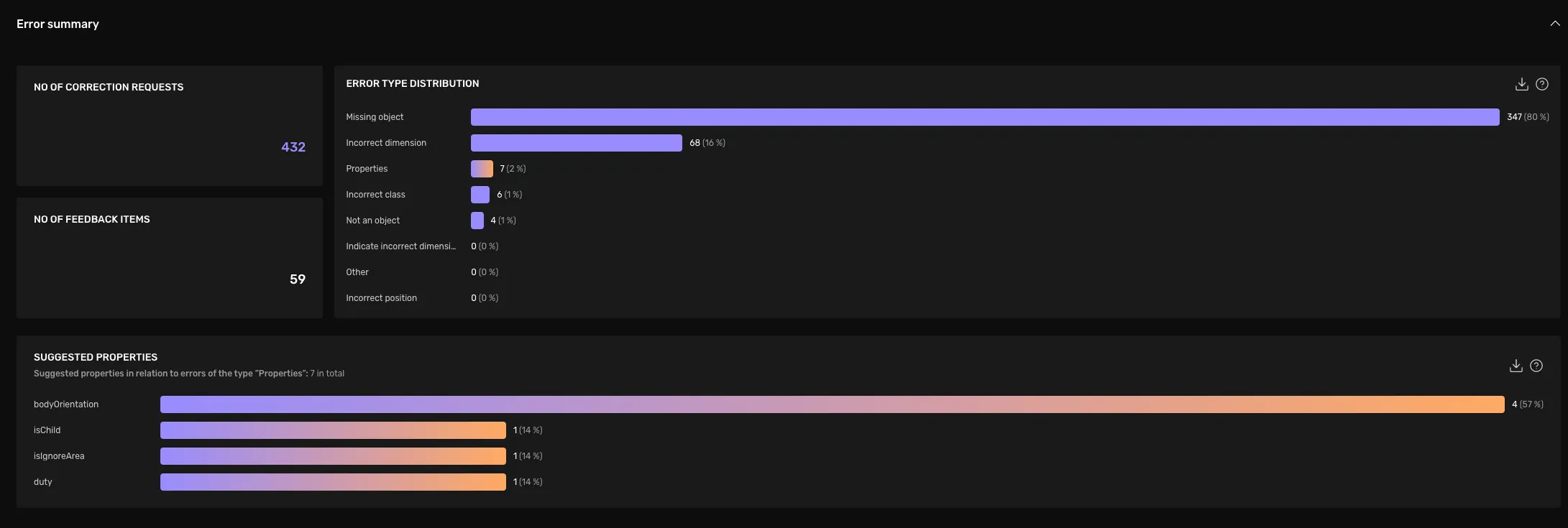
No of Correction Requests
The number of feedback items of the type "Correction Requests". This is the sum of all errors shown in the "Error Type Distribution" to the right.
No of Feedback Items
The number of feedback items of the type "Advice". These are excluded from the chart "Error Type Distribution" and "Suggested properties".
Error Type Distribution
Shows the absolute count and relative share of all feedback items categorized as "Correction Requests", grouped by their error type.
Suggested Properties
For those items with the error type Properties, this shows the distribution of properties that we affected. Each error indicated as Properties has a single property connected to it.
Individual Feedback Items
This section helps you to get an overview of all given feedback, to answer questions such as:
- How detailed and critical is the feedback of my colleague reviewers?
- Are the reviewers giving valid feedback given the current guideline?
- What is feedback where the reviewer and annotator are discussing in the comments?
- How does feedback of type "MissingObject" look?
- What type of feedback is marked as "invalid"?
The items are split up by their feedback type.
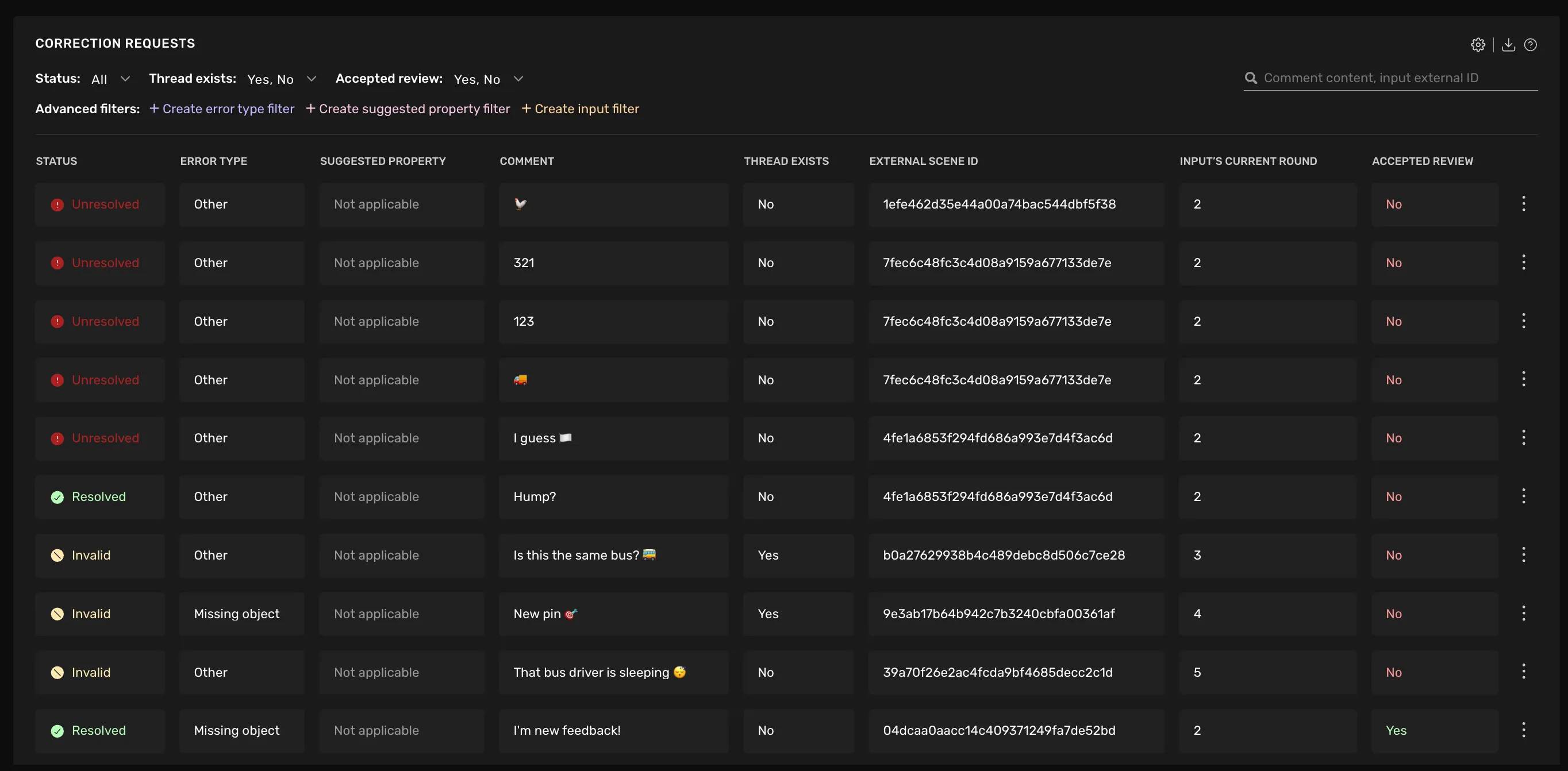
Correction Requests
In this section, you see feedback items for the type Correction Request. These are things that the reviewer wants to get corrected before accepting the review.
You can filter the feedback items by their Resolved status, the Error type, whether a discussion thread exists, or whether the overall Review of the input has been accepted yet.
Below is a description of what information is available for each correction request.
Status
Status | Comment |
|---|---|
Unresolved | When created by the reviewer, and not yet approved |
Corrected | When the annotator has fixed the issue mentioned in the correction request. |
Resolved | When the reviewer has approved the annotators fix. |
Invalid | An item can be marked as "Invalid" by the user if they think it's not accurate with respect to the guidelines of the task, this can be due to mistakes in machine-generated feedback or from human reviewers. |
An item can be "Unresolved" even if the overall Review was accepted, or the other way around.
Error Type The type of error that was selected in the Correction Request.
Suggested property If the Error type is "Properties", this column shows which property and value was suggested by the reviewer.
Comment Shows the description that the reviewer might have given.
Thread exists Will say "Yes", if there was any reply to the item, i.e. a discussion thread has been started in relation to the item.
External Scene ID The scene ID of the reviewed annotation.
Current Round The review round in which the input of this feedback item currently is. All inputs start in round 1. With each rejected review, they progress 1 round forward.
Accepted Review Whether the overall Review was accepted or not.
Feedback
In this section you see feedback items of the type Advice. As the underlying data has less structure, the table has fewer columns and filtering options, but otherwise, it looks the same as the one above.