Introduction
The project management area of the Kognic platform is your main entrance to projects and requests within the Kognic platform. Here you are able to monitor and manage your projects and requests.
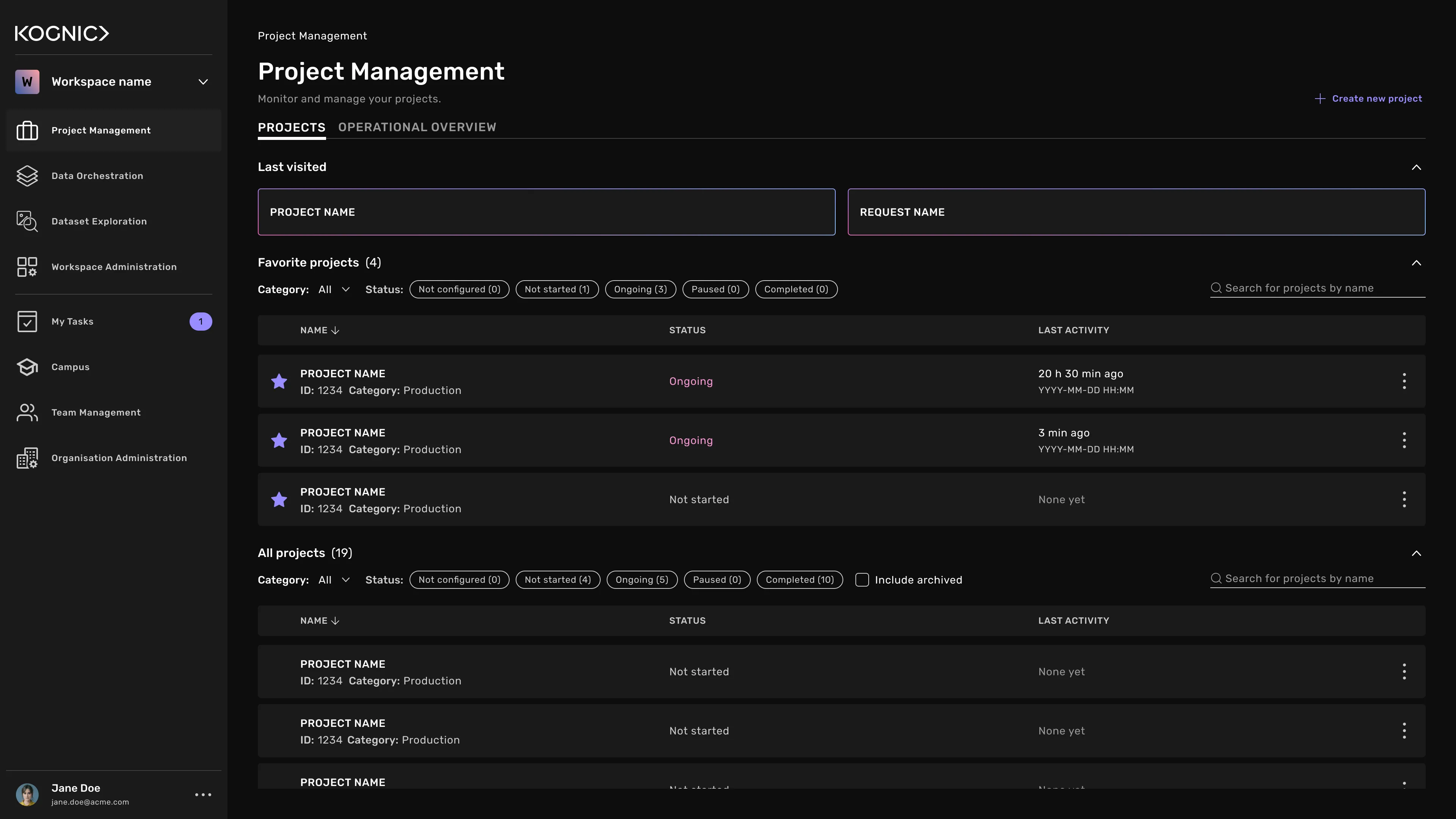
The Project Management landing page
This is where you can get an overview of all the projects in your workspace.
When you open Project Management, you see two tabs:
- Projects: every project in the workspace, plus shortcuts to the ones you use most.
- Operational overview: progress across requests from several projects in one view.
To create a project, click "Create new project" in the top-right corner. You can read more about creating projects and requests in the chapters Guide: Create a new project and Guide: Create a request.
Last visited
The top of the Projects tab shows the most recent project and the most recent request you opened. Click a card to go back to it.
Favorite projects
Star the projects you're currently working in, and they stay pinned at the top of the page. You can mark a project as a favorite from its project page (Mark as favorite) or from the list below.
All projects
The list shows every project in the workspace, with its name, ID, category, status, and creation date. Click a row to open the project.
You can narrow the list with:
- Category: Production, Training, Pilot or Demo.
- Status: click one or more status chips. The number on each chip is how many projects have that status.
- Include archived: archived projects are hidden unless you tick this box.
- Search: search by project name or ID.
To export the table as a CSV file, click the download icon.
Project status
Status | Meaning |
|---|---|
Not configured | There is still some configuration work needed. |
Not started | The project is set up, but work hasn't started. |
Ongoing | Work on the project is in progress. |
Paused | Work is on hold. |
Completed | The work is done. |
To change the status, open the project and choose "Change project status".
When a project is Paused, Completed or archived, the request workforce can't open tasks from that project's requests in My Tasks. You archive a project from the project options menu, not with the status dialog.